

Configure Baidu Qianfan
Baidu Qianfan is a large language model platform launched by Baidu, based on ERNIE (Wenxin) large model technology. It provides powerful Chinese understanding and generation capabilities, supporting multiple versions including ERNIE-4.0 and ERNIE-3.5. Starting from March 2025, individual users can call the API for free.
1. Get Baidu Qianfan API Key
1.1 Access Baidu Intelligent Cloud
Visit the Baidu Intelligent Cloud official website and log in: https://cloud.baidu.com/
If you don't have an account, you need to register a Baidu account first.
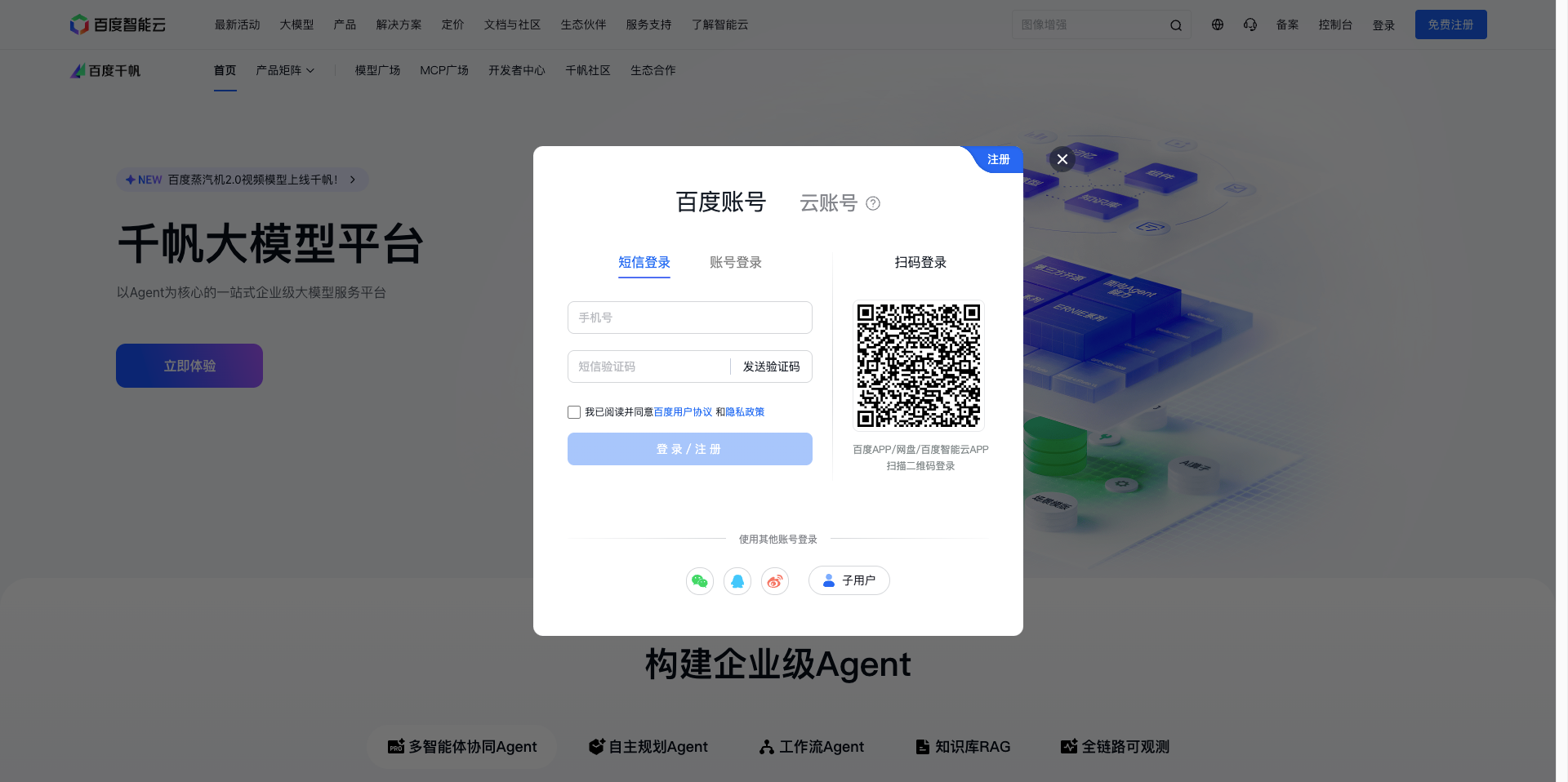
1.2 Enter Baidu Intelligent Cloud Console
After logging in, click the Console button in the upper right corner to enter the Baidu Intelligent Cloud master console.
Baidu Intelligent Cloud is a comprehensive cloud platform providing computing, storage, AI, and other services.
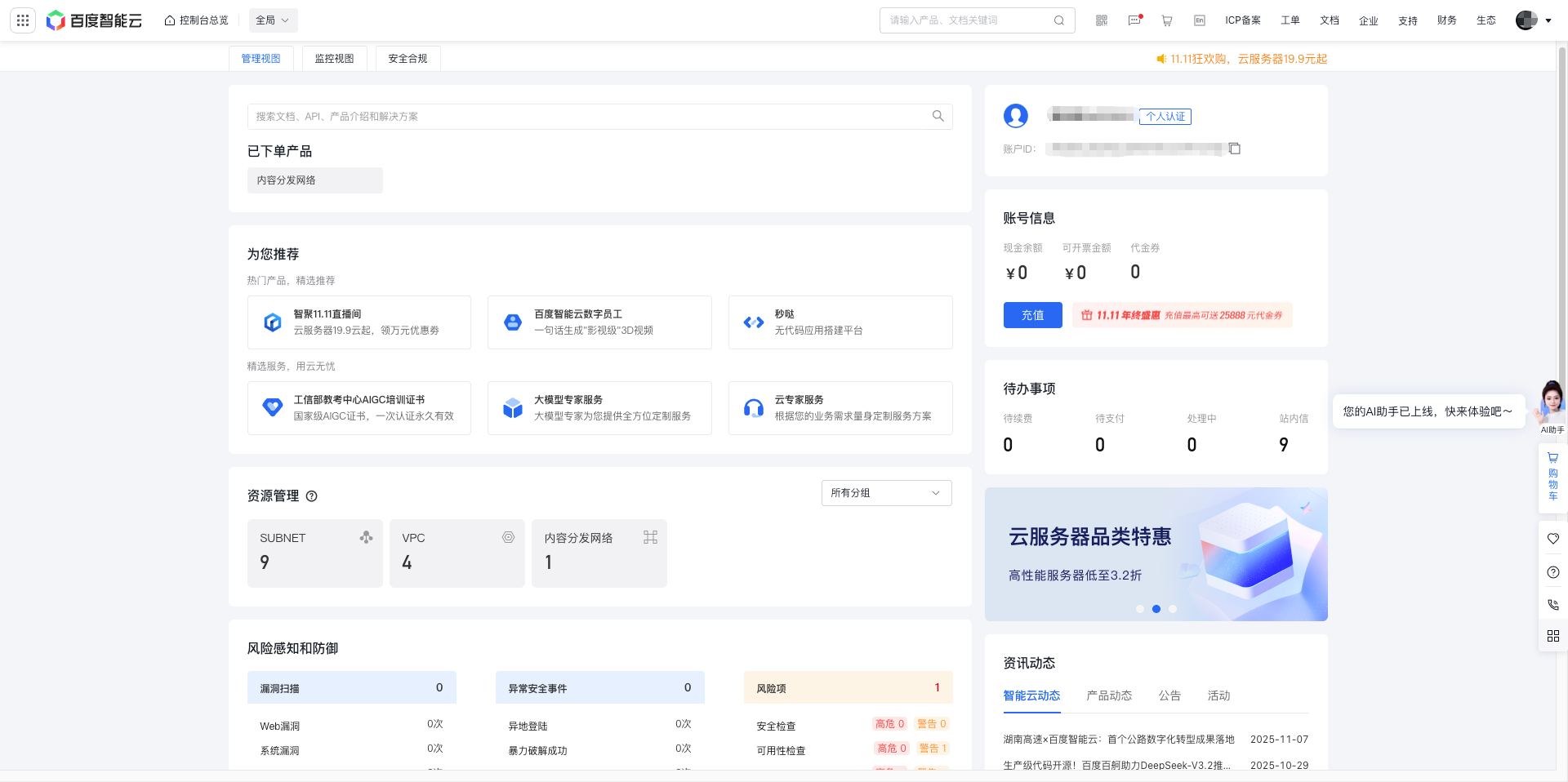
1.3 Find Qianfan Large Model Platform
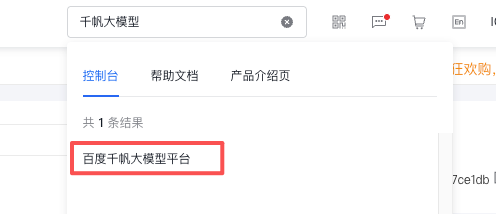
In the Baidu Intelligent Cloud console, find the Qianfan Large Model Platform or ERNIE (Wenxin) Large Model service entry:
- Method 1: Search for "Qianfan" or "ERNIE" on the console homepage
- Method 2: Find Artificial Intelligence → Qianfan Large Model Platform in the left menu
- Method 3: Directly access the Qianfan platform console: https://console.bce.baidu.com/qianfan/overview
Click to enter the Qianfan Large Model Platform.
When entering the Qianfan Large Model Platform for the first time, a user service agreement will pop up, which needs to be agreed to before continuing. Please read and agree to the agreement.
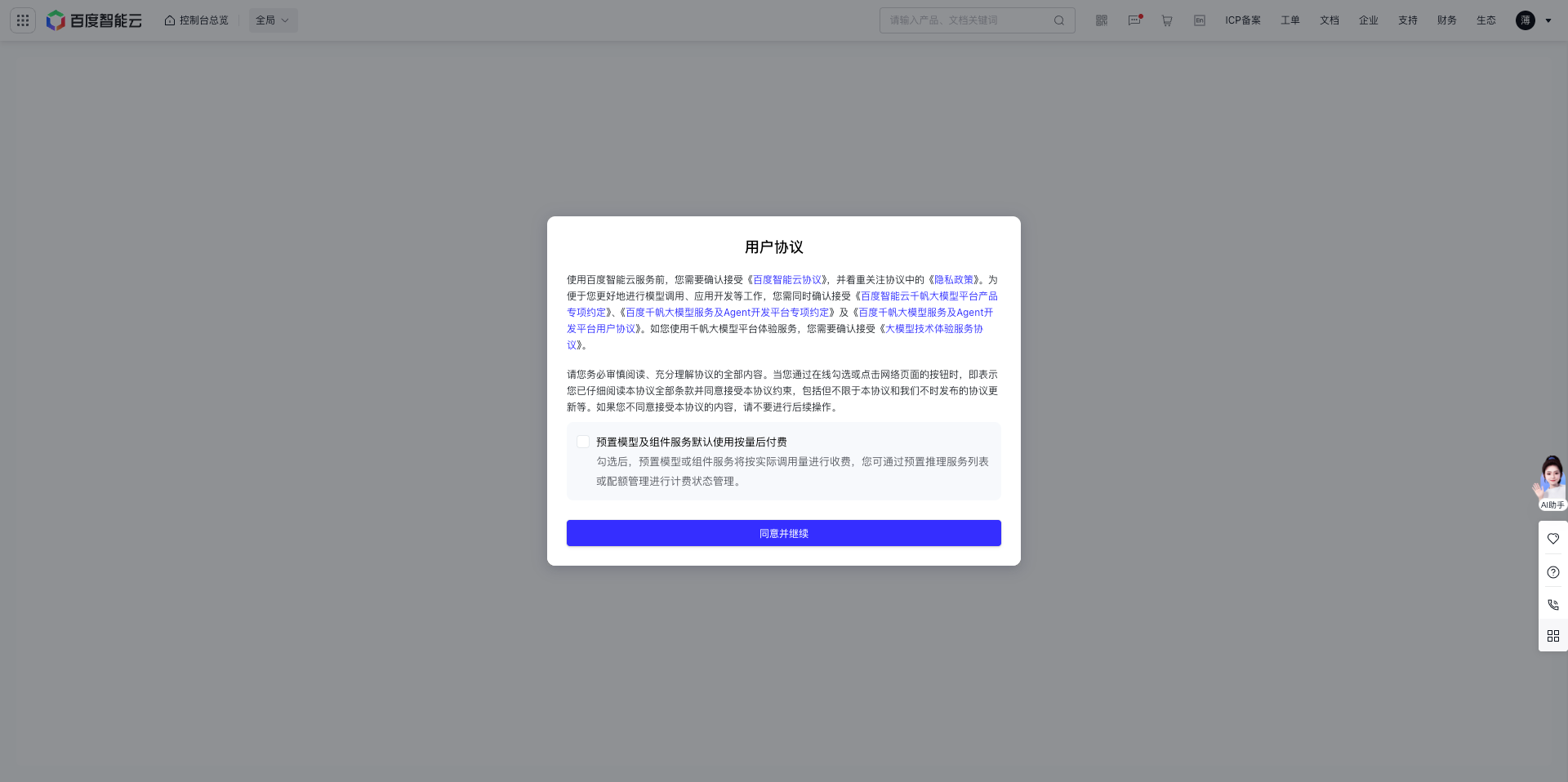
1.4 Enter API Key Management Page
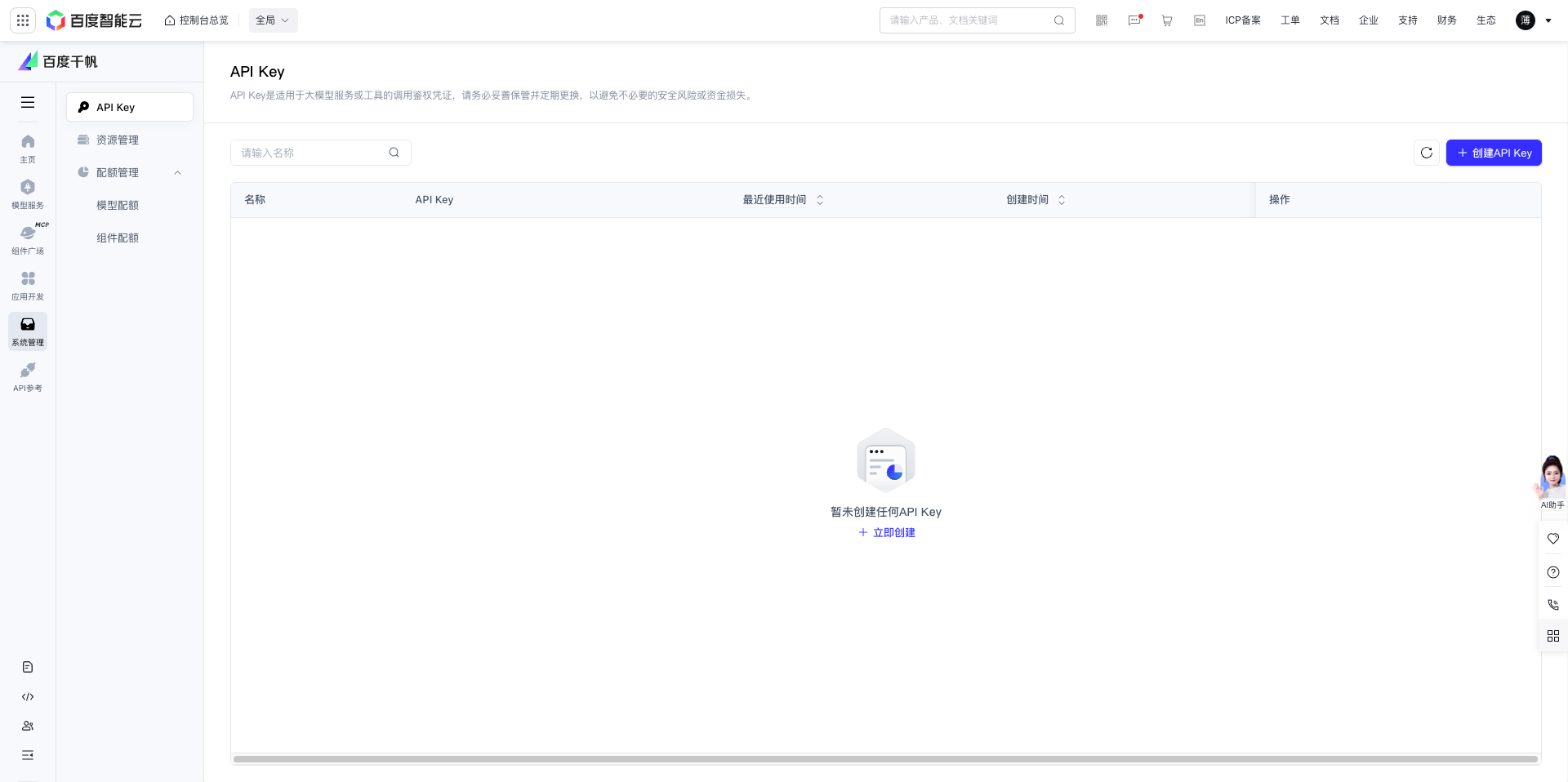
In the left menu of the Qianfan Large Model Platform, click the API Key menu item under System Management.
After entering the API Key management page, you can see the page prompt: "API Key is a credential for authentication when calling large model services and tools. Please keep it safe and change it regularly to avoid unnecessary security risks or financial losses."
1.5 Create API Key
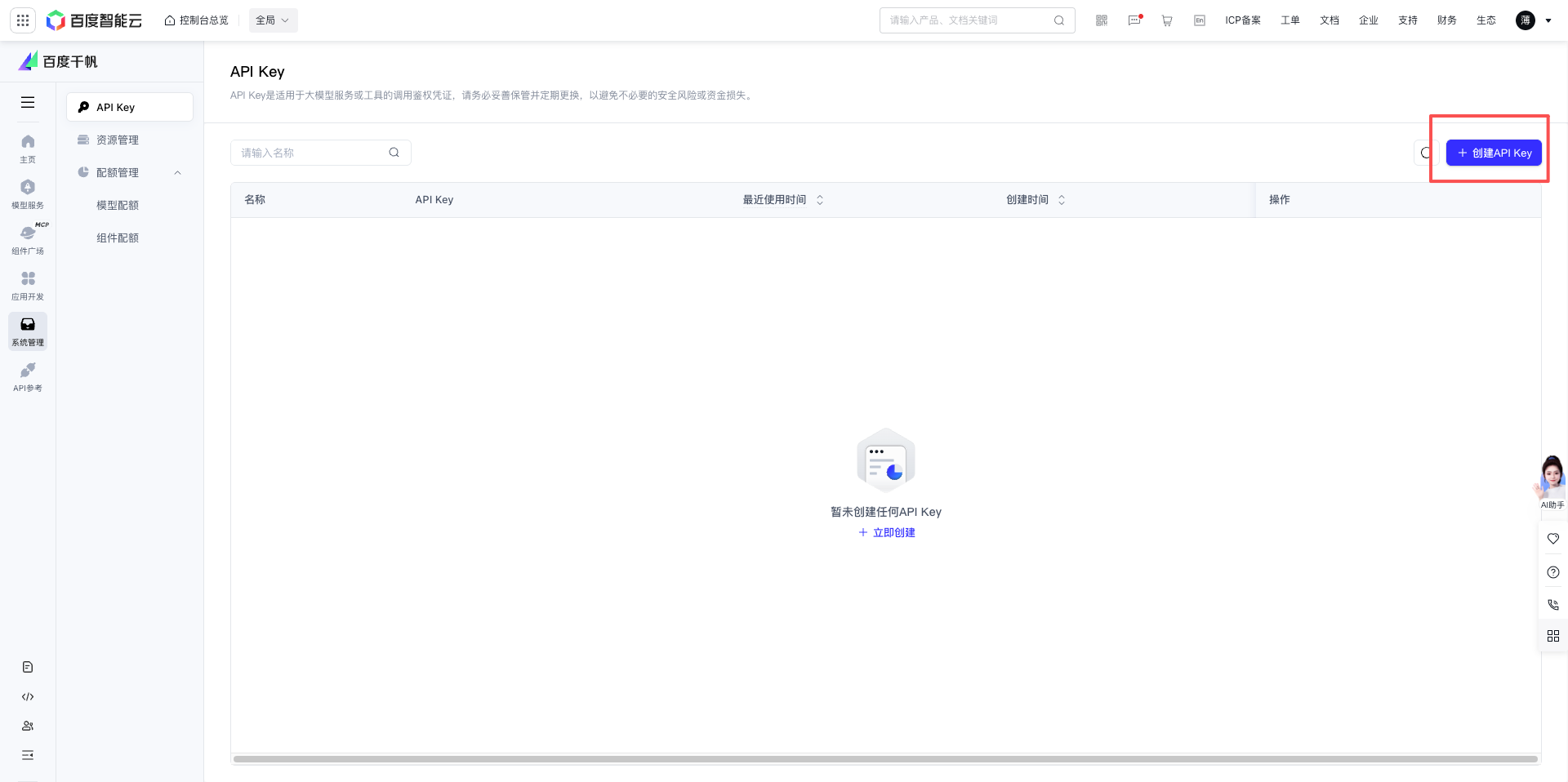
Click the Create API Key button in the upper right corner (blue button).
1.6 Fill in API Key Information
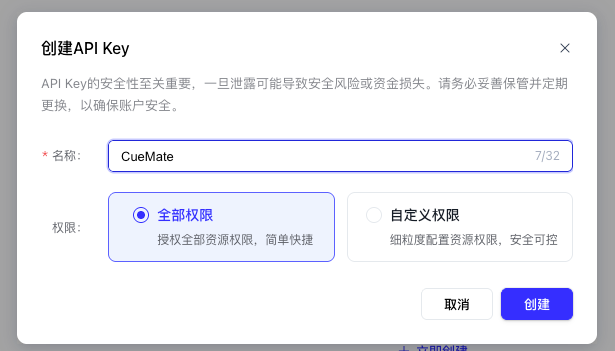
In the pop-up dialog, fill in:
- Name: Give this API Key a name, such as "CueMate" (for easy identification of purpose later)
- Grant "All Permissions" or "Custom Permissions"
- Click the Create button
1.7 Copy API Key
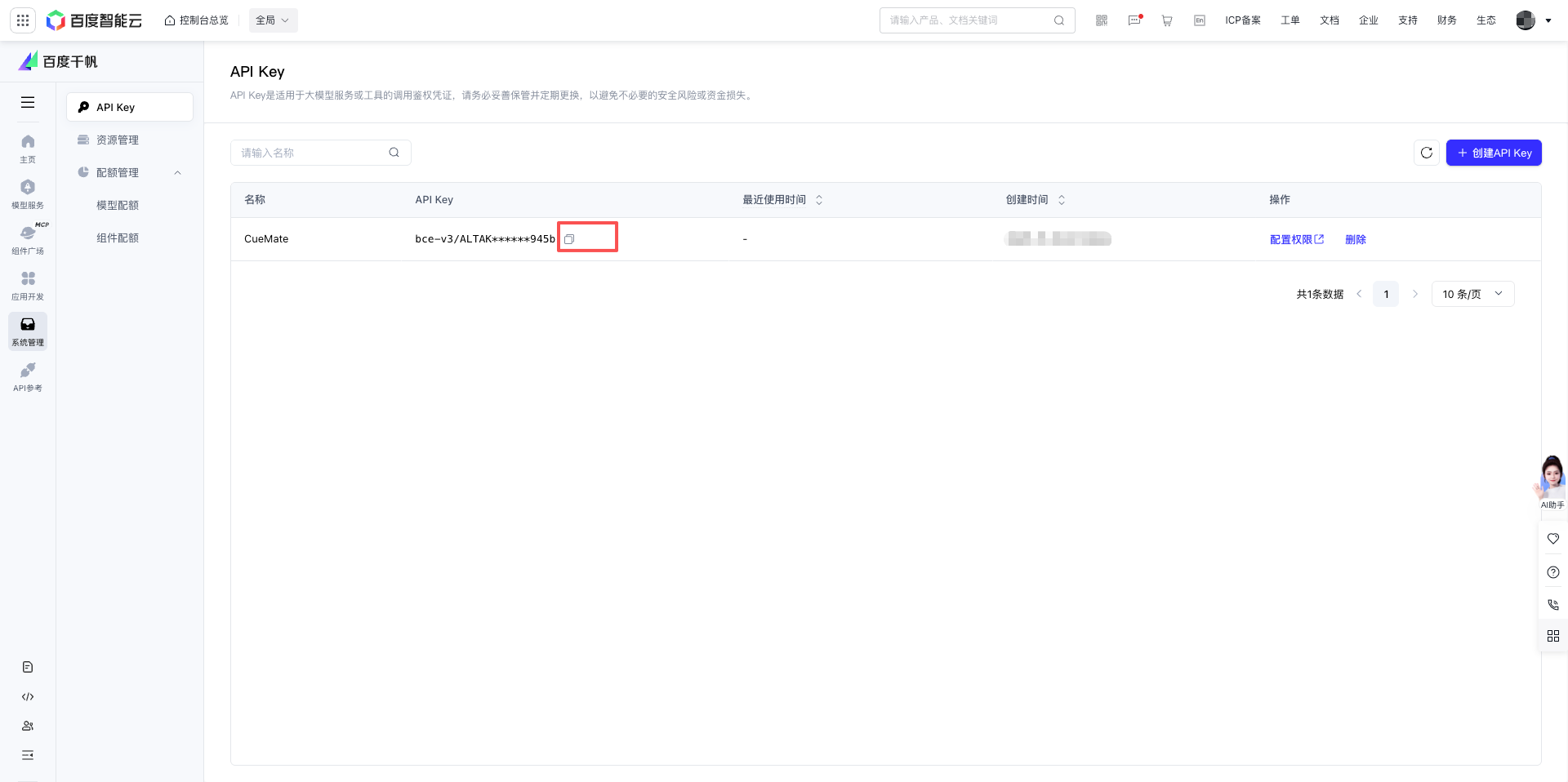
After successful creation, your API Key will be displayed.
Important Notice:
- API Key is used for authentication when calling Baidu Qianfan large model API
- Please keep it safe and do not disclose it to others
- If the API Key is leaked, please delete it immediately and create a new one
Click the copy button to copy and save the API Key to a notepad or other secure location, which will be used in subsequent configurations.
2. Configure Baidu Qianfan Model in CueMate
2.1 Enter Model Settings Page
After logging into CueMate, click Model Settings in the dropdown menu in the upper right corner.
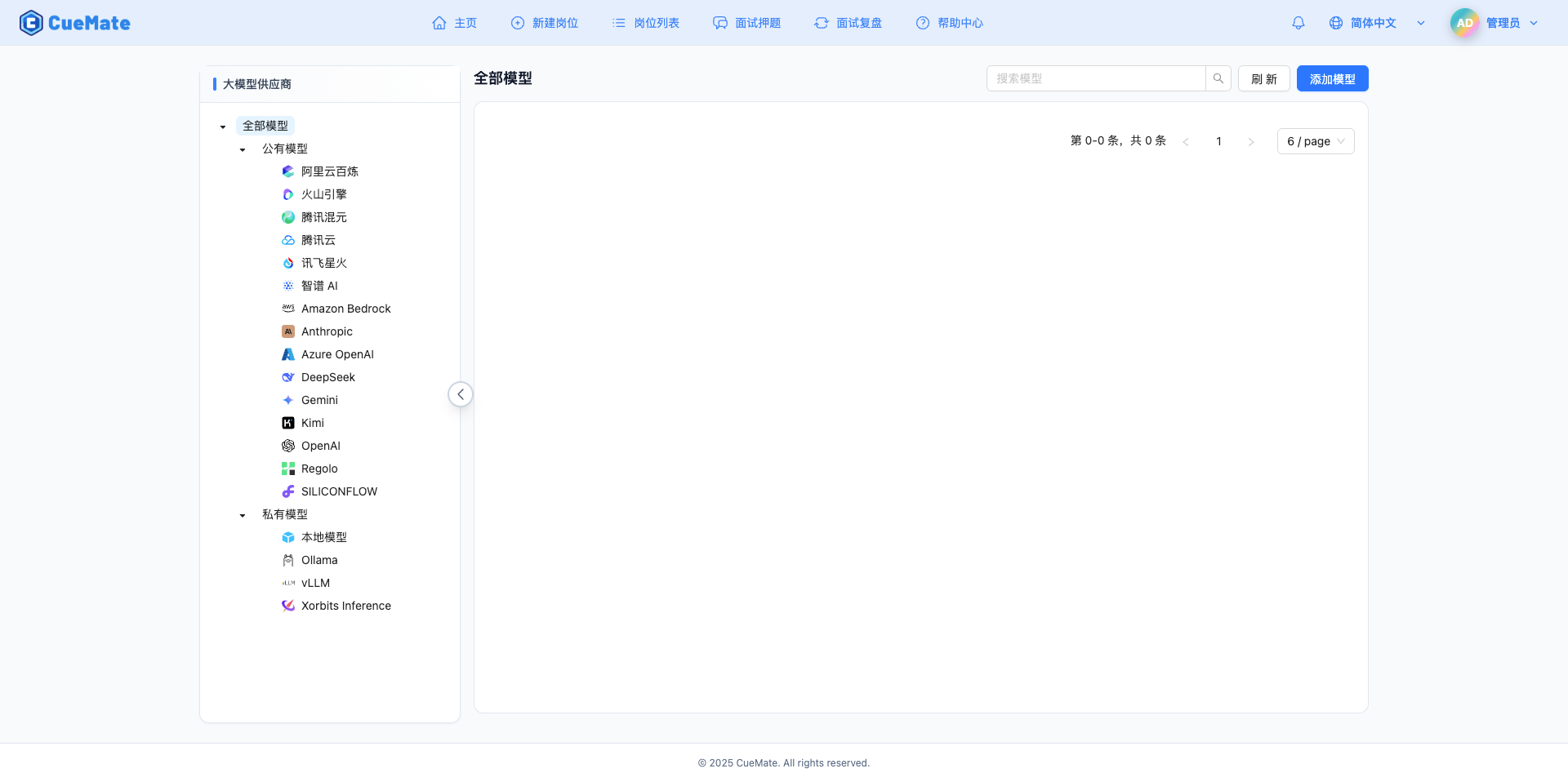
2.2 Add New Model
Click the Add Model button in the upper right corner.

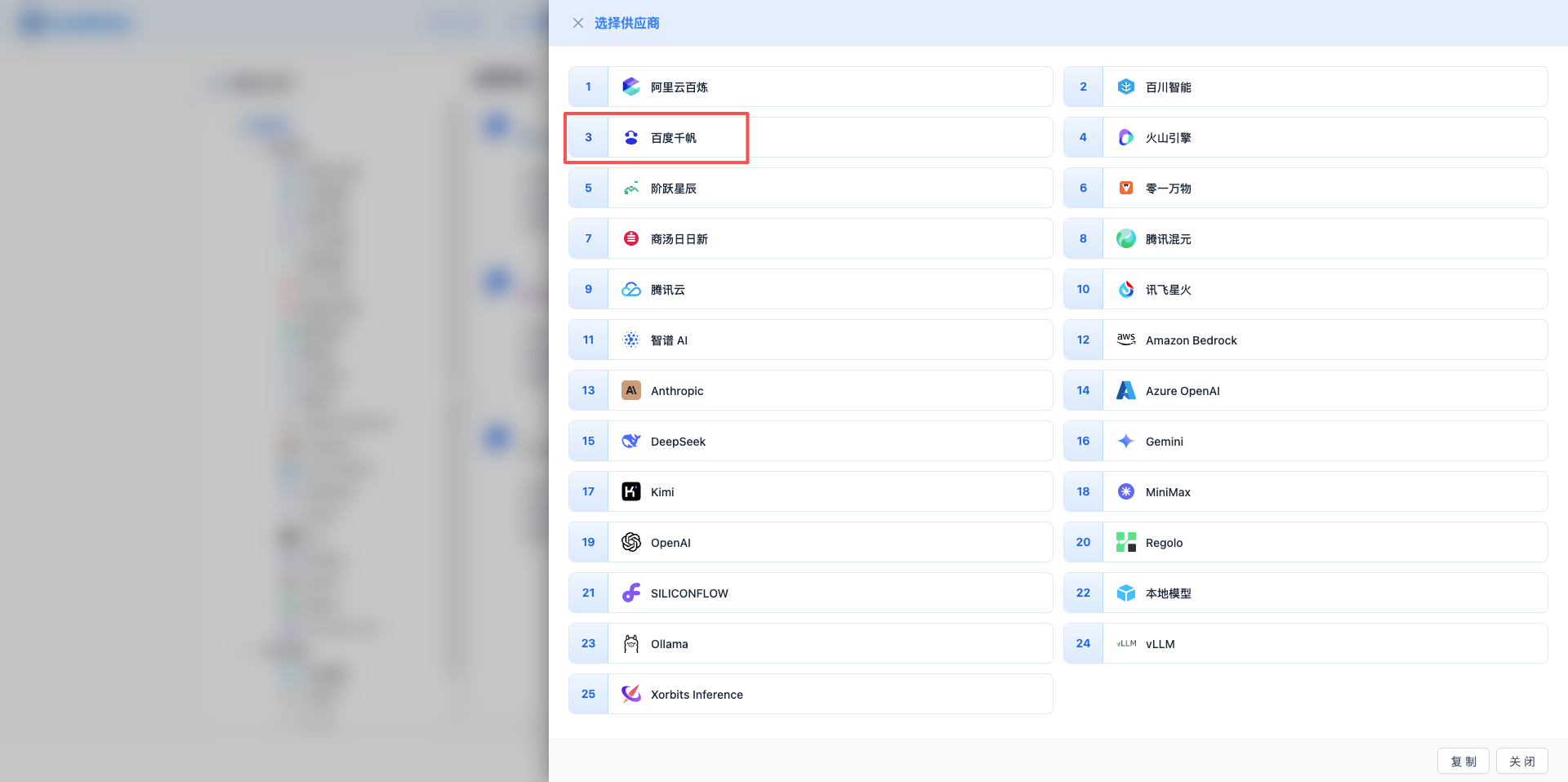
2.3 Select Baidu Qianfan Provider
In the pop-up dialog:
- Provider Type: Select Baidu Qianfan
- Click to automatically proceed to the next step
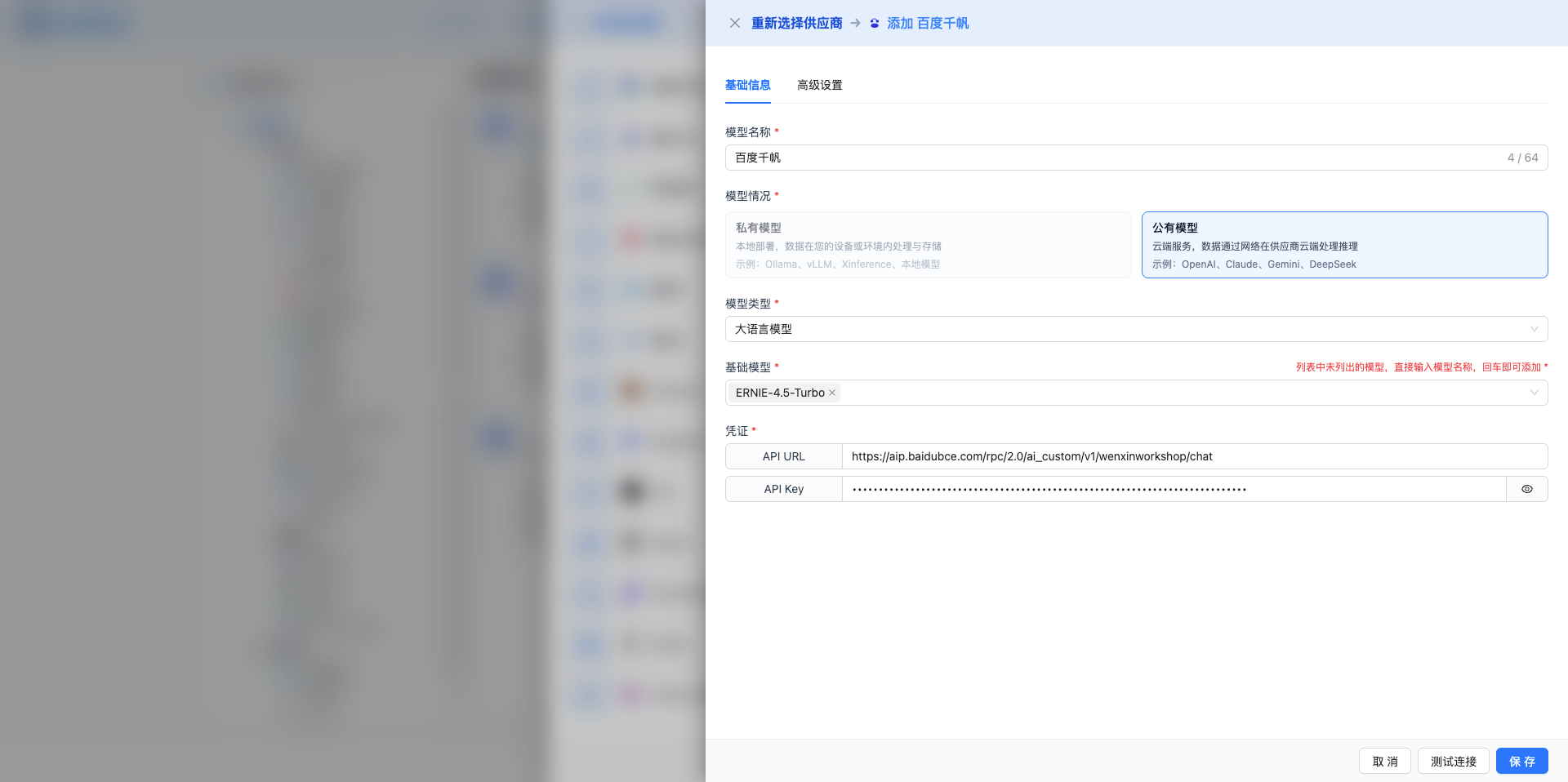
2.4 Fill in Configuration Information
Fill in the following information on the configuration page:
Basic Configuration
- Model Name: Give this model configuration a name (e.g., ERNIE-4.5-Turbo)
- API URL: Keep the default
https://aip.baidubce.com/rpc/2.0/ai_custom/v1/wenxinworkshop/chat - API Key: Paste the Baidu API Key you just copied
- Model Version: Select the model ID to use, commonly used models include:
ERNIE-4.5-Turbo: ERNIE 4.5 Turbo version, 16K+ context, most powerful, suitable for complex tasksERNIE-4.5: ERNIE 4.5 version, 16K+ context, free for individual usersERNIE-Speed-AppBuilder: Speed optimized version, fast response, suitable for high-frequency calls
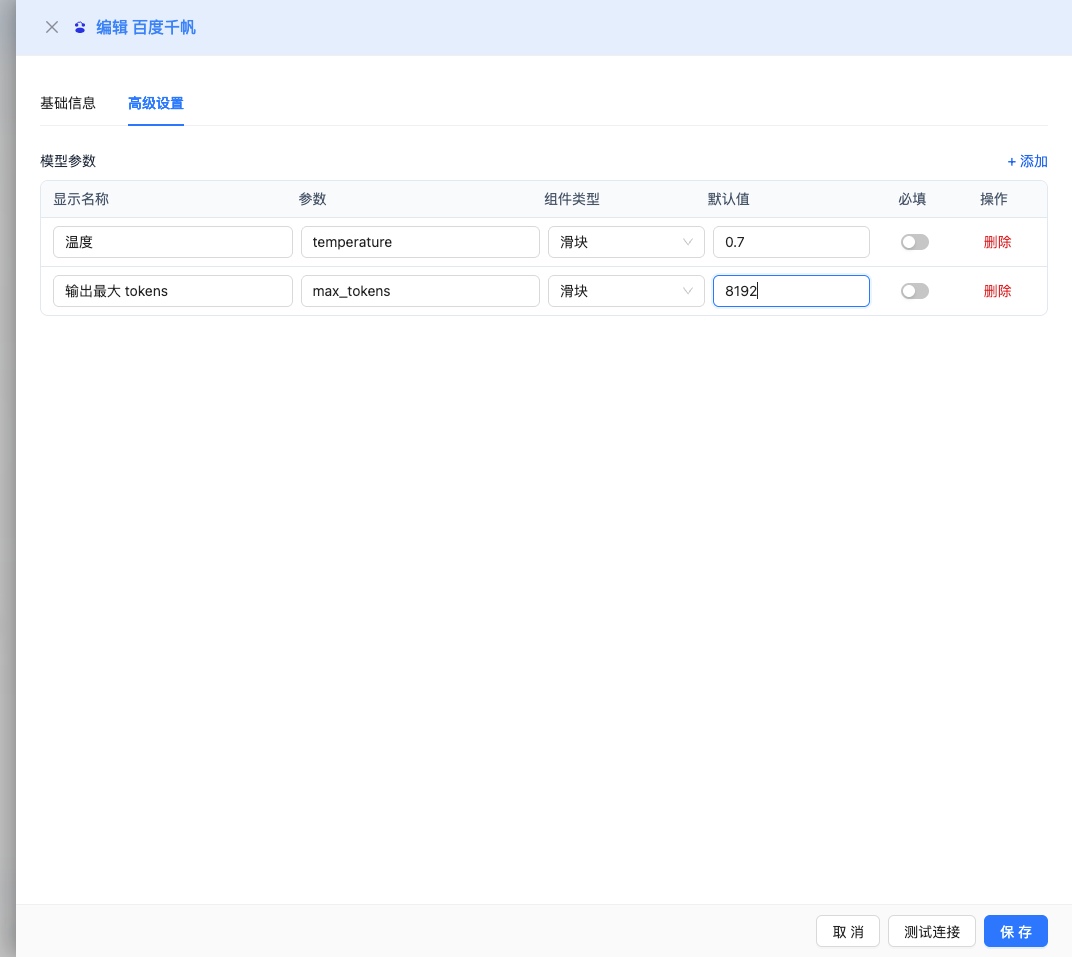
Advanced Configuration (Optional)
Expand the Advanced Configuration panel to adjust the following parameters:
Temperature: Controls output randomness
- Range: 0-1 (ERNIE series), 0-2 (DeepSeek/Llama/Qwen series)
- Default Value:
- ERNIE series: 0.95
- DeepSeek series: 1.0
- Other models: 0.7
- Effect: Higher values produce more random and creative output, lower values produce more stable and conservative output
- Usage Recommendations:
- Creative writing/brainstorming: 0.8-1.0
- General conversation/Q&A: 0.7-0.9
- Code generation/precise tasks: 0.3-0.5
- Logical reasoning/mathematical calculations: 0.1-0.3
Max Tokens: Limits the maximum output length
- Range: Depending on the model
- Recommended Value: 4096
- Effect: Controls the maximum number of tokens in a single model response
- Model Limits:
- ERNIE-4.5/ERNIE-4.5-Turbo: max 8192 tokens
- ERNIE-Speed-AppBuilder: max 4096 tokens
- DeepSeek-V3/V3.2: max 8192 tokens
- DeepSeek-V3.1-Think/V3.2-Think: max 8000 tokens
- Kimi-K2-Instruct: max 4096 tokens
- Llama series: max 4096 tokens
- Qwen series: max 6144 tokens
- GLM-4 series: max 4095 tokens
- Yi-Lightning: max 4096 tokens
- Usage Recommendations:
- Short Q&A: 1024-2048
- General conversation: 2048-4096
- Long text generation: 4096-8192
- Code generation: 2048-4096
Other Advanced Parameters Supported by Baidu Qianfan API:
While the CueMate interface only provides temperature and max_tokens adjustments, if you call Baidu Qianfan directly via API, some models also support the following parameters:
top_p (nucleus sampling)
- Range: 0-1
- Default Value: 0.8
- Effect: Samples from the smallest candidate set with cumulative probability of p
- Relationship with temperature: Usually only adjust one of them
- Usage Recommendations:
- Maintain diversity while avoiding nonsense: 0.9-0.95
- More conservative output: 0.7-0.8
penalty_score
- Range: 1.0-2.0
- Default Value: 1.0
- Effect: Reduces the probability of repetitive content
- Usage Recommendations:
- Reduce repetition: 1.2-1.5
- Allow moderate repetition: 1.0-1.1 (default)
stream
- Type: Boolean
- Default Value: false
- Effect: Enable SSE streaming return, generating and returning incrementally
- In CueMate: Automatically handled, no manual setting required
Parameter Tuning Tips:
- Creative scenarios: High temperature (0.8-1.0) + low penalty_score (1.0-1.1)
- Precise scenarios: Low temperature (0.1-0.3) + medium penalty_score (1.2-1.3)
- Balanced scenarios: Medium temperature (0.7) + medium penalty_score (1.1-1.2)
- Long text generation: Appropriately increase max_tokens, reduce temperature to ensure coherence
2.5 Test Connection
After filling in the configuration, click the Test Connection button to verify if the configuration is correct.
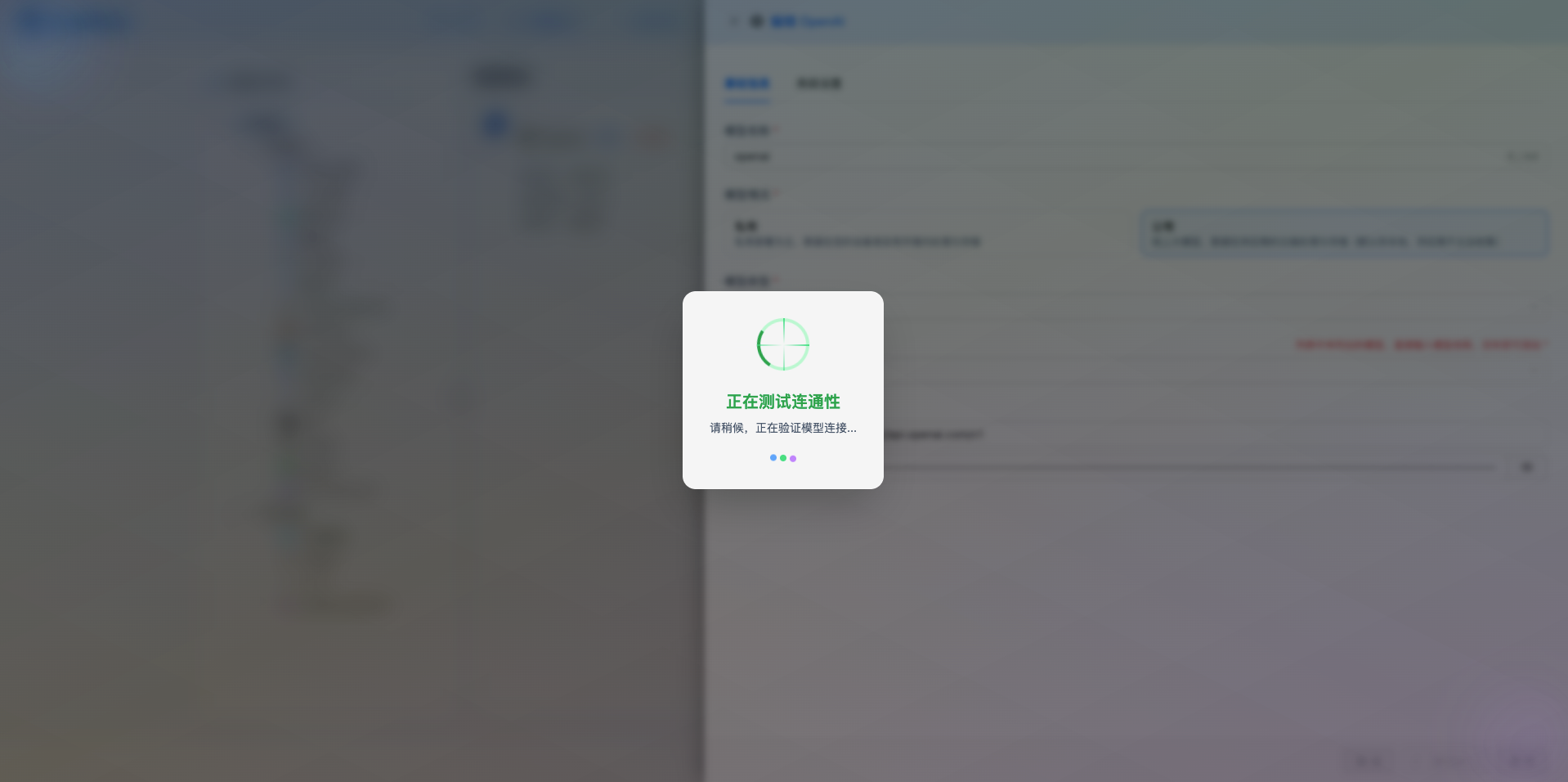
If the configuration is correct, a success message will be displayed with a sample model response.
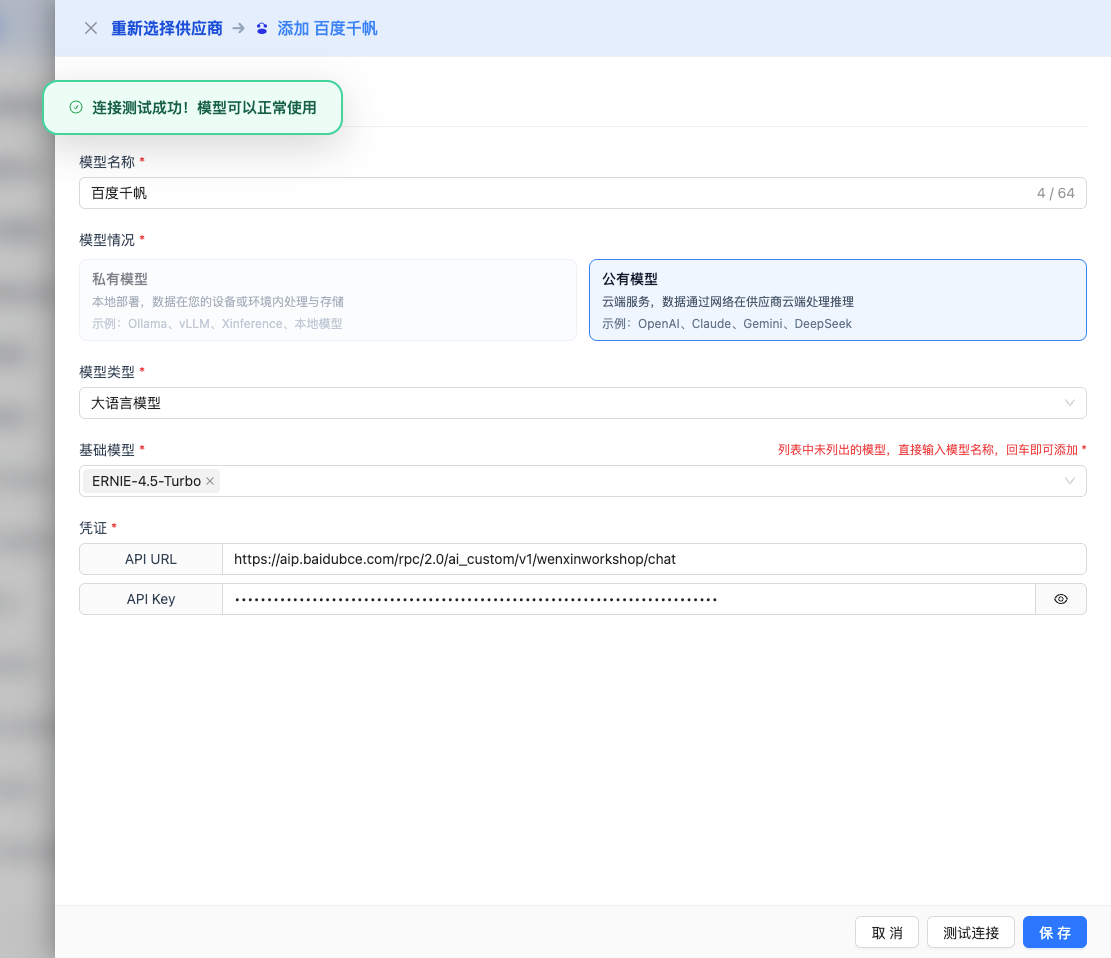
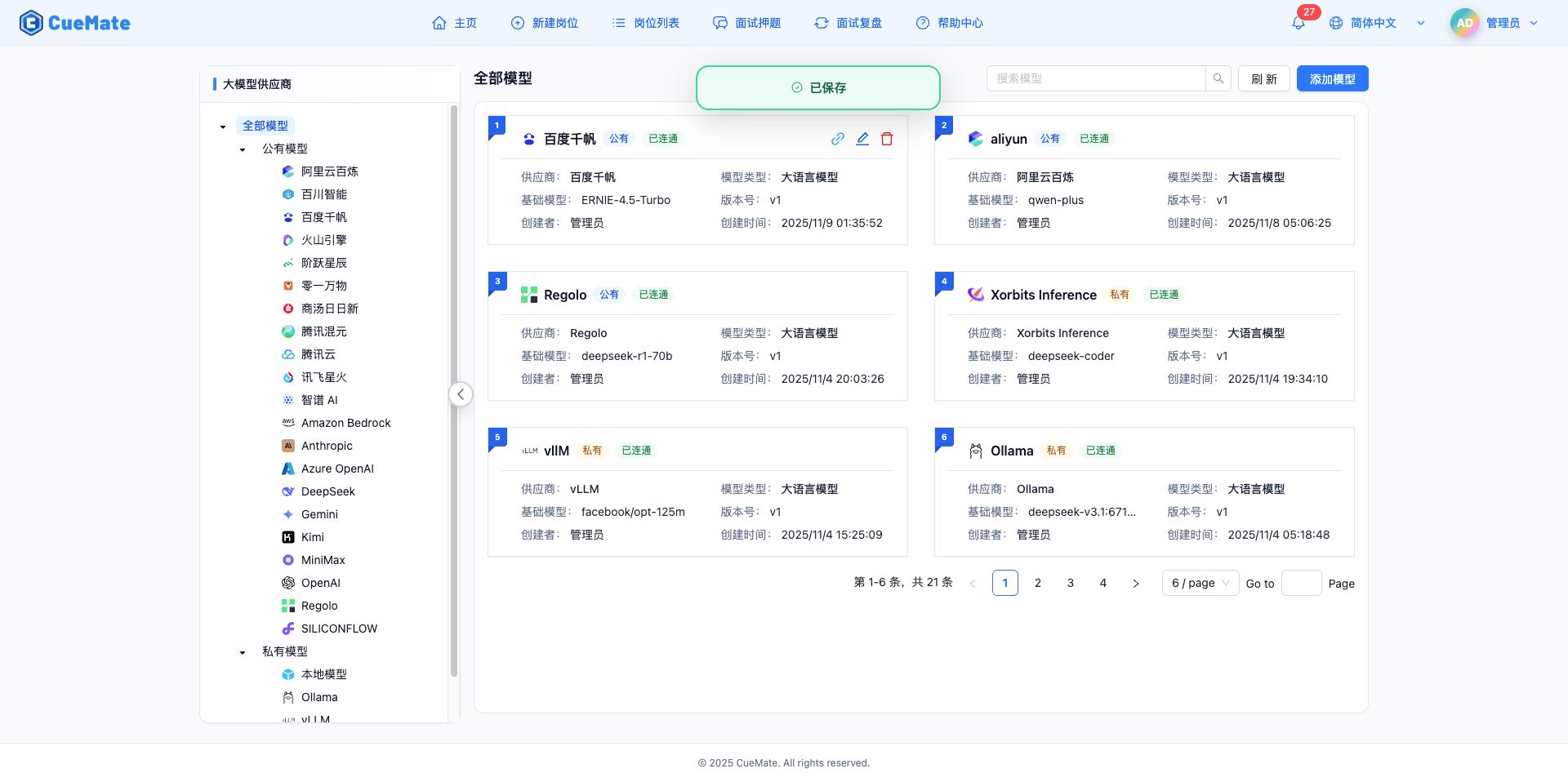
2.6 Save Configuration
After successful testing, click the Save button to complete the model configuration.
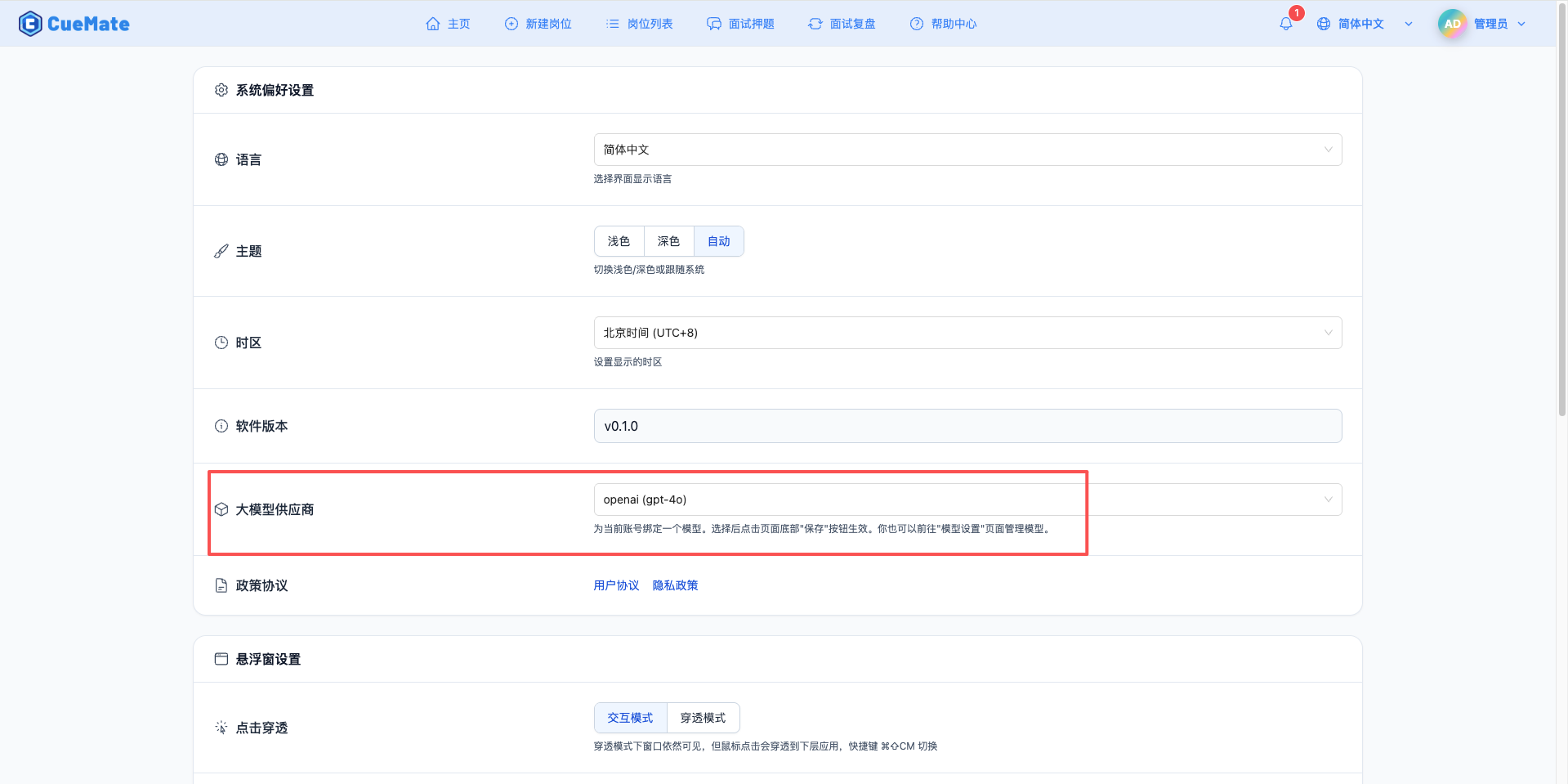
3. Use the Model
Through the dropdown menu in the upper right corner, enter the system settings interface and select the model configuration you want to use in the large model provider section.
After configuration, you can select to use this model in interview training, question generation, and other functions, or of course, you can individually select the model configuration for each interview in the interview options.
4. Supported Model List
The Baidu Qianfan platform supports 54+ large models, including Baidu's own ERNIE series and third-party models. The following is a list of commonly used models:
4.1 ERNIE Series (Baidu's own)
| No. | Model Name | Model ID | Context Length | Use Cases |
|---|---|---|---|---|
| 1 | ERNIE-4.5-Turbo | ERNIE-4.5-Turbo | 16K+ tokens | Complex tasks, deep understanding, code generation |
| 2 | ERNIE-4.5 | ERNIE-4.5 | 16K+ tokens | General conversation, daily use (free) |
| 3 | ERNIE-Speed-AppBuilder | ERNIE-Speed-AppBuilder | 8K tokens | Fast response, high-frequency calls |
4.2 DeepSeek Series (Deep Seek)
| No. | Model Name | Model ID | Context Length | Use Cases |
|---|---|---|---|---|
| 1 | DeepSeek-V3.2 | DeepSeek-V3.2 | 16K tokens | High-performance reasoning, code generation |
| 2 | DeepSeek-V3.2-Think | DeepSeek-V3.2-Think | 16K tokens | Deep reasoning, complex problems |
| 3 | DeepSeek-V3 | DeepSeek-V3 | 16K tokens | General conversation |
| 4 | DeepSeek-V3.1-Think | DeepSeek-V3.1-Think | 16K tokens | Deep reasoning |
4.3 Kimi Series (Moonshot AI)
| No. | Model Name | Model ID | Context Length | Use Cases |
|---|---|---|---|---|
| 1 | Kimi-K2-Instruct | Kimi-K2-Instruct | 16K tokens | Long text understanding, conversation |
4.4 Llama Series (Meta)
| No. | Model Name | Model ID | Context Length | Use Cases |
|---|---|---|---|---|
| 1 | Llama-3.3-70B-Instruct | Llama-3.3-70B-Instruct | 16K tokens | General conversation, code generation |
| 2 | Llama-3.1-405B-Instruct | Llama-3.1-405B-Instruct | 16K tokens | High-performance reasoning |
4.5 Qwen Series (Tongyi Lab/Alibaba)
| No. | Model Name | Model ID | Context Length | Use Cases |
|---|---|---|---|---|
| 1 | Qwen2.5-72B-Instruct | Qwen2.5-72B-Instruct | 16K tokens | General conversation, code generation |
| 2 | Qwen2.5-7B-Instruct | Qwen2.5-7B-Instruct | 8K tokens | Lightweight conversation |
4.6 GLM Series (Zhipu AI)
| No. | Model Name | Model ID | Context Length | Use Cases |
|---|---|---|---|---|
| 1 | GLM-4-Plus | GLM-4-Plus | 16K tokens | Complex tasks, code generation |
| 2 | GLM-4-Flash | GLM-4-Flash | 8K tokens | Fast response |
4.7 Yi Series (01.AI)
| No. | Model Name | Model ID | Context Length | Use Cases |
|---|---|---|---|---|
| 1 | Yi-Lightning | Yi-Lightning | 16K tokens | Fast response, cost-effective |
Note:
- The above only lists commonly used models, please visit the Baidu Qianfan platform for the complete model list
- Model IDs need to be filled in accurately when configuring
- Different models have different billing standards, please check the official pricing information
5. Common Issues
5.1 Invalid API Key
Symptom: API Key error message when testing connection
Solution:
- Check if the API Key and Secret Key are correct
- Confirm the application has been activated
- Check if the account has available quota
5.2 Request Timeout
Symptom: No response for a long time when testing connection or using
Solution:
- Check if the network connection is normal
- Confirm the API URL address is correct
- Check firewall settings
5.3 Insufficient Quota
Symptom: Error message indicating quota has been used up or insufficient balance
Solution:
- Log in to the Qianfan platform to check account balance
- Recharge or apply for more quota
- Optimize usage frequency