
Interview Training
The Interview Training feature is designed for actual interview scenarios, recognizing interviewer questions in real-time, retrieving relevant answers from the knowledge base, and providing professional answer suggestions. This feature helps you get real-time answer references during actual interviews to improve your interview performance.
Use Cases:
- Real Person Simulation: Through video tools like Tencent Meeting or Zoom, friends play the interviewer role and ask questions, the system automatically captures speaker audio
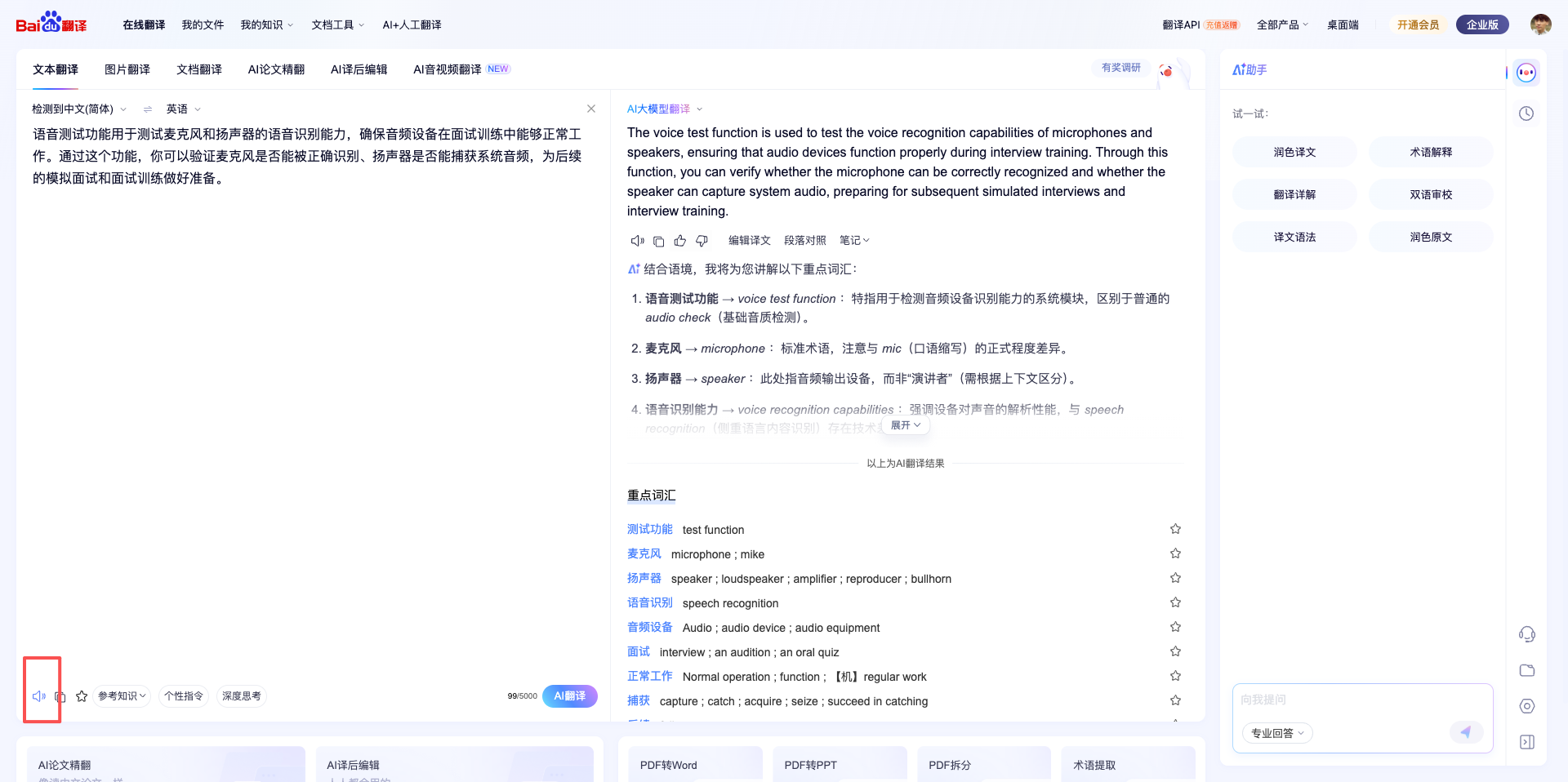
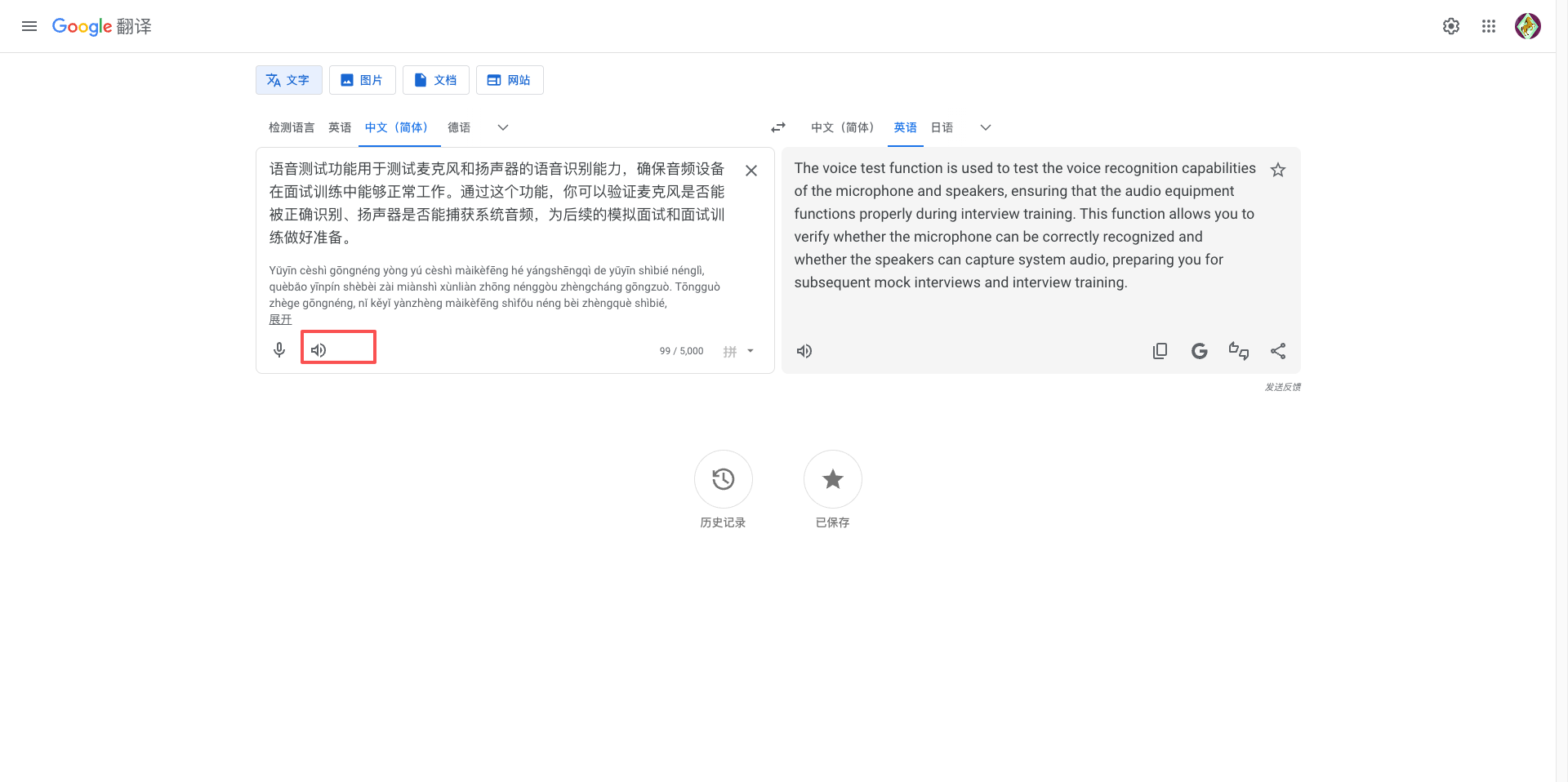
- Voice Simulation: Enter question text on translation websites (like Baidu or Google Translate), click the voice playback button, the system recognizes the question through speaker audio
1. Page Navigation
1.1 Prerequisites
Search for the CueMate application icon on the launcher and left-click to open the application.

After launching the CueMate desktop application, you can see the control window floating directly above the screen. The button functions of the control window from left to right are:
- "Visit CueMate website" icon: click to open the CueMate official website
- "Voice Recognition" button: Click to start the voice recognition function and open the voice function window
- "Ask AI" button: Click to open the AI question window, quickly ask AI questions and get answers
- "Interactive mode" icon: Switch the click penetration mode of the window (interactive mode can operate the window normally, clicks in penetration mode will penetrate to the underlying application)
- "Main application window" icon: Click to open the main application window and enter the background management interface
- "Show/Hide" icon: Click to hide or show the control bar and all other windows

1.2 Option 1: Launch from Control Bar
Steps:
- Click the "Voice Recognition" icon on the floating control bar to open the voice recognition window.
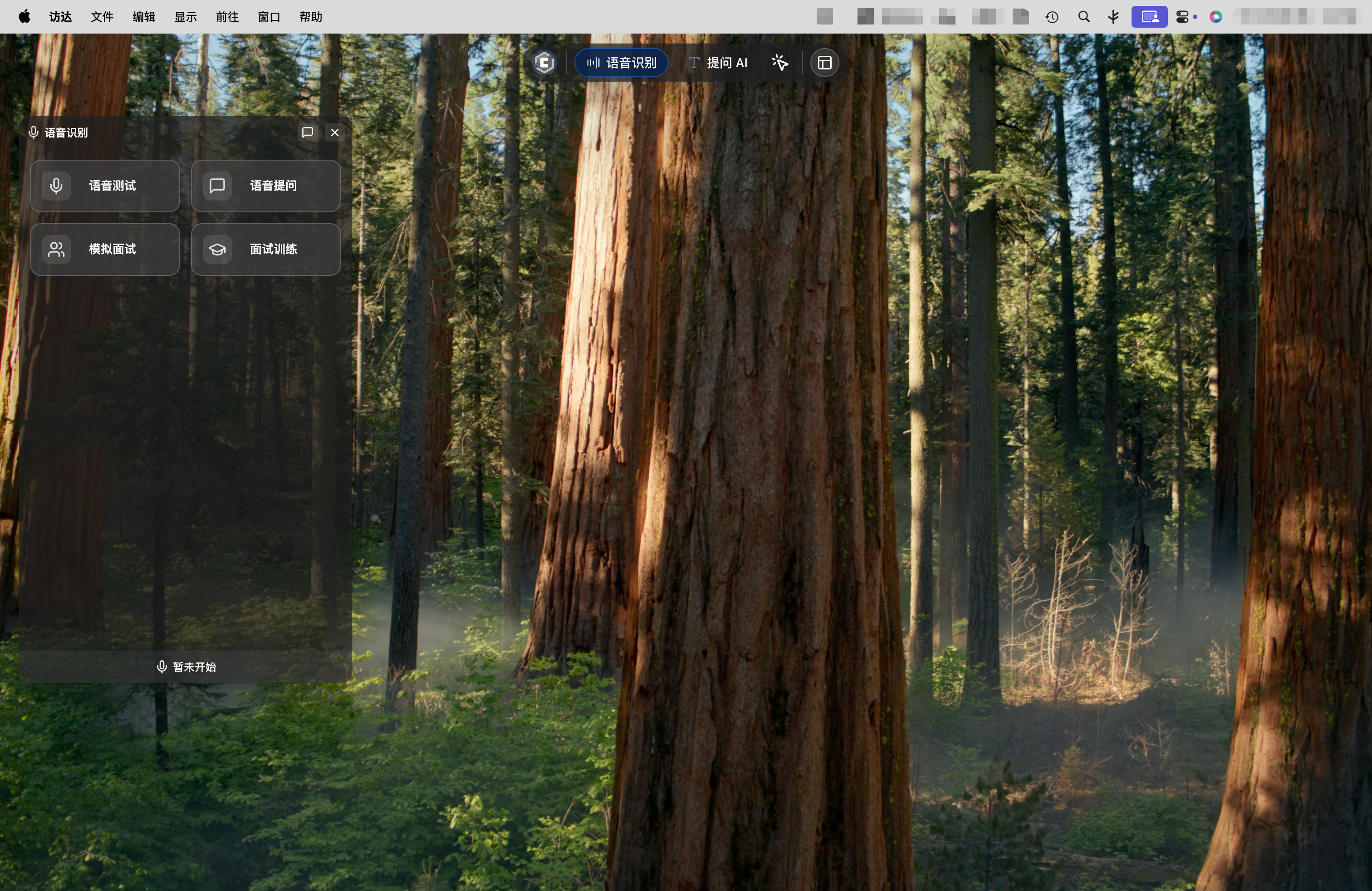
- In the popup window, click the "Interview Training" card.
Window Layout:
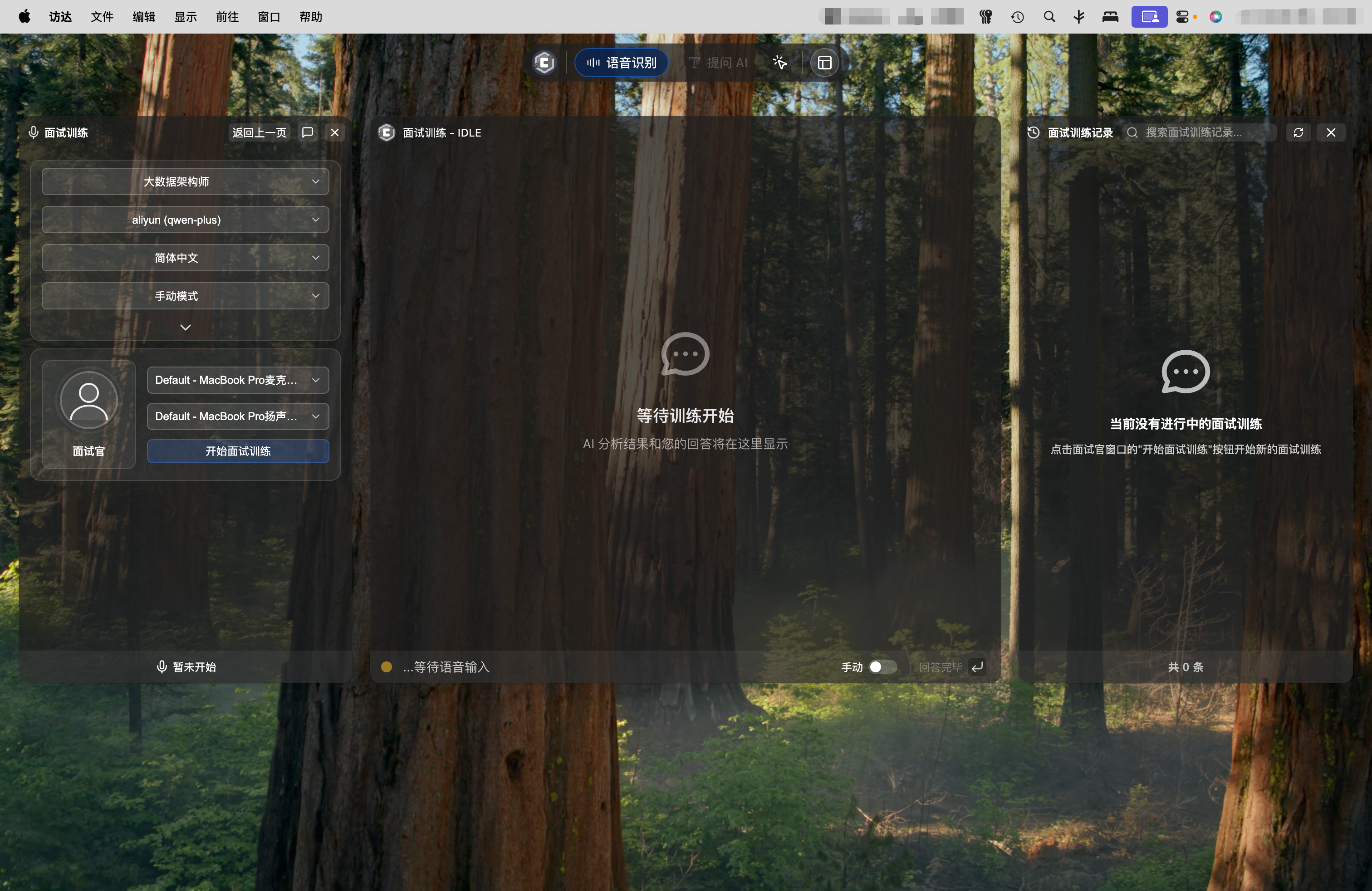
The system automatically opens three windows, displayed at the top center of the screen:
- Left Window: Interviewer window (displays interviewer questions and control panel)
- Middle Window: Interview conversation window (displays AI-generated reference answers and your real-time responses)
- Right Window: History window (records all completed Q&As)
1.3 Option 2: Launch from Home
Steps:
- Click the "Main Application Window" icon on the floating control bar to open the main application window.
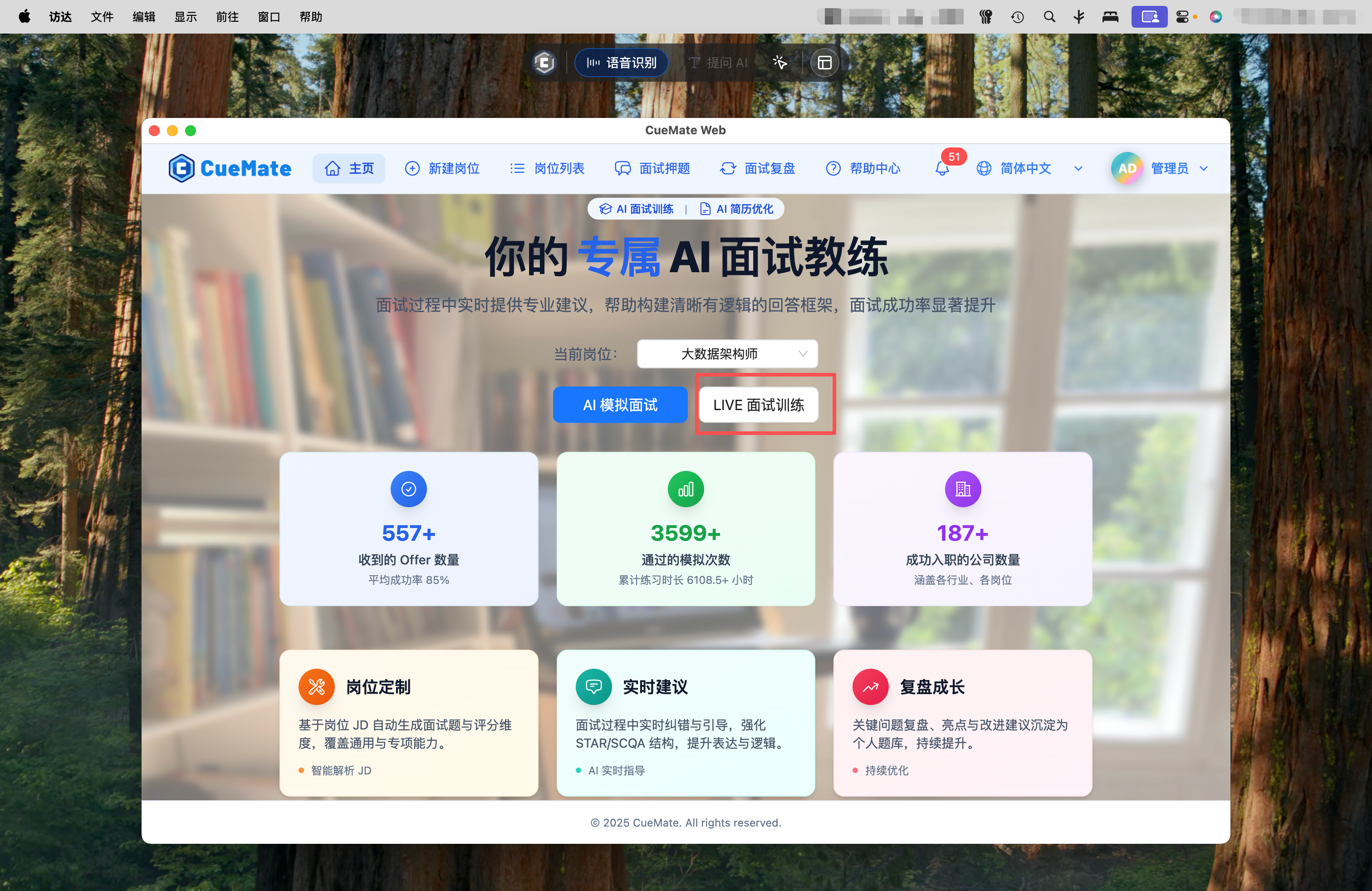
- After selecting a position on the Home page, click the "LIVE Interview Training" button.
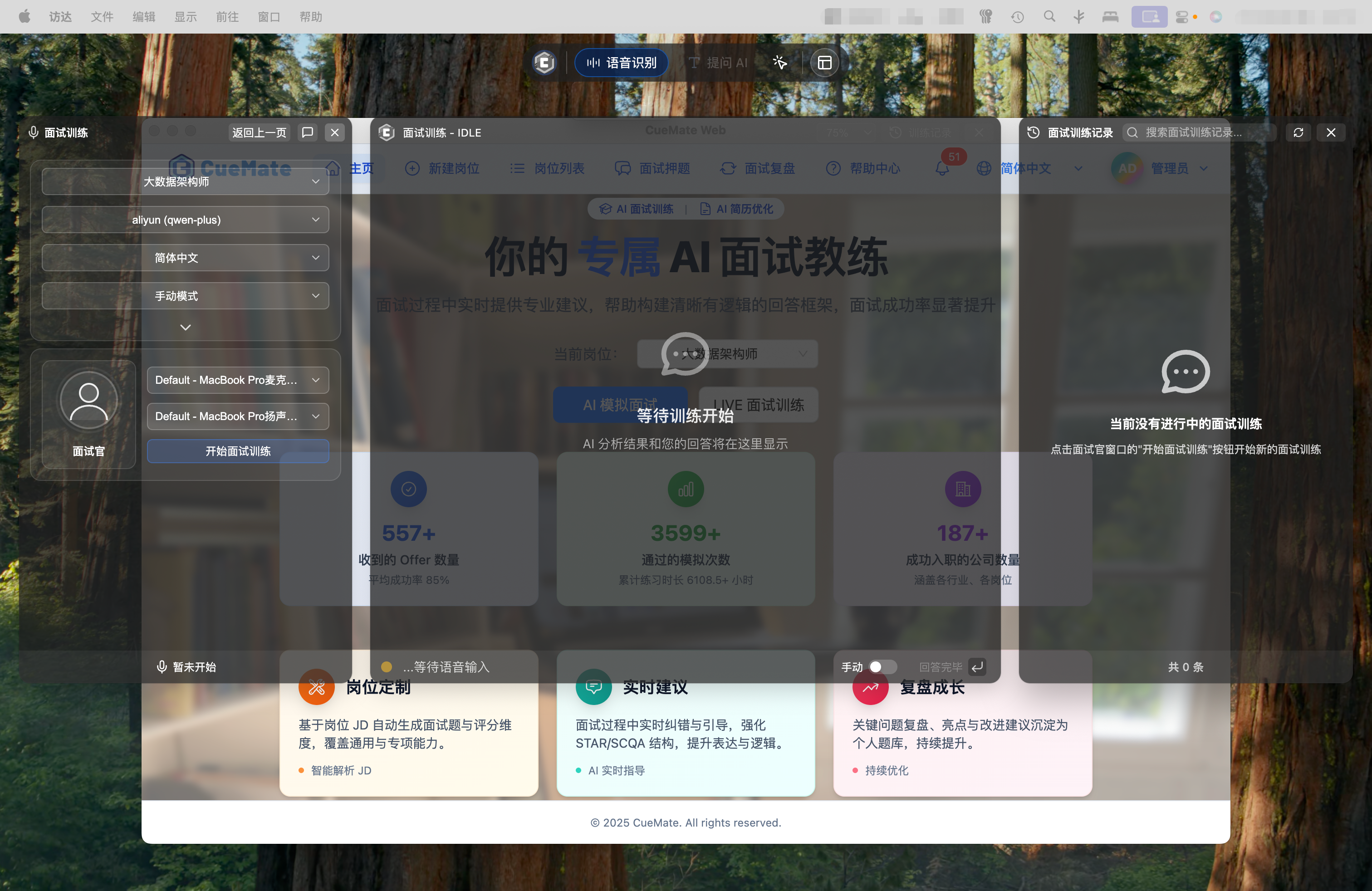
The system automatically opens the interview training window with the same layout as launching from the control bar, and automatically fills in your selected position information.
2. Start Interview Training
2.1 Confirm Training Configuration
In the left interviewer window, confirm the following settings:
Position Information
The top displays the current training position information card, including:
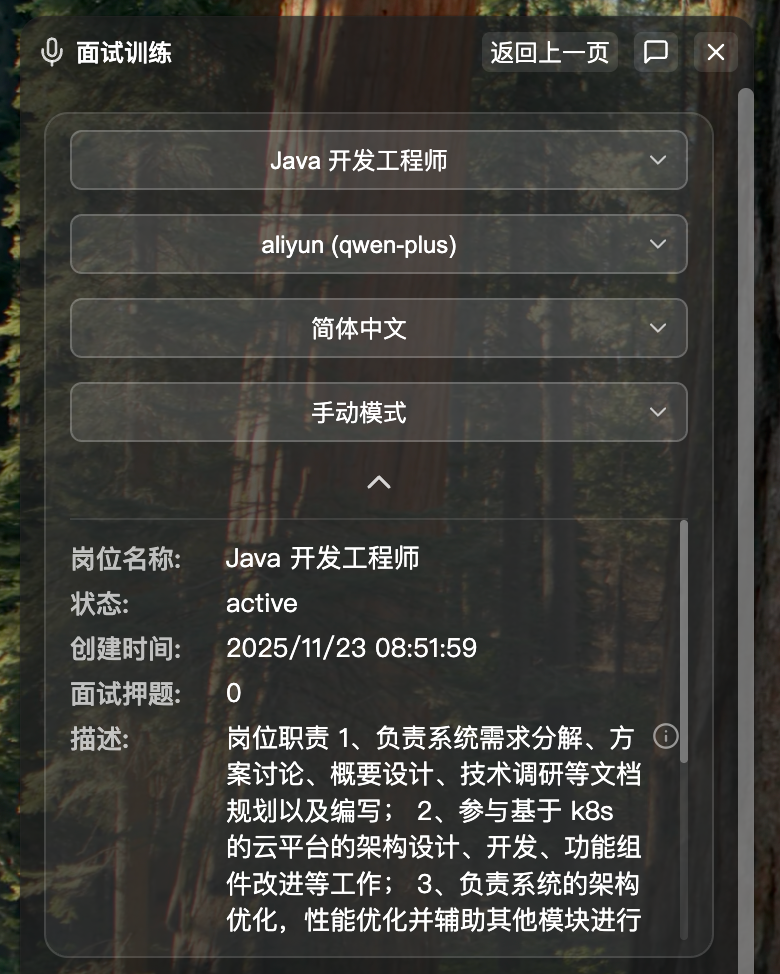
- Position name (including position description and resume JD information)
- Selected LLM (for generating answer suggestions)
- Voice language (Simplified Chinese/Traditional Chinese/English)
- Training mode (Manual mode/Auto mode, see Submit Answer)
- Manual Mode (Default): You control the pace entirely. After interviewer asks a question, click "Question Complete" button to get AI answer. Suitable for friend mock interviews and repeated practice
- Auto Mode: No manual operation needed. System automatically detects pauses and gets AI answer. Suitable for real online interview scenarios (Note: Long pauses may trigger falsely)
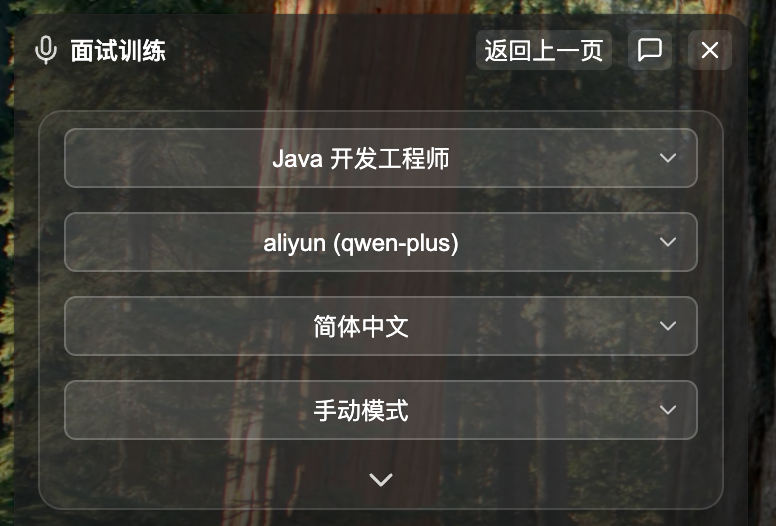
Click the expand button below the card to view complete position description and resume JD information.
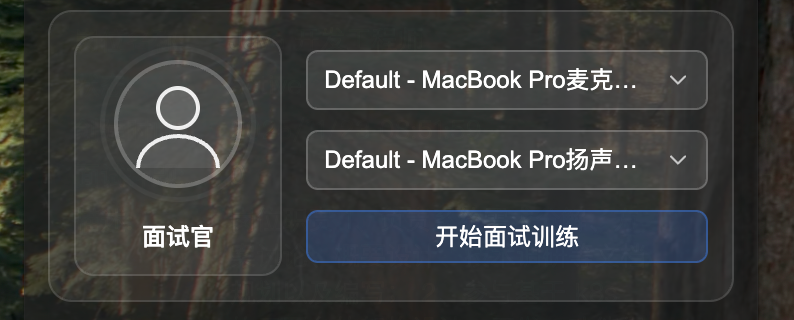
Audio Device Selection
Configure audio devices:
Microphone Device: Select microphone for recording your answers (optional)
- System automatically lists all available audio input devices
- Defaults to microphone configured in Voice Settings - Microphone Settings
- This device records your answers for later review
Speaker Device: Select speaker device for capturing interviewer voice (required)
- System automatically lists all available audio output devices
- Defaults to speaker configured in Voice Settings - Speaker Settings
- Captures audio output from interview software (Tencent Meeting/Zoom) via AudioTee technology
IMPORTANT
- System Audio Capture Permission: Interview training requires "Screen Recording" permission to capture audio output from interview software. If not authorized, refer to permission authorization steps in Voice Test.
2.2 Start Training
After confirming configuration, click the "Start LIVE Training" button at the bottom of the left window.

System automatically executes the following initialization process:
Create Training Session
- Create new interview training record with unique ID
- Save position information, resume content, model configuration, etc.
- Set training type to
training
Initialize Context Management
- Build resume and JD summary
- Prepare conversation history management
- Optimize context to reduce token consumption
Start Speaker Monitoring
- Start AudioTee system audio capture
- Connect to cuemate-asr speech recognition service
- Begin monitoring audio output from interview software
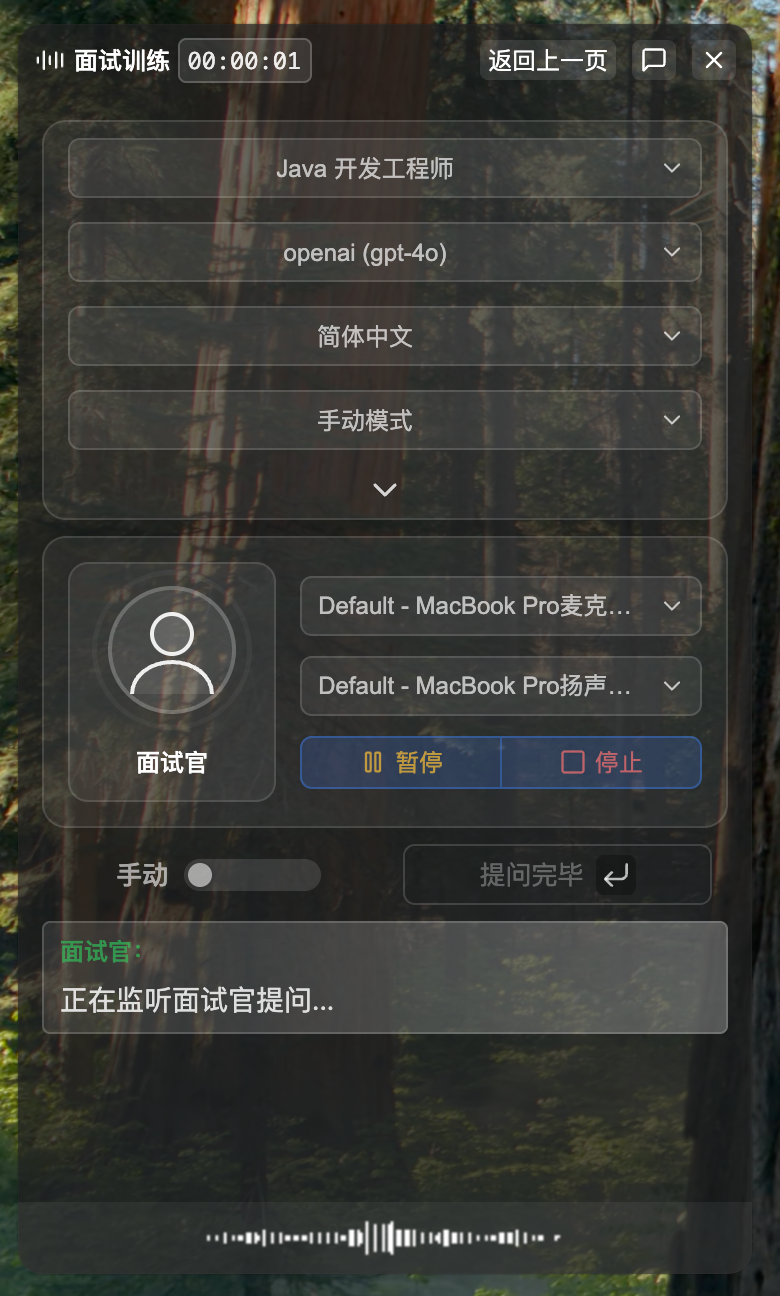
Enter Listening State
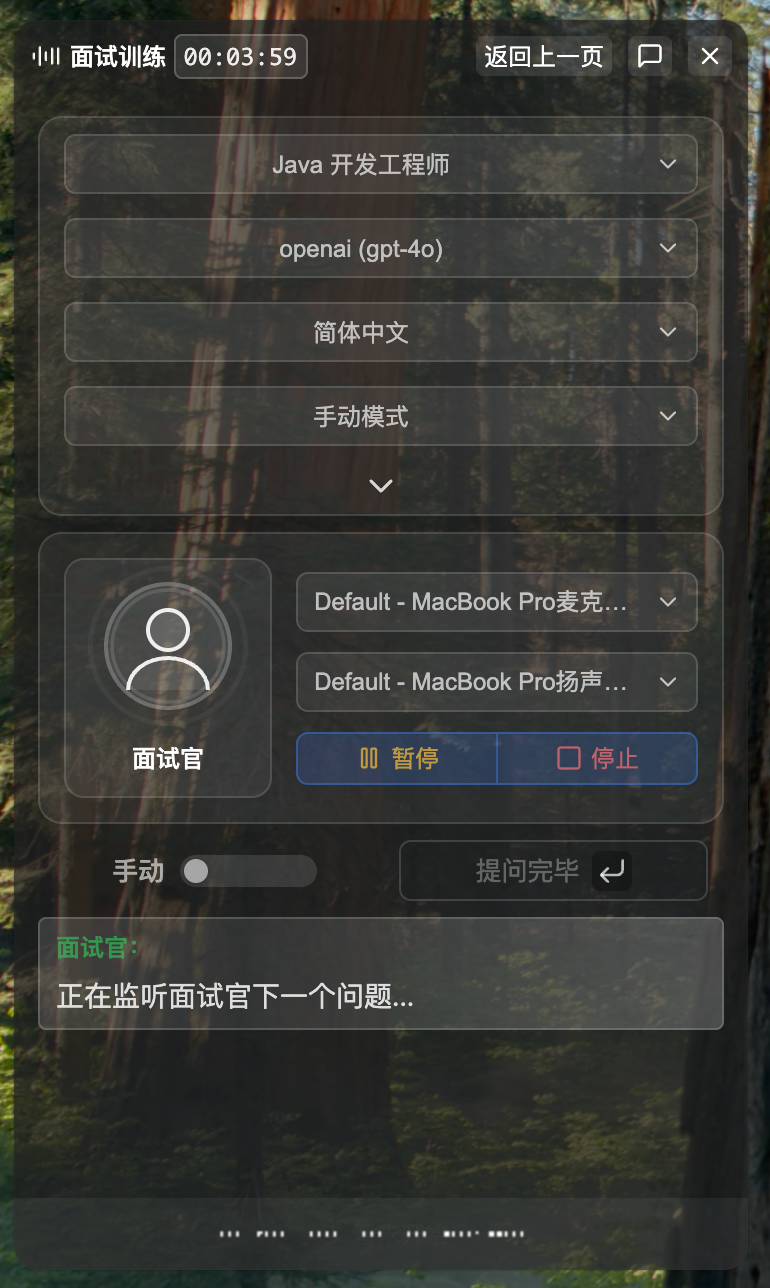
- Left window displays "Listening for interviewer questions..."
- System ready, waiting for interviewer to start speaking
NOTE
AudioTee System Audio Capture: Through AudioTee technology, the system can capture audio output from interview software (Tencent Meeting, Zoom, DingTalk, Feishu, etc.) without interviewer cooperation, silently recognizing interviewer questions.
3. Training Process
3.1 Interviewer Asking Questions
When the interviewer starts speaking, the system automatically captures and recognizes the interviewer's voice.
Audio Source Methods
Interview training supports multiple interviewer voice sources:
- Real Interview: Real interviews through video conferencing software like Tencent Meeting, Zoom, DingTalk, Feishu
- Friend Simulation: Friend plays interviewer role through video conferencing software
- Voice Simulation: Use translation website voice playback to simulate interviewer questions
Voice Simulation Method
If no real interviewer, use translation websites to simulate interviewer questions:
Open Baidu Translate, paste interview question text, click voice playback button:
Or use Google Translate:
Real-time Audio Capture
System captures interviewer voice through:
- AudioTee Capture: Captures audio output from interview software or translation website
- Real-time Transmission: Sends audio data to cuemate-asr speech recognition service in real-time
- Speech Recognition: cuemate-asr converts speech to text
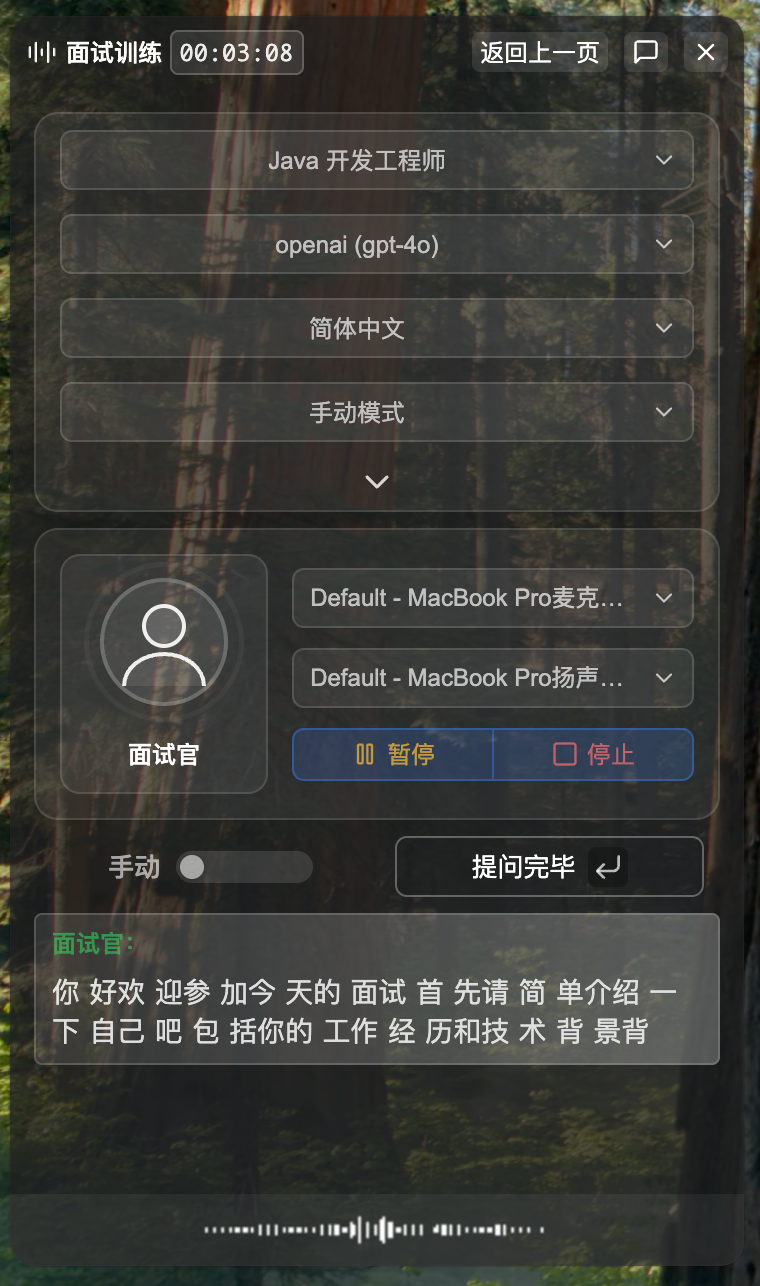
Real-time Question Display
Recognized question text displays in real-time in the "Interviewer:" area at the bottom of the left window, updating as speech recognition progresses.
Confirm Question Complete
System cannot automatically determine where interviewer's question ends, need to confirm through following methods:
Method 1: Manual Mode (Default)
You control manually, more precise:
- System captures and displays interviewer question in real-time
- When you confirm interviewer finished asking, click "Question Complete" button in left window
- System confirms question content, proceeds to next step

Method 2: Auto Mode
System auto-detects, more discreet:
- System captures and displays interviewer question in real-time
- System automatically detects when interviewer stops speaking
- Automatically confirms question content, proceeds to next step

Mode Comparison
| Feature | Manual Mode (Default) | Auto Mode |
|---|---|---|
| Confirmation | Click "Question Complete" button | System auto-detects |
| Precision | High (you control) | Medium (may misjudge) |
| Scenario | Interviewer speaks fast, often pauses | Interviewer speaks steadily, short questions |
| Advantage | Complete pace control, avoid misjudgment | No operation needed, more discreet |
| Disadvantage | Need to click button manually | Long pauses may misjudge |
TIP
Mode Selection Suggestions:
- Manual Mode: Recommended for friend mock interviews, you can precisely control question boundaries
- Auto Mode: Recommended for real online interviews, reduce operations, avoid interviewer noticing
Recognition Quality Factors
- Volume: Interview software/translation website volume recommended at 50-80%
- Background Noise: System filters automatically, but excessive environmental noise affects recognition
- Speech Clarity: Clearer interviewer speech means more accurate recognition
- Network Latency: cuemate-asr service response speed (usually <1 second)
TIP
Optimize Recognition:
- Test speaker capture in Voice Test beforehand
- Adjust interview software/translation website volume appropriately (avoid too low or muted)
- Maintain quiet interview environment, reduce background noise
3.2 AI Reference Answer
After interviewer finishes asking (manual click "Question Complete" button or system auto-detects), AI generates reference answer.
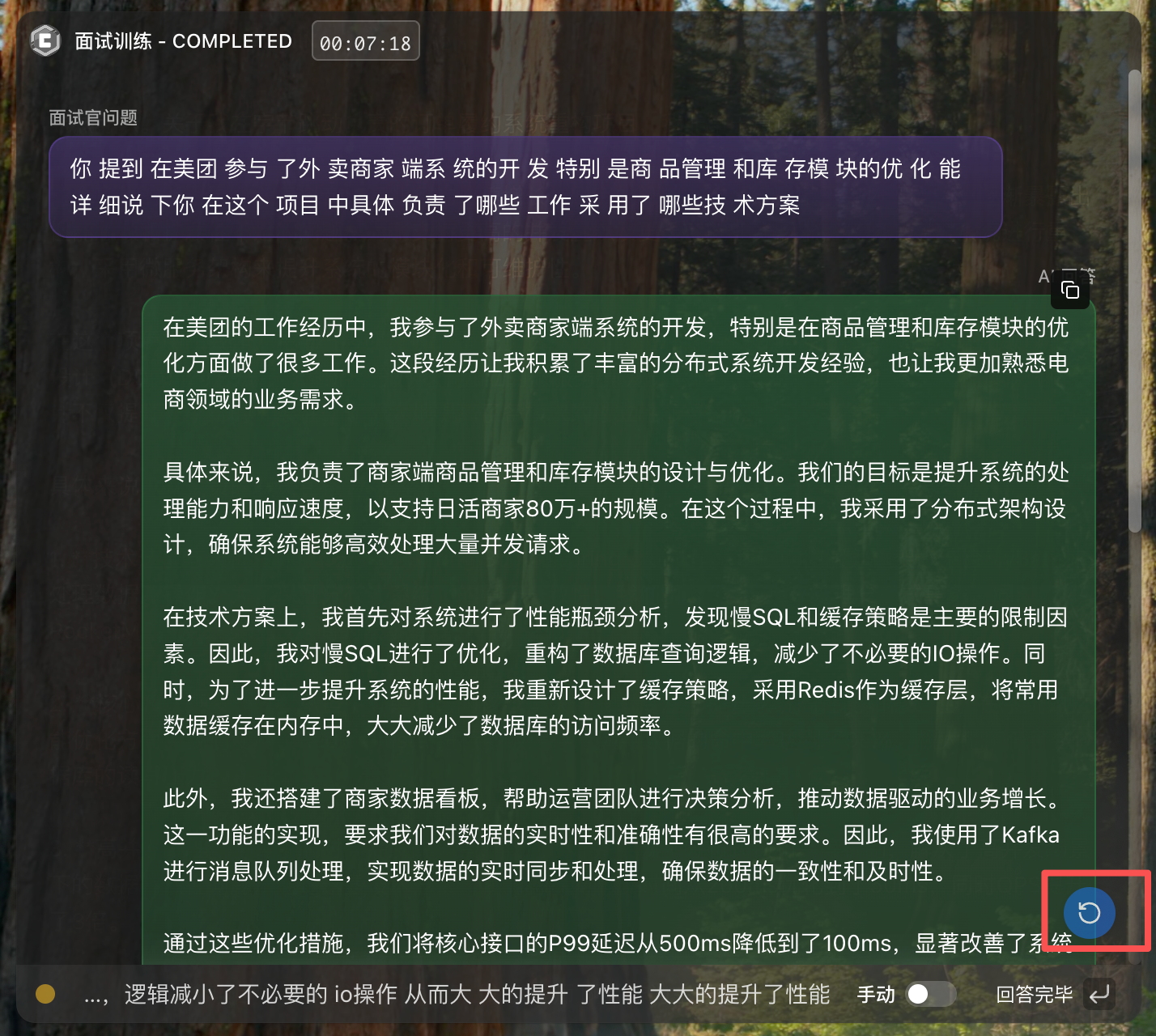
1. Reference Answer Generation
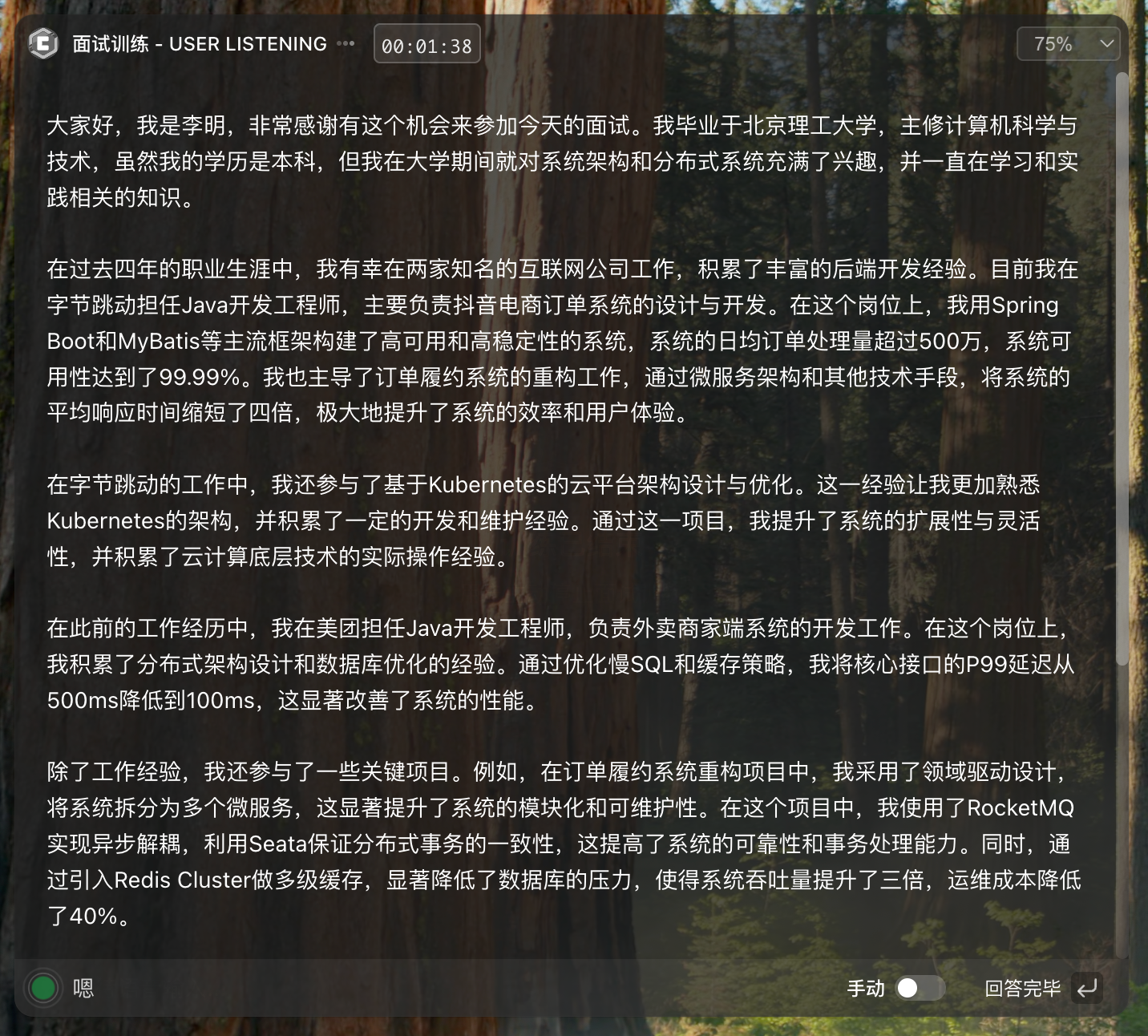
Middle window starts generating reference answer:
- Reference answer displays in the center of middle window
- Content streams out word by word, you can prepare your answer while reading
- Answer generated based on your position JD, resume, question bank, etc.
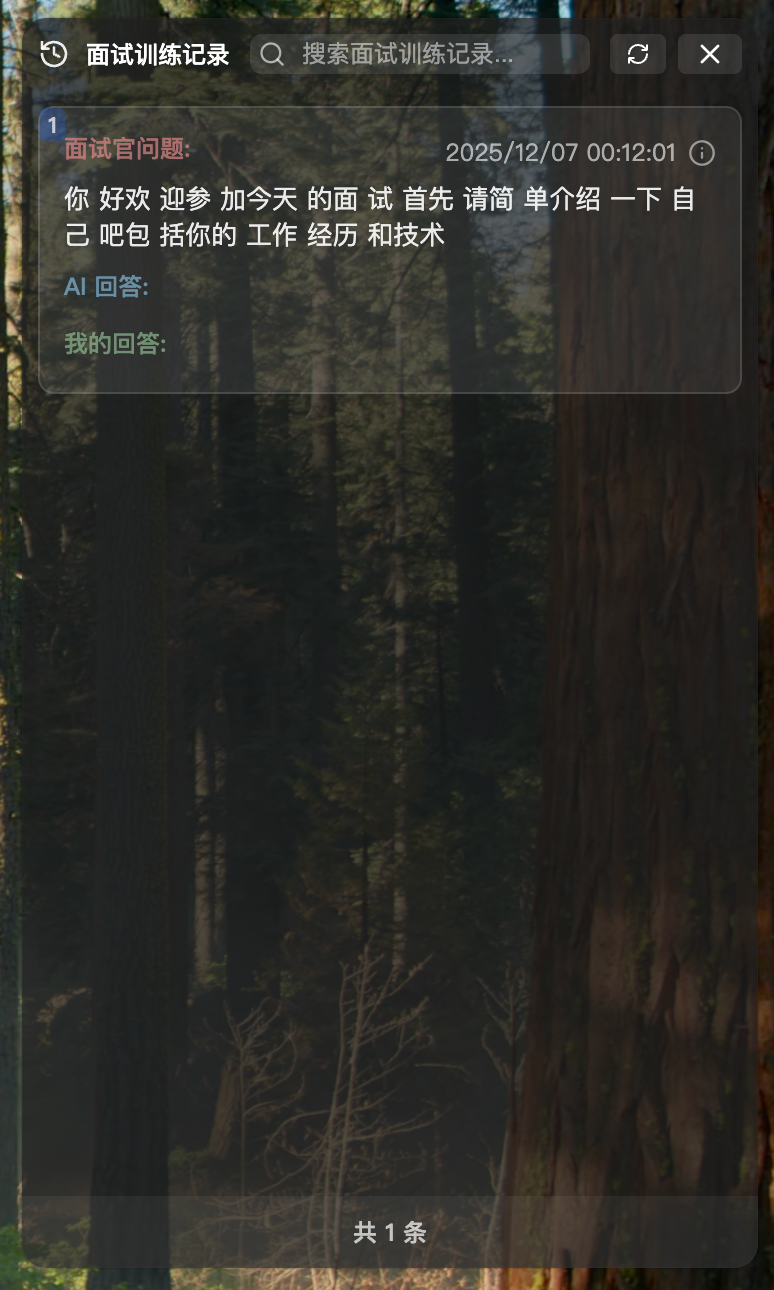
2. History Update
Right history window synchronously adds a new Q&A card:
- Shows question number and interviewer's question content
- Shows AI-generated reference answer
3.3 Start Answering
After receiving AI reference answer, you can reference it when answering the interviewer. If microphone recording is enabled, system simultaneously records your answer.
Voice Recognition Area
Bottom of middle window shows voice recognition area:
- Recording Status Indicator: Circle on left shows ripple animation, indicating recording in progress
- Real-time Recognition Text: Right side shows real-time speech recognition results, initially displays "Waiting for voice input..."
- Auto Scroll: When recognized text is long, automatically scrolls to latest content

Current Mode Display
Right side of voice recognition display area shows current training mode (Manual/Auto):
- Mode selected before training starts, cannot switch during training
- Hover shows "Cannot switch mode during training"
Answer Complete Button
- In Manual Mode, when there's recognized text, "Answer Complete" button becomes enabled, click to submit answer
- In Auto Mode, "Answer Complete" button is disabled, system automatically submits after you stop speaking
TIP
Answering Tips:
- Quick Memory Points: Quickly scan key points of answer (2-3 core concepts)
- Natural Expression: Reorganize in your own words, don't read verbatim
- Combine Experience: Supplement with your own project experience details
- Maintain Communication: Maintain eye contact, don't look down at screen frequently
- Appropriate Pauses: Pause briefly after each point for more accurate speech recognition
3.4 Submit Answer
Interview training supports two submission modes, choose flexibly based on actual interview scenarios:
Mode Comparison
| Feature | Manual Mode (Default) | Auto Mode |
|---|---|---|
| Scenario | Friend mock interview, repeated practice | Real online interview, smooth experience |
| Submission | Click "Answer Complete" button | System auto-detects |
| Advantage | Complete pace control, avoid false trigger | No operation needed, more discreet |
| Disadvantage | Need to click button manually | Long pauses may false trigger |
Method 1: Manual Mode Submission
Workflow:
- As you answer, system recognizes and displays your answer text in real-time
- After finishing answer, click "Answer Complete" button (↵ icon)
- System saves your answer, enters next round

Method 2: Auto Mode Submission
Workflow:
- As you answer, system recognizes and displays your answer text in real-time
- System auto-detects when you stop speaking
- Auto submits answer, enters next round

TIP
Mode Selection Suggestions:
- Manual Mode: Recommended for friend mock interviews, can repeatedly practice, control pace
- Auto Mode: Recommended for real online interviews, reduce operations, avoid interviewer noticing
3.5 Enter Next Round
After submitting answer, system automatically enters next round.
Next Round Flow
Continue Listening
- System re-enters listening for interviewer questions state
- Left window displays "Listening for interviewer questions..."
Loop Process
- Repeat "Interviewer Question → AI Reference Answer → Start Answering → Submit Answer" flow
View History
During interview training, you can view historical Q&A records anytime:
Click History Card
- Click any Q&A card in right history window
- Middle window switches to display that question's AI reference answer
- Quick review of previous Q&A content
Review Purpose
- Find points missed in previous answer
- Review ambiguous previous answers, adjust later expression
- Reference previous AI answers to supplement related knowledge points
Resume Current Conversation
- Click restore button (🔄 icon) at bottom right of middle window
- Immediately switch back to current question's AI reference answer
- Continue current interview flow
4. Training Flow Control
During interview training, you can control training progress anytime, including pause, resume, and end training.
4.1 Pause Training
When to Pause
- Interviewer is introducing company background, team situation, etc. that doesn't need answering
- Interviewer leaves or temporarily handles affairs
- Need short break or drink
- Need to temporarily handle other matters
How to Pause
Two ways to pause training:
Method 1: Click "Pause" button (⏸️ icon) at bottom of left window
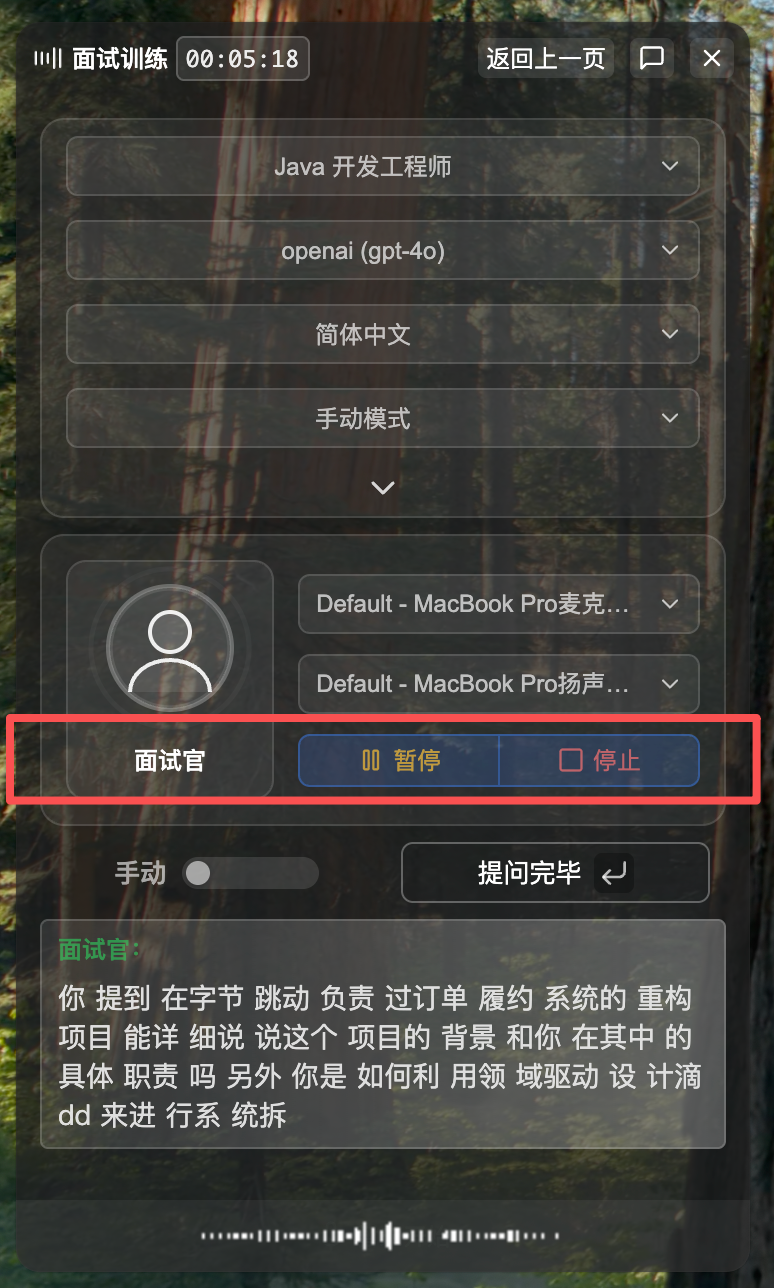
Method 2: Click "Pause" button (⏸️ icon) on top floating control bar (shown during training). Use expand/collapse button next to pause button to open or close interview training window.

After Pausing
- Speaker audio capture and speech recognition stop immediately
- Left window displays "Interview Training Paused"
- Current progress auto-saved, can continue after closing and reopening window
What You Can Do While Paused
- View all Q&A records in right history window
- Click history cards to view complete AI reference answers in middle window
- Think about and review generated answer key points
4.2 Resume Training
How to Resume
Two ways to resume training:
Method 1: Click "Resume" button (▶️ icon) at bottom of left window
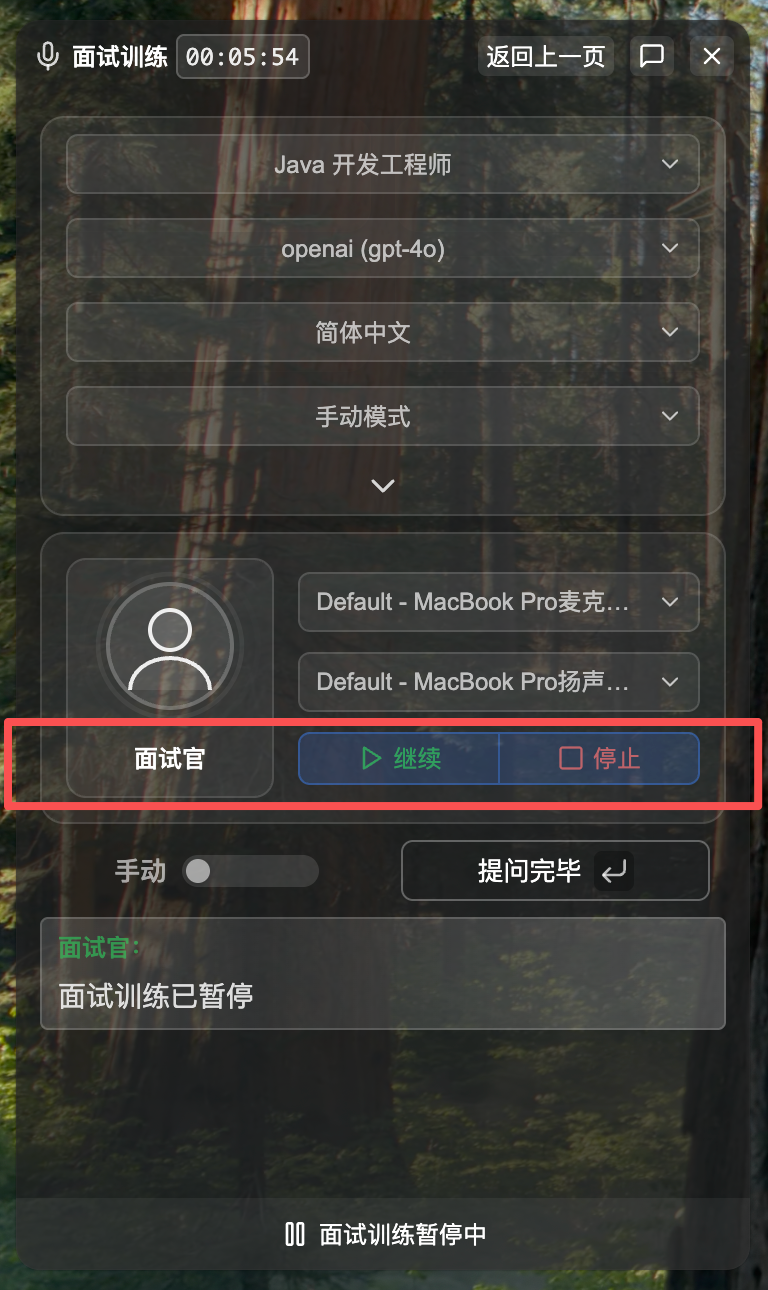
Method 2: Click "Resume" button (▶️ icon) on top floating control bar (shown when training paused)

After Resuming
- System continues from where it paused
- Restarts speaker audio capture and speech recognition
- Left window displays "Listening for interviewer questions..."
- All historical Q&A records remain unchanged
4.3 End Training
When to End
- Interview completely finished
- Interviewer explicitly says interview is over
- Want to end current training session early
How to End
Two ways to end training:
Method 1: Click "Stop" button (⏹️ icon) at bottom of left window
Method 2: First pause training, then click "Complete" button (⏹️ icon) on top floating control bar (shown when training paused)
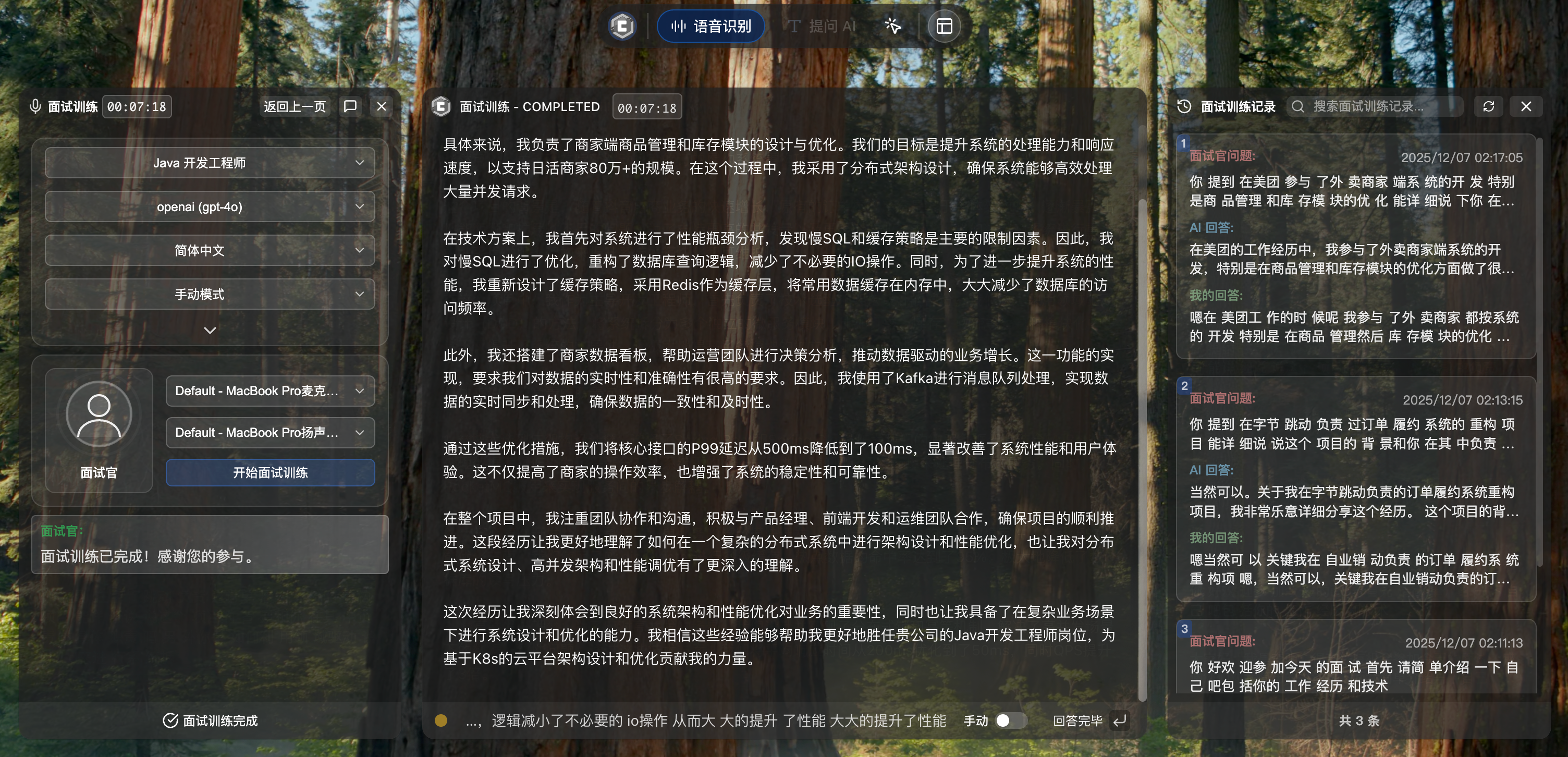
After Ending
- All Q&A records saved
- Left window displays "Interview Training Ended"
- Can continue viewing Q&A content in history
4.4 View Interview Review Records
After training ends, click "Interview Review" in top menu to enter Interview Review page.
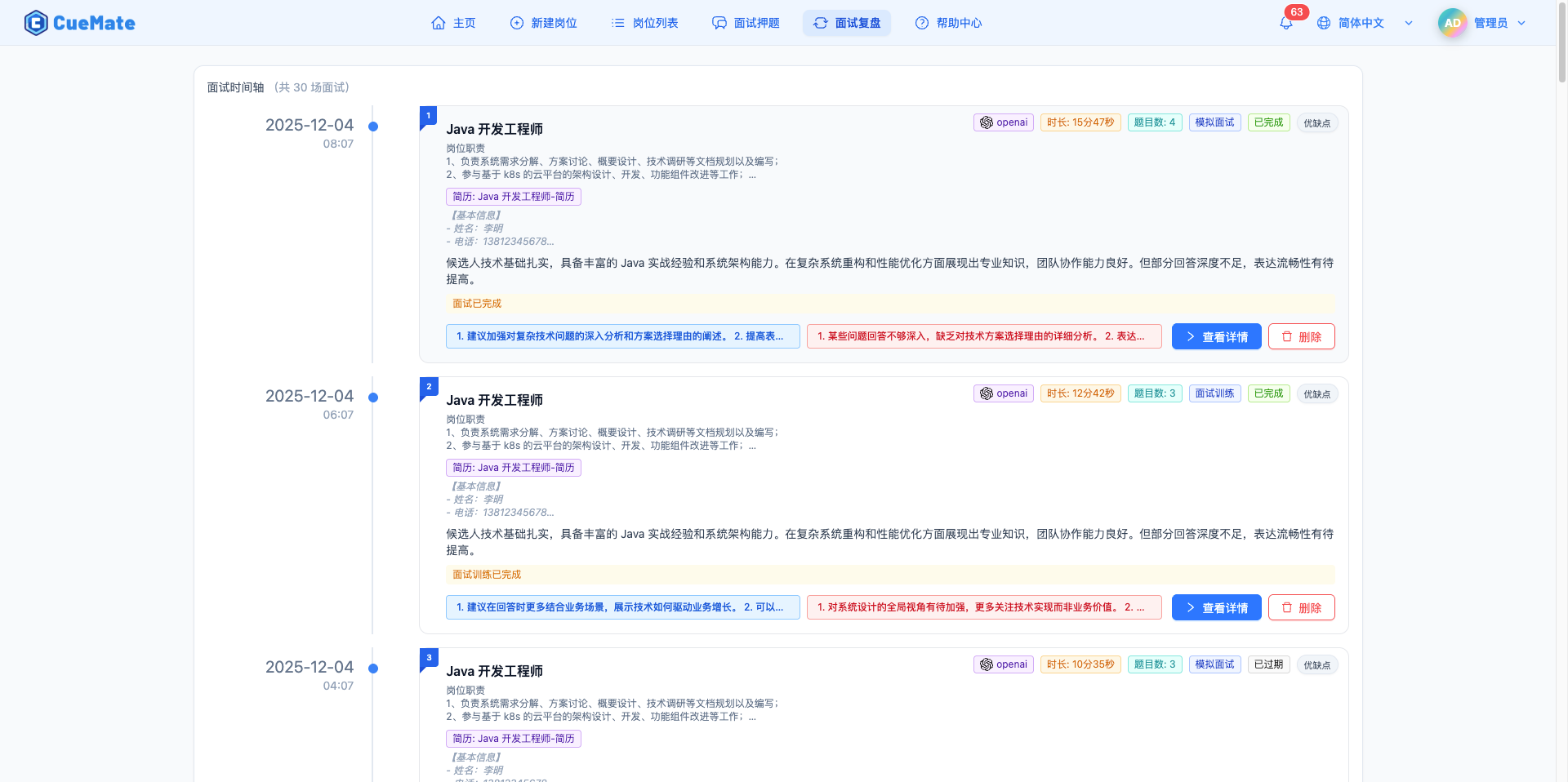
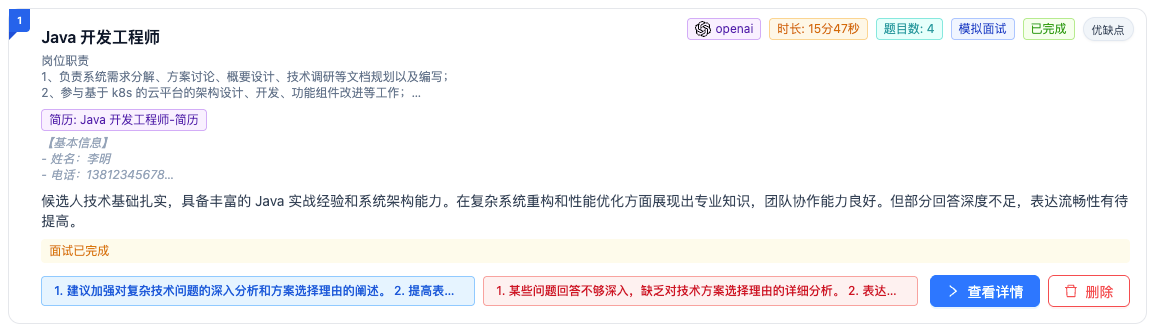
Interview Review page displays all historical training records in timeline format, click "View Details" to see complete training report.
NOTE
Report Generation Conditions: If you recorded your answers during training, system generates evaluation report. Only Q&A records with candidate answers recorded will be analyzed and scored.
For detailed feature description, see Interview Review documentation.
5. Feature Description
5.1 How It Works
Complete interview training flow:
Start Training
  ↓
[Capture Audio] → System Audio Capture (AudioTee)
  ↓
[Recognize Question] → Speech Recognition (cuemate-asr) → Real-time Text
  ↓
[Trigger Generation] → Manual Click / System Auto-detect
  ↓
[Search Question Bank] → RAG Semantic Search (similarity ≥0.8)
  ↓
  ├─ Match Found → Return question bank answer
  └─ No Match → AI real-time generation (based on JD + Resume + Question)
  ↓
[Display Answer] → Stream display in right window
  ↓
Loop until training ends
5.2 Question Bank Matching Mechanism
System matches questions through following steps:
- Generate Question Vector: Convert interviewer question to embedding vector
- Semantic Search: Search position's questions in ChromaDB
- Dual Filtering:
- Vector similarity ≥0.8
- Keyword hit rate ≥80%
- Return Best Match: Get 1 question with highest similarity and its answer
Example:
- Interviewer asks: "Please explain Redis persistence mechanisms"
- Question bank has: "What are Redis persistence methods?"
- Match successful, return question bank answer
5.3 System Audio Capture Technology
Interview training uses AudioTee technology for system audio capture:
- How It Works: Captures audio output from interview software (Tencent Meeting/Zoom)
- Advantage: No interviewer cooperation needed, silent capture
- Permission Required: "Screen Recording" permission needed
Supported Interview Software:
- Tencent Meeting
- Zoom
- DingTalk
- Feishu
- Any other audio/video software
6. Notes
6.1 Prerequisites
Before starting interview training, ensure completed:
- Create Position (Required) - Create interview position, fill in JD and resume
- Model Settings (Required) - Configure LLM
- Voice Settings (Required) - Configure speaker device, test system audio capture
- Interview Questions (Strongly Recommended) - Preset common interview questions for better answer accuracy
- Vector Knowledge Base Sync (Strongly Recommended) - Ensure questions synced to ChromaDB
- Voice Test (Recommended) - Test speaker capture capability
6.2 Service Dependencies
Interview training depends on following services:
- cuemate-asr Service: Speech recognition (port 10095)
- LLM Router Service: LLM routing (port 3002)
- RAG Service: Question bank retrieval (port 3003)
- Web API Service: Data management (port 3001)
- ChromaDB Service: Vector database (port 8000)
6.3 Permission Requirements
- Screen Recording Permission: For system audio capture (required)
- Path: System Preferences > Security & Privacy > Screen Recording > Allow CueMate
- Microphone Permission: For recording your answers (optional)
6.4 Performance Optimization
Question Bank Preparation:
- Add common questions in Interview Questions beforehand
- Ensure synced in Vector Knowledge Base
- Question answers should be detailed and accurate
Model Selection:
- Recommend GPT-3.5-turbo or fast domestic models
- Ensure fast response (❤️ seconds) to avoid interviewer waiting
Network Requirements:
- Ensure stable network to avoid API timeout
- Using domestic models can improve response speed
Audio Devices:
- Adjust interview software volume appropriately
- Avoid volume too low causing recognition failure
7. Best Practices
7.1 Training Preparation
Thoroughly Prepare Question Bank:
- Cover position-related technical points
- Include common behavioral interview questions
- Answers should be detailed, structured, contain keywords
Environment Preparation:
- Quiet room, avoid environmental noise
- Test system audio capture to ensure normal
- Ensure stable network to avoid API timeout
Device Preparation:
- Confirm screen recording permission granted
- Adjust interview software volume appropriately
- Prepare paper and pen for noting answer key points
7.2 Usage Tips
Reference, Don't Read:
- AI answers are reference suggestions, don't read verbatim
- Reorganize in your own words
- Supplement with your own project experience
Quick Memory Points:
- After answer appears, quickly scan key points
- Remember 2-3 core concepts
- Express in your own words
Flexible Response:
- Adjust answer based on actual situation
- Don't use directly if doesn't match resume
- When interviewer follows up, reference previous answers
Natural Communication:
- Don't frequently look down at screen
- Maintain eye contact (camera)
- Natural speaking pace, don't sound like reciting
7.3 Mode Selection Suggestions
| Scenario | Recommended Mode | Reason |
|---|---|---|
| Friend Mock Interview | Manual Mode | Easy to control pace, repeated practice |
| Real Online Interview | Auto Mode | Reduce operations, avoid interviewer noticing |
| Fast-speaking Interviewer | Manual Mode | Avoid false trigger, ensure complete question |
| Slow-speaking Interviewer | Auto Mode | Auto-detect, save time |
| Unstable Network | Manual Mode | Avoid auto-trigger then API timeout |
7.4 Risk Notice
When using interview training, please note:
- This is an assistive tool, don't rely on it completely
- Be honest during actual interviews
- Answers are for reference only, combine with actual situation
- Don't read mechanically, express naturally
- Some companies may prohibit assistive tools, judge for yourself
8. FAQ
8.1 Cannot Capture Interviewer Voice
Problem: Left panel not showing interviewer speech text
Solutions:
- Check if "Screen Recording" permission granted to CueMate
- Confirm speaker device selected correctly
- Adjust interview software volume (recommended 50-80%)
- First do Voice Test to confirm speaker capture works
- Check error messages in Log Management
8.2 Question Bank Not Matching
Problem: AI always generates answers in real-time, never uses question bank
Solutions:
- Check if questions added in Interview Questions
- Confirm questions synced in Vector Knowledge Base
- Check if question's position matches current training position
- Try adding more related questions to increase match probability
8.3 Auto Mode False Triggers
Problem: In auto mode, answer generation triggers before interviewer finishes
Solutions:
- Switch to manual mode, you control trigger timing
- Wait for interviewer to clearly finish before confirming question
- Check if environmental noise being misrecognized as interviewer voice
8.4 AI Answers Inaccurate
Problem: AI-generated answers not relevant to question
Solutions:
- Check if position JD and resume filled completely
- Confirm interviewer question recognized accurately (text in left panel)
- Switch to higher quality LLM (e.g., GPT-4)
- Add similar questions to question bank to improve match rate
8.5 Answer Generation Delay
Problem: AI answer generation very slow
Solutions:
- Switch to faster responding model (GPT-3.5-turbo, Zhipu, DeepSeek)
- Check if network connection stable
- Use domestic models to reduce network latency
- Prepare question bank in advance (question bank returns faster)
9. Feature Comparison
9.1 Mock Interview vs Interview Training
| Comparison | Mock Interview | Interview Training |
|---|---|---|
| Scenario | Solo practice, advance preparation | Actual interview, real-time assistance |
| Interviewer | AI plays role | Real interviewer |
| Question Method | AI actively asks | Interviewer asks, system captures |
| Answer Method | AI gives suggestions, you voice answer | AI gives suggestions, you reference answer |
| Training Effect | Familiarize process, improve adaptability | Get answer reference, improve accuracy |
| Audio Capture | Microphone, Speaker | Microphone, Speaker |
Related Pages
- Home - Start interview training
- Create Position - Create interview position
- Interview Questions - Prepare interview questions
- Vector Knowledge Base - Sync questions to vector database
- Interview Review - View training records
- Mock Interview - AI mock interview training
- Voice Test - Test audio devices
- Voice Settings - Configure speech recognition
- Model Settings - Configure LLM