
v0.1.0 Release Notes
Release Date: 2025-12-10 Version Type: Initial Release Stability: Stable
Version Overview
CueMate v0.1.0 is the first official release, marking the project's transition from testing phase to production-ready state. This version includes complete core functionality, supporting real-time voice recognition, multi-model AI responses, knowledge base enhancement, and more.
New Features
1. feat(install): macOS DMG one-click installer with simple and convenient installation wizard for quick deployment
CueMate provides a standard macOS DMG installer supporting both Apple Silicon (M1/M2/M3) and Intel dual architectures. The built-in installation wizard automatically guides through environment detection, Docker configuration, service deployment, and the entire process, requiring no technical background from users to complete installation.
Download and Open the Installer
Choose the appropriate installer based on your Mac's chip type:
- Apple Silicon (M1/M2/M3):
CueMate-v0.1.0-macos-arm64-offline.dmg - Intel Chip:
CueMate-v0.1.0-macos-x64-offline.dmg
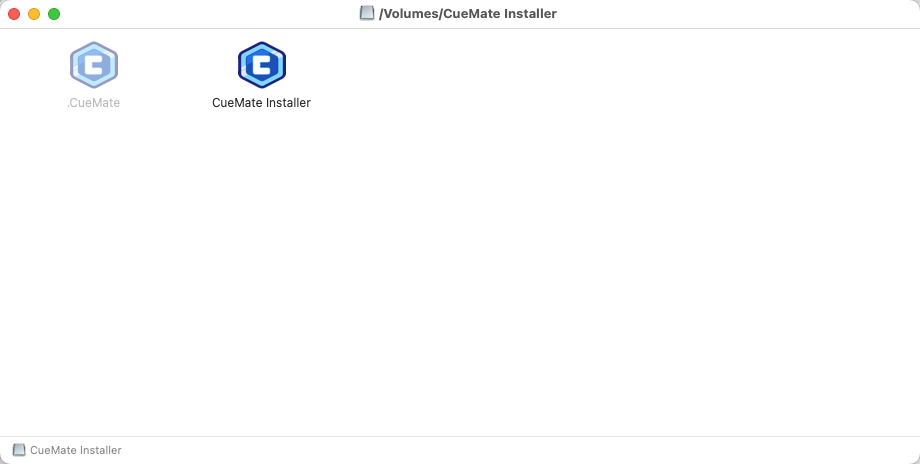
Double-click the downloaded DMG file, macOS will automatically mount the disk image and display the installation window.
Installation Wizard Guide
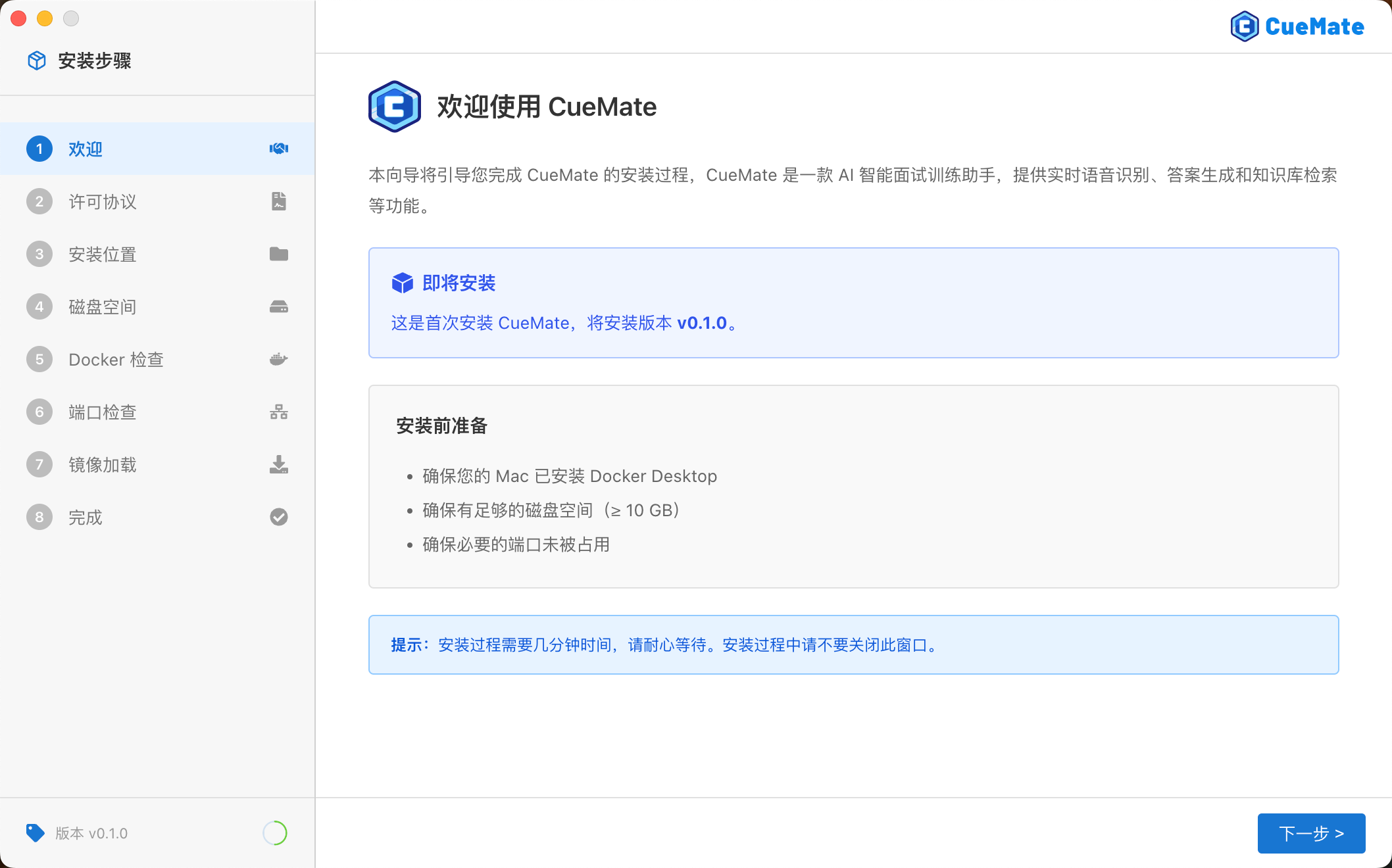
The installation wizard includes 8 steps, automatically guiding through the entire installation process:
- Welcome: Introduction to CueMate features
- License Agreement: Read and accept the software license agreement
- Installation Location: Choose installation directory (default
/Applications) - Disk Detection: Confirm at least 10GB available space
- Docker Check: Detect and automatically configure Docker Desktop
- Port Check: Detect ports 80, 3001, 3002, 3003, 8000, 10095 for conflicts
- Image Loading: Load backend service images and start services
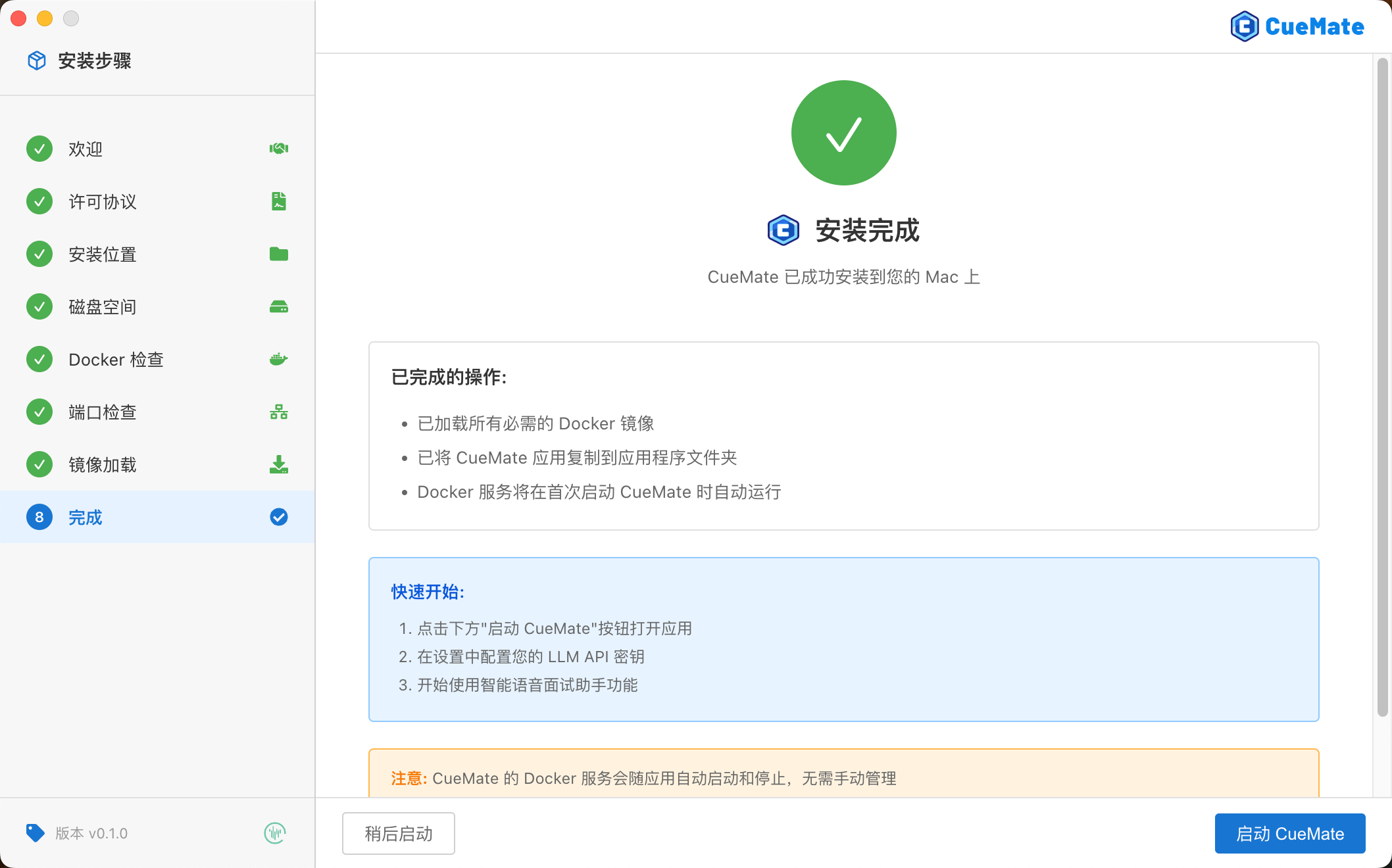
- Complete: Automatically launch CueMate desktop application
First-Use Authorization
After installation, the system will prompt for permissions on first use:
- Microphone Permission: For recognizing your voice input
- Screen Recording & System Audio Permission: For capturing system audio (recognizing interviewer voice), captures audio only without recording video
Click "Allow" to complete authorization. After authorization, log in with the built-in account (username: admin, password: cuemate) to start using.
Summary
The macOS DMG installer integrates a complete installation wizard that automatically handles environment detection, dependency installation, service deployment, and other complex processes. From download to start using, the entire process takes about 5 minutes. Dual-architecture support ensures compatibility on all mainstream Mac devices, supporting macOS 13.0 (Ventura) and above.
2. feat(desktop): Desktop application with convenient UI for one-click service start/stop and quick interview launch
The CueMate desktop application uses a floating control bar + main application window dual-layer interface design, which doesn't obstruct other applications while providing quick access to all features.
Floating Control Bar
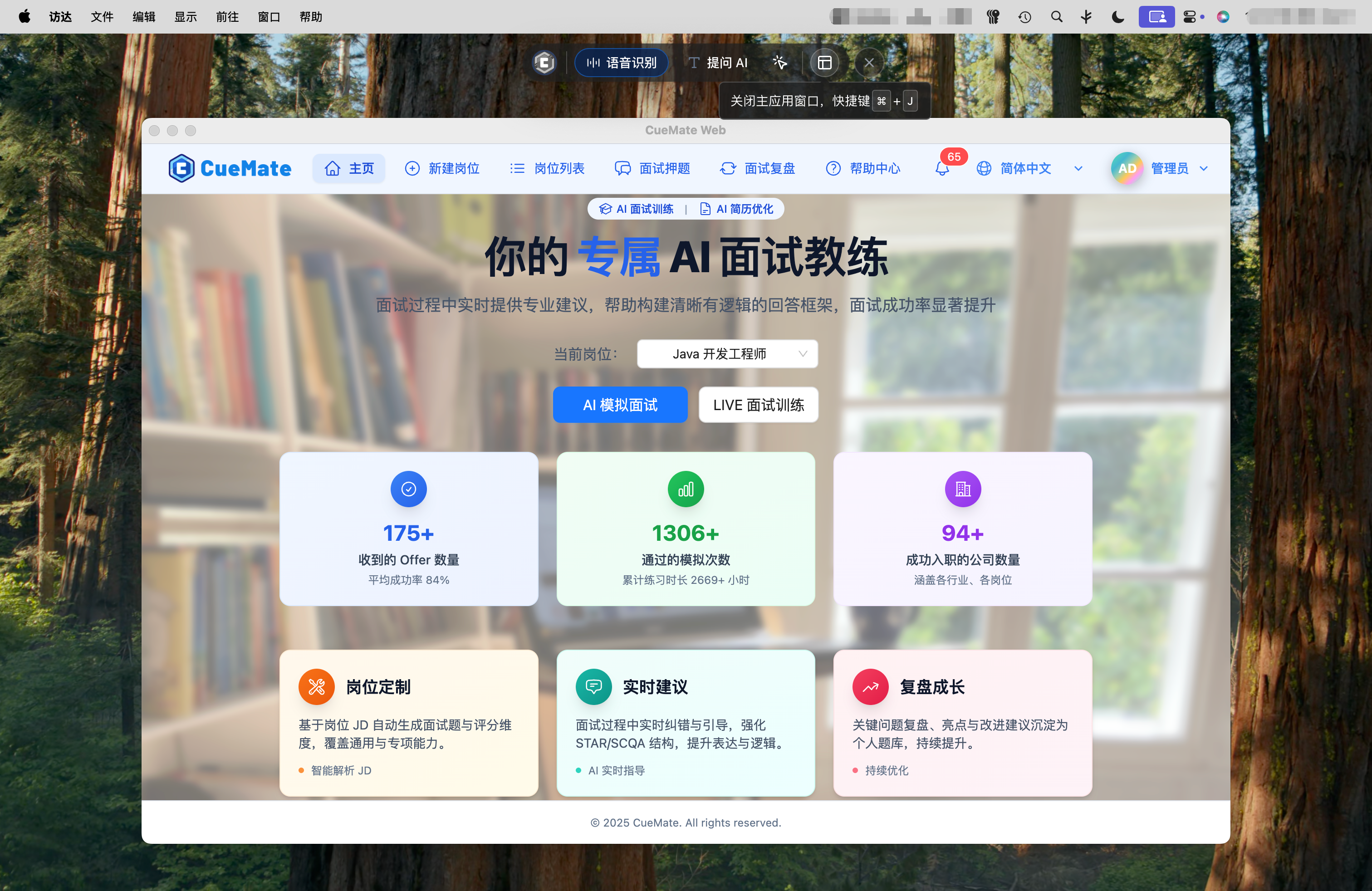
After launching CueMate, a floating control bar appears at the top of the screen, providing quick access to common features:
- CueMate Icon: Click to open official website
- Voice Recognition: Start voice recognition, open interview feature window
- Ask AI: Quick AI questions
- Interaction Mode: Toggle window click-through mode
- Main Application Window: Open backend management interface
- Show/Hide: Hide or show control bar and all windows
Main Application Window
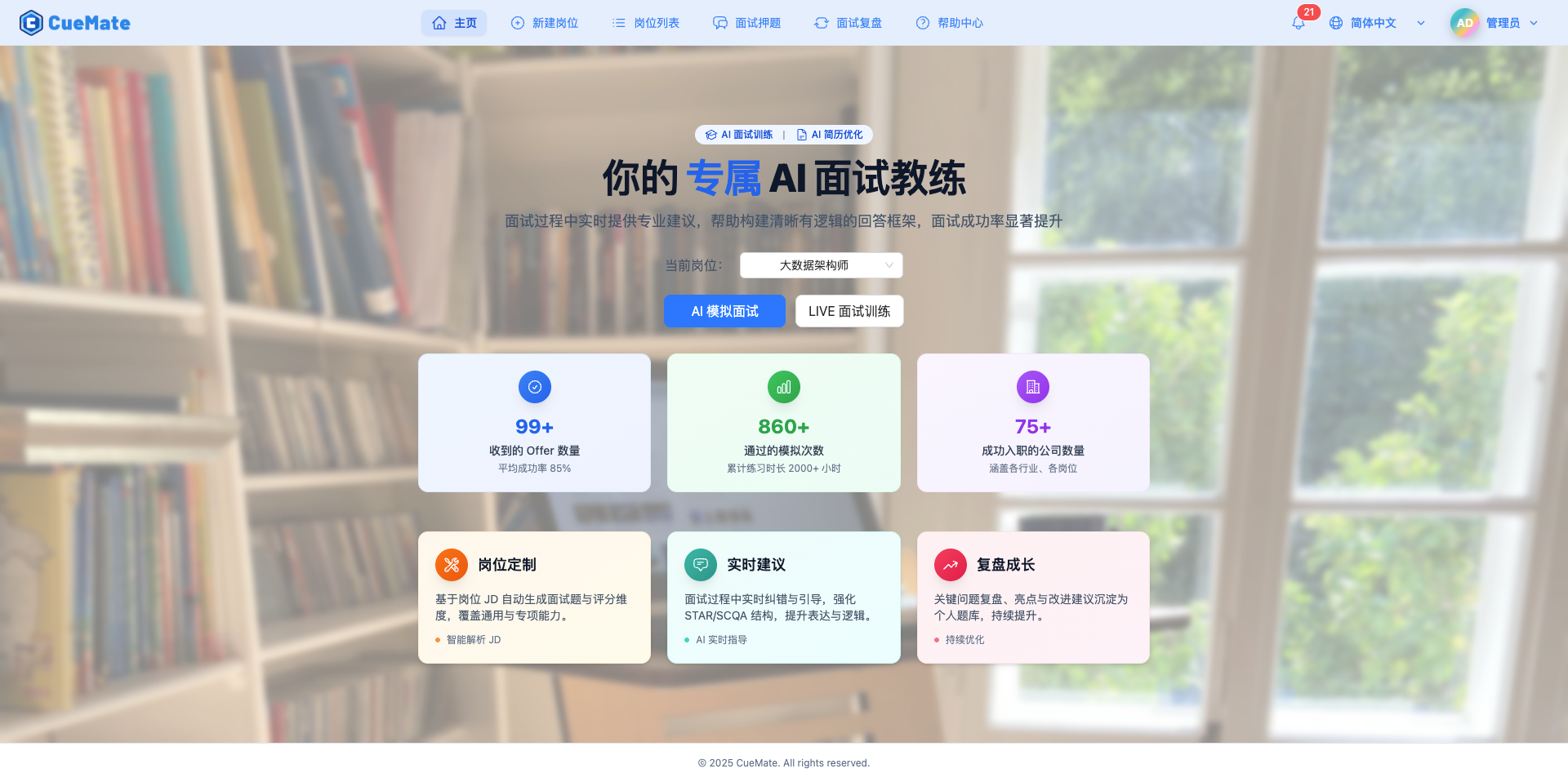
Click the rightmost button on the control bar to open the main application window. The homepage provides quick entry for interview training. After selecting a created position, you can start two training modes:
- AI Mock Interview: AI plays the interviewer role, automatically asks questions, and evaluates answer quality in real-time
- LIVE Interview Training: Real person (friend) asks questions, CueMate recognizes questions in real-time and provides answer suggestions
Container Monitoring
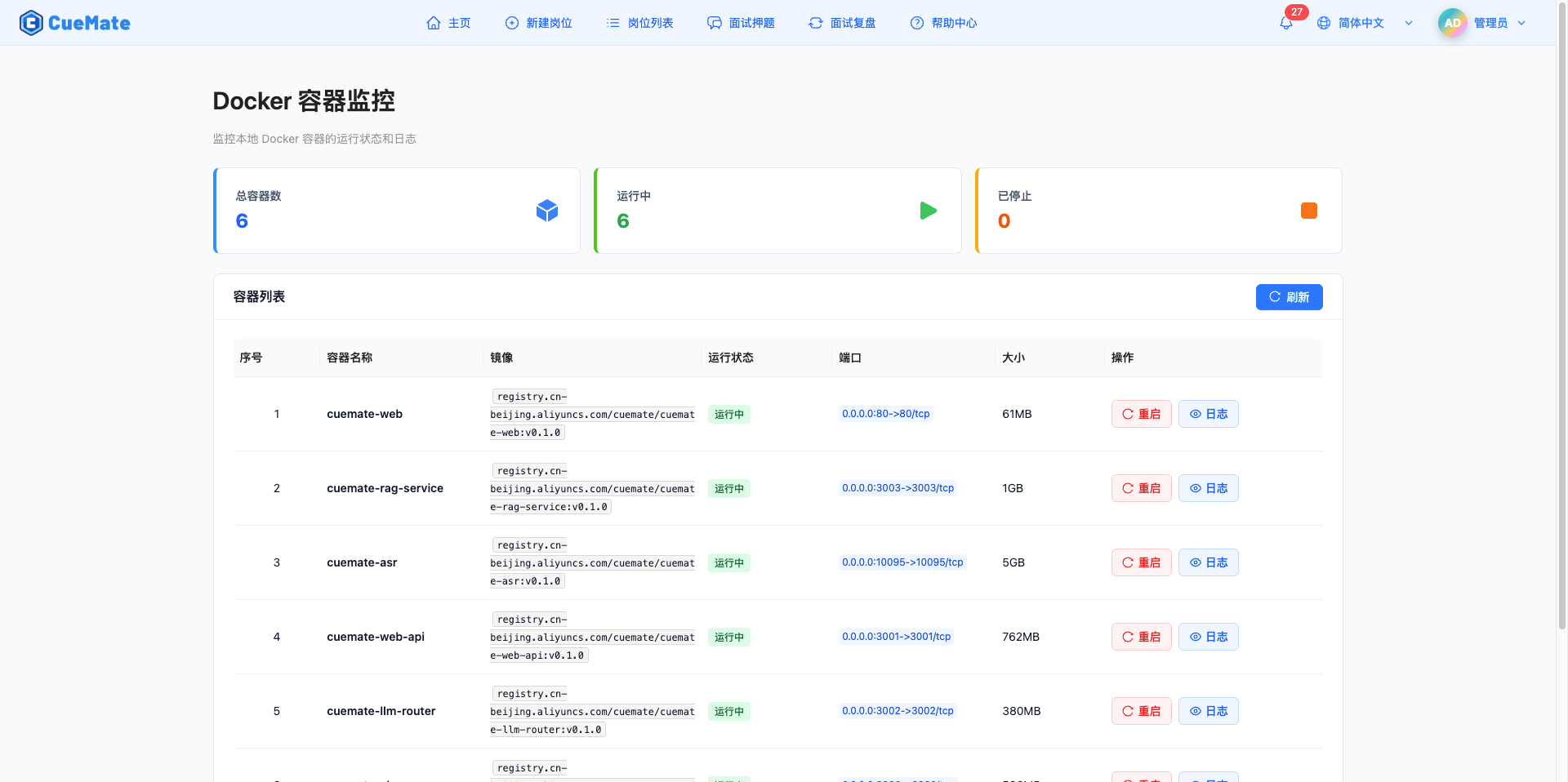
Access the container monitoring page through the top menu to monitor all backend Docker containers in real-time:
- Statistics cards show total containers, running, and stopped counts
- List displays each container's name, image, status, ports, and size
- Supports container restart and log viewing
- Auto-refreshes status every 30 seconds
Summary
The desktop application hides complex microservice architecture behind a simple interface. The floating control bar stays at the top of the screen, always available; the main application window provides complete backend management features; container monitoring lets users understand system running status at any time.
3. feat(system): System settings and management including user accounts, voice configuration, language preferences, default model, and Prompt management
CueMate provides comprehensive system settings functionality, allowing users to customize various configurations according to personal needs.
System Settings
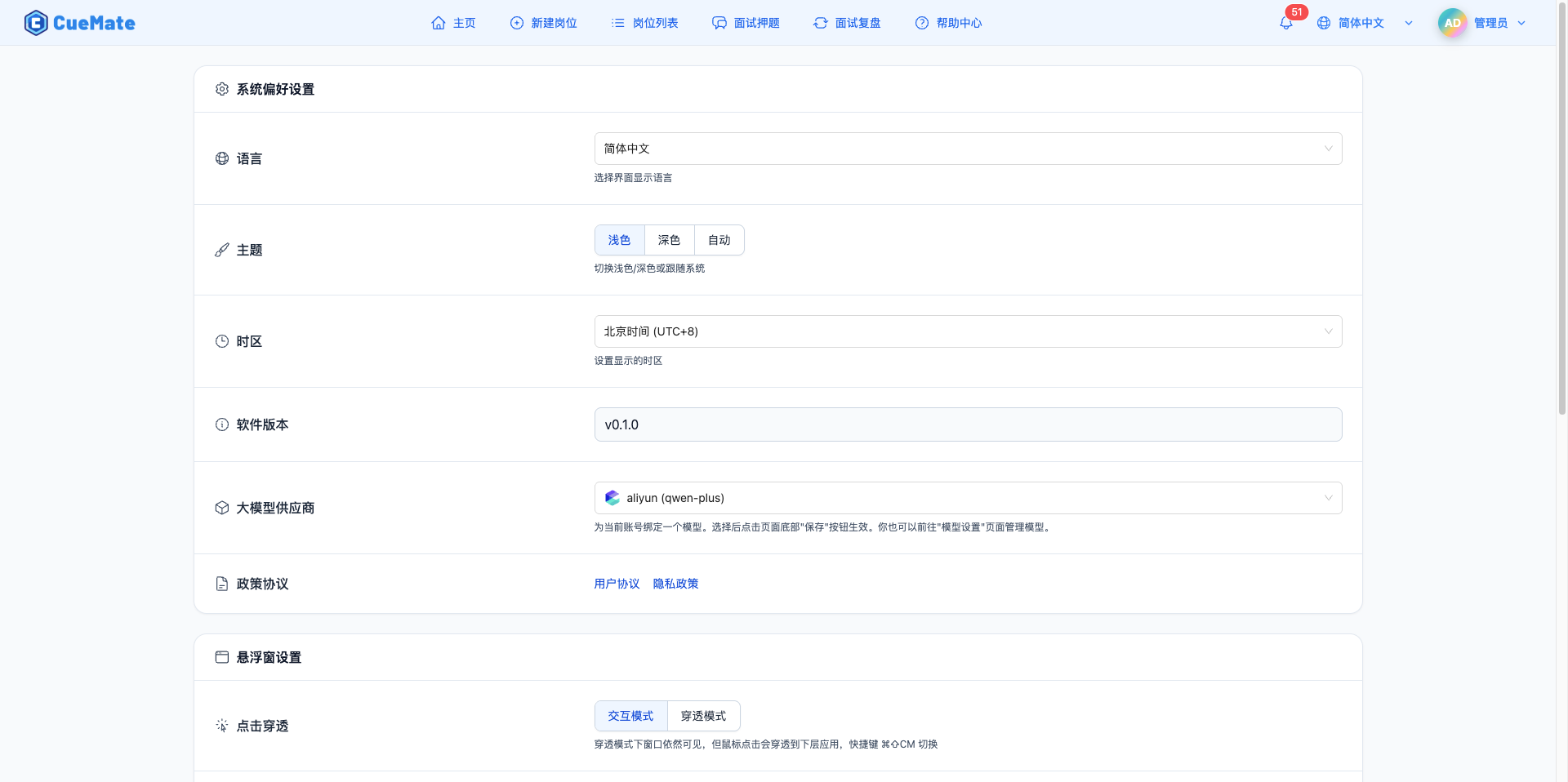
Access the system settings page through the top menu, divided into three sections:
System Preferences:
- Language Selection: Simplified Chinese, Traditional Chinese, English
- Theme Switching: Light, Dark, Auto (follows system)
- Timezone Settings: Supports Beijing, Hong Kong, Japan, Pacific, London time
- LLM Provider: Select default LLM model to use
Floating Window Settings:
- Click-Through Mode: Toggle between interaction and click-through modes (shortcut: Command+Shift+CM)
- Window Height: 50% / 75% / 100% screen height
Account Information: Username, email, change password
Prompt Management
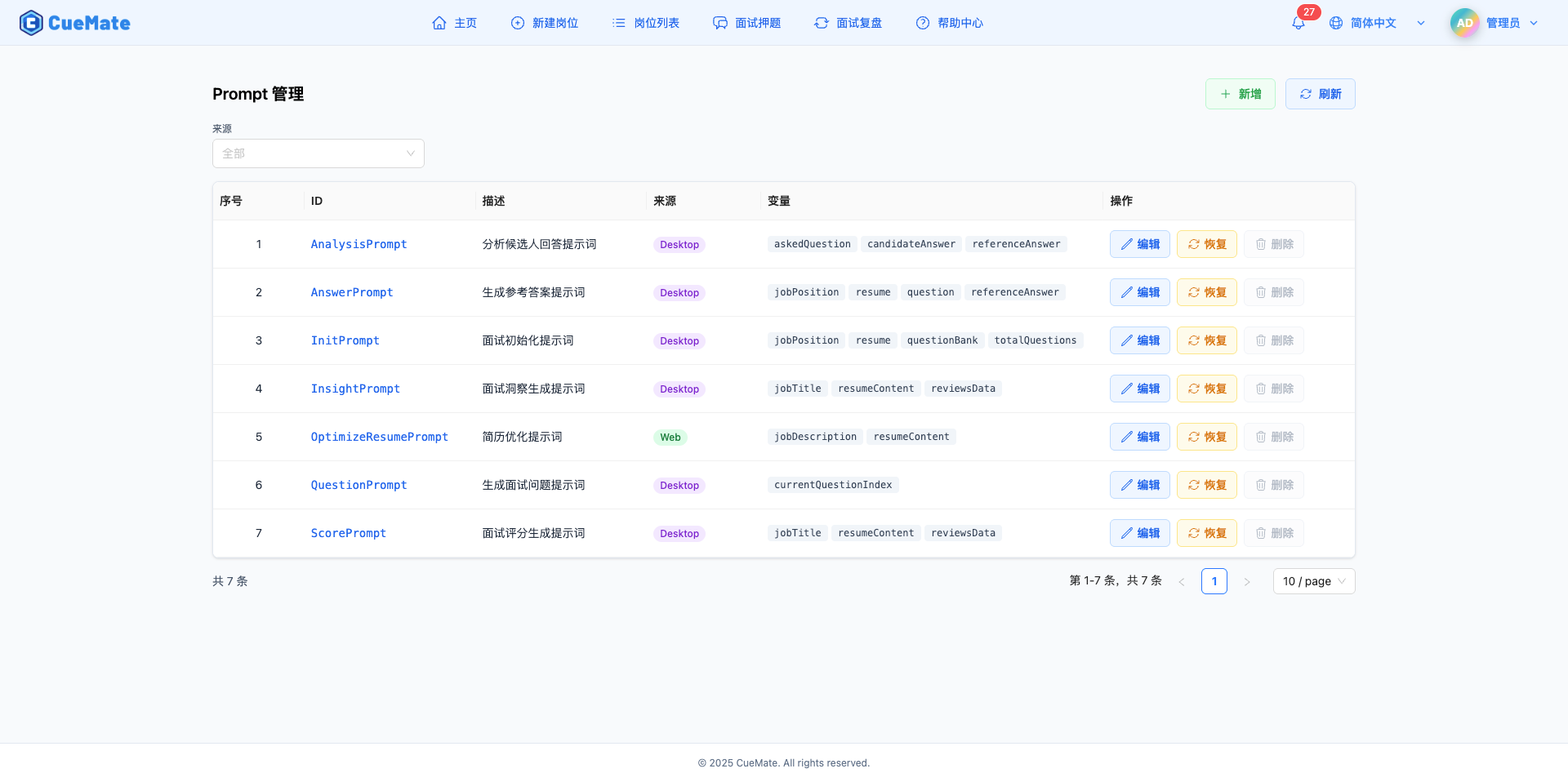
The Prompt management page is used to manage AI prompt templates, defining AI behavior and response patterns:
- View List: Display all Prompts' ID, description, source (Desktop/Web), template variables
- Edit Prompt: Modify content, template variables are automatically protected from accidental deletion
- Extra Configuration: JSON format additional parameters, such as
{"totalQuestions": 10}, adjust parameters without modifying Prompt content - Version Recovery: View history versions and restore
Template variables use ${variableName} format, such as ${jobPosition.title}, ${resume.content}, automatically replaced with actual values at runtime.
Summary
System settings and Prompt management features allow users to flexibly customize CueMate's behavior. System preferences and floating window settings optimize daily usage experience, while Prompt management allows advanced users to adjust AI response style and scoring criteria.
4. feat(logs): Complete log management system with time and level filtering for desktop client and service runtime logs, operation logs, and container monitoring
CueMate provides a complete log management system, recording runtime logs of the desktop client and all backend services.
Log Filtering and List
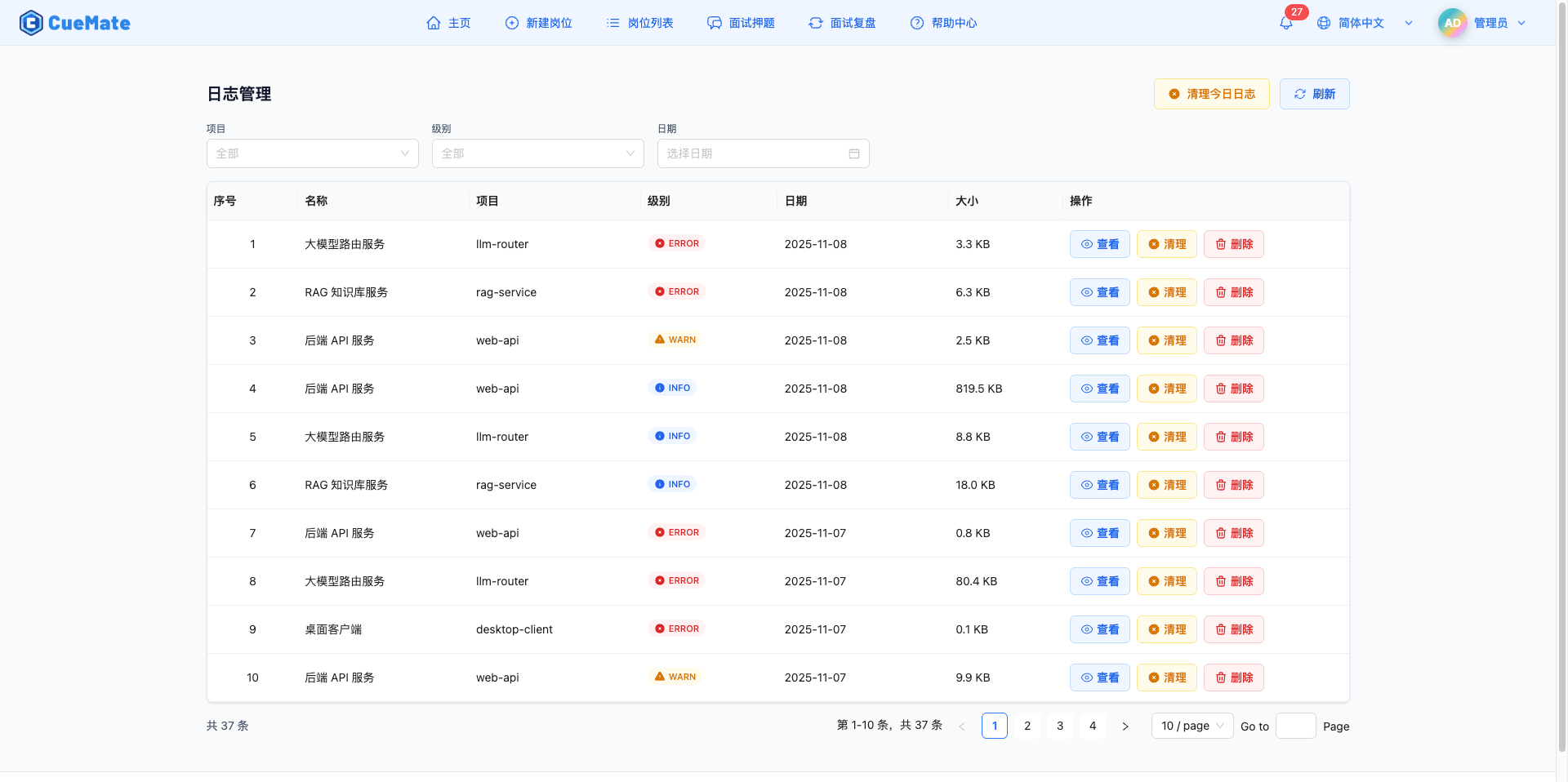
Access the log management page through the top menu, supporting three-dimensional filtering:
- By Project (Service): web-api, llm-router, rag-service, desktop-client
- By Level: DEBUG (gray), INFO (blue), WARN (yellow), ERROR (red)
- By Date: Select specific date to view that day's logs
Log list displays each log file's service name, level, date, file size, supporting view, clean, and delete operations.
Log Viewer
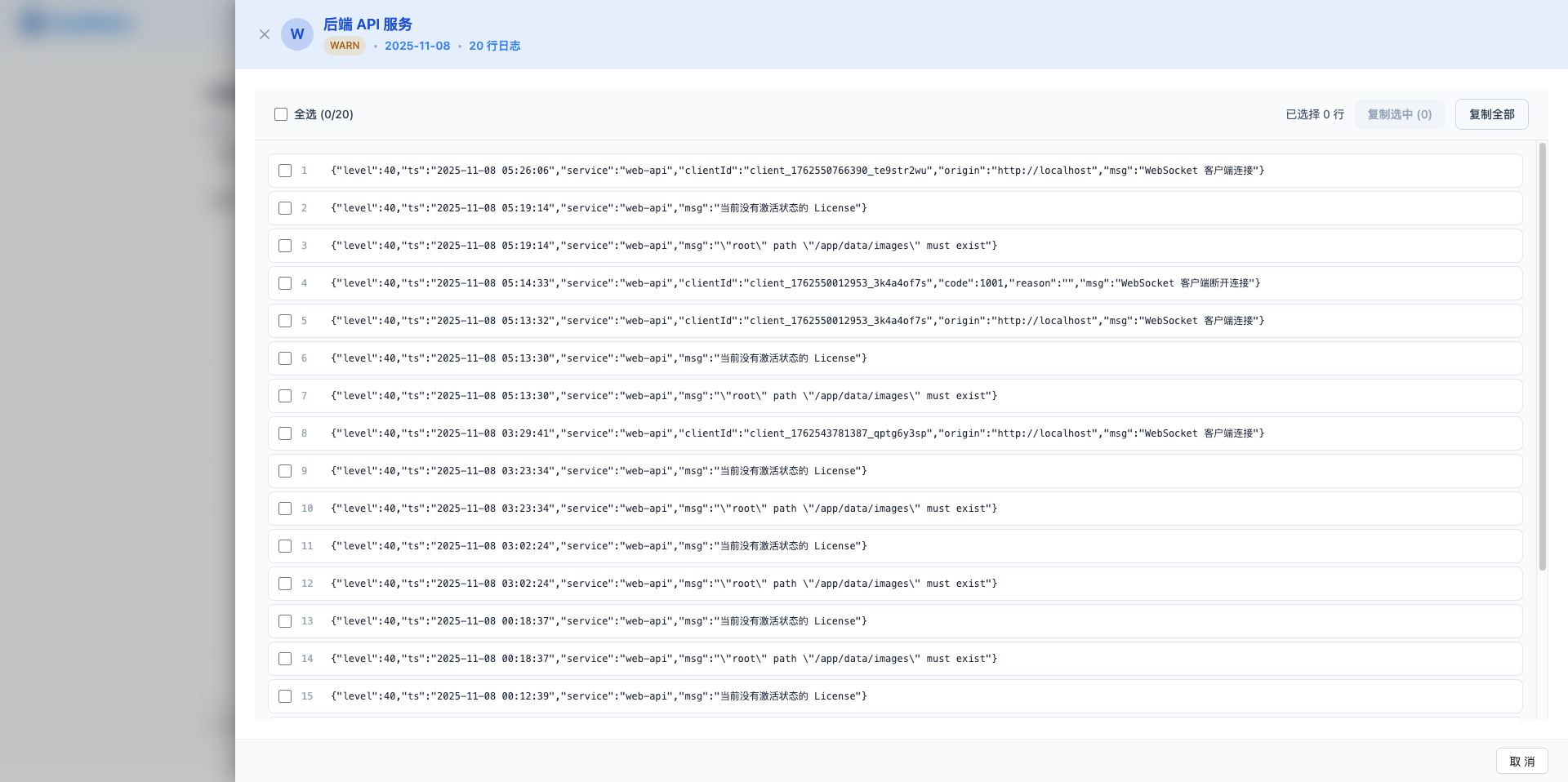
Click the "View" button to open a side drawer, viewing complete log content:
- Logs displayed line by line, each line individually selectable
- Supports select all, copy selected, copy all
- JSON format logs with automatic syntax highlighting
- Shows total line count statistics
Log Cleanup
- Clean Single File: Empty content but keep file
- Clean Today's Logs: Batch empty all today's logs
- Delete File: Permanently delete log file
All logs are stored by service and date in ~/Library/Application Support/cuemate-desktop-client/data/logs/{service}/{date}/ directory, retained for 30 days by default.
Summary
The log management system provides users with complete system operation visualization capabilities. Multi-dimensional filtering allows quick location of problem logs, the viewer supports selection and copying for troubleshooting and feedback.
5. feat(llm): LLM model configuration supporting 24+ mainstream LLM providers with unified management and user-customizable model selection
CueMate supports unified management of public cloud models and private deployment models through an intuitive configuration interface for adding, editing, and testing LLM models.
Supported Providers
- Public Cloud Models (16): OpenAI, Anthropic (Claude), Google Gemini, DeepSeek, Moonshot (Kimi), Zhipu AI, Tongyi Qianwen (Alibaba Cloud Bailian), Tencent Hunyuan, iFlytek Spark, Volcano Engine (Doubao), Baidu Qianfan, SenseTime Riri Xin, Baichuan AI, MiniMax, StepFun, SiliconFlow
- Cloud Platform Services (3): Azure OpenAI, Amazon Bedrock, Tencent Cloud
- Private Deployment (5): Ollama, vLLM, Xinference, Local Model, Regolo
Page Layout
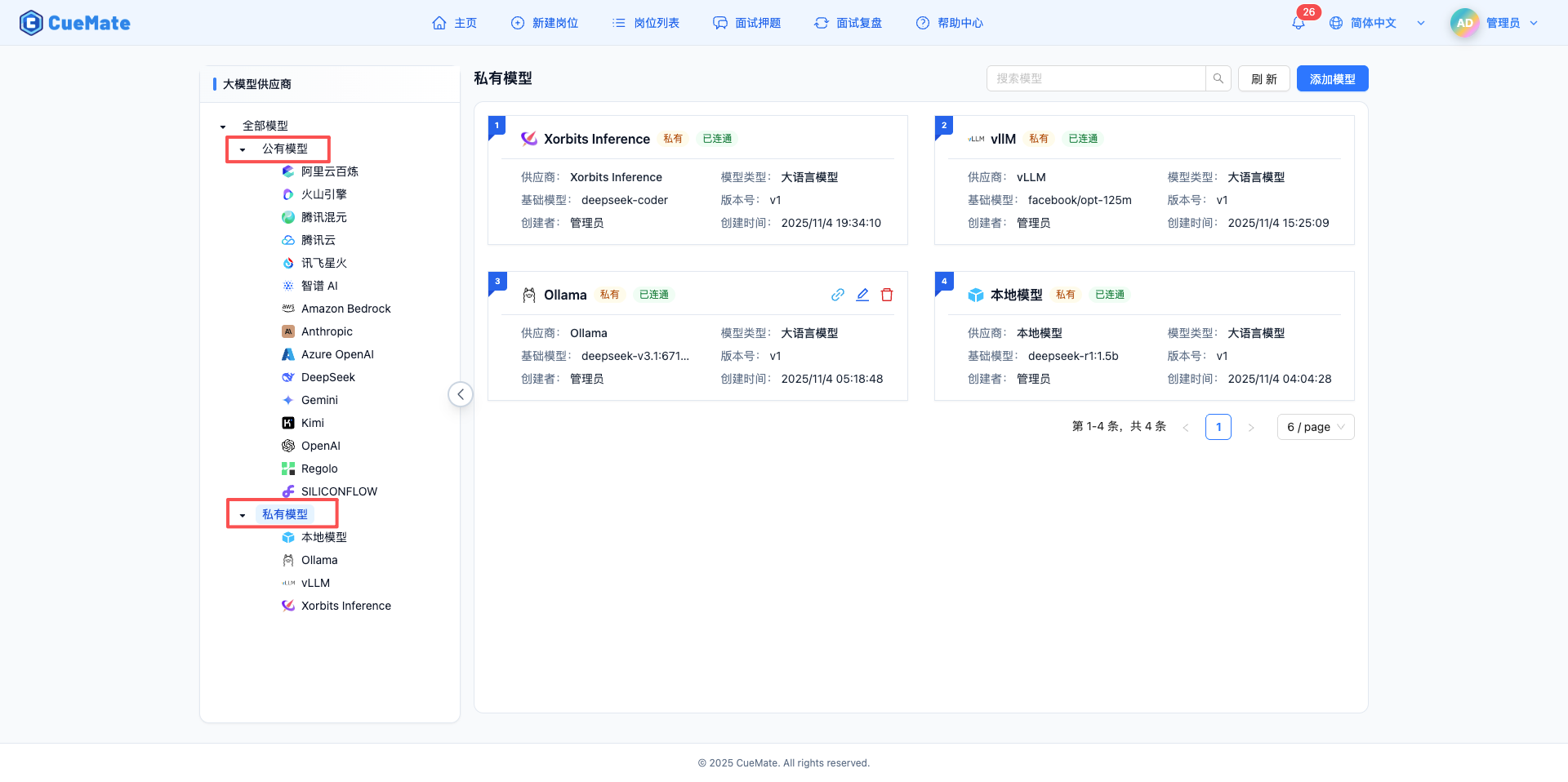
Left-right panel design:
- Left Navigation Tree: All Models / Public Models / Private Models, supports filtering by provider
- Right Model List: Card-style display showing model name, provider icon, connection status (Connected/Unavailable)
Adding and Configuring Models
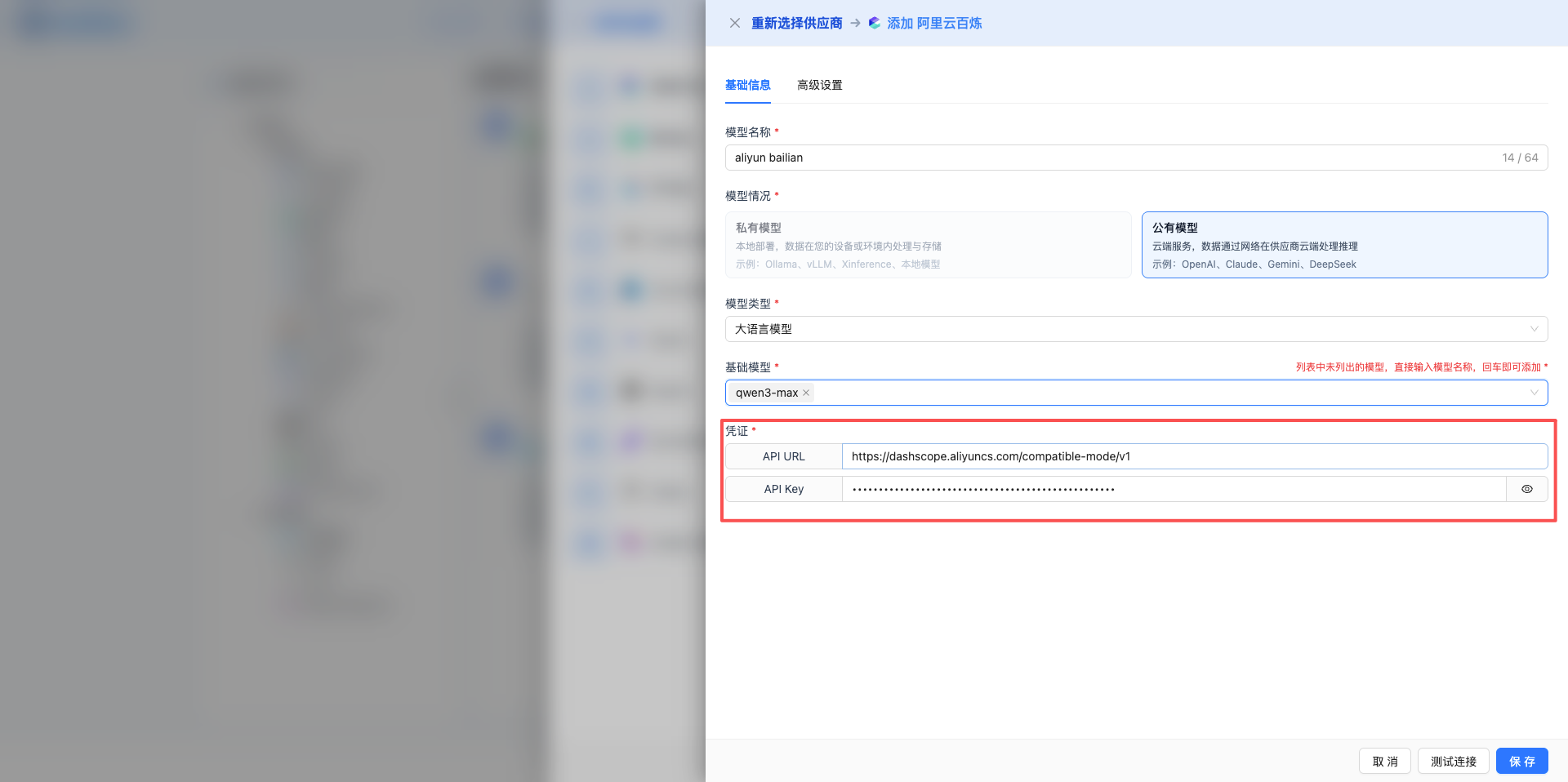
- Click "Add Model" to select provider
- Fill in model name, select base model (e.g., gpt-5, claude-sonnet-4-5)
- Configure credentials: API Key, Base URL
- Advanced parameters: temperature, max_tokens, top_p, etc.
- Click "Test Connection" to verify configuration
Each provider offers a "View Configuration Documentation" link, clicking jumps to the corresponding configuration instructions.
Summary
LLM model configuration simplifies complex multi-provider management into intuitive interface operations. Supporting 24+ providers, covering international mainstream and domestic large models, as well as private deployment solutions. Unified configuration interface and test connection functionality ensures each model works properly.
6. feat(job): Position management for creating interview positions with detailed JD descriptions, AI mock interviews generate questions and answers based on position
Position management is the first step in CueMate's interview preparation process. Users can create target positions, fill in job descriptions (JD), upload resumes, and subsequent AI mock interviews and interview training will generate targeted content based on this information.
New Position Wizard
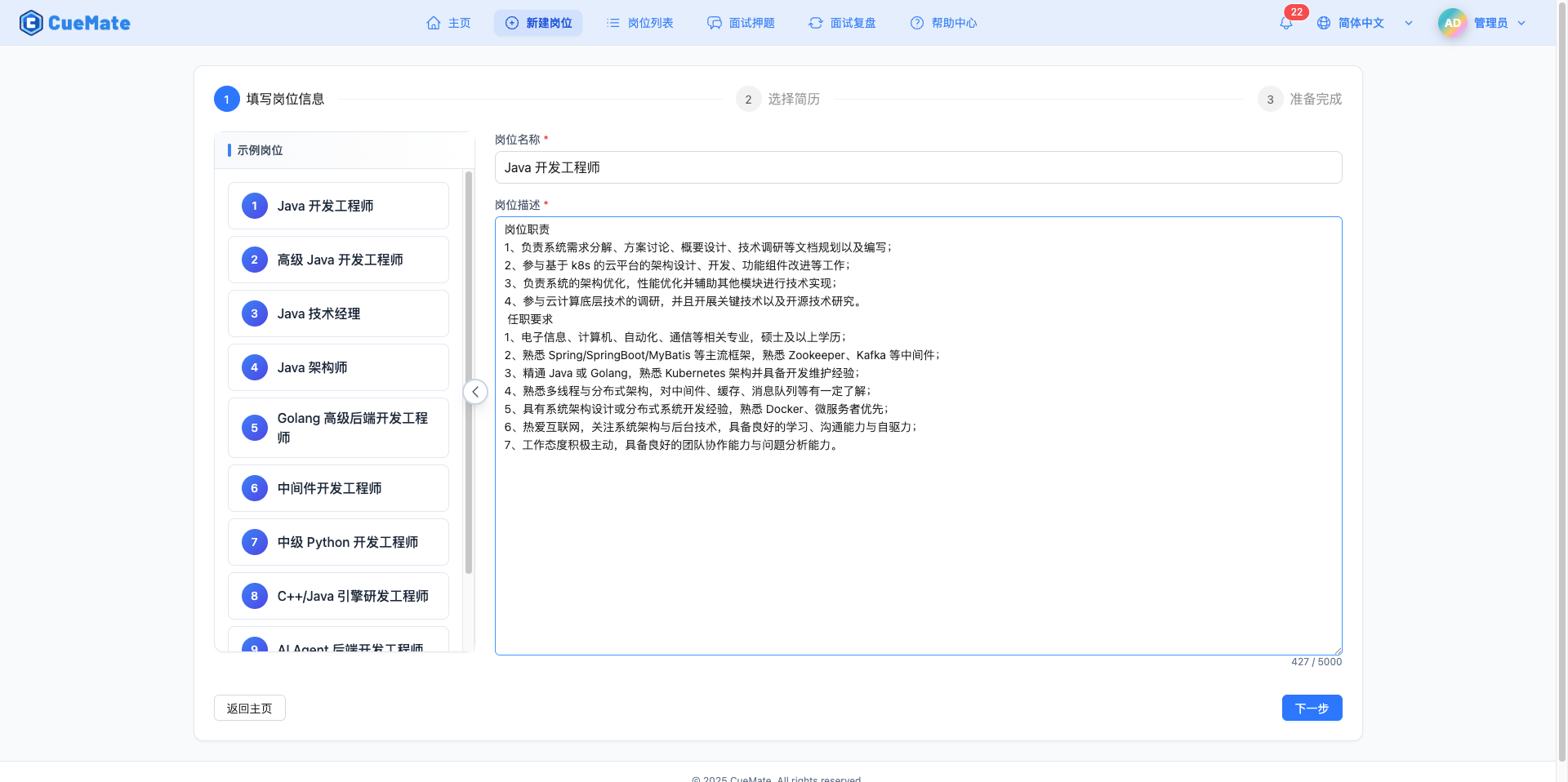
Creating a new position uses a 3-step wizard process:
Step 1 - Fill in Position Information: Enter position title and detailed job description (JD). Sample positions are provided on the right for reference, click to quickly populate default values. JD content is an important basis for AI to generate targeted interview questions, recommended to include job responsibilities, tech stack requirements, years of experience, and education requirements.
Step 2 - Upload Resume: Supports PDF, DOCX format file upload (max 10MB), system automatically extracts text content. You can also manually paste resume content. Resume information is used for AI to provide answer suggestions more aligned with personal background.
Step 3 - Creation Complete: After successful position creation, 5 quick action buttons are provided to directly start mock interview, create another position, go to vector knowledge base to sync data, or add predicted questions.
Position List Management
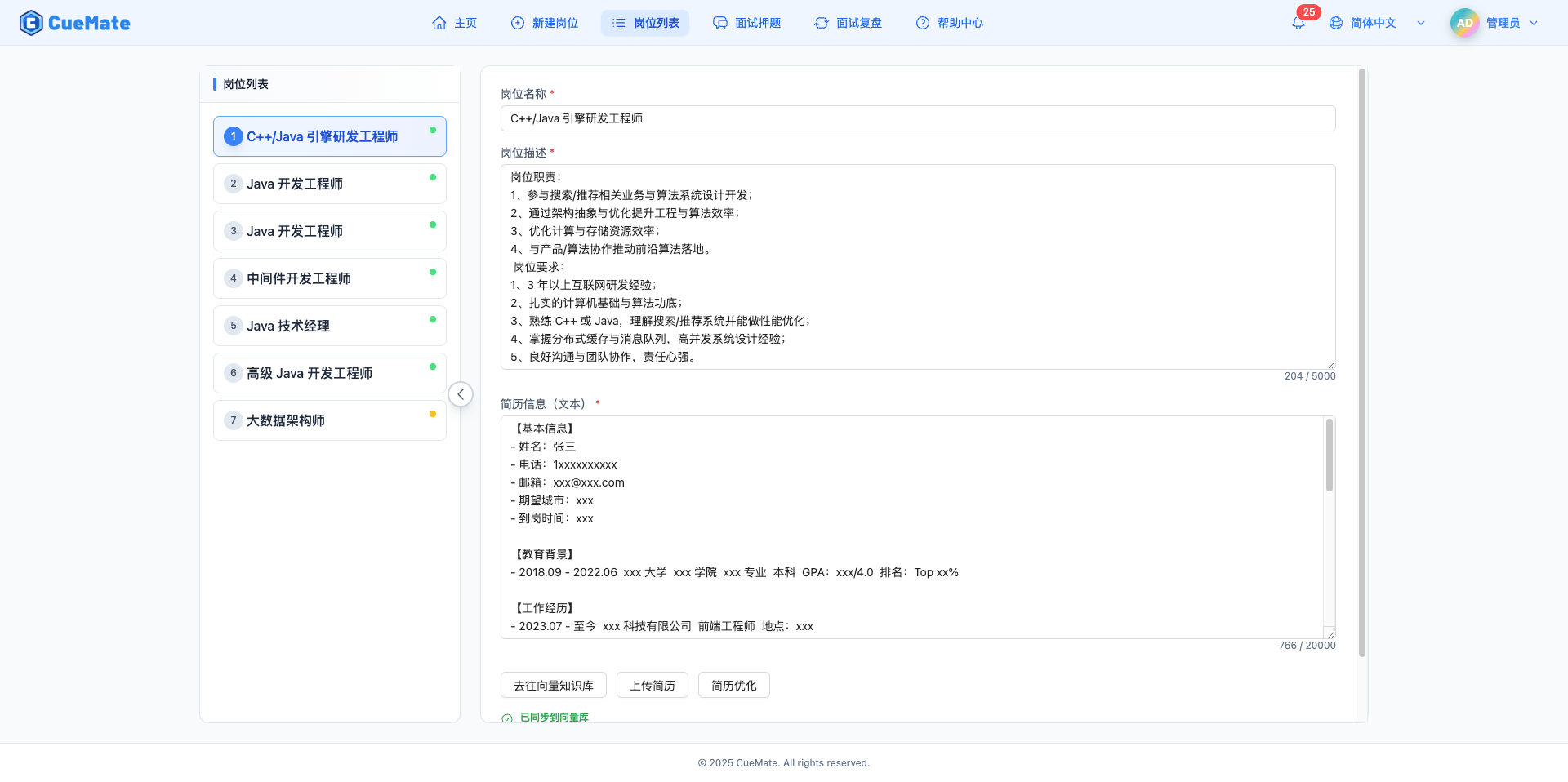
The position list page uses left-right layout: left side shows all created positions list, right side is the edit area. Click any position on the left, the right side shows that position's detailed information, allowing direct editing of position title, JD description, and resume content. Click "Save Changes" button after modification.
Bottom status indicator shows vector sync status: red indicates modified but not synced, green indicates synced and ready for normal use. After modifying position information, you need to go to the vector knowledge base page to manually sync before using the latest content in interview training.
AI Resume Optimization
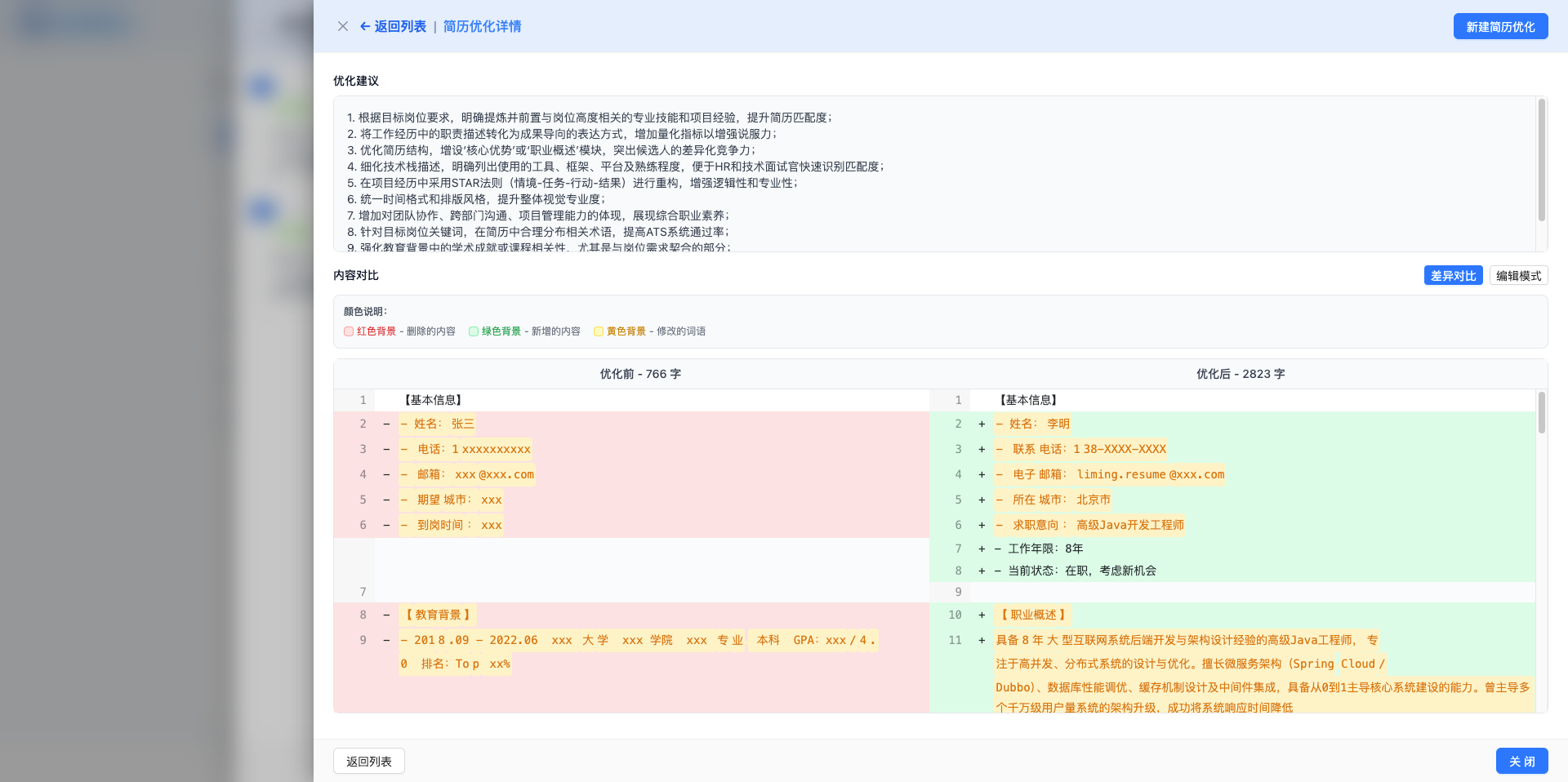
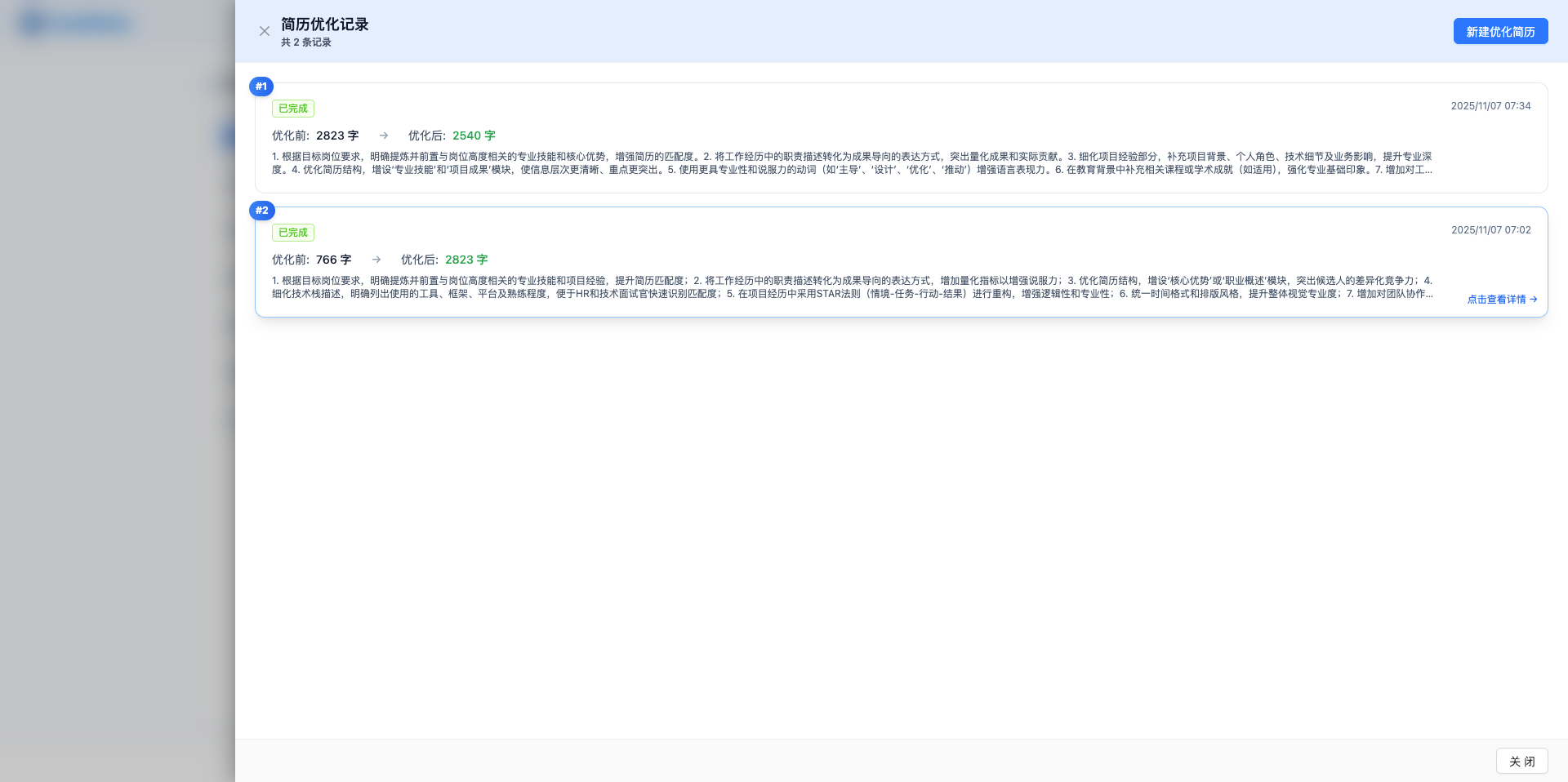
The position list page provides AI resume optimization feature. Click the "Resume Optimization" button to open the optimization record list, viewing all historical optimization records. Click "Create New Optimized Resume", AI will analyze the resume based on JD requirements and generate optimization suggestions, optimization directions include: highlighting matching skills, quantifying achievement data, optimizing expression logic, and adding keywords.
The optimization detail page provides comparison mode, using Diff view to show before and after differences (red for deletions, green for additions). It also supports iterative optimization, allowing continued optimization based on the optimized resume, gradually improving resume quality. When satisfied, click "Apply This Version" to apply the optimization result to the position.
7. feat(resume): Resume management with AI optimization, supporting multi-format resume upload and intelligent optimization suggestions
Resume management is integrated in the position list page, closely associated with position information. Supports uploading PDF, DOCX format resume files, system automatically extracts text content, and provides AI intelligent optimization based on position JD.
Upload Resume File
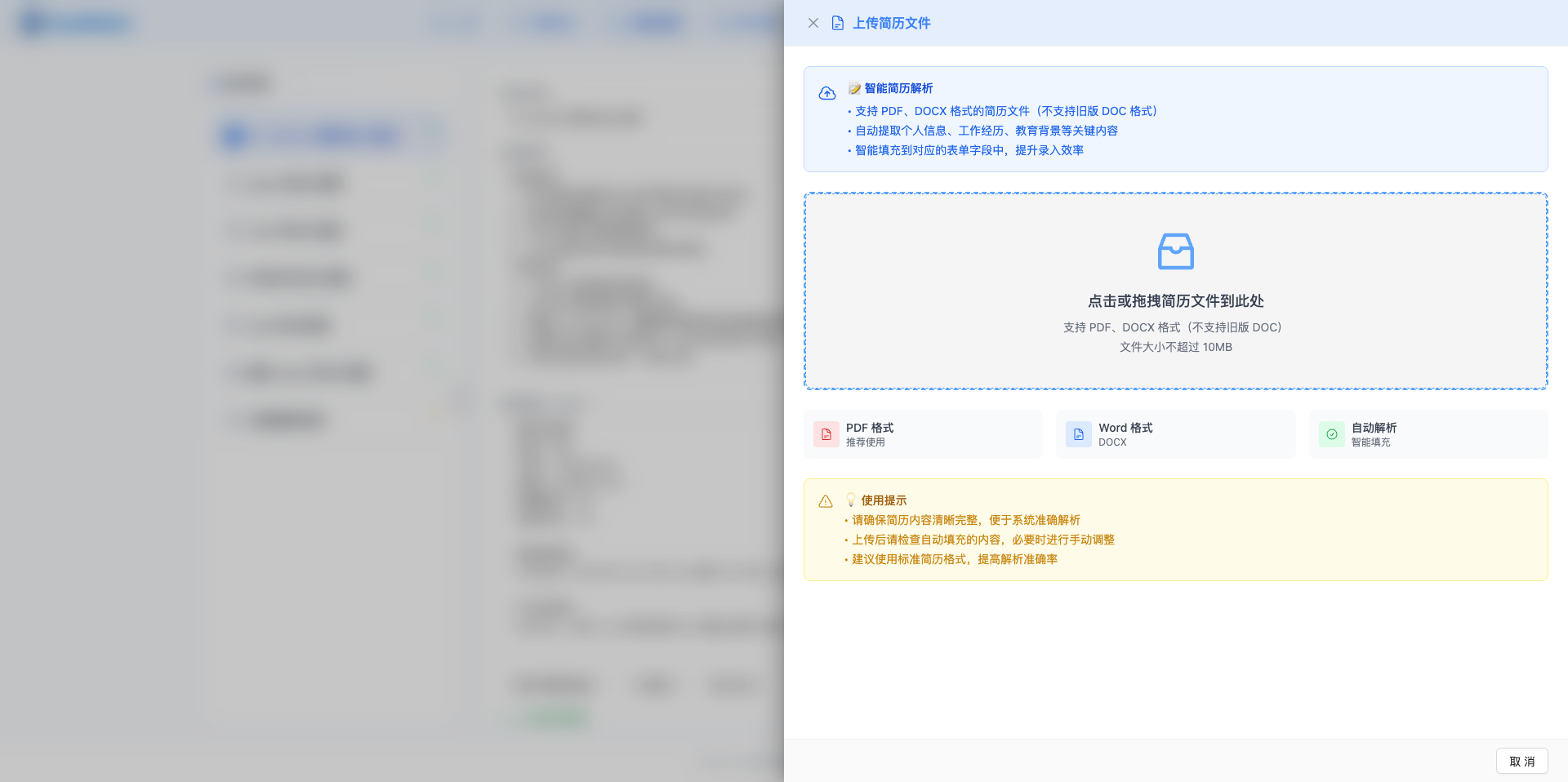
On the position list page, click the "Upload Resume File" button to open the resume upload side drawer. Supports clicking or dragging files to the upload area, file format requirements:
- PDF Format: Automatically extracts text content
- DOCX Format: Word documents (old DOC 97-2003 format not supported)
- File Size: Maximum 10MB
After successful upload, extracted text is displayed in the edit area, allowing manual correction of extraction errors or supplementing missing information. Recommended to keep core content related to the position such as tech stack, project experience, education, and years of experience.
View Uploaded Resume
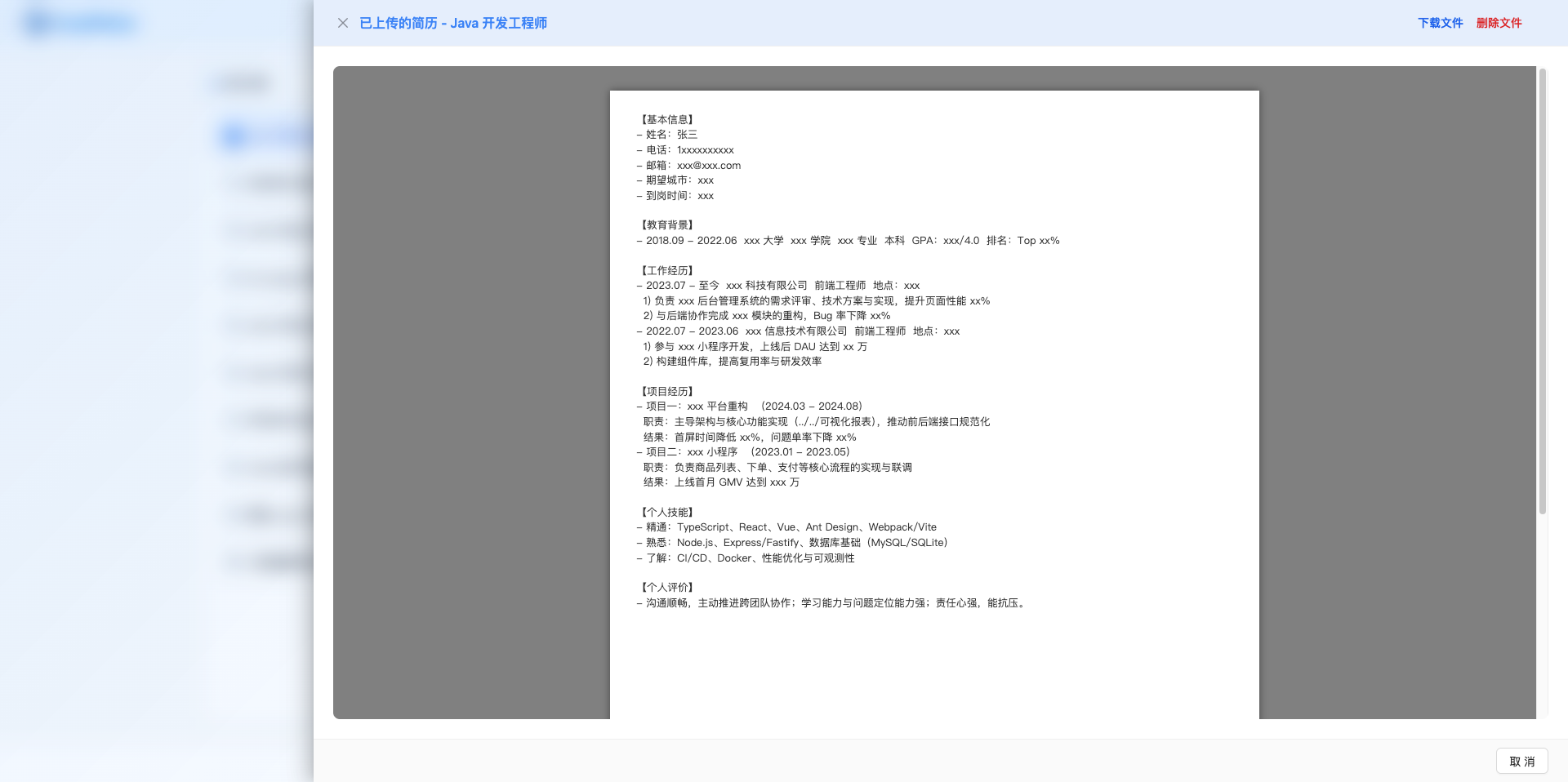
When a position has an uploaded resume file, a yellow "Uploaded Resume" button appears at the top of the page. Click to open the resume preview side drawer, supporting:
- File Preview: PDF uses browser built-in viewer, DOCX uses professional rendering library to preserve formatting
- Download File: Click the "Download File" button in the upper right to download resume
- Delete File: Remove resume file record (only clears file path in database, physical file requires manual cleanup)
AI Resume Optimization Process
Click the "Resume Optimization" button to open the optimization record list side drawer, showing all historical optimization records. Click "Create New Optimized Resume", AI reads the current position's JD and resume content, sends optimization request through LLM Router. The optimization process takes a few seconds to tens of seconds, during which a loading overlay is displayed.
After optimization completes, the detail page automatically opens, using Diff view to compare before and after differences: red indicates deleted content, green indicates added content. Can switch to edit mode to manually fine-tune results.
Supports iterative optimization: continue optimizing based on the current optimized resume, gradually improving quality. Each iteration creates a new record, keeping complete optimization history. When satisfied, click "Apply This Version" to update the optimization result to the position's resume content.
8. feat(knowledge): Interview question bank and knowledge base management, synced to vector database for enhanced answer retrieval accuracy
The predicted questions feature allows users to create interview questions and reference answers, building a personalized knowledge base. All predicted questions are synced to ChromaDB vector database, automatically retrieving related content when AI answers questions (relevance >= 80%), providing more accurate personalized answers.
Predicted Questions Page
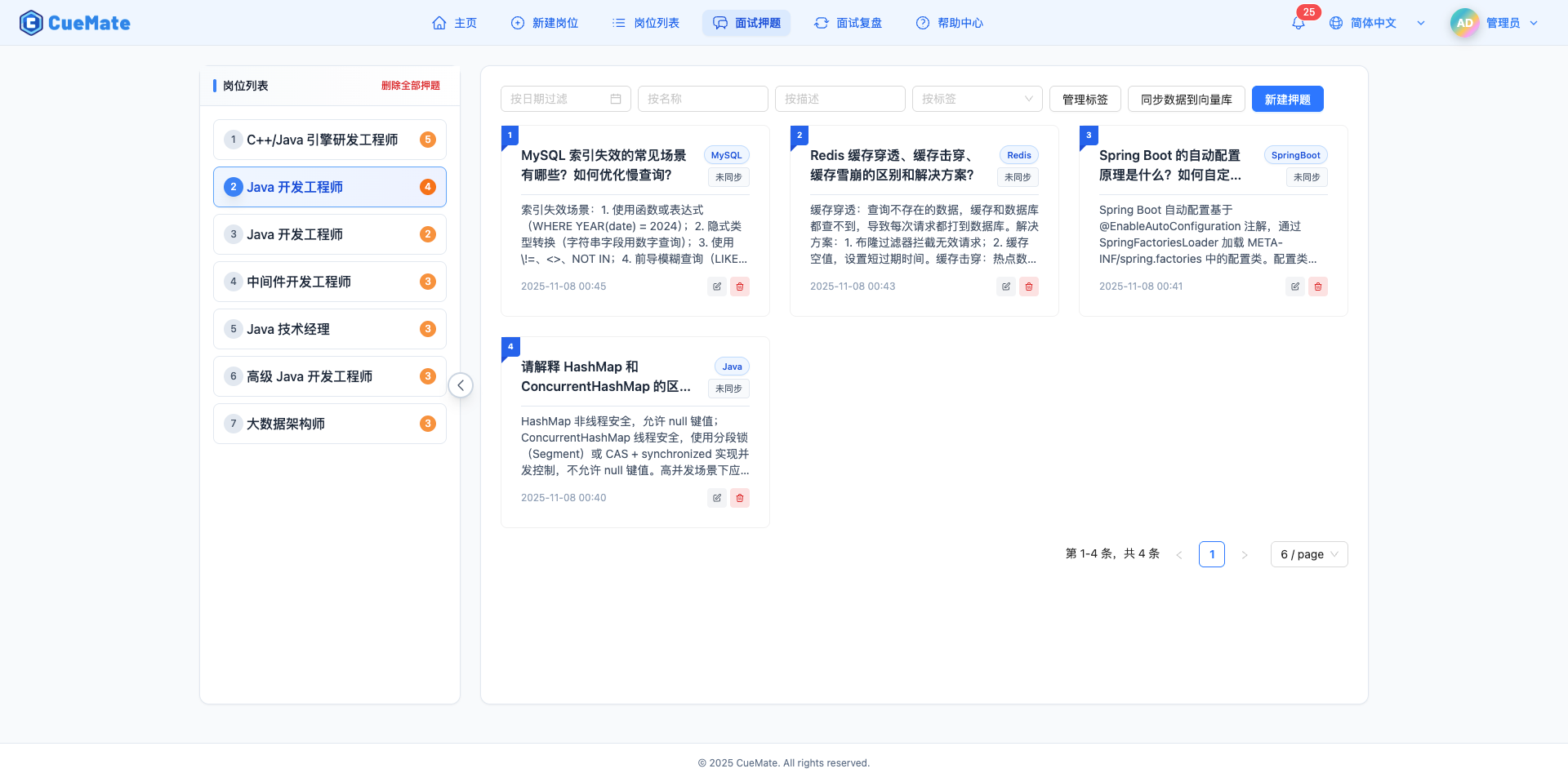
The predicted questions page uses left-right layout: left side shows all positions and question counts, right side displays questions in card grid format. Each question card contains sequence number, title, tags, description (max 4 lines), creation time, sync status indicator (green for synced/amber for not synced), edit and delete buttons.
Supports filtering questions by tag. Click "Create New Question" to open drawer, fill in question title, tags, and description (recommended to include core answer, detailed explanation, common follow-up questions). Also provides tag management feature to add and delete tags.
Sync to Vector Database
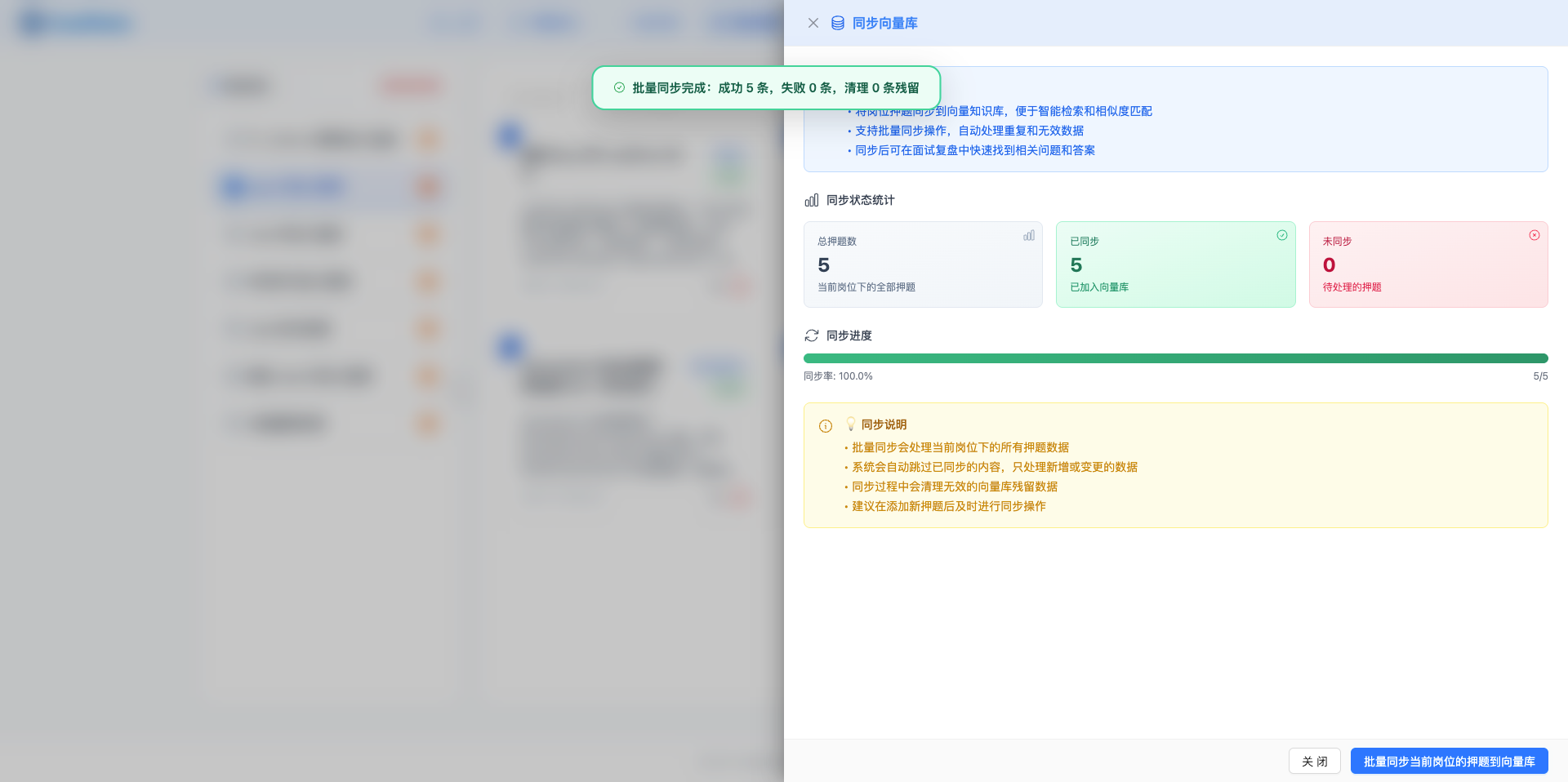
On the predicted questions page, click the "Sync to Vector DB" button to open the sync drawer, showing question sync status statistics (total questions, synced count, not synced count). Click "Batch Sync Current Position's Predicted Questions to Vector DB" button, system calls RAG Service API to vectorize question content and store in ChromaDB. Newly created or modified questions need to be manually synced before they can be retrieved in interview training.
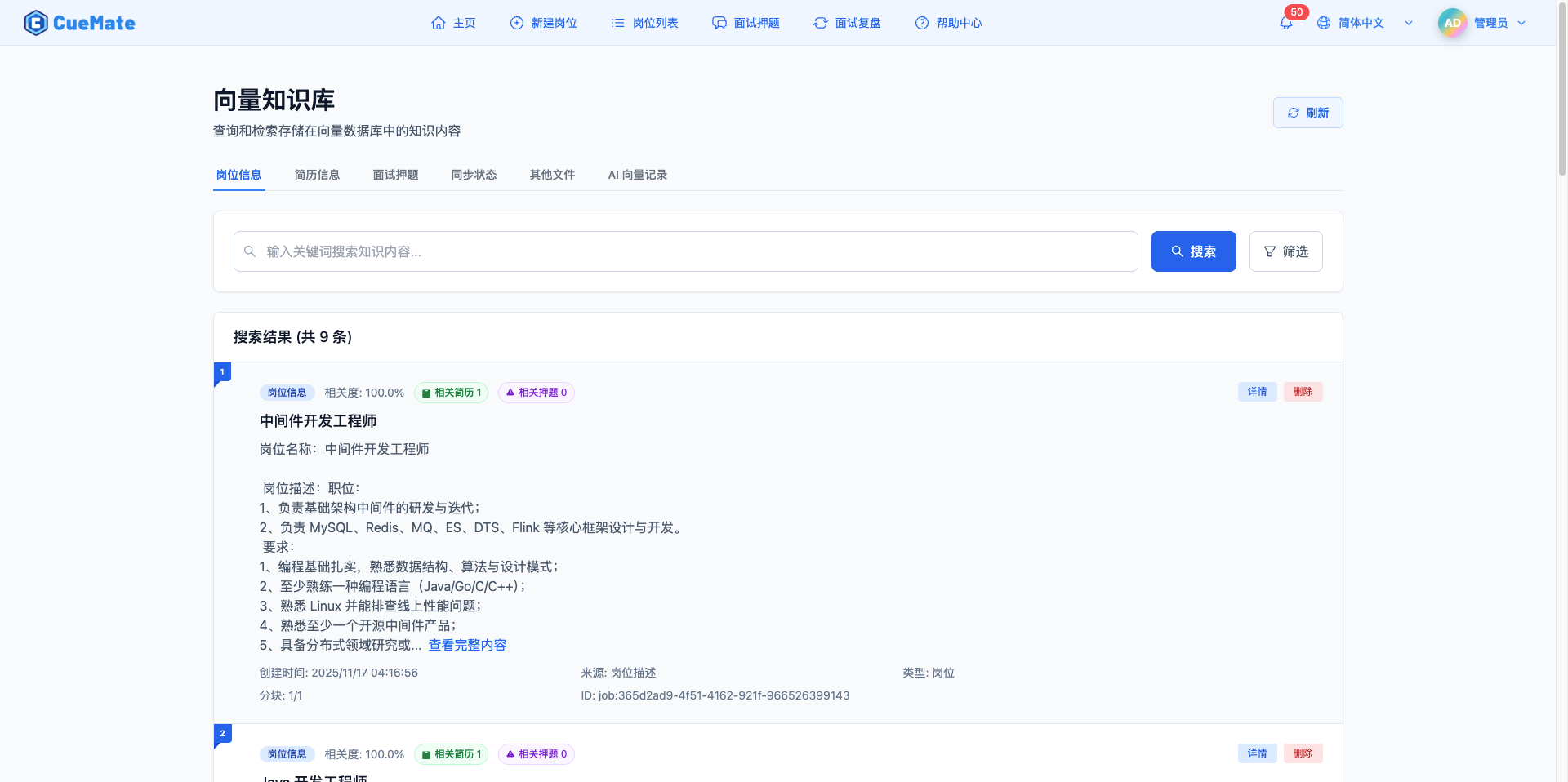
Vector Knowledge Base Page
The vector knowledge base page provides six tabs: Position Info, Resume Info, Predicted Questions, Sync Status, Other Files, AI Vector Records. In the "Sync Status" tab, you can execute "One-Click Sync All Data" to sync positions, resumes, and predicted questions to vector database at once. The "Other Files" tab supports uploading PDF, Word, text, and other files, or directly adding text content as supplementary knowledge sources. The "AI Vector Records" tab displays records of knowledge used during interviews, helping analyze knowledge usage and effectiveness.
9. feat(interview): Interview modes supporting AI Mock Interview, LIVE Training, and Voice Q&A scenarios
CueMate provides three different interview training modes, meeting needs at different stages and scenarios. From AI mock interviews for solo practice, to real-time assistance during actual interviews, to quick query voice Q&A, comprehensively improving interview skills.
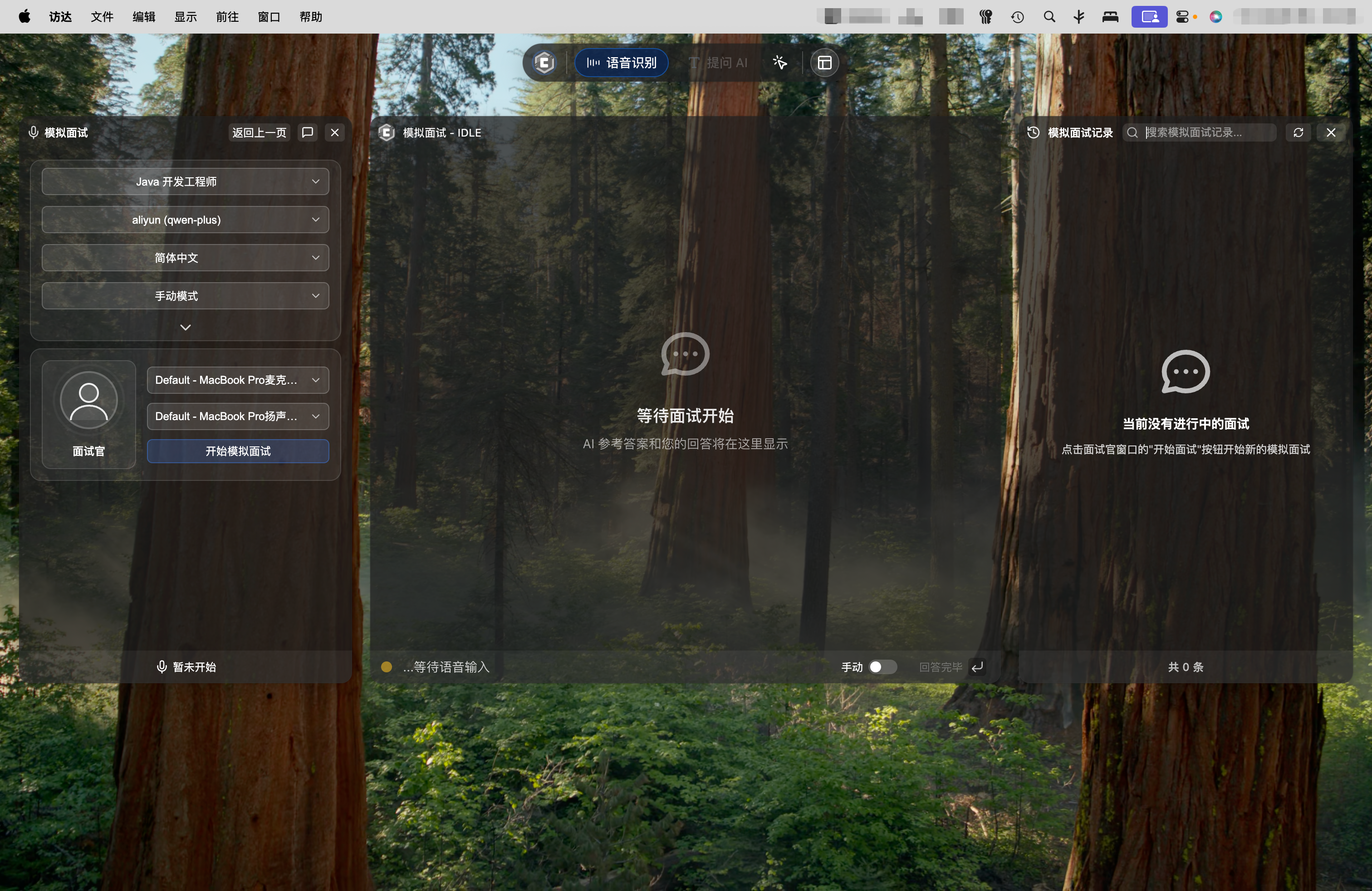
AI Mock Interview
AI Mock Interview has AI play the interviewer role, automatically asking questions and evaluating your answers. System opens three windows: left AI Interviewer window (showing questions and control panel), middle Conversation window (showing AI reference answers and user answers), right History Record window.
AI intelligently generates questions based on position JD, resume content, and predicted question bank, using Piper TTS for voice broadcast. Supports manual mode (click "Answer Complete" to submit) and automatic mode (silence auto-submit). The entire process loops through "AI Question -> AI Reference Answer -> User Answer -> Submit" until all questions are completed or manually ended. After interview ends, view comprehensive score and detailed report on the Interview Review page.
Interview Training (LIVE)
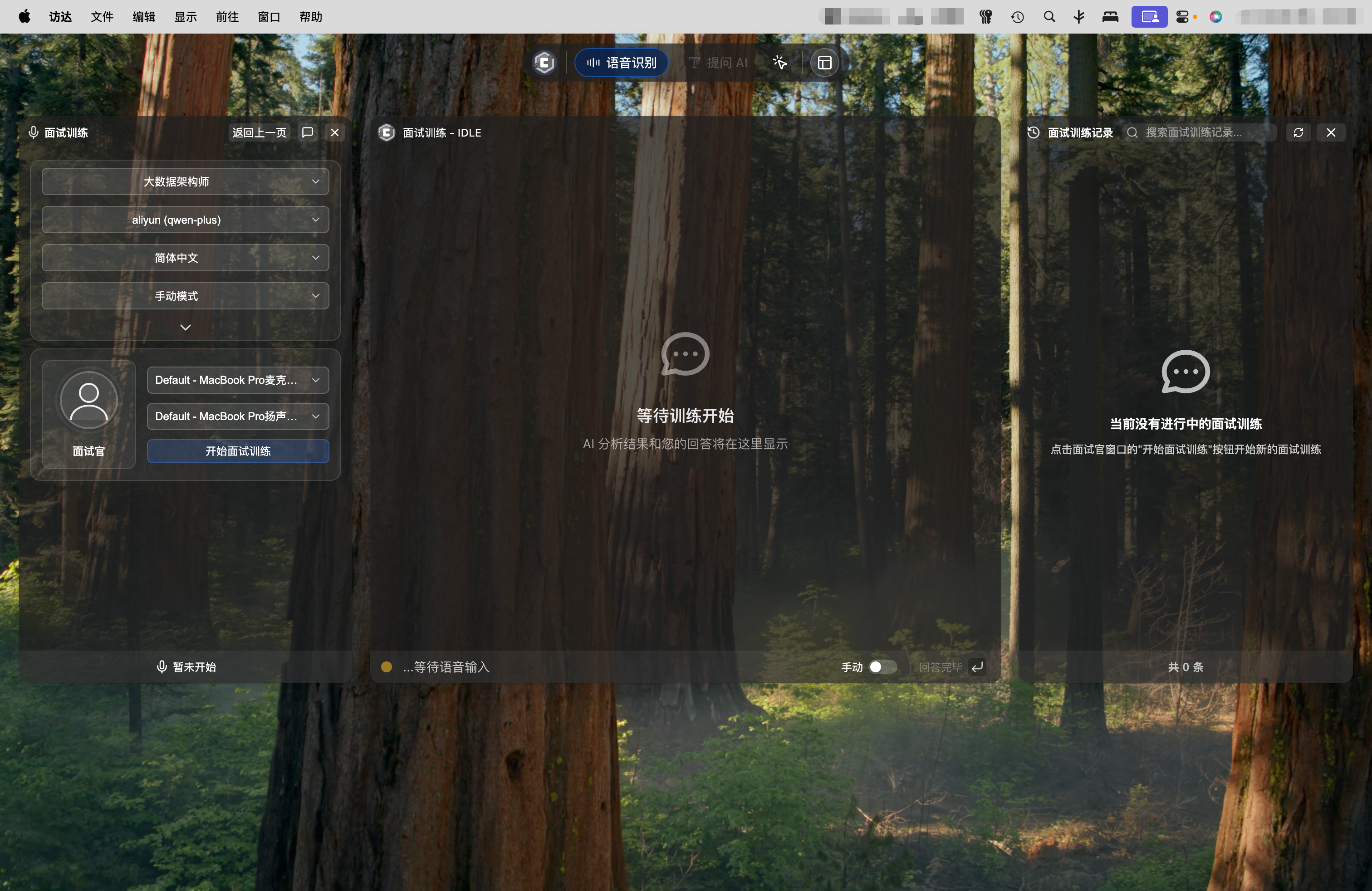
Interview Training is for real interview scenarios, recognizing interviewer questions in real-time and providing answer suggestions. System captures audio output from interview software (Tencent Meeting, Zoom, DingTalk, Feishu, etc.) through AudioTee technology, without requiring interviewer cooperation.
When the interviewer asks questions, system automatically recognizes and displays question text. Supports manual mode (click "Confirm Question" to trigger answer generation) and automatic mode (silence + question >= 5 characters auto-trigger). AI prioritizes matching answers from predicted question bank (similarity >= 80%), if no match then generates in real-time based on JD and resume. Answers display in the middle window for reference when answering in your own words.
Voice Q&A
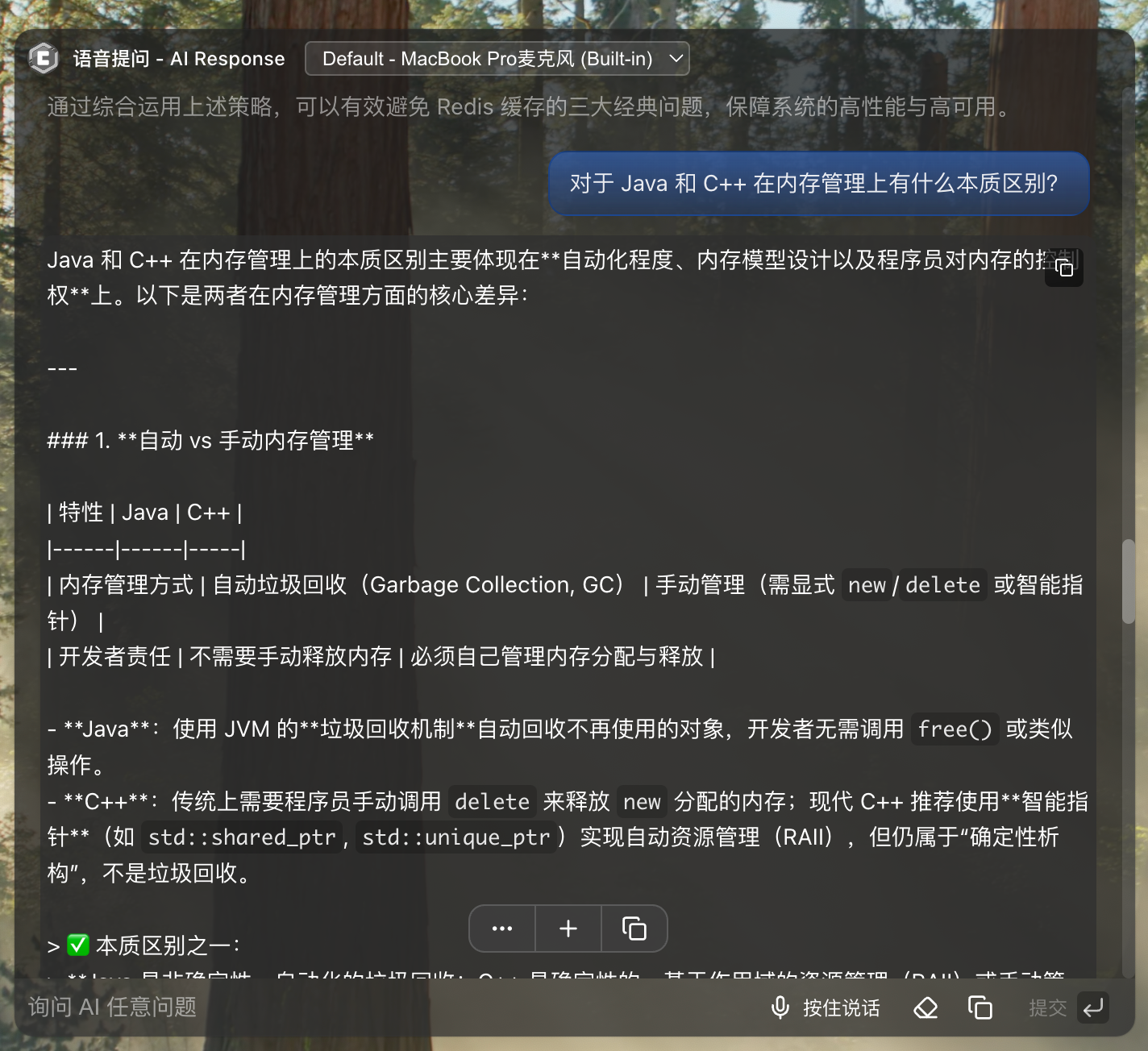
Voice Q&A is the most flexible method, suitable for quickly querying technical questions and interview question answers. Supports both text input and voice input, click "Press to Speak" for voice input, system recognizes in real-time and converts to text.
AI analyzes questions in real-time and returns streaming answers, supporting Markdown format display. Provides quick actions: ask follow-up questions, start new question, copy conversation content. All Q&A records are automatically saved to the AI Conversation Records page.
10. feat(voice): Real-time voice recognition with dual-channel audio capture to automatically distinguish and display candidate and interviewer speech
One of CueMate's core technologies is real-time voice recognition. Based on cuemate-asr (FunASR) voice recognition service, the system captures speech from both interview parties through two independent audio channels and converts to text.
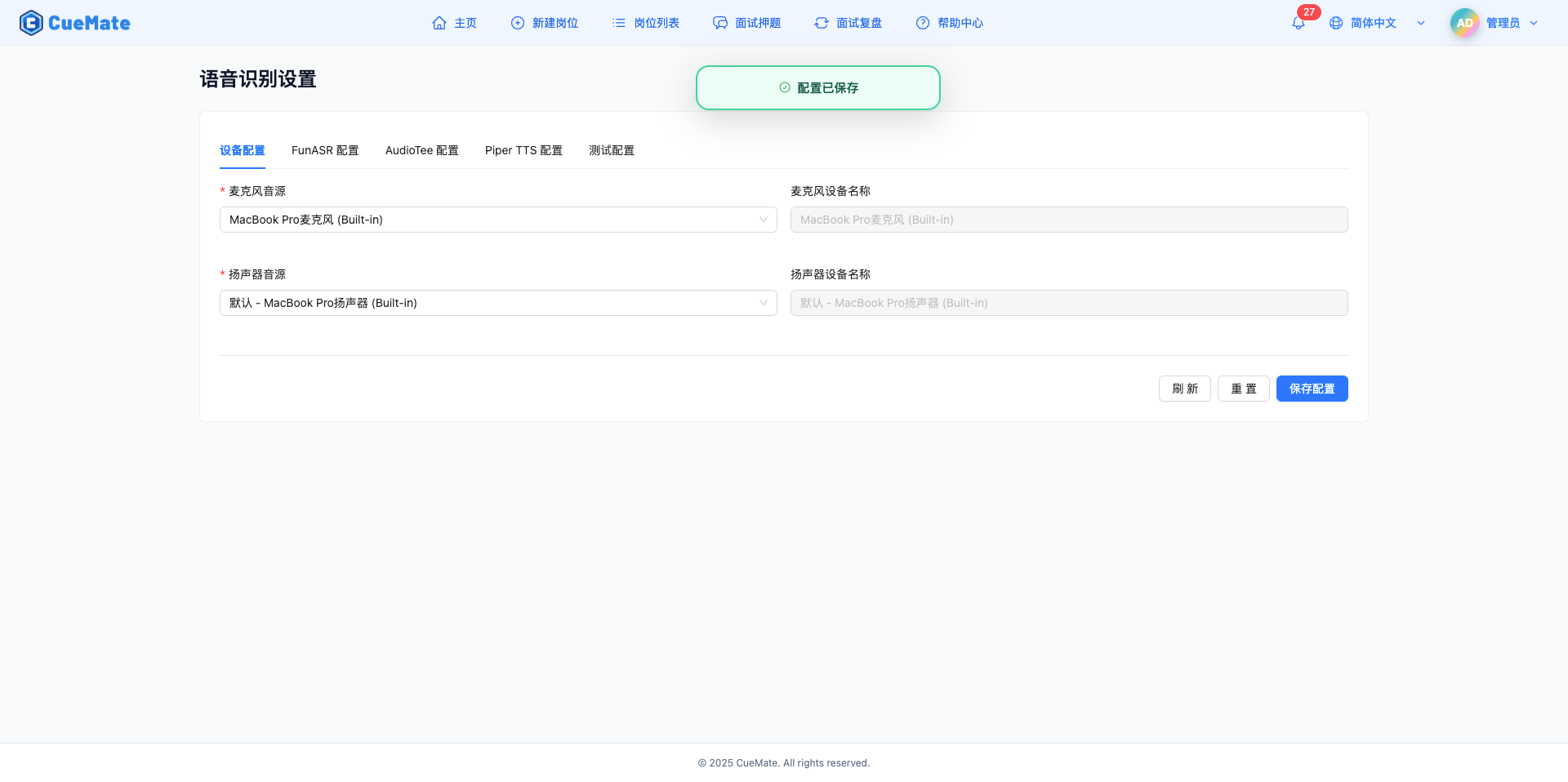
Voice Recognition Settings
The voice settings page provides five configuration tabs: Device Configuration (microphone, speaker), FunASR Configuration (recognition mode, sample rate, audio chunk parameters), AudioTee Configuration (system audio capture parameters, process filtering), Piper TTS Configuration (voice synthesis language and speed), Test Configuration (test duration, recognition length limit).
Microphone is used to capture user voice input, speaker is used for two functions: one is to play Piper TTS generated answer voice, two is to capture interview software (Tencent Meeting, Zoom, DingTalk, Feishu, etc.) audio output through AudioTee, enabling recognition of interviewer voice.
Dual-Channel Audio Capture
System uses two independent audio channels:
- Microphone Channel: Captures user voice, real-time text conversion through FunASR
- AudioTee Channel: Captures system audio (interviewer voice played by interview software), real-time text conversion through FunASR
FunASR supports three recognition modes: Online Mode (real-time streaming, low latency), Offline Mode (recognition after recording, high accuracy), Two-Pass Mode (online first then offline optimization). Supports Chinese and English recognition, automatic sentence segmentation and punctuation.
Voice Synthesis (Piper TTS)
Piper TTS is a local neural network voice synthesis system that converts AI-generated answers to natural, fluent voice broadcast. Supports Chinese (Huayan female voice) and English (Amy female voice) two voice models. Voice speed adjustable (0.5-2.0x), plays through speaker, freeing eyes to focus on thinking.
Voice Test
The voice test page is used to verify microphone and speaker voice recognition capabilities. Microphone test verifies whether user voice input works properly; Speaker test verifies whether AudioTee can correctly capture system audio. Before testing, microphone permission and "Screen Recording & System Audio" permission must be granted.
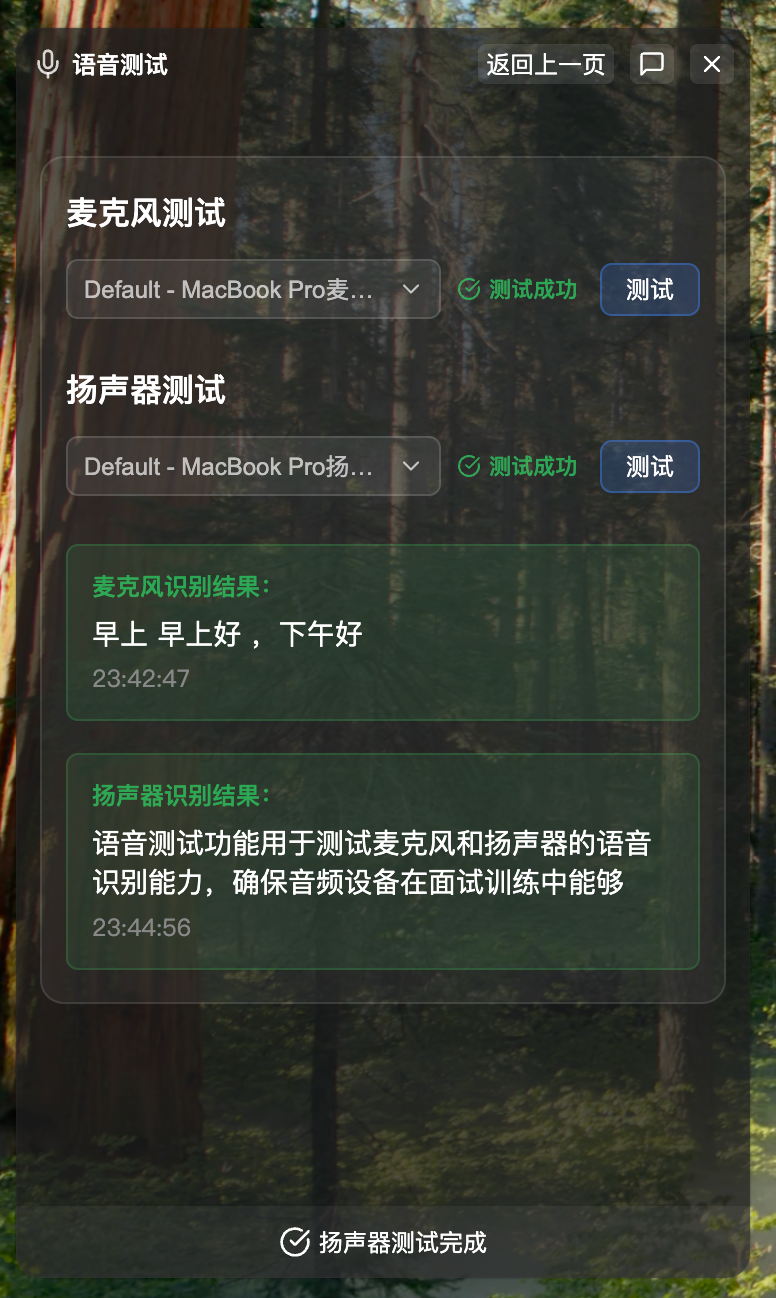
Permission Requirements:
- Microphone Permission: For recognizing your voice
- Screen Recording & System Audio Permission: Required by macOS system, for AudioTee to capture system audio (recognizing interviewer voice)
11. feat(history): Interview records and review analysis for viewing complete conversation history and statistics
CueMate provides two independent record viewing pages: Interview Review for analyzing mock interview and interview training performance, AI Conversation Records for managing all AI conversation history.
Interview Review
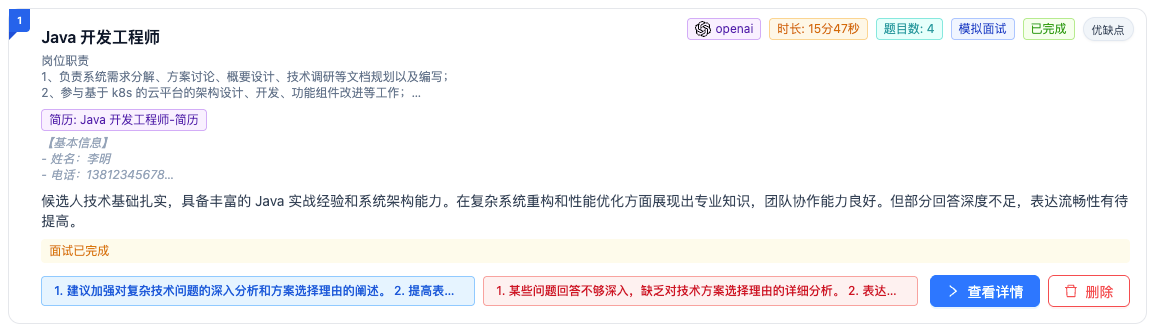
The interview review page displays all historical interview records in timeline format, sorted by time in descending order. Each interview card shows: AI model, interview duration, question count, interview type (Mock Interview/Interview Training), answer mode (Auto/Manual), status, strengths and weaknesses count. Cards can expand to view position description and resume content.
Click "View Details" to enter the interview detail page, containing three tabs:
- Interview Summary: Five-dimension capability radar chart (Interactivity, Confidence, Professionalism, Answer Relevance, Expression Fluency), Comprehensive Score (0-100), Interview Duration, Question Count, Overall Summary, Strengths and Weaknesses Analysis, Improvement Suggestions
- Question Analysis: Question-by-question display of interviewer questions, user answers, examination points and evaluation, reference answers, strengths and weaknesses analysis, improvement suggestions
- Interviewer Analysis: Fit Assessment (donut chart), Interviewer Analysis (role, MBTI, personal traits, preferences for candidates), Candidate Analysis, Communication Strategy Suggestions
AI Conversation Records
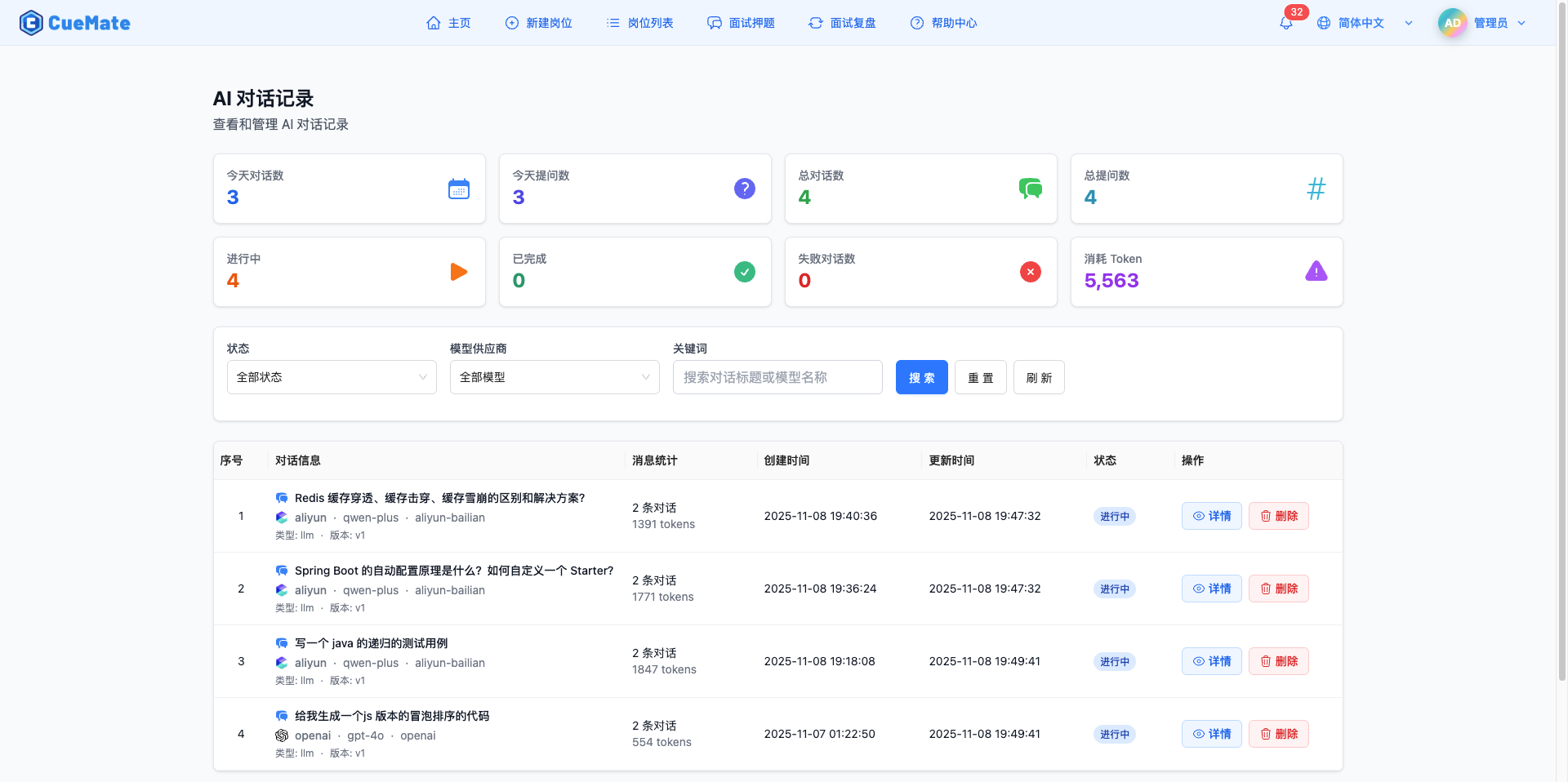
The AI conversation records page is used to manage all AI conversations conducted through CueMate. Top displays 8 statistics cards: Today's Conversations, Today's Questions, Total Conversations, Total Questions, In Progress, Completed, Failed, Total Tokens.
Supports multi-dimensional filtering: by status (All/In Progress/Completed/Failed), by model provider (OpenAI/Claude/GLM/Qwen/Moonshot, etc.), keyword search. Conversation list displayed in table format, including conversation info, message statistics, creation/update time, status. Click "View Details" to open drawer, viewing complete user questions and AI answer content, supporting Markdown rendering.
Technical Architecture
Frontend Tech Stack:
- React 18.2-18.3 + TypeScript 5.2-5.5
- Electron 39.2.2 (Desktop application framework, built-in Node.js 22.21.1, Chromium 142.0.7444.162, V8 14.2.231.18)
- Vite 5.2-5.4 (Build tool)
- Ant Design 5.27.3 (UI component library)
- Tailwind CSS 3.4.14 (Styling framework)
Backend Tech Stack:
- Node.js 20.x/22.x + TypeScript 5.5.4 (web/web-api uses 20.x, llm-router/rag-service uses 22.x)
- SQLite + better-sqlite3 9.6.0 (Local database)
- Docker Compose (Service orchestration)
- Nginx (Web static service)
AI Services:
- cuemate-asr (Alibaba DAMO Academy open-source voice recognition service)
- ChromaDB 3.1.5 (Vector database)
- OpenAI / Anthropic / Google / Domestic LLM providers
Audio Processing:
- Core Audio Taps (System audio capture)
- Piper TTS (Local neural network voice synthesis)
- FFmpeg 7.0.1 (Audio processing)
Platform Support
- macOS 13.0 (Ventura) and above
- Apple Silicon (M1/M2/M3) and Intel dual-architecture support
- Windows support (planned)
Documentation Resources
Download Links
macOS Installer
CueMate provides two download channels, please choose based on your network environment:
Method 1: Baidu Netdisk (Recommended for China Users)
Download Link: https://pan.baidu.com/s/15jwZHy8YkDa4cEDLIYRo9Q?pwd=3477
Extraction Code: 3477
Scan QR Code on Mobile:

Download Steps:
- Click the link above or scan QR code to access Baidu Netdisk
- Enter extraction code
3477 - Select
v0.1.0version folder - Download the installer matching your chip type:
- Apple Silicon (M1/M2/M3):
CueMate-v0.1.0-macos-arm64-offline.dmg - Intel Chip:
CueMate-v0.1.0-macos-x64-offline.dmg
- Apple Silicon (M1/M2/M3):
- Click "Download" button, save to local
Advantages: Fast download speed in China, no VPN required
Method 2: GitHub Release (Recommended for International Users)
Visit GitHub Releases page to download:
Download Link: https://github.com/cuemate-chat/cuemate/releases/tag/v0.1.0
Installer List:
- Apple Silicon (M1/M2/M3):
CueMate-v0.1.0-macos-arm64.dmg - Intel Chip:
CueMate-v0.1.0-macos-x64.dmg
SHA256 Checksums:
- Apple Silicon:
f7928cdf6354e6996ec681ad2599c7519bf9cda0c6f76cc7ffc2a445130297b9 - Intel:
cc3bc4a7c43a1e0f2dd1098a510a6f924d589cb21f8fb215f659976a584dc2b0
Windows Installer
Under Development
Windows version is currently under development, expected to release in the next major version. Current version only supports macOS platform.
Follow these channels for Windows version progress:
Feedback Channels
Found an issue or have suggestions? Welcome to provide feedback through:
- GitHub Issues: https://github.com/cuemate-chat/cuemate/issues
- Email: nuneatonhydroplane@gmail.com
- Discussions: https://github.com/cuemate-chat/cuemate/discussions
Thank you for using CueMate!