

Configure Xorbits Inference
Xorbits Inference (Xinference) is a powerful open-source model inference framework that supports LLM, Embedding, Rerank, and multimodal models. It provides distributed inference, one-click deployment, OpenAI-compatible API, and other features.
1. Install and Deploy Xinference
1.1 Access Xinference Official Website
Visit the Xinference official website and check the documentation: https://inference.readthedocs.io/
GitHub repository: https://github.com/xorbitsai/inference
1.2 System Requirements
- Operating System: Linux, macOS, Windows
- Python: 3.8-3.11
- GPU: Optional (NVIDIA GPU with CUDA support)
- Memory: Depends on model size, 16GB+ recommended
1.3 Install Xinference
Install using pip
# Install Xinference
pip install "xinference[all]"

# Verify installation
xinference --version
Expected Result:
xinference, version 0.x.xCommon Errors:
- If you see
command not found: xinference, the installation failed or it's not in PATH - If Python version is incompatible, ensure you're using Python 3.8-3.11
Install using Docker
# Pull Xinference official image
docker pull xprobe/xinference:latest

# Run Xinference service
docker run -p 9997:9997 -v $HOME/.xinference:/root/.xinference xprobe/xinference:latest
Expected Result:
- Image pull successful, displays
Status: Downloaded newer image for xprobe/xinference:latest - After container starts, log output displays, including
Starting Xinference at http://0.0.0.0:9997
Common Errors:
- If pull fails, it might be a network issue, try configuring Docker mirror acceleration
- If port 9997 is occupied, modify the
-pparameter to use a different port
1.4 Start Xinference Service
Start Local Service
# Start Xinference
xinference-local --host 0.0.0.0 --port 9997
Expected Result:
Starting Xinference at http://0.0.0.0:9997
Xinference service started successfully
You can now access the web UI at http://localhost:9997
Common Errors:
- If you see
Address already in use, the port is occupied, use--portto specify a different port - If you see permission errors, try using
sudoor check file permissions
Start Cluster Mode
# Start supervisor (master node)
xinference-supervisor --host 0.0.0.0 --port 9997

# Start worker (worker node) on other machines
xinference-worker --endpoint http://supervisor_host:9997
Expected Result:
- Supervisor starts successfully, displays listening address and port
- Worker connects successfully, displays
Connected to supervisor at http://supervisor_host:9997
1.5 Deploy Model
Deploy models through Web UI or command line:
Using Web UI
- Visit: http://localhost:9997
- Click the Launch Model button
- Select a model (e.g., qwen2.5-7b-instruct)
- Configure parameters and launch
Expected Result:
- Web UI displays list of available models
- After clicking Launch, the model starts downloading (if not available locally)
- After model loads successfully, status shows "Running"
- You can see the model's access address, e.g.,
http://localhost:9997/v1
Common Issues:
- If model list is empty, check network connection or manually download models
- First deployment will download model files, which may take a while (depending on model size)
- If insufficient memory, choose a model with fewer parameters
Using Command Line
# Deploy Qwen 2.5 7B model
xinference launch --model-name qwen2.5-7b-instruct --size-in-billions 7

# View deployed models
xinference list
Expected Result:
Model launched successfully
Model UID: qwen2.5-7b-instruct-xxxxx
Model is now available at: http://localhost:9997/v1/models/qwen2.5-7b-instruct-xxxxx
Example output of viewing deployed models:
UID                                   Name                      Type    Status
qwen2.5-7b-instruct-xxxxx            qwen2.5-7b-instruct       LLM     Running
Common Errors:
- If model doesn't exist, use
xinference registrationsto view available models - If launch fails, check logs to understand the specific error
1.6 Verify Service is Running
# Check service status
curl http://localhost:9997/v1/models
Correct Return Result Example:
{
  "object": "list",
  "data": [
    {
      "id": "qwen2.5-7b-instruct-xxxxx",
      "object": "model",
      "created": 1699234567,
      "owned_by": "xinference",
      "permission": []
    }
  ]
}
If the above JSON content is returned, Xinference service has started successfully and the model is deployed.
Error Cases:
Connection Failed:
bashcurl: (7) Failed to connect to localhost port 9997: Connection refusedService is not started or port configuration is incorrect, please check if the service is running normally.
Empty List Returned:
json{ "object": "list", "data": [] }Service is running normally but no models have been deployed yet. You need to deploy a model first.
404 Error:
json{"detail": "Not Found"}Access path is incorrect, confirm you're using the correct API endpoint
/v1/models.
2. Configure Xinference Model in CueMate
2.1 Navigate to Model Settings
After logging into CueMate, click Model Settings in the dropdown menu at the top right corner.
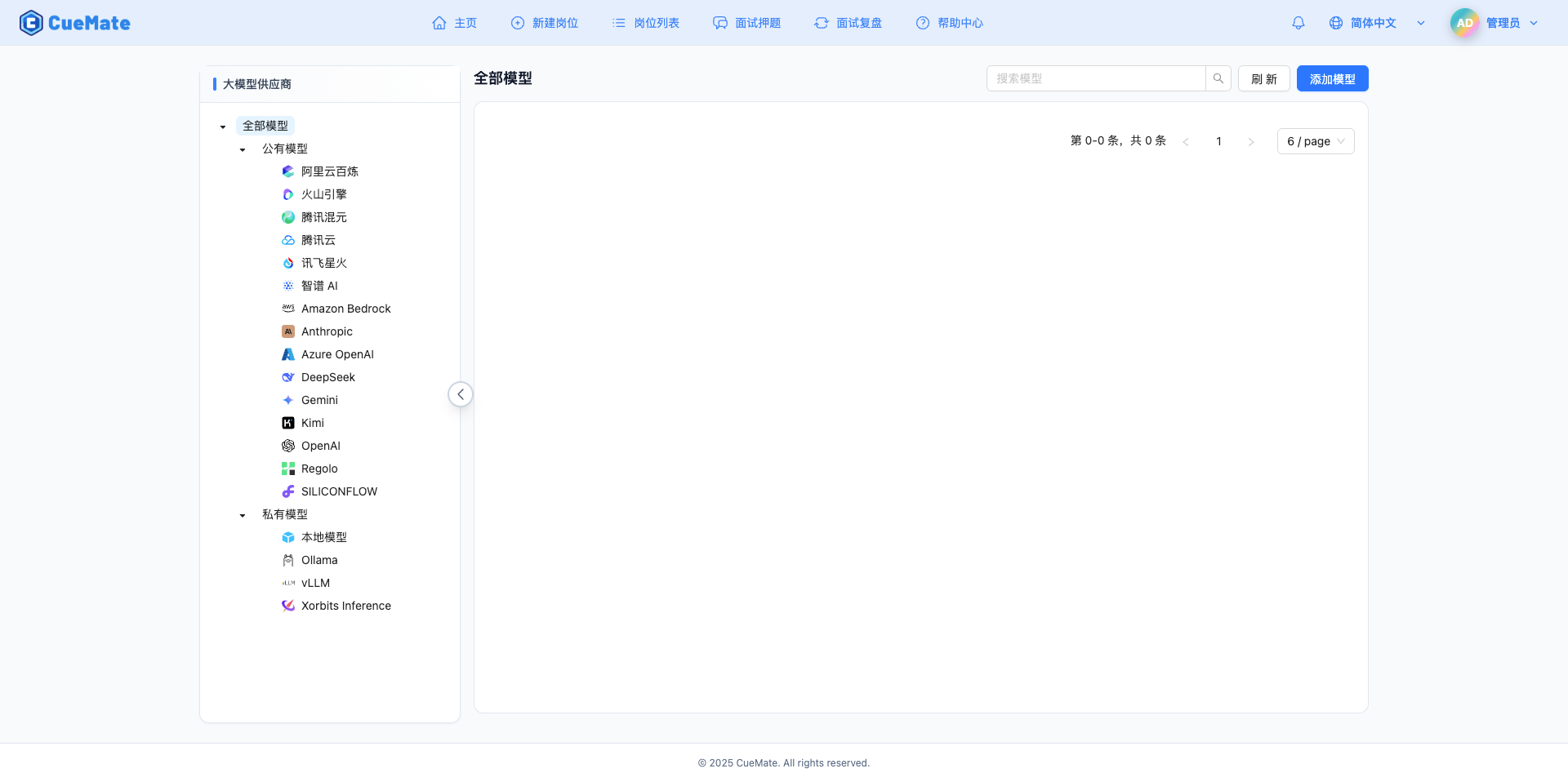
2.2 Add New Model
Click the Add Model button in the upper right corner.

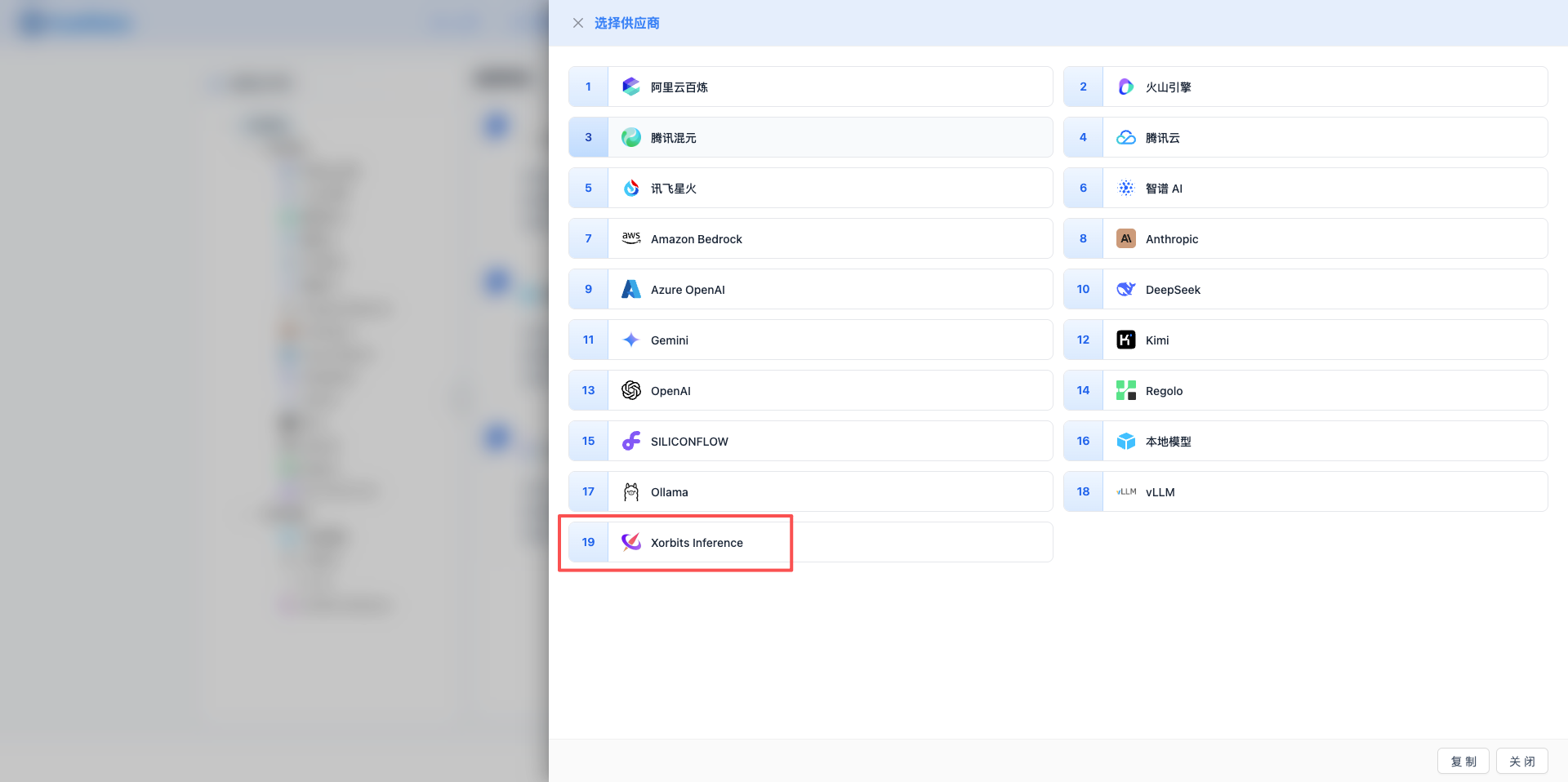
2.3 Select Xorbits Inference Provider
In the dialog that appears:
- Provider Type: Select Xorbits Inference
- After clicking, it will automatically proceed to the next step
2.4 Fill in Configuration Information
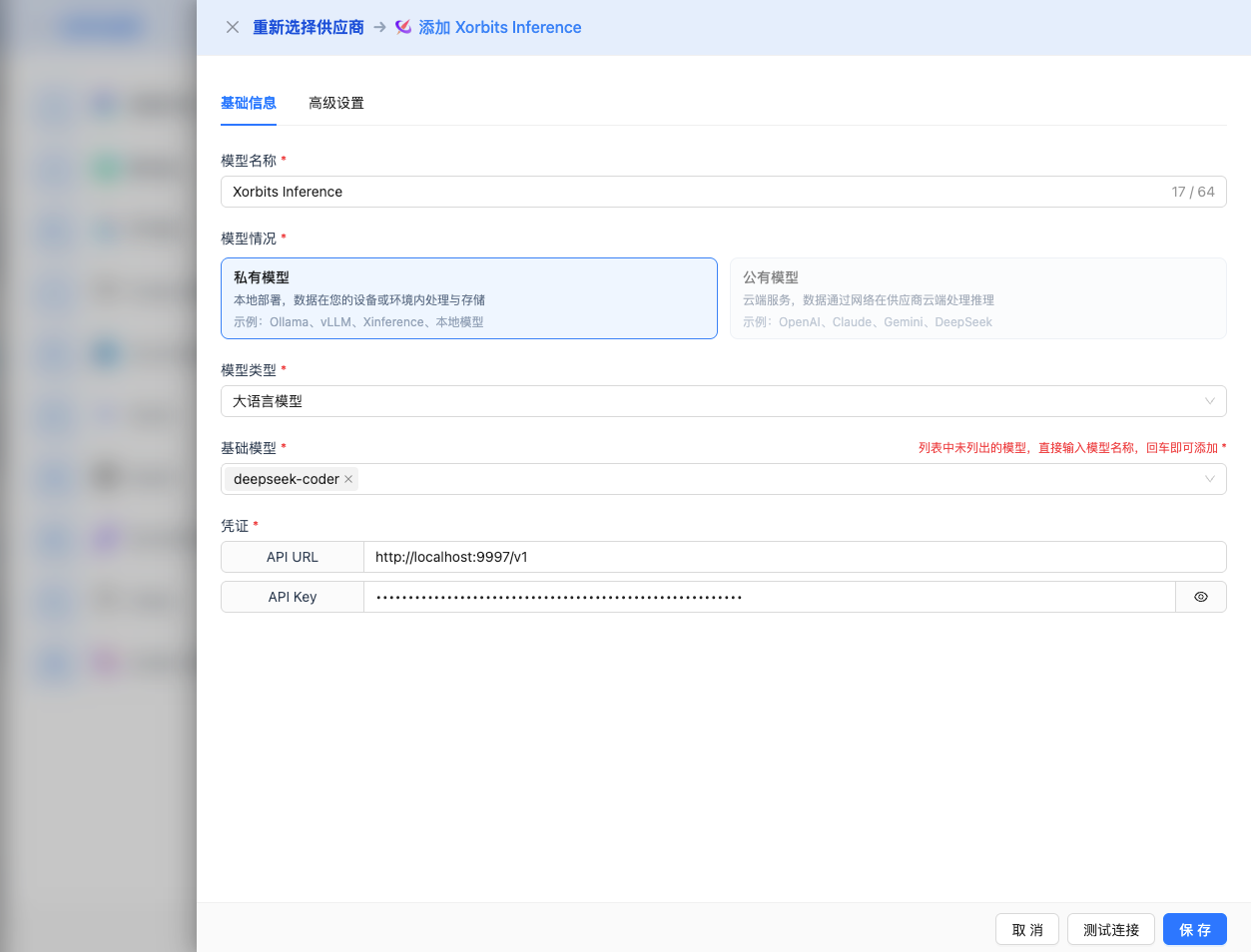
Fill in the following information on the configuration page:
Basic Configuration
- Model Name: Give this model configuration a name (e.g., Xinference Qwen 2.5)
- API URL: Keep the default
http://localhost:9997/v1(or modify to your Xinference service address) - API Key: Optional, fill in if
--api-keyparameter was configured when Xinference service was started - Model Version: Enter the name of the deployed model
Recommended Models for 2026:
- Qwen 2.5 Series:
qwen2.5-72b-instruct: Qwen 2.5 72B conversational modelqwen2.5-32b-instruct: Qwen 2.5 32B conversational modelqwen2.5-14b-instruct: Qwen 2.5 14B conversational model (recommended)qwen2.5-7b-instruct: Qwen 2.5 7B conversational model
- Qwen 2.5 Coder Series:
qwen2.5-coder-32b-instruct: Code generation 32Bqwen2.5-coder-7b-instruct: Code generation 7B
- DeepSeek R1 Series:
deepseek-r1-8b: DeepSeek R1 8B reasoning-enhanced model
- Llama 3 Series:
llama-3.3-70b-instruct: Llama 3.3 70B conversational modelllama-3.1-70b-instruct: Llama 3.1 70B conversational modelllama-3.1-8b-instruct: Llama 3.1 8B conversational model
- Other Recommendations:
mistral-7b-instruct-v0.3: Mistral 7B conversational modelgemma-2-27b-it: Gemma 2 27B conversational modelgemma-2-9b-it: Gemma 2 9B conversational modelglm-4-9b-chat: GLM-4 9B conversational model
Note: Model version must be a model already deployed in Xinference.
Advanced Configuration (Optional)
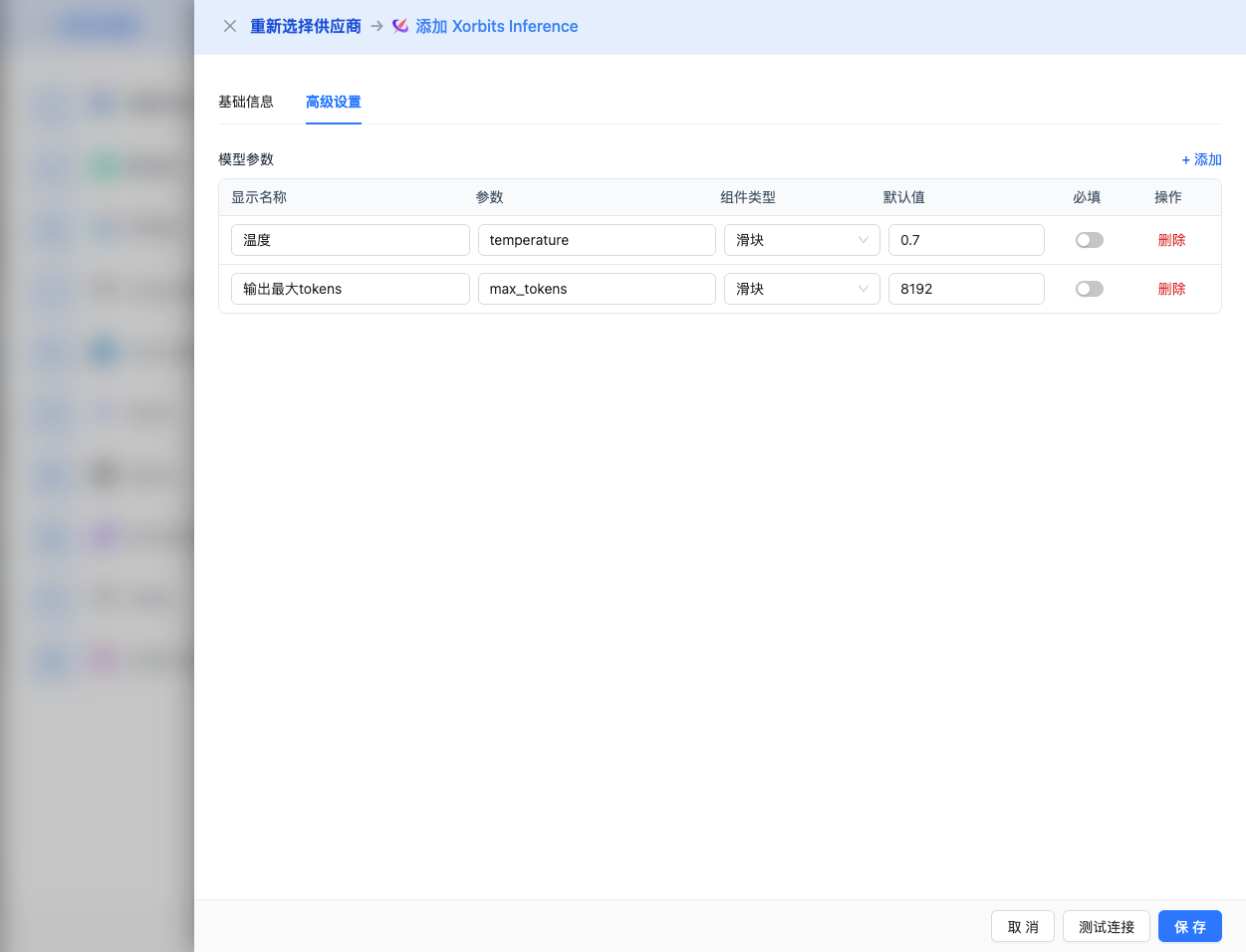
Expand the Advanced Configuration panel to adjust the following parameters:
Parameters Adjustable in CueMate Interface:
Temperature: Controls output randomness
- Range: 0-2 (most models), 0-1 (Qwen series)
- Recommended Value: 0.7
- Effect: Higher values produce more random and creative outputs, lower values produce more stable and conservative outputs
- Usage Recommendations:
- Creative writing/brainstorming: 1.0-1.5
- Regular conversation/Q&A: 0.7-0.9
- Code generation/precise tasks: 0.3-0.5
- Note: Qwen series models have a maximum temperature of 1, not 2
Max Tokens: Limits single output length
- Range: 256 - 131072 (depending on the model)
- Recommended Value: 8192
- Effect: Controls the maximum number of tokens in a single model response
- Model Limits:
- Qwen2.5 series: Max 32K tokens
- Llama 3.1/3.3 series: Max 131K tokens
- DeepSeek R1 series: Max 65K tokens
- Mistral series: Max 32K tokens
- Gemma 2 series: Max 8K tokens
- Usage Recommendations:
- Short Q&A: 1024-2048
- Regular conversation: 4096-8192
- Long text generation: 16384-32768
- Ultra-long documents: 65536-131072 (supported models only)
Additional Advanced Parameters Supported by Xinference API:
Although the CueMate interface only provides temperature and max_tokens adjustments, if you call Xinference directly through the API, you can also use the following advanced parameters (Xinference uses an OpenAI-compatible API format):
top_p (nucleus sampling)
- Range: 0-1
- Default Value: 1
- Effect: Samples from the smallest set of candidates whose cumulative probability reaches p
- Relationship with temperature: Usually only adjust one of them
- Usage Recommendations:
- Maintain diversity but avoid extremes: 0.9-0.95
- More conservative output: 0.7-0.8
top_k
- Range: 0-100
- Default Value: 50
- Effect: Samples from the top k candidates with highest probability
- Usage Recommendations:
- More diverse: 50-100
- More conservative: 10-30
frequency_penalty
- Range: -2.0 to 2.0
- Default Value: 0
- Effect: Reduces the probability of repeating the same words (based on word frequency)
- Usage Recommendations:
- Reduce repetition: 0.3-0.8
- Allow repetition: 0 (default)
presence_penalty
- Range: -2.0 to 2.0
- Default Value: 0
- Effect: Reduces the probability of words that have already appeared appearing again (based on presence)
- Usage Recommendations:
- Encourage new topics: 0.3-0.8
- Allow repeated topics: 0 (default)
stop (stop sequences)
- Type: String or array
- Default Value: null
- Effect: Stops generation when the specified string is included in the generated content
- Example:
["###", "User:", "\n\n"] - Use Cases:
- Structured output: Use separators to control format
- Dialogue systems: Prevent the model from speaking on behalf of the user
stream
- Type: Boolean
- Default Value: false
- Effect: Enables SSE streaming return, generating and returning content progressively
- In CueMate: Handled automatically, no manual setting required
repetition_penalty
- Type: Float
- Range: 1.0-2.0
- Default Value: 1.0
- Effect: Xinference-specific parameter, penalizes already generated tokens to reduce repetition
- Usage Recommendations:
- Reduce repetitive content: 1.1-1.3
- Normal output: 1.0 (default)
| No. | Scenario | temperature | max_tokens | top_p | top_k | frequency_penalty | presence_penalty |
|---|---|---|---|---|---|---|---|
| 1 | Creative Writing | 1.0-1.2 | 4096-8192 | 0.95 | 50 | 0.5 | 0.5 |
| 2 | Code Generation | 0.2-0.5 | 2048-4096 | 0.9 | 40 | 0.0 | 0.0 |
| 3 | Q&A System | 0.7 | 1024-2048 | 0.9 | 50 | 0.0 | 0.0 |
| 4 | Summary | 0.3-0.5 | 512-1024 | 0.9 | 30 | 0.0 | 0.0 |
| 5 | Brainstorming | 1.2-1.5 | 2048-4096 | 0.95 | 60 | 0.8 | 0.8 |
2.5 Test Connection
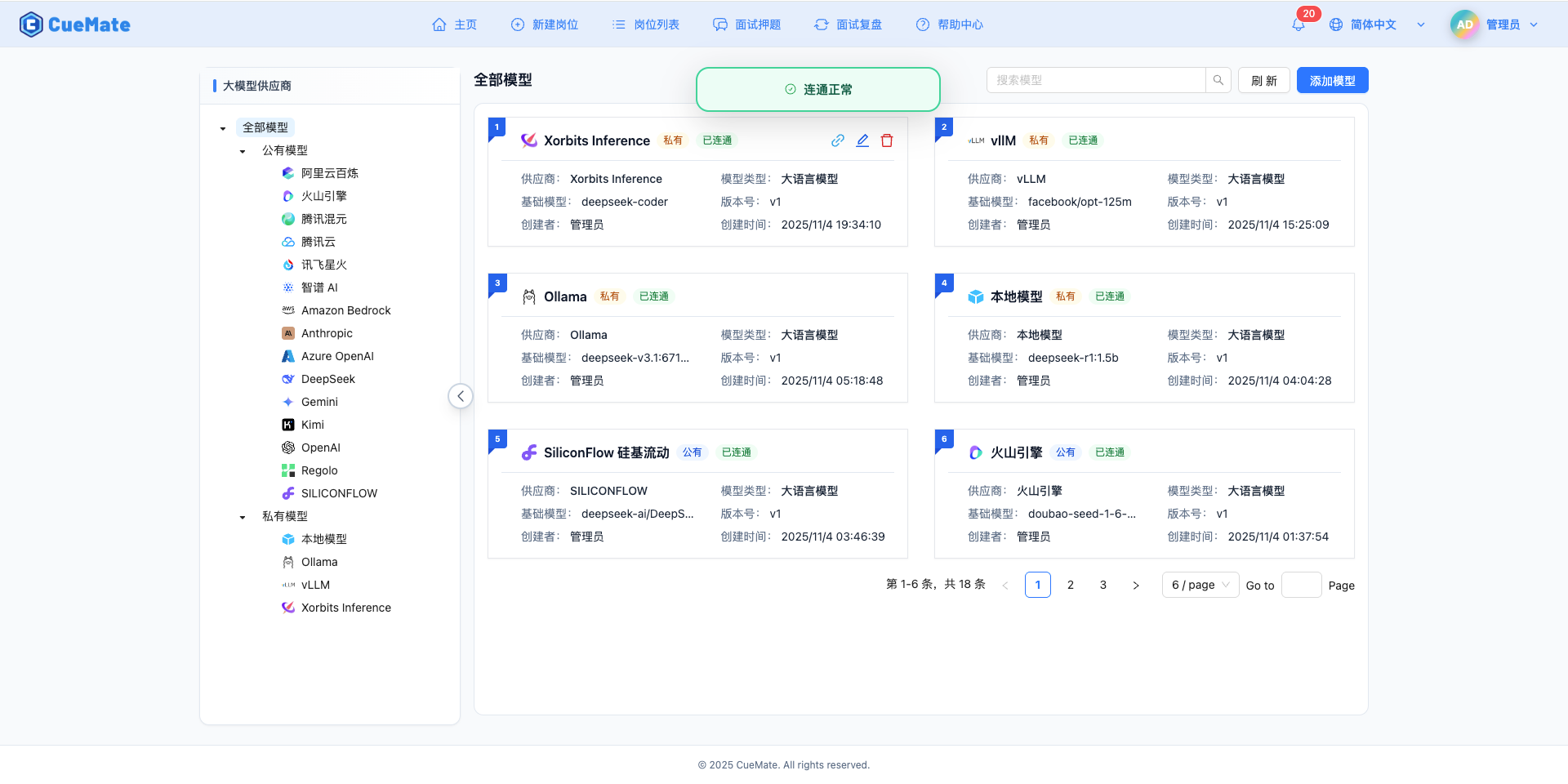
After filling in the configuration, click the Test Connection button to verify the configuration is correct.
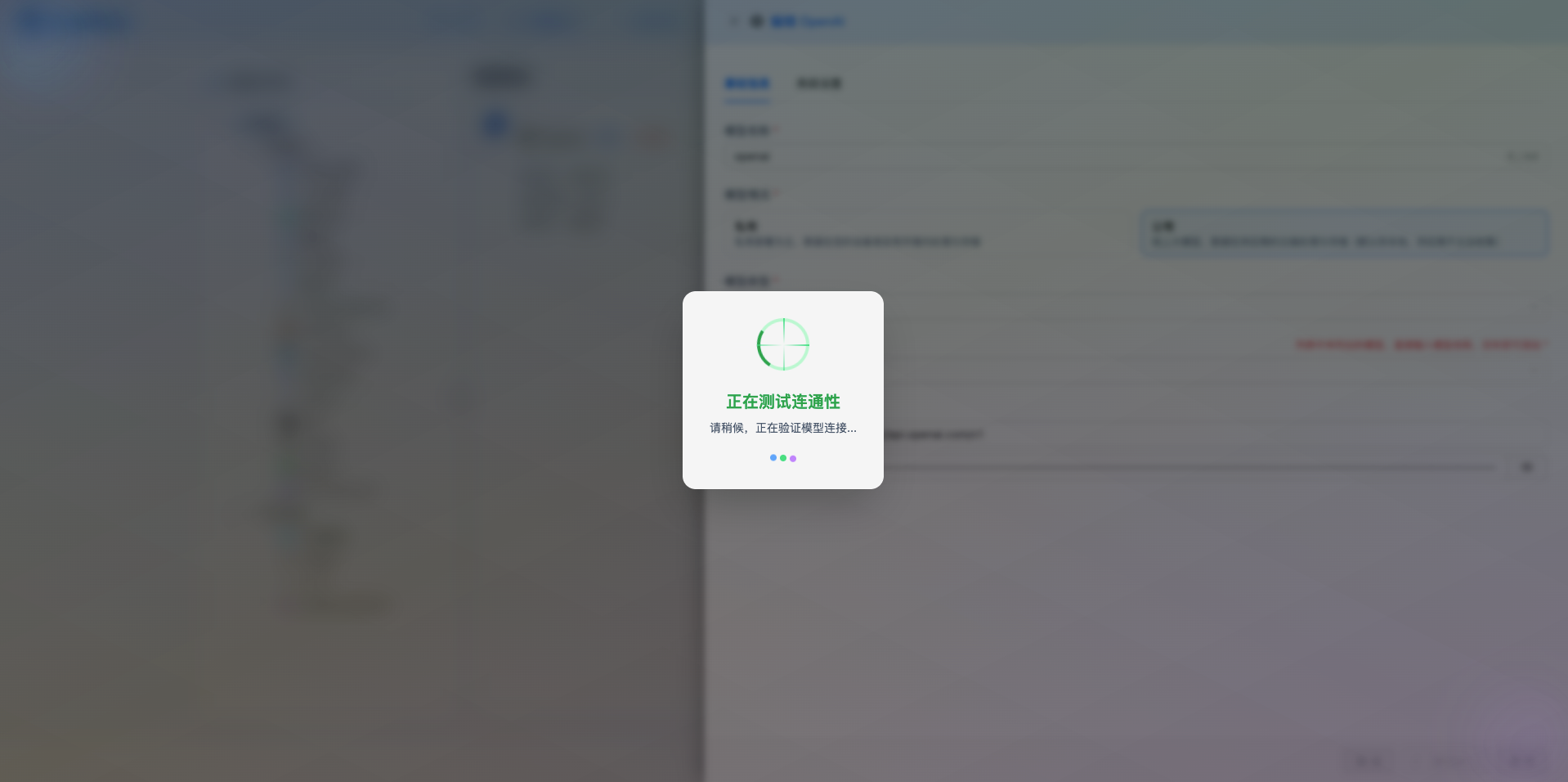
If the configuration is correct, a test success prompt will be displayed, along with a sample response from the model.
If the configuration is incorrect, a test error log will be displayed, and you can view specific error information through log management.
2.6 Save Configuration
After successful testing, click the Save button to complete the model configuration.
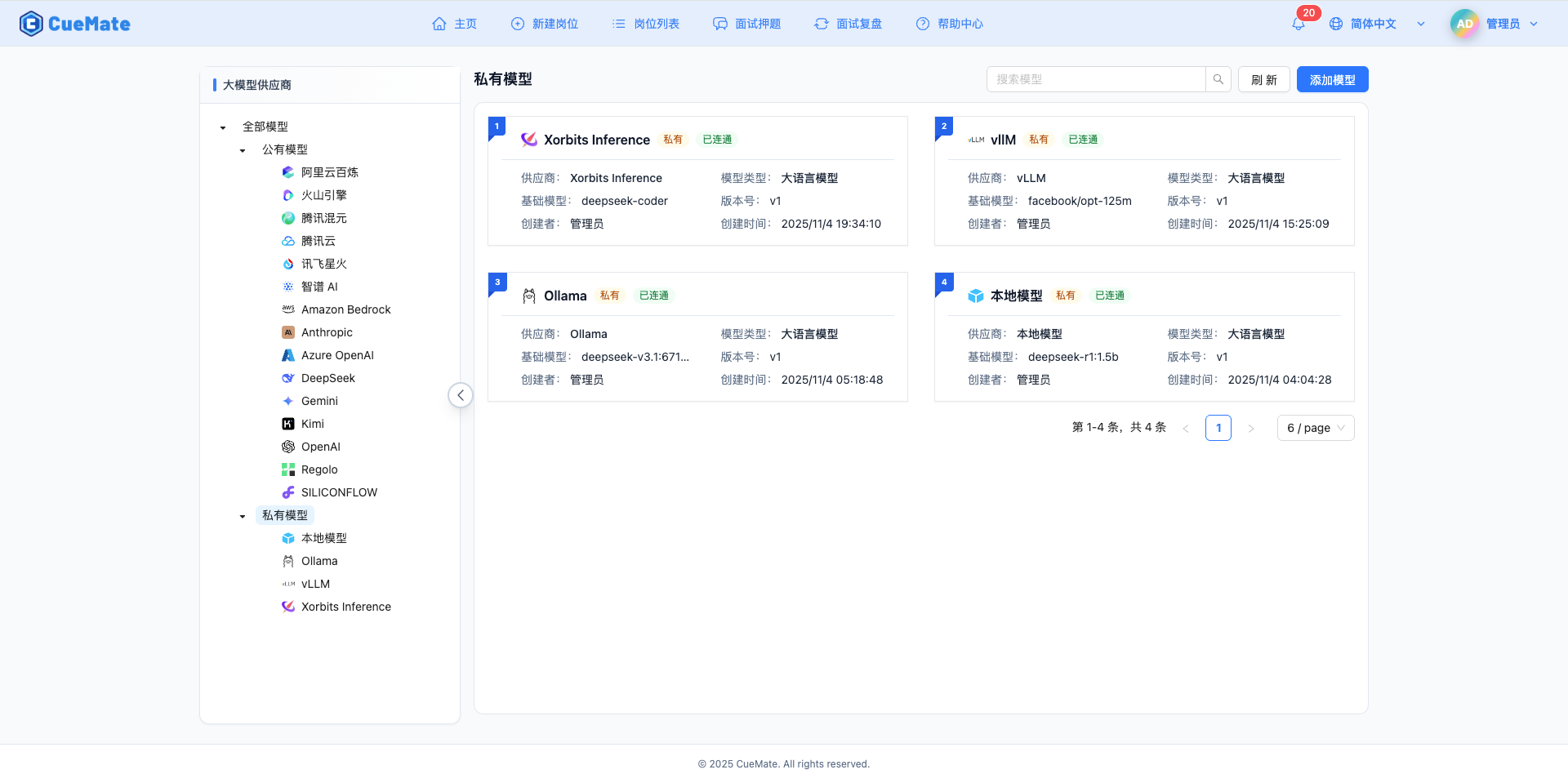
3. Use the Model
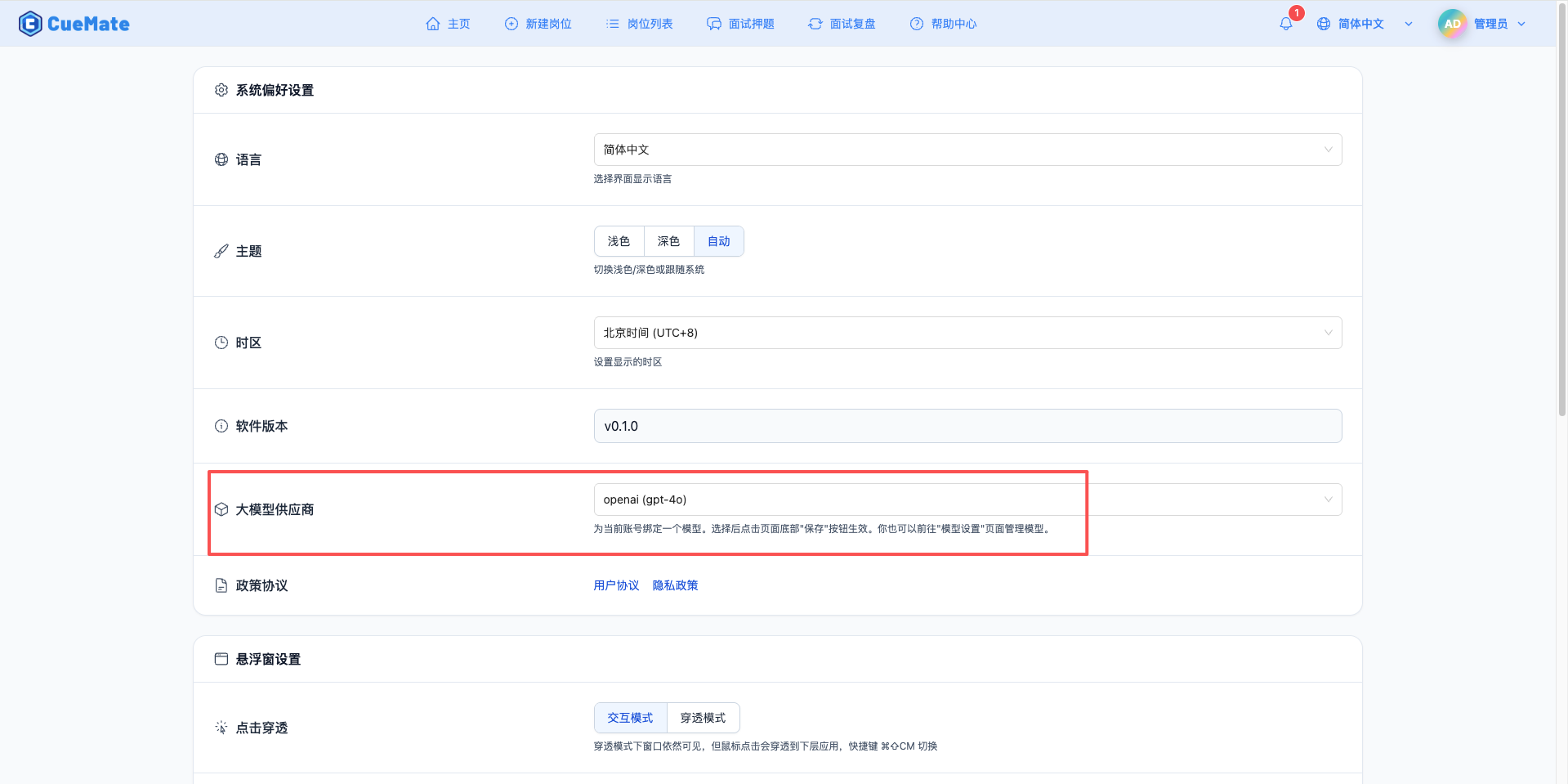
Through the dropdown menu in the top right corner, navigate to the system settings interface and select the model configuration you want to use in the large model provider section.
After configuration, you can select to use this model in interview training, question generation, and other features. You can also individually select the model configuration for a specific interview in the interview options.
4. Supported Model List
4.1 Qwen 2.5 Series (Recommended)
| No. | Model Name | Model ID | Parameters | Max Output | Use Cases |
|---|---|---|---|---|---|
| 1 | Qwen 2.5 72B Instruct | qwen2.5-72b-instruct | 72B | 32K tokens | Ultra-large scale tasks |
| 2 | Qwen 2.5 32B Instruct | qwen2.5-32b-instruct | 32B | 32K tokens | Large-scale tasks |
| 3 | Qwen 2.5 14B Instruct | qwen2.5-14b-instruct | 14B | 32K tokens | Medium-scale tasks |
| 4 | Qwen 2.5 7B Instruct | qwen2.5-7b-instruct | 7B | 32K tokens | General scenarios, cost-effective |
| 5 | Qwen 2.5 Coder 32B | qwen2.5-coder-32b-instruct | 32B | 32K tokens | Large code generation |
| 6 | Qwen 2.5 Coder 7B | qwen2.5-coder-7b-instruct | 7B | 32K tokens | Medium code generation |
4.2 DeepSeek R1 Series
| No. | Model Name | Model ID | Parameters | Max Output | Use Cases |
|---|---|---|---|---|---|
| 1 | DeepSeek R1 8B | deepseek-r1-8b | 8B | 65K tokens | Reasoning-enhanced conversation |
4.3 Llama 3 Series
| No. | Model Name | Model ID | Parameters | Max Output | Use Cases |
|---|---|---|---|---|---|
| 1 | Llama 3.3 70B Instruct | llama-3.3-70b-instruct | 70B | 131K tokens | Ultra-long context |
| 2 | Llama 3.1 70B Instruct | llama-3.1-70b-instruct | 70B | 131K tokens | High-quality conversation |
| 3 | Llama 3.1 8B Instruct | llama-3.1-8b-instruct | 8B | 131K tokens | General conversation |
4.4 Other Recommended Models
| No. | Model Name | Model ID | Parameters | Max Output | Use Cases |
|---|---|---|---|---|---|
| 1 | Mistral 7B Instruct | mistral-7b-instruct-v0.3 | 7B | 32K tokens | Multilingual conversation |
| 2 | Gemma 2 27B IT | gemma-2-27b-it | 27B | 8K tokens | Google flagship model |
| 3 | Gemma 2 9B IT | gemma-2-9b-it | 9B | 8K tokens | Google medium model |
| 4 | GLM-4 9B Chat | glm-4-9b-chat | 9B | 131K tokens | Zhipu GLM latest version |
4.5 Model Settings
- One-click Deployment: Supports 100+ open-source models
- Version Management: Multiple versions of the same model
- Auto Download: Automatically downloads models on first use
4.6 Distributed Inference
# Start cluster supervisor
xinference-supervisor -H 0.0.0.0 -p 9997

# Start worker on other machines
xinference-worker -e http://supervisor_ip:9997
4.7 Built-in Embedding
# Deploy embedding model
xinference launch --model-name bge-large-zh --model-type embedding
5. Common Issues
5.1 Model Download Failed
Symptom: Download fails when deploying model for the first time
Solution:
- Check network connection, ensure access to HuggingFace
- Set mirror acceleration:
export HF_ENDPOINT=https://hf-mirror.com - Pre-download model to
~/.xinference/cache - Use local model path
5.2 Port Conflict
Symptom: Port occupied prompt when starting service
Solution:
- Modify startup port:
xinference-local --port 9998 - Check and close processes occupying the port
- Use
lsof -i :9997to view port occupation
5.3 Insufficient Memory
Symptom: Insufficient memory prompt when deploying model
Solution:
- Choose a model with fewer parameters
- Use quantized version
- Configure GPU acceleration
- Increase system memory
5.4 Empty Model List
Symptom: Accessing /v1/models returns empty list
Solution:
- Confirm at least one model has been deployed
- Use
xinference listto check deployment status - Check Xinference service logs
- Restart Xinference service
5.5 GPU Acceleration
# Auto-detect and use GPU
xinference launch --model-name qwen2.5-7b-instruct

# Specify GPU device
CUDA_VISIBLE_DEVICES=0,1 xinference-local
5.6 Quantization Acceleration
# Use 4-bit quantization
xinference launch --model-name qwen2.5-7b-instruct --quantization 4-bit
5.7 Batch Processing Optimization
Adjust xinference.toml configuration file:
[inference]
max_batch_size = 32
max_concurrent_requests = 256
5.8 Ease of Use
- Web UI management interface
- One-click model deployment
- OpenAI-compatible API
5.9 Rich Features
- Supports LLM, Embedding, Rerank
- Multimodal model support
- Distributed inference cluster
5.10 Production Ready
- High availability architecture
- Monitoring and logging
- Load balancing