

Configure vLLM
vLLM is a high-performance large language model inference and deployment engine that uses PagedAttention technology for high-throughput inference and supports multiple open-source models.
1. Install and Deploy vLLM
1.1 Access vLLM Official Website
Visit the vLLM official website and check the documentation: https://vllm.ai/
GitHub Repository: https://github.com/vllm-project/vllm
Official Documentation: https://docs.vllm.ai/
1.2 Environment Requirements
- Operating System: Linux (recommended Ubuntu 20.04+)
- Python: 3.8-3.11
- GPU: NVIDIA GPU (supports CUDA 11.8+)
- Memory: Depending on model size, recommended 32GB+
Important Notes:
- Note: vLLM only supports Linux + NVIDIA GPU
- Note: macOS/Windows users must use Docker to run
- Note: Devices without NVIDIA GPU cannot run vLLM with high performance
1.3 Install vLLM
Method 1: Linux + NVIDIA GPU (Recommended)
# Create virtual environment
python3 -m venv vllm-env
source vllm-env/bin/activate

# Install vLLM
pip install vllm

# Verify installation
python -c "import vllm; print(vllm.__version__)"
Method 2: Use Docker (Cross-platform, Recommended for macOS/Windows Users)
# Pull vLLM official image
docker pull vllm/vllm-openai:latest

# Run vLLM service (requires NVIDIA GPU)
docker run --runtime nvidia --gpus all \
    -v ~/.cache/huggingface:/root/.cache/huggingface \
    -p 8000:8000 \
    --ipc=host \
    vllm/vllm-openai:latest \
    --model facebook/opt-125m
Docker Pull Failure Solution:
If you encounter network errors when pulling the image (such as failed to copy: httpReadSeeker), you can configure mirror acceleration:
# macOS Docker Desktop Configuration
# Open Docker Desktop → Settings → Docker Engine
# Add the following configuration:
{
  "registry-mirrors": [
    "https://docker.m.daocloud.io",
    "https://docker.1panel.live"
  ]
}

# Click Apply & Restart
After configuration, pull the image again.
1.4 Start vLLM Service
For Linux Users:
# Start vLLM OpenAI-compatible server
python -m vllm.entrypoints.openai.api_server \
    --model Qwen/Qwen2.5-7B-Instruct \
    --host 0.0.0.0 \
    --port 8000
For macOS/Windows Users (Using Docker):
Since vLLM requires NVIDIA GPU, macOS/Windows users cannot run it locally. Recommended:
- Deploy vLLM on a Linux server with NVIDIA GPU
- Configure the remote server address in CueMate (such as
http://192.168.1.100:8000/v1) - Or use other local inference frameworks that support macOS (such as Ollama)
Common Startup Parameters:
--model: Model name or path--host: Service listening address (default 0.0.0.0)--port: Service port (default 8000)--tensor-parallel-size: Tensor parallel size (multi-GPU)--dtype: Data type (auto/half/float16/bfloat16)
1.5 Verify Service Running
# Check service status
curl http://localhost:8000/v1/models
Normal Return Result Example:
{
  "object": "list",
  "data": [
    {
      "id": "Qwen/Qwen2.5-7B-Instruct",
      "object": "model",
      "created": 1699234567,
      "owned_by": "vllm",
      "root": "Qwen/Qwen2.5-7B-Instruct",
      "parent": null,
      "permission": [
        {
          "id": "modelperm-xxx",
          "object": "model_permission",
          "created": 1699234567,
          "allow_create_engine": false,
          "allow_sampling": true,
          "allow_logprobs": true,
          "allow_search_indices": false,
          "allow_view": true,
          "allow_fine_tuning": false,
          "organization": "*",
          "group": null,
          "is_blocking": false
        }
      ]
    }
  ]
}
If the above JSON content is returned, it means the vLLM service started successfully.
If the service is not started or configured incorrectly, it will return:
# Connection failed
curl: (7) Failed to connect to localhost port 8000: Connection refused

# Or 404 error
{"detail":"Not Found"}
2. Configure vLLM Model in CueMate
2.1 Enter Model Settings Page
After logging into CueMate, click Model Settings in the dropdown menu in the upper right corner.
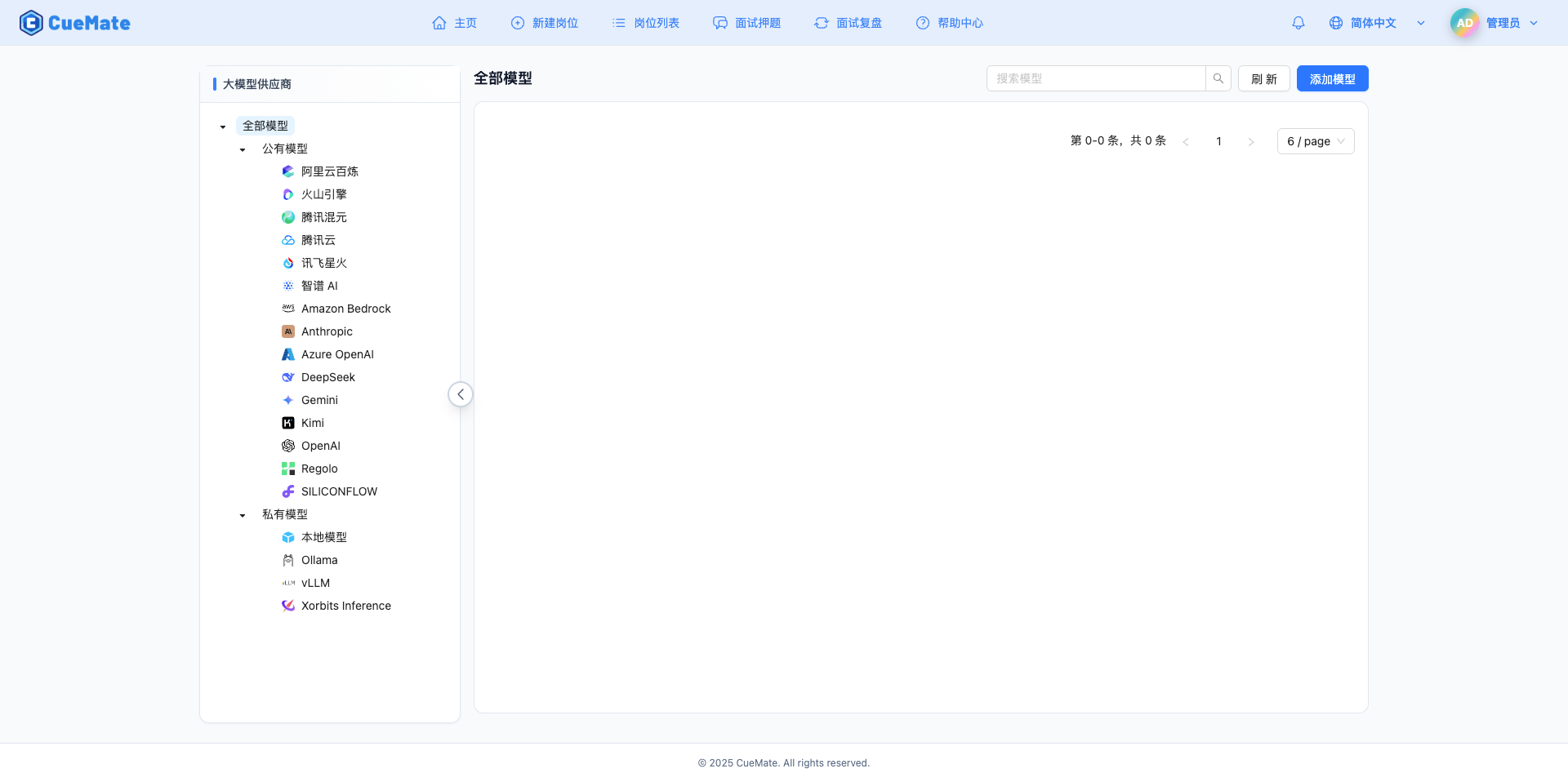
2.2 Add New Model
Click the Add Model button in the upper right corner.

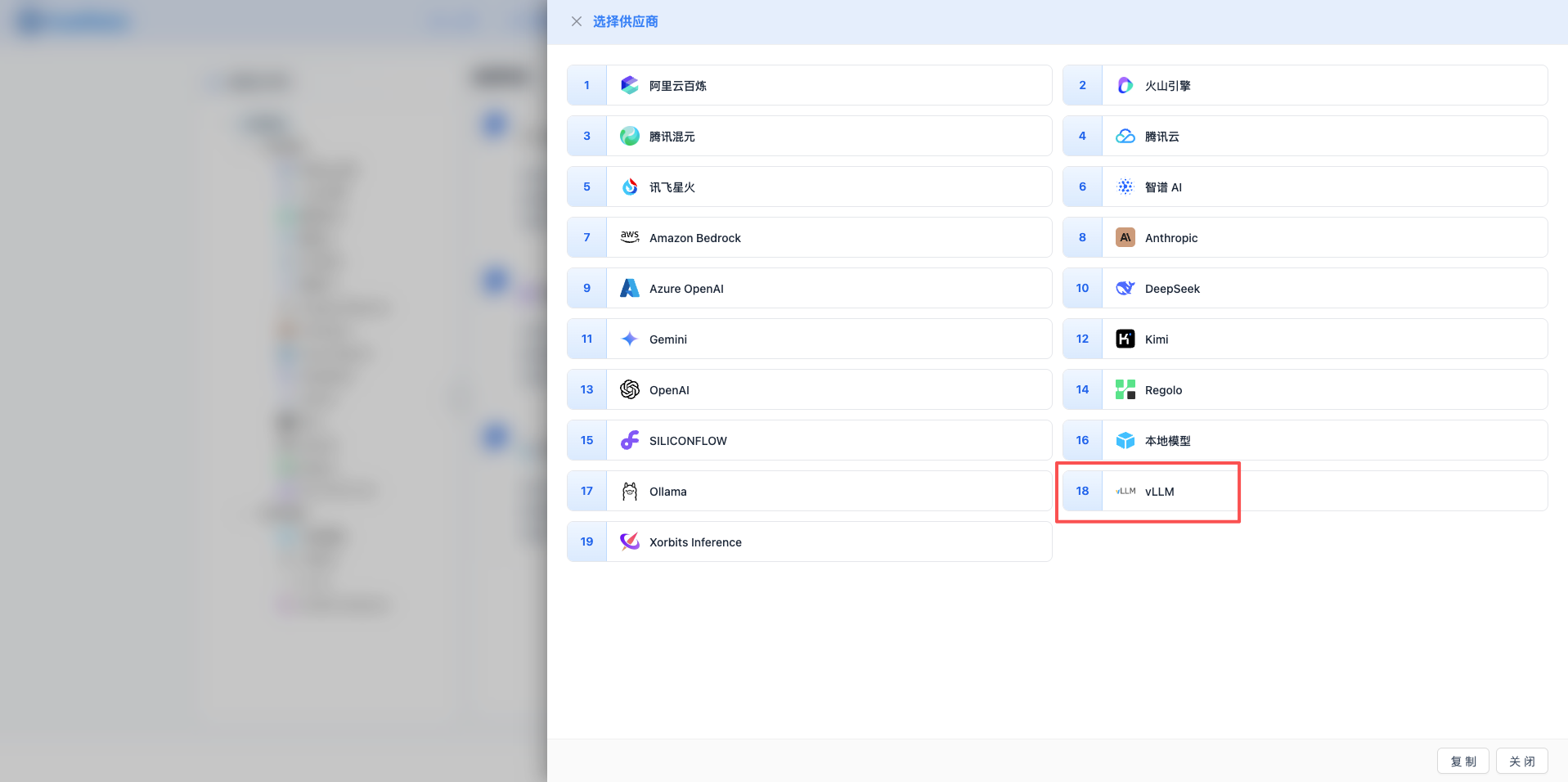
2.3 Select vLLM Provider
In the pop-up dialog:
- Provider Type: Select vLLM
- Click to automatically proceed to the next step
2.4 Fill in Configuration Information
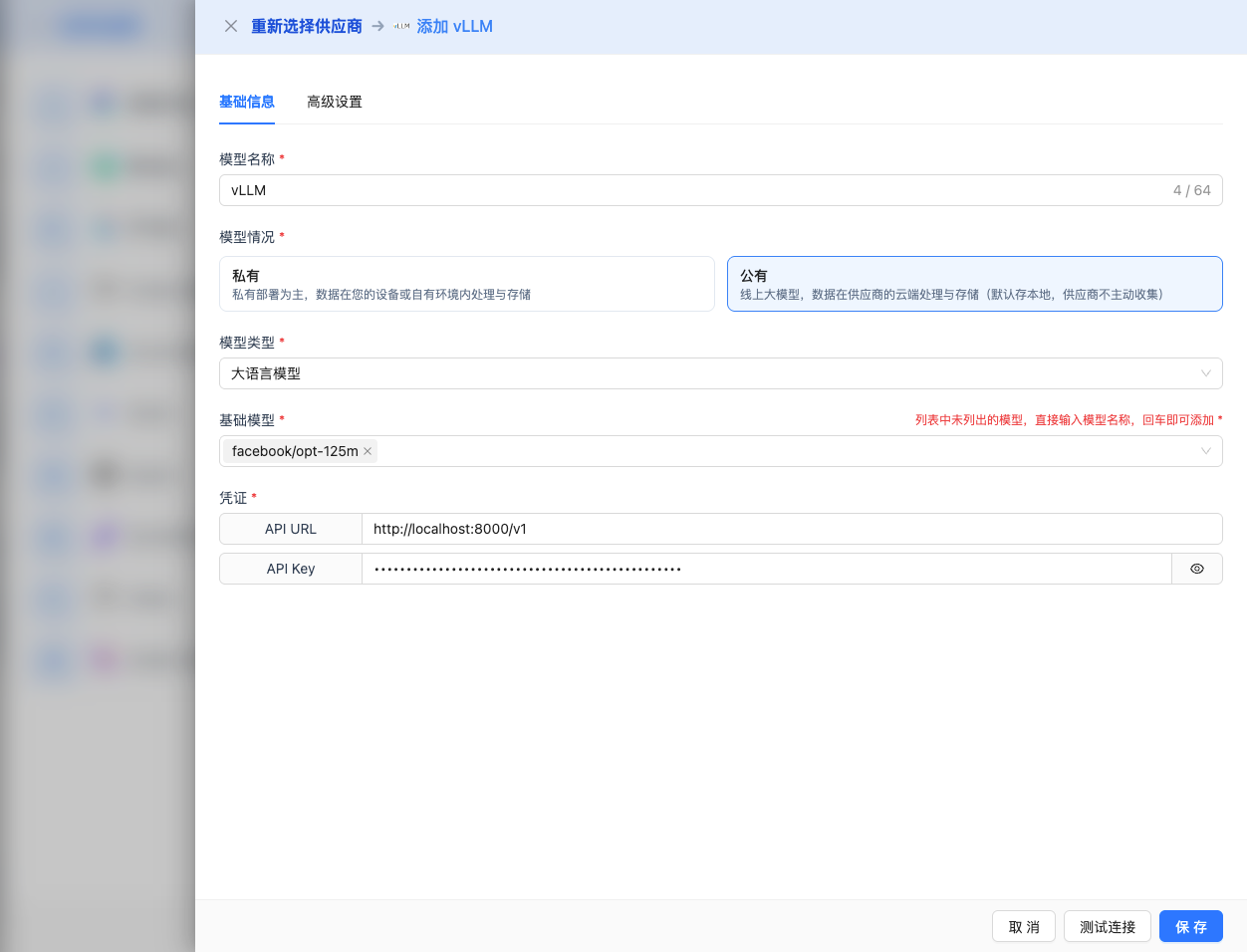
Fill in the following information on the configuration page:
Basic Configuration
- Model Name: Give this model configuration a name (e.g., vLLM Qwen2.5 7B)
- API URL: Keep the default
http://localhost:8000/v1(or change to vLLM service address) - API Key: If vLLM is started with
--api-keyparameter, fill in here (optional) - Model Version: Enter the model name deployed by vLLM
2026 Recommended Models:
Qwen/Qwen2.5-7B-Instruct: Qwen2.5 7B conversational model (recommended)Qwen/Qwen2.5-14B-Instruct: Qwen2.5 14B conversational modelmeta-llama/Meta-Llama-3.1-8B-Instruct: Llama 3.1 8B conversational modelmeta-llama/Meta-Llama-3.1-70B-Instruct: Llama 3.1 70B conversational modelmistralai/Mistral-7B-Instruct-v0.3: Mistral 7B conversational modeldeepseek-ai/DeepSeek-V2.5: DeepSeek V2.5 conversational model
Note: The model version must match the --model parameter when vLLM starts.
Advanced Configuration (Optional)
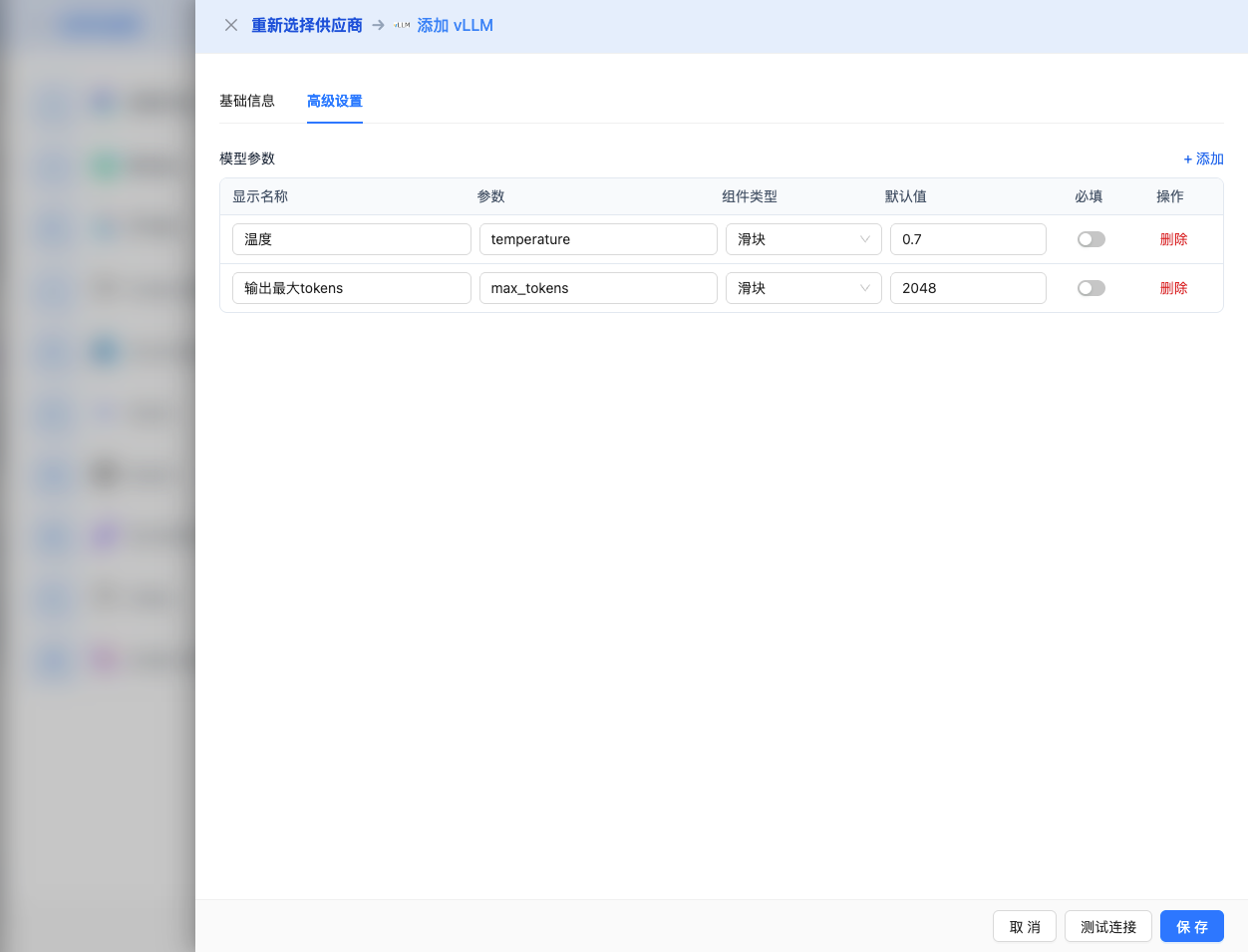
Expand the Advanced Configuration panel to adjust the following parameters:
CueMate Interface Adjustable Parameters:
Temperature: Controls output randomness
- Range: 0-2
- Recommended Value: 0.7
- Effect: Higher values produce more random and creative output, lower values produce more stable and conservative output
- Usage Recommendations:
- Creative writing/brainstorming: 1.0-1.5
- General conversation/Q&A: 0.7-0.9
- Code generation/precise tasks: 0.3-0.5
Max Tokens: Limits the maximum output length
- Range: 256 - 131072 (depending on the model)
- Recommended Value: 8192
- Effect: Controls the maximum number of tokens in a single model response
- Model Limits:
- Qwen2.5 series: max 32K tokens
- Llama 3.1 series: max 131K tokens
- Mistral series: max 32K tokens
- DeepSeek series: max 65K tokens
- Usage Recommendations:
- Short Q&A: 1024-2048
- General conversation: 4096-8192
- Long text generation: 16384-32768
- Ultra-long documents: 65536-131072 (supported models only)
Other Advanced Parameters Supported by vLLM API:
While the CueMate interface only provides temperature and max_tokens adjustments, if you call vLLM directly via API, you can also use the following advanced parameters (vLLM uses OpenAI-compatible API format):
top_p (nucleus sampling)
- Range: 0-1
- Default Value: 1
- Effect: Samples from the smallest candidate set with cumulative probability of p
- Relationship with temperature: Usually only adjust one of them
- Usage Recommendations:
- Maintain diversity while avoiding nonsense: 0.9-0.95
- More conservative output: 0.7-0.8
top_k
- Range: -1 (disabled) or positive integer
- Default Value: -1
- Effect: Samples from the top k candidates with highest probability
- Usage Recommendations:
- More diversity: 50-100
- More conservative: 10-30
frequency_penalty
- Range: -2.0 to 2.0
- Default Value: 0
- Effect: Reduces the probability of repeating the same words (based on frequency)
- Usage Recommendations:
- Reduce repetition: 0.3-0.8
- Allow repetition: 0 (default)
presence_penalty
- Range: -2.0 to 2.0
- Default Value: 0
- Effect: Reduces the probability of words that have already appeared appearing again (based on presence)
- Usage Recommendations:
- Encourage new topics: 0.3-0.8
- Allow topic repetition: 0 (default)
stop
- Type: String or array
- Default Value: null
- Effect: Stops generation when the specified string appears in the content
- Example:
["###", "User:", "\n\n"] - Use Cases:
- Structured output: Use delimiters to control format
- Dialogue systems: Prevent the model from speaking for the user
stream
- Type: Boolean
- Default Value: false
- Effect: Enable SSE streaming return, generating and returning incrementally
- In CueMate: Automatically handled, no manual setting required
best_of
- Type: Integer
- Default Value: 1
- Range: 1-20
- Effect: Generate multiple candidate responses and return the best one
- Note: Increases computational cost
use_beam_search
- Type: Boolean
- Default Value: false
- Effect: Enable beam search algorithm
- Use Cases: Need more deterministic output (such as translation tasks)
| No. | Scenario | temperature | max_tokens | top_p | top_k | frequency_penalty | presence_penalty |
|---|---|---|---|---|---|---|---|
| 1 | Creative Writing | 1.0-1.2 | 4096-8192 | 0.95 | 50 | 0.5 | 0.5 |
| 2 | Code Generation | 0.2-0.5 | 2048-4096 | 0.9 | 40 | 0.0 | 0.0 |
| 3 | Q&A System | 0.7 | 1024-2048 | 0.9 | -1 | 0.0 | 0.0 |
| 4 | Summarization | 0.3-0.5 | 512-1024 | 0.9 | 30 | 0.0 | 0.0 |
| 5 | Translation Tasks | 0.0 | 2048 | 1.0 | -1 | 0.0 | 0.0 |
2.5 Test Connection
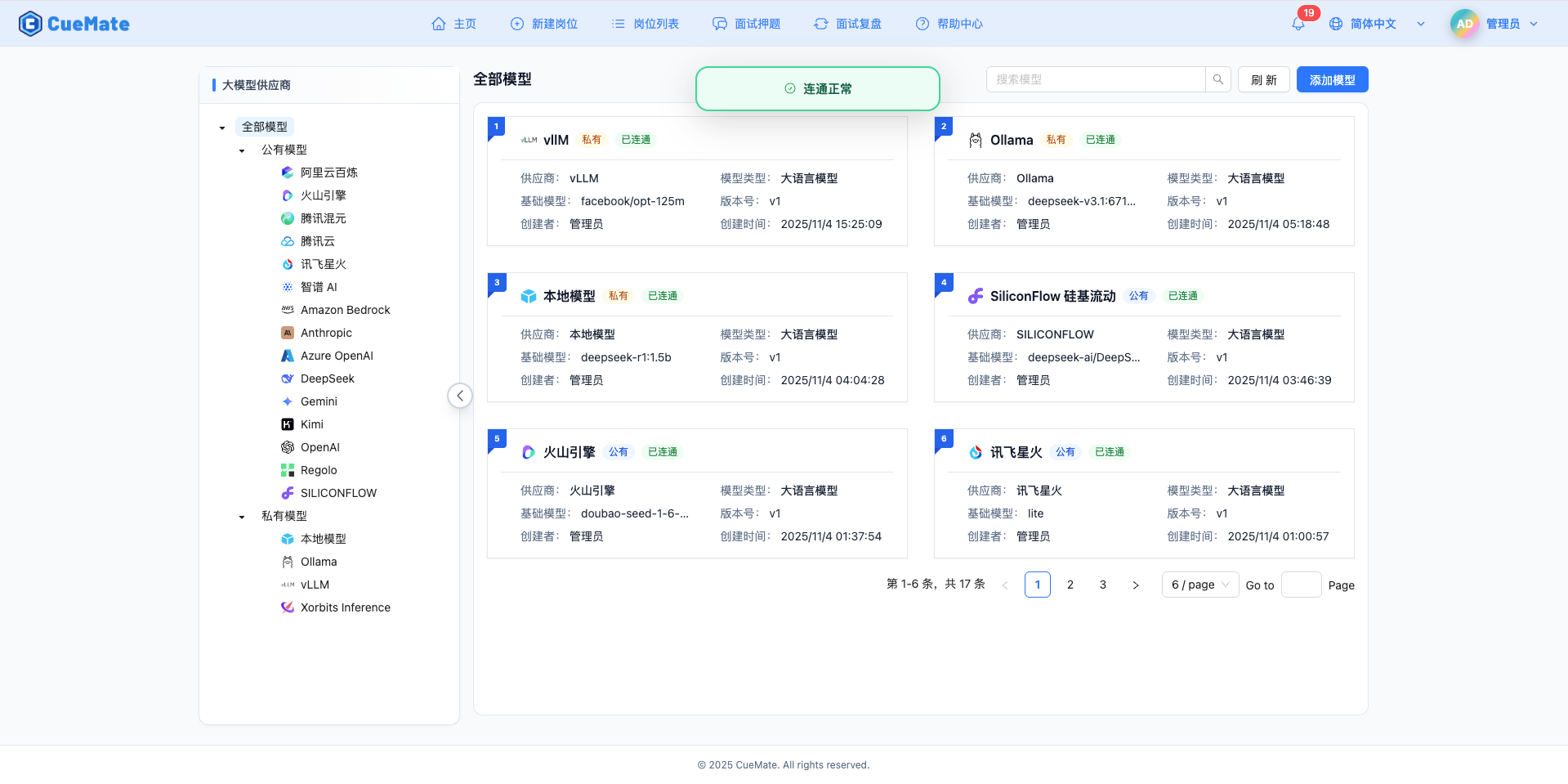
After filling in the configuration, click the Test Connection button to verify if the configuration is correct.
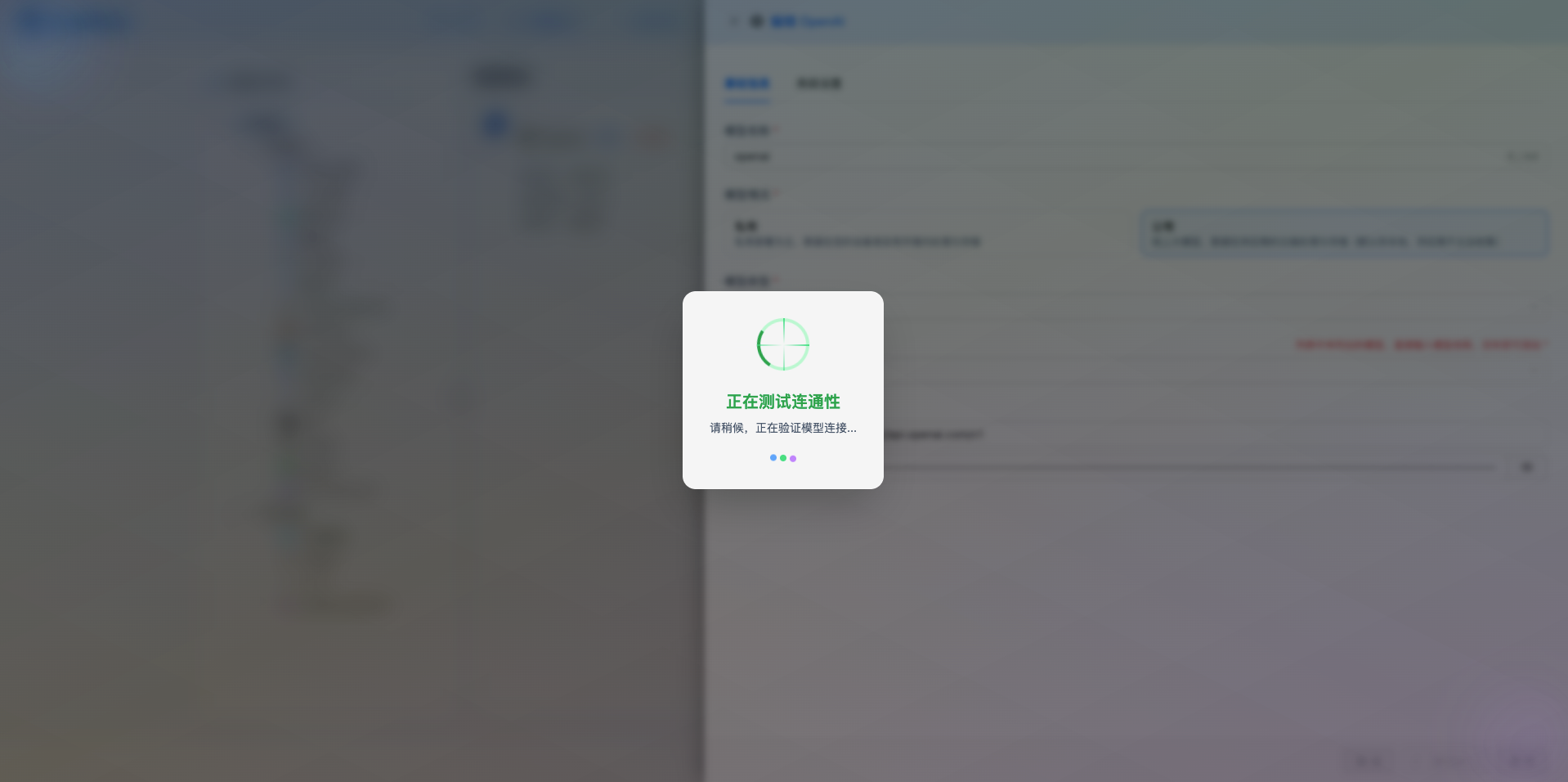
If the configuration is correct, a success message will be displayed with a sample model response.
If the configuration is incorrect, an error log will be displayed, and you can view detailed error information through log management.
2.6 Save Configuration
After successful testing, click the Save button to complete the model configuration.
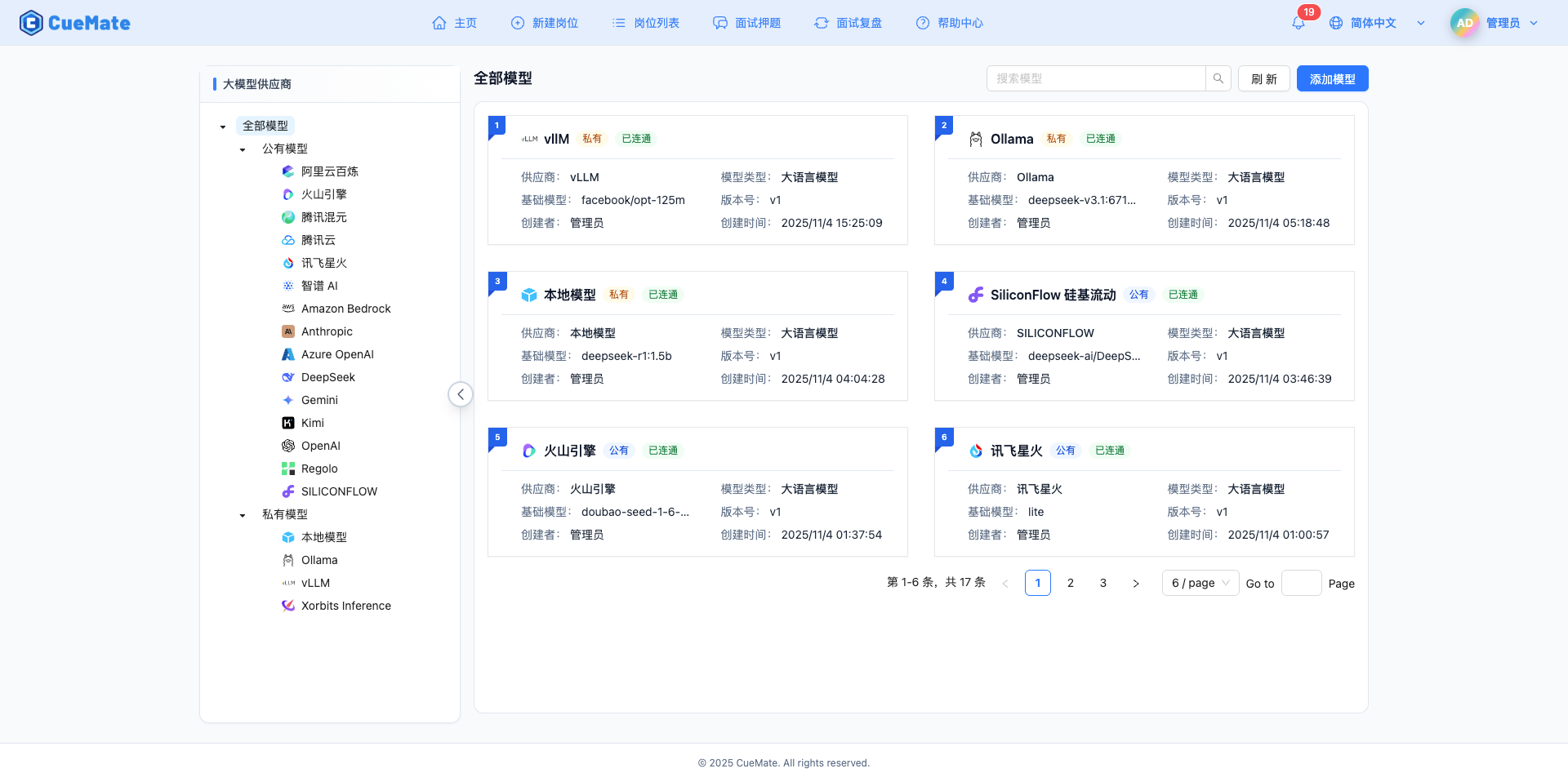
3. Use the Model
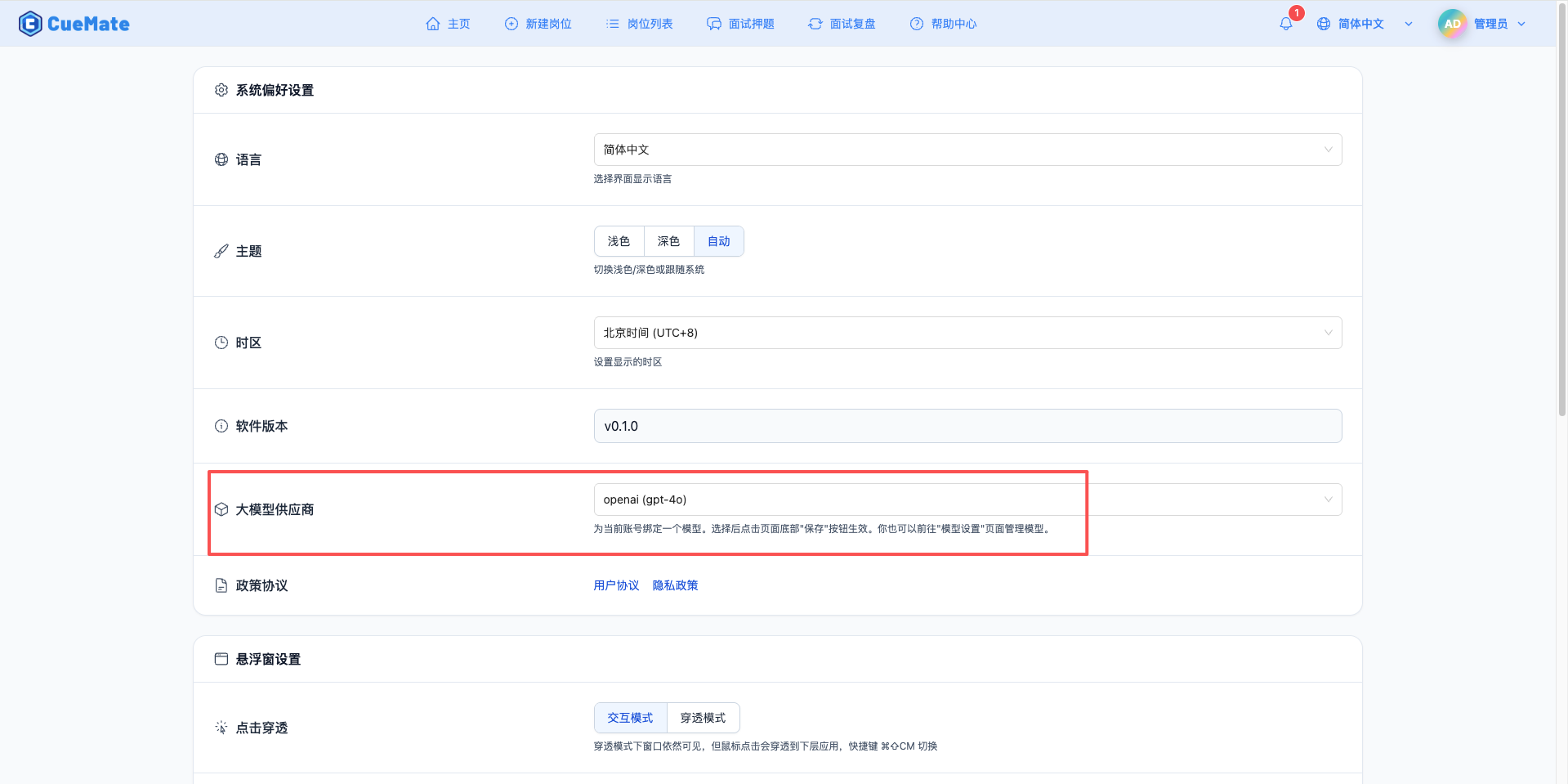
Through the dropdown menu in the upper right corner, enter the system settings interface and select the model configuration you want to use in the large model provider section.
After configuration, you can select to use this model in interview training, question generation, and other functions, or of course, you can individually select the model configuration for each interview in the interview options.
4. Supported Model List
4.1 Qwen Series (Recommended)
| No. | Model Name | Model ID | Parameters | Max Output | Use Cases |
|---|---|---|---|---|---|
| 1 | Qwen2.5 7B Instruct | Qwen/Qwen2.5-7B-Instruct | 7B | 32K tokens | Chinese conversation, general tasks |
| 2 | Qwen2.5 14B Instruct | Qwen/Qwen2.5-14B-Instruct | 14B | 32K tokens | High-quality Chinese conversation |
| 3 | Qwen2.5 32B Instruct | Qwen/Qwen2.5-32B-Instruct | 32B | 32K tokens | Complex task processing |
| 4 | Qwen2.5 72B Instruct | Qwen/Qwen2.5-72B-Instruct | 72B | 32K tokens | Ultra-high quality conversation |
4.2 Llama 3.1 Series
| No. | Model Name | Model ID | Parameters | Max Output | Use Cases |
|---|---|---|---|---|---|
| 1 | Llama 3.1 8B Instruct | meta-llama/Meta-Llama-3.1-8B-Instruct | 8B | 131K tokens | English conversation, long text |
| 2 | Llama 3.1 70B Instruct | meta-llama/Meta-Llama-3.1-70B-Instruct | 70B | 131K tokens | High-quality English conversation |
4.3 Mistral Series
| No. | Model Name | Model ID | Parameters | Max Output | Use Cases |
|---|---|---|---|---|---|
| 1 | Mistral 7B Instruct | mistralai/Mistral-7B-Instruct-v0.3 | 7B | 32K tokens | Multilingual conversation |
4.4 DeepSeek Series
| No. | Model Name | Model ID | Parameters | Max Output | Use Cases |
|---|---|---|---|---|---|
| 1 | DeepSeek V2.5 | deepseek-ai/DeepSeek-V2.5 | 236B | 65K tokens | Code generation, reasoning |
Note: vLLM supports 200+ HuggingFace Transformer models, just specify the model name when starting.
4.5 Multi-GPU Deployment
# Use 2 GPUs for tensor parallelism
python -m vllm.entrypoints.openai.api_server \
    --model BAAI/Aquila-7B \
    --tensor-parallel-size 2
4.6 Quantization Acceleration
# Use AWQ 4-bit quantization
python -m vllm.entrypoints.openai.api_server \
    --model TheBloke/Llama-2-7B-Chat-AWQ \
    --quantization awq
4.7 PagedAttention
The core advantage of vLLM is the PagedAttention technology:
- Increases throughput by up to 24x
- Significantly reduces GPU memory usage
- Supports larger batch sizes
5. Common Issues
5.1 GPU Out of Memory
Symptom: CUDA OOM error when starting vLLM
Solution:
- Use quantized models (AWQ/GPTQ)
- Reduce
--max-model-lenparameter - Use tensor parallelism
--tensor-parallel-size - Choose a model with fewer parameters
5.2 Model Loading Failed
Symptom: Cannot load the specified model
Solution:
- Confirm the model name is correct (HuggingFace format)
- Check network connection to ensure access to HuggingFace
- Pre-download the model locally and use the local path
- Check vLLM logs for detailed error information
5.3 Poor Performance
Symptom: Slow inference speed
Solution:
- Confirm GPU driver and CUDA version match
- Use
--dtype halfor--dtype bfloat16 - Adjust
--max-num-seqsparameter - Enable multi-GPU tensor parallelism
5.4 Service Not Responding
Symptom: Request timeout or hang
Solution:
- Check vLLM service logs
- Confirm the service port is not occupied
- Verify firewall settings
- Increase request timeout
5.5 Hardware Configuration
| Model Size | GPU | Memory | Recommended Configuration |
|---|---|---|---|
| <3B | RTX 3060 | 16GB | Single GPU |
| 7B-13B | RTX 3090/4090 | 32GB | Single GPU |
| 30B-70B | A100 40GB | 64GB | Multi-GPU parallelism |
5.6 Software Optimization
Use Latest Version
bashpip install --upgrade vllmEnable FlashAttention
bashpip install flash-attnTuning Parameters
bash--max-num-batched-tokens 8192 \ --max-num-seqs 256 \ --dtype half
| Feature | vLLM | Ollama | Xinference |
|---|---|---|---|
| Ease of Use | Medium | Very Good | Good |
| Performance | Very High | Average | High |
| Features | Rich | Basic | Very Rich |
| Production-ready | Very Mature | Average | Mature |
| Use Cases | Production Deployment | Personal Development | Enterprise Applications |