
Operation Logs
The Operation Logs page is used to view, filter, and manage user operation logs. It records all user operations in the system, including login, create, update, delete and other operations, for auditing and issue tracking.
1. Access Operation Logs
1.1 Open Operation Logs Page
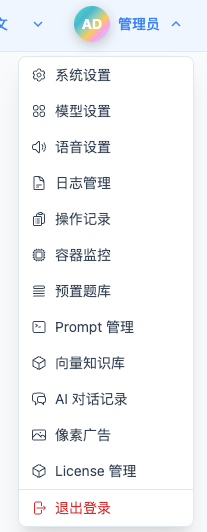
Click "Operation Logs" in the top dropdown menu to enter the Operation Logs page.
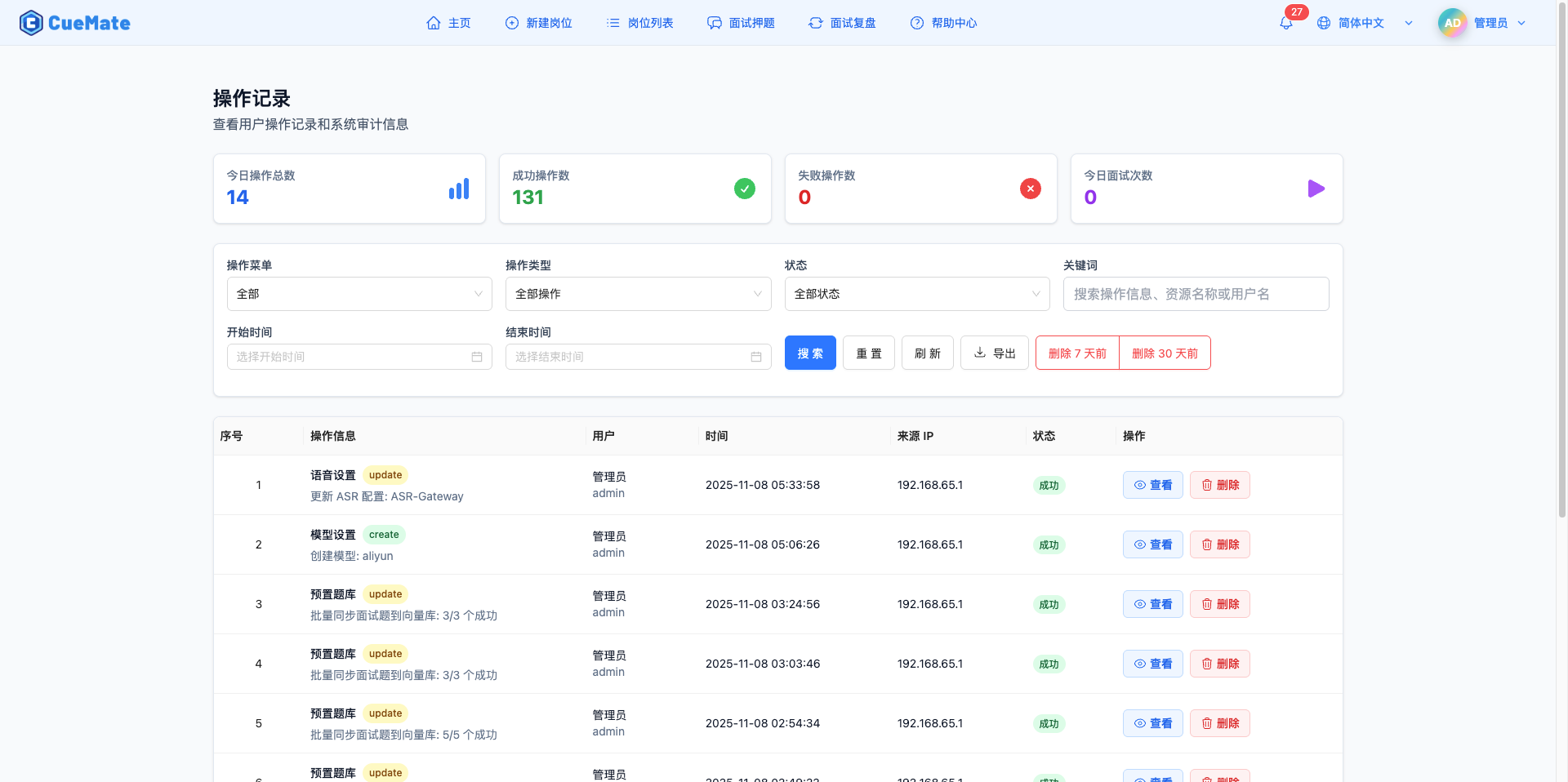
2. View Operation Statistics
2.1 Statistics Cards
The top of the page displays four statistics cards showing operation overview:

Total Operations:
- Shows total count of all operation records
- Includes both successful and failed operations
Successful Operations:
- Shows count of records with successful status
- Green icon indicator
- Click to filter successful operations
Failed Operations:
- Shows count of records with failed status
- Red icon indicator
- Click to filter failed operations
Today's Operations:
- Shows count of today's operation records
- Blue icon indicator
- Quick view of today's activity
3. Filter Operation Logs
3.1 Basic Filtering
Use filter conditions to quickly locate target operation records.
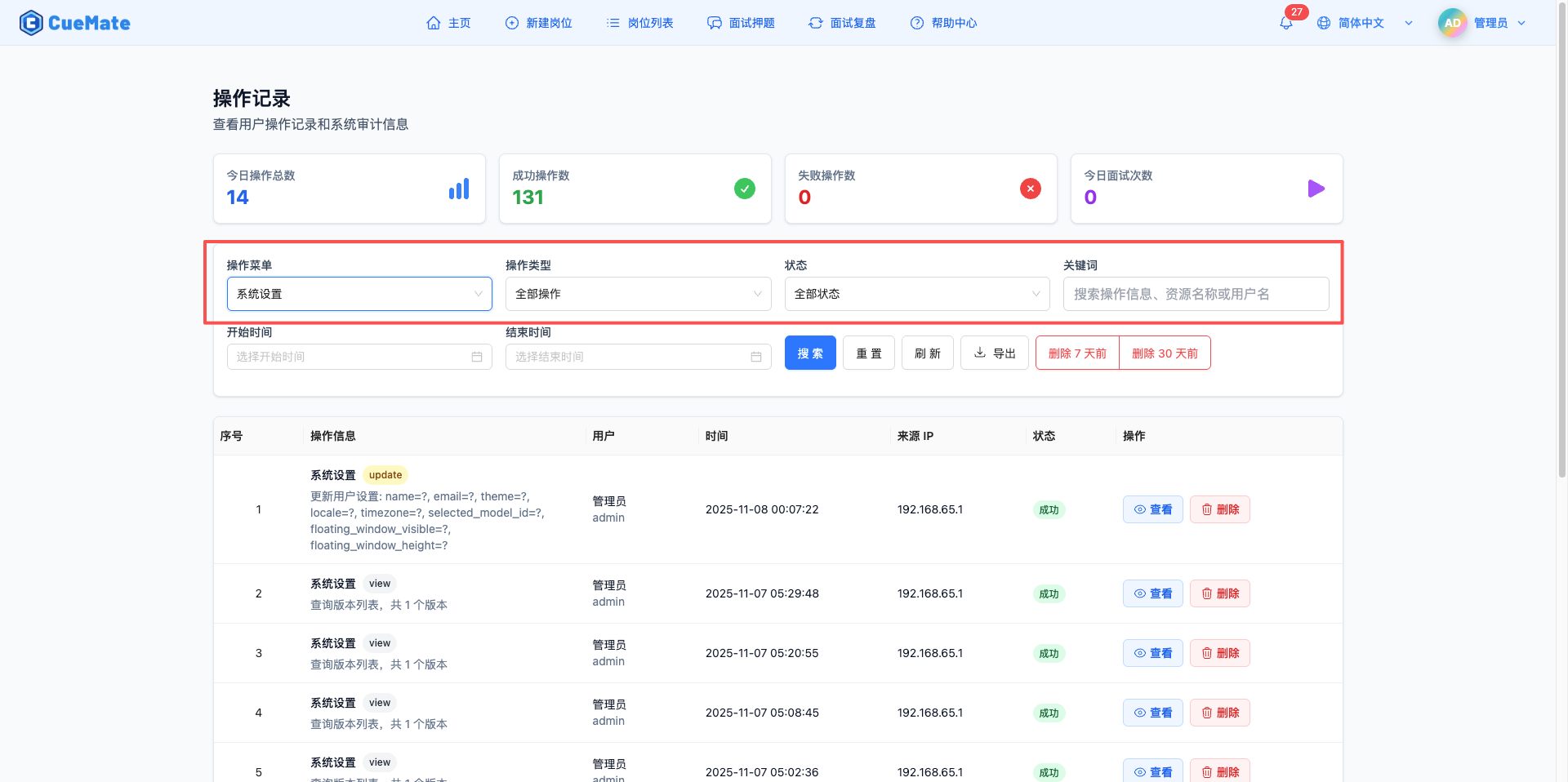
Menu Filtering:
- Dropdown to select specific menu (Home, Position List, Interview Questions, etc.)
- Select "All" to view operations from all menus
- Quickly locate operations for specific pages
Operation Type Filtering:
- Login: User login to system
- Create: Create new data
- Update: Modify existing data
- Delete: Delete data
- View: View details
- Export: Export data
- Import: Import data
- Backup: Backup operation
- Restore: Restore operation
Status Filtering:
- Success: Operation completed successfully
- Failed: Operation execution failed
User ID Filtering:
- Enter user ID to view specific user's operations
- Used for auditing all behaviors of a user
3.2 Advanced Filtering
Keyword Search:
- Search keywords in description or details
- Supports fuzzy matching
- Quickly locate operations containing specific content
Time Range Filtering:
- Select start time and end time
- View operation records within specific time period
- Suitable for issue tracing and auditing
3.3 Combined Filtering
Multiple filter conditions can be used together:
Example 1: View today's failed operations
- Time range: Select today's date
- Status: Select "Failed"
Example 2: Audit specific user's operations in Model Settings
- Menu: Select "Model Settings"
- User ID: Enter target user ID
Example 3: View all delete operations
- Operation Type: Select "Delete"
4. View Operation List
4.1 List Field Descriptions
Operation log list displays in table format with the following fields:
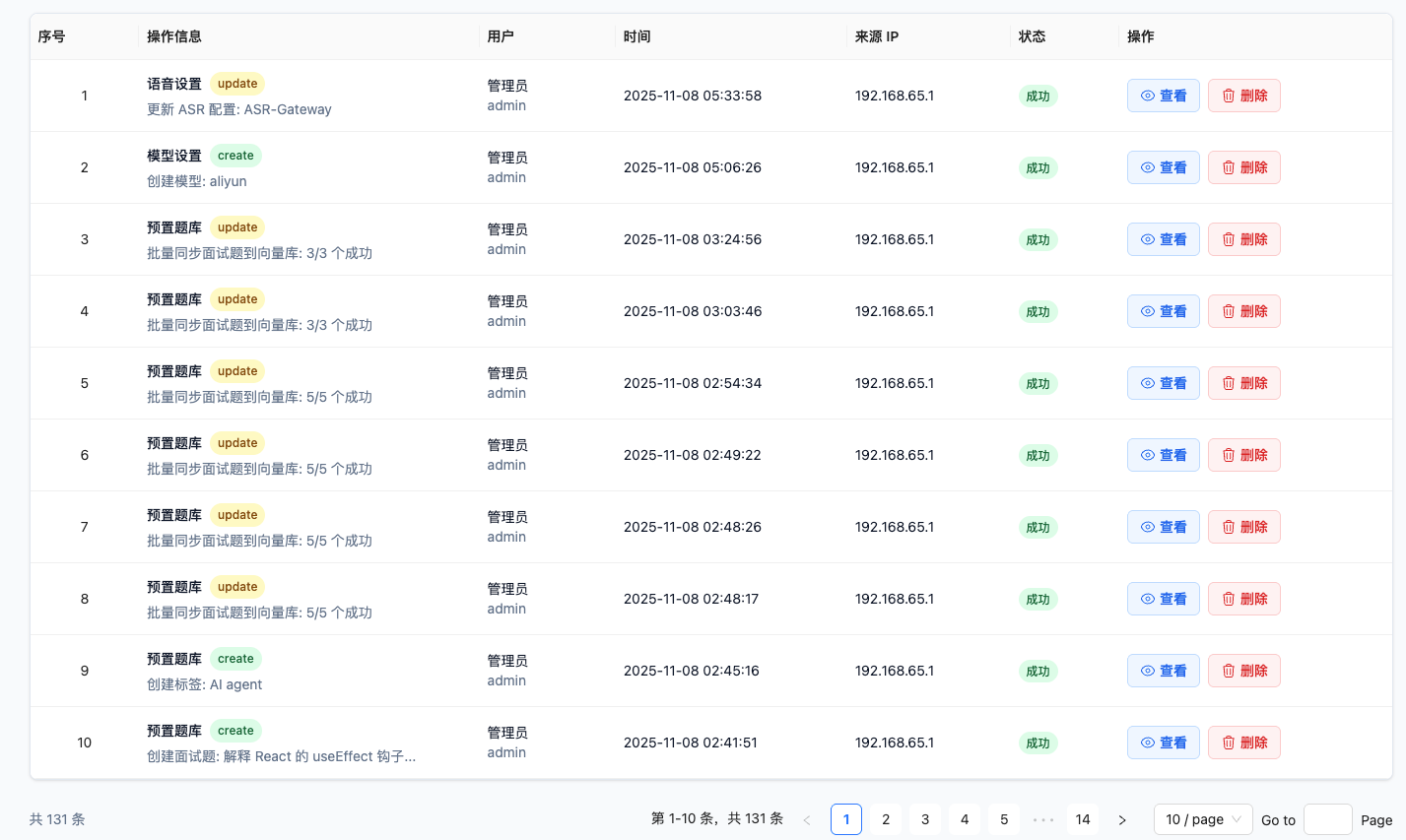
Number:
- Sequence number on current page
- Auto-calculated, starting from 1
Menu:
- Menu or page where operation occurred
- Such as "Home", "Position List", "Model Settings", etc.
Operation Type:
- Specific type of operation
- Displayed with different color labels:
- Login: Blue
- Create: Green
- Update: Orange
- Delete: Red
- View: Purple
- Other: Gray
Description:
- Detailed description of operation
- Explains specific content of operation
User ID:
- Identifier of user who performed operation
- Used for tracking user behavior
IP Address:
- IP address of operation source
- Used for security auditing
Status:
- Operation execution result
- Success: Green checkmark icon
- Failed: Red X icon
Operation Time:
- Specific time when operation occurred
- Format: YYYY-MM-DD HH:mm:ss
Actions:
- View: Open details side panel
- Delete: Delete this operation record
4.2 Pagination
Pagination controls at bottom of list:
Features:
- Shows current page and total pages
- Shows total record count
- Items per page selectable: 10, 20, 50, 100
- Switch pages to view more records
5. View Operation Details
5.1 Open Details Side Panel
Click "View" button in operation list to open operation details side panel.
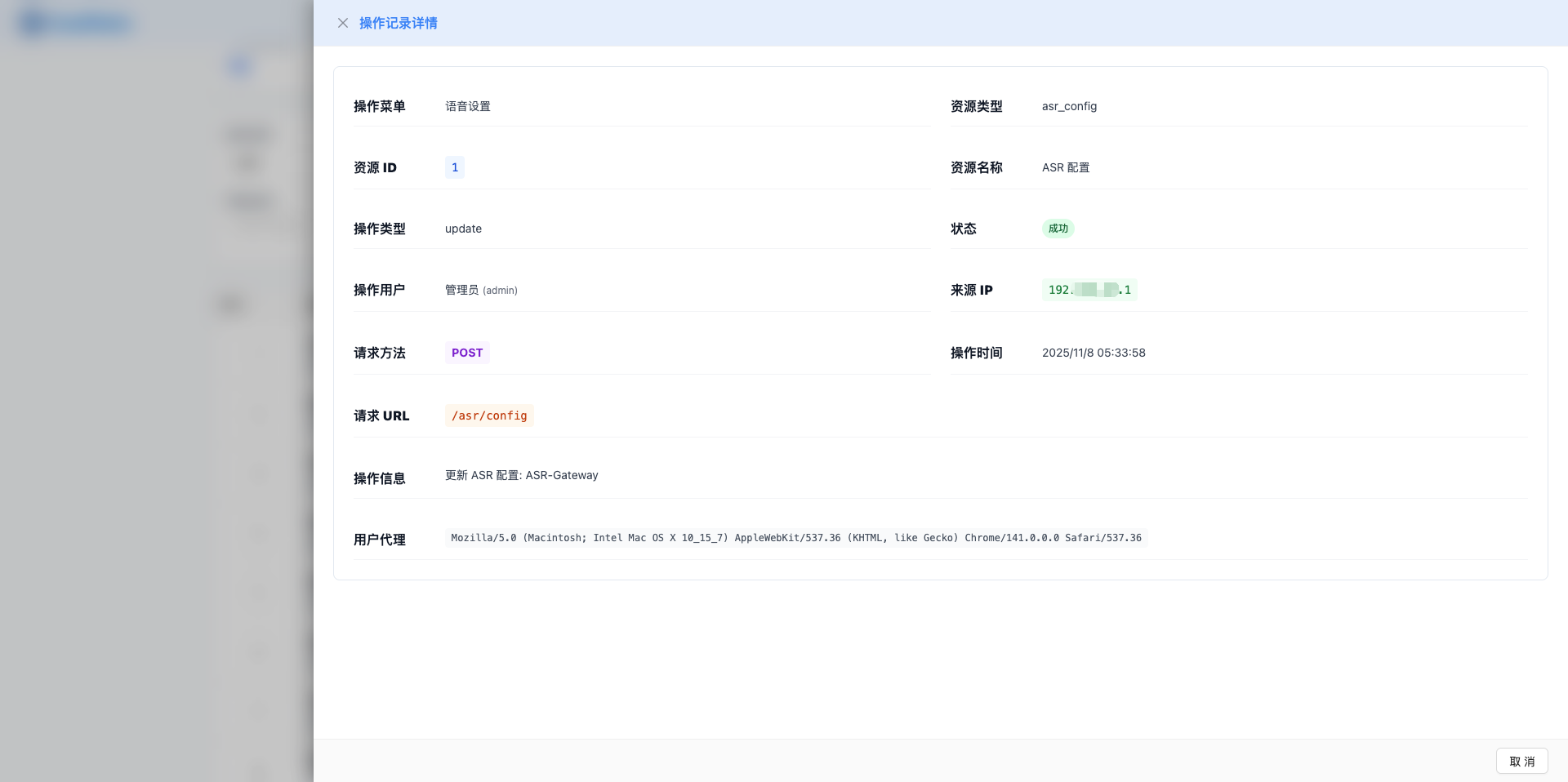
Panel Features:
- Right side panel, 65% of screen width
- Shows complete detailed information of operation
- Supports viewing request parameters and response data
5.2 Details Content
Basic Information:
- Operation ID
- Menu name
- Operation type
- Operation description
- User ID
- IP address
- Operation status
- Operation time
Request Parameters:
- Request parameters displayed in JSON format
- Syntax highlighting
- Can copy parameter content
Response Data:
- Response results displayed in JSON format
- Syntax highlighting
- Can copy response content
User Agent:
- Browser information
- Operating system information
- Client version
6. Export Operation Logs
6.1 Export Feature
Click "Export" button at top of page to export operation logs matching current filter conditions.
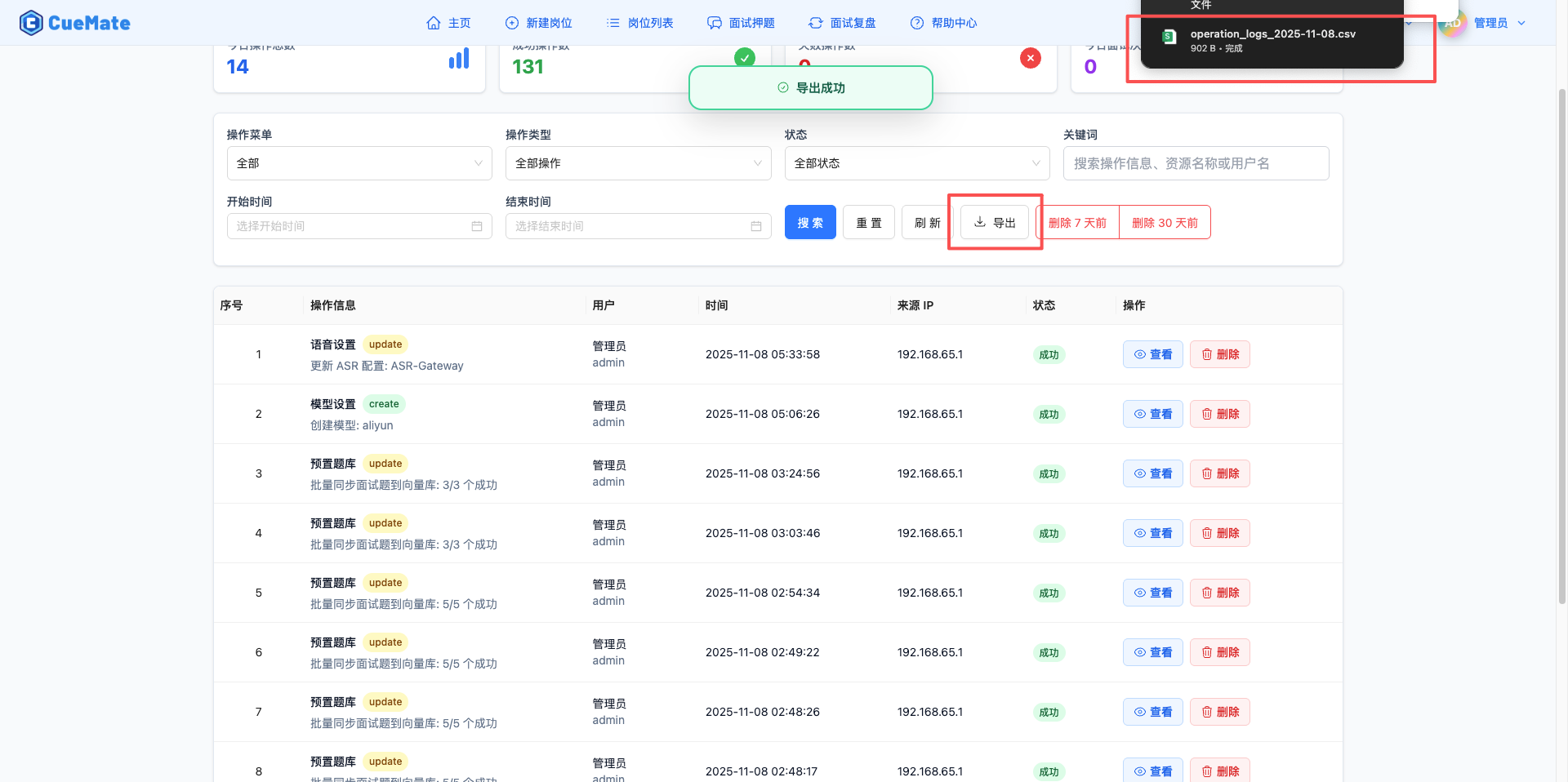
Export Process:
- Set filter conditions (optional)
- Click "Export" button
- System generates Excel file
- Auto-downloads to local
Export Content:
- Number
- Menu
- Operation Type
- Description
- User ID
- IP Address
- Status
- Operation Time
Use Cases:
- Generate audit reports
- Data backup
- Offline analysis
- Compliance auditing
7. Delete Operation Records
7.1 Delete Single Record
Click "Delete" button in operation list to delete a single operation record.

Delete Process:
- Click "Delete" button on target record
- Confirmation dialog appears
- Click "Confirm" to execute deletion
- Shows "Deleted successfully" message
- List auto-refreshes
Notes:
- Delete operation is irreversible
- Record is permanently removed after deletion
- Recommend exporting backup before regular cleanup
7.2 Batch Delete
Use "Batch Delete" feature to clean up large amounts of historical records.
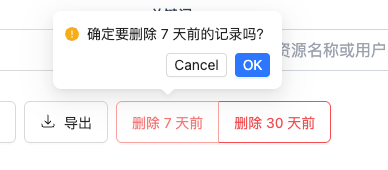
Batch Delete Process:
- Select filter conditions (such as time range)
- Click "Batch Delete" button
- Confirm delete conditions
- Execute batch deletion
- Shows deletion result
Use Cases:
- Clean up expired records
- Delete test data
- Free storage space
8. Refresh Operation List
Click "Refresh" button at top of page to reload operation log list.
Refresh Features:
- Get latest operation records
- Update statistics data
- Keeps current filter conditions
Use Cases:
- View latest operations
- Verify if operation was recorded
- Refresh statistics data
9. Operation Log Storage
9.1 Log Storage Location
Operation logs are stored in SQLite database:
Database File:
- Host Path:
~/Library/Application Support/cuemate-desktop-client/data/sqlite/cuemate.db - Container Path:
/opt/cuemate/data/sqlite/cuemate.db - Table Name:
operation_logs
Container Volume Mount:
- web-api service accesses database via Docker volume mount
- Mount configuration:
~/Library/Application Support/cuemate-desktop-client/data/sqlite:/opt/cuemate/data/sqlite - Environment variable:
SQLITE_PATH=/opt/cuemate/data/sqlite/cuemate.db
9.2 Log Retention Policy
Default Retention:
- System retains all operation records by default
- Can clean historical records via batch delete
- Recommend exporting before regular cleanup
10. Best Practices
10.1 Regular Auditing
Recommended Audit Frequency:
- Daily: Review failed operations
- Weekly: Review delete operations
- Monthly: Export complete logs
- Quarterly: Generate audit reports
10.2 Security Monitoring
Key Focus Areas:
- Operations during non-working hours
- Frequent failed operations
- Batch delete operations
- Sensitive configuration changes
10.3 Storage Management
Storage Optimization:
- Periodically export historical records
- Clean logs older than 3 months
- Retain important operation records
- Monitor database size
11. FAQ
11.1 Operation Not Recorded
Issue: Cannot find record in operation logs after performing operation.
Solutions:
- Click "Refresh" button to update list
- Check if filter conditions filtered out the record
- Check if operation time is within filtered time range
- Clear all filter conditions then view
11.2 Export Failed
Issue: Click "Export" button, download fails or file is empty.
Solutions:
- Check if network connection is normal
- Check if browser allows downloads
- Check if there is data under filter conditions
- Try reducing export data volume
- Check browser console for error messages
11.3 Details View Failed
Issue: Click "View" button, details panel won't open or loading fails.
Solutions:
- Refresh page and retry
- Check network connection
- Check browser console for errors
- Clear browser cache
11.4 Delete Failed
Issue: Click "Delete" button, shows delete failed.
Solutions:
- Check if you have delete permission
- Check network connection
- Check backend service logs
- Retry delete operation
Related Pages
- Log Management - View system operation logs
- Container Monitoring - Monitor Docker container status
- System Settings - Configure system parameters