
License Management
1. Overview
The License Management page is used to manage CueMate system authorization licenses, including viewing license information, uploading license files, importing preset question banks, and managing system versions. A valid license is a prerequisite for using CueMate subscription features, and within the validity period, you can continuously update and use all subscription features.
Core Features:
- View current license information and status
- Upload and activate License.key files
- Import preset interview question banks (requires valid license)
- Manage system versions and updates
- License expiration reminders and renewal management
Subscription Plans
CueMate provides three flexible subscription plans to meet the needs of different users:
| Plan | Duration | Price | Use Case |
|---|---|---|---|
| Monthly | 1 month | ¥59 | Short-term interview prep, trial experience |
| Annual | 1 year | ¥199 | Long-term interview training, job hunting season |
| Lifetime | Lifetime (100 years) | ¥399 | One-time purchase, use forever |
TIP
Recommended Choice:
- If you are preparing for an interview soon, choose Monthly Subscription
- If you plan to improve your interviewing skills long-term, choose Annual Subscription (equivalent to ¥16.6/month)
- If you want it once and for all, choose Lifetime License (best value)
Subscription Benefits:
- All subscription plans include full functionality
- Free updates to the latest version during the subscription period
- Exclusive preset question bank (continuously updated)
- Priority technical support services
How to Purchase:
- Contact via email: nuneatonhydroplane@gmail.com
- You will receive the License.key file after payment is completed
2. Access License Management
2.1 Open License Management Page
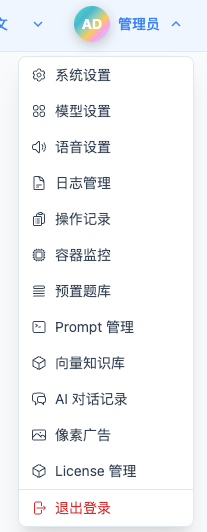
Click "License Management" in the top dropdown menu to enter the License Management page.
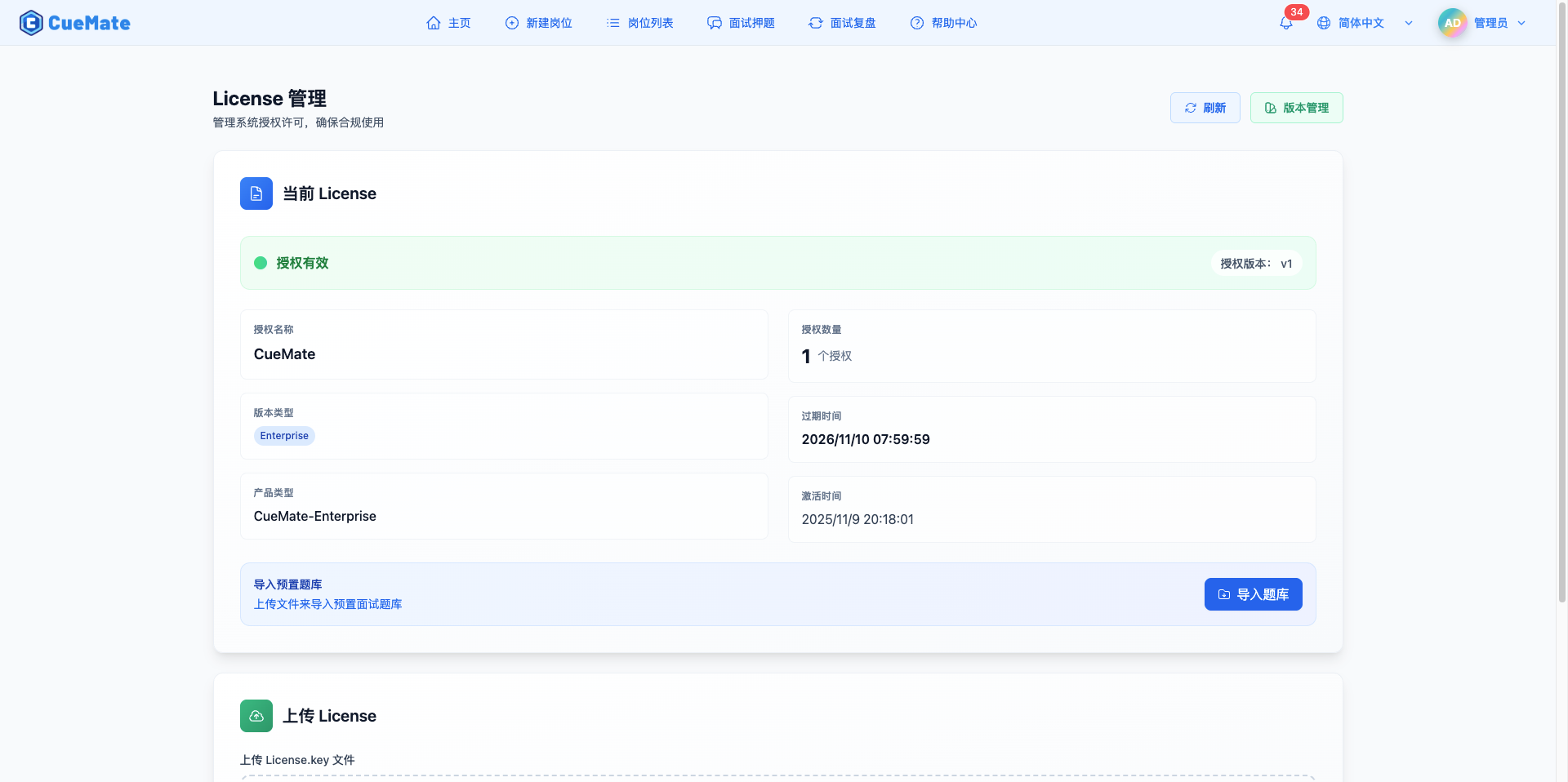
3. Access License Management (No License Status)
On first visit or when the license is invalid, the page displays a prompt message requiring upload of a valid license file.
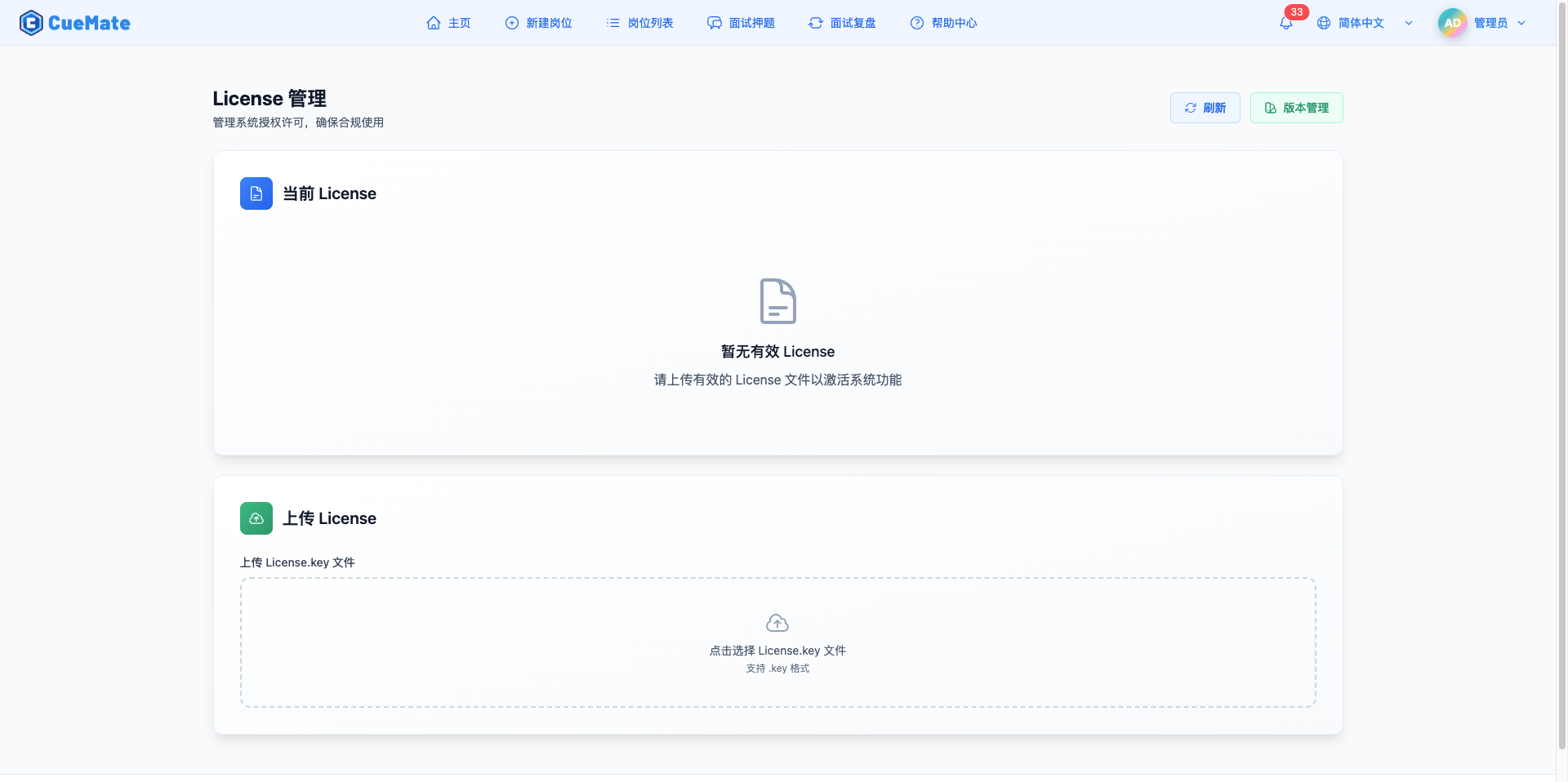
3.1 Restrictions Without License
WARNING
Restrictions Without License:
- Cannot use preset question bank feature
- Cannot import system preset questions
- Current and future subscription features are restricted
Solutions:
- Contact CueMate team to obtain License.key file
- Follow the steps below to upload the license file
- Full features available after activation
4. Upload License File
Upload the License.key file to activate system features:
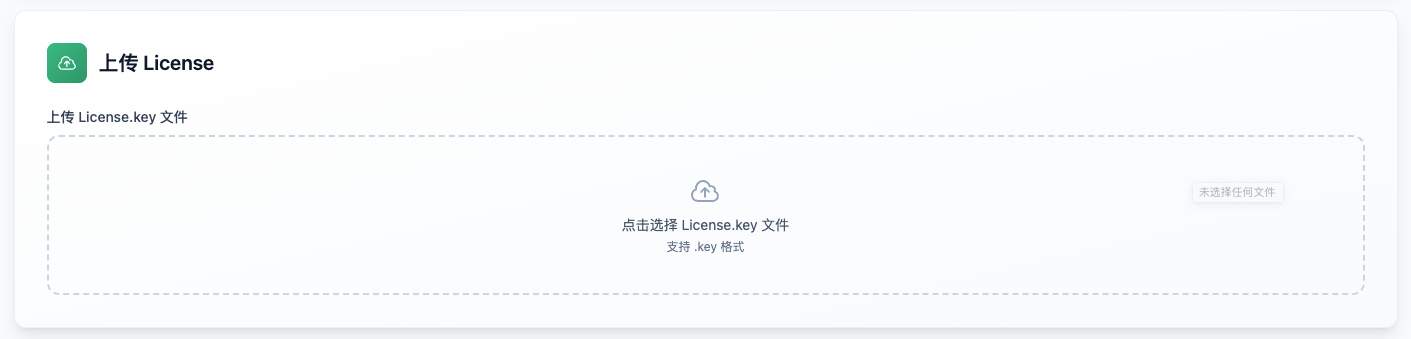
4.1 Upload Steps
1. Obtain License File
Contact the sales team to obtain the License.key file:
- Sales email: nuneatonhydroplane@gmail.com
- Online consultation: Contact customer service
- Provide necessary organization information and license quantity
2. Select File to Upload
Steps:
- Click the "Upload License.key File" area
- Select the local .key file
- Wait for upload to complete
- System automatically verifies and activates
3. Upload Requirements
NOTE
File Format Requirements:
- File extension: .key
- File type: License key file
- Source: Official authorization channel
4. Upload Status
During upload:
- Uploading: Shows loading animation and "Uploading..." message
- Upload successful: Shows success message, automatically refreshes license information
- Upload failed: Shows error message, check file validity
4.2 Common Upload Issues
Issue 1: "Only .key files are supported"
Cause: Selected file format is incorrect
Solution:
- Confirm file extension is .key
- Do not modify filename or extension
- Ensure file is from official channel
Issue 2: License invalid after upload
Cause: License file is corrupted or expired
Solution:
- Check if license file is complete
- Confirm license is within validity period
- Contact sales to obtain new license
Issue 3: Features still restricted after upload
Cause: Browser cache not refreshed
Solution:
- Refresh page (F5 or Ctrl+R)
- Clear browser cache
- Re-login to system
5. View License Information
After successfully uploading the license, you can view detailed authorization information:
5.1 License Status
Status Indicators:
- Green dot: Authorization valid
- Yellow dot: Expiring soon (within 30 days)
- Red dot: Expired
Status Descriptions:
- Authorization Valid: License is normal, all features available
- Expiring Soon: License will expire within 30 days, renewal recommended
- Expired: License is invalid, need to upload a valid license
5.2 License Details
Basic Information (Left Column):
| Field | Description | Example |
|---|---|---|
| License Name | Organization name | CueMate Corporation |
| Version Type | License version | Enterprise |
| Product Type | Licensed product type | CueMate-Enterprise |
Authorization Information (Right Column):
| Field | Description | Example |
|---|---|---|
| License Quantity | Available license seats | 1 license |
| Expiration Time | License expiration date | 2027-01-01 00:00:00 |
| Activation Time | License first activation time | 2026-01-01 10:30:00 |
5.3 License Version
Authorization Version Information:
- Displays current license version number
- Located to the right of the status indicator
- Format: License Version: vX.X.X
6. License Expiration Warning
When the license is about to expire (within 30 days), the page displays a prominent warning:
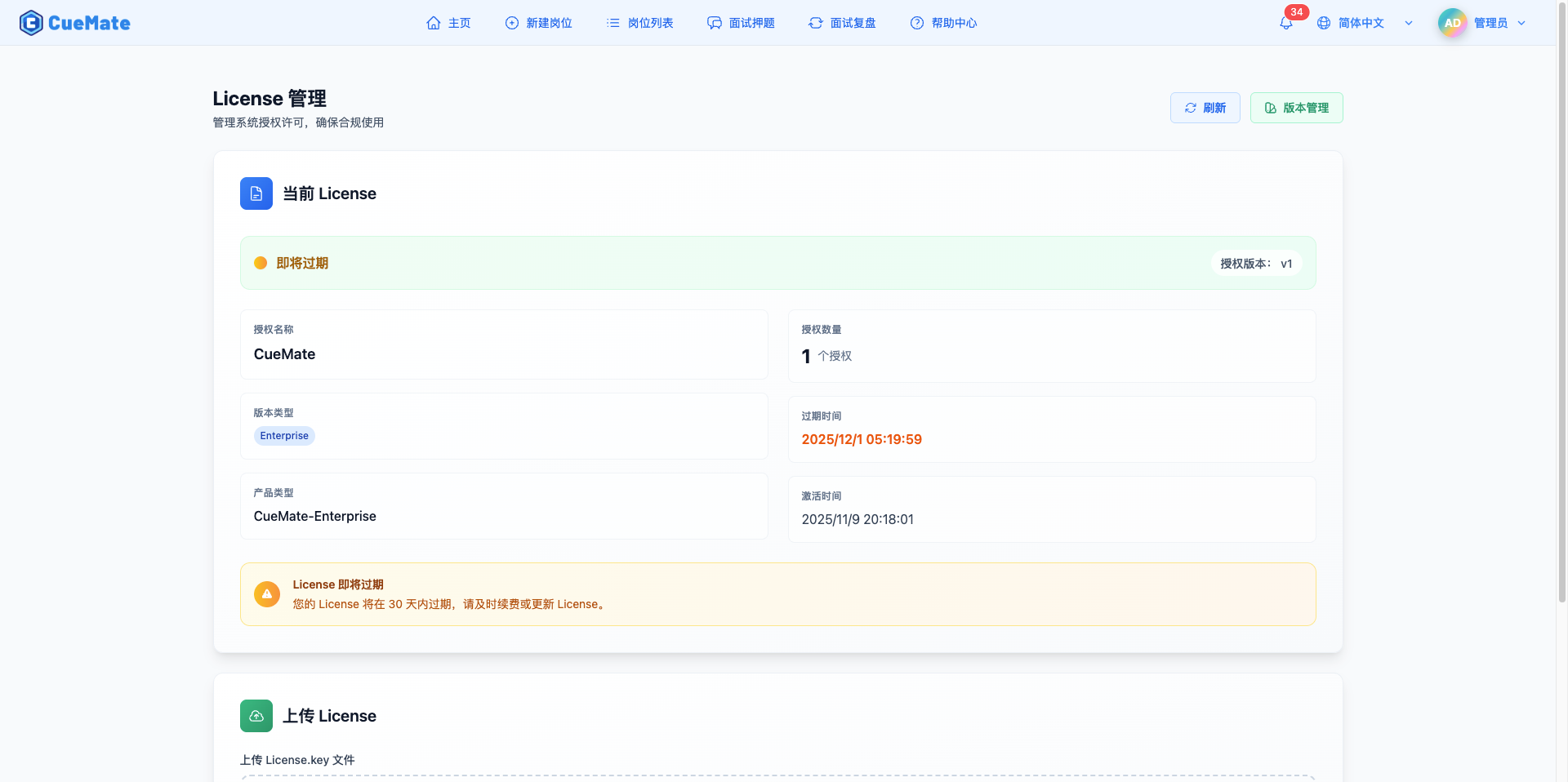
6.1 Warning Content
Message:
- Warning title: "License Expiring Soon"
- Warning content: Reminds users to renew or update license before expiration
- Visual style: Yellow-orange gradient background, warning icon
Warning Trigger Conditions:
- License expiration time <= Current time + 30 days
- Example: Expires 2026-12-31, warning starts showing from 2026-12-01
6.2 Renewal Recommendations
Benefits of Timely Renewal:
- Avoid feature interruption
- Maintain business continuity
- Prevent data access restrictions
Renewal Process:
- Contact sales team
- Provide current license information
- Pay renewal fee
- Obtain new License.key file
- Upload new license file to replace old one
7. Import Preset Question Bank
After activating a valid license, you can import the system preset interview question bank:
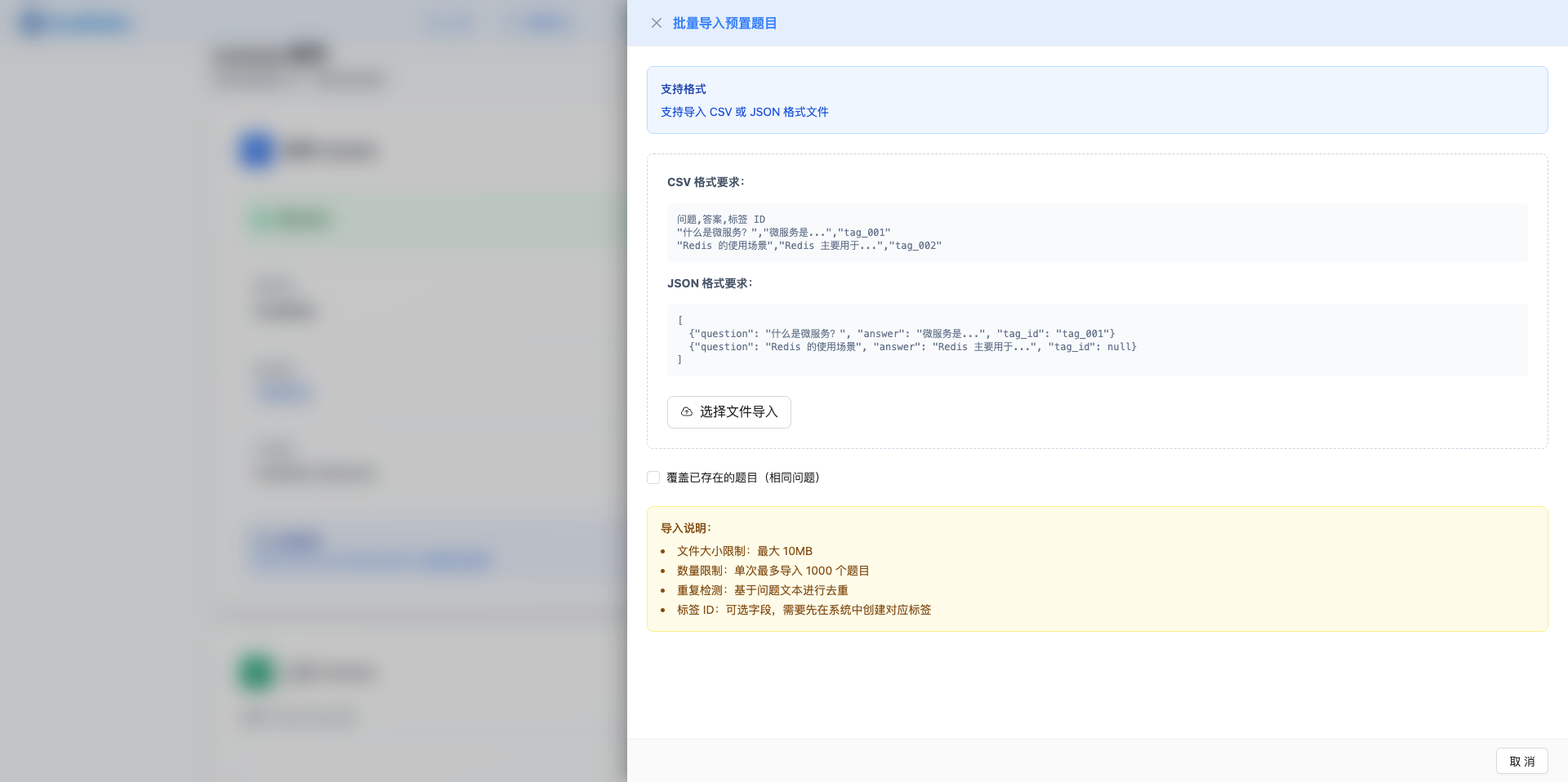
7.1 Import Feature
Display Conditions:
- License status is valid (active)
- License is not expired or expiring soon
Import Area:
- Title: "Import Preset Question Bank"
- Description: Supports CSV or JSON format file import for preset interview question bank
- Button: "Import Question Bank"
7.2 Import Steps
1. Prepare Question Bank File
Two file formats supported:
CSV Format Example:
question,answer,tag_name
"What is microservices?","Microservices is an architectural style that splits a single application into a set of small services...","Architecture Design"
"Redis use cases","Redis as a high-performance in-memory database, common use cases include...","Redis"
"Explain React Hooks","React Hooks is a feature introduced in React 16.8...","Frontend Development"
JSON Format Example:
[
  {
    "question": "What is microservices?",
    "answer": "Microservices is an architectural style that splits a single application into a set of small services...",
    "tag_name": "Architecture Design"
  },
  {
    "question": "Redis use cases",
    "answer": "Redis as a high-performance in-memory database, common use cases include...",
    "tag_name": "Redis"
  },
  {
    "question": "Explain React Hooks",
    "answer": "React Hooks is a feature introduced in React 16.8...",
    "tag_name": "Frontend Development"
  }
]
2. Open Import Dialog
Steps:
- Click "Import Question Bank" button
- Side panel slides out from right
- View format instructions and examples
3. Select File to Upload
In the import dialog:
- Click "Select File to Import" button
- Select local .csv or .json file
- System automatically parses and imports
- Wait for import to complete
4. Set Import Options
Optional settings:
- Overwrite existing questions: When checked, will overwrite questions with the same content, default is not to overwrite
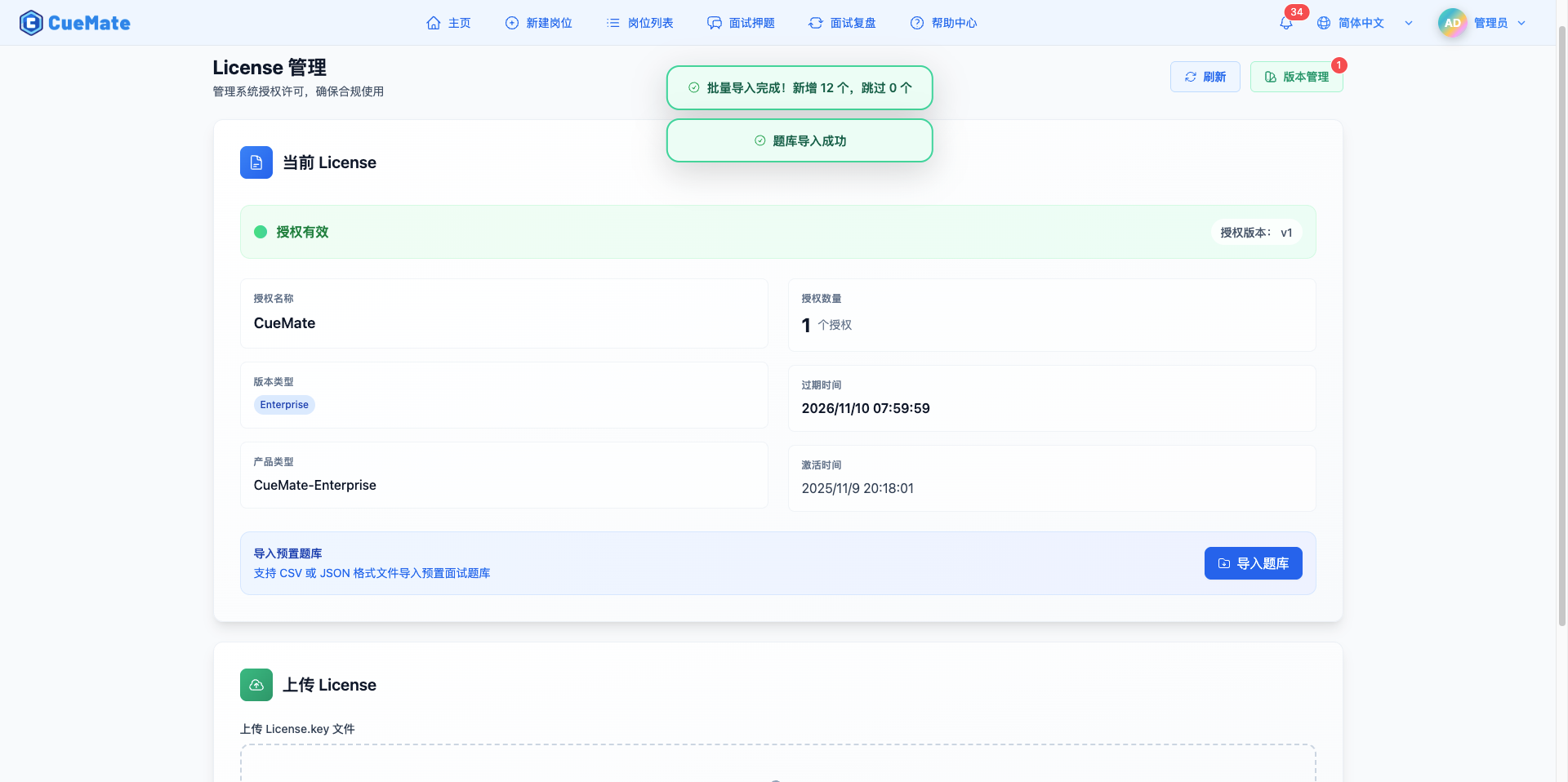
7.3 Import Results
Success Message Example:
Batch import complete! Added 150, skipped 20Field Descriptions:
- Added count: Number of new questions imported this time
- Skipped count: Number of duplicate questions already in database (not overwritten)
7.4 Import Notes
File Format Requirements:
- Supports .csv and .json formats
- CSV first row is header (question,answer,tag_name)
- JSON must be array of objects format
- File size limit: Maximum 10MB
- Maximum 1000 questions per import
Field Requirements:
- question: Required, string type, maximum 500 characters
- answer: Required, string type, maximum 5000 characters
- tag_name: Optional, string type, such as "Frontend Development", "Redis", "Architecture Design", etc.
- System automatically finds or creates corresponding tag based on tag name
- Tags with same name are automatically reused
- Questions without tags are not associated with any tag
Duplicate Handling:
- System deduplicates based on question text
- Default skips existing questions
- Check "Overwrite existing questions" to force overwrite
Post-Import Actions:
- Go to "Preset Questions" page to view import results
- Can continue importing other question bank files
- Imported questions can be synced to interview questions
8. Version Management
Version management feature is used to view system version history, update logs, and perform version updates.
8.1 Open Version Management

Version Management Button Location:
- "Version Management" button in top right corner of page
- Icon: Version management icon
- Pending update badge: Shows number of available updates (red number)
Button Description:
- No updates: Only shows button text and icon
- Updates available: Red number badge in top right corner shows available update count
8.2 Version List
Click "Version Management" button, version history drawer slides out from right:
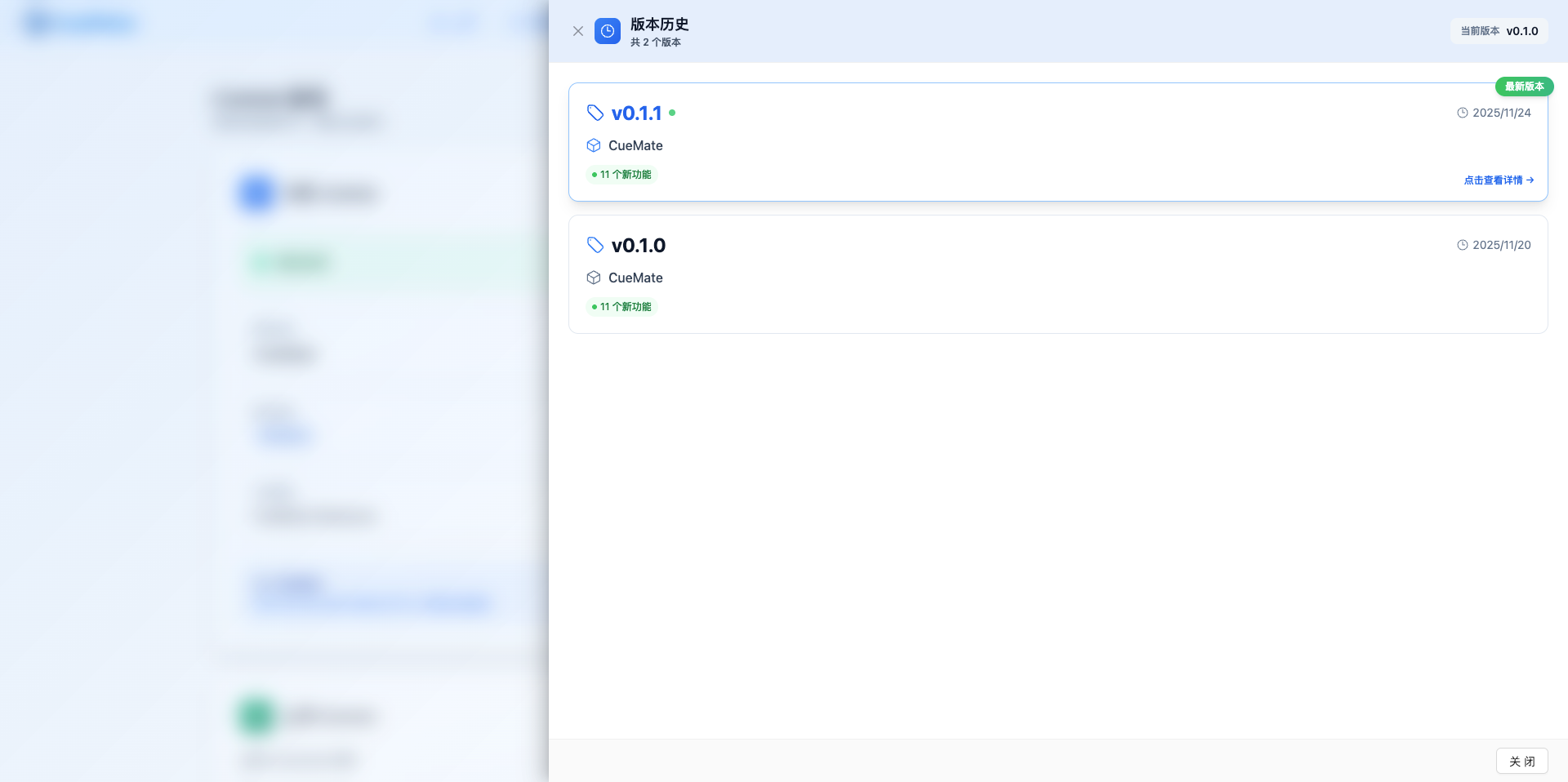
Drawer Header Information:
- Title: "Version History"
- Total versions: X versions total
- Current version number: "Current Version vX.X.X" in top right
List Structure:
- Version number (e.g., v0.1.1, v0.1.0)
- Product name (CueMate)
- Release date (YYYY/MM/DD format)
- Update count label (e.g., "11 new features" green label)
- Latest version indicator (red "Latest Version" label)
- View details link ("Click to view details →" blue link)
Version Sort Order:
- Latest version at top
- Sorted by version number descending
- Latest available update marked with red "Latest Version" label
List Actions:
- Click version item or "Click to view details": View that version's details
- Scroll: Support scrolling to browse historical versions
- Bottom "Close" button: Close version history drawer
8.3 View Version Details
Click a version in the version list to enter the version details page:
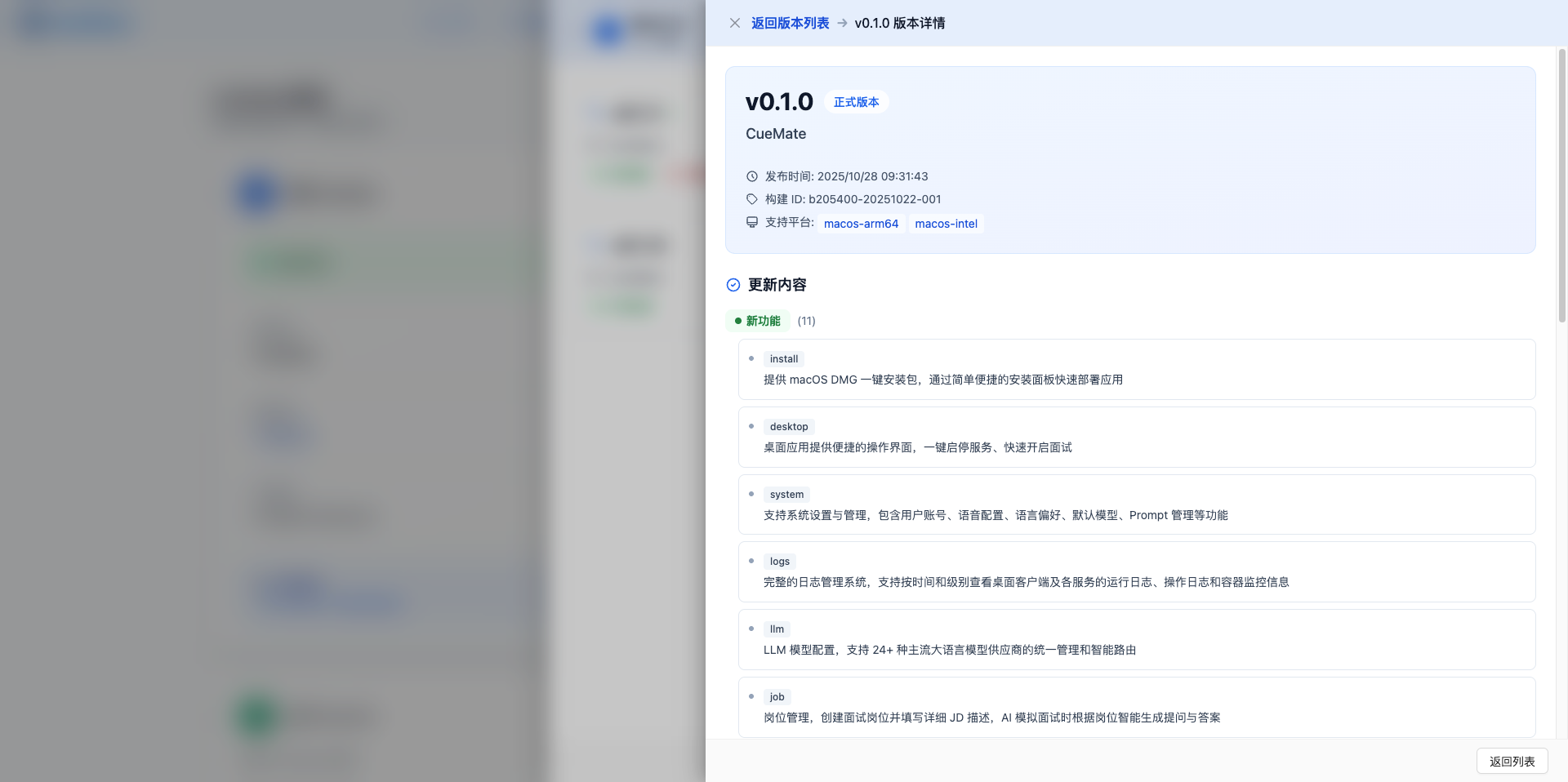
Details Page Content:
1. Version Basic Information
- Version number: e.g., v0.2.0
- Release time: Precise to seconds
- Version status: Current Version / Historical Version / Latest Version
2. Update Log (Markdown Format)
- New features list
- Feature improvements
- Bug fix records
- Known issues
- Upgrade notes
3. Action Buttons
- Back button: Return to version list
- Update to this version: Execute version update (see 8.4)
8.4 Version Update Operation
At the bottom of the version details page, click "Update to this Version" button to start update:
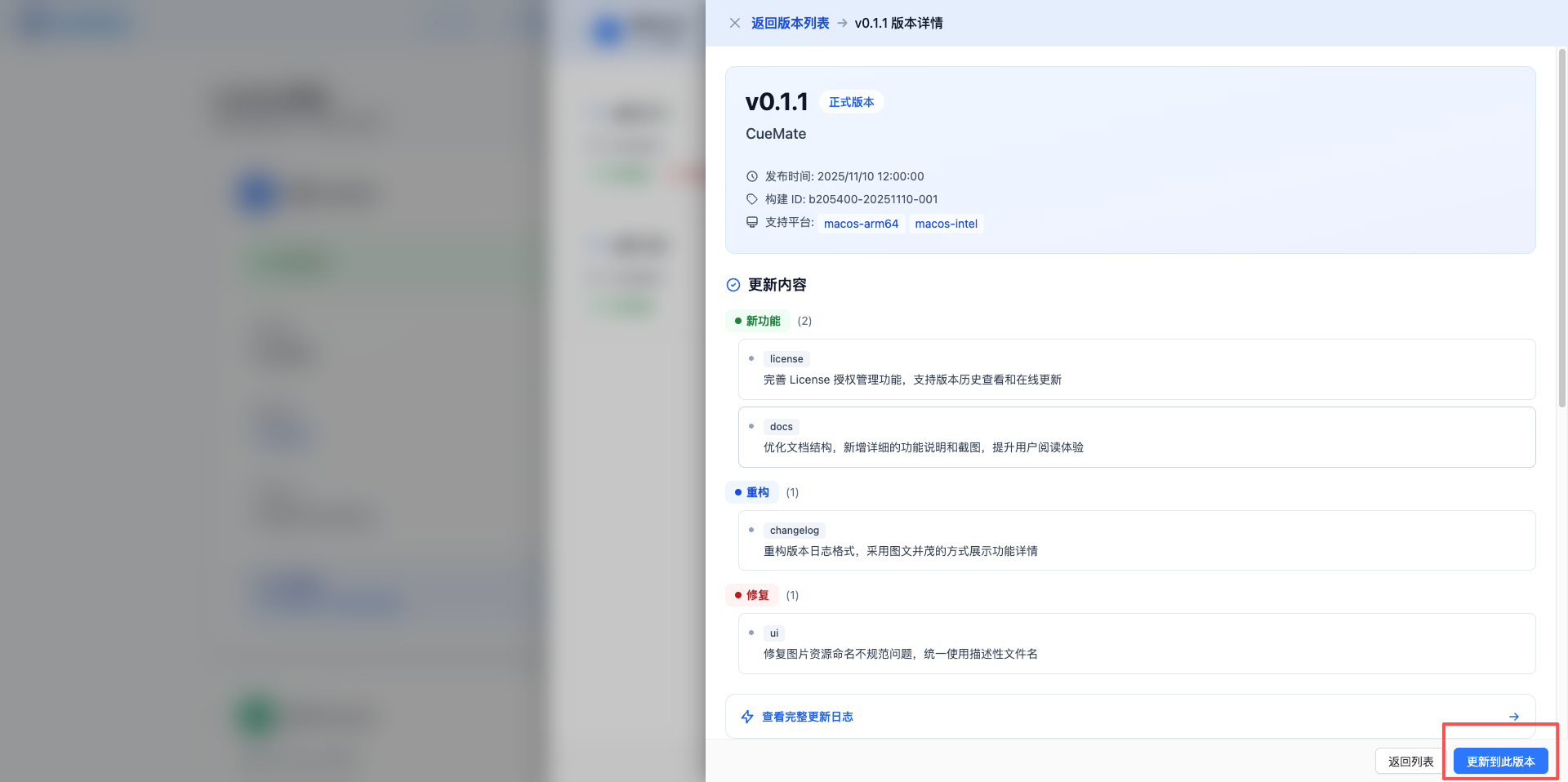
8.4.1 Update Confirmation Dialog
After clicking "Update to this Version" button, confirmation dialog appears:
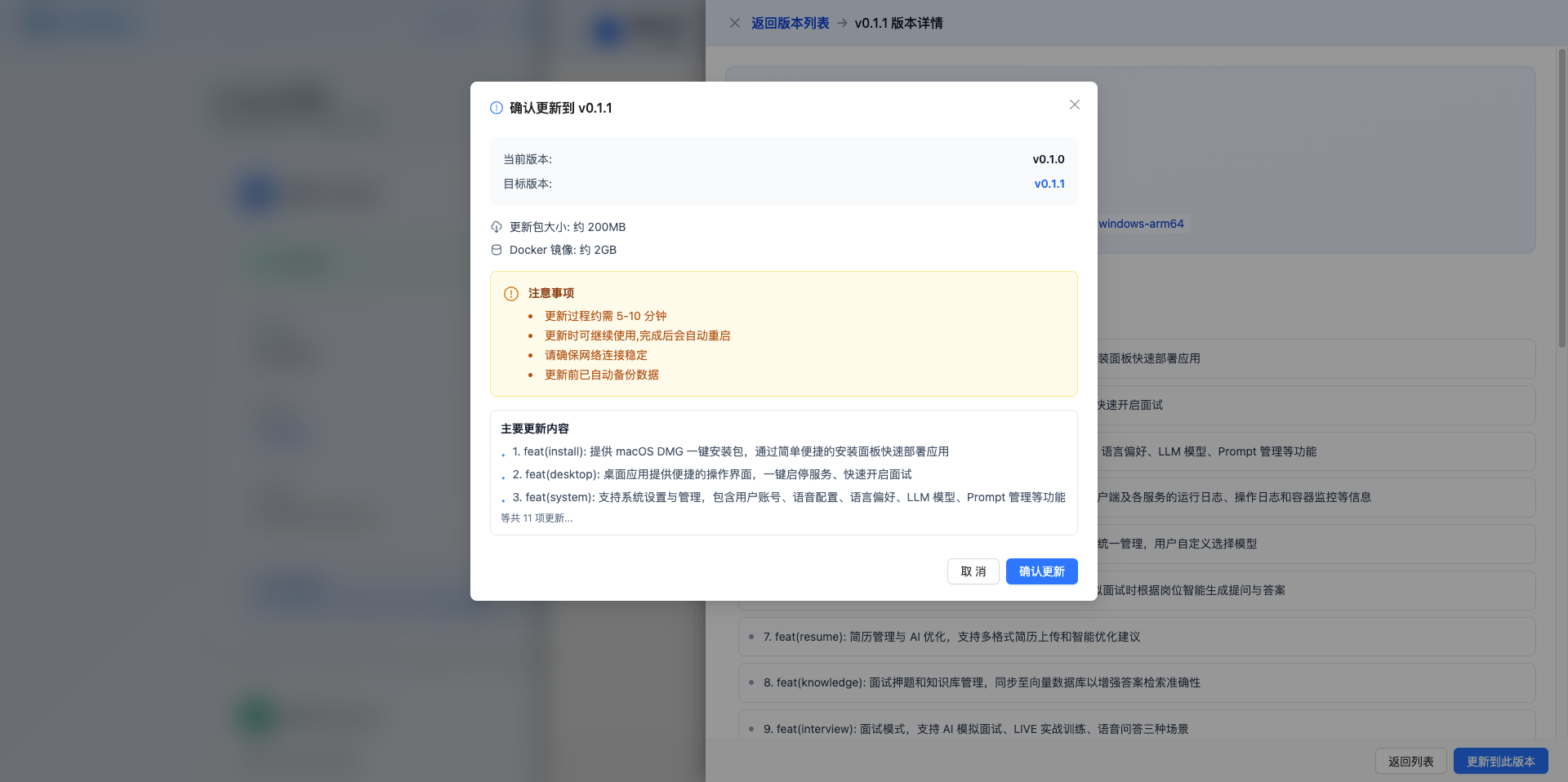
Dialog Title:
- Shows "Confirm Update to vX.X.X"
Version Information:
| Item | Description |
|---|---|
| Current Version | Shows user's currently installed version (e.g., v0.1.0) |
| Target Version | Shows version to update to (blue highlight, e.g., v0.1.1) |
| Update Package Size | ~200MB |
| Docker Image | ~2GB |
Notes (Orange Warning Box):
- Update process takes approximately 5-10 minutes
- Can continue using during update, will auto-restart after completion
- Please ensure stable network connection
- Data automatically backed up before update
Main Update Content Preview:
- Shows list of main updates for this version (numbered)
- Each update format: "Number. feat(module): feature description"
- If more content, bottom shows "Total X updates..."
Action Buttons:
- "Cancel": Close dialog, cancel update
- "Confirm Update": Start executing update
8.4.2 Update Progress Dialog
After clicking "Confirm Update", update progress dialog appears:
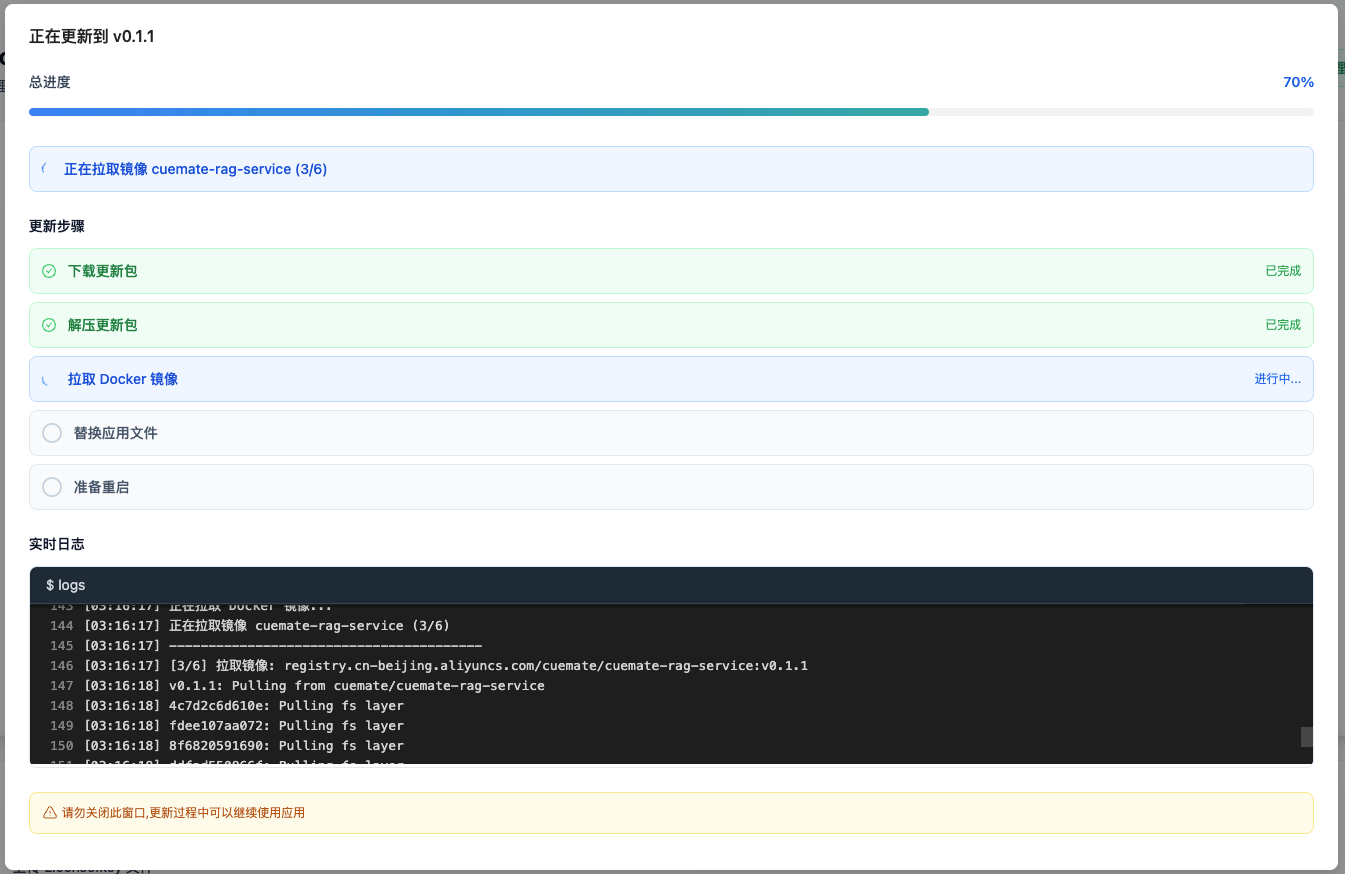
Dialog Title:
- Shows "Updating to vX.X.X"
Progress Information:
- Total progress: Shows percentage progress bar (0-100%) and percentage number
- Current operation: Blue prompt box shows detailed operation being executed (e.g., "Pulling image cuemate-rag-service (3/6)")
Update Steps:
| Step | Description | Status Display |
|---|---|---|
| Download Update Package | Download update files from server | Completed |
| Extract Update Package | Extract downloaded update files | Completed |
| Pull Docker Images | Update backend service images | In progress... |
| Replace Application Files | Update application files | Pending |
| Prepare Restart | Prepare to restart application to complete update | Pending |
Each step displays status icon:
- Gray hollow circle: Pending
- Blue loading animation: In progress
- Green checkmark icon: Completed
Real-time Logs:
- Bottom shows "Real-time Logs" area
- Black background log viewer showing detailed update process logs
- Supports scrolling to view complete logs
Bottom Notice:
- Yellow warning bar: "Do not close this window, you can continue using the application during update"
8.4.3 Update Complete
After update preparation is complete, restart countdown appears:
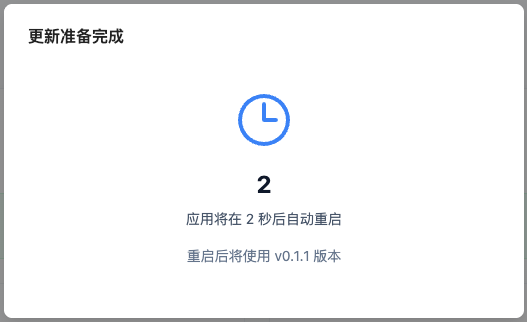
- 3-second countdown then automatic application restart
- New version will be used after restart
8.4.4 Update Failed
If an error occurs during update:
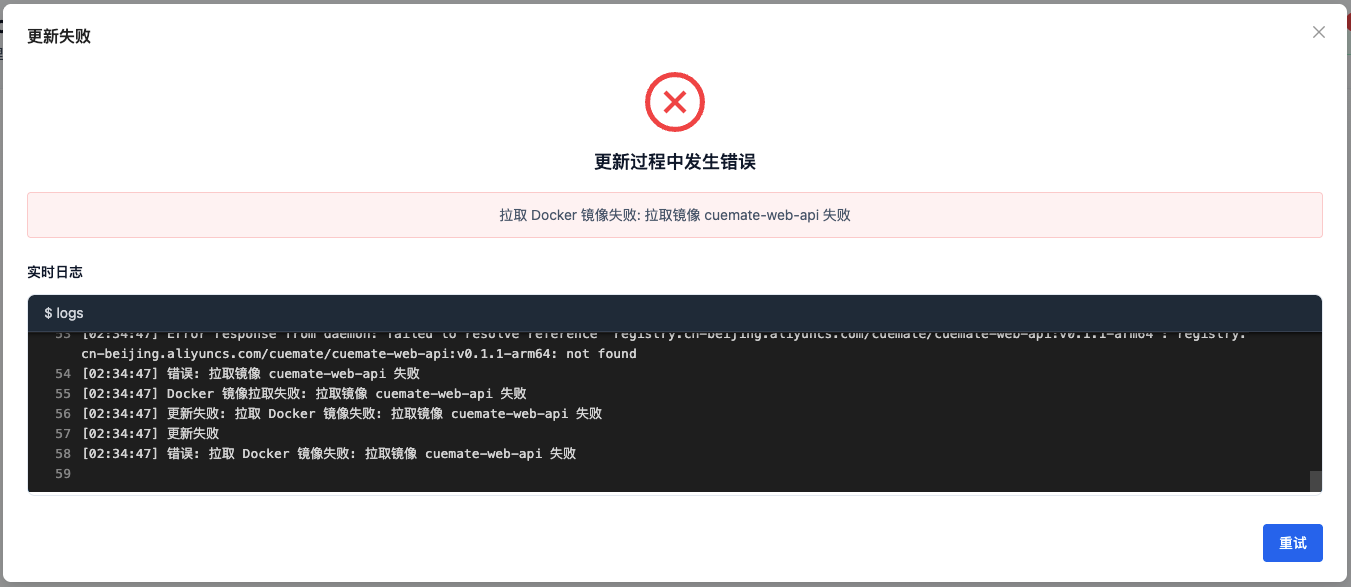
Dialog Title:
- Shows "Update Failed"
Error Information:
- Red X icon indicates update failed
- Title: "An error occurred during update"
- Pink error prompt box: Shows specific error reason (e.g., "Failed to pull Docker image: Failed to pull image cuemate-web-api")
Real-time Logs:
- Shows "Real-time Logs" area
- Black background log viewer showing error details and complete logs
- Helps troubleshoot specific failure reason
Action Buttons:
- "Retry" button in bottom right: Can retry update
- X button in top right: Close dialog
9. Best Practices
9.1 License Management
Recommendations:
- Regularly check license expiration time
- Contact for renewal 30 days in advance
- Keep backup of License.key file
- Record license details
Actions:
- Log in monthly to check license status
- Set calendar reminder (30 days before expiration)
- Save License.key file in secure location
- Screenshot and save license information page
9.2 Question Bank Import
Recommendations:
- Prepare question bank files in CSV or JSON format
- Backup database before import
- Import large quantities in batches (no more than 1000 per import)
- Verify data integrity after import
Actions:
- Prepare CSV or JSON files meeting format requirements
- First import small batch (10-20) for testing
- After confirming no issues, import all
- Check import results on preset questions page
- Confirm before using overwrite option
9.3 Version Updates
Recommendations:
- Regularly check for version updates
- Read update logs to understand new features
- Backup important data before updating
- Verify in test environment first
Actions:
- Check version management page weekly
- Watch for pending update badge notifications
- View version details to understand changes
- Wait for stable version before updating
9.4 Permission Management
Recommendations:
- Purchase licenses based on actual user count
- Reasonably allocate license seats
- Regularly review account usage
- Promptly reclaim licenses from departed employees
Actions:
- Count actual user numbers
- Reserve 10-20% flexible seats
- Review account list quarterly
- Delete inactive accounts
10. FAQ
10.1 Still No Permission After Upload
Issue: Still showing no permission after uploading license?
Possible Causes:
- License file is invalid or expired
- License type doesn't include this feature
- Browser cache not refreshed
Solutions:
- Check license information, confirm status is "Authorization Valid"
- Confirm license version type supports this feature
- Refresh page or clear browser cache
- Re-login to system
10.2 Data After License Expiration
Issue: Will data be lost after license expires?
Possible Cause:
- User worried license expiration will cause data loss
Solution:
- Data will not be lost
- License expiration only affects feature usage
- All features restored immediately after renewal
- Historical data fully preserved
10.3 Upgrade License Type
Issue: How to upgrade license type?
Possible Causes:
- Current version features don't meet needs
- Need more license seats
Solution:
- Contact sales team
- Specify target version to upgrade to
- Pay upgrade difference
- Obtain new License.key file
- Upload new license to replace old file
Upgrade Benefits:
- Existing customers get discount on upgrade
- Remaining days credited toward new license
- Additional discount for bulk purchases
10.4 Using Same License on Multiple Devices
Issue: Can the same license be used on multiple devices?
Possible Cause:
- User needs to use system on multiple devices
Solution:
- License limited by authorization quantity
- One authorization corresponds to one user account
- Same account can log in on multiple devices
- But simultaneous online devices are limited
Example:
- Authorization quantity is 10
- Can create 10 user accounts
- Each account can use on multiple devices
- Cannot create new accounts beyond authorization quantity
10.5 Question Bank Import Failed
Issue: What to do if question bank import fails?
Possible Causes:
- File format incorrect (not CSV or JSON)
- File content format error (missing required fields)
- Network connection issue
- Question bank file corrupted or encoding error
Solutions:
- Confirm file is .csv or .json format
- Check if file content meets format requirements (refer to Section 7 examples)
- Ensure CSV file uses UTF-8 encoding
- Check if network connection is normal
- Re-download or regenerate question bank file
- Check browser console for error messages
- Contact technical support
10.6 License Renewal
Issue: License expiring soon, how to renew?
Possible Cause:
- License about to expire, needs renewal
Solution:
- Contact CueMate team (recommend 7 days in advance)
- Provide current license information
- Confirm renewal period and amount
- Complete payment
- Receive new License.key file
- Upload new license (will automatically extend expiration time)
Renewal Benefits:
- Annual payment gets discount
- Multi-year renewal gets bigger discount
- Existing customer renewal exclusive discount
11. Technical Support
Users with valid licenses can enjoy complete technical support services:
Support Content:
- Feature usage consultation
- Problem troubleshooting
- Version update guidance
- Configuration optimization suggestions
Contact:
- Email: nuneatonhydroplane@gmail.com
Related Pages
- Preset Questions: Manage imported questions
- Interview Questions: Use preset questions for interviews
- Vector Knowledge Base: Question vectorization management