

Configure Local Large Model
Local large models refer to open-source large language models deployed on personal computers or private servers, without relying on cloud APIs. Supporting multiple inference frameworks (Ollama, vLLM, Xinference, etc.), they provide data privacy protection and fully offline operation capabilities.
1. Deploy Local Model Service
Local large models support multiple inference frameworks, including Ollama, vLLM, Xinference, etc. This document introduces how to configure local model services in a general way.
1.1 Choose Inference Framework
Choose the appropriate inference framework based on your needs:
- Ollama: Easy to use, suitable for individual developers
- vLLM: High-performance inference, suitable for production environments
- Xinference: Supports multiple models, feature-rich
For detailed installation instructions, please refer to the independent documentation for each framework:
1.2 Start Local Service
Taking Ollama as an example:
# Download model
ollama pull deepseek-r1:7b

# Ollama will automatically start the service, listening on http://localhost:11434 by default
1.3 Verify Service Running
# Check service status
curl http://localhost:11434/api/version
2. Configure Local Model in CueMate
2.1 Enter Model Settings Page
After logging into CueMate, click Model Settings in the dropdown menu in the upper right corner.
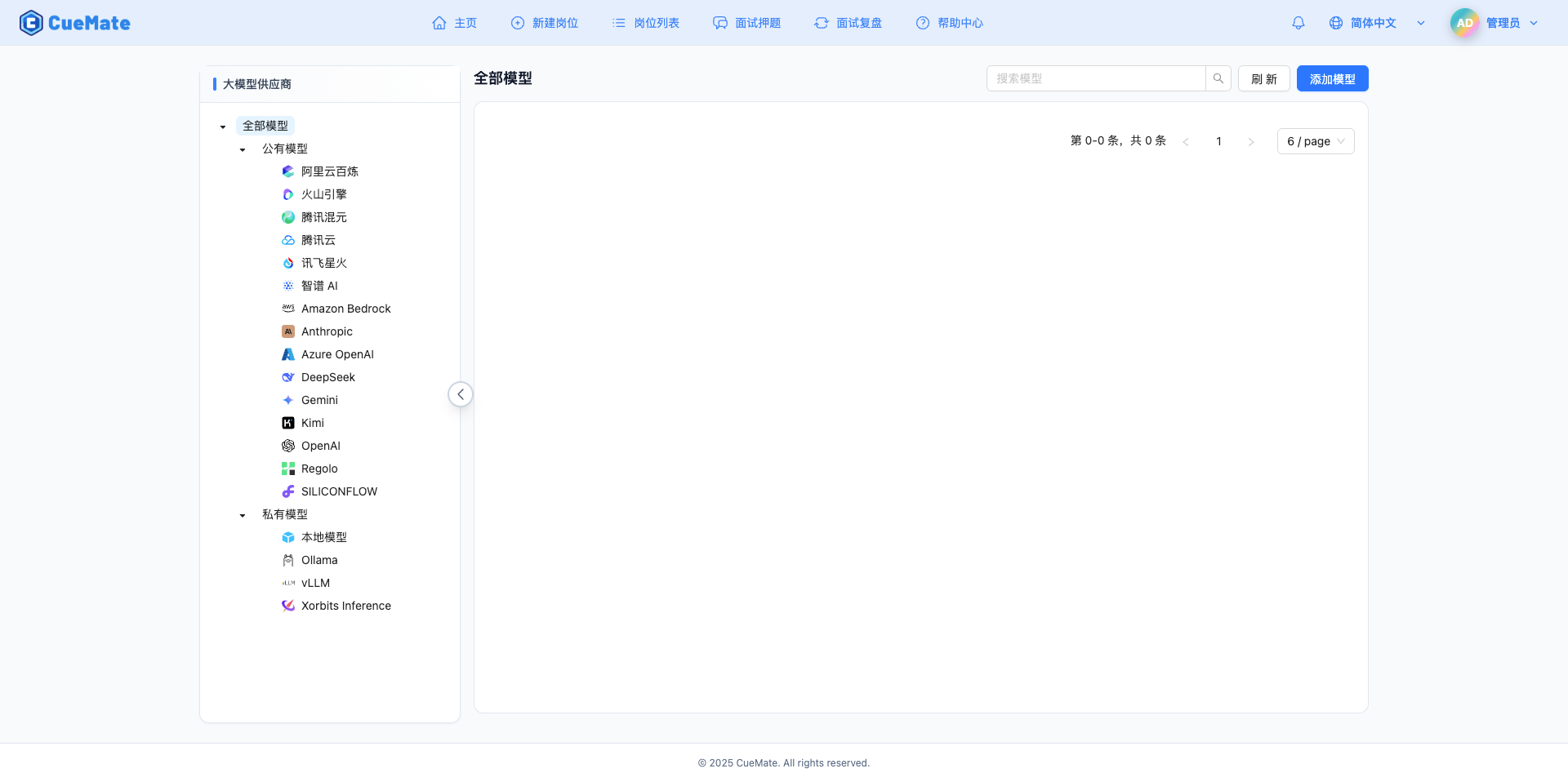
2.2 Add New Model
Click the Add Model button in the upper right corner.

2.3 Select Local Model Provider
In the pop-up dialog:
- Provider Type: Select Local Model
- After clicking, automatically proceed to the next step
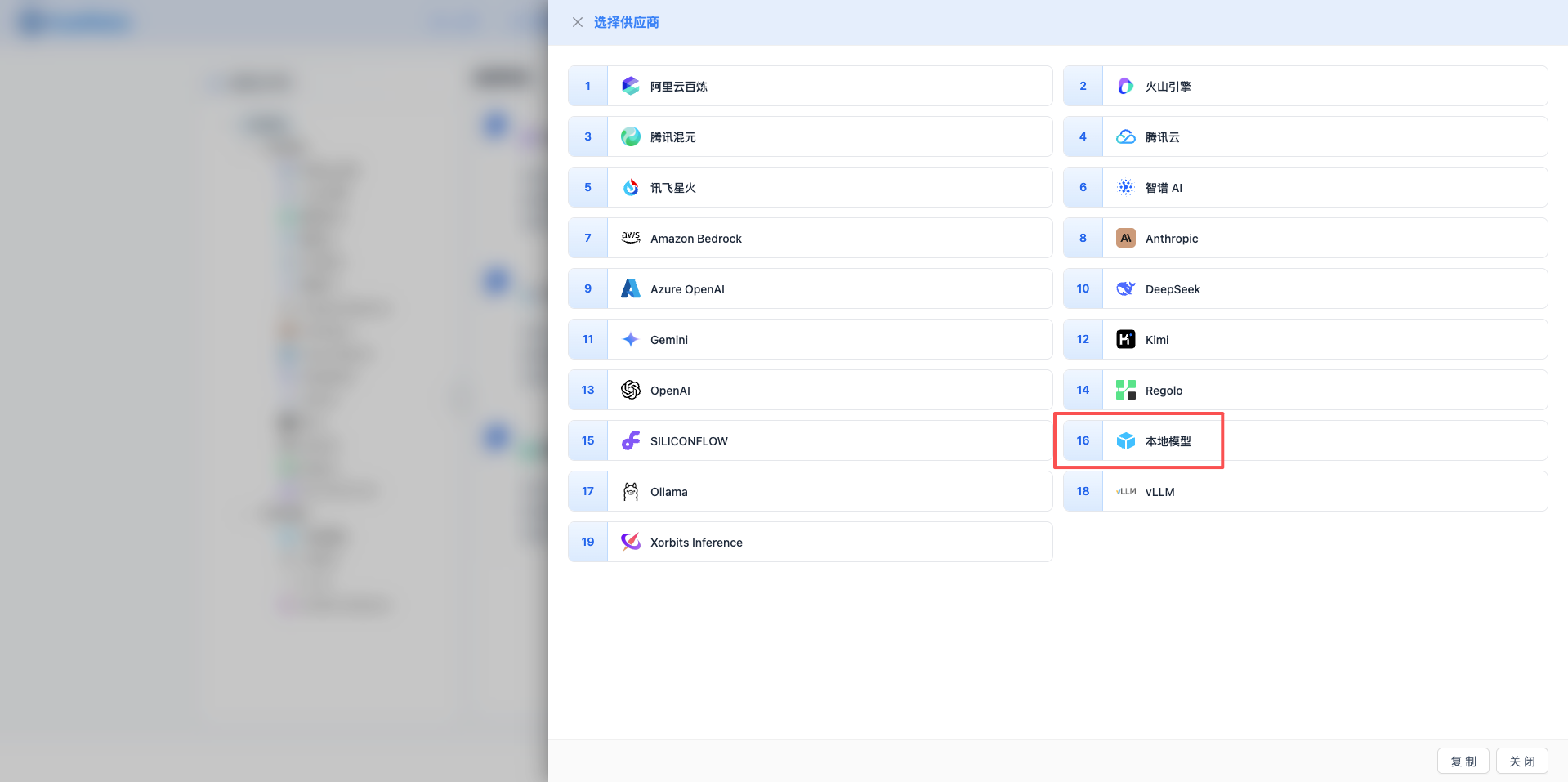
2.4 Fill in Configuration Information
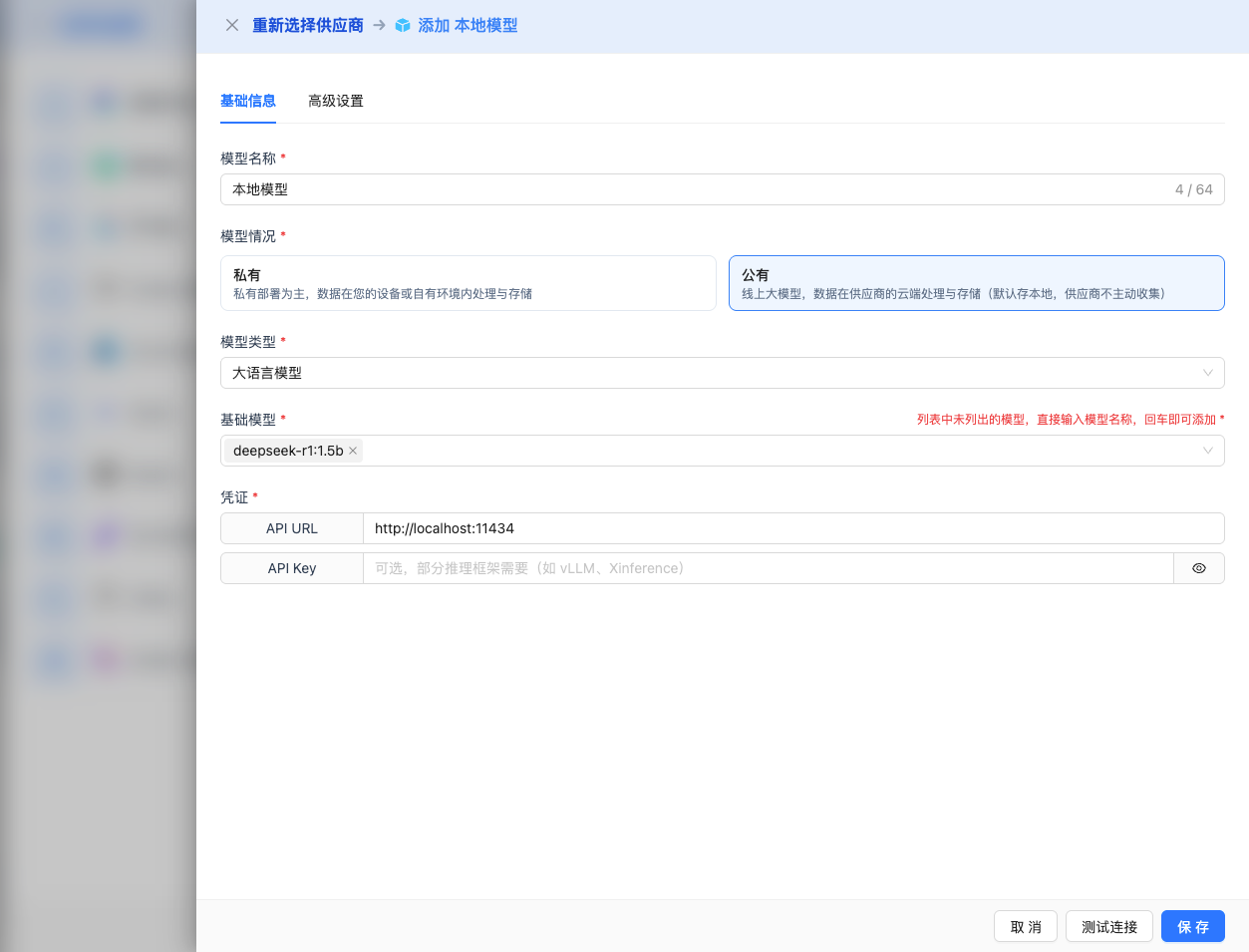
Fill in the following information on the configuration page:
Basic Configuration
- Model Name: Give this model configuration a name (e.g., Local DeepSeek R1)
- API URL: Fill in the local service address
- Ollama default:
http://localhost:11434 - vLLM default:
http://localhost:8000/v1 - Xinference default:
http://localhost:9997/v1
- Ollama default:
- Model Version: Enter the deployed model name
2026 Recommended Models:
- DeepSeek R1 Series:
deepseek-r1:1.5b,deepseek-r1:7b,deepseek-r1:14b,deepseek-r1:32b - Llama 3.3 Series:
llama3.3:70b(latest version) - Llama 3.2 Series:
llama3.2:1b,llama3.2:3b,llama3.2:11b,llama3.2:90b - Llama 3.1 Series:
llama3.1:8b,llama3.1:70b,llama3.1:405b - Qwen 2.5 Series:
qwen2.5:0.5b,qwen2.5:1.5b,qwen2.5:3b,qwen2.5:7b,qwen2.5:14b,qwen2.5:32b,qwen2.5:72b
Note: The model version must be a model that has been deployed in the local service. The model naming of different inference frameworks may vary slightly, please adjust according to actual conditions.
Advanced Configuration (Optional)
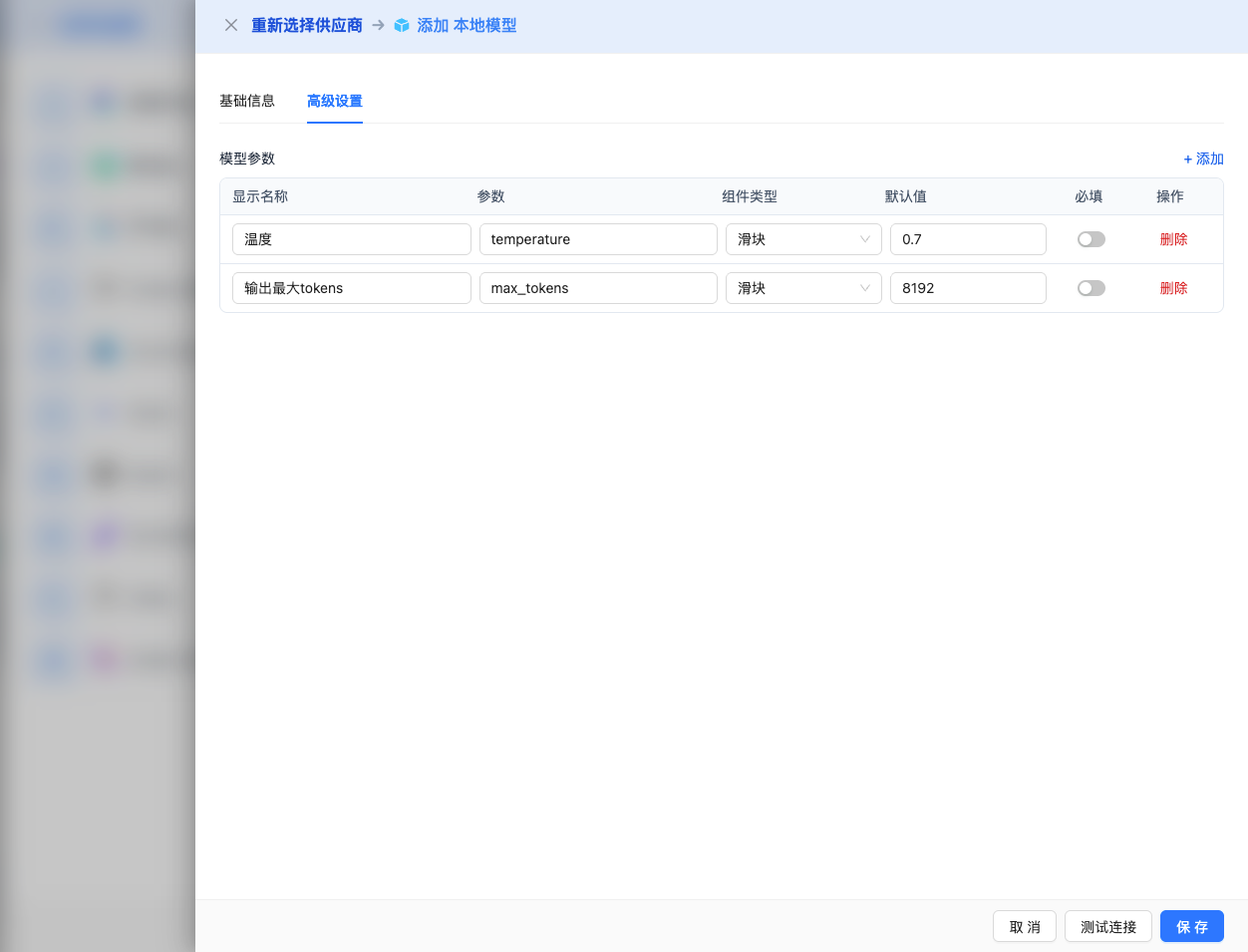
Expand the Advanced Configuration panel to adjust the following parameters:
Parameters Adjustable in CueMate Interface:
Temperature: Controls output randomness
- Range: 0-2 (depending on model)
- Recommended Value: 0.7
- Function: Higher values produce more random and creative output, lower values produce more stable and conservative output
- Model Range:
- DeepSeek/Llama Series: 0-2
- Qwen Series: 0-1
- Usage Suggestions:
- Creative writing: 0.8-1.2
- Regular conversation: 0.6-0.8
- Code generation: 0.3-0.5
Max Tokens: Limits single output length
- Range: 256 - 8192
- Recommended Value: 4096
- Function: Controls the maximum word count of model's single response
- Usage Suggestions:
- Short Q&A: 1024-2048
- Regular conversation: 4096-8192
- Long text generation: 8192 (maximum)
Other Parameters Supported by Local Model API:
Local model services (Ollama, vLLM, Xinference) usually use OpenAI-compatible API format and support the following advanced parameters:
top_p (nucleus sampling)
- Range: 0-1
- Default Value: 0.9
- Function: Samples from the minimum candidate set where cumulative probability reaches p
- Usage Suggestions: Keep default 0.9, usually only adjust one of temperature or top_p
top_k
- Range: 1-100
- Default Value: 40 (Ollama), 50 (vLLM)
- Function: Samples from the k candidate words with the highest probability
- Usage Suggestions: Usually keep default value
frequency_penalty (frequency penalty)
- Range: -2.0 to 2.0
- Default Value: 0
- Function: Reduces the probability of repeating the same words
- Usage Suggestions: Set to 0.3-0.8 when reducing repetition
presence_penalty (presence penalty)
- Range: -2.0 to 2.0
- Default Value: 0
- Function: Reduces the probability of words that have already appeared appearing again
- Usage Suggestions: Set to 0.3-0.8 when encouraging new topics
stream (streaming output)
- Type: Boolean
- Default Value: false
- Function: Enable streaming return, generate and return simultaneously
- In CueMate: Automatically handled, no manual setting required
| Scenario | temperature | max_tokens | top_p | Recommended Model |
|---|---|---|---|---|
| Creative Writing | 0.8-1.0 | 4096-8192 | 0.9 | DeepSeek R1 7B/14B |
| Code Generation | 0.3-0.5 | 2048-4096 | 0.9 | Qwen 2.5 7B/14B |
| Q&A System | 0.7 | 1024-2048 | 0.9 | Llama 3.2 11B |
| Technical Interview | 0.6-0.7 | 2048-4096 | 0.9 | DeepSeek R1 7B/14B |
| Fast Response | 0.5 | 1024-2048 | 0.9 | Llama 3.2 3B |
2.5 Test Connection
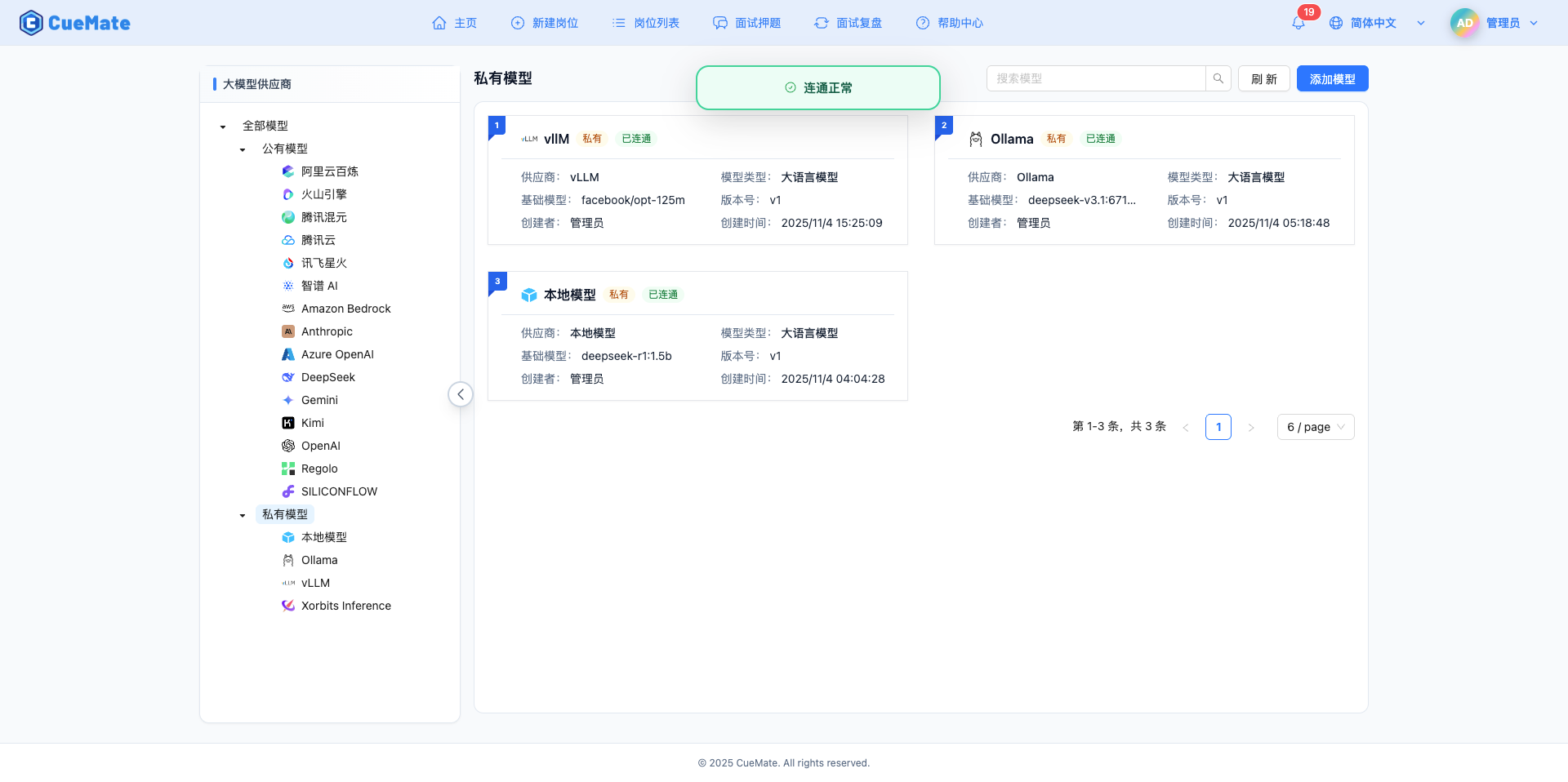
After filling in the configuration, click the Test Connection button to verify if the configuration is correct.
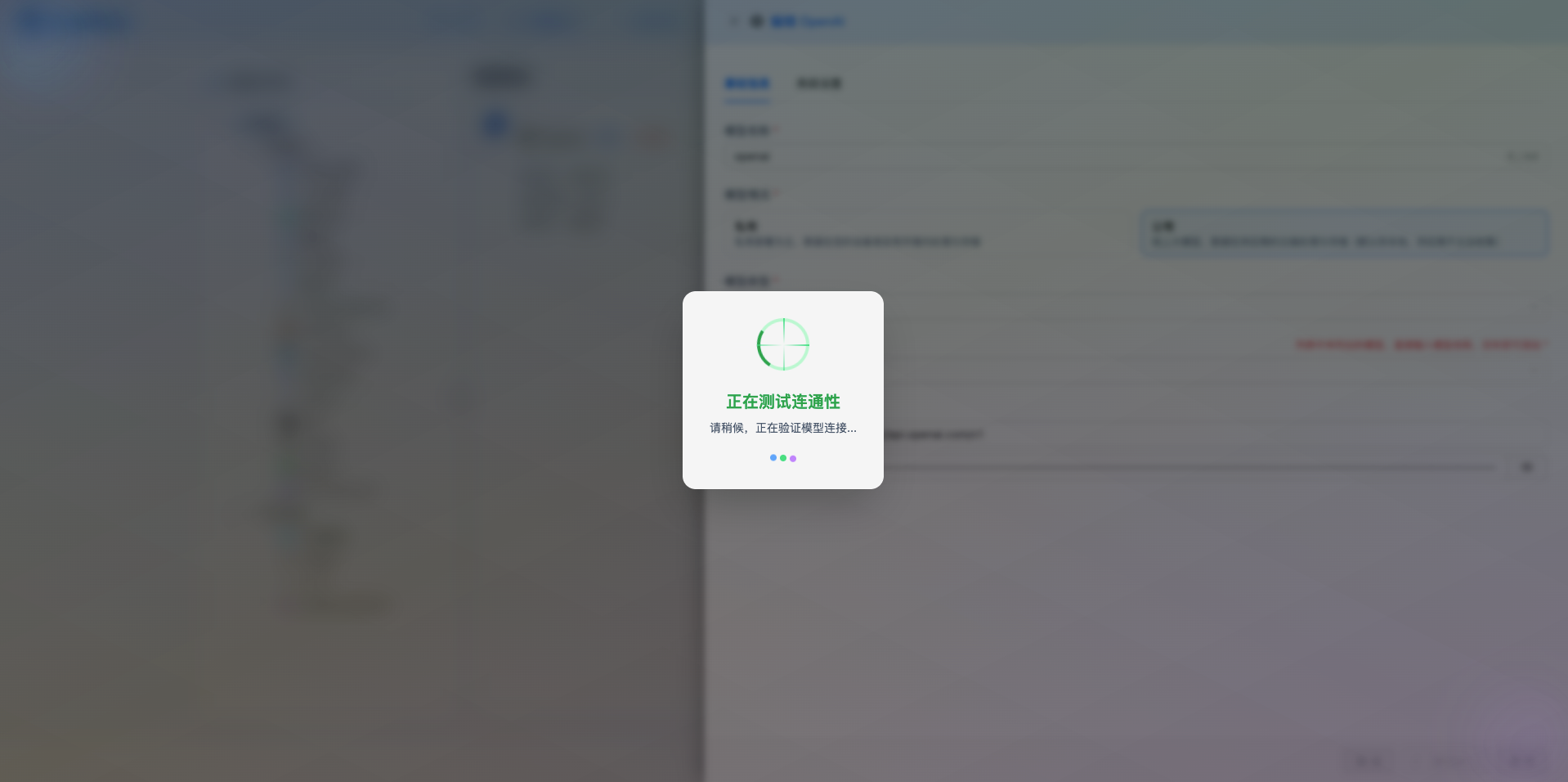
If the configuration is correct, a successful test message will be displayed, along with a sample response from the model.
If the configuration is incorrect, test error logs will be displayed, and you can view specific error information through log management.
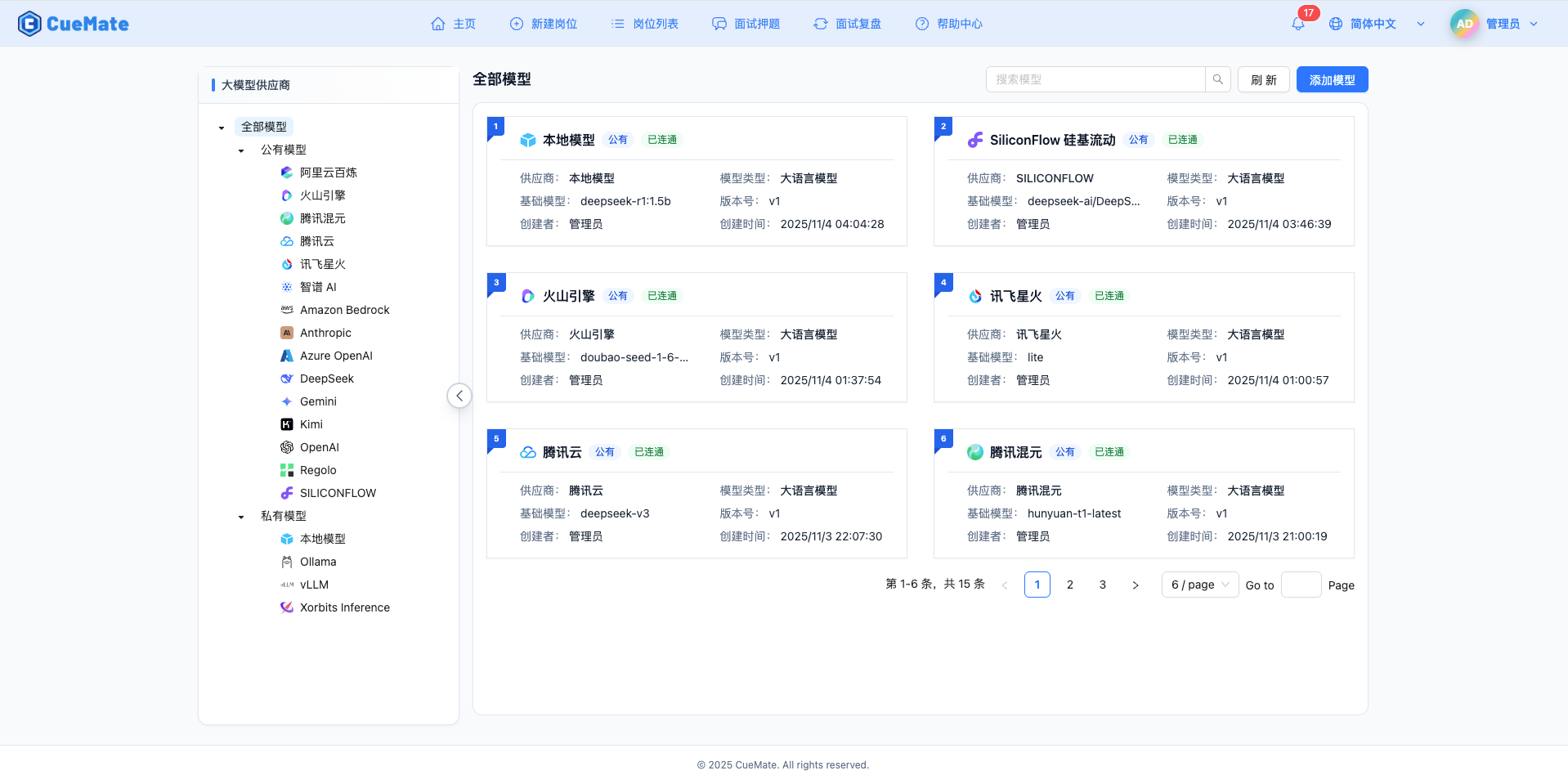
2.6 Save Configuration
After a successful test, click the Save button to complete the model configuration.
3. Use Model
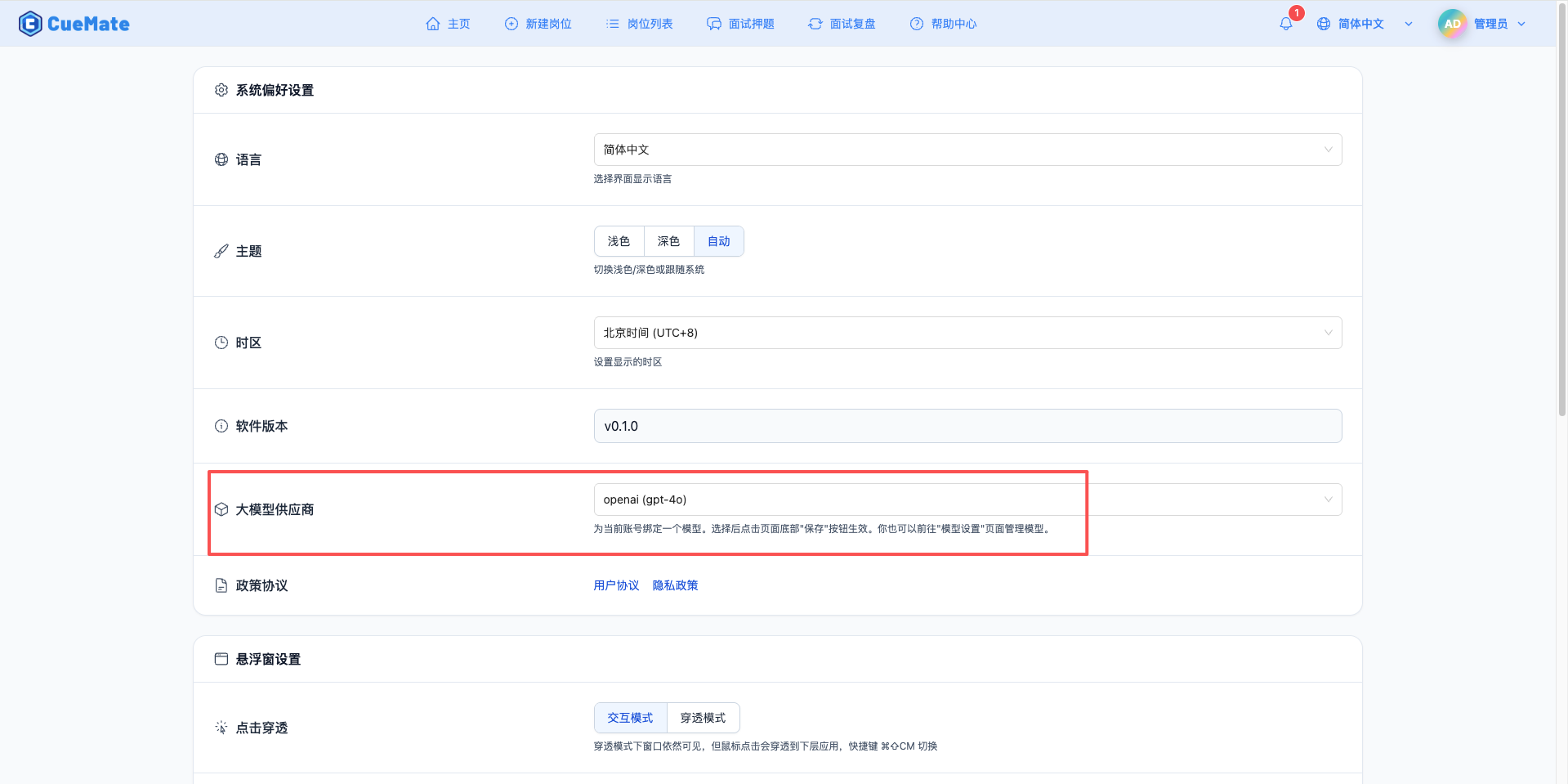
Through the dropdown menu in the upper right corner, enter the system settings interface, and select the model configuration you want to use in the LLM provider section.
After configuration, you can select to use this model in interview training, question generation, and other functions. Of course, you can also select the model configuration for a specific interview in the interview options.
4. Supported Model Series
DeepSeek R1 Series
| Model Name | Model ID | Parameters | Max Output | Use Case |
|---|---|---|---|---|
| DeepSeek R1 1.5B | deepseek-r1:1.5b | 1.5B | 8K tokens | Lightweight reasoning |
| DeepSeek R1 7B | deepseek-r1:7b | 7B | 8K tokens | Reasoning enhanced, technical interviews |
| DeepSeek R1 14B | deepseek-r1:14b | 14B | 8K tokens | High-performance reasoning |
| DeepSeek R1 32B | deepseek-r1:32b | 32B | 8K tokens | Ultra-strong reasoning capability |
Llama 3 Series
| Model Name | Model ID | Parameters | Max Output | Use Case |
|---|---|---|---|---|
| Llama 3.3 70B | llama3.3:70b | 70B | 8K tokens | Latest version, high performance |
| Llama 3.2 90B | llama3.2:90b | 90B | 8K tokens | Ultra-large scale reasoning |
| Llama 3.2 11B | llama3.2:11b | 11B | 8K tokens | Medium-scale tasks |
| Llama 3.2 3B | llama3.2:3b | 3B | 8K tokens | Small-scale tasks |
| Llama 3.2 1B | llama3.2:1b | 1B | 8K tokens | Ultra-lightweight |
| Llama 3.1 405B | llama3.1:405b | 405B | 8K tokens | Ultra-large scale reasoning |
| Llama 3.1 70B | llama3.1:70b | 70B | 8K tokens | Large-scale tasks |
| Llama 3.1 8B | llama3.1:8b | 8B | 8K tokens | Standard tasks |
Qwen 2.5 Series
| Model Name | Model ID | Parameters | Max Output | Use Case |
|---|---|---|---|---|
| Qwen 2.5 72B | qwen2.5:72b | 72B | 8K tokens | Ultra-large scale tasks |
| Qwen 2.5 32B | qwen2.5:32b | 32B | 8K tokens | Large-scale tasks |
| Qwen 2.5 14B | qwen2.5:14b | 14B | 8K tokens | Medium-scale tasks |
| Qwen 2.5 7B | qwen2.5:7b | 7B | 8K tokens | General scenarios, cost-effective |
| Qwen 2.5 3B | qwen2.5:3b | 3B | 8K tokens | Small-scale tasks |
| Qwen 2.5 1.5B | qwen2.5:1.5b | 1.5B | 8K tokens | Lightweight tasks |
| Qwen 2.5 0.5B | qwen2.5:0.5b | 0.5B | 8K tokens | Ultra-lightweight |
5. Common Issues
Service Connection Failed
Symptom: Cannot connect when testing connection
Solution:
- Confirm if the local inference service is running
- Check if the API URL configuration is correct
- Verify if the port is occupied
- Check firewall settings
Model Not Deployed
Symptom: Model does not exist message
Solution:
- Confirm the model has been deployed in the local service
- Check if the model name spelling is correct
- View the model list of the inference service
Performance Issues
Symptom: Slow model response speed
Solution:
- Choose models with smaller parameters
- Ensure sufficient GPU memory or system memory
- Optimize inference framework configuration
- Consider using quantized models
Insufficient Memory
Symptom: Model loading fails or system lags
Solution:
- Choose models with smaller parameters
- Use quantized versions (e.g., 4-bit, 8-bit)
- Increase system memory or use GPU
- Adjust memory configuration of inference framework
Minimum Configuration
| Model Parameters | CPU | Memory | GPU |
|---|---|---|---|
| 0.5B-3B | 4 cores | 8GB | Optional |
| 7B-14B | 8 cores | 16GB | Recommended |
| 32B-70B | 16 cores | 64GB | Required |
Recommended Configuration
| Model Parameters | CPU | Memory | GPU |
|---|---|---|---|
| 0.5B-3B | 8 cores | 16GB | GTX 1660 |
| 7B-14B | 16 cores | 32GB | RTX 3060 |
| 32B-70B | 32 cores | 128GB | RTX 4090 |
Data Privacy
- All data processing is completed locally
- No dependency on external API services
- Full control over data security
Cost Control
- No API call fees
- One-time hardware investment
- Low long-term usage cost
Flexibility
- Support custom models
- Adjustable inference parameters
- Full control over service configuration
Use Cases
- Enterprise internal deployment
- Sensitive data processing
- Offline environment usage
- Development and testing environments