
Home
The Home page is the landing page of the CueMate main application window, providing quick access to start interview training. From the Home page, you can select a created position, start AI Mock Interview or LIVE Interview Training, and view practice statistics.
1. Page Navigation
1.1 Open Main Application Window
Search for the CueMate app icon in Launchpad and click to open the application.

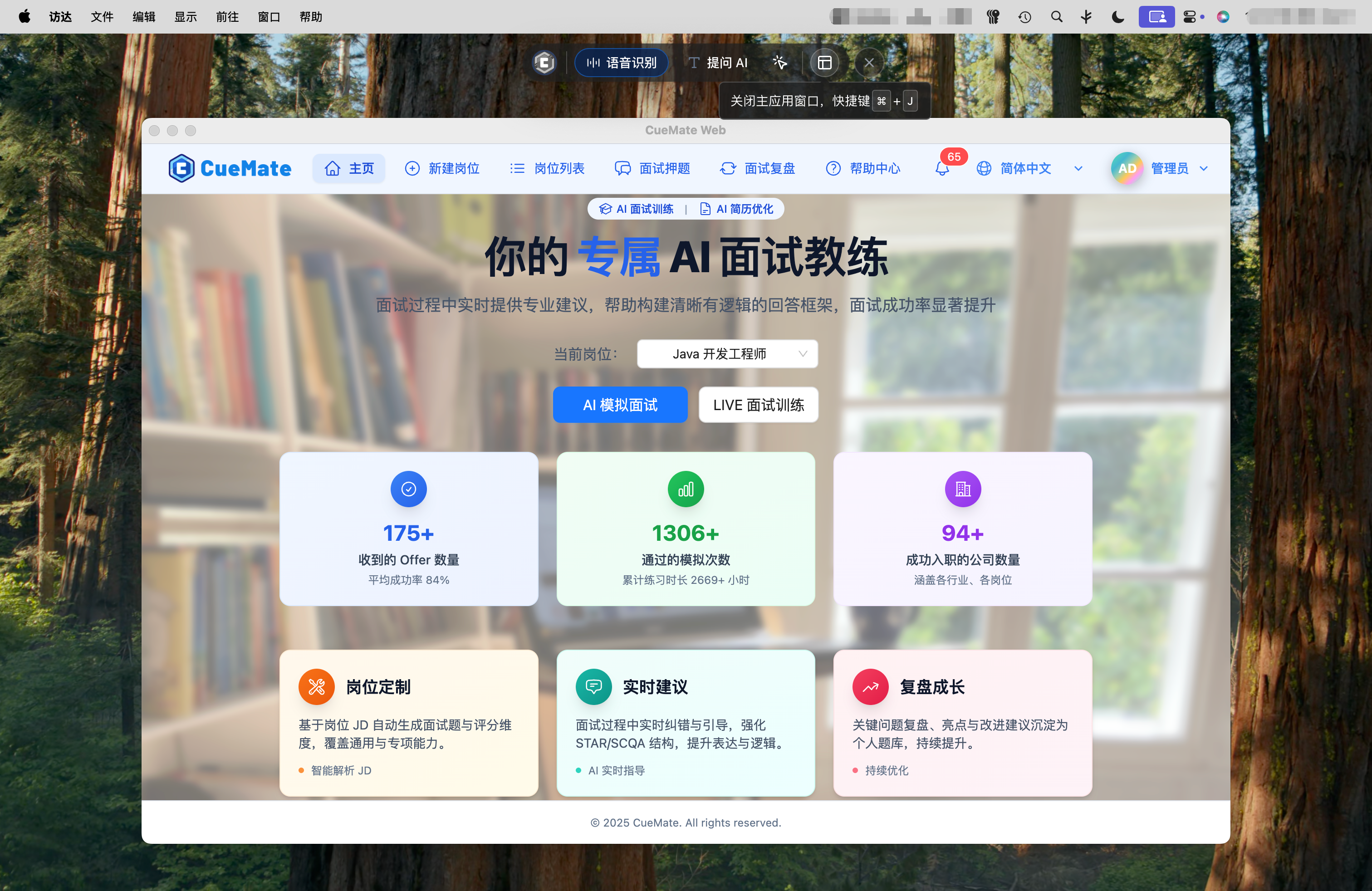
After launching the CueMate desktop app, a floating control bar appears at the top of the screen. Click the rightmost button on the control bar (Main Application Window button) to open the main application window.
Steps:
- Ensure the CueMate desktop app is running (CueMate icon visible in the top status bar)
- Find the CueMate floating control bar at the top of the screen
- Click the Main Application Window button on the right side of the control bar
If this is your first time using the app, the login interface will appear after launch:
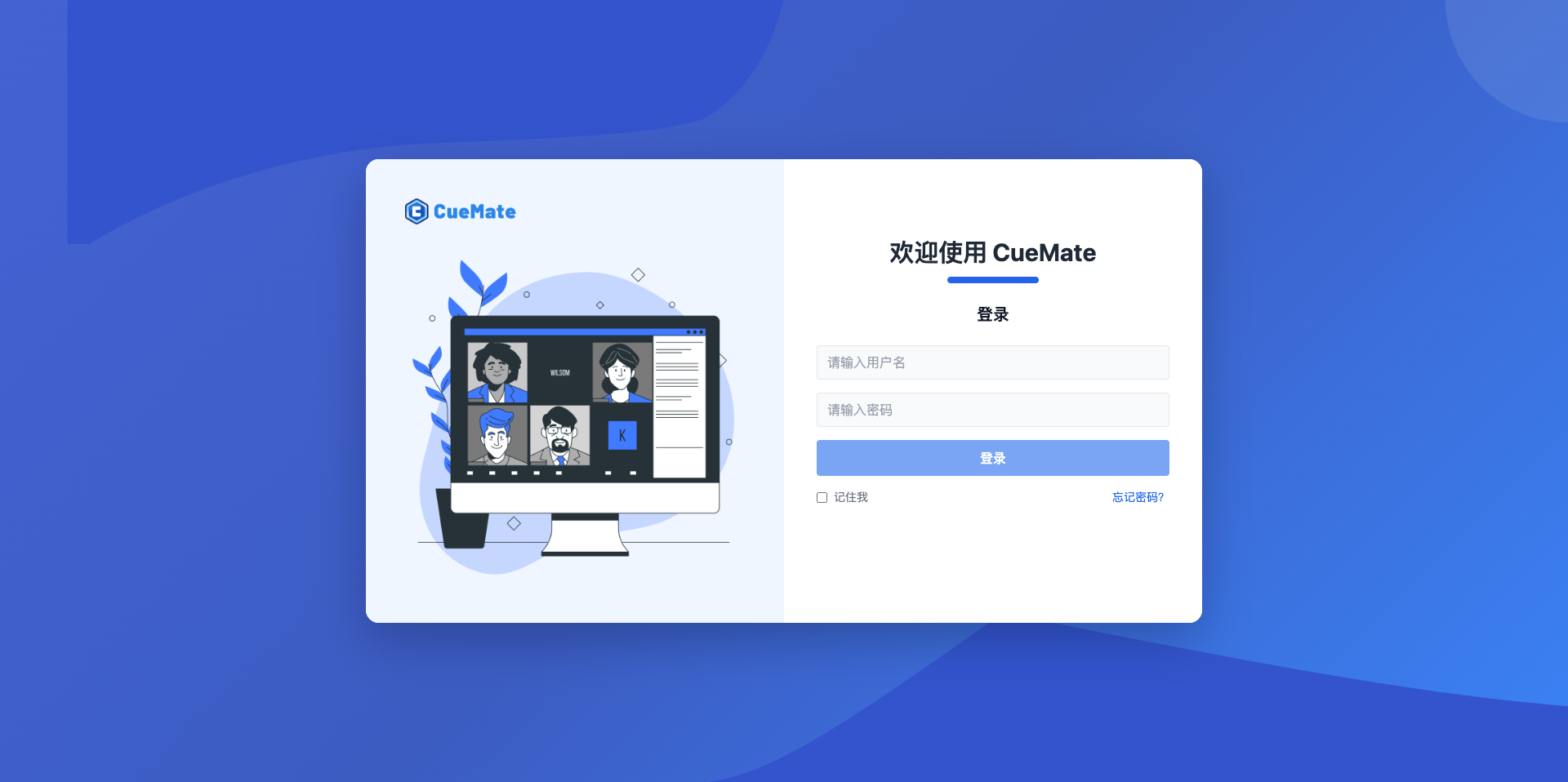
Built-in Account Information:
- Username:
admin - Password:
cuemate
Enter the account information above on the login interface and click the Login button to enter the system.
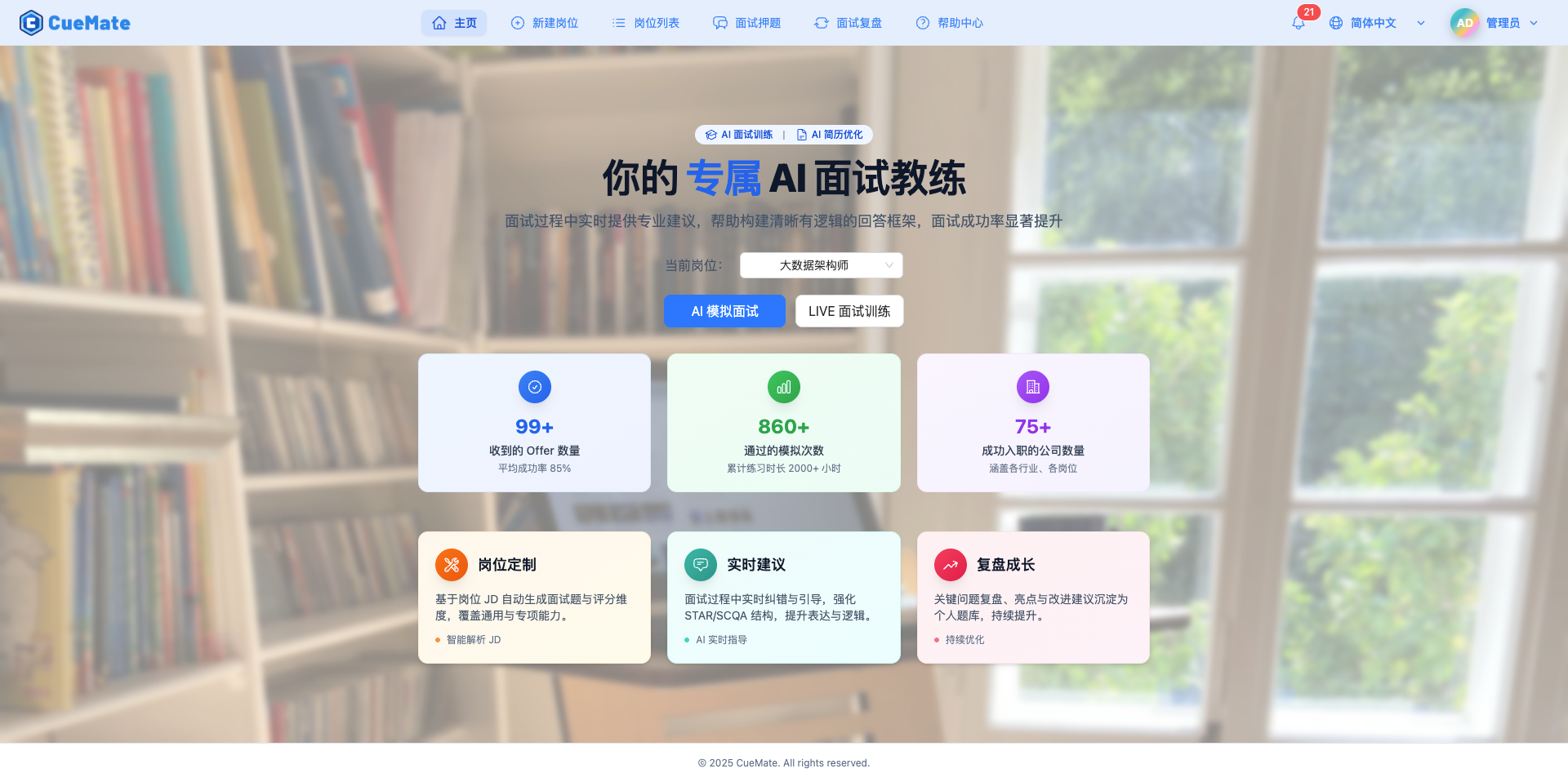
After opening, the Home interface is displayed by default:
2. Select Position and Start Mock Interview/Interview Training
2.1 Select Interview Position
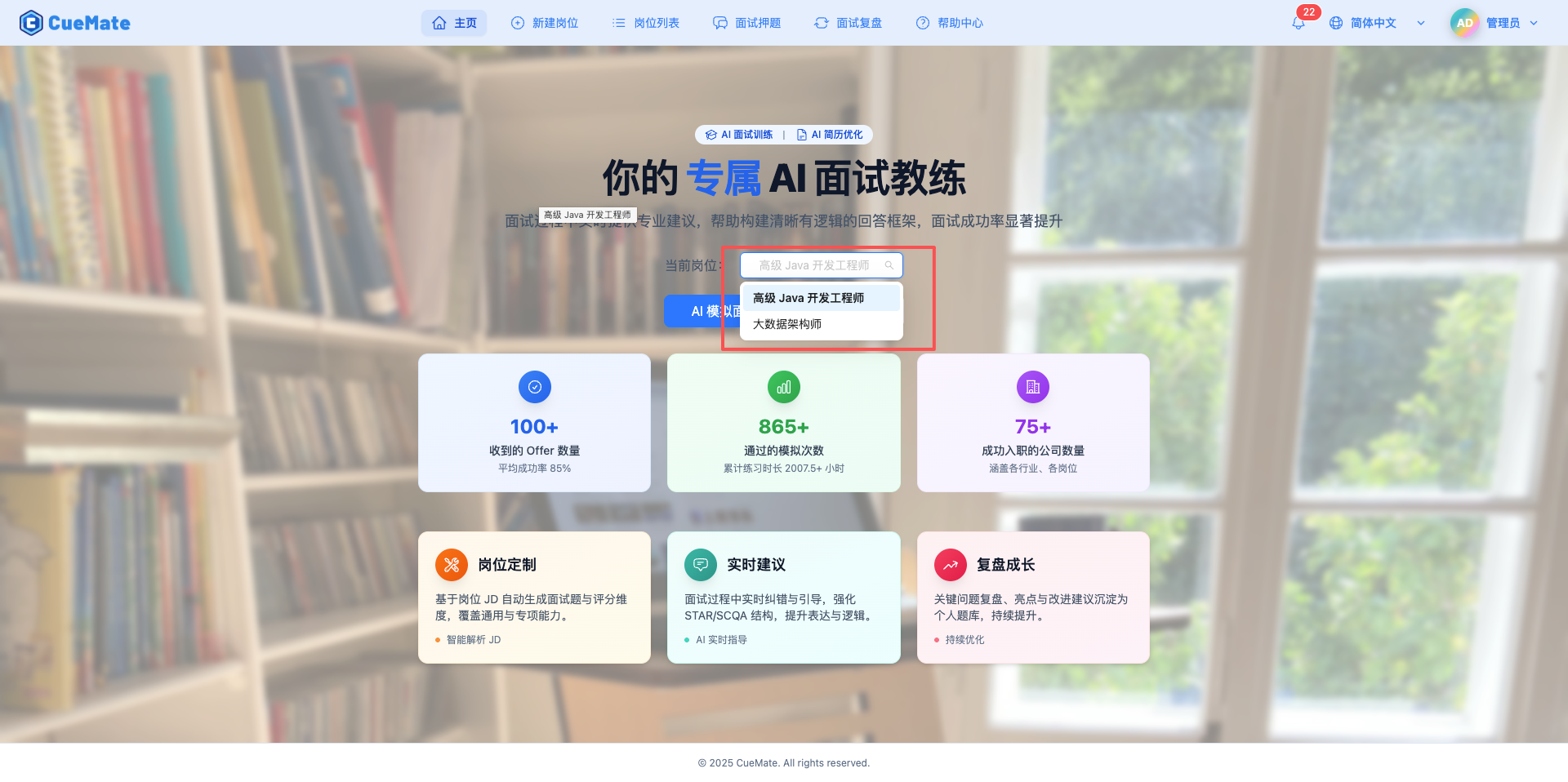
Select a created position from the dropdown box in the center of the page.
IMPORTANT
Prerequisites:
Before starting interview training, complete the following configurations:
- Create Position (Required) - Create an interview position, fill in JD description and resume information
- Model Settings (Required) - Configure LLM for generating interview questions and answer suggestions
- Voice Settings (Optional) - Configure speech recognition service (speaker and microphone) to enable voice Q&A
- System Settings (Required) - Set system language, default model, and other basic parameters
- Interview Questions (Optional) - Preset common interview questions to improve answer accuracy
Note: The position selector lists all created positions. After selecting a position, during mock interview, the system generates targeted interview content based on the position's JD description and resume information.
2.2 Start Interview Training Mode
After selecting a position, choose from two training modes:
TIP
Training Mode Selection:
I. AI Mock Interview:
- Scenario: Solo practice, simulating actual interview process
- How It Works: AI plays the interviewer role, asks questions automatically, you answer by voice, AI evaluates your answer quality in real-time
- Effect: Familiarize with interview process, improve adaptability
II. LIVE Interview Training:
- Scenario: Video interview with friends, pasting questions to browser translation page for playback, or during actual interviews
- How It Works: Simulates interviewer (real person) asking questions, CueMate recognizes questions in real-time, retrieves relevant answers from knowledge base, provides real-time suggestions
- Effect: Get professional answer references, optimize answer structure
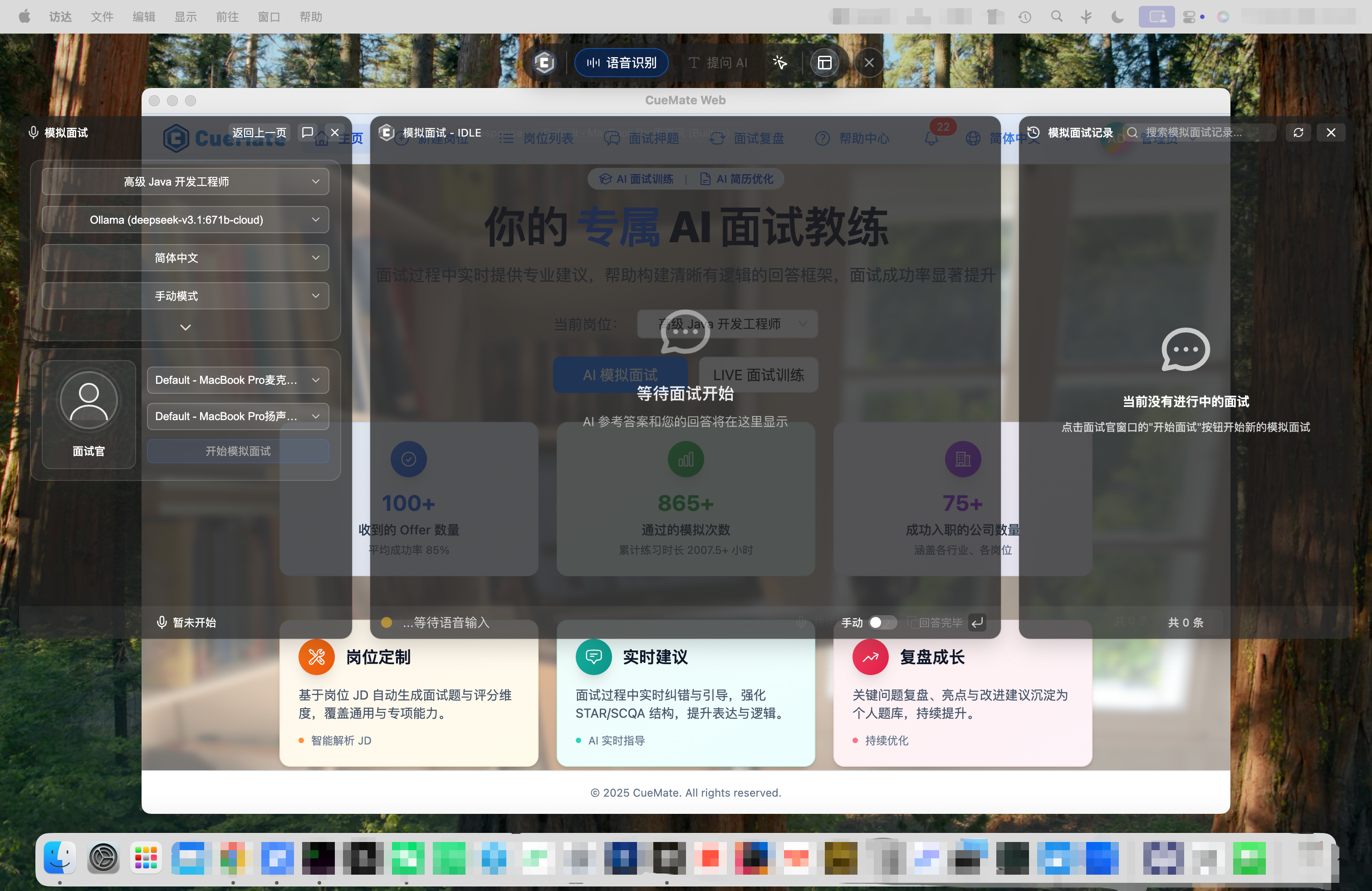
Click the corresponding button to launch the desktop client's interview window.
2.3 Prompt When No Position Selected
If you click the training button without selecting a position, the system will display a prompt.
WARNING
Important: Interview training must be based on a specific position, because the system needs to generate targeted interview questions and answer suggestions based on the position's JD description, skill requirements, and resume content.
Related Pages
- Create Position - Create interview position, fill in JD description and resume information
- Model Settings - Configure LLM for generating interview questions and answer suggestions
- Voice Settings - Configure speech recognition service to enable voice Q&A
- System Settings - Set system language, default model, and other basic parameters
- Interview Questions - Preset common interview questions to improve answer accuracy