
Preset Questions
1. Overview
Preset Questions is one of CueMate's core subscription features, used for centralized storage and distribution of interview questions.
The CueMate team will continuously update and iterate to provide you with a steady stream of high-quality interview questions.
With each version update, License subscription users will automatically import the question bank updated by the CueMate team, no manual operation required.
Through Preset Questions, you can import official question banks, create custom questions, batch sync to interview questions for needed positions, and manage tag classifications, saving the trouble of creating questions for each position individually.
IMPORTANT
License Authorization Required: The Preset Questions feature requires a valid License authorization to use. Please ensure you have activated your License before accessing this feature.
Core Features:
- Import and manage preset interview questions
- Support built-in and custom questions
- Batch sync questions to Interview Questions
- Tag classification management
- Batch import question bank files
- Multi-dimensional filtering and search
2. Access Preset Questions
2.1 Open Preset Questions Page
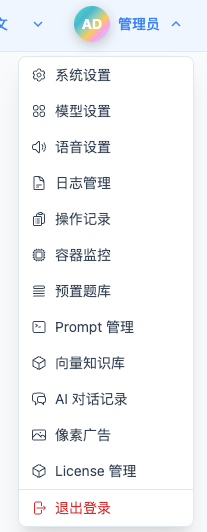
Click "Preset Questions" in the top dropdown menu to enter the Preset Questions page.
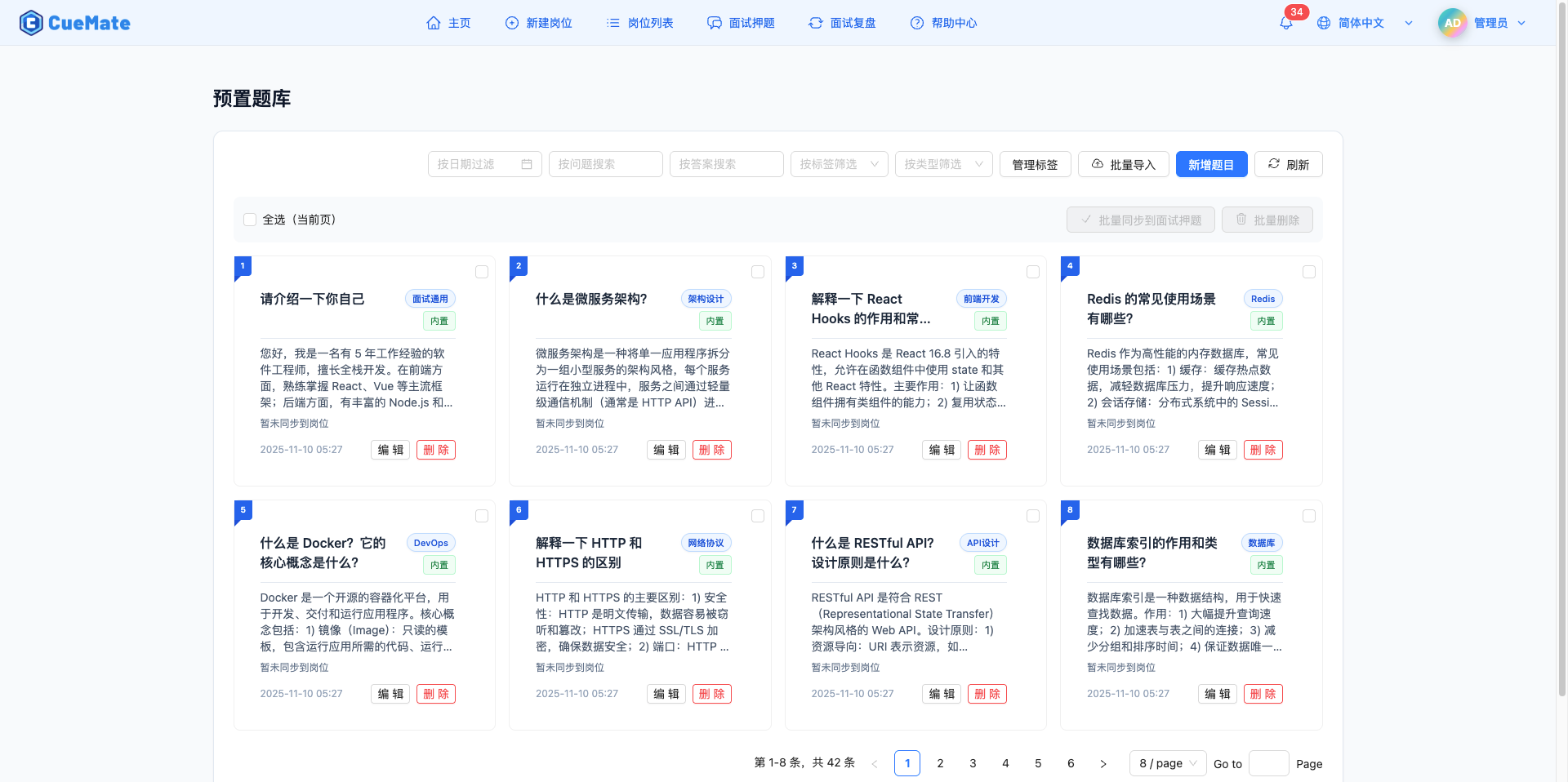
3. License Authorization Verification
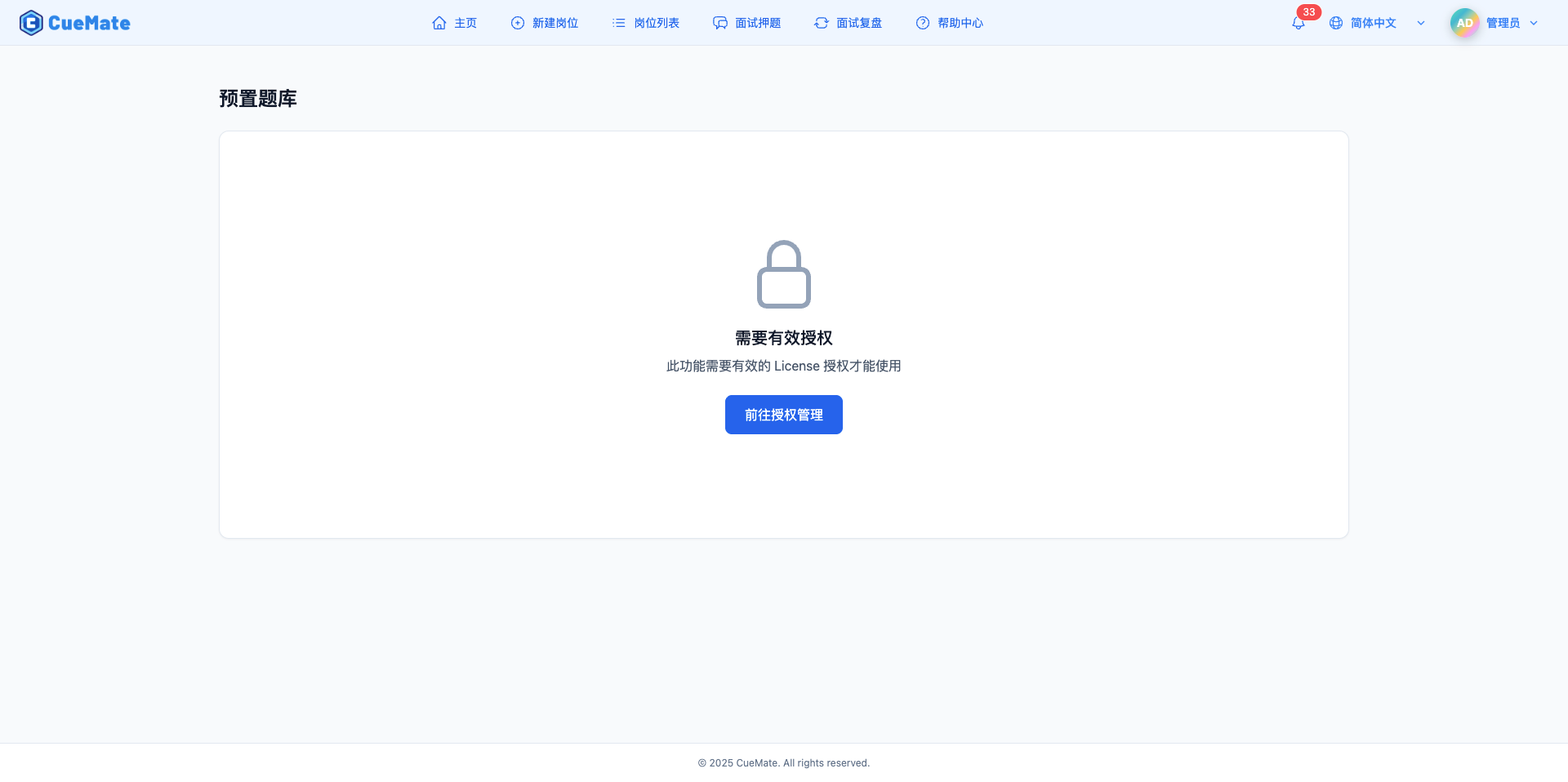
The Preset Questions feature is protected by License. On first visit or when License is invalid, an authorization prompt is displayed.
3.1 License Requirements
WARNING
Behavior Without License:
- Shows authorization prompt page
- Prompt: "This feature requires a valid License authorization to use"
- Provides "Go to License Management" button to jump to License Management page
Access Restrictions:
- Requires valid License authorization
- Supports all License types (Basic / Professional / Enterprise)
Solutions:
- Click "Go to License Management" button
- Upload a valid License.key file
- Feature automatically unlocks after License activation
- Return to Preset Questions page to use normally
4. Preset Questions Page Overview
After successfully activating License, you can access the full Preset Questions features:
4.1 Page Structure
Top Action Area:
- Filter tools: Date, question, answer, tag, type filters
- Action buttons: Manage Tags, Batch Import, Add Question, Refresh
Question Display Area:
- Card layout, responsive design
- Shows question info, tags and sync status
- Supports single or batch operations
Bottom Pagination:
- Supports page switching
- Adjustable items per page
5. Filter and Search Questions
Use multiple filter conditions to quickly locate questions:
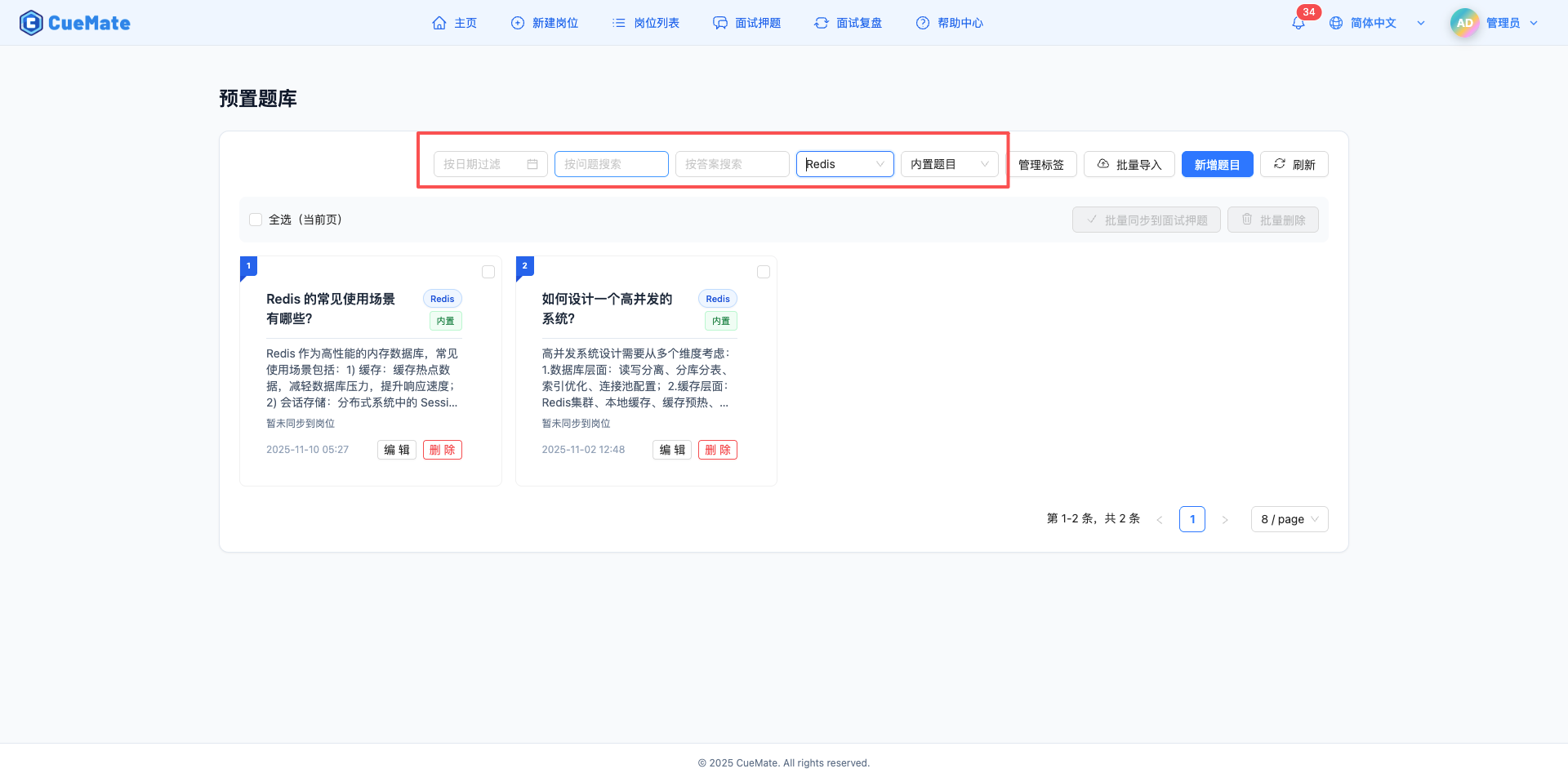
5.1 Filter Methods
1. Filter by Date
Select specific date to view questions created on that day, supports date picker for quick filtering.
2. Search by Question
Search keywords in question content, supports fuzzy matching.
3. Search by Answer
Search keywords in answer content, supports fuzzy matching.
4. Filter by Tag
Select tag to filter related questions, supports tag name search.
5. Filter by Type
Filter built-in or custom questions:
- Built-in Questions: Official question bank imported from License Management page
- Custom Questions: Questions manually created or batch imported on Preset Questions page
5.2 Combined Filtering
Multiple filter conditions can be used simultaneously, filter results automatically return to first page. Each filter condition can be cleared independently.
Examples:
- Find React questions created today: Date + Question keyword + Tag
- Find built-in algorithm questions: Type (Built-in) + Tag (Algorithm)
6. View Question Cards
Questions are displayed as cards with complete information:
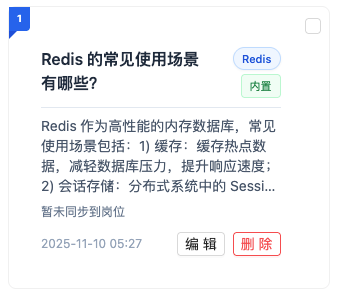
6.1 Card Information
Basic Question Info:
- Number indicator: Blue triangle in top left corner
- Question title: Supports multi-line display, truncates if too long
- Answer preview: Shows first few lines, hover to show full answer
Classification Indicators:
- Tag: Blue indicator, shows question category
- Type:
- Built-in question: Green indicator
- Custom question: Gray indicator
Sync Status:
- Synced: Shows "Synced to N positions", click to view details
- Not Synced: Shows "Not synced to any position yet"
Action Buttons:
- Edit: Modify question info
- Delete: Delete question (red button)
7. Batch Operations
Perform batch operations on multiple questions:
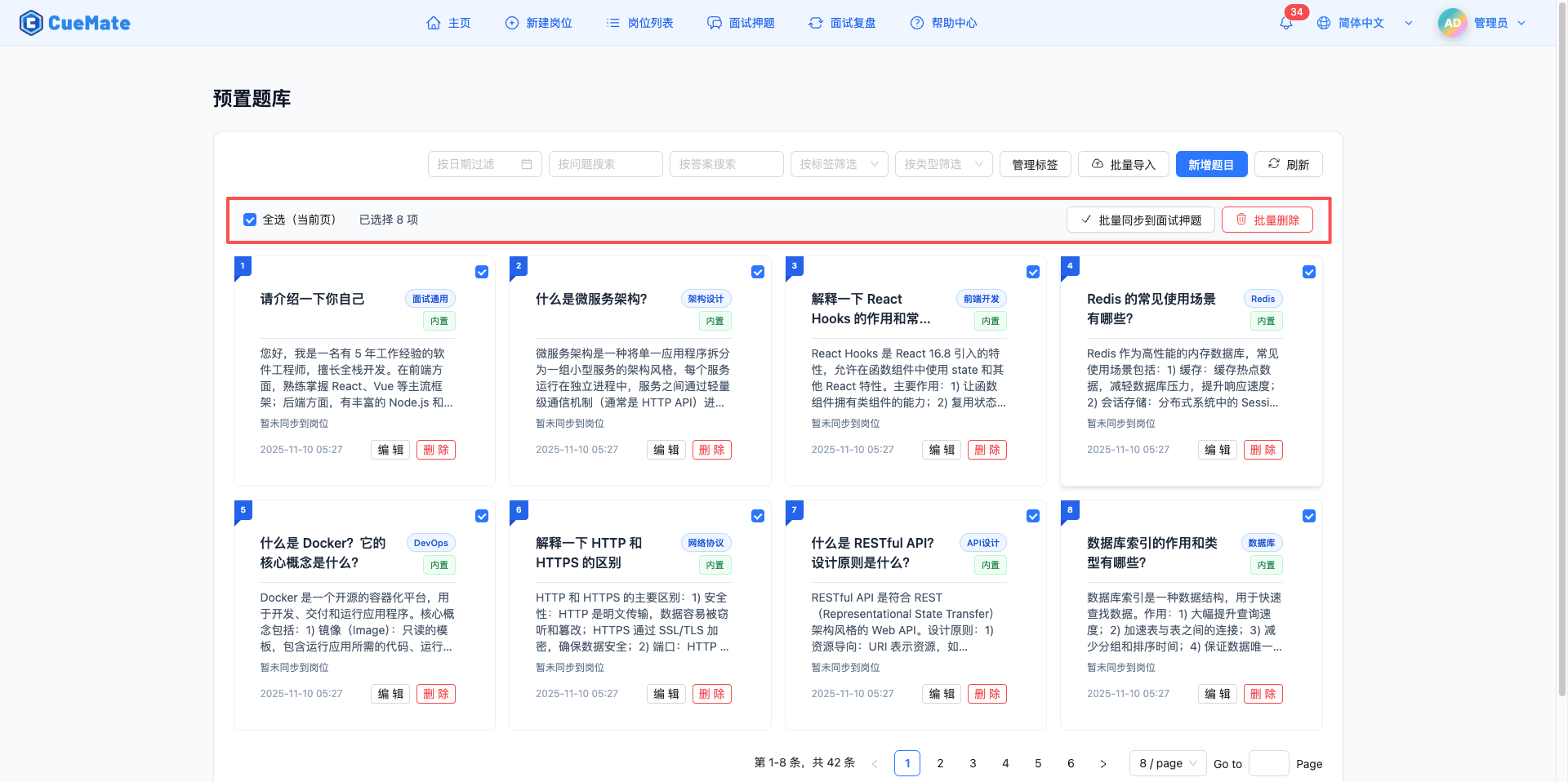
7.1 Batch Selection
Select All Feature:
- Click "Select All (Current Page)" checkbox to select all questions on current page
- Supports partial selection state display
- Only affects current page, doesn't affect other pages
Manual Selection:
- Check the checkbox in top right corner of question card
- Can select any number of questions
7.2 Batch Sync Selected Questions
Batch sync selected questions to Interview Questions:
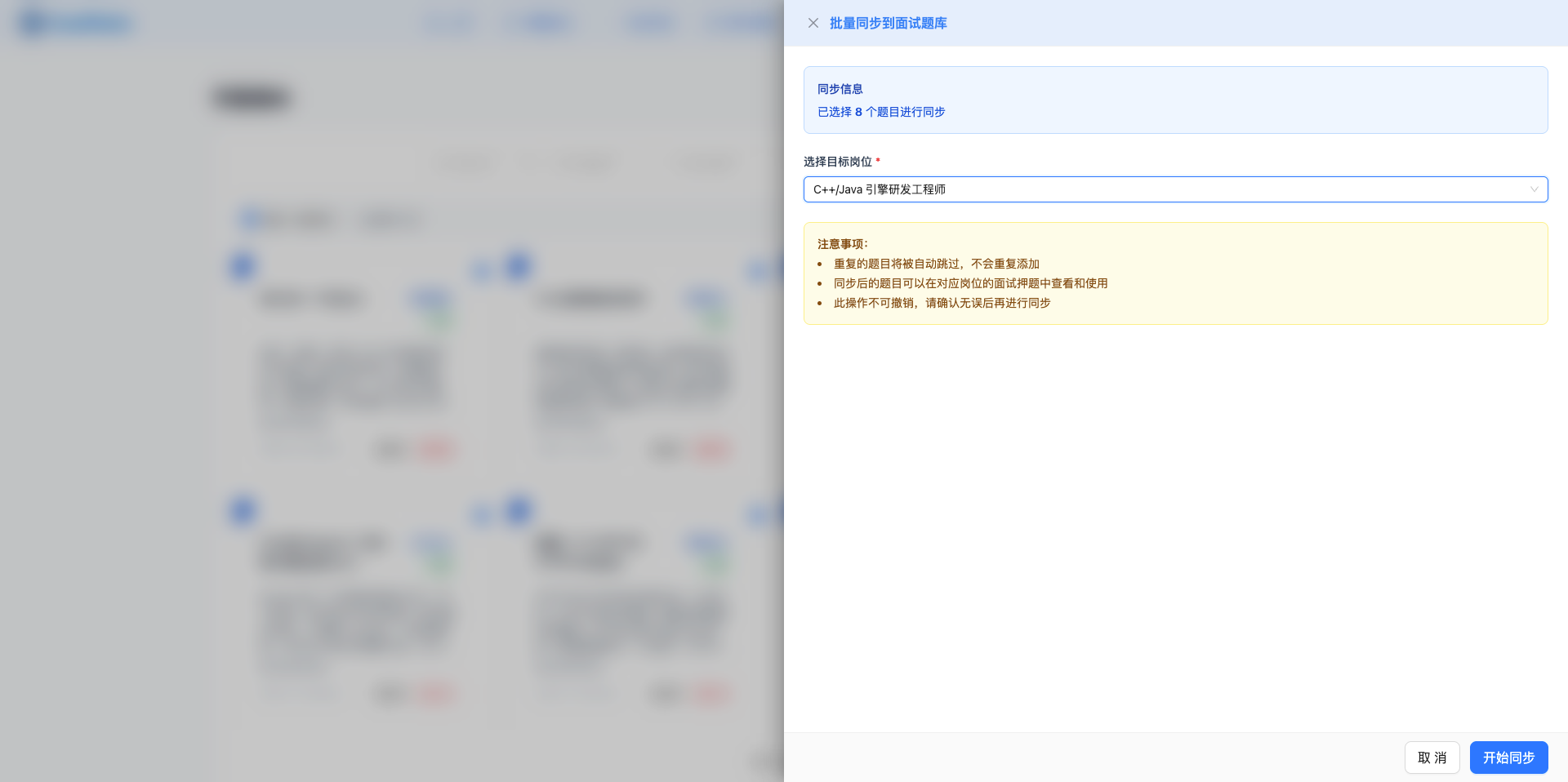
Operation Flow:
- Select questions to sync
- Click "Batch Sync to Interview Questions" button
- Select target positions in dialog
- Confirm sync operation
- View sync results
TIP
Sync Notes:
- Can sync to one or more positions
- Already synced questions can be synced again to other positions
- Synced question cards will show sync status
7.3 Batch Sync by Tag
Batch sync questions by tag to multiple positions:
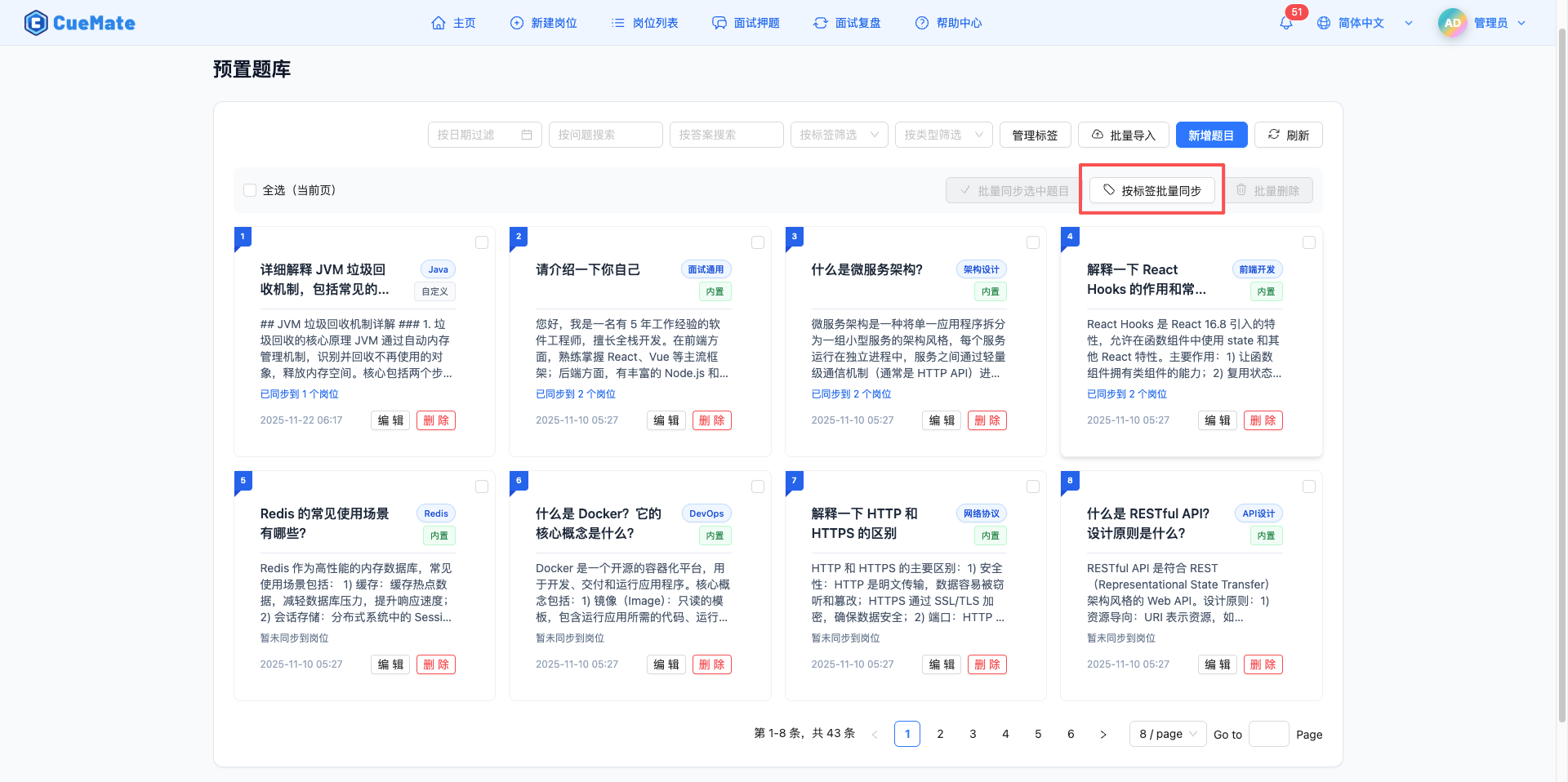
Operation Flow:
- Click "Batch Sync by Tag" button (no need to pre-select questions)
- Multi-select tags to sync in dialog
- Multi-select target positions to sync to
- View sync preview info (matched question count, target position count)
- Confirm sync operation
- View sync results
Features:
- Supports multi-tag selection, automatically matches all questions containing these tags
- Supports multi-position selection, sync to multiple positions at once
- Real-time display of matched question count
- Sync preview shows expected new question records
TIP
Use Cases:
- When you need to sync all questions of certain tags to multiple positions
- When batch importing question banks for newly created positions
- Complements "Batch Sync Selected Questions": use former for precise selection, latter for batch tags
7.4 Batch Delete
Batch delete selected questions:
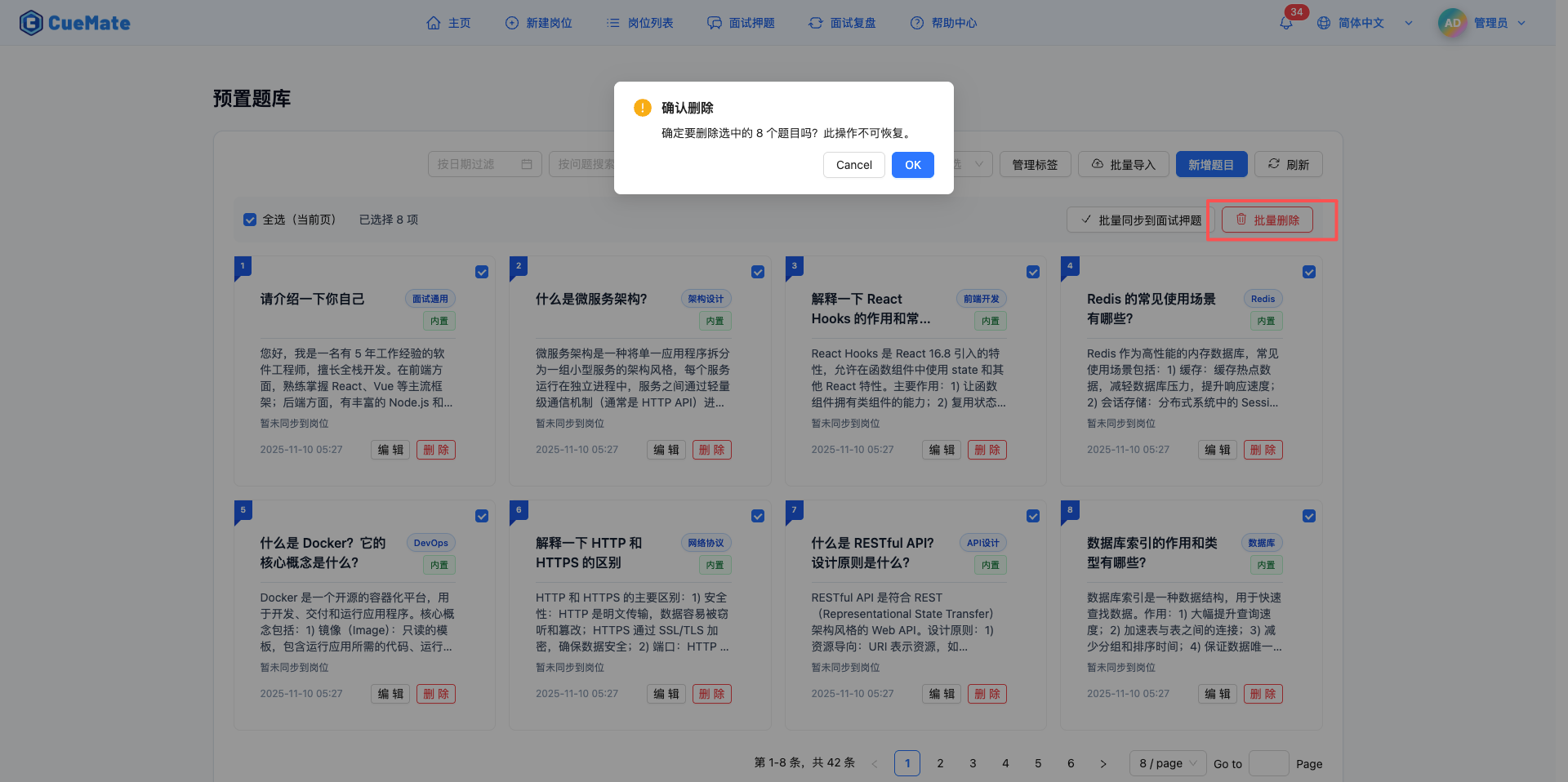
Operation Flow:
- Select questions to delete
- Click "Batch Delete" button (red)
- Confirm delete operation
- Wait for deletion to complete
WARNING
Delete Notes:
- Delete operation is irreversible
- List auto-refreshes after deletion
- Recommend confirming selection before deleting
8. Add Question
Create new preset questions:
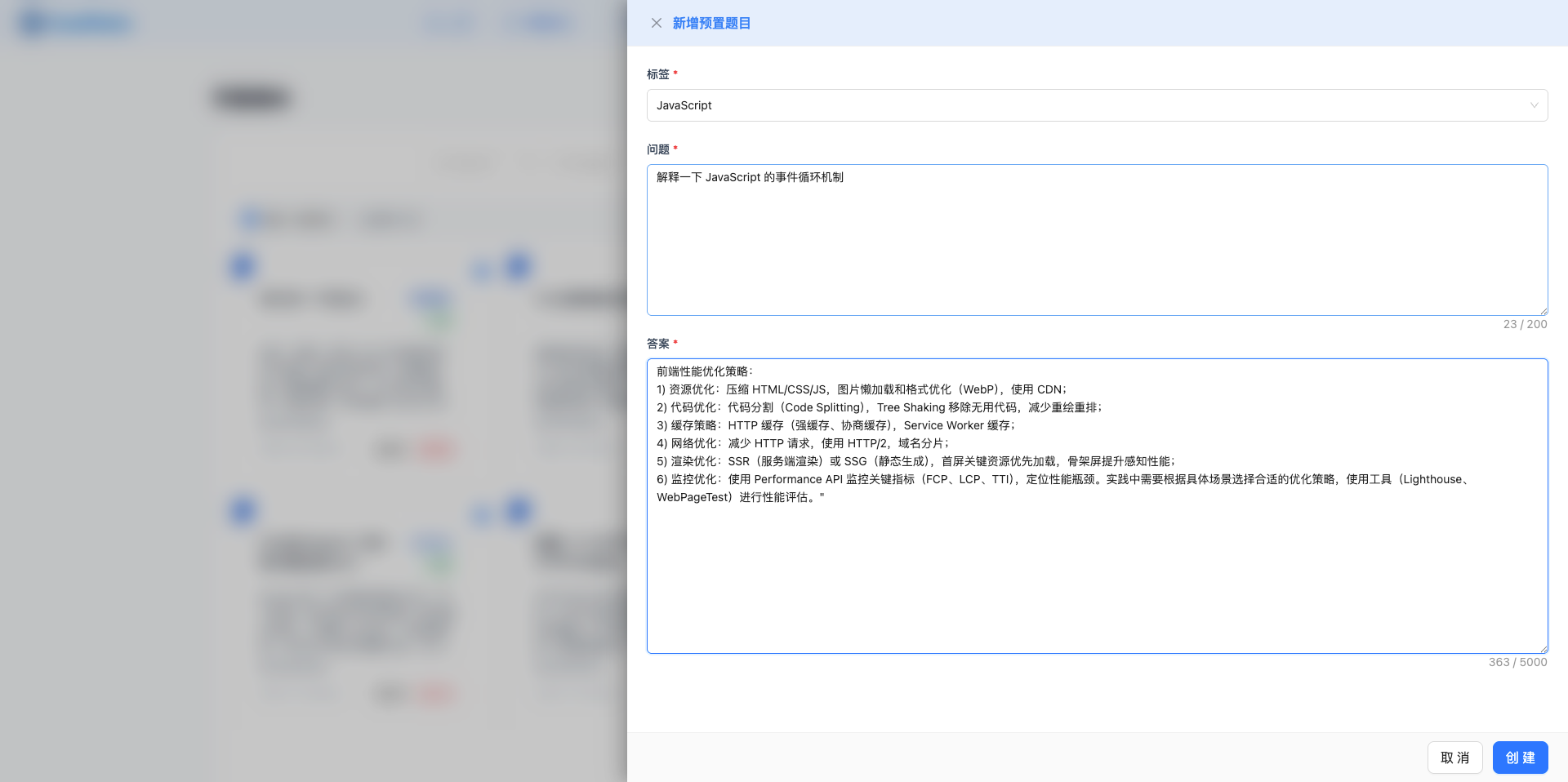
8.1 Add Steps
1. Open Add Dialog
Click "Add Question" button in top right corner to open side drawer.
2. Fill Question Info
Required fields:
- Question: Question description of the interview question
- Answer: Reference answer to the question
Optional fields:
- Tag: Select question category tag
- Type: Manually created defaults to "Custom"
3. Save Question
Click "Save" button to submit question, dialog auto-closes after successful save and list refreshes.
9. Edit Question
Modify existing question info:
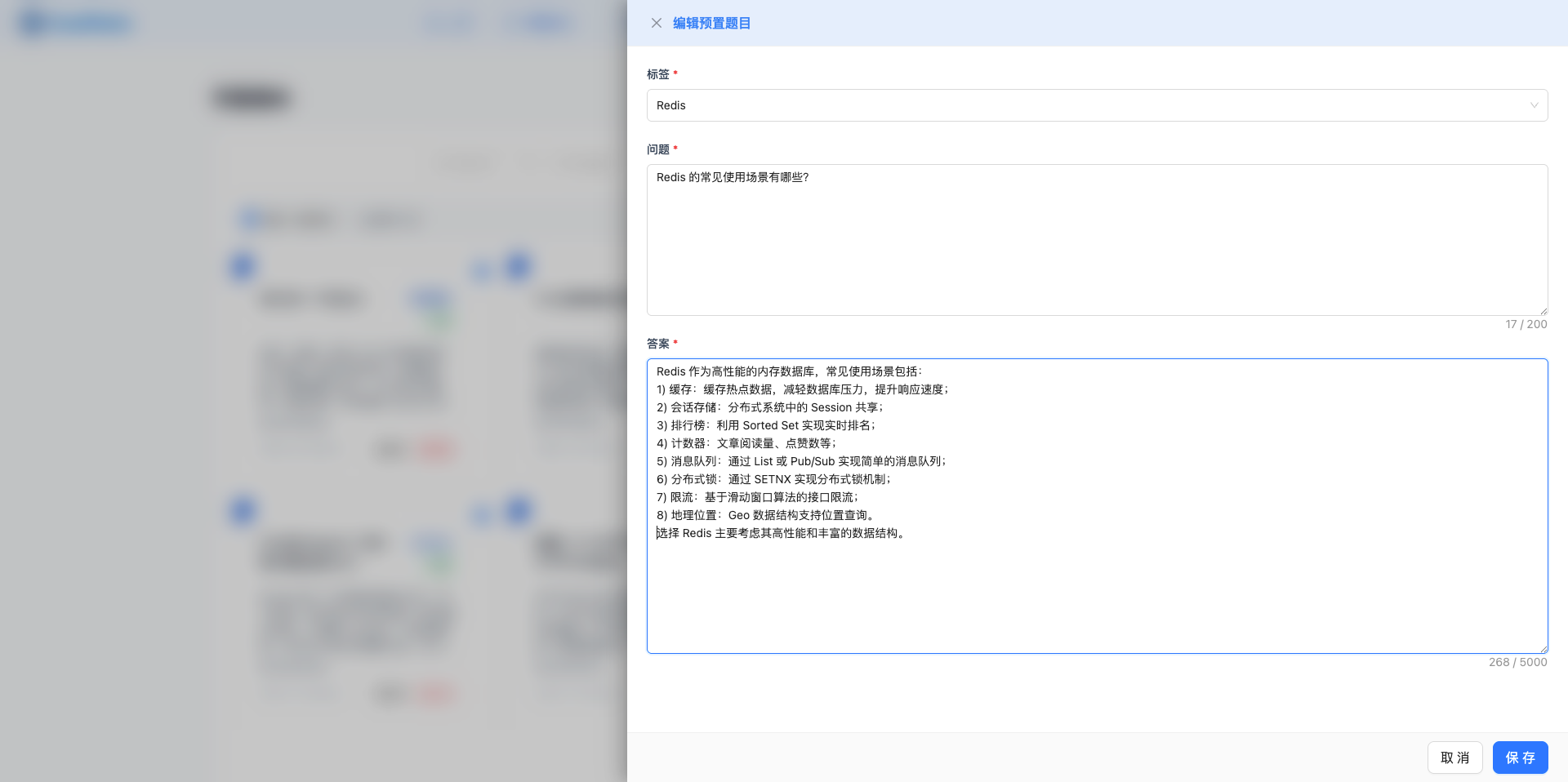
9.1 Edit Steps
1. Open Edit Dialog
Click "Edit" button at bottom of question card to open side drawer.
2. Modify Info
Dialog pre-fills question's current info, can modify:
- Question content
- Answer content
- Tag classification
3. Save Changes
Click "Save" button to submit changes, question card shows updated content after successful modification.
NOTE
Edit Notes:
- Both built-in and custom questions can be edited
- Modifications don't affect already synced interview questions
- To update interview questions, need to re-sync
10. Delete Question
Delete questions no longer needed:
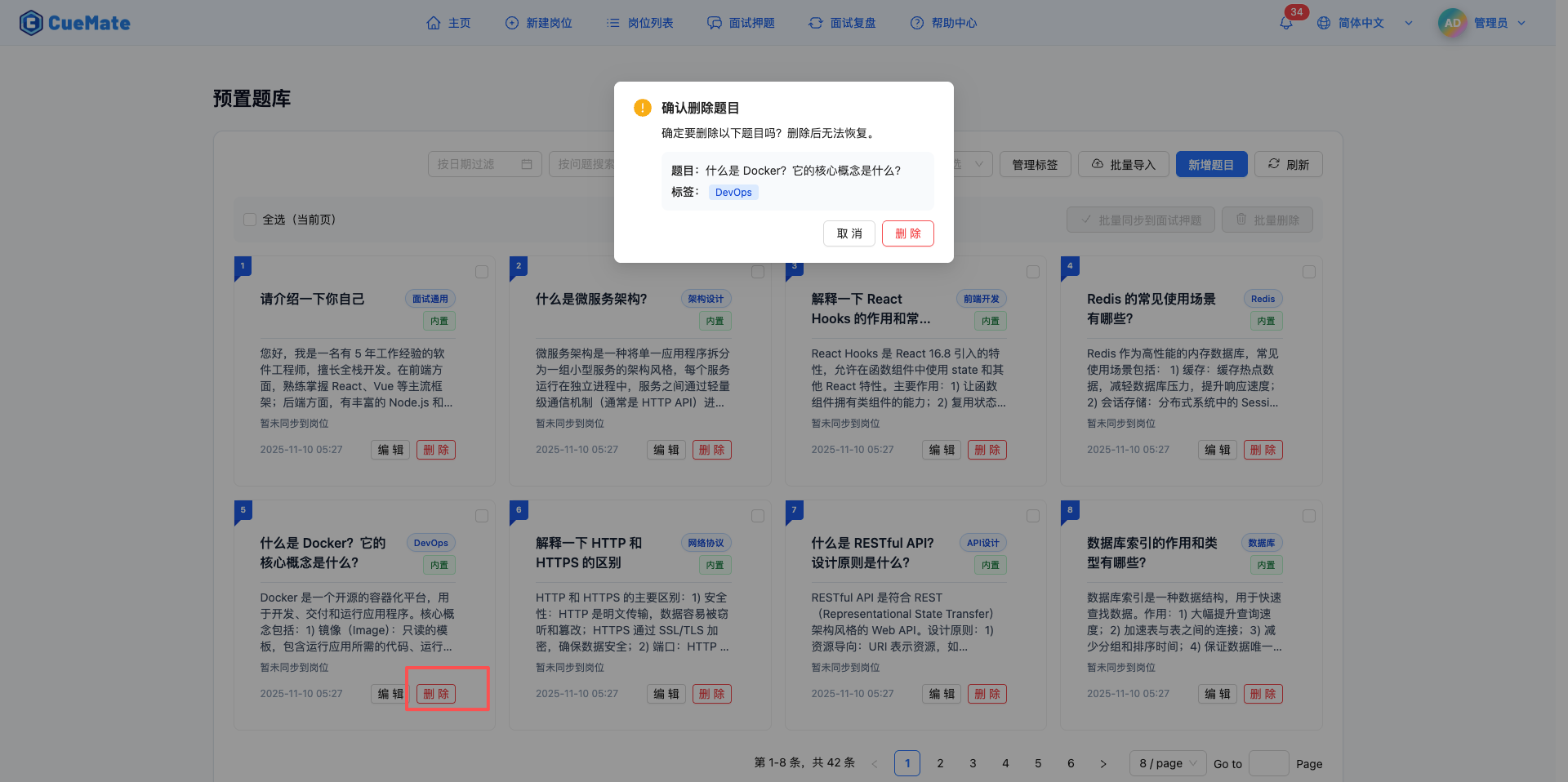
10.1 Delete Steps
1. Confirm Delete
Click "Delete" button (red) at bottom of question card, confirmation dialog appears.
2. Execute Delete
After confirmation, delete operation executes, loading indicator shows during deletion.
WARNING
Delete Notes:
- Delete operation is irreversible
- Deleting question also deletes its sync relationships
- Recommend exporting backup for important questions first
- Already synced interview questions are not affected
11. Batch Import Question Bank
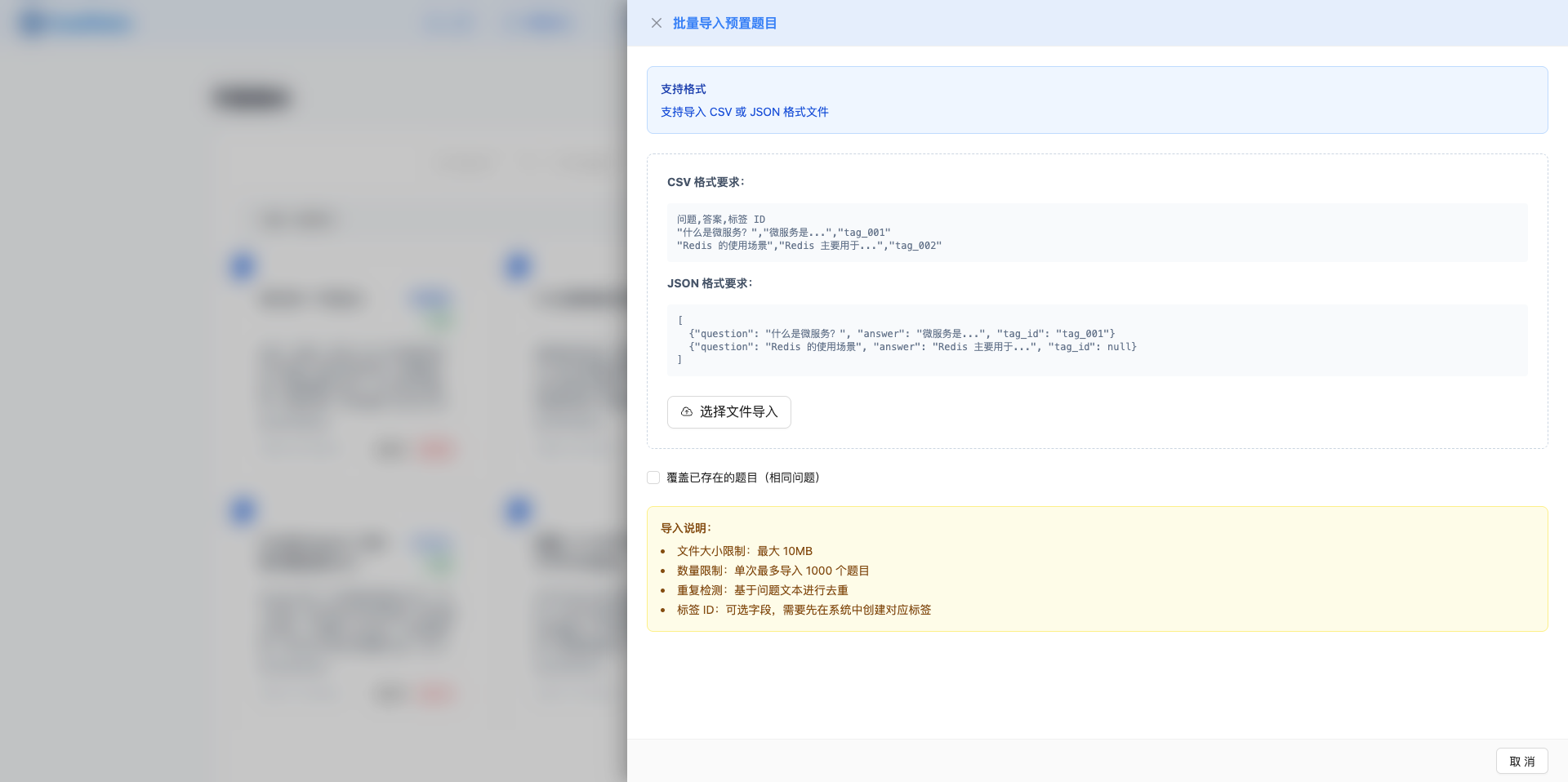
Batch import questions from file:
11.1 Import Steps
1. Open Import Dialog
Click "Batch Import" button to open side drawer.
2. Select Import File
Supported file formats:
- CSV file (.csv)
- JSON file (.json)
3. View Import Results
After import completion shows:
- Added question count
- Skipped question count
- Error messages (if any)
11.2 File Format Requirements
NOTE
Supported File Formats: CSV file (.csv) and JSON file (.json)
CSV Format:
question,answer,tag_name
"What is React?","React is a JavaScript library for building user interfaces...","Frontend Development"
JSON Format:
[
  {
    "question": "What is React?",
    "answer": "React is a JavaScript library for building user interfaces...",
    "tag_name": "Frontend Development"
  }
]
11.3 Import Notes
Field Descriptions:
- question (Required): Question content
- answer (Required): Answer content
- tag_name (Optional): Tag classification
Tag Processing:
- If tag doesn't exist, system auto-creates it
- If tag exists, uses existing tag
- Questions without tags are not associated with any tag
Overwrite Option:
- Check "Overwrite existing questions": Updates existing questions
- Unchecked: Allows importing questions with duplicate questions
12. Tag Management
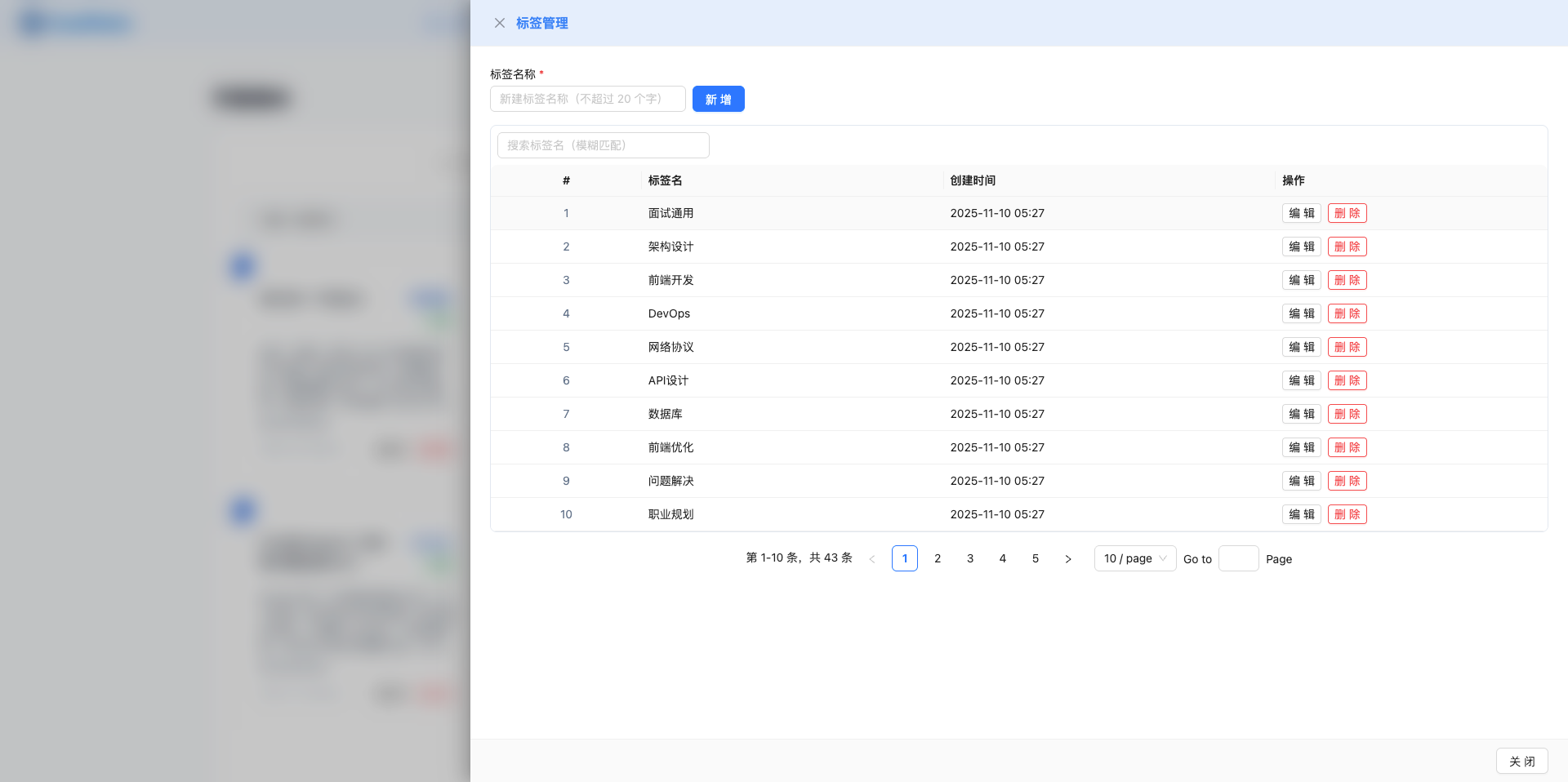
Manage question classification tags:
12.1 Tag Features
Create Tags:
- Click "Manage Tags" button
- Opens tag management dialog
- Click "Add Tag"
- Enter tag name and save
Use Tags:
- Select tag when creating questions
- Modify tag when editing questions
- Use tag filter to view related questions
Tag Suggestions:
- Tech Stack: Frontend, Backend, Mobile, Full Stack
- Knowledge Points: Algorithm, Data Structure, Design Pattern, System Design
- Difficulty: Easy, Medium, Hard
13. Best Practices
13.1 Question Bank Organization
Recommendations:
- Use tags for classification management
- Create clear tag hierarchy
- Regularly organize and archive questions
- Delete outdated or duplicate questions
13.2 Batch Operations
Recommendations:
- Use batch import to quickly build question bank
- Batch sync improves efficiency
- Preview and confirm before operations
Import Tips:
- Import large quantities in batches
- Check data integrity before import
- Verify results after import
13.3 Sync Management
Recommendations:
- Regularly sync new questions to Interview Questions
- Sync different questions for different positions
- Avoid duplicate syncing
Sync Strategy:
- Sync new questions promptly
- Sync by position classification
- Prioritize high-frequency questions
13.4 Data Backup
Recommendations:
- Regularly export question bank backup
- Save important questions separately
- Confirm backup before deleting
Backup Frequency:
- Backup immediately after major updates
- Monthly regular backup
- Backup before batch operations
14. FAQ
14.1 Cannot Access Preset Questions
Issue: Cannot access Preset Questions page?
Possible Causes:
- License not activated or expired
Solutions:
- Check License status
- Go to License Management page
- Upload valid License.key file
- Return to Preset Questions page after activation
14.2 Import Question Bank Failed
Issue: Question bank import failed?
Possible Causes:
- File format incorrect or required fields missing
Solutions:
- Check if file format is CSV or JSON
- Ensure required fields (question, answer) are not empty
- Adjust file content according to format requirements
- View error message, correct and retry
14.3 Batch Sync Failed
Issue: Batch sync failed?
Possible Causes:
- No questions selected or no target positions selected
Solutions:
- Confirm questions to sync are selected
- Select positions in sync dialog
- Check network connection
- View error message, retry operation
14.4 Difference Between Built-in and Custom Questions
Issue: What's the difference between built-in and custom questions?
Possible Causes:
- User needs to understand differences between the two question types
Solutions:
Built-in Questions:
- Source: Official question bank imported from License Management page
- Indicator: Green label
- Features: Quality assured, wide coverage
Custom Questions:
- Source: Manually created or batch imported on Preset Questions page
- Indicator: Gray label
- Features: Customizable content, more targeted
Feature Notes:
- Both types have identical functionality
- Both can be edited, deleted, synced
- Both can have tag classifications
14.5 Impact of Modifying Preset Questions
Issue: After syncing to Interview Questions, will modifying preset questions affect interview questions?
Possible Causes:
- User worried modifying preset questions will affect already synced content
Solutions:
- Will not affect already synced interview questions
NOTE
Sync Mechanism Notes:
- Sync is a copy operation, stored independently
- Modifying preset questions doesn't affect already synced interview questions
- To update interview questions, need to re-sync
Related Pages
- License Management: Activate and manage License
- Interview Questions: Use synced questions
- Vector Knowledge Base: Question vectorization storage