

Configure SiliconFlow
SiliconFlow is a leading AI inference acceleration platform in China, providing high-performance large model API services. It supports mainstream open-source models such as Qwen, DeepSeek, and Llama, known for its ultimate cost-effectiveness and ultra-low latency.
1. Obtain SiliconFlow API Key
1.1 Visit SiliconFlow Platform
Visit SiliconFlow and log in: https://cloud.siliconflow.cn/

1.2 Enter API Management Page
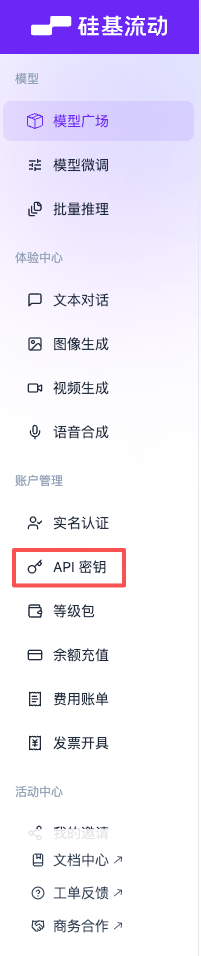
After logging in, click API Keys in the left menu.
1.3 Create New API Key
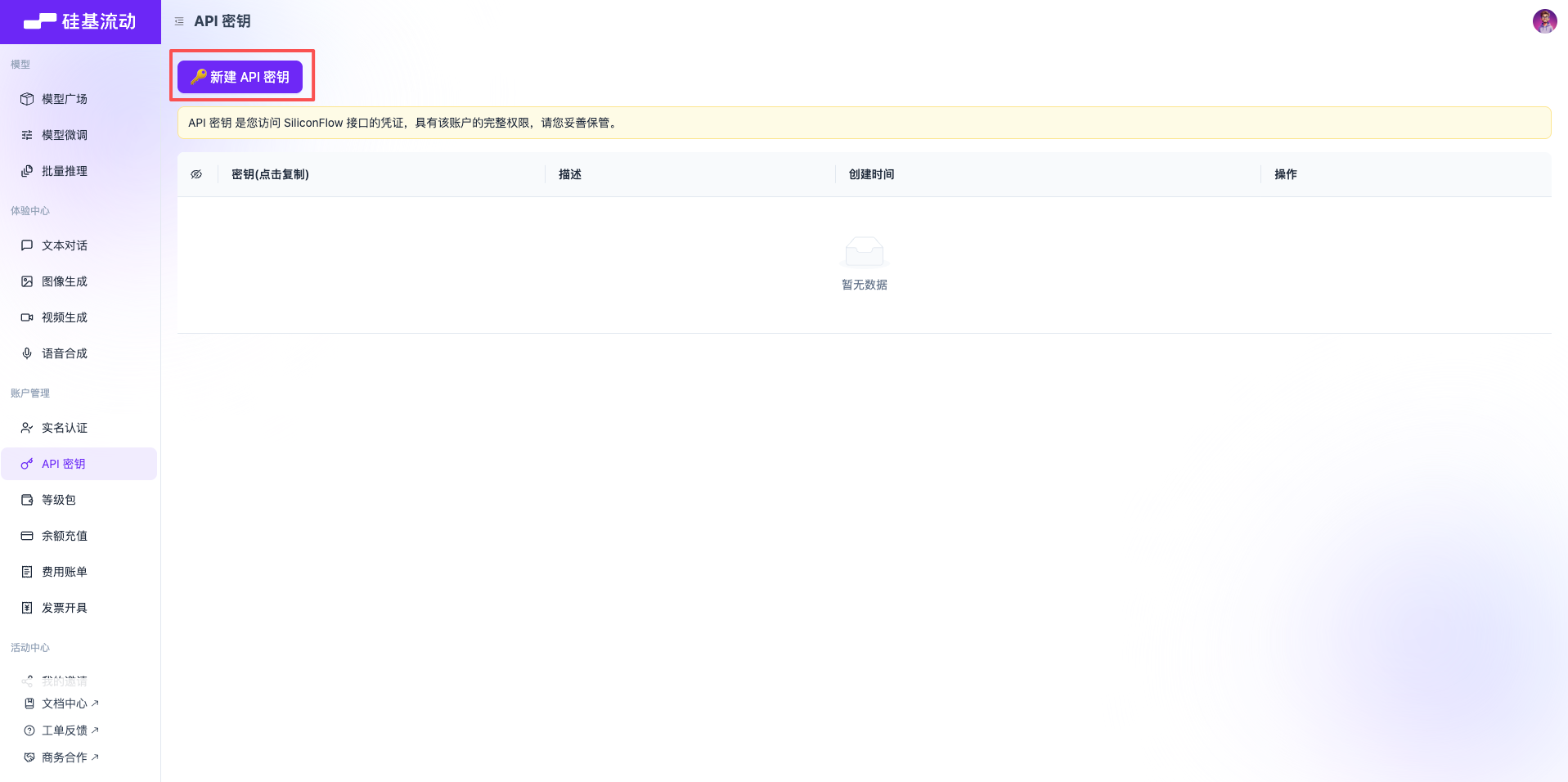
Click the Create API Key button.
1.4 Set API Key Information
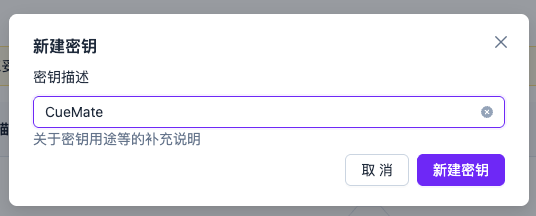
In the pop-up dialog:
- Enter a name for the API Key (e.g., CueMate)
- Click the Confirm button
1.5 Copy API Key
After successful creation, the system will display the API Key.
Important: Please copy and save it immediately. The API Key starts with sk-.
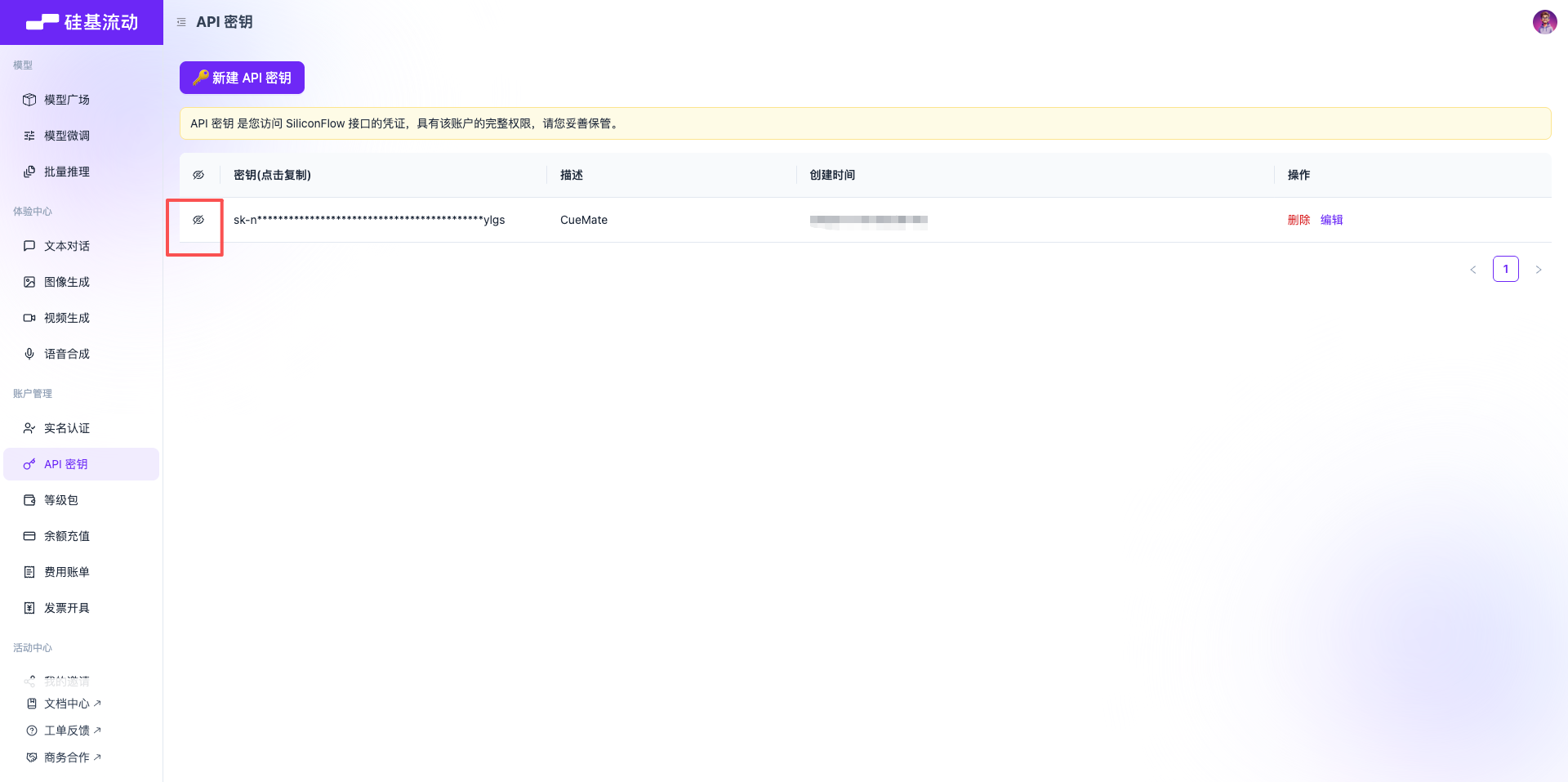
Click the copy button, and the API Key is copied to the clipboard.
2. Configure SiliconFlow Model in CueMate
2.1 Enter Model Settings Page
After logging into CueMate, click Model Settings in the dropdown menu in the upper right corner.
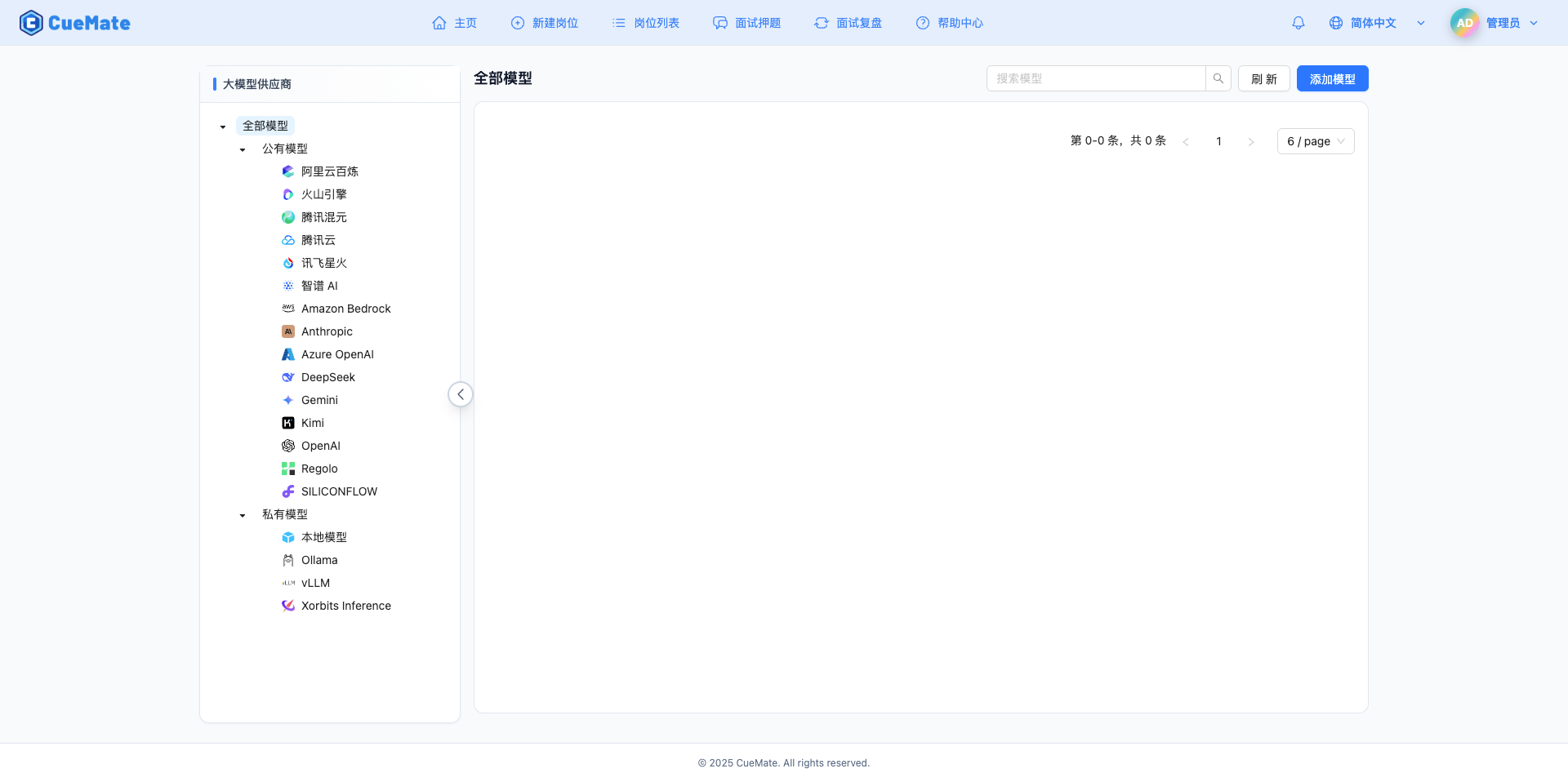
2.2 Add New Model
Click the Add Model button in the upper right corner.

2.3 Select SiliconFlow Provider
In the pop-up dialog:
- Provider Type: Select SILICONFLOW
- After clicking, automatically proceed to the next step
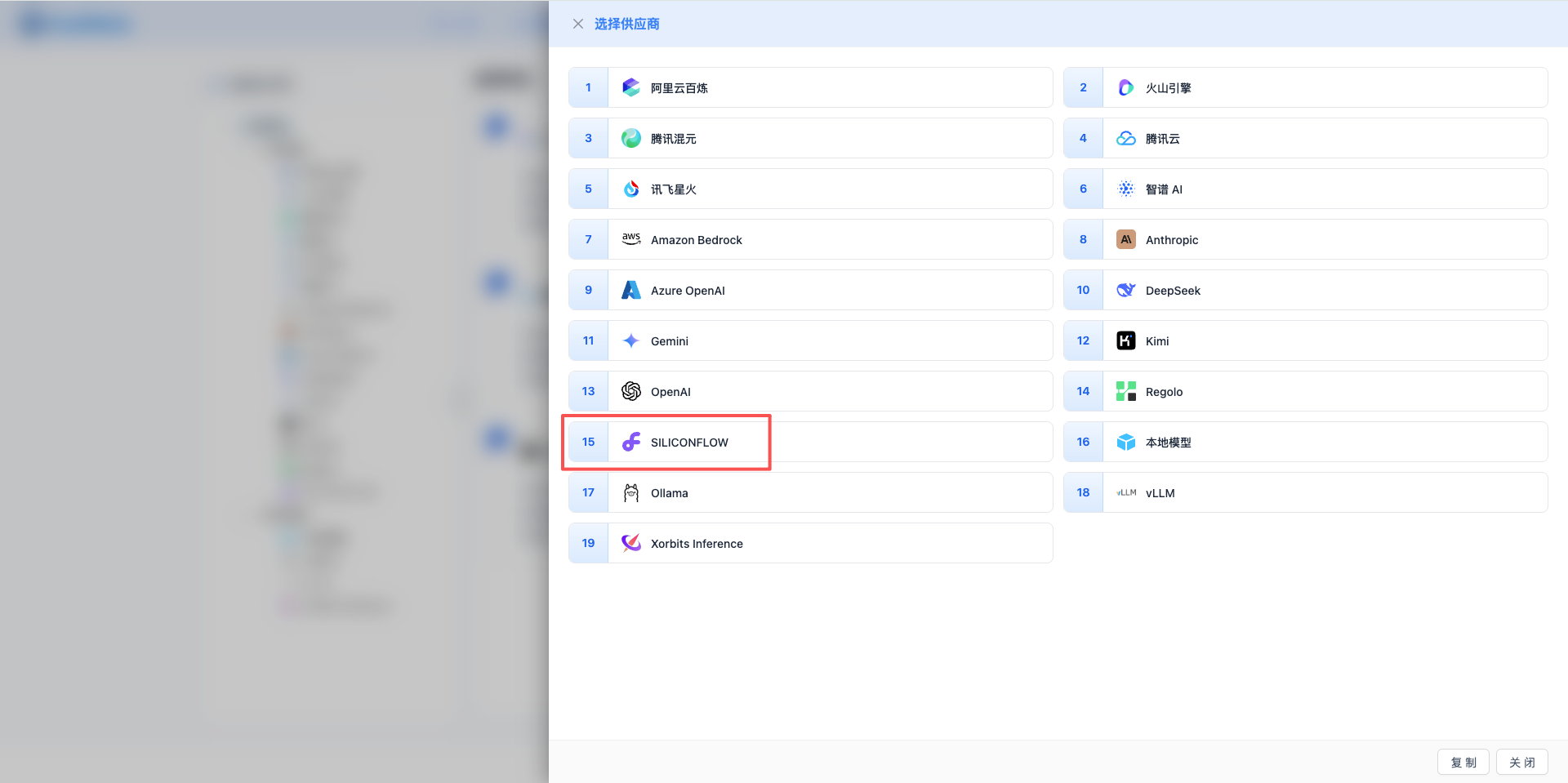
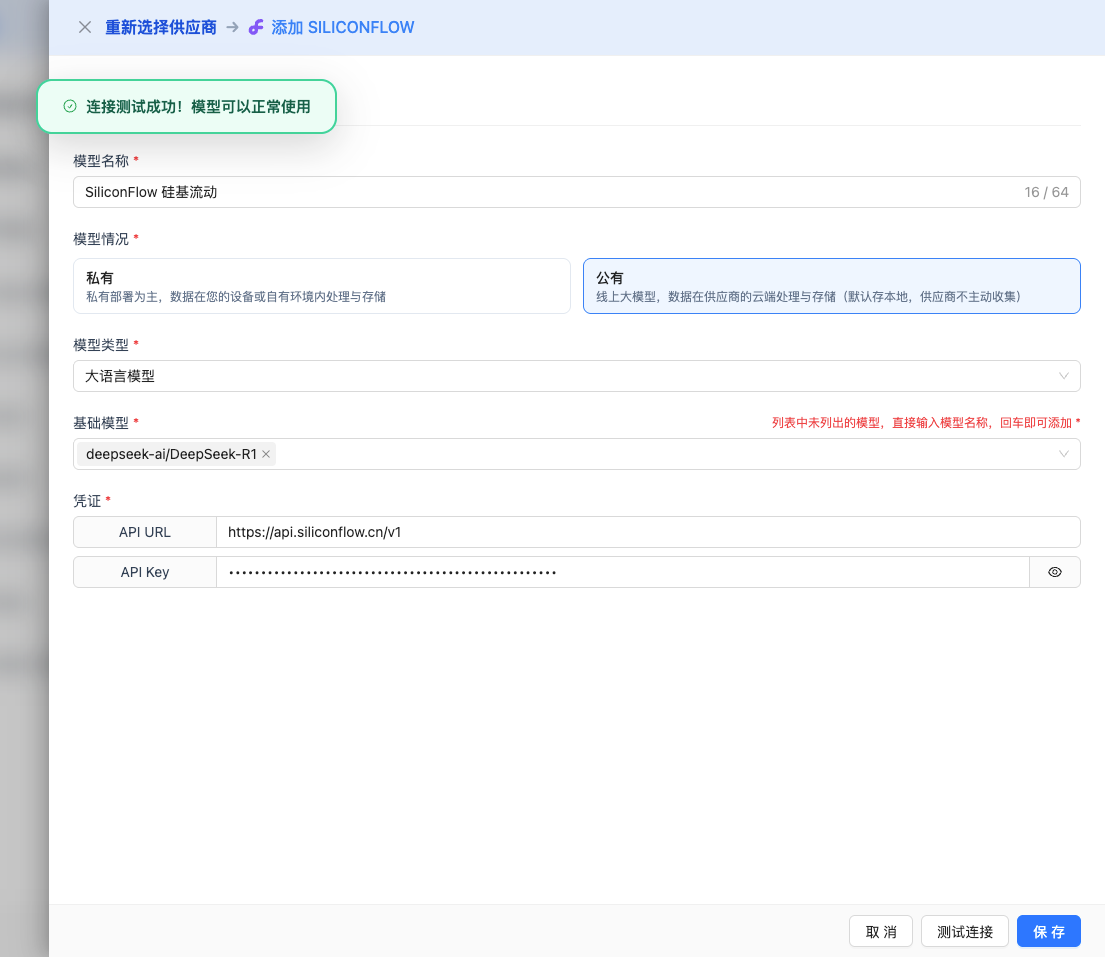
2.4 Fill in Configuration Information
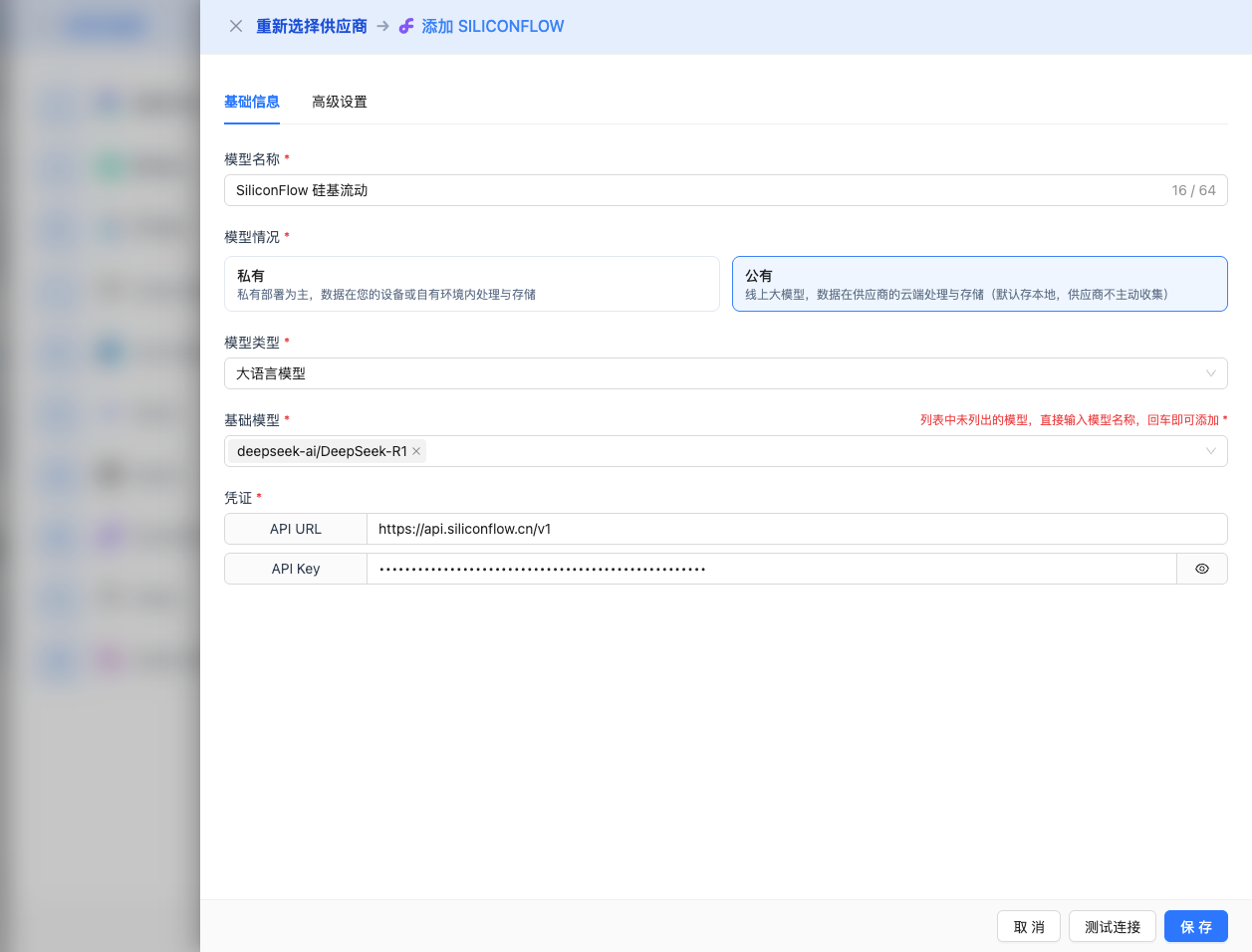
Fill in the following information on the configuration page:
Basic Configuration
- Model Name: Give this model configuration a name (e.g., SF DeepSeek R1)
- API URL: Keep the default
https://api.siliconflow.cn/v1 - API Key: Paste the SiliconFlow API Key
- Model Version: Select or enter the model you want to use
2026 Latest High-Performance Models (Recommended):
deepseek-ai/DeepSeek-R1: DeepSeek R1 full version (32K output)deepseek-ai/DeepSeek-V3: DeepSeek V3 (32K output)deepseek-ai/DeepSeek-V3.2-Exp: DeepSeek V3.2 experimental version (64K output)Qwen/Qwen2.5-72B-Instruct: Qwen 2.5 72B flagship version (128K context)Qwen/Qwen2.5-32B-Instruct: Qwen 2.5 32B (32K output)meta-llama/Llama-3.3-70B-Instruct: Llama 3.3 70B (32K output)
Other Available Models:
deepseek-ai/DeepSeek-R1-Distill-Qwen-32B: DeepSeek R1 distilled version 32BQwen/QwQ-32B: Qwen QwQ 32B reasoning modelQwen/Qwen2.5-7B-Instruct: Qwen 2.5 7BQwen/Qwen2.5-Coder-7B-Instruct: Qwen 2.5 Coder 7B (code optimized)THUDM/glm-4-9b-chat: GLM-4 9B chat versioninternlm/internlm2_5-7b-chat: InternLM 2.5 7B
Advanced Configuration (Optional)
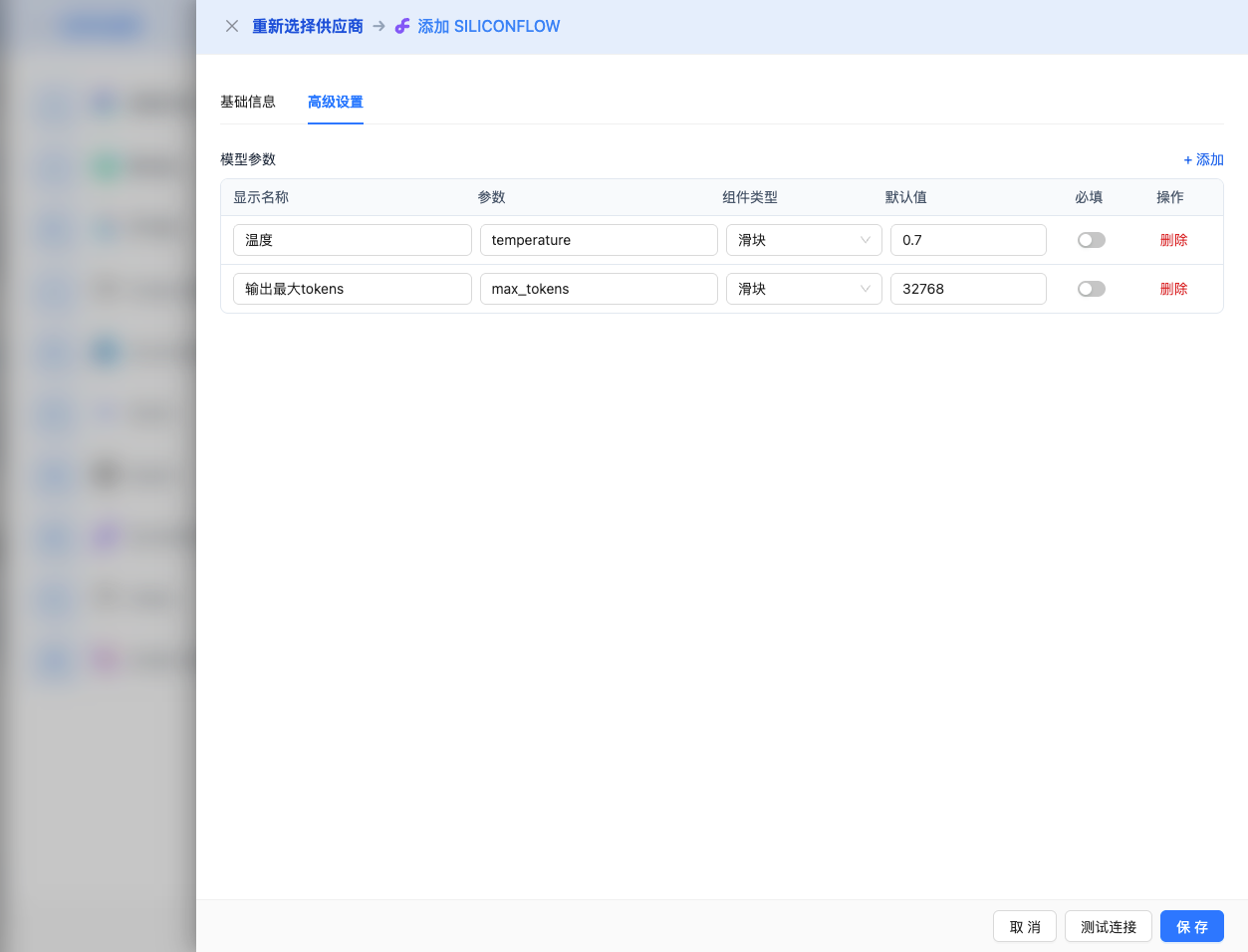
Expand the Advanced Configuration panel to adjust the following parameters:
Parameters Adjustable in CueMate Interface:
Temperature: Controls output randomness
- Range: 0-2
- Recommended Value: 0.7
- Function: Higher values produce more random and creative output, lower values produce more stable and conservative output
- Usage Suggestions:
- Creative writing/brainstorming: 1.0-1.5
- Regular conversation/Q&A: 0.7-0.9
- Code generation/precise tasks: 0.3-0.5
Max Tokens: Limits single output length
- Range: 256 - 64000 (depending on model)
- Recommended Value: 8192
- Function: Controls the maximum word count of model's single response
- Model Limits:
- DeepSeek-R1, V3, Qwen2.5, Llama-3.3: Maximum 32K tokens
- DeepSeek-V3.2-Exp: Maximum 64K tokens
- Usage Suggestions:
- Short Q&A: 1024-2048
- Regular conversation: 4096-8192
- Long text generation: 16384-32768
- Ultra-long output: 65536 (V3.2-Exp only)
Other Advanced Parameters Supported by SiliconFlow API:
Although the CueMate interface only provides temperature and max_tokens adjustments, if you call SiliconFlow directly through the API, you can also use the following advanced parameters (SiliconFlow uses OpenAI-compatible API format):
top_p (nucleus sampling)
- Range: 0-1
- Default Value: 1
- Function: Samples from the minimum candidate set where cumulative probability reaches p
- Relationship with temperature: Usually only adjust one of them
- Usage Suggestions:
- Maintain diversity but avoid unreasonable output: 0.9-0.95
- More conservative output: 0.7-0.8
frequency_penalty (frequency penalty)
- Range: -2.0 to 2.0
- Default Value: 0
- Function: Reduces the probability of repeating the same words (based on word frequency)
- Usage Suggestions:
- Reduce repetition: 0.3-0.8
- Allow repetition: 0 (default)
- Force diversification: 1.0-2.0
presence_penalty (presence penalty)
- Range: -2.0 to 2.0
- Default Value: 0
- Function: Reduces the probability of words that have already appeared appearing again (based on whether they appeared)
- Usage Suggestions:
- Encourage new topics: 0.3-0.8
- Allow topic repetition: 0 (default)
stop (stop sequences)
- Type: String or array
- Default Value: null
- Function: Stops when generated content contains specified strings
- Example:
["###", "User:", "\n\n"] - Use Cases:
- Structured output: Use delimiters to control format
- Dialogue system: Prevent model from speaking on behalf of user
stream (streaming output)
- Type: Boolean
- Default Value: false
- Function: Enable SSE streaming return, generate and return simultaneously
- In CueMate: Automatically handled, no manual setting required
| No. | Scenario | temperature | max_tokens | top_p | frequency_penalty | presence_penalty |
|---|---|---|---|---|---|---|
| 1 | Creative Writing | 1.0-1.2 | 4096-8192 | 0.95 | 0.5 | 0.5 |
| 2 | Code Generation | 0.2-0.5 | 2048-4096 | 0.9 | 0.0 | 0.0 |
| 3 | Q&A System | 0.7 | 1024-2048 | 0.9 | 0.0 | 0.0 |
| 4 | Summary | 0.3-0.5 | 512-1024 | 0.9 | 0.0 | 0.0 |
| 5 | Complex Reasoning | 0.7 | 32768-65536 | 0.9 | 0.0 | 0.0 |
2.5 Test Connection
After filling in the configuration, click the Test Connection button to verify if the configuration is correct.
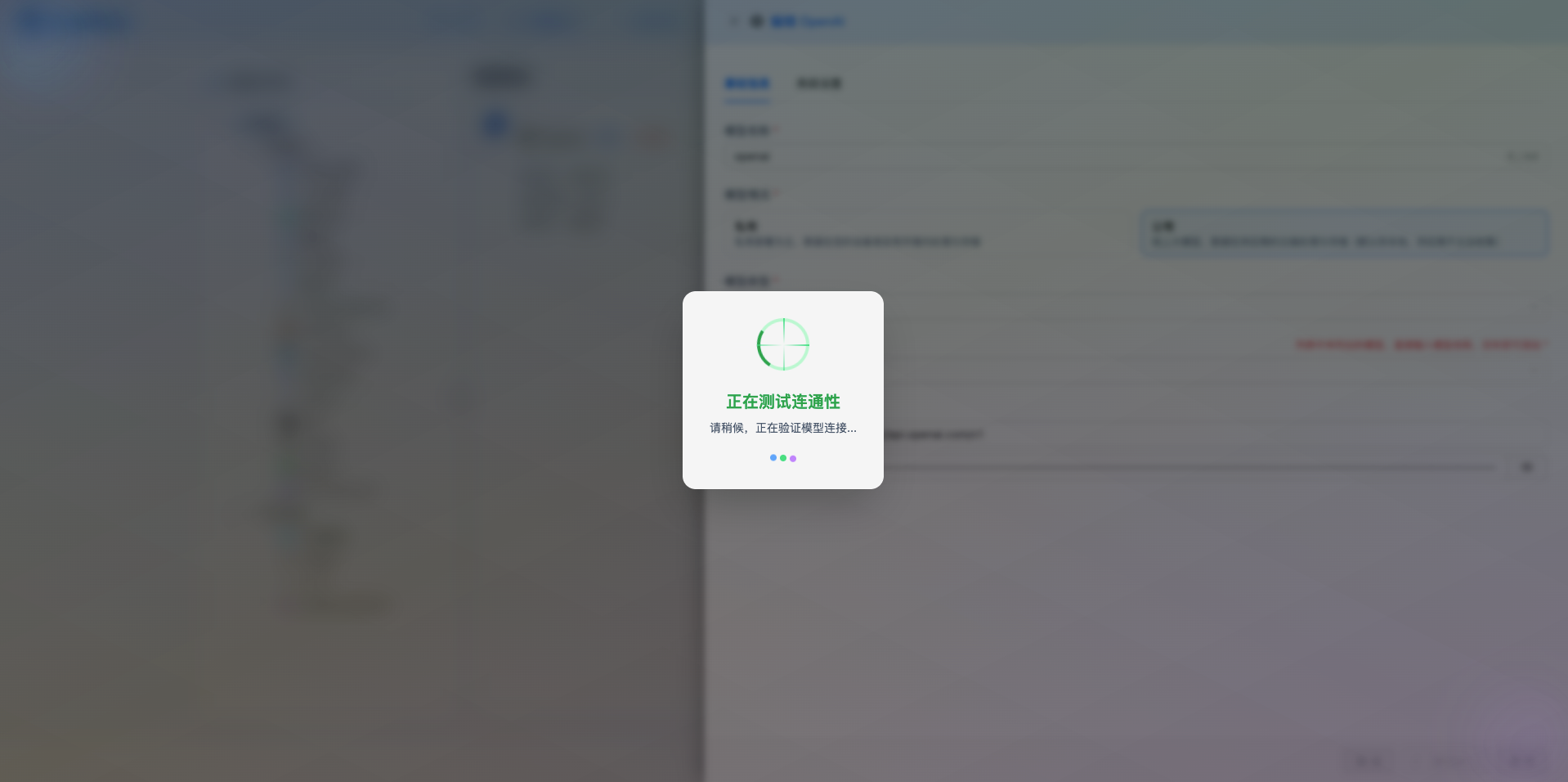
If the configuration is correct, a successful test message will be displayed, along with a sample response from the model.
If the configuration is incorrect, test error logs will be displayed, and you can view specific error information through log management.
2.6 Save Configuration
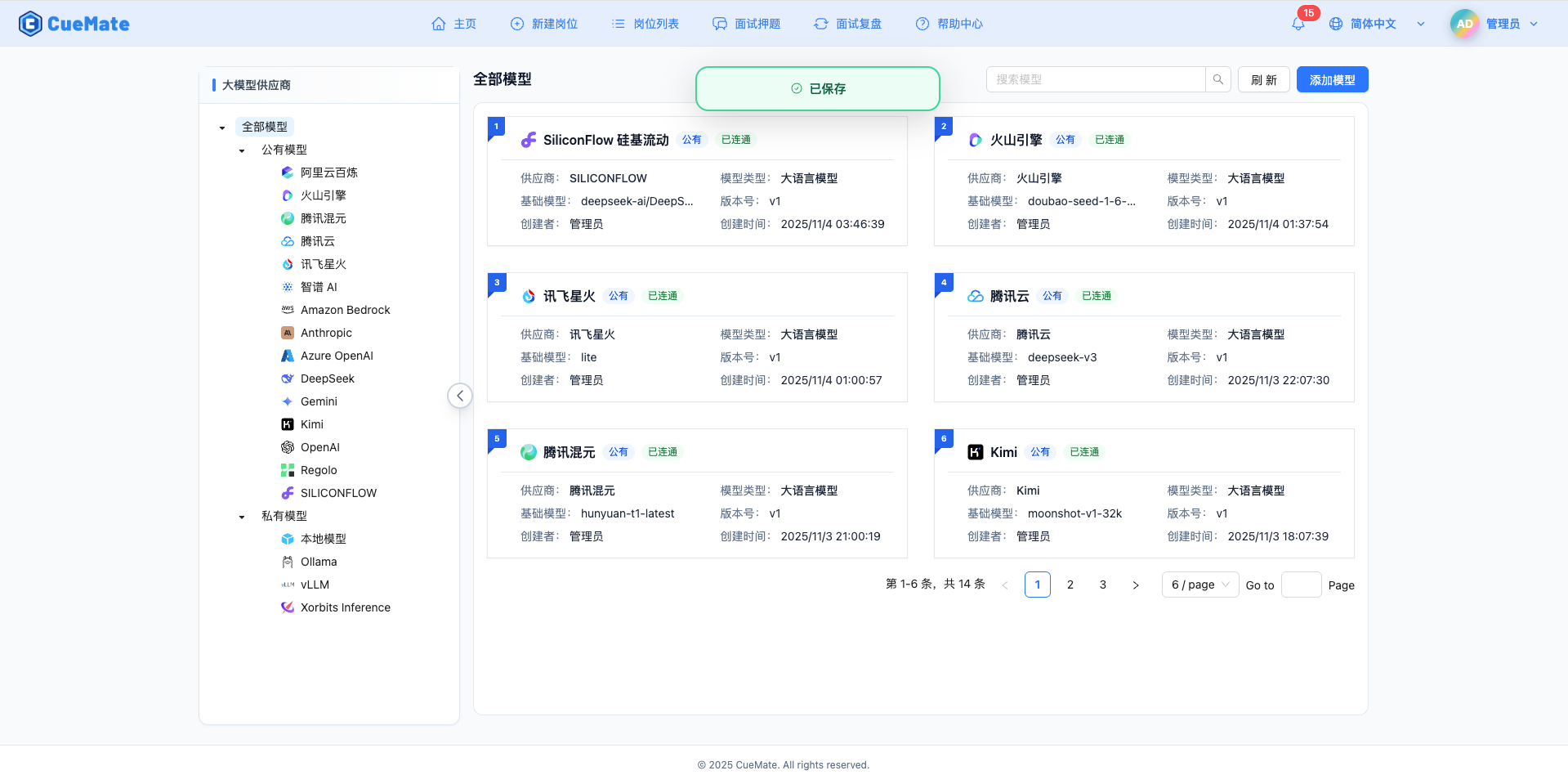
After a successful test, click the Save button to complete the model configuration.
3. Use Model
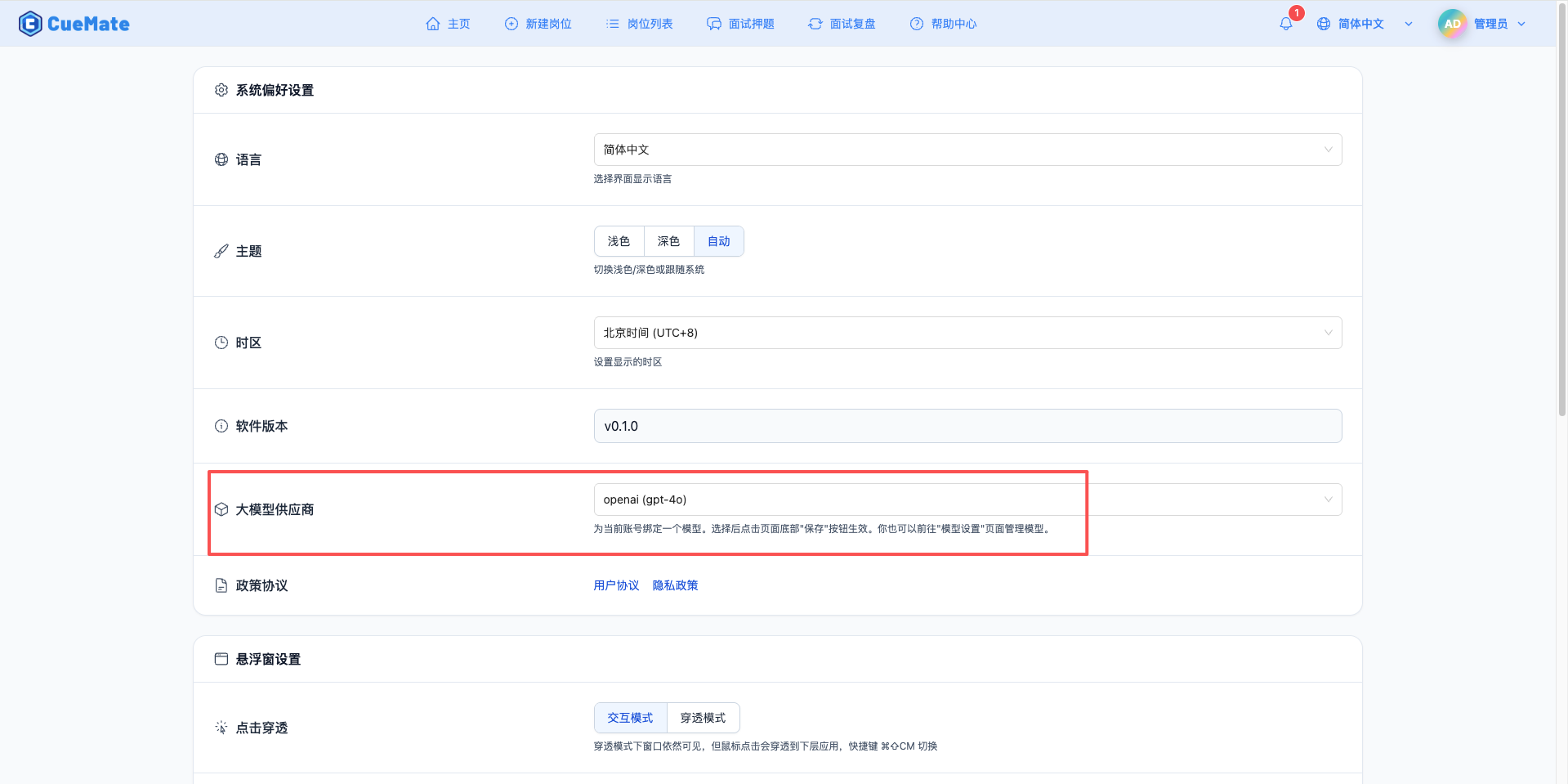
Through the dropdown menu in the upper right corner, enter the system settings interface, and select the model configuration you want to use in the LLM provider section.
After configuration, you can select to use this model in interview training, question generation, and other functions. Of course, you can also select the model configuration for a specific interview in the interview options.
4. Supported Model List
4.1 DeepSeek Series (2026 Latest)
| No. | Model Name | Model ID | Max Output | Use Case |
|---|---|---|---|---|
| 1 | DeepSeek R1 Full Version | deepseek-ai/DeepSeek-R1 | 32K tokens | Top reasoning capability, complex technical interviews |
| 2 | DeepSeek V3 | deepseek-ai/DeepSeek-V3 | 32K tokens | Code generation, technical reasoning |
| 3 | DeepSeek V3.2 Experimental | deepseek-ai/DeepSeek-V3.2-Exp | 64K tokens | Latest experimental features, ultra-long output |
| 4 | DeepSeek R1 Distilled 32B | deepseek-ai/DeepSeek-R1-Distill-Qwen-32B | 32K tokens | Reasoning enhanced, cost-effective |
4.2 Qwen 2.5 Series
| No. | Model Name | Model ID | Max Output | Use Case |
|---|---|---|---|---|
| 1 | Qwen 2.5 72B Flagship | Qwen/Qwen2.5-72B-Instruct | 32K tokens | Best performance, 128K context |
| 2 | Qwen 2.5 32B | Qwen/Qwen2.5-32B-Instruct | 32K tokens | Balanced performance, long document processing |
| 3 | Qwen 2.5 7B | Qwen/Qwen2.5-7B-Instruct | 32K tokens | General conversation, cost-effective |
| 4 | Qwen 2.5 Coder 7B | Qwen/Qwen2.5-Coder-7B-Instruct | 32K tokens | Code generation, technical Q&A |
| 5 | Qwen QwQ 32B | Qwen/QwQ-32B | 32K tokens | Reasoning optimized, Q&A enhanced |
4.3 Other High-Performance Models
| No. | Model Name | Model ID | Max Output | Use Case |
|---|---|---|---|---|
| 1 | Llama 3.3 70B | meta-llama/Llama-3.3-70B-Instruct | 32K tokens | Open-source flagship, multilingual support |
| 2 | GLM-4 9B | THUDM/glm-4-9b-chat | 32K tokens | Chinese understanding, dialogue generation |
| 3 | InternLM 2.5 7B | internlm/internlm2_5-7b-chat | 32K tokens | Chinese conversation optimized |
5. Common Issues
5.1 Invalid API Key
Symptom: API Key error when testing connection
Solution:
- Check if the API Key starts with
sk- - Confirm the API Key is completely copied
- Check if the account has available quota
5.2 Model Unavailable
Symptom: Model does not exist or unauthorized message
Solution:
- Confirm the model ID spelling is correct
- Check if the account has access permission to the model
- Verify if the model is available on SiliconFlow platform
5.3 Request Timeout
Symptom: No response for a long time during testing or use
Solution:
- Check if the network connection is normal
- Confirm the API URL configuration is correct
- Check firewall settings
5.4 Quota Limit
Symptom: Request quota exceeded message
Solution:
- Log in to SiliconFlow platform to check quota usage
- Recharge or apply for more quota
- Optimize usage frequency