
Mock Interview
Mock Interview is one of CueMate's core features. Through AI playing the interviewer role, it automatically asks questions and evaluates your answers, helping you adapt to actual interview scenarios in advance and improve interview performance.
1. Page Navigation
1.1 Prerequisites
Search for the CueMate application icon on the launcher and left-click to open the application.

After launching the CueMate desktop application, you can see the control window floating directly above the screen. The button functions of the control window from left to right are:
- "Visit CueMate website" icon: click to open the CueMate official website
- "Voice Recognition" button: Click to start the voice recognition function and open the voice function window
- "Ask AI" button: Click to open the AI question window, quickly ask AI questions and get answers
- "Interactive mode" icon: Switch the click penetration mode of the window (interactive mode can operate the window normally, clicks in penetration mode will penetrate to the underlying application)
- "Main application window" icon: Click to open the main application window and enter the background management interface
- "Show/Hide" icon: Click to hide or show the control bar and all other windows

1.2 Option 1: Launch from Control Bar
Steps:
- Click the "Voice Recognition" icon on the floating control bar to open the voice recognition window.
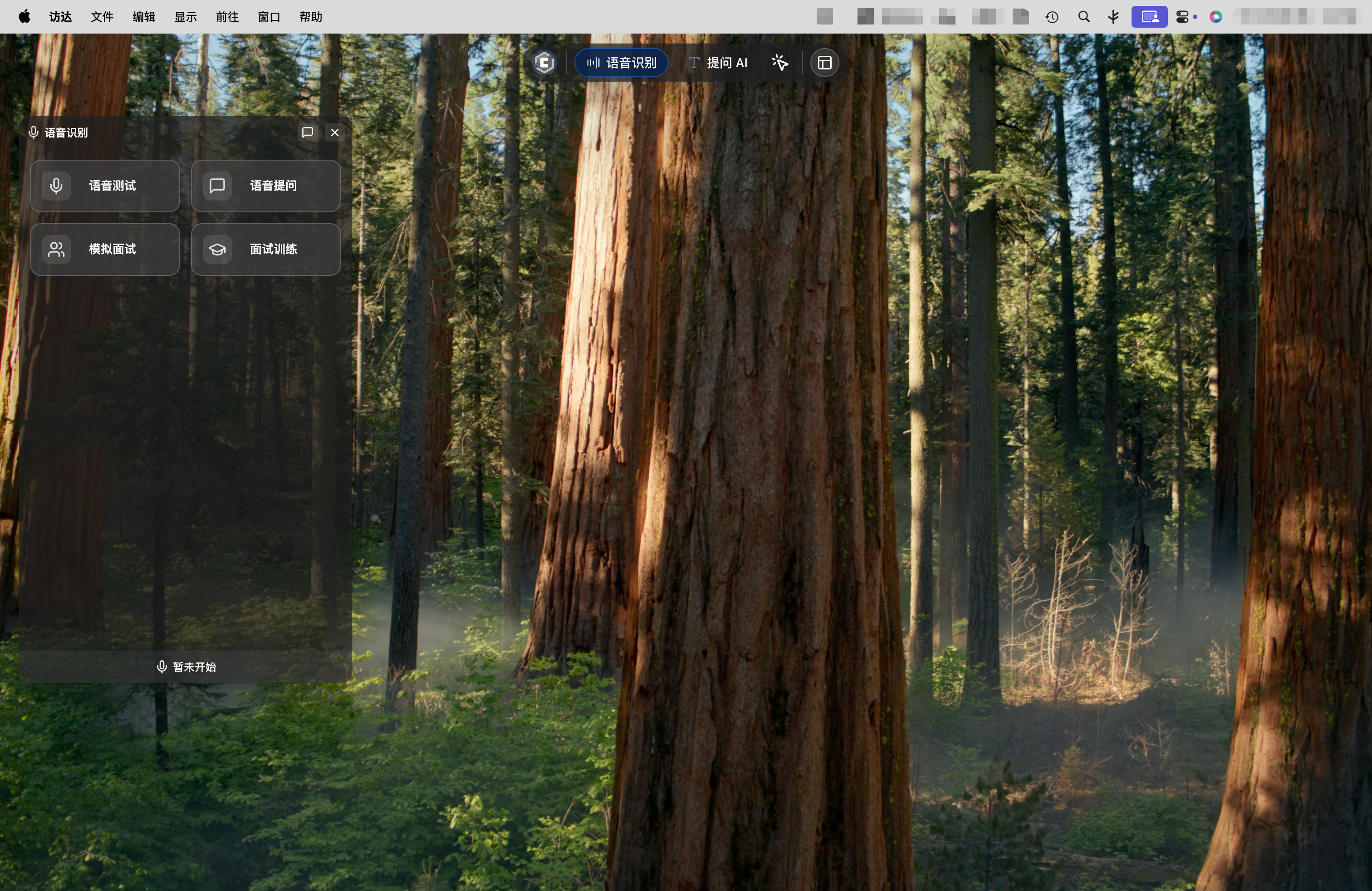
- In the popup window, click the "Mock Interview" card.
Window Layout:
The system automatically opens three windows, displayed centered on screen:
- Left window: AI Interviewer window (shows interviewer's questions and control panel)
- Middle window: Interview Conversation window (shows AI-generated reference answers and user's real-time responses)
- Right window: History window (records all completed Q&A)
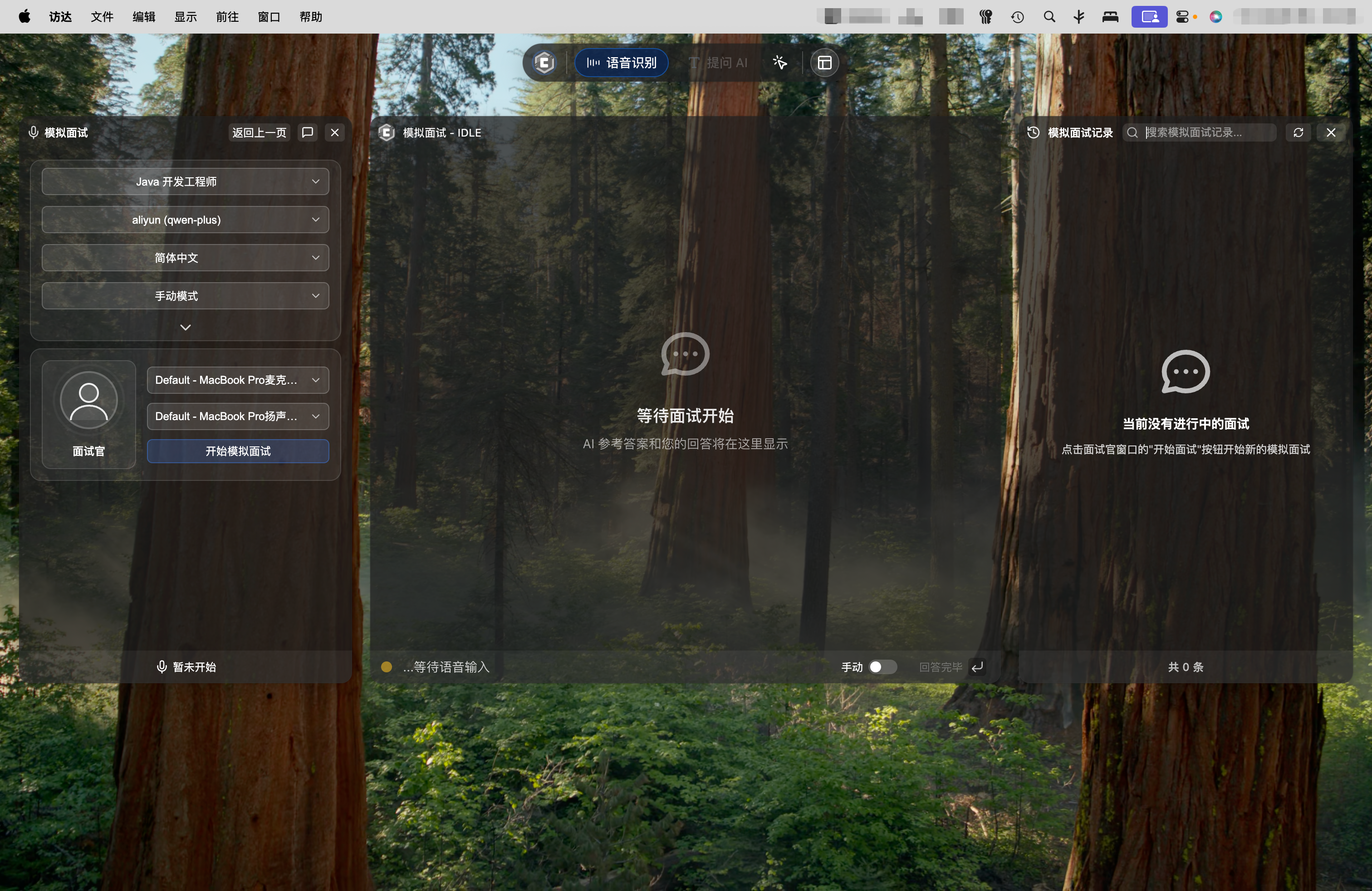
1.3 Option 2: Launch from Home
Steps:
- Click the "Main Application Window" icon on the floating control bar to open the main application window.
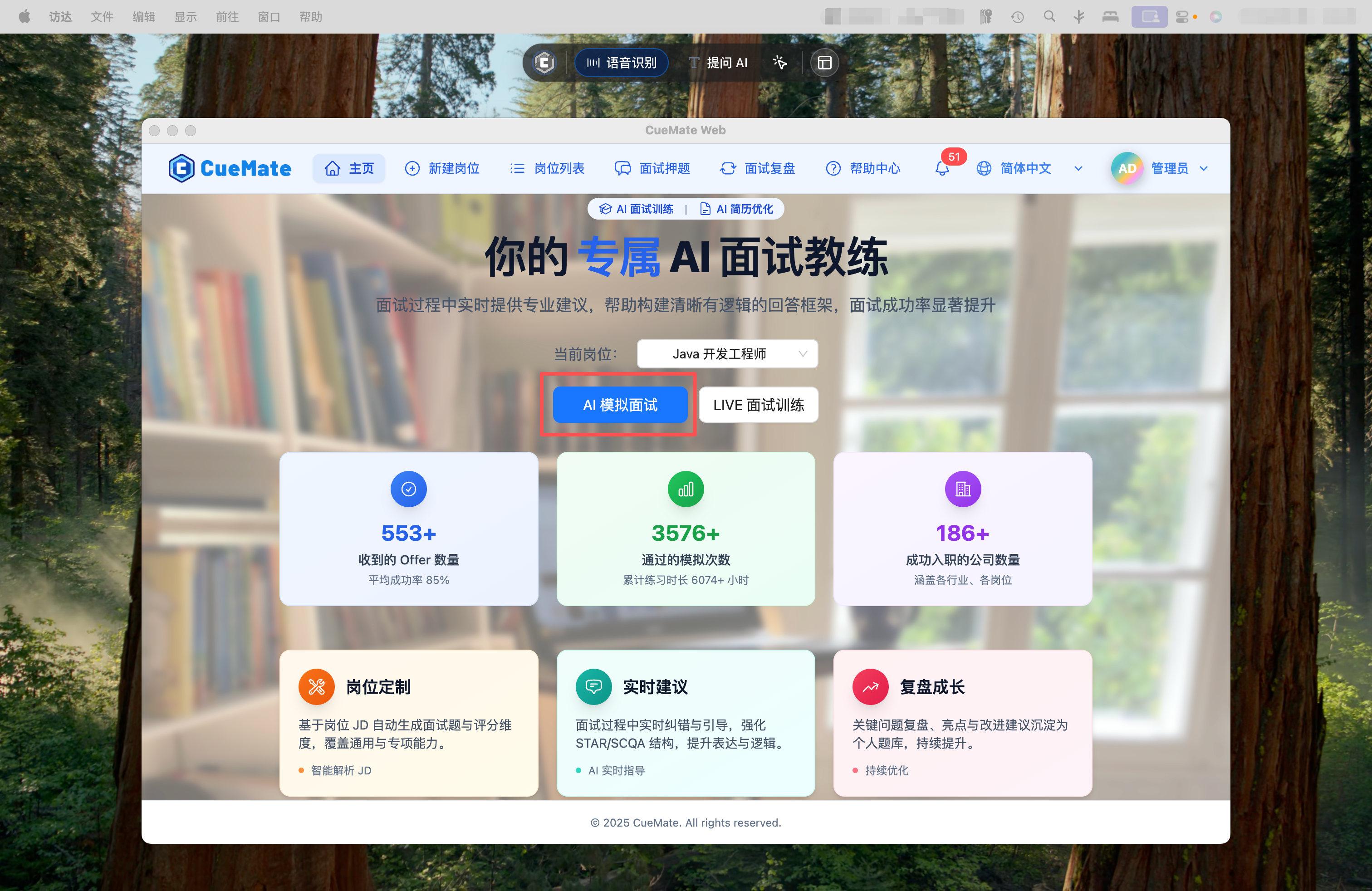
- After selecting a position on the home page, click the "AI Mock Interview" button.
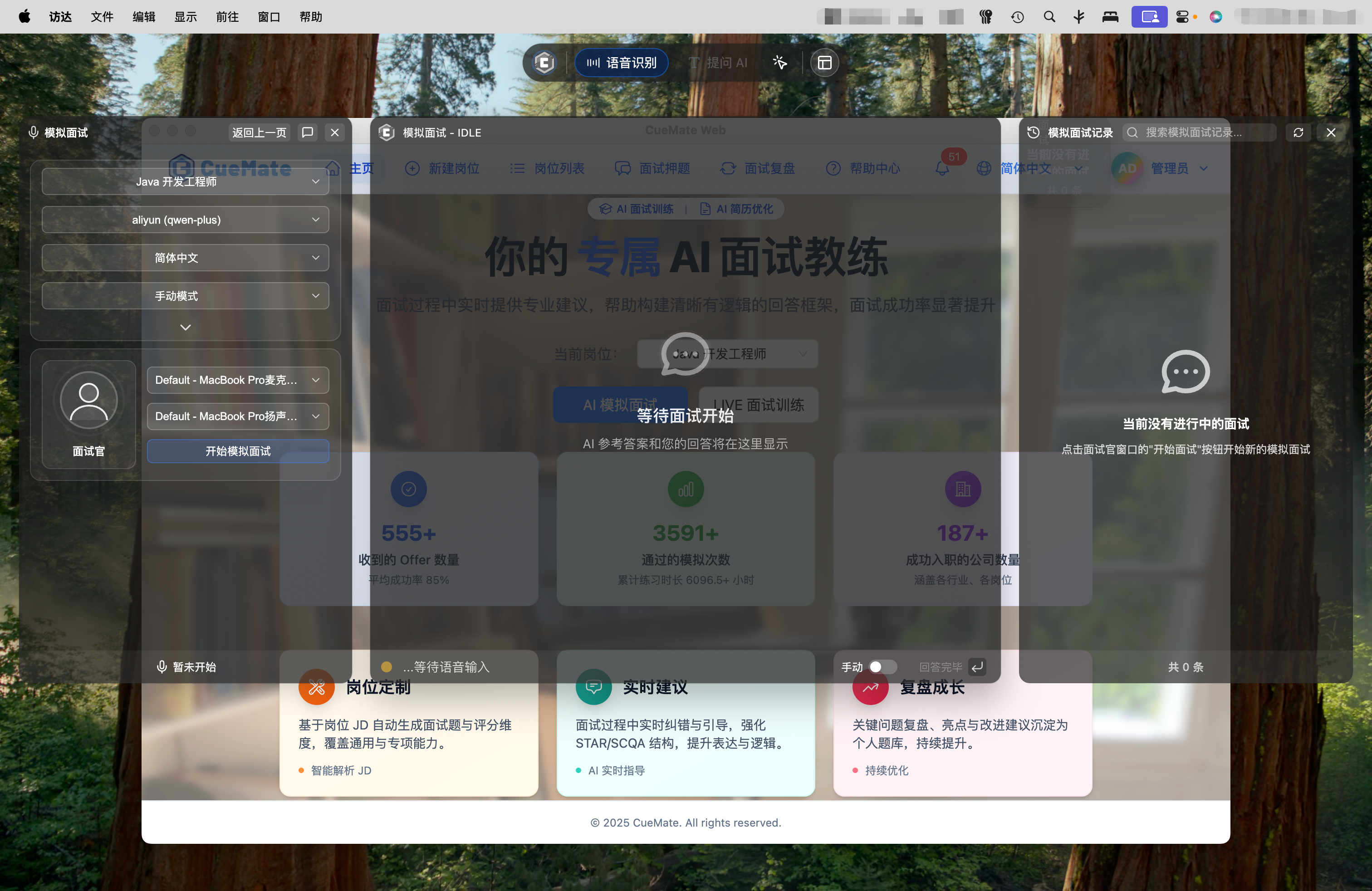
The system automatically opens the mock interview window with the same layout as launching from control bar, and auto-fills your selected position information.
2. Start Mock Interview
2.1 Confirm Interview Configuration
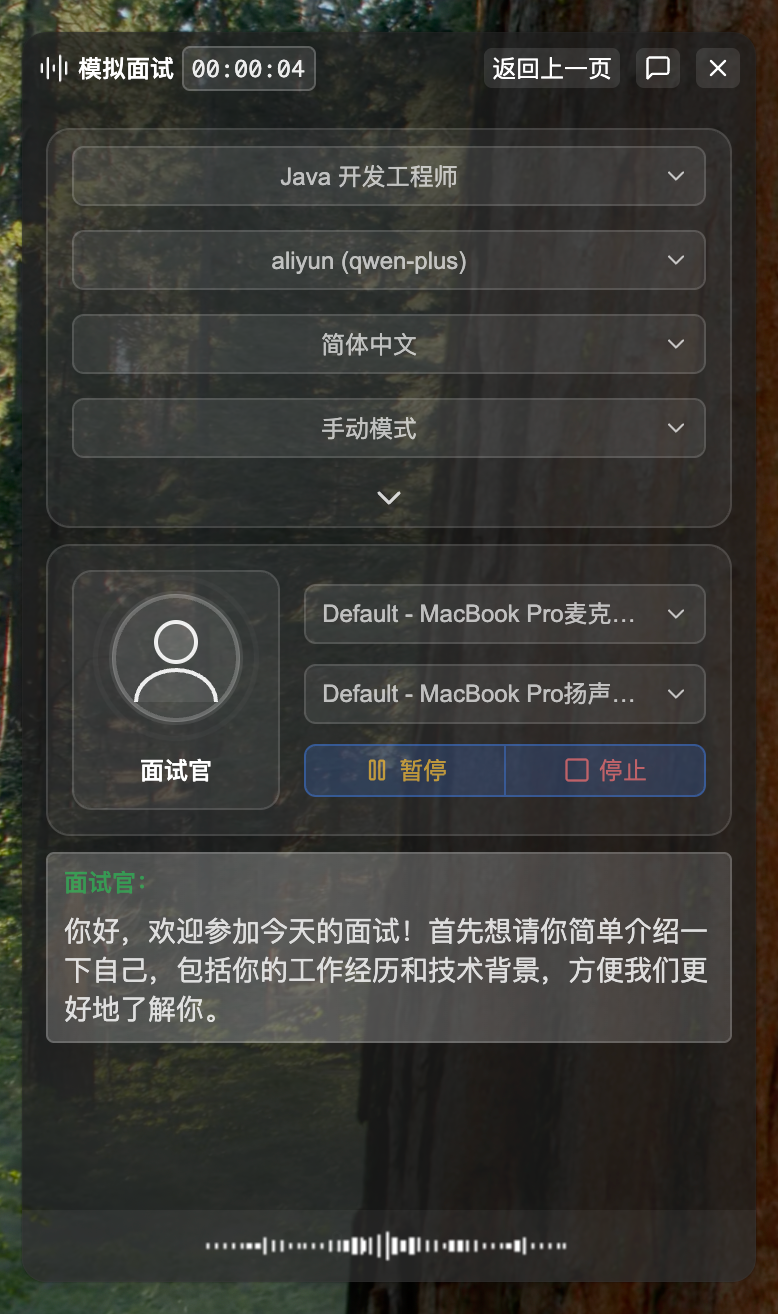
In the left interviewer window, confirm the following configuration:
Position Information
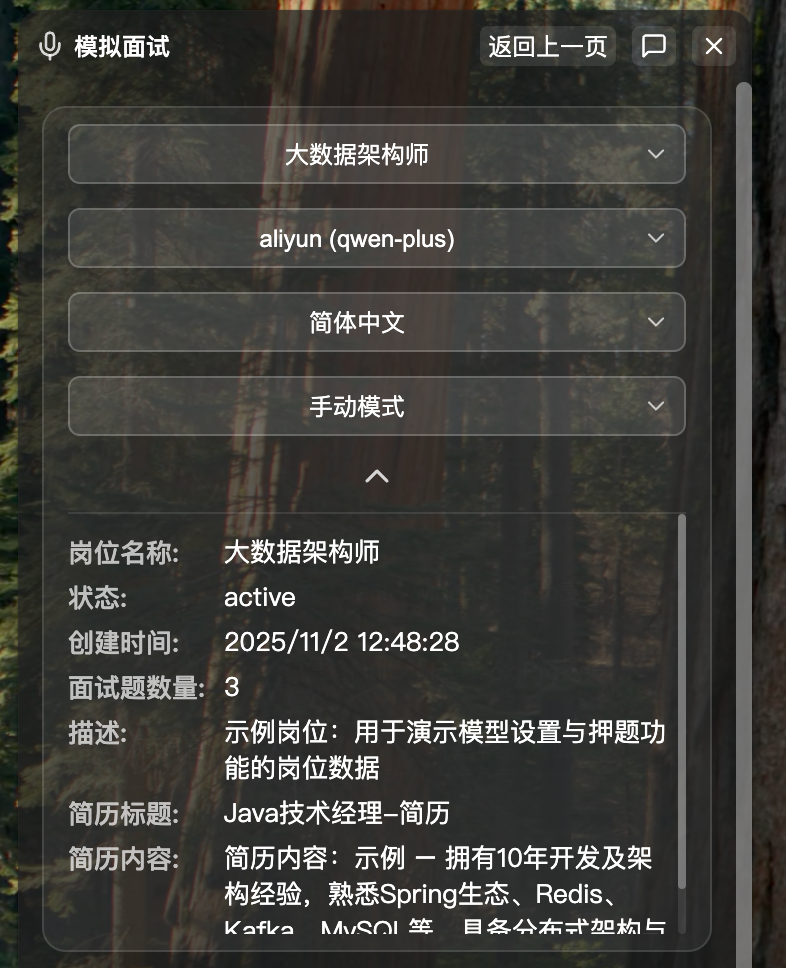
The top displays the current interview position information card, including:
- Position name (including position description and resume JD information)
- Selected LLM (used for generating questions and evaluating answers)
- Voice language (Simplified Chinese/Traditional Chinese/English, for language switching and AI voice broadcast)
- Interview mode (Manual mode/Auto mode, see Submit Answer)
- Manual mode: You fully control the pace, click "Answer Complete" button after answering to proceed to next question, suitable for repeated practice and careful thinking
- Auto mode: No manual operation needed, system automatically proceeds to next question after detecting ~5 seconds of silence, more fluid and natural experience (Note: long pauses during answering may accidentally trigger)
IMPORTANT
Interview mode must be selected before interview starts, cannot switch modes during interview. Please choose the appropriate mode based on your practice needs in advance.
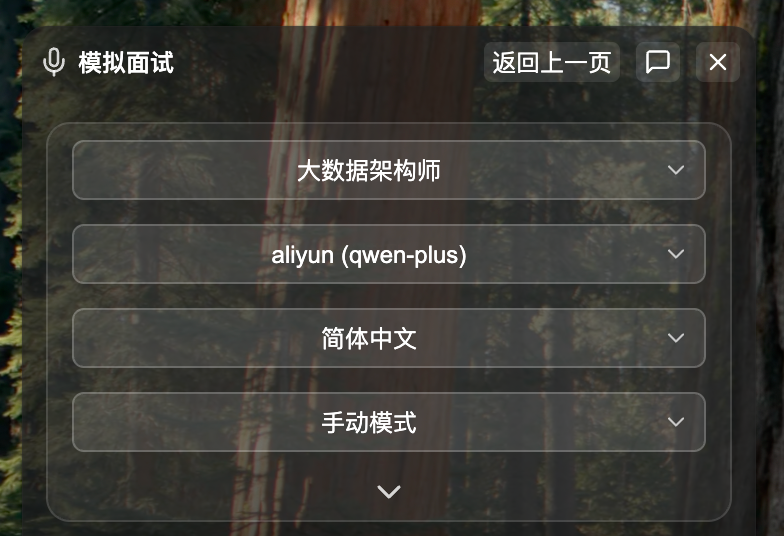
Click the expand button at the bottom of the card to view complete position description and resume JD information.
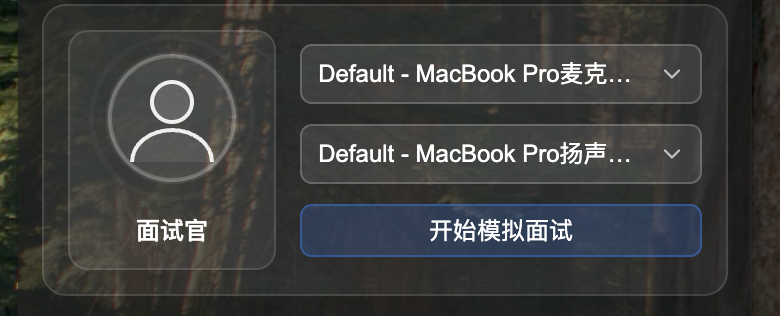
Audio Device Selection
Configure audio devices:
Microphone device: Select the microphone for recording your answers
- System automatically lists all available audio input devices
- Default selects microphone configured in Voice Settings - Microphone Settings
- Recommend using built-in computer microphone (e.g., MacBook built-in microphone)
Speaker device: Select the speaker for playing AI questions
- System automatically lists all available audio output devices
- Default selects speaker configured in Voice Settings - Speaker Settings
- Recommend using built-in computer speaker (e.g., MacBook built-in speaker)
IMPORTANT
- Piper TTS Voice Synthesis: If Piper TTS service is available, AI will voice broadcast interview questions. If unavailable, interview can still proceed normally, just without voice broadcast.
- System Audio Capture Permission: Interview training requires "Screen Recording" permission to capture interview software audio output. If not authorized, please refer to permission authorization steps in Voice Test.
2.2 Start Interview
After confirming configuration is correct, click the "Start Mock Interview" button at the bottom of the left window.

The system automatically executes the following initialization process:
Create Interview Session
- Create new interview record and assign unique ID
- Save position information, resume content, model configuration, etc.
Check Piper TTS Service
- Detect if voice synthesis service is available
- Load corresponding language voice model (Chinese/English)
Initialize Interview State Machine
- Start interview process controller
- Match related questions from interview question bank
- Build interview context (JD, resume summary)
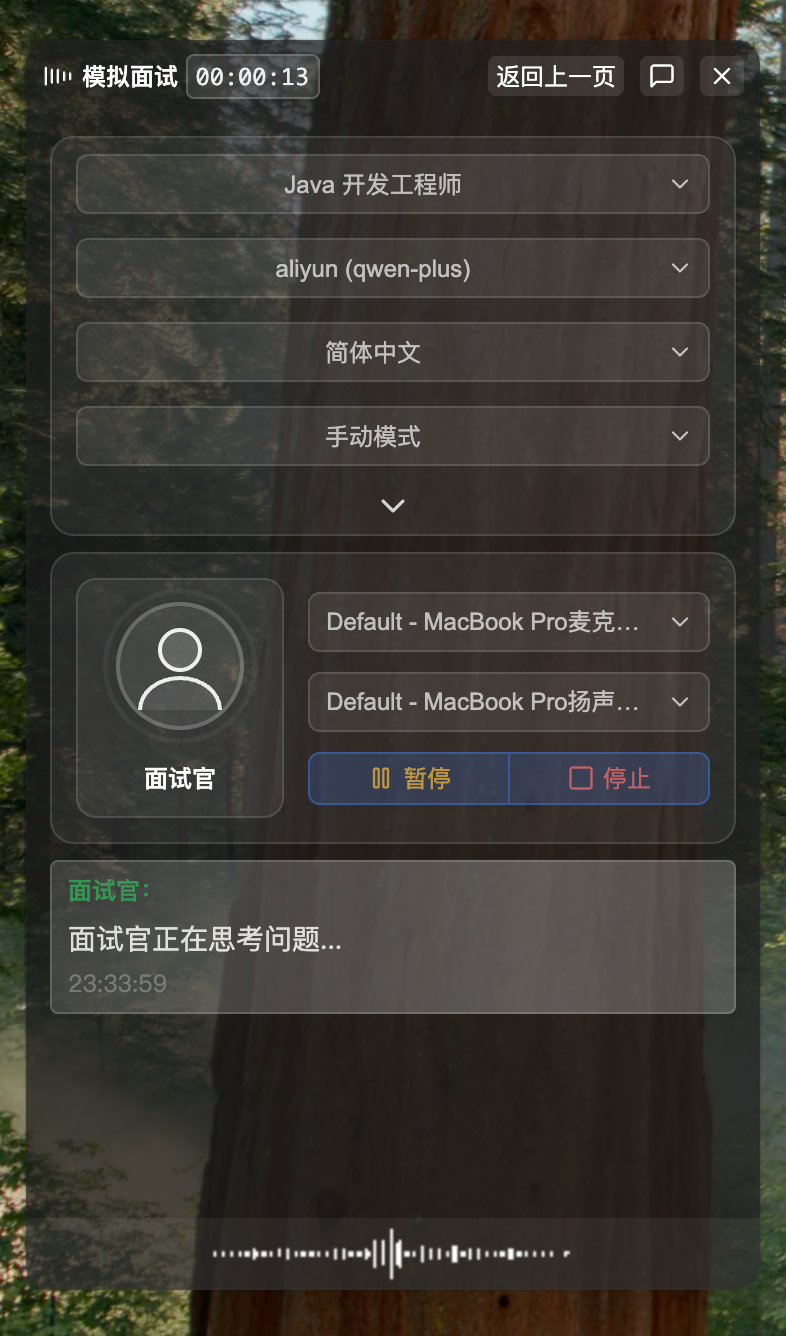
Generate First Interview Question
- AI begins thinking about first interview question
- Left window shows "Interviewer is thinking about question..."
2.3 AI Question Phase
After AI generates interview question, left window displays interviewer's question content.
1. Interviewer Asks Question
Bottom of left window displays AI interviewer's current question:
- Question displayed as text in conversation area at bottom of window
- Accompanied by voice broadcast (if voice synthesis service available)
- After voice broadcast completes, system automatically enters waiting for your answer state
2. AI Reference Answer
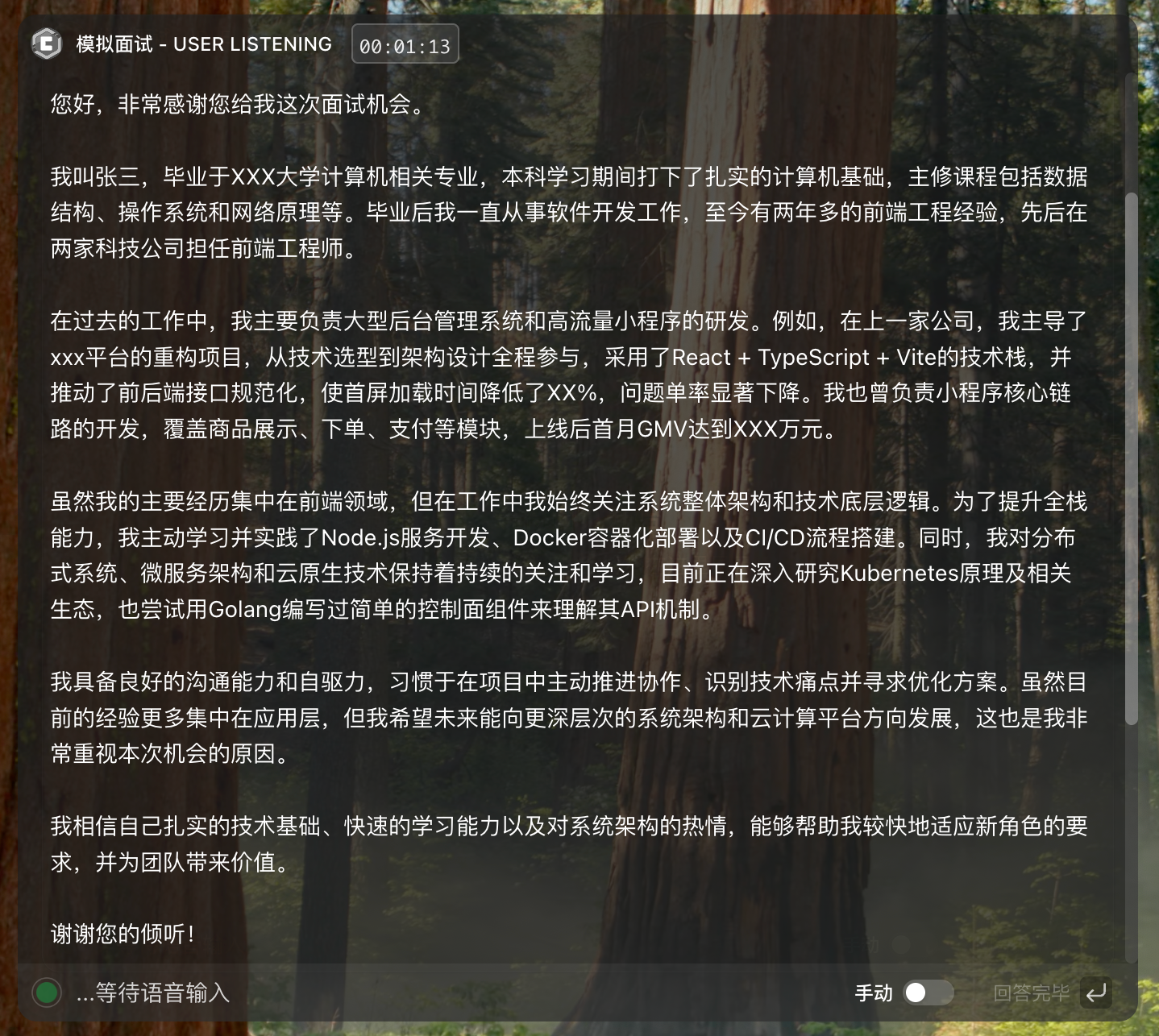
While interviewer asks question, middle window begins generating reference answer:
- Reference answer displays centered in middle window
- Content streams out character by character, you can view reference while listening to question
- Answer generated based on your position JD, resume, question bank, etc.
3. History Update
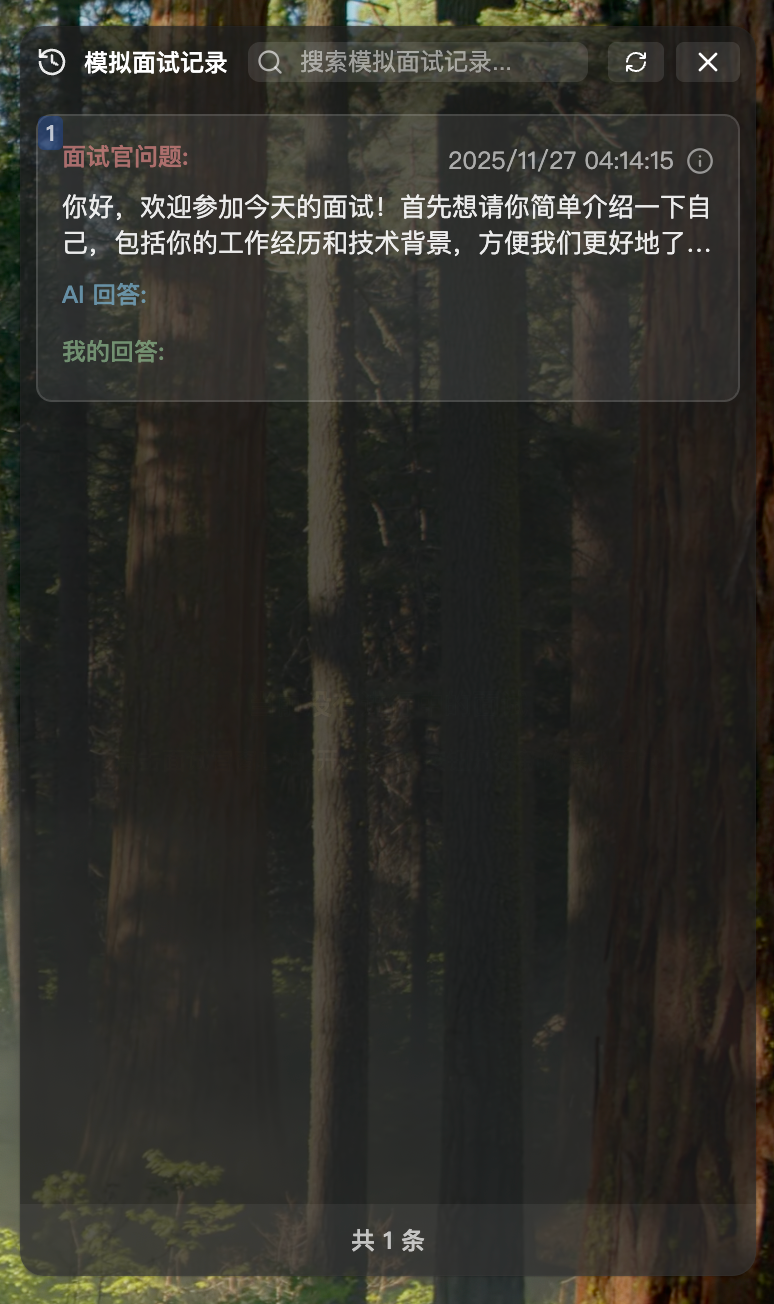
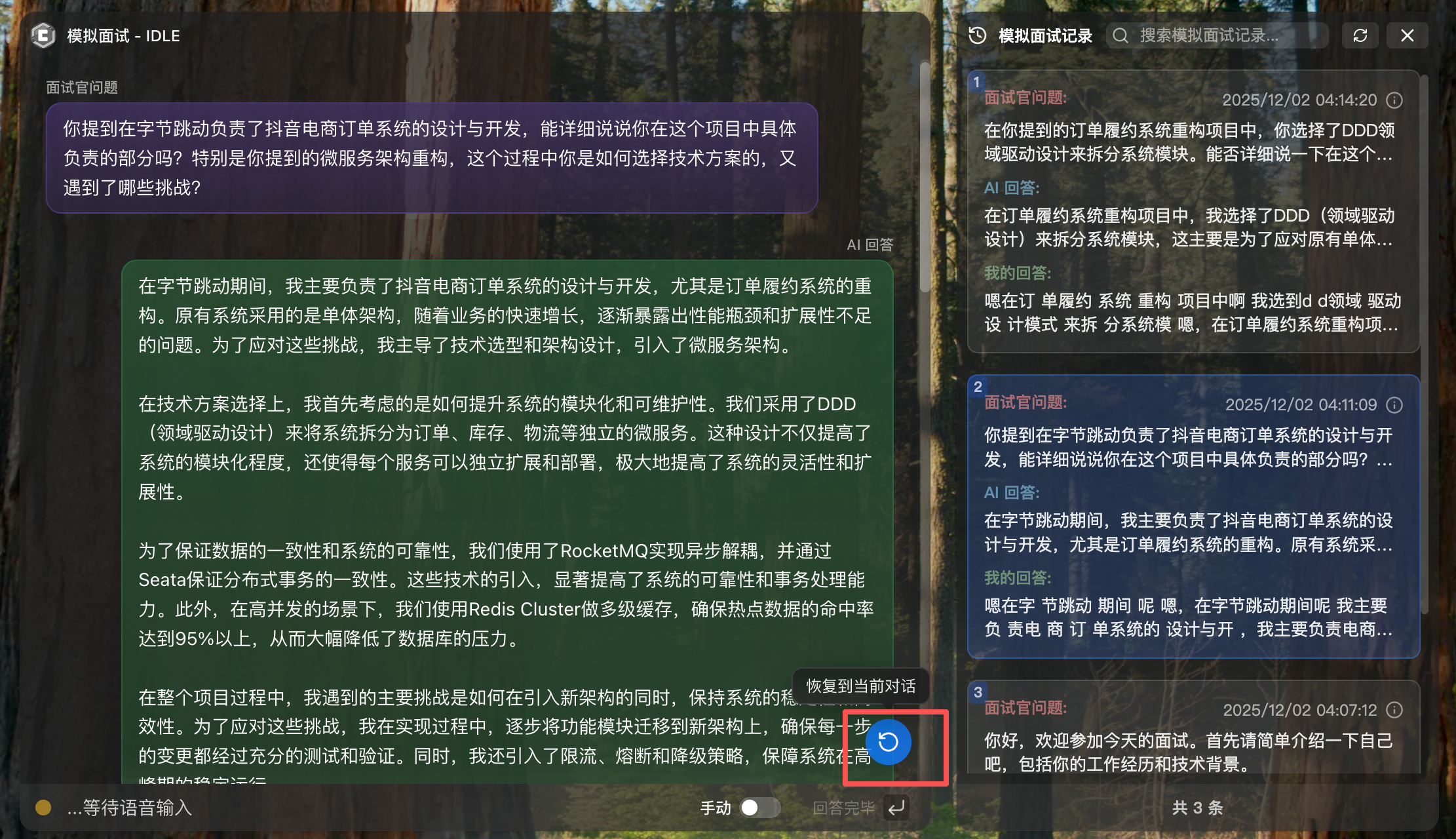
- Right history window simultaneously adds a new Q&A card:
- Shows question number and interviewer's question content
- "AI Answer" and "My Answer" fields temporarily empty, waiting to be filled later
3. Answer Interview Questions
3.1 Start Answering
After AI voice broadcast completes, system automatically switches to "Listening for User Answer" state, microphone begins recording.
Voice Recognition Area
Bottom of middle window displays voice recognition area:
- Recording Status Indicator: Left circle shows wave animation indicating recording in progress
- Real-time Recognition Text: Right side shows real-time voice recognition results, initially shows "Waiting for voice input..."
- Auto Scroll: When recognized text is long, auto-scrolls to latest content

Current Mode Display
On the right side of voice recognition display area, shows current interview mode (Manual/Auto):
- This mode is selected before interview starts, cannot switch during interview
- Hover shows tip "Cannot switch mode during interview"
Answer Complete Button
- In Manual mode, when there's recognized text, "Answer Complete" button becomes enabled, click to submit answer
- In Auto mode, "Answer Complete" button is disabled, system auto-submits after ~5 seconds of silence
TIP
Answering Tips:
- Speak Clearly: Maintain moderate speed, clear pronunciation, avoid dialect accents
- Structured Answers: Use STAR method (Situation → Task → Action → Result)
- Highlight Keywords: Include technical keywords, data support (performance improvements, user counts, etc.)
- Emphasize Contributions: Highlight personal contributions and value created
- Appropriate Pauses: Pause appropriately after making a point for more accurate voice recognition
3.2 Submit Answer
Mock interview supports two submission modes, you can choose flexibly based on practice needs:
Mode Comparison
| Feature | Manual Mode (Default) | Auto Mode |
|---|---|---|
| Use Case | Repeated practice, careful thinking | Simulate real interview pace |
| Submission Method | Click "Answer Complete" button | Auto-detect (silence) |
| Advantage | Full control of pace, avoid accidental triggers | No operation needed, more fluid and natural |
| Disadvantage | Need to manually click button | Long pauses may accidentally trigger |
Method 1: Manual Mode Submission
Workflow:
- As you answer, system recognizes and displays voice text in real-time
- After answering, click "Answer Complete" button (↵ icon) at bottom of middle window
- System immediately stops recording and saves answer
- Auto-proceeds to next round of questions

Method 2: Auto Mode Submission
Workflow:
- As you answer, system recognizes and displays voice text in real-time
- System auto-detects when you stop speaking (silence)
- Auto-submits answer, no manual operation needed
- Auto-proceeds to next round of questions

TIP
Mode Selection Recommendations:
- Manual mode: Recommended for initial practice, can repeatedly consider, control pace
- Auto mode: Recommended for simulating real interviews, train natural response ability
- For long answers: Recommend manual mode to avoid mid-answer pauses being misjudged as answer complete
NOTE
Post-Submission Processing Flow:
- System saves your answer to database
- Updates corresponding card's "My Answer" field in right history window
- System automatically proceeds to next round of questions
3.3 Proceed to Next Round
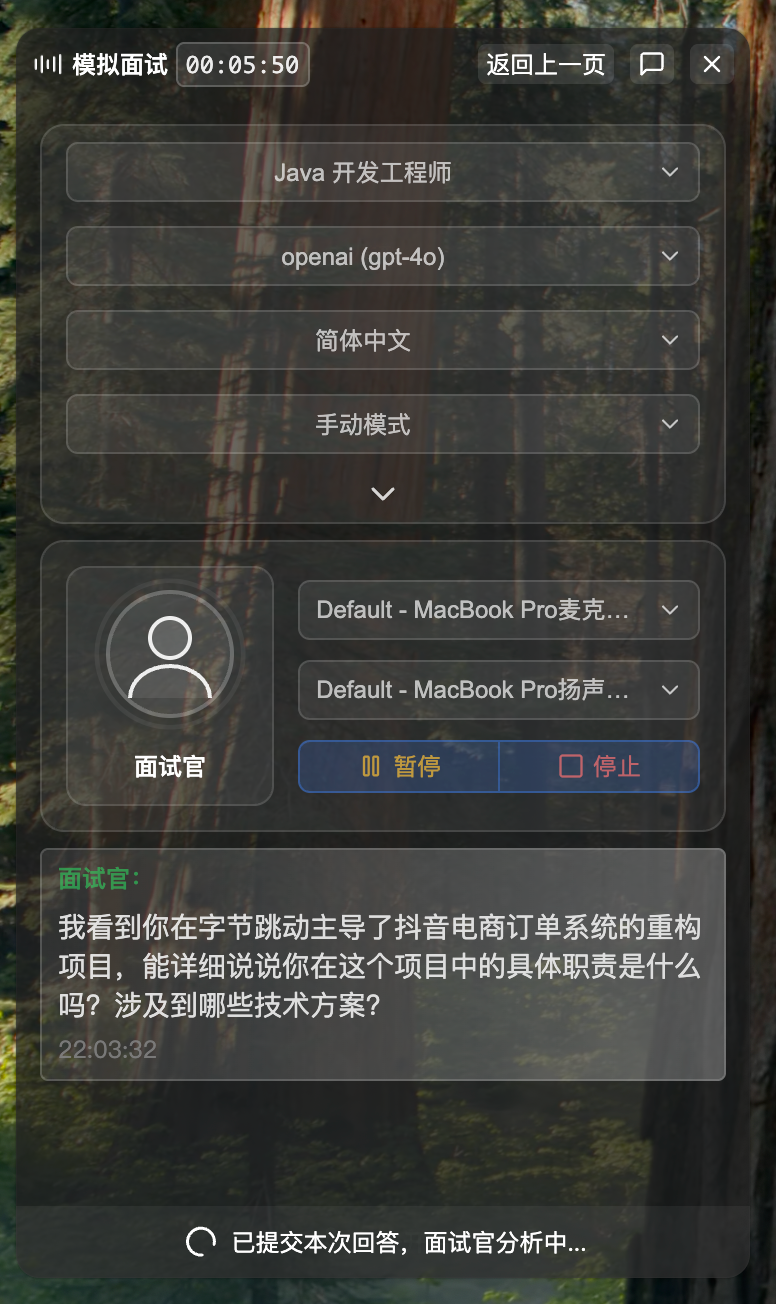
After submitting answer, system automatically proceeds to next question round, maintaining interview rhythm.
Next Round Flow
Save Answer
- System saves your answer to database
- Right history window updates corresponding card, shows "My Answer" content
Brief Transition
- After short delay (~2 seconds), AI begins thinking about next question
- Left window shows "Interviewer is thinking about question..."
Continue Questioning
- AI generates new interview question
- Repeat "AI Question → User Answer → Submit" cycle
View History
During interview, you can view historical Q&A records anytime:
Click History Card
- Click any Q&A card in right history window
- Middle window switches to display that question's AI reference answer
- Can quickly review previous Q&A content
Review Purpose
- Find points missed in previous answers
- Review ambiguous answers, adjust subsequent expression
- Reference previous AI answers to supplement relevant knowledge points
Restore Current Conversation
- Click restore button (🔄 icon) in bottom right of middle window
- Immediately switch back to current question's AI reference answer
- Continue current interview flow
Interview Cycle
The entire mock interview follows this cycle:
AI Question → AI Gives Reference Answer → User Answers → Submit Answer → AI Question → ...Cycle continues until:
- All planned interview questions completed
- You actively click "Stop" button to end interview
TIP
Interview Rhythm Suggestions:
- Use intervals between questions to quickly review history, find omissions
- Brief interval between each question allows you to adjust state
- If need to rest or organize thoughts, can pause interview anytime
4. Interview Flow Control
During mock interview, you can control interview progress anytime, including pause, resume, and end interview.
4.1 Pause Interview
When to Pause
- Need to temporarily handle other matters
- Want to organize thoughts or review history
- Need a short break
How to Pause
Two ways to pause interview:
Method 1: Click "Pause" button (⏸️ icon) at bottom of left window
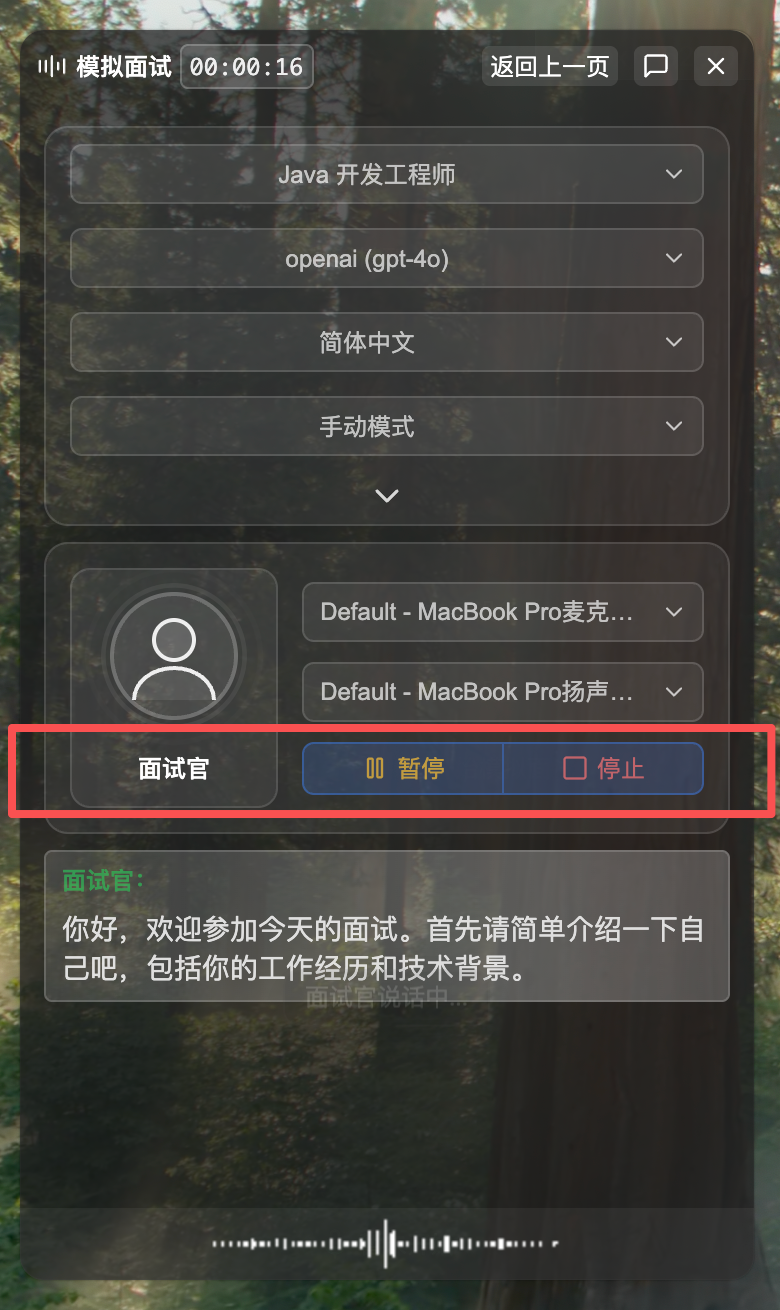
Method 2: Click "Pause" button (⏸️ icon) on top floating control bar (shows during interview). Through the expand/collapse button next to pause button, can open or close mock interview window.

After Pausing
- Microphone stops recording, AI stops processing
- Left window shows "Interview Paused"
- Current progress auto-saved, can continue after closing and reopening window
What You Can Do While Paused
- View all Q&A records in right history window
- Click history cards to view complete AI reference answers in middle window
- Think and prepare answer strategies for subsequent questions
4.2 Resume Interview
How to Resume
Two ways to resume interview:
Method 1: Click "Resume" button (▶️ icon) at bottom of left window
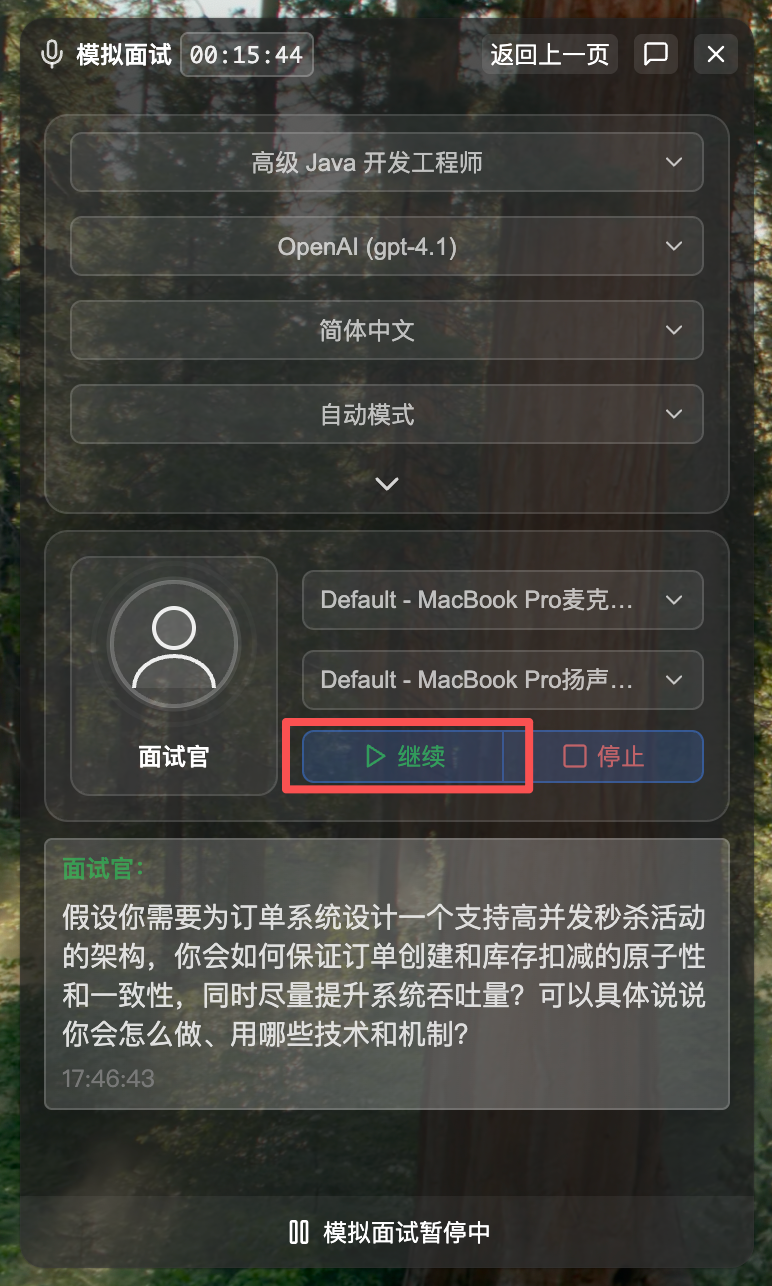
Method 2: Click "Resume" button (▶️ icon) on top floating control bar (shows when interview paused)

After Resuming
- System continues from where it paused
- If AI was asking question when paused, will re-broadcast question
- If you were answering when paused, will restart listening
4.3 End Interview
When to End
- Completed all planned interview questions
- Reached expected practice duration
- Want to end current interview early
How to End
Three ways to end interview:
Method 1: System auto-ends. When question count reaches configured specified number, system automatically completes interview and ends.
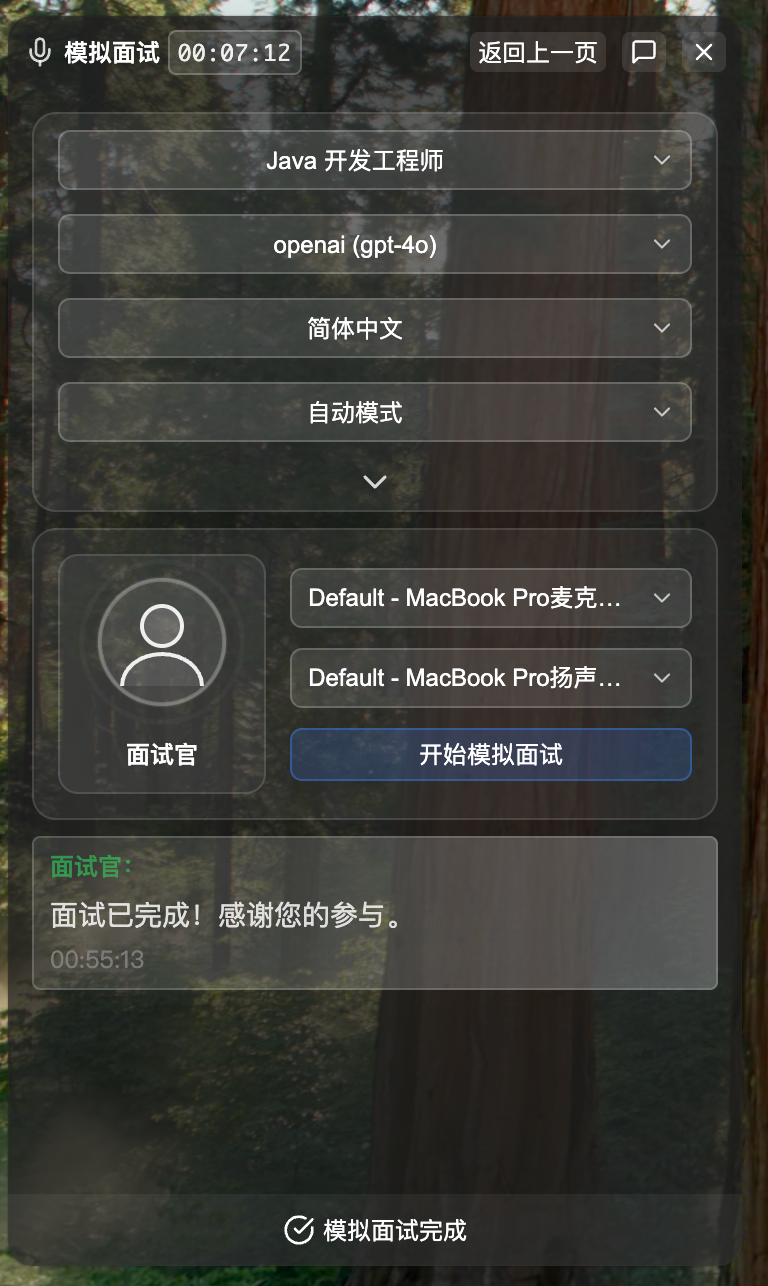
Method 2: Click "Stop" button (⏹️ icon) at bottom of left window
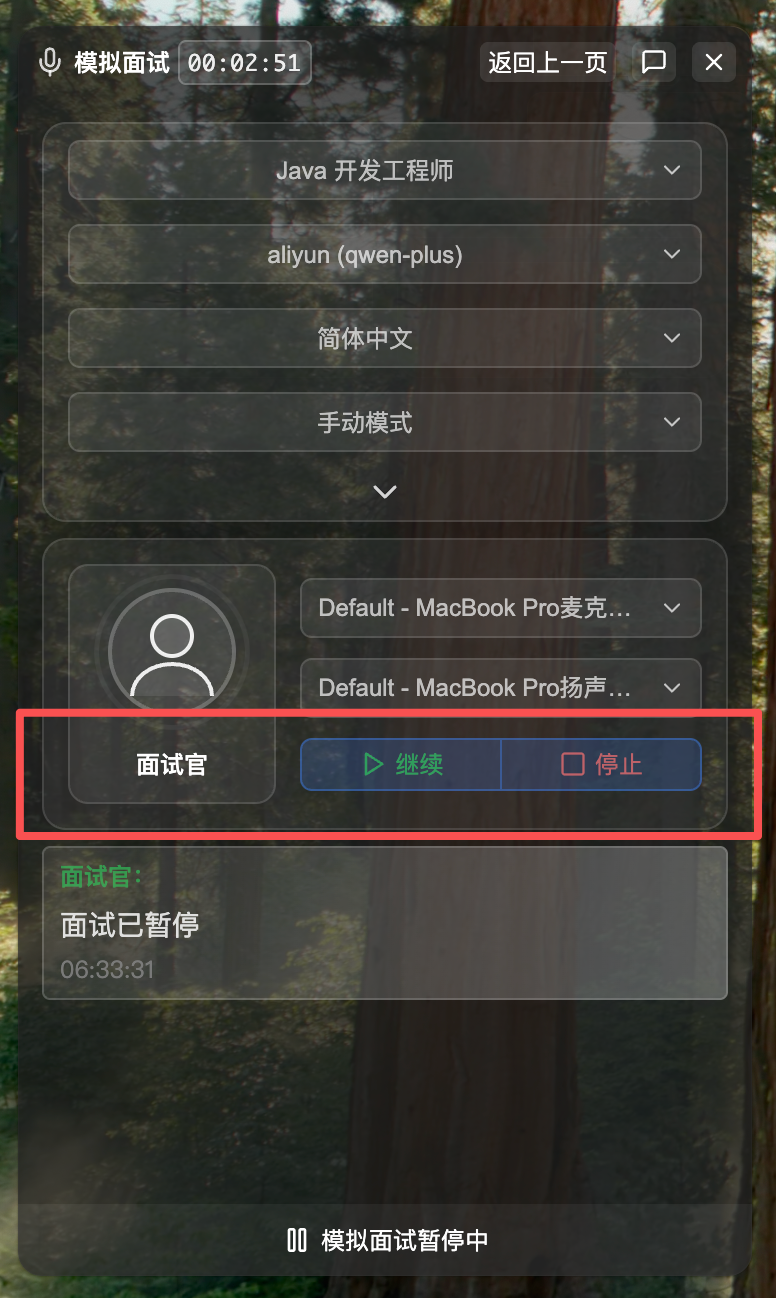
Method 3: First pause interview, then click "Complete" button (⏹️ icon) on top floating control bar (shows when interview paused)
After Ending
- All Q&A records saved
- Left window shows "Interview Ended"
- Can continue viewing Q&A content in history
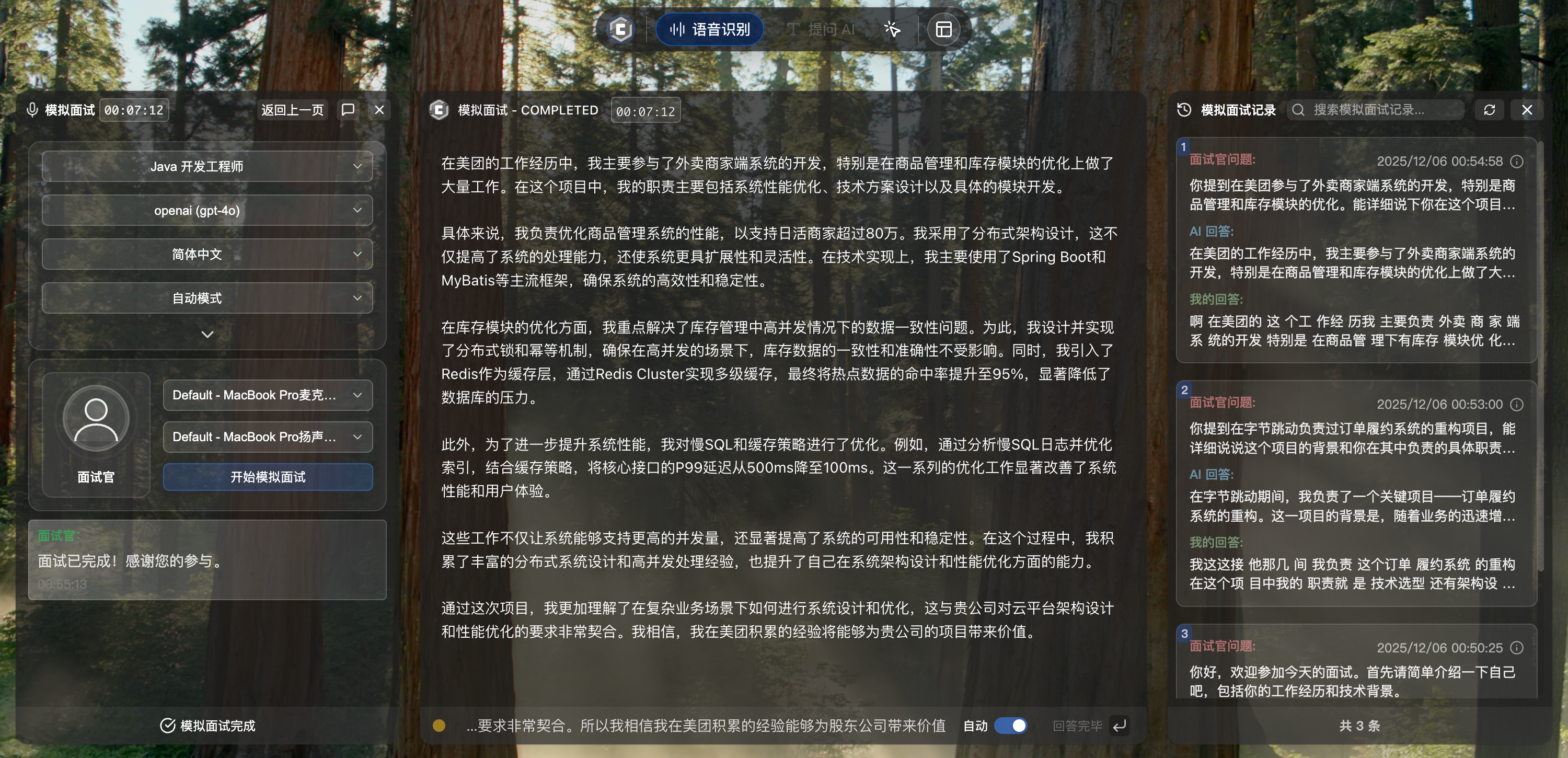
Auto End
If all planned interview questions completed, system automatically ends interview.
4.4 View Interview Review Records
After interview ends, click "Interview Review" in top menu to enter Interview Review page.
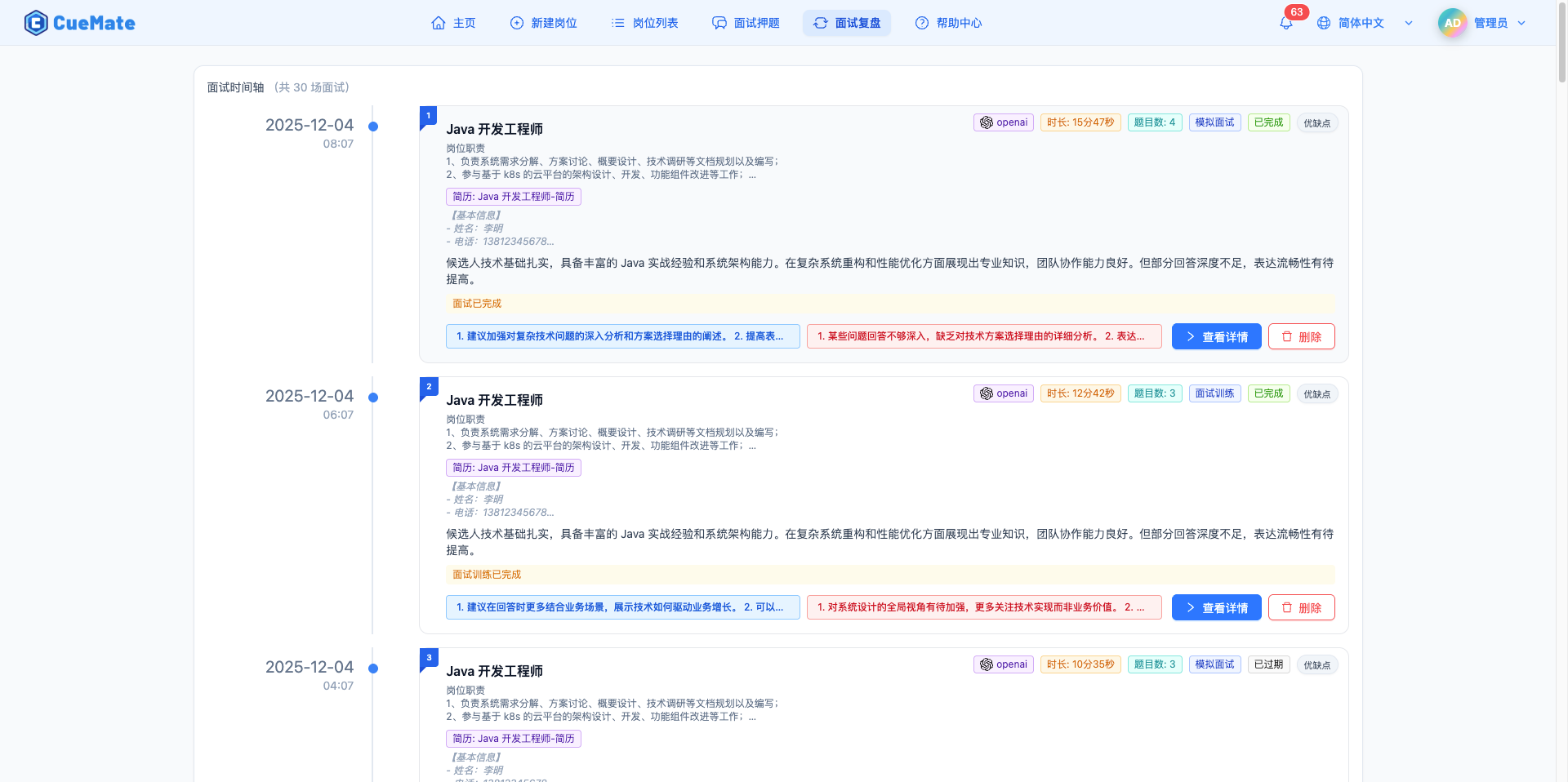
Interview Review page displays all historical interview records in timeline format, click "View Details" to view complete interview report.
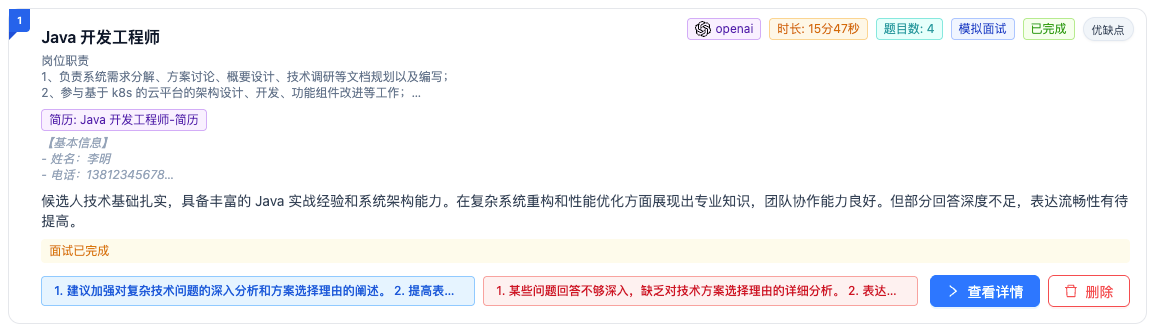
For detailed feature descriptions, please refer to Interview Review documentation.
5. Feature Description
5.1 How It Works
Complete mock interview process:
Start Interview
  ↓
[AI Thinking] → Generate interview question (based on JD, resume, question bank)
  ↓
[AI Question] → Left window text display + voice broadcast
  ↓
[AI Generate Reference Answer] → Middle window real-time displays reference answer
  ↓
[User References Answer] → View reference answer, answer in your own words
  ↓
[Voice Recognition] → Microphone recording → Real-time text conversion display
  ↓
[Submit Answer] → Manual click or auto-detect silence → Save to database
  ↓
Loop to next question until interview ends
  ↓
[Interview End] → View evaluation report on Interview Review page
5.2 AI Question Generation Strategy
AI considers multiple factors when generating questions:
- Position JD: Generate targeted questions based on position requirements
- Resume Content: Ask about project experience, skills
- Question Bank Matching: Prioritize using prepared interview questions
- Question Diversity: Cover technical, project, scenario, behavioral question types
- Difficulty Progression: Gradually increase difficulty from basic to advanced
5.3 Voice Synthesis Notes
AI question broadcast uses Piper TTS local neural network voice synthesis:
- Simplified Chinese: Huayan female voice (
zh_CN-huayan-medium.onnx) - American English: Amy female voice (
en_US-amy-medium.onnx) - Traditional Chinese: Falls back to Simplified Chinese model
NOTE
Voice Broadcast Note: If Piper TTS is unavailable, interview can still proceed normally, just without voice broadcast.
6. Important Notes
6.1 Prerequisites
IMPORTANT
Before starting mock interview, please ensure you have completed:
- Create Position (Required) - Create interview position, fill in JD and resume
- Model Settings (Required) - Configure LLM
- Voice Settings (Optional) - Configure voice recognition service
- Interview Questions (Recommended) - Preset common interview questions
- Voice Test (Recommended) - Test audio devices
6.2 Service Dependencies
WARNING
Mock interview feature depends on the following services:
- cuemate-asr service: Voice recognition (port 10095)
- LLM Router service: LLM routing (port 3002)
- RAG Service: Question bank retrieval (port 3003)
- Web API service: Data management (port 3001)
- Piper TTS: Voice synthesis (optional)
6.3 Permission Requirements
IMPORTANT
System Permission Requirements:
- Microphone permission: For recording (required)
- Screen Recording permission: For system audio capture (optional)
6.4 Performance Optimization
Model Selection:
- Generate questions: Recommend GPT-5, Claude-4.5-Sonnet (high quality)
- Evaluate answers: Recommend GPT-4o-mini (fast and sufficient)
Network Requirements:
- Ensure stable network to avoid API call timeouts
- Using domestic models can improve response speed (Zhipu, DeepSeek, etc.)
Audio Devices:
- Use good quality microphone
- Maintain quiet interview environment
7. Best Practices
7.1 Interview Preparation
Fully Prepare Position Information:
- JD description detailed and accurate
- Resume content authentic and complete
- Prepare interview questions in advance
Environment Preparation:
- Quiet room, avoid noise
- Test audio devices to ensure normal operation
- Ensure stable network
Mindset Preparation:
- Treat mock interview as real interview
- Answer completely and with structure
- Take AI evaluation and suggestions seriously
7.2 Answering Tips
STAR Method:
- Situation: Describe background
- Task: Explain task objective
- Action: Detail your actions
- Result: Quantify results
Key Elements:
- Include technical keywords
- Provide data support (performance improvements, user counts, etc.)
- Emphasize personal contributions and value
Issues to Avoid:
- Answers too brief, lacking details
- Deviating from question topic
- Overusing industry jargon
7.3 Post-Interview Review
- View complete records on Interview Review page
- Focus on weaknesses and suggestions pointed out by AI
- Prepare targeted improvements for weak areas
- Practice multiple times, gradually improve
8. FAQ
8.1 AI Generated Questions Not Relevant
Issue: AI questions unrelated to position or low quality
Solutions:
- Check if position JD is completely filled
- Check if resume content is detailed
- Switch to higher quality LLM (e.g., GPT-4)
- Add related questions in Interview Questions
8.2 Voice Recognition Inaccurate
Issue: Answers recognized as wrong text
Solutions:
- First conduct Voice Test
- Speak clearly, avoid dialect accents
- Maintain quiet environment, reduce noise
- Check microphone distance and volume
8.3 No Voice Broadcast
Issue: AI questions only have text, no voice broadcast
Solutions:
- Check if Piper TTS is correctly installed
- Check logs for TTS-related errors
- Confirm selected language has corresponding voice model
- Interview can still proceed normally without voice broadcast
8.4 Interview Interrupted or Crashed
Issue: Interview suddenly interrupted during process
Solutions:
- Check error information in Log Management
- Check if Docker services are running normally
- Confirm stable network connection
- Restart CueMate application and start interview again
9. Feature Comparison
9.1 Mock Interview vs Interview Training
| Comparison | Mock Interview | Interview Training |
|---|---|---|
| Use Case | Solo practice, advance preparation | Actual interview, real-time assistance |
| Interviewer | AI role-play | Real interviewer |
| Question Method | AI actively asks questions | Interviewer asks, system captures |
| Answer Method | AI gives answer suggestions, you answer by voice | AI gives answer suggestions, you reference to answer |
| Training Effect | Familiarize with process, improve adaptability | Get answer references, improve accuracy |
| Audio Capture | Microphone, speaker | Microphone, speaker |
Related Pages
- Home - Launch mock interview
- Create Position - Create interview position
- Interview Questions - Prepare interview questions
- Interview Review - View interview records
- Interview Training - Live interview training
- Voice Test - Test audio devices
- Model Settings - Configure LLM
- Voice Settings - Configure voice recognition