
Version Upgrade
This document describes how to upgrade CueMate to a new version.
1. Overview
CueMate provides two upgrade methods: online update through version management feature and reinstallation. Using the version management feature is recommended as it's simple and highly automated.
Key Points:
- Version management feature supports one-click online updates
- Update process automatically backs up data with rollback protection
- All interview records, position information, and model configurations are preserved
- Check Changelog to learn about new version changes
2. macOS Upgrade
2.1 Method 1: Using Version Management Feature (Recommended)
This is the simplest and quickest upgrade method, completing updates with one click through the main application window's version management feature.
2.1.1 Enter License Management
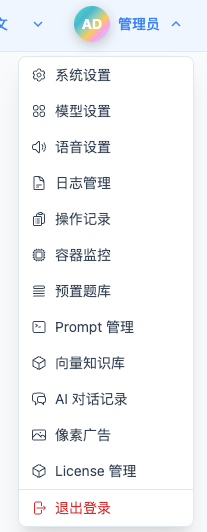
- Open CueMate main application window
- Click top dropdown menu
- Select "License Management" to enter the License Management page
- Click "Version Management" button in the top right corner of the page

Version Management Button Description:
- No updates: Only shows button text and icon
- Updates available: Red number badge in top right corner showing available update count
2.1.2 View Version List
After clicking "Version Management" button, a version list drawer slides out from the right:
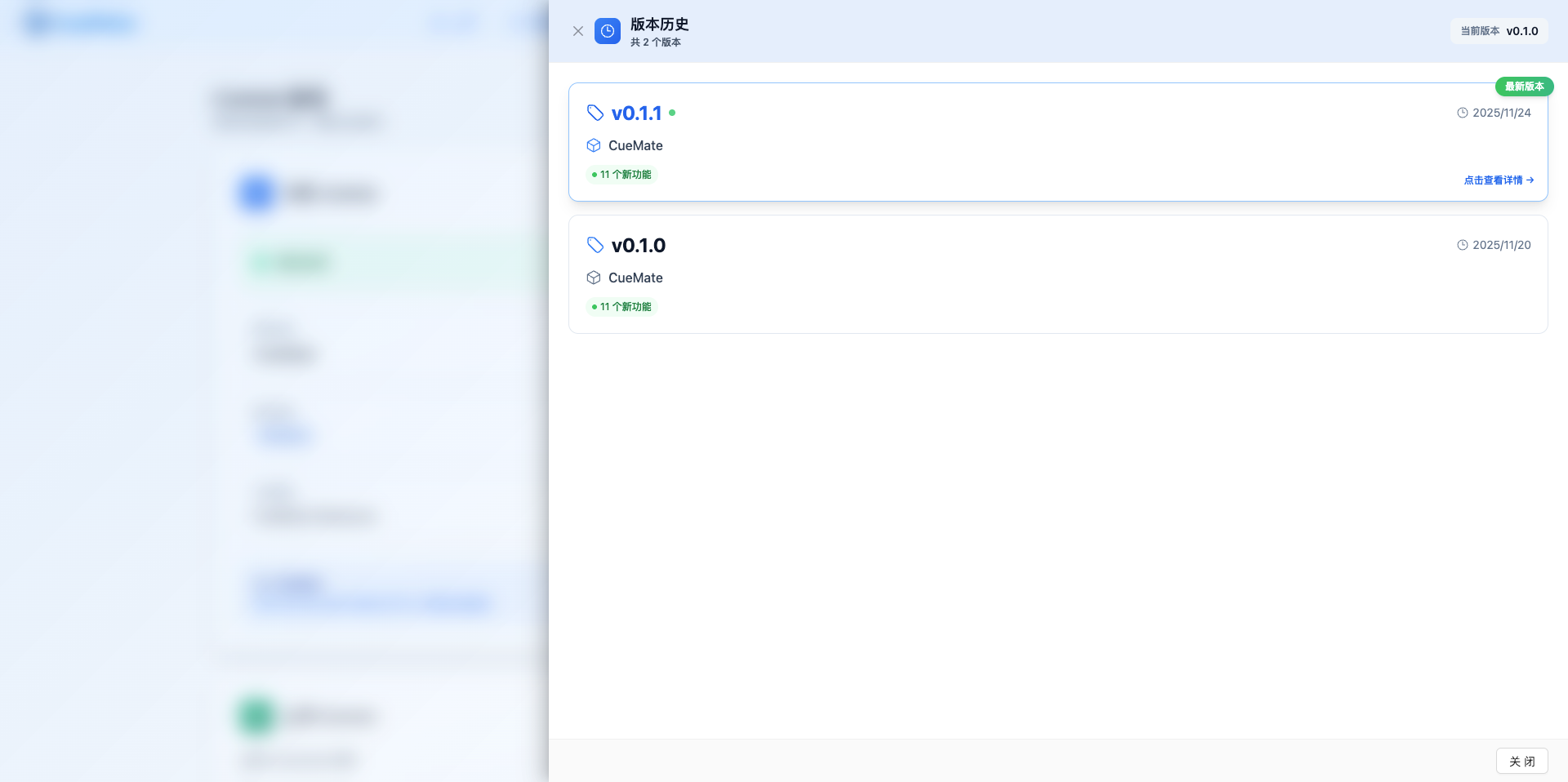
List Content:
- Version number (e.g., v0.2.0, v0.1.0)
- Release date (YYYY/MM/DD)
- Version type label (Current Version / Historical Version)
- Version summary (one-line description)
Version Sorting Rules:
- Latest version at top
- Sorted by version number in descending order
- Currently used version is marked with "Current Version" label
2.1.3 View Version Details
Click a version in the version list to view detailed information:
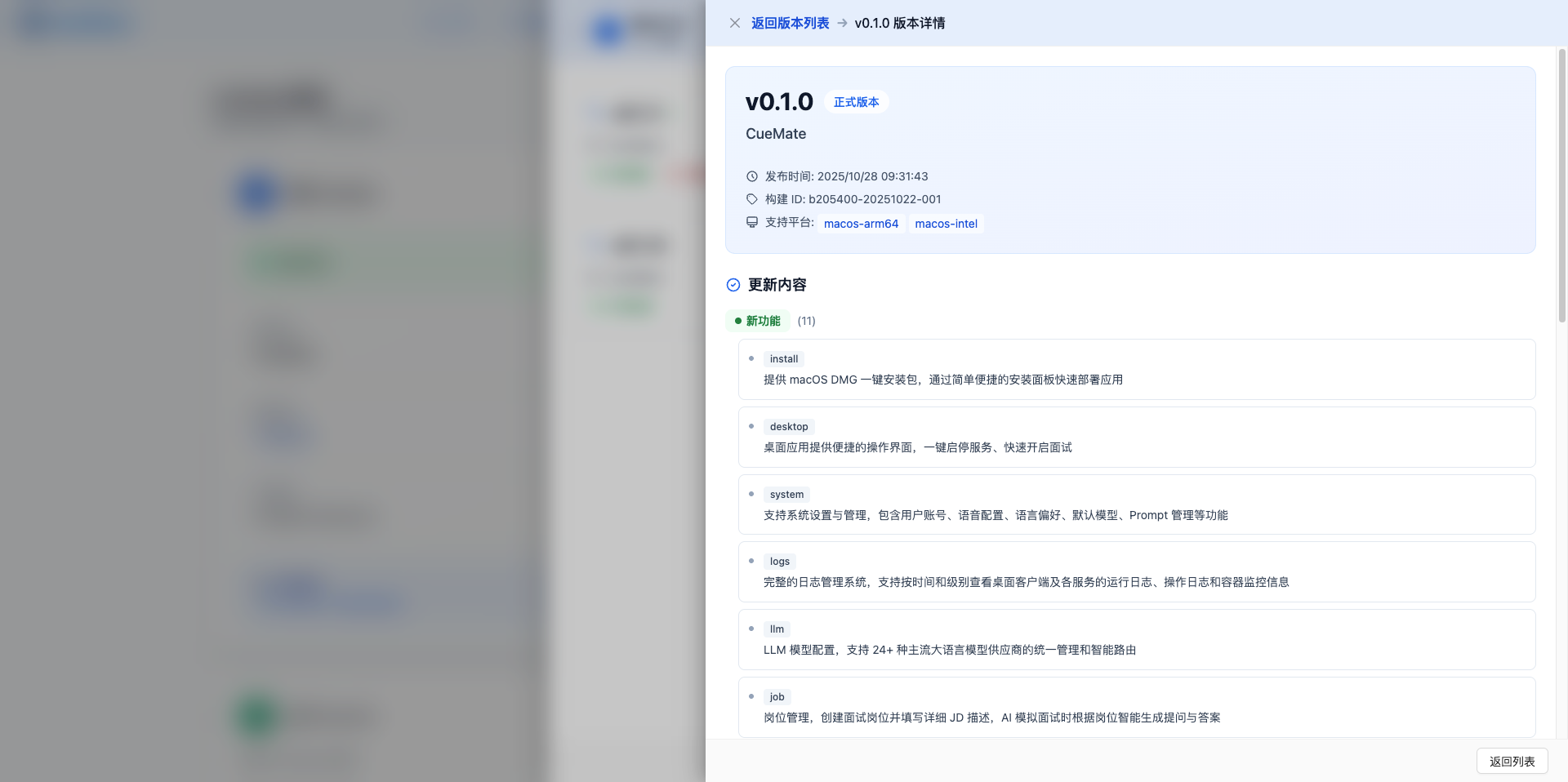
Details Page Contains:
Version Basic Information:
- Version number: e.g., v0.2.0
- Release time: Accurate to seconds
- Version status: Current Version / Historical Version / Latest Version
Changelog (Markdown Format):
- New features list
- Feature improvements
- Bug fix records
- Known issues
- Upgrade notes
Action Buttons:
- Back button: Return to version list
- Update to This Version: Execute version update
2.1.4 Execute Version Update
On the version details page, click "Update to This Version" button to execute update:
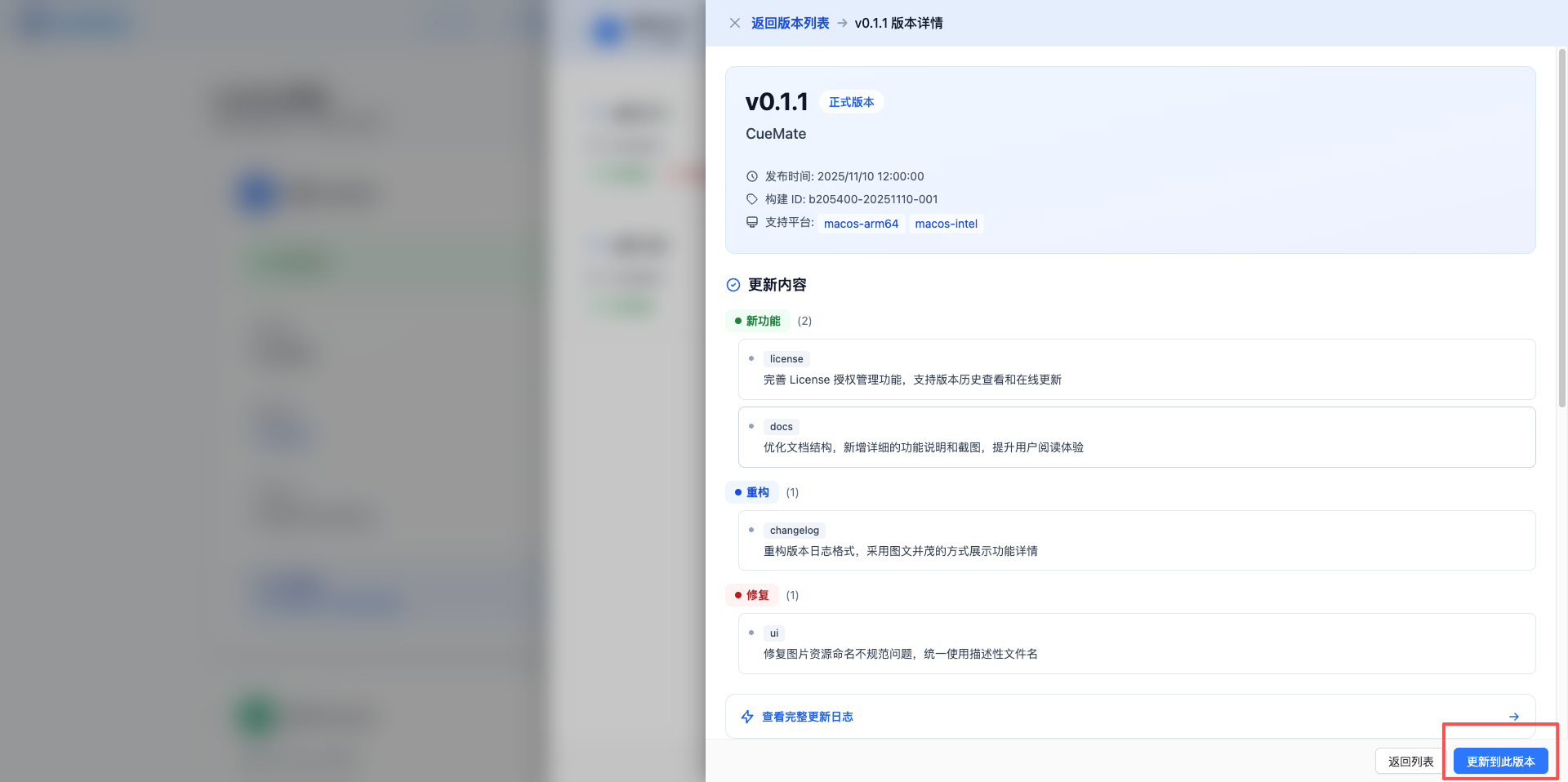
Update Process:
1. Click Update Button
- Location: Bottom of version details page
- Button text: "Update to This Version vX.X.X"
- Color: Blue theme color
2. Confirm Update
- Confirmation dialog appears
- Prompt: Confirm update to vX.X.X version
- Warning: Do not close application during update
3. Download Update Package
- Download progress bar displayed
- Shows download speed and remaining time
- Supports resume download
4. Install Update
- Automatically extract update package
- Backup current version
- Replace application files
- Update database structure (if needed)
5. Restart Application
- Prompt: Update complete, preparing to restart
- Countdown: Auto restart in 5 seconds
- Can also click "Restart Now" manually
Update Notes:
- Current version is automatically backed up before update
- Update failures automatically rollback to original version
- Important data is automatically backed up before update
- Recommended to update during off-peak hours
2.1.5 Update Differences Between Deployment Modes
CueMate supports two deployment modes, and the version update process differs based on the deployment mode:
Local Deployment Mode
In local deployment mode, all components run on the local machine. The update process is as follows:
- Download and extract update package
- Pull new version Docker images to local
- Stop local Docker services
- Start Docker services with new version
- Replace desktop client application files
- Restart application
Server Deployment Mode
In server deployment mode, Docker backend services run on a remote server. The update process is as follows:
- Download and extract update package
- Connect to remote server via SSH
- Upload new version configuration files to server
- Pull new version Docker images on server
- Stop and restart Docker services on server
- Clean up old version images on server
- Replace local desktop client application files
- Restart application
Server Mode Update Notes:
- Ensure stable network connection between local and remote server
- Remote server needs sufficient disk space for new images
- SSH connection information must be correctly configured in
server.json - Remote services will be briefly interrupted during update (approximately 1-2 minutes)
- If SSH connection fails, update will abort with an error message
View Current Deployment Mode:
- Open Settings page
- Check the "Deployment Mode" option
- Local mode displays "Local Deployment", server mode displays "Server Deployment"
2.2 Method 2: Reinstallation
If version management feature is unavailable or encountering issues, you can upgrade by reinstalling.
2.2.1 Uninstall Current Version
Follow the Complete Uninstall Guide to uninstall current version:
Important: When uninstalling, choose to keep data files (do not delete cuemate-desktop-client folder)
Uninstall steps:
- Quit CueMate application (click menu bar icon > Quit)
- Open "Applications" folder and drag CueMate.app to Trash
- Do not delete
~/Library/Application Support/cuemate-desktop-clientfolder - Empty Trash
2.2.2 Install New Version
Follow the macOS Installation Guide to download and install new version:
- Download the latest version DMG installation package
- Double-click DMG file and run installation wizard
- Follow wizard prompts to complete installation
- Login to system (using original account admin/cuemate)
- All data will be automatically restored (because cuemate-desktop-client folder was kept)
2.2.3 Verify Upgrade
After installation, confirm:
- Version number has been updated (check in version management)
- All data and configurations are preserved
- Backend services are running normally
3. Windows Upgrade
3.1 Method 1: Using Version Management Feature (Recommended)
The Windows version upgrade process is the same as macOS. Use the version management feature in the main application window to complete with one click.
- Open CueMate main application window
- Click top dropdown menu → "License Management"
- Click "Version Management" button in the top right corner
- Select target version and click "Update to This Version"
- Wait for update to complete and restart the application
For detailed steps, refer to the macOS Upgrade - Using Version Management Feature section.
3.2 Method 2: Reinstallation
If version management feature is unavailable or encountering issues, you can upgrade by reinstalling.
3.2.1 Uninstall Current Version
Follow the Complete Uninstall Guide to uninstall current version:
Important: When uninstalling, choose to keep data files (do not delete cuemate-desktop-client folder)
Uninstall steps:
- Exit CueMate application (click system tray icon > Exit)
- Open Windows Settings > Apps > Installed Apps
- Find CueMate and click "Uninstall"
- Do not delete
%APPDATA%\cuemate-desktop-clientfolder
3.2.2 Install New Version
Follow the Windows Installation Guide to download and install new version:
- Download the latest version EXE installation package
- Double-click EXE file and run installation wizard
- Follow wizard prompts to complete installation
- Login to system (using original account admin/cuemate)
- All data will be automatically restored (because cuemate-desktop-client folder was kept)
4. Pre-Upgrade Preparation
4.1 Backup Data (Optional)
Although the version management feature automatically backs up data, manual backup of important data is recommended before upgrade:
macOS:
# Create backup directory
mkdir -p ~/Desktop/cuemate-backup-$(date +%Y%m%d)

# Backup entire cuemate-desktop-client folder
cp -r ~/Library/Application\ Support/cuemate-desktop-client ~/Desktop/cuemate-backup-$(date +%Y%m%d)/Windows:
# Create backup directory
$backupDir = "$env:USERPROFILE\Desktop\cuemate-backup-$(Get-Date -Format 'yyyyMMdd')"
New-Item -ItemType Directory -Force -Path $backupDir

# Backup entire cuemate-desktop-client folder
Copy-Item -Path "$env:APPDATA\cuemate-desktop-client" -Destination $backupDir -Recurse
4.2 Review Changelog
View the changelog on the version details page to learn:
- What new features were added
- What issues were fixed
- Whether there are breaking changes
- Upgrade notes
4.3 Confirm Network Connection
Version updates require downloading update packages, ensure:
- Stable network connection
- Sufficient download speed
- Adequate disk space
5. Verify Upgrade
5.1 Check Version Number
After upgrade completes, enter version management to check if current version has been updated.
5.2 Test Core Functions
Recommended to test the following functions to ensure successful upgrade:
- [ ] Login to system
- [ ] View position list (confirm data integrity)
- [ ] View interview questions (confirm data integrity)
- [ ] Test voice recognition function
- [ ] Test AI question function
- [ ] View model configuration (confirm configuration preserved)
5.3 Check Service Status
Go to Docker Monitor page to confirm all 6 backend service containers are running normally:
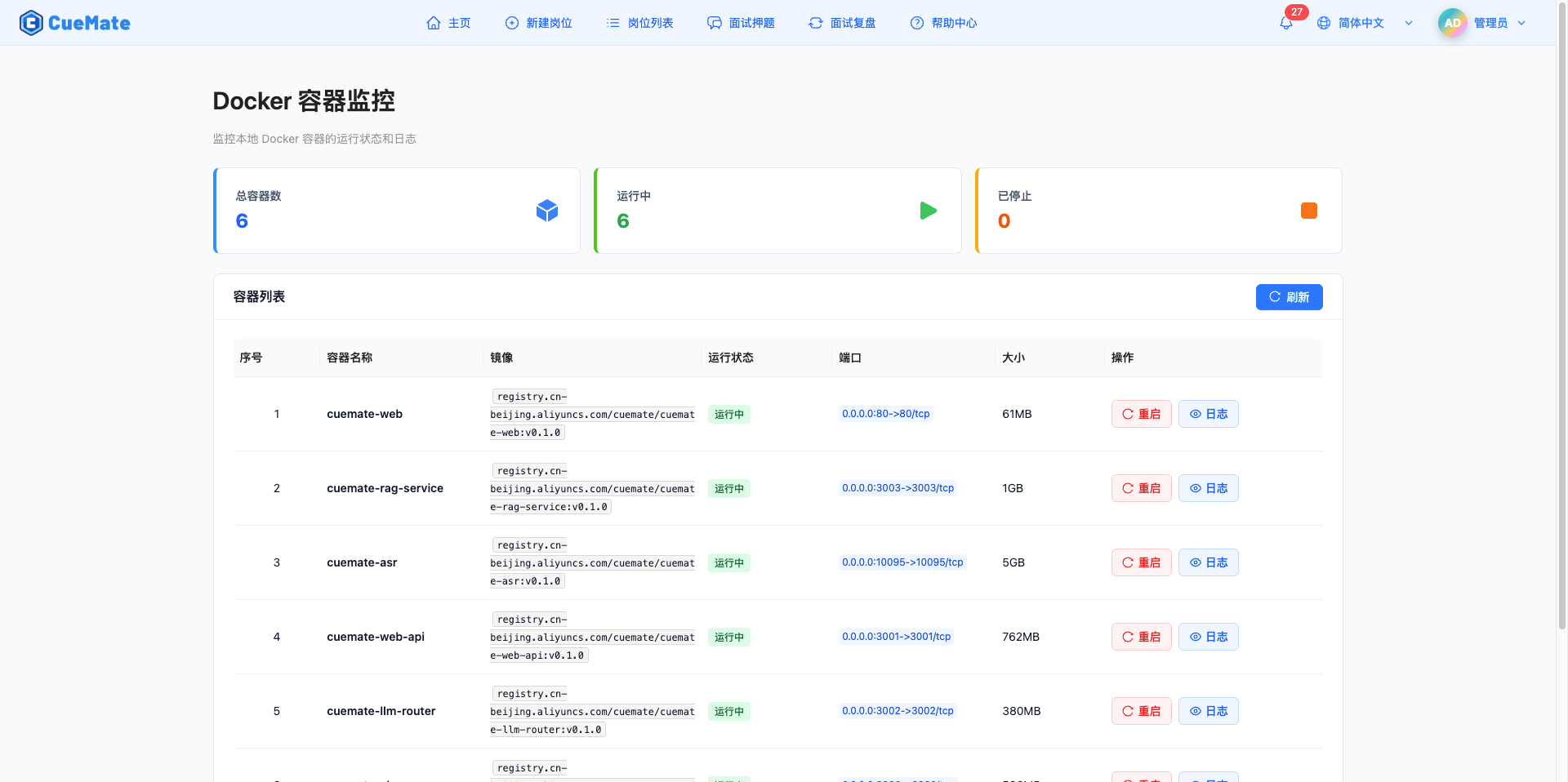
- cuemate-web - Main Window Service
- cuemate-web-api - Backend API Service
- cuemate-llm-router - LLM Router Service
- cuemate-rag-service - Knowledge Base Retrieval Service
- cuemate-asr - Speech Recognition Service
- cuemate-chroma - Vector Database
All container statuses should show "Running" (green label). If any container status is abnormal, please refer to the troubleshooting instructions on the Docker Monitor page.
6. FAQ
6.1 Version Management Button Not Showing Update Prompt
Problem: No red number badge on version management button
Possible Causes:
- Already on latest version
- Network connection issue, cannot get version information
- License not activated
Solution:
- Check network connection
- Confirm License has been uploaded and activated
- Manually enter version management to view version list
- Refresh page to recheck
6.2 Update Package Download Failed
Problem: Download failure prompted during update
Possible Causes:
- Unstable network connection
- Download server busy
- Insufficient disk space
Solution:
- Check if network connection is stable
- Confirm disk has enough space (at least 10GB)
- Try again later
- Use reinstallation method to upgrade
6.3 Cannot Start After Update
Problem: Application won't start after update and restart
Solution:
System will automatically rollback to pre-update version. If automatic rollback fails:
macOS:
# Force quit application
killall CueMate

# Check if backup exists
ls -la ~/Library/Application\ Support/cuemate-desktop-client/backups/

# Manually restore backup (if needed)
# Contact technical support for assistanceWindows:
# Force quit application
taskkill /f /im CueMate.exe

# Check if backup exists
dir "$env:APPDATA\cuemate-desktop-client\backups\"

# Manually restore backup (if needed)
# Contact technical support for assistance
6.4 Data Lost After Update
Problem: Cannot find previous data after update
Possible Causes:
- Data backup not correctly restored
- Database migration failed
Solution:
- Check if data folder is complete
- macOS:
~/Library/Application Support/cuemate-desktop-client - Windows:
%APPDATA%\cuemate-desktop-client
- macOS:
- Check if there's data backup in backup folder
- Restore data from manual backup
- Contact technical support
7. Rollback to Older Version
If serious issues occur after update, you can rollback to older version.
7.1 Rollback Using Version Management
- Open version management
- Select previous version in version list
- Click "Update to This Version"
- Confirm rollback operation
- Wait for rollback to complete and restart
7.2 Restore from Backup
If version management feature is unavailable:
macOS:
# Stop CueMate application
killall CueMate

# Restore data backup
cp -r ~/Desktop/cuemate-backup-20260113/cuemate-desktop-client ~/Library/Application\ Support/

# Reinstall old version
# Download old version DMG and run installation wizardWindows:
# Stop CueMate application
taskkill /f /im CueMate.exe

# Restore data backup
Copy-Item -Path "$env:USERPROFILE\Desktop\cuemate-backup-20260113\cuemate-desktop-client" -Destination "$env:APPDATA\" -Recurse -Force

# Reinstall old version
# Download old version EXE and run installation wizard
8. Feedback and Support
If you encounter issues during upgrade:
- Check FAQ
- Visit GitHub Issues
- Email: nuneatonhydroplane@gmail.com
Related Pages
- License Management - Manage License and versions
- Changelog - View version change history
- Complete Uninstall - Completely uninstall CueMate
- macOS Installation Guide - macOS installation guide
- Windows Installation Guide - Windows installation guide