
Vector Knowledge Base
The Vector Knowledge Base is one of CueMate's core features, used to manage and retrieve all interview-related knowledge content. The system uses semantic vector search technology to intelligently match relevant content, providing precise knowledge support for interview training.
IMPORTANT
Core Value of Vector Knowledge Base:
- Uses FastEmbed BGE-small-zh-v1.5 model for semantic understanding
- Supports intelligent search across 4 collections (positions, resumes, questions, other files)
- Automatically retrieves knowledge content with relevance ≥ 80% during interviews
- All interview answers are generated based on knowledge in the vector database
WARNING
Importance of Data Synchronization:
- Must Sync: All data must be synced to the vector database before it can be retrieved
- Auto Recording: Knowledge used during interviews is automatically saved as AI vector records
- Regular Maintenance: Recommended to regularly check sync status to ensure data consistency
TIP
Recommended Workflow:
- Add basic data in respective feature pages (positions, resumes, questions)
- Upload or add project materials to "Other Files"
- Execute "Sync All Data"
- Start interview training, system automatically retrieves knowledge
- View "AI Vector Records" to understand knowledge usage
1. Page Overview
1.1 Enter Vector Knowledge Base
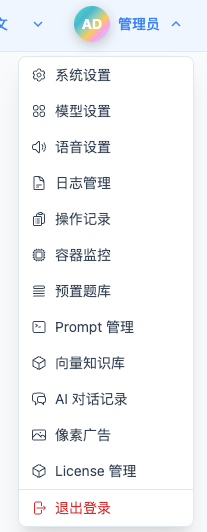
Click "Vector Knowledge Base" in the top navigation menu to enter the vector knowledge base management page.
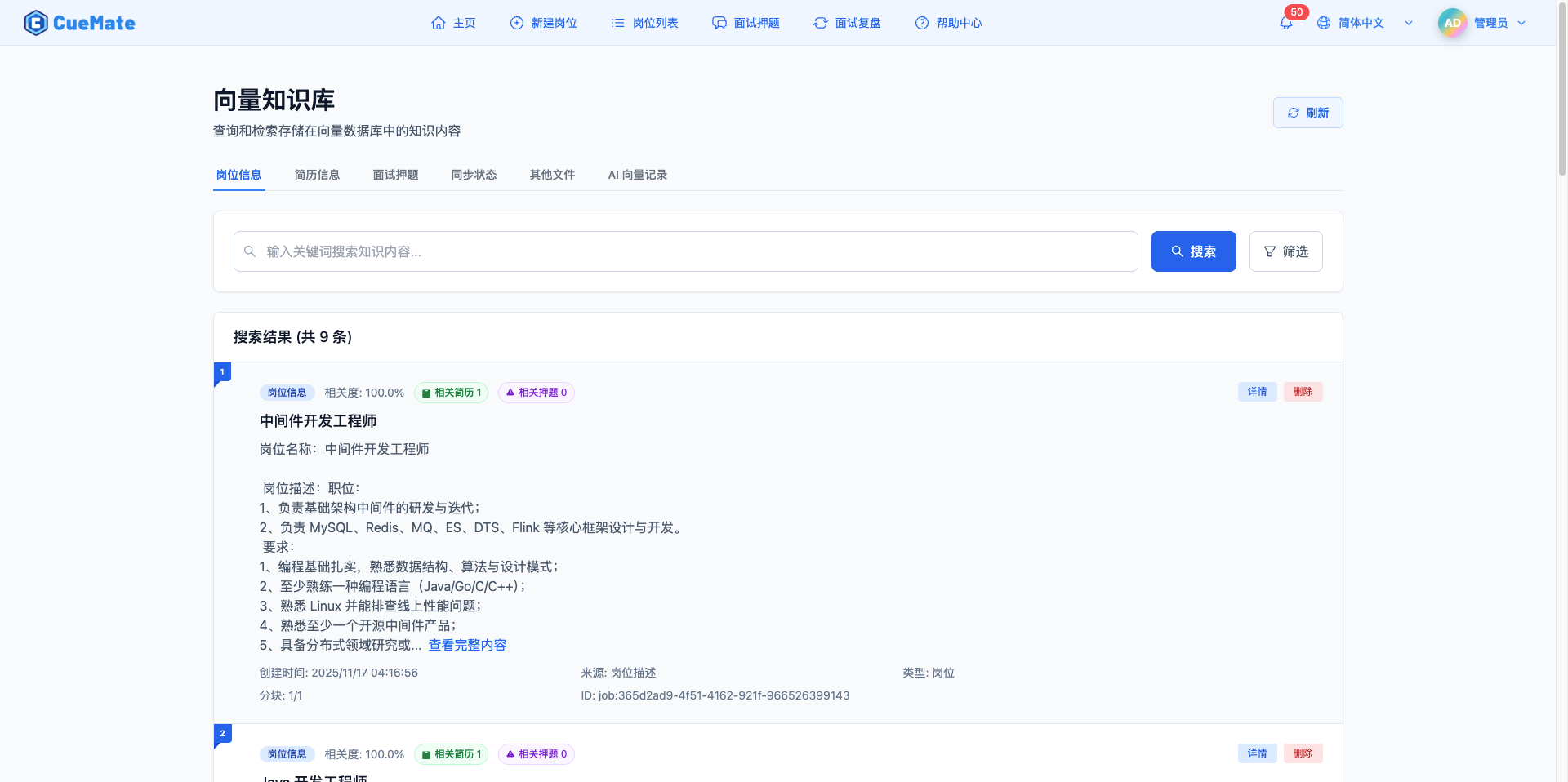
1.2 Six Main Tabs
The page provides six functional tabs to meet different knowledge management needs:

Position Info:
- Manage vector data of position descriptions
- Support semantic search of position content
- View related resumes and questions for positions
Resume Info:
- Manage vector data of resume content
- Search for skill and experience matches
- View related positions and questions for resumes
Interview Questions:
- Manage interview questions and answers
- Support filtering by tag classification
- Core knowledge source for interview training
Sync Status:
- View sync status of all data
- Execute one-click sync or clear operations
- Ensure vector database consistency with database
Other Files:
- Upload project documents, technical materials, and other files
- Add custom text content
- Provide supplementary knowledge sources for interviews
AI Vector Records:
- View knowledge records used during interviews
- Includes records from mock interviews, interview training, and AI Q&A
- Analyze knowledge usage and effectiveness
2. Position Info Management
2.1 Search Position Info
In the "Position Info" tab, you can search and browse all synced position data:
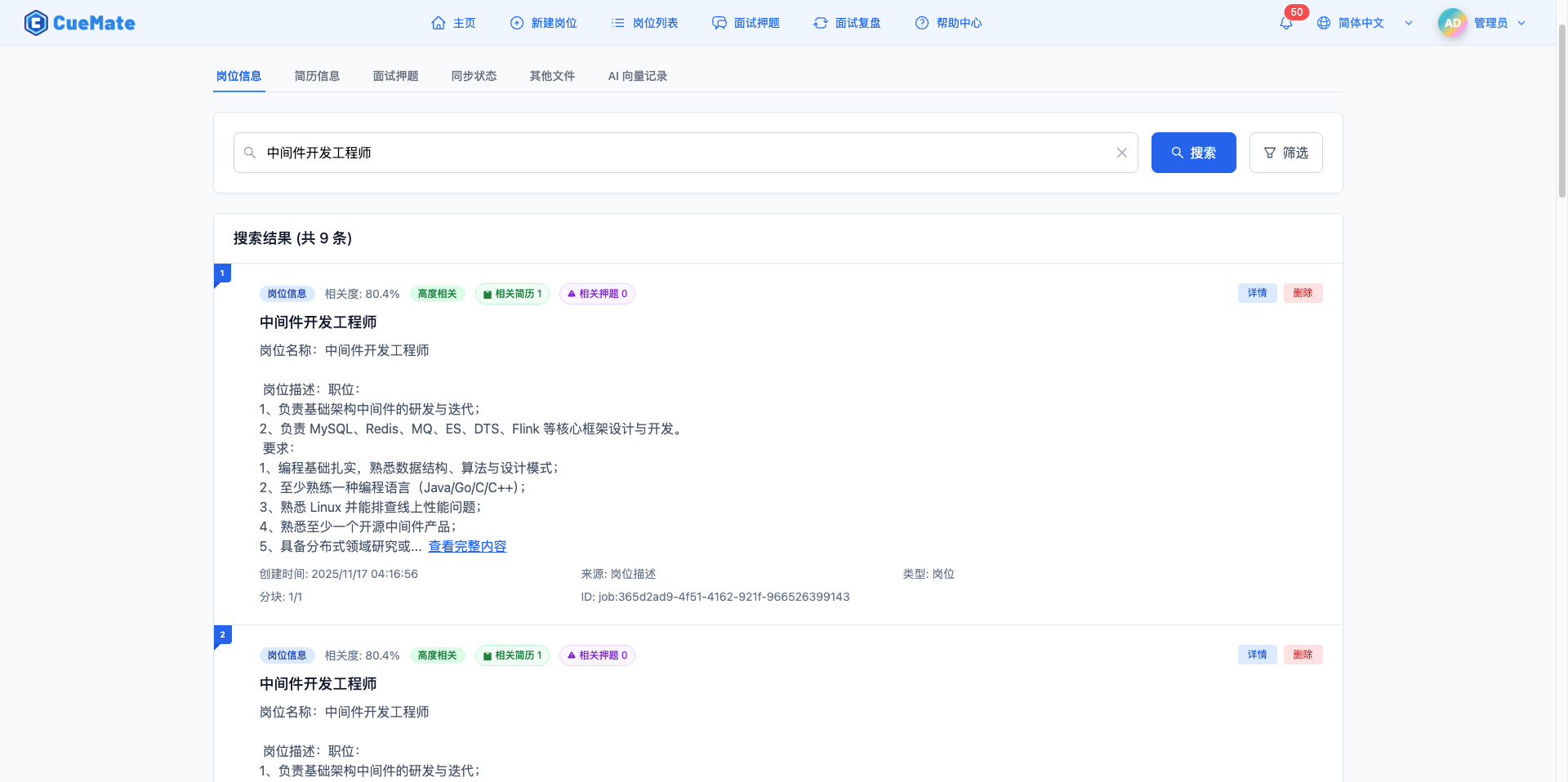
Search Features:
- Enter position keywords for semantic search
- System automatically matches related position content
- Results sorted by relevance
2.2 View Position Details
Click the "Details" button to view complete position information:
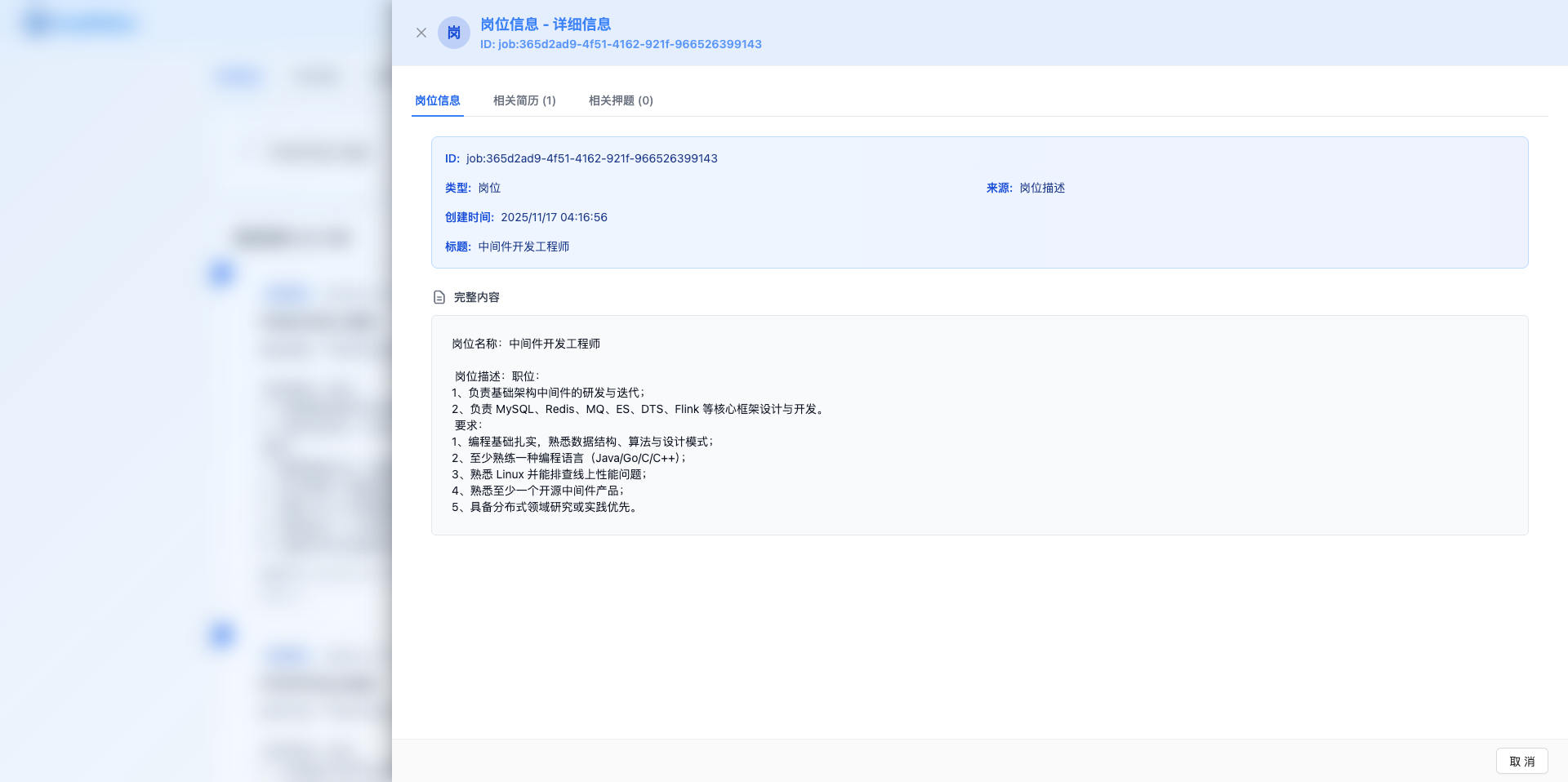
Details Page Contains:
- Position Info: ID, type, source, creation time, full content
- Related Resumes: Display list of resumes matching this position
- Related Questions: Display interview questions for this position
Adaptive Layout:
- Content area automatically fills the screen
- Supports scrolling for long text
- Multiple tabs for viewing different information
3. Resume Info Management
3.1 Search Resume Info
In the "Resume Info" tab, you can search and browse all synced resume data:
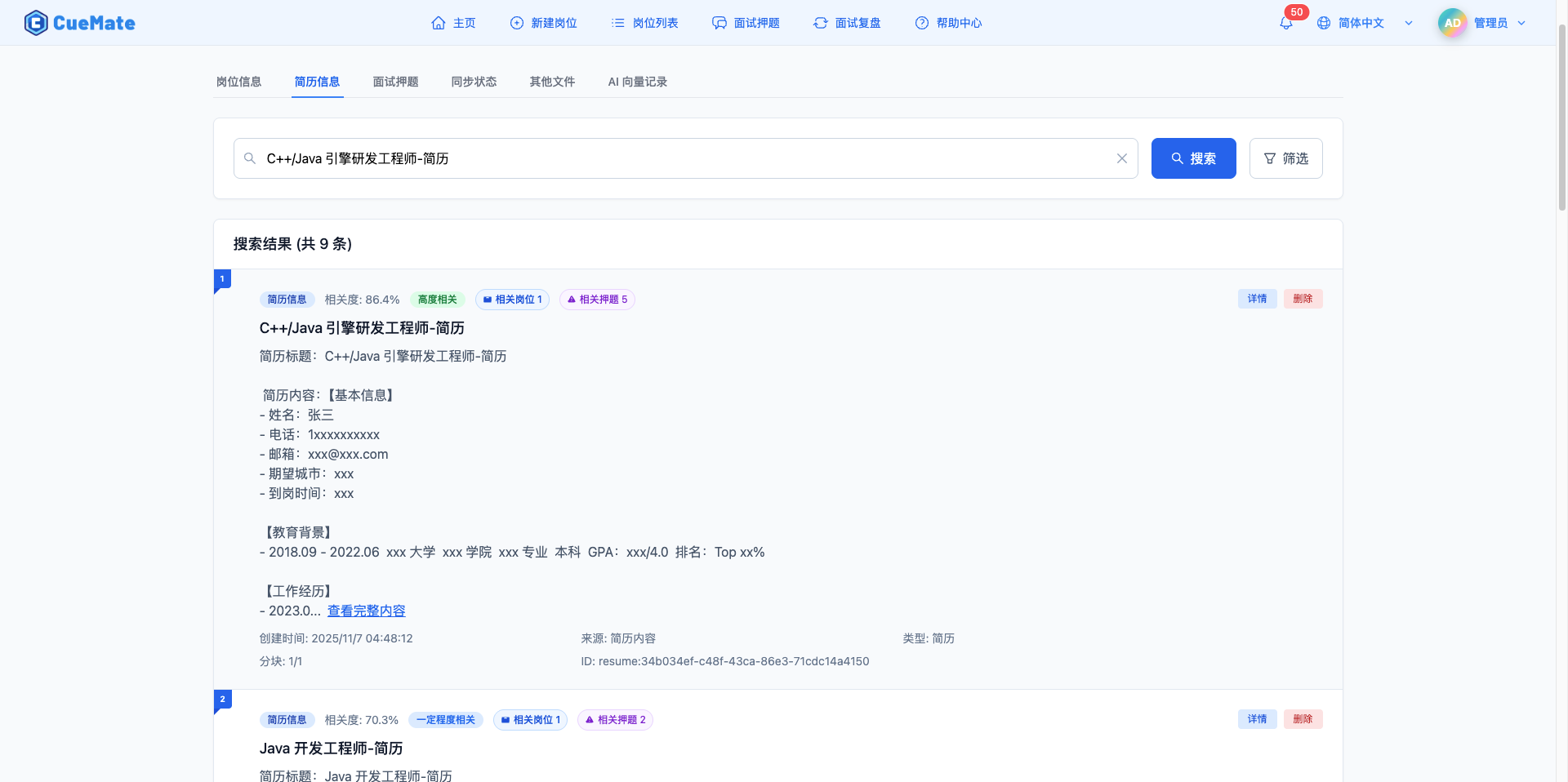
Search Features:
- Support keyword search for skills, experience, etc.
- Semantic matching of related resumes
- Display relevance percentage
3.2 View Resume Details
Click the "Details" button to view complete resume content:
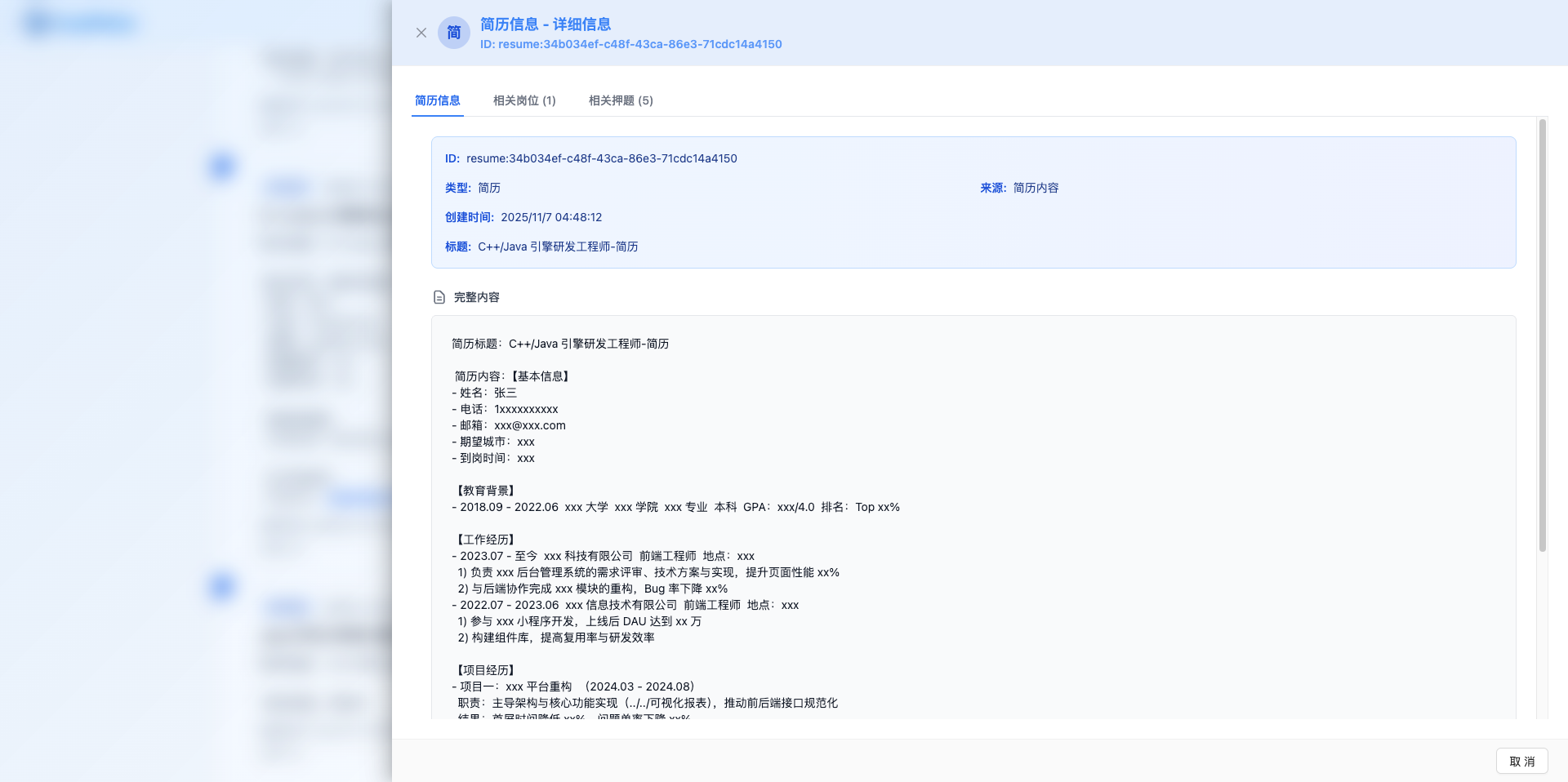
Details Tabs:
- Resume Info: Complete resume content
- Related Positions: Positions matching this resume
- Related Questions: Interview questions for this resume
4. Interview Questions Management
4.1 Search Interview Questions
In the "Interview Questions" tab, search and manage interview questions:
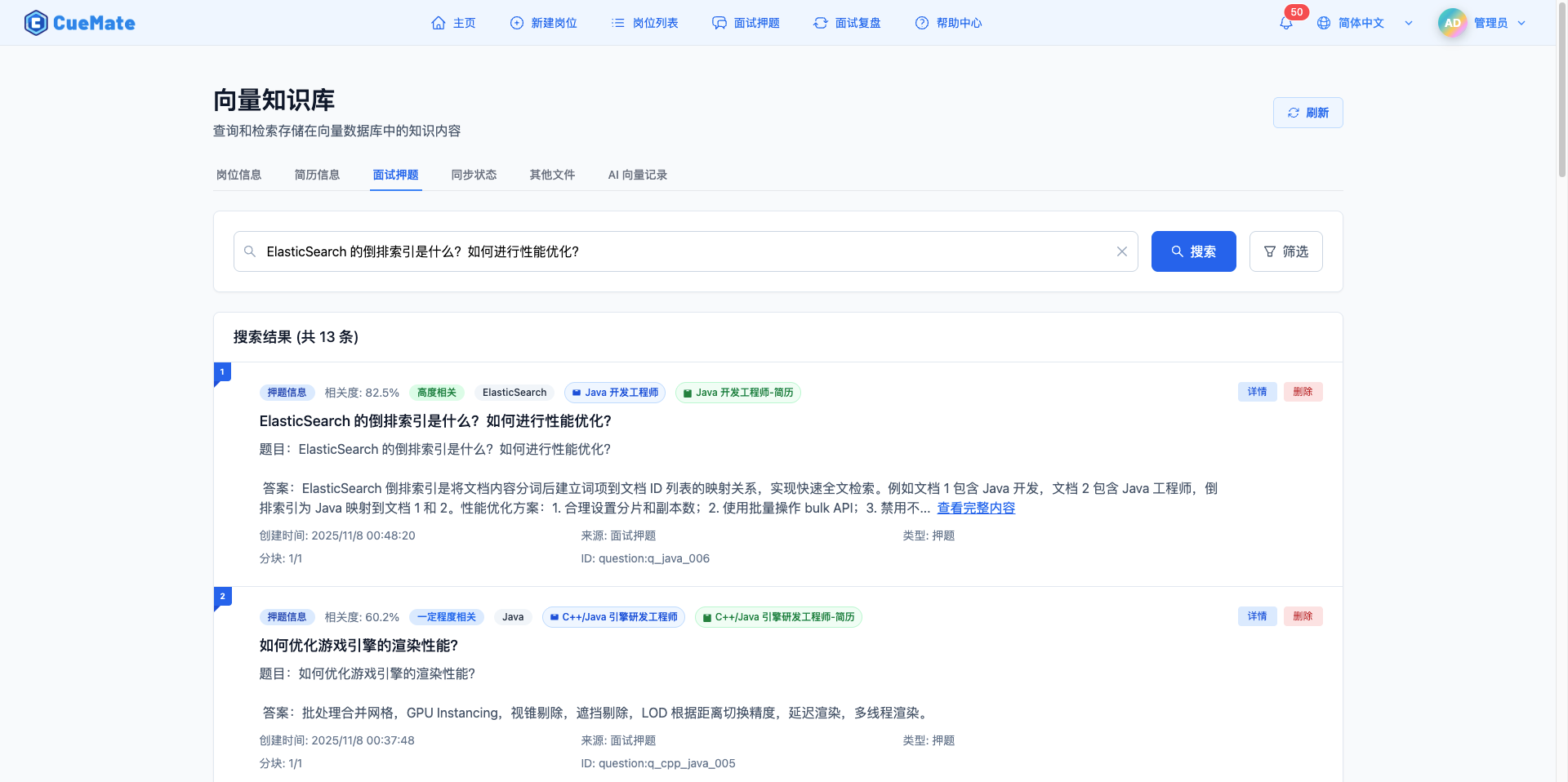
Search Features:
- Enter interview question keywords
- View relevance scores
- Support tag filtering
Important Notes:
- Only questions with relevance ≥ 80% will be used during interviews
- You can test question retrieval effectiveness here
- Recommend optimizing descriptions of low-relevance questions
4.2 Tag Filtering
Interview questions support tag filtering:
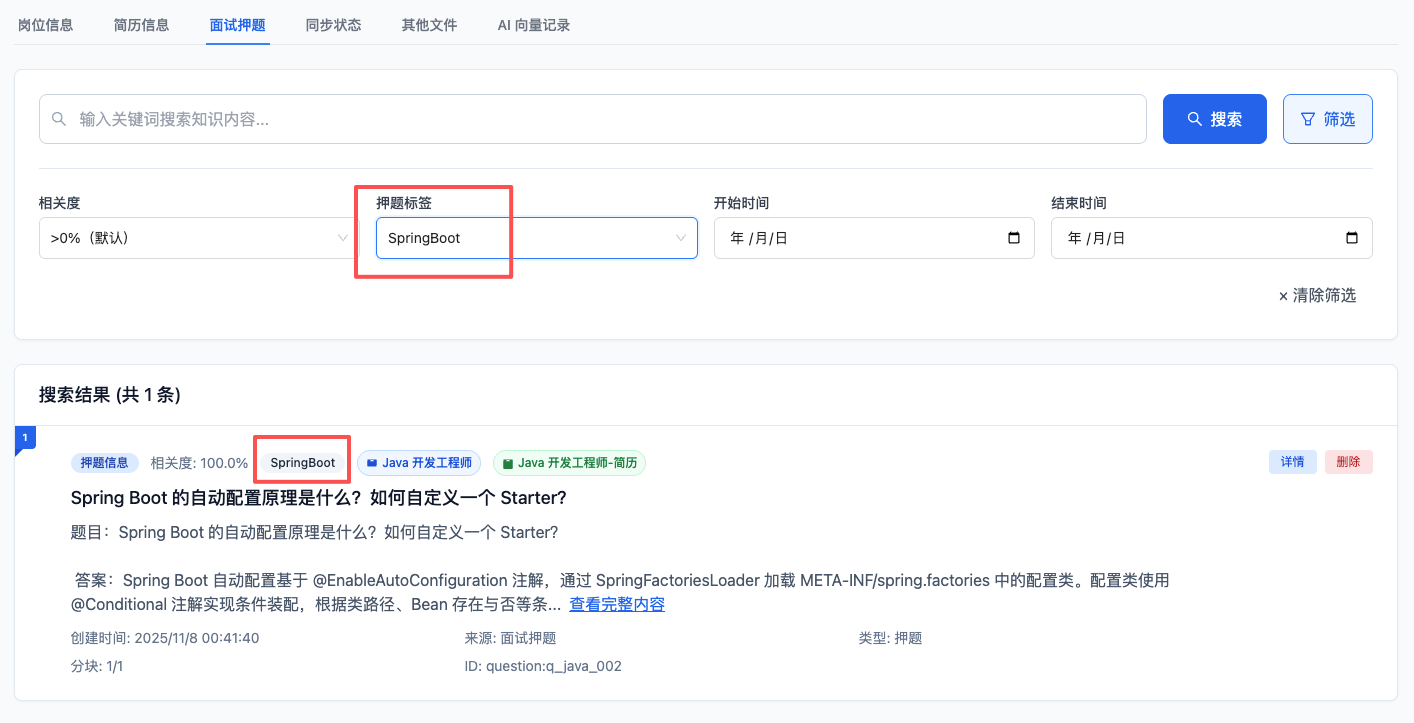
Filter Options:
- Dropdown to select question tags
- Combine with keyword search
- Quickly locate specific types of questions
4.3 View Question Details
Click "Details" to view complete question information:
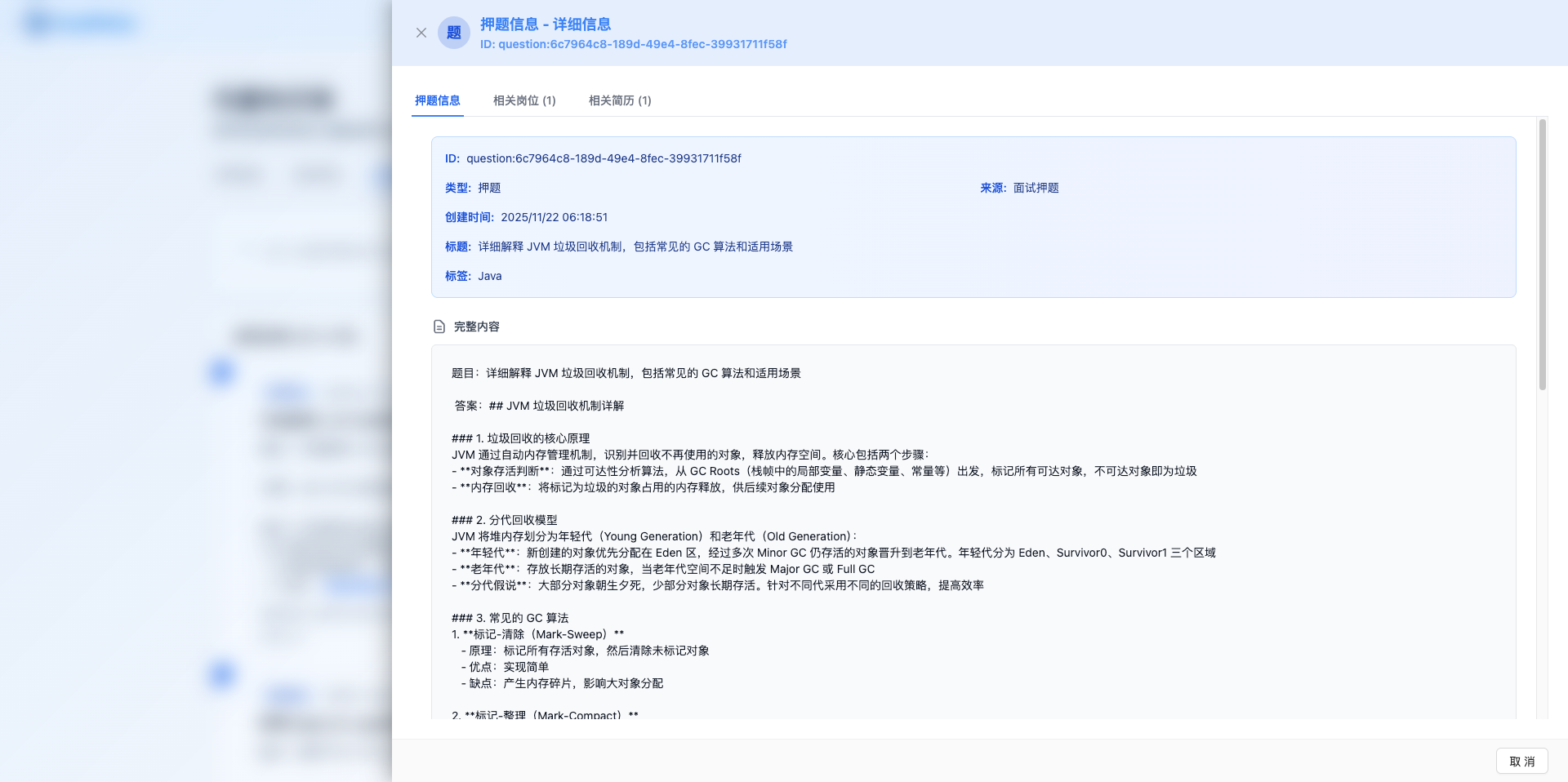
Details Content:
- Question Info: Question, answer, tags
- Related Positions: Positions associated with the question
- Related Resumes: Resumes associated with the question
5. Sync Status Management
5.1 View Sync Status
Switch to the "Sync Status" tab to view the sync status of all data:
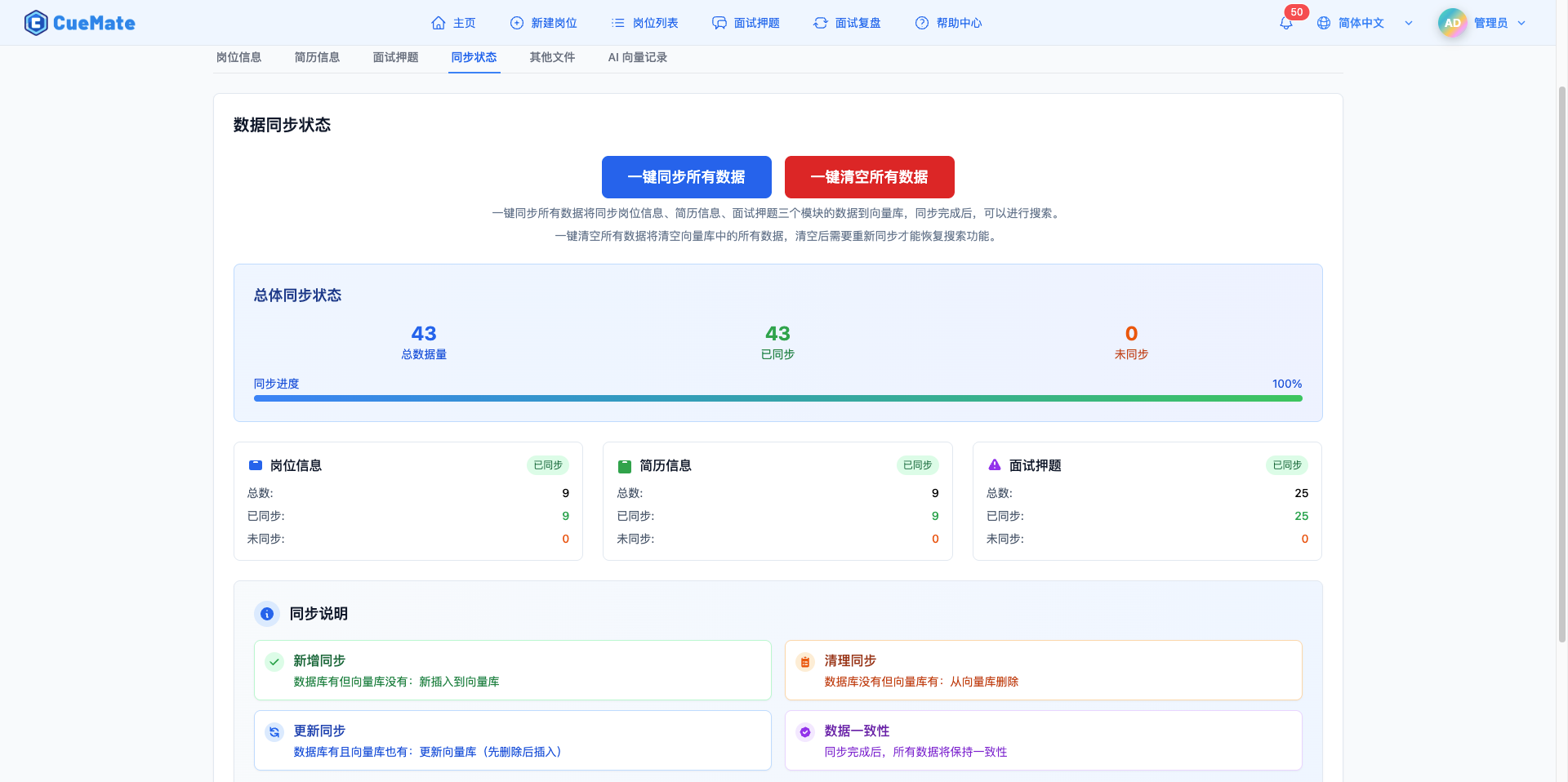
Status Display:
- Position Info: Total, synced, not synced
- Resume Info: Total, synced, not synced
- Interview Questions: Total, synced, not synced
5.2 Sync All Data
This is the key operation to ensure data availability!
Click the "Sync All Data" button:
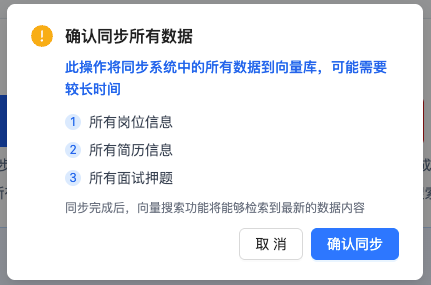
Sync Process:
- Click "Sync All Data" button
- System displays confirmation dialog
- Click "Confirm Sync" to start execution
- "Syncing..." loading indicator appears
- Success message appears after sync completion
Sync Description:
- Add: Data exists in database but not in vector DB → Insert into vector DB
- Update: Data exists in both → Update vector DB
- Clean: Data doesn't exist in database but exists in vector DB → Delete from vector DB
- Consistency: Ensure vector DB is fully synced with database
Use Cases:
- After adding new positions, resumes, or questions
- After modifying existing data content
- After uploading new other files
- Regular data consistency maintenance
- First time using vector search functionality
5.3 Clear All Data
Click the "Clear All Data" button to clear the vector database:
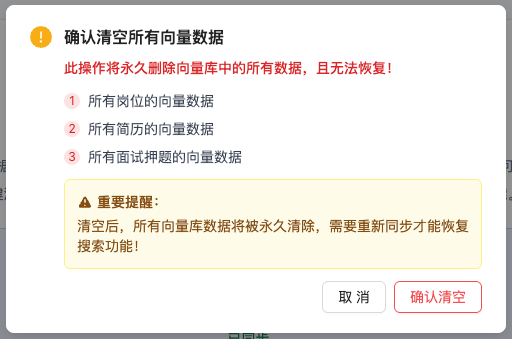
Warning:
- This operation will permanently delete all data in the vector database
- Cannot be recovered after clearing, requires re-sync
- Does not affect original database, only clears vector data
Use Cases:
- Rebuild vector index
- Clean up test data
- Resolve data inconsistency issues
6. Other Files Management
6.1 Feature Overview
The "Other Files" tab is used to manage project materials, technical documents, and other supplementary knowledge:
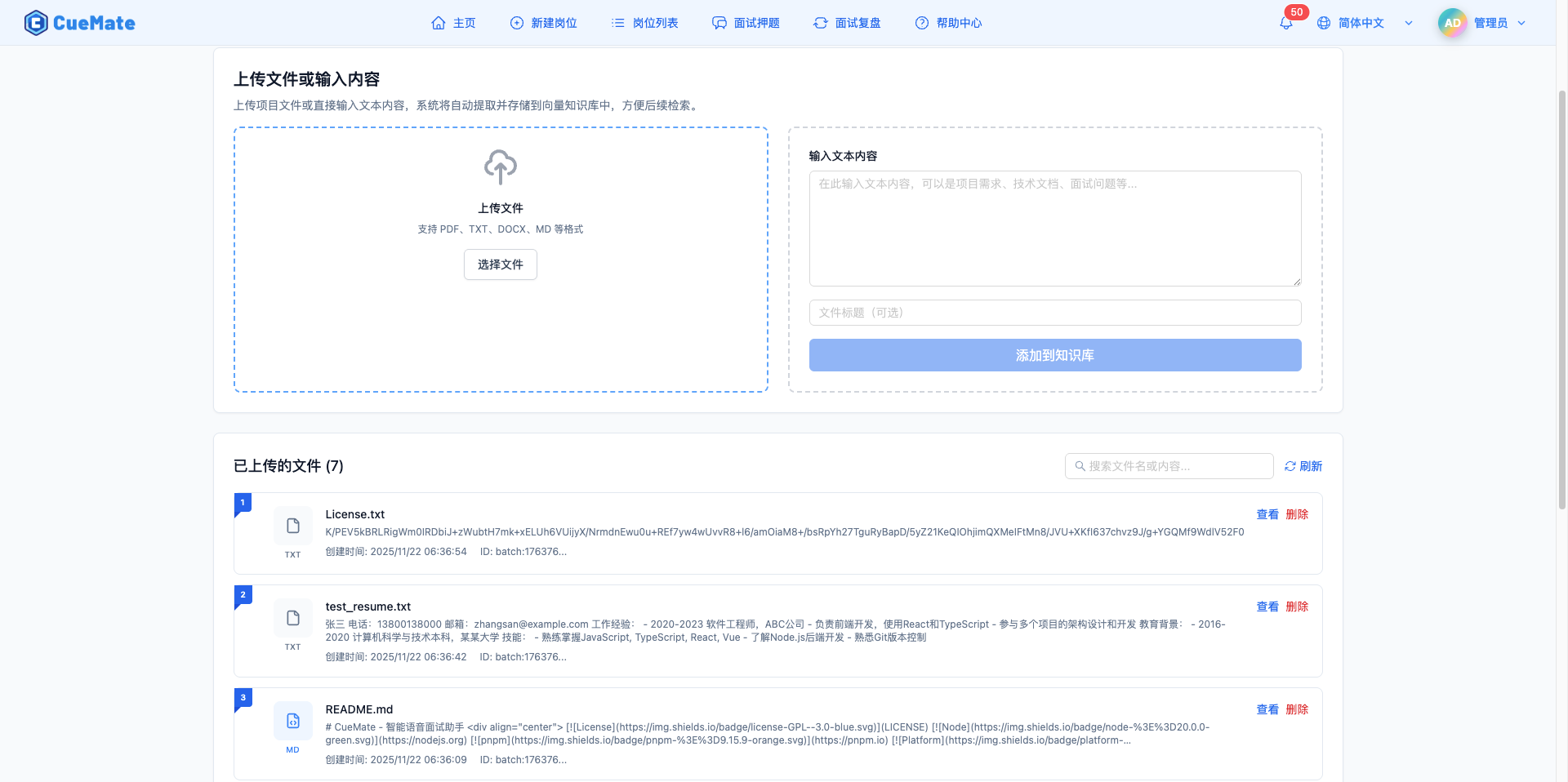
Main Features:
- Upload Files: Support PDF, Word, text, and other formats
- Add Text: Directly input text content
- Vector Storage: Automatically convert to vector data
- Interview Use: Provide supplementary knowledge sources for interviews
6.2 Upload Files
Click the "Upload File" button to upload documents:
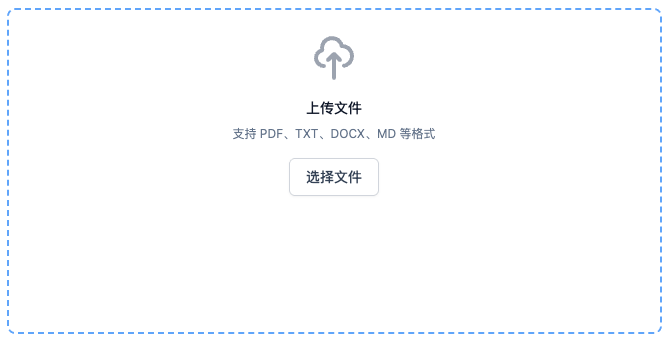
Upload Steps:
- Click "Upload File" button
- Select local file (supports PDF, DOCX, TXT, etc.)
- File automatically uploads and parses
- System extracts text content and vectorizes it
- "Upload Successful" message appears
File Requirements:
- File size: ≤ 10MB
- Supported formats: PDF, DOCX, TXT, MD, etc.
- Recommend using meaningful file names
6.3 Add Text Content
Click the "Add Text" button to add custom content:
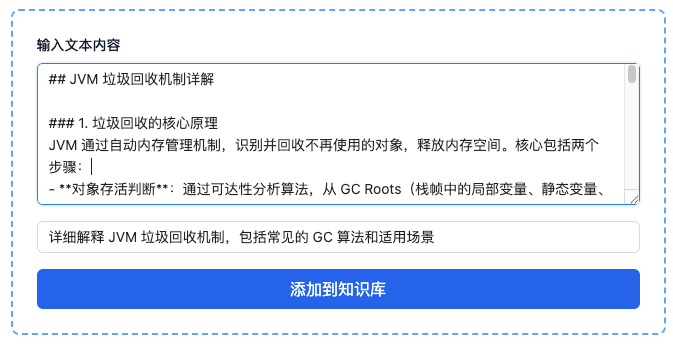
Add Steps:
- Click "Add Text" button
- Enter title in the popup dialog
- Enter text content (supports multiple lines)
- Click "Add" button to save
- System automatically vectorizes and stores
Use Cases:
- Add project experience descriptions
- Record technical key points
- Supplement interview knowledge points
- Store common answer templates
6.4 View and Delete
The other files list displays all uploaded content:
List Information:
- File name or title
- Content preview (first 200 characters)
- Creation time
- Action buttons: Details, Delete
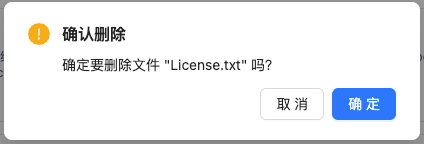
Delete File:
- Click "Delete" button
- Confirm delete dialog
- Delete from vector database and file system
7. AI Vector Records
7.1 Feature Overview
The "AI Vector Records" tab displays records of knowledge used during interviews:
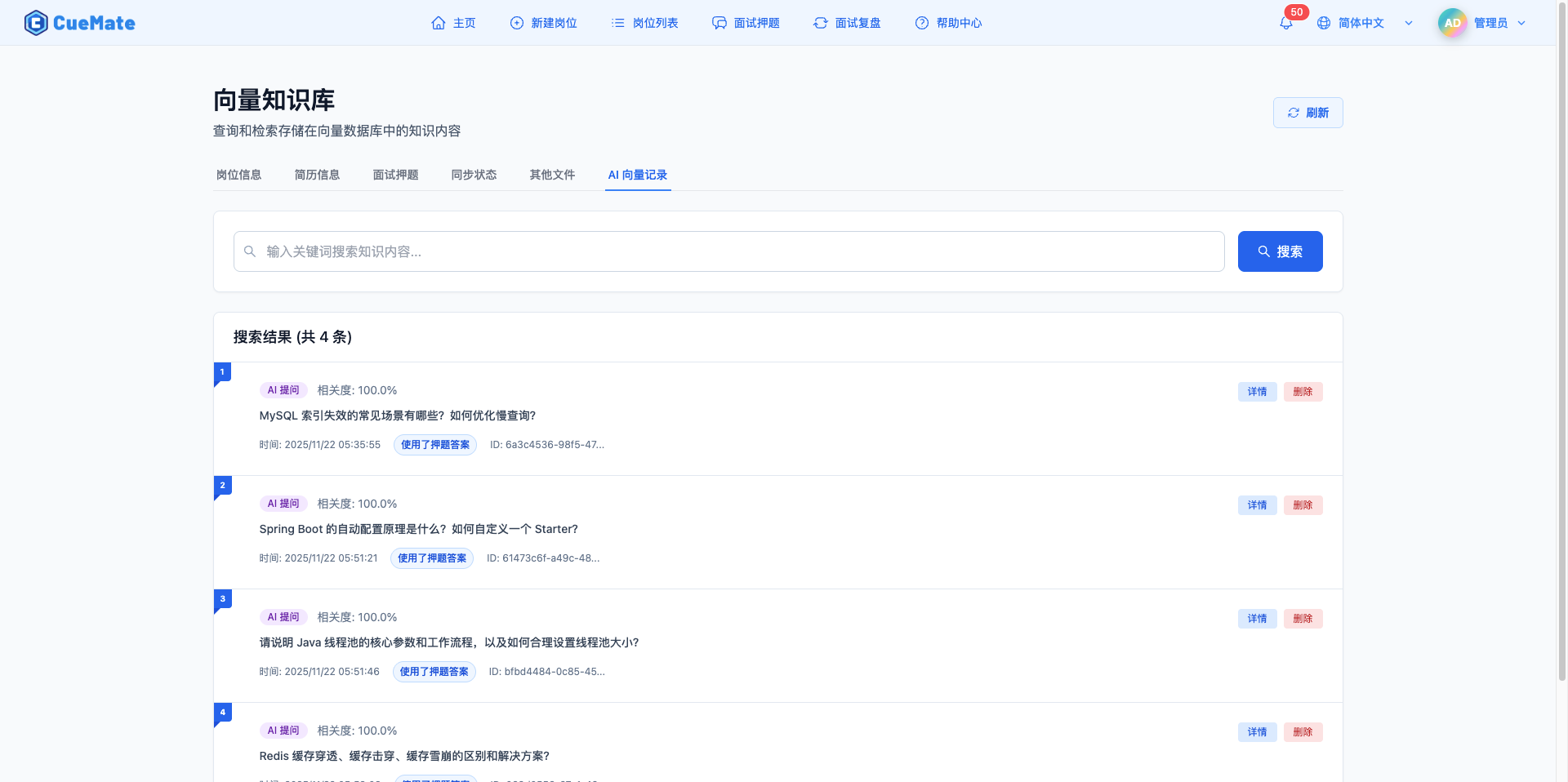
Record Sources:
- Mock Interview (mock): Knowledge used when AI acts as interviewer
- Interview Training (training): Knowledge used during interview training
- AI Q&A (voice_qa): Knowledge used during voice Q&A
Record Content:
- Question Asked: User's or interviewer's question
- Candidate Answer: User's actual answer (mock/training only)
- AI Reference Answer: AI-generated answer
- Knowledge Used: Question answers, position info, resume info, other files
- AI Analysis: Pros, cons, suggestions (mock/training only)
7.2 Search and Filter
Supports keyword search and type filtering:
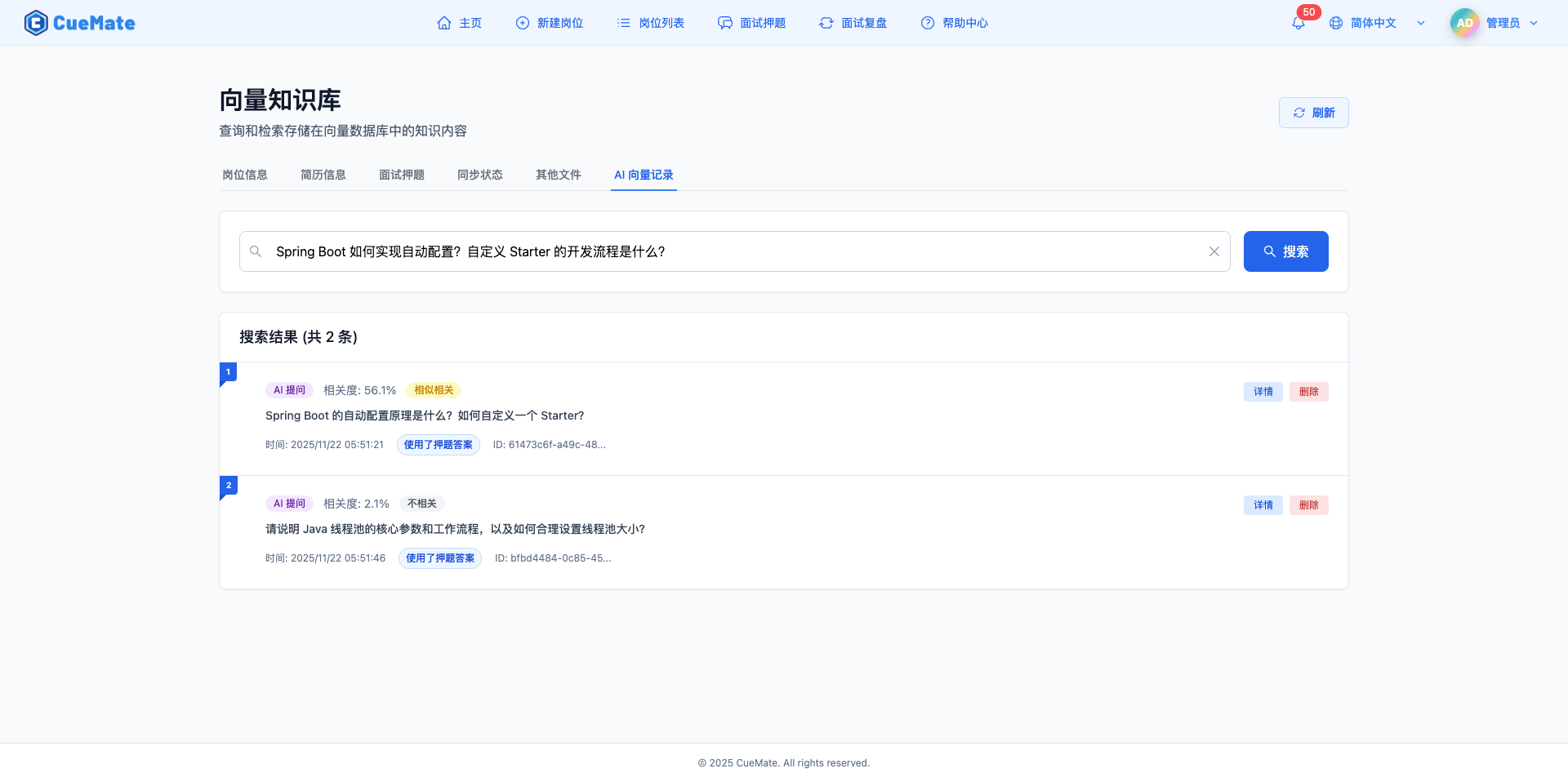
Search Features:
- Enter keywords to search record content
- Filter by type: Mock Interview/Interview Training/AI Q&A
- Filter by time range
7.3 View Record Details
Click the "Details" button to view complete records:
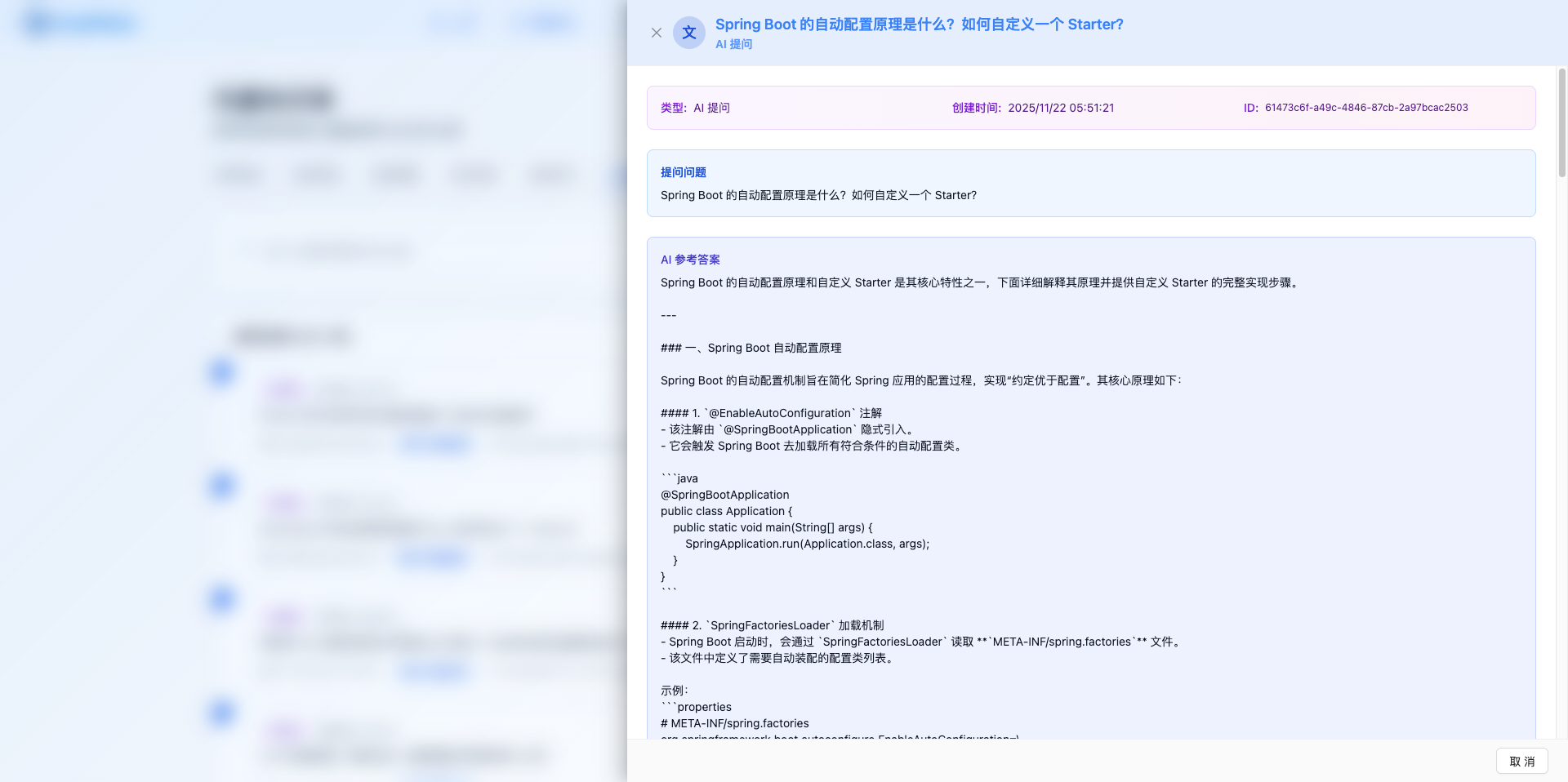
Details Page Contains:
- Basic Info: Type, creation time, ID
- Question Asked: Original question content
- Candidate Answer: User's answer (if any)
- AI Reference Answer: AI-generated answer
- Question Content: Used question and answer
- Other File Content: Used supplementary materials
- AI Analysis Results: Evaluation, pros, cons, suggestions, key points
Features:
- Complete record of knowledge usage
- Analyze answer quality and effectiveness
- Help optimize knowledge base content
7.4 Delete Records
Delete records:
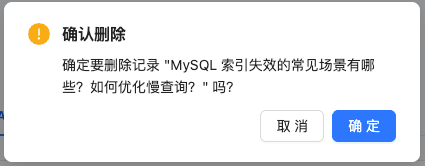
Management Features:
- View Details: Display complete record information
- Delete Record: Clean up useless or expired records
- Analyze Statistics: Understand knowledge usage frequency
8. Data Chunking Explanation
8.1 Why Chunking is Needed
Chunking Reasons:
- Long text may exceed model's maximum input length (512 tokens)
- Chunking allows more precise matching of text fragments
- Improves search accuracy and efficiency
- Supports processing of large documents
8.2 Chunk Information
Search results will display:
- Chunk Index: Current chunk number (starting from 0)
- Total Chunks: Total number of chunks in the document
- Example: Chunk 1/3 means the 2nd chunk, 3 chunks total
8.3 View Complete Content
Due to chunking, search may only show partial content:
- Click "Details" to view complete document
- System will merge all chunks for display
- When multiple chunks match, select the one with highest relevance
9. Application Scenarios
9.1 Interview Preparation (Core Scenario)
Complete Workflow:
Step 1: Prepare Basic Data
- Add target positions in Position List
- Prepare common questions in Interview Questions
- Upload project documents to "Other Files"
Step 2: Sync to Vector Database
- Go to Vector Knowledge Base page
- Switch to "Sync Status" tab
- Execute "Sync All Data"
- Confirm all data shows "Synced"
Step 3: Test Retrieval Effectiveness
- Switch to "Interview Questions" tab
- Set relevance > 80%
- Enter possible interview questions
- Verify if questions can be retrieved
- Optimize low-relevance questions
Step 4: Start Interview Training
- Go to Mock Interview or Interview Training
- Select position to start training
- System automatically retrieves from vector database
- AI generates answers based on retrieved knowledge
- View "AI Vector Records" to analyze effectiveness after completion
9.2 Knowledge Base Maintenance
Daily Maintenance Process:
- Regularly check sync status
- Clean up expired or incorrect data
- Add new knowledge content
- Analyze AI vector records
- Optimize questions and materials
10. Best Practices
10.1 Regular Sync Strategy
Recommended Sync Timing:
- Immediate Sync: After adding or modifying questions
- Daily Sync: If frequently adding data
- Weekly Sync: Regular data consistency maintenance
- After Issues: When retrieval problems are found
10.2 Question Optimization Tips
Improve Retrieval Effectiveness:
- Add question variants using different phrasings
- Include key skill terms in questions
- Answers should be detailed and complete
- Regularly test retrieval effectiveness
- Adjust content based on actual interviews
10.3 Other Files Management
Effective Usage Suggestions:
- Upload project documents and technical materials
- Add commonly used answer templates
- Organize industry knowledge and experience
- Regularly update supplementary content
- Delete expired or useless files
10.4 AI Vector Records Analysis
Improve Knowledge Base:
- Regularly view AI vector records
- Analyze which knowledge is frequently used
- Identify questions with poor retrieval results
- Optimize question content based on records
- Add missing knowledge points
10.5 Search Tips
Efficient Search Suggestions:
- Use professional terms and skill keywords
- Combine multiple keywords for higher accuracy
- Set appropriate relevance thresholds
- Use time filters to narrow scope
- View details to understand complete content
10.6 Performance Optimization
Optimization Suggestions:
- Avoid uploading large files in bulk at once
- Regularly clean up useless vector data
- Maintain reasonable data volume
- Monitor sync duration
- Rebuild index by clearing when necessary
11. FAQ
11.1 Questions Not Used During Interview
Issue: During interview training, AI always generates answers in real-time without using the question bank.
Solutions:
Check Sync Status:
- Switch to "Sync Status" tab
- Confirm "Interview Questions" shows "Synced"
- If not synced, execute "Sync All Data"
Test Question Relevance:
- Switch to "Interview Questions" tab
- Enter interview question keywords
- Check if relevance is ≥ 80%
- If relevance is too low, optimize question descriptions
Confirm Position Match:
- Ensure questions are associated with correct positions
- Only questions for the current position are retrieved during interviews
11.2 Delete Failed
Issue: "Network Error: TypeError: Failed to fetch" when clicking delete button.
Solutions:
- Check if RAG service is running:
docker ps | grep rag-service - Confirm CORS configuration is correct
- Check browser console for error messages
- Check network connection
- Try restarting service:
docker restart cuemate-rag-service
11.3 Search Returns No Results
Issue: "No related results found" after entering keywords.
Solutions:
- Check if data has been synced
- Lower relevance threshold (e.g., > 0%)
- Use more general keywords
- Clear other filter conditions
- Confirm data has been added to database
11.4 File Upload Failed
Issue: Upload fails when uploading files.
Solutions:
- Check if file size is ≤ 10MB
- Confirm file format is supported
- Check if file is corrupted
- Confirm network connection is normal
- Check backend service logs
11.5 Slow Sync Speed
Issue: Waiting a long time when syncing data.
Solutions:
- This is normal, all data needs to be vectorized
- Large data volumes require more time
- Can run in background, doesn't affect other operations
- First sync takes longer, subsequent updates are faster
11.6 Cannot Recover After Clearing
Issue: Accidentally clicked clear button, data lost.
Solutions:
- Don't worry, original data is still in the database
- Execute "Sync All Data" to recover
- Wait for sync to complete
- Only vector data was cleared, original data is unaffected
Related Pages
- Position List - Manage position information
- Interview Questions - Add interview questions and answers
- Mock Interview - AI mock interview training
- Interview Training - Use knowledge base for training
- System Settings - Configure system parameters