
Pixel Ad Space
1. Overview
The Pixel Ad Space page is an advertising display system based on grid layout, using a 32×20 pixel grid (16:10 ratio) to divide the entire canvas into multiple ad blocks of different sizes. Through an intuitive visual interface, you can view the occupancy status of all ad spaces, click on vacant blocks to simulate uploads, and access published ad links. If you want to place ads, please contact the CueMate team. Ads will be built into users' installation packages for display.
Core Features:
- Pixel grid system: 32×20 grid layout, precise control of ad space size and position
- Seamless ad stitching: Ad images completely fill blocks, achieving seamless visual effects
- Smart filter highlighting: Quickly locate specific ad blocks, cool highlighting animations
- Mock upload feature: Click vacant blocks to simulate uploading ad images
- Fullscreen display mode: Ctrl+F shortcut for immersive browsing experience
- Real-time status display: Three states - vacant, occupied, expired - at a glance
NOTE
About Pixel Ad Space
CueMate is an individual developer project. The pixel ad space module is used to earn living expenses to sustain continuous development and operation of the project. If you find CueMate helpful, welcome to support the project by purchasing ad space. Thank you for your understanding and support! For details, please see Ad Pricing.
2. Access Pixel Ad Space
2.1 Open Pixel Ad Space Page
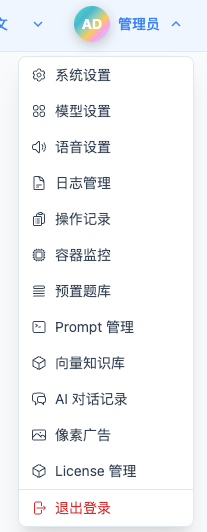
Click "Pixel Ad Space" in the top dropdown menu to enter the Pixel Ad Space page.
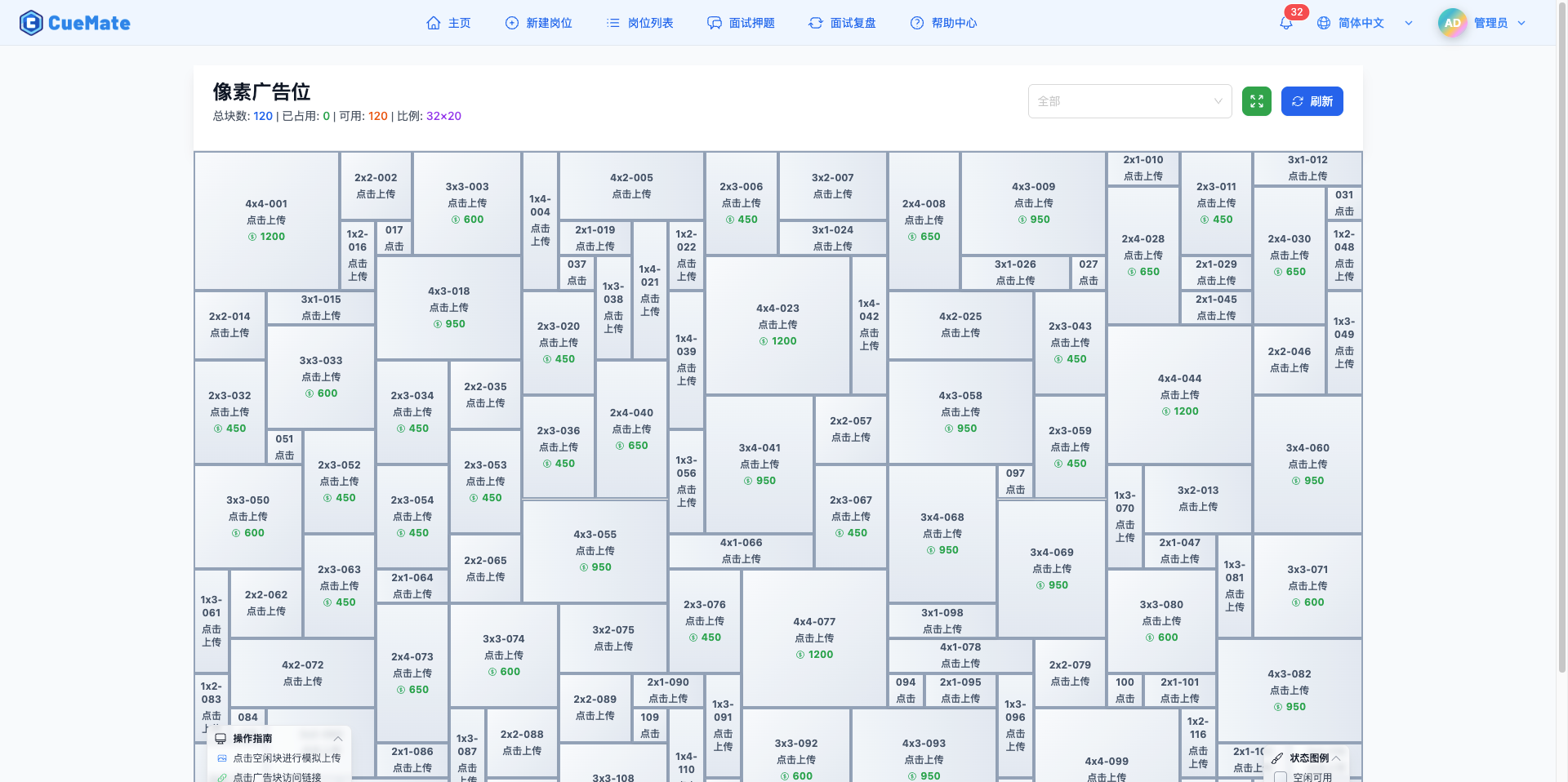
3. Understanding Grid Layout
Pixel Ad Space is designed based on a 32×20 grid system (16:10 ratio):
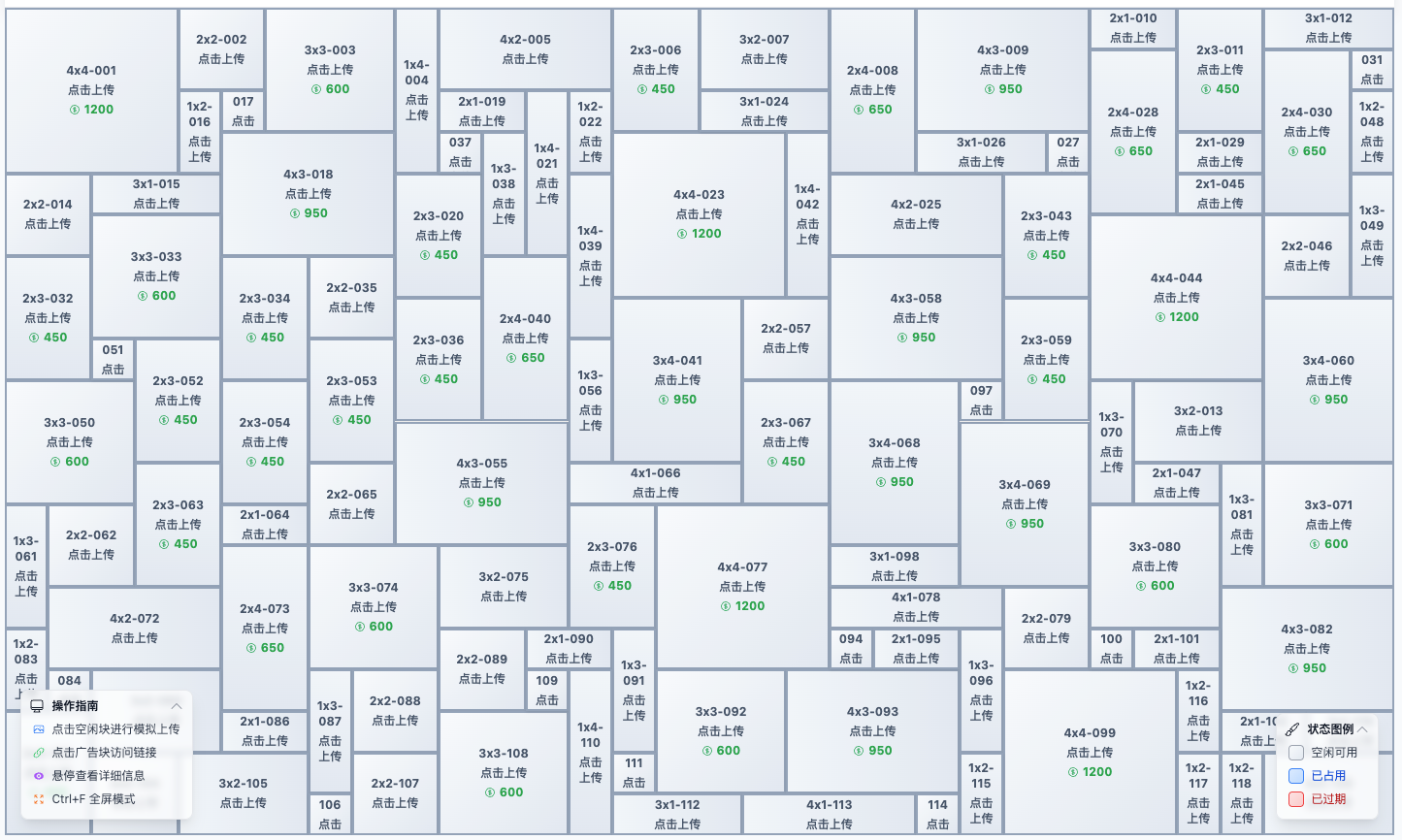
3.1 Grid System Description
3.1.1 Grid Specifications
- Total Grid Units: 32 columns × 20 rows = 640 basic units
- Canvas Ratio: 16:10 (widescreen ratio)
- Adaptive Layout: Canvas completely fills browser window, maintaining ratio
- Percentage Positioning: All ad blocks use percentage position and size, ensuring responsiveness
3.1.2 Ad Block Types
Based on shape and size, ad blocks are divided into three types:
| Type | Description | Gradient Style | Typical Sizes |
|---|---|---|---|
| square | Square block | Diagonal gradient (135deg) | 2×2, 4×4, 6×6 |
| horizontal | Horizontal strip block | Horizontal gradient (90deg) | 8×2, 12×3, 16×4 |
| vertical | Vertical strip block | Vertical gradient (180deg) | 2×8, 4×10, 6×12 |
3.1.3 Statistics Information
Page top displays ad space statistics:
- Total Blocks: Total number of configured ad blocks
- Occupied: Blocks currently with ads and not expired
- Available: Vacant or expired blocks
- Ratio: 32×20 (grid specification)
Example:
Total Blocks: 50 | Occupied: 32 | Available: 18 | Ratio: 32×204. View Ad Status
Ad blocks use different colors and gradients to indicate status:
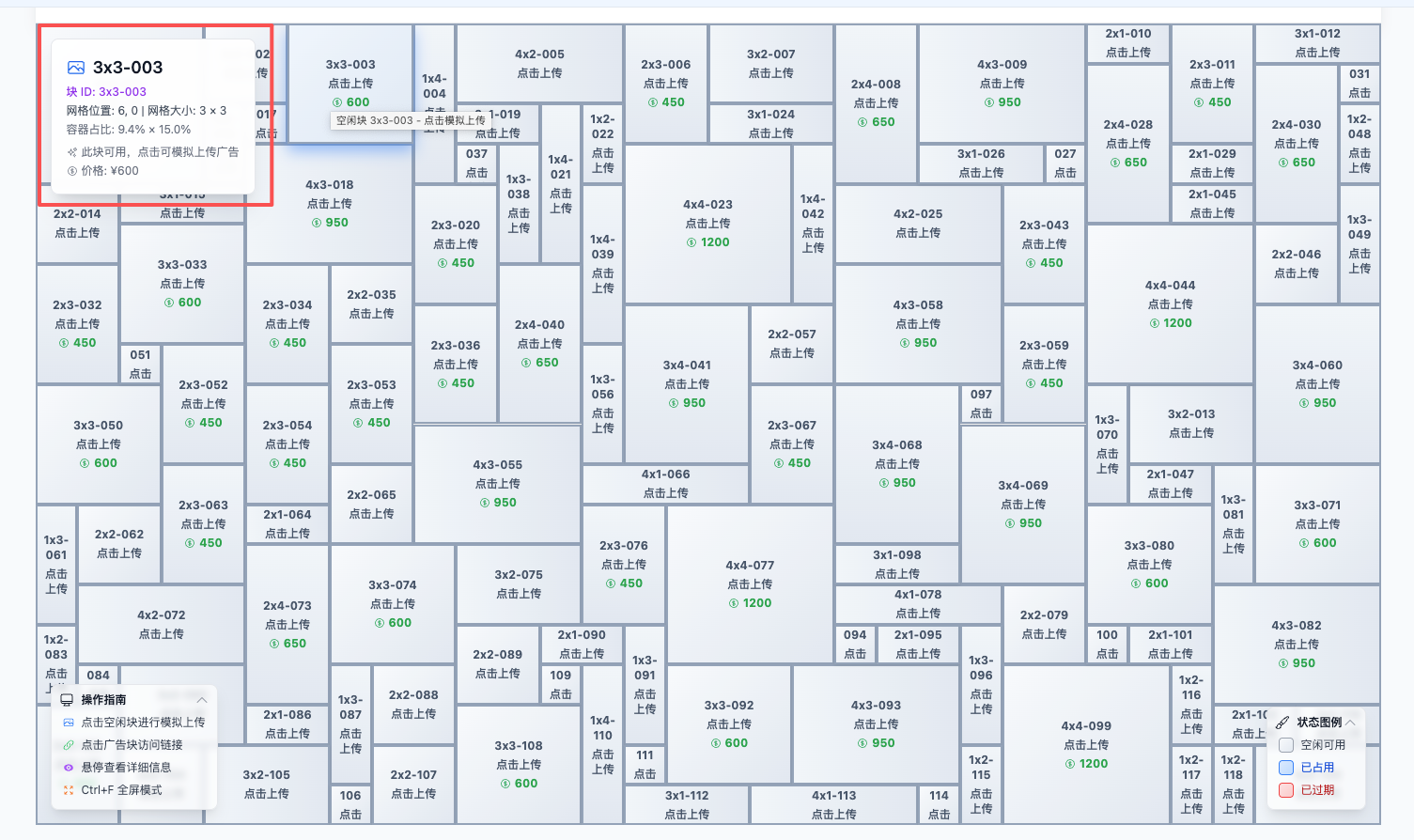
4.1 Three States
4.1.1 Vacant (Gray)
Visual Features:
- Background: Light gray gradient (linear-gradient)
- Border: Gray (#94a3b8)
- Text: Dark gray (#475569)
Display Content:
- Block ID (e.g., A1, B2, C3)
- "Click to Upload" prompt
- Price label (e.g., ¥100)
Interaction:
- Click to open mock upload dialog
- Hover shows detailed information
- Subtle shadow effect
4.1.2 Occupied (Blue)
Visual Features:
- Background: Light blue gradient (#dbeafe → #bfdbfe)
- Border: Blue (#3b82f6)
- Text: Dark blue (#1e3a8a)
Display Content:
- With image: Completely fills with ad image (seamless stitching)
- Without image: Shows block ID and ad title
Interaction:
- Click to jump to ad link (opens new window)
- Hover shows ad details
- Image hover shows semi-transparent overlay
4.1.3 Expired (Red)
Visual Features:
- Background: Light red gradient (#fee2e2 → #fecaca)
- Border: Red (#ef4444)
- Text: Dark red (#7f1d1d)
Display Content:
- Block ID
- Ad title
- "Expired" indicator
Interaction:
- Click to re-upload mock ad
- Treated as available status
- Hover shows expiration time
4.2 Status Legend
Status legend in bottom right corner of page (collapsible):
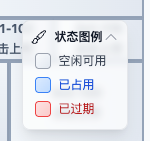
Click "Status Legend" title to collapse/expand:
- Expanded: Shows color examples and descriptions for three states
- Collapsed: Only shows title and collapse icon
- Floating layer: Semi-transparent background, doesn't block ad content
5. Filter and Highlight Ad Blocks
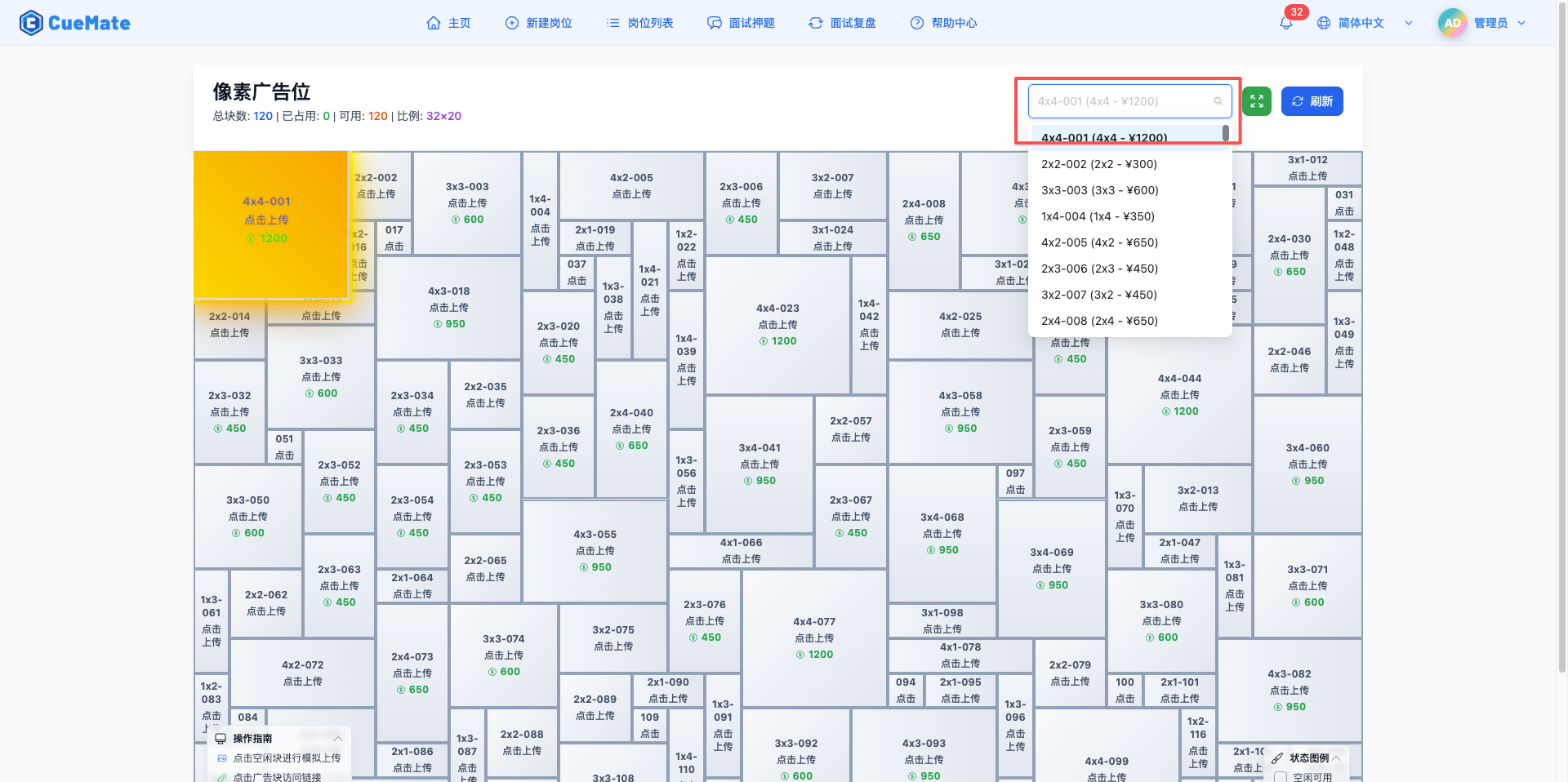
Use filter feature to quickly locate specific ad blocks:
5.1 Filter Operations
5.1.1 Open Filter
Page top has ad block filter dropdown:
- Default shows "All"
- Displays all filterable block configurations
- Supports keyword search
5.1.2 Filter Options
Each option shows:
- Block ID (e.g., A1)
- Block size (e.g., 4x4)
- Block price (e.g., ¥200)
Format: A1 (4x4 - ¥200)
5.1.3 Select Filter
- Click filter dropdown
- Enter keyword to search (optional)
- Select the ad block to view
- Page automatically locates and highlights that block
5.1.4 Clear Filter
Click the clear icon (×) in filter box to restore showing all blocks.
5.2 Cool Highlight Effect
Selected ad block displays cool highlight animation:
Selected ad block has prominent golden glowing border and floating effect, very easy to identify. Border has breathing animation and gradient rotation effect, helping you quickly locate target ad block.
6. View Hover Information
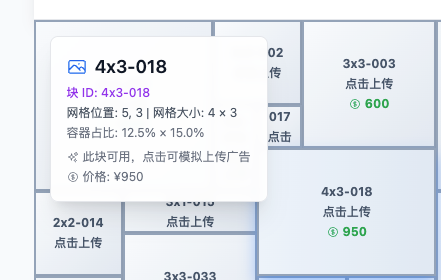
Hovering mouse on any ad block shows detailed information panel:
6.1 Information Panel Position
- Position: Top left corner of canvas
- Style: White semi-transparent background, frosted glass effect
- Layer: Floats above ad blocks
- Size: Maximum width 384px, auto height
6.2 Panel Content
6.2.1 Basic Information (All Blocks)
- Block ID: Large font display (e.g., A1)
- Block ID Subtitle: Purple small text showing complete ID
- Grid Position: x, y coordinates (e.g., 0, 0)
- Grid Size: width × height (e.g., 4 × 4)
- Container Ratio: Percentage size (e.g., 12.5% × 20.0%)
6.2.2 When Ad Exists
- Ad Title: Blue display
- Ad Description: Gray display
- Expiration Time: Purple display, with clock icon
- Format: "Expires in X days" / "Expires in X hours" / "Expiring soon" / "Expired"
- Link Prompt: Green display, with link icon: "Click to visit link"
6.2.3 When Block is Vacant
- Availability Prompt: "This block is available, click to simulate uploading ad" (with star icon)
- Price Information: "Price: ¥100" (with dollar sign icon)
6.3 Image Ad Hover Effect
When hovering on ad block with image:
- Semi-transparent black overlay appears on image
- Overlay shows block ID and ad title
- Gradient transition effect (200ms)
7. Mock Upload Ad
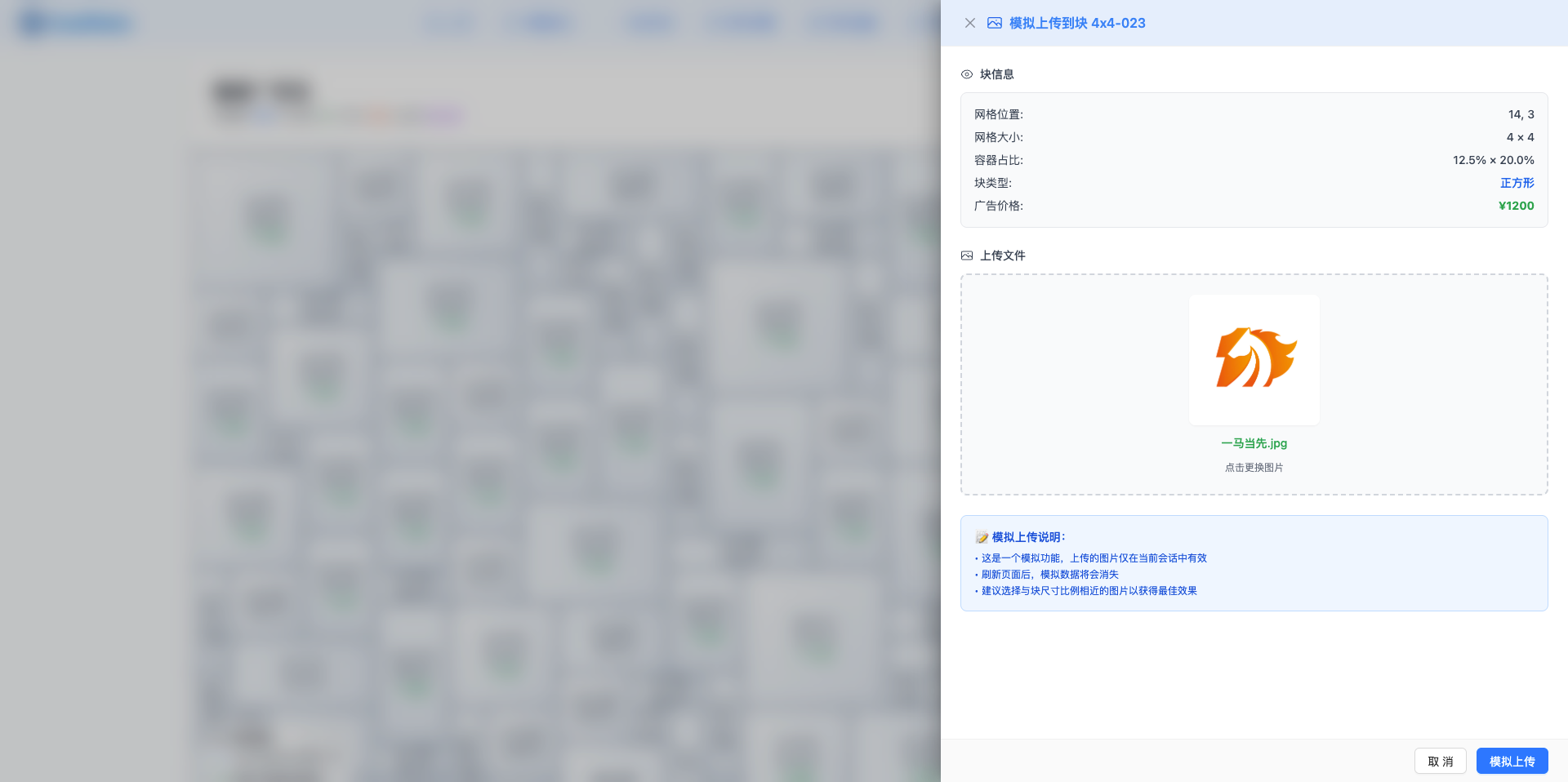
Click vacant block to simulate uploading ad image and preview effect:
7.1 Open Upload Dialog
Trigger Conditions:
- Click vacant block (block with no ad or expired)
- Cannot click occupied ad blocks
Dialog Content:
- Side drawer style (slides in from right)
- Shows detailed information of selected block
- Provides image upload area
7.2 Upload Operation Flow
7.2.1 Select Image
- Click upload area or drag image
- Supported formats: JPG, PNG, GIF, WebP
- File size limit: Appropriate size suggested based on block size
7.2.2 Preview Image
- Upload area displays image preview
- Can reselect other images
7.2.3 Fill Information (Optional)
- Ad title: Auto-generated "Mock Ad - Block ID"
- Ad link: Default "#"
- Other information as needed
7.2.4 Confirm Upload
- Click "Upload" button
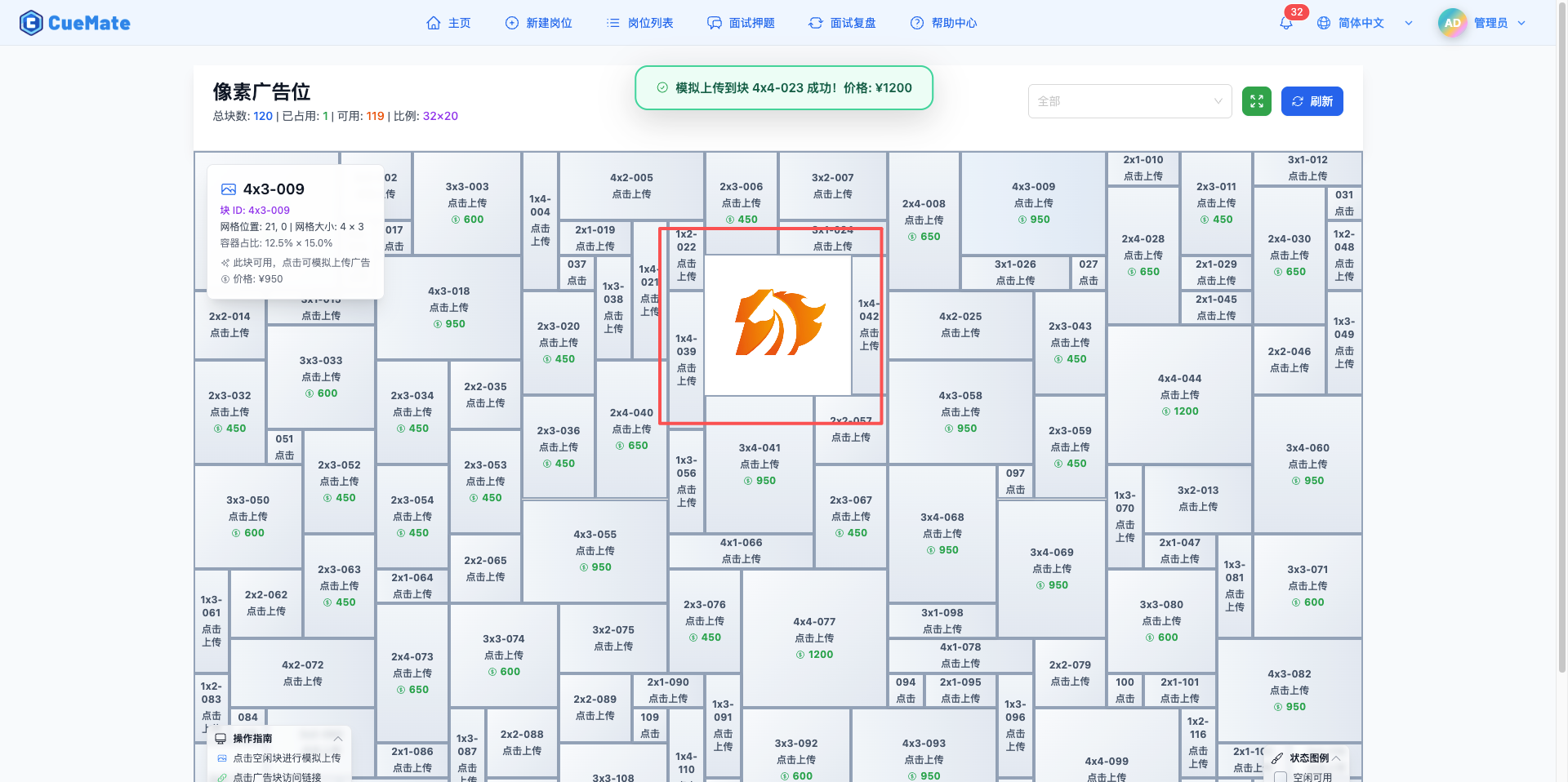
- Shows success message:
Mock upload to block XX successful! Price: ¥XXX - Closes dialog
7.2.5 View Effect
- Canvas immediately displays uploaded image
- Image completely fills block, seamless stitching
- Hover to view details
7.3 Temporary Data Note
Important:
- Mock upload data is temporary data, only saved in browser memory
- Will disappear after page refresh
- Not saved to database
- Only for previewing effects
7.4 Cancel Upload
Click dialog's "Close" button or mask layer to cancel upload operation.
8. Fullscreen Browsing Mode
Use fullscreen mode for immersive ad space browsing:
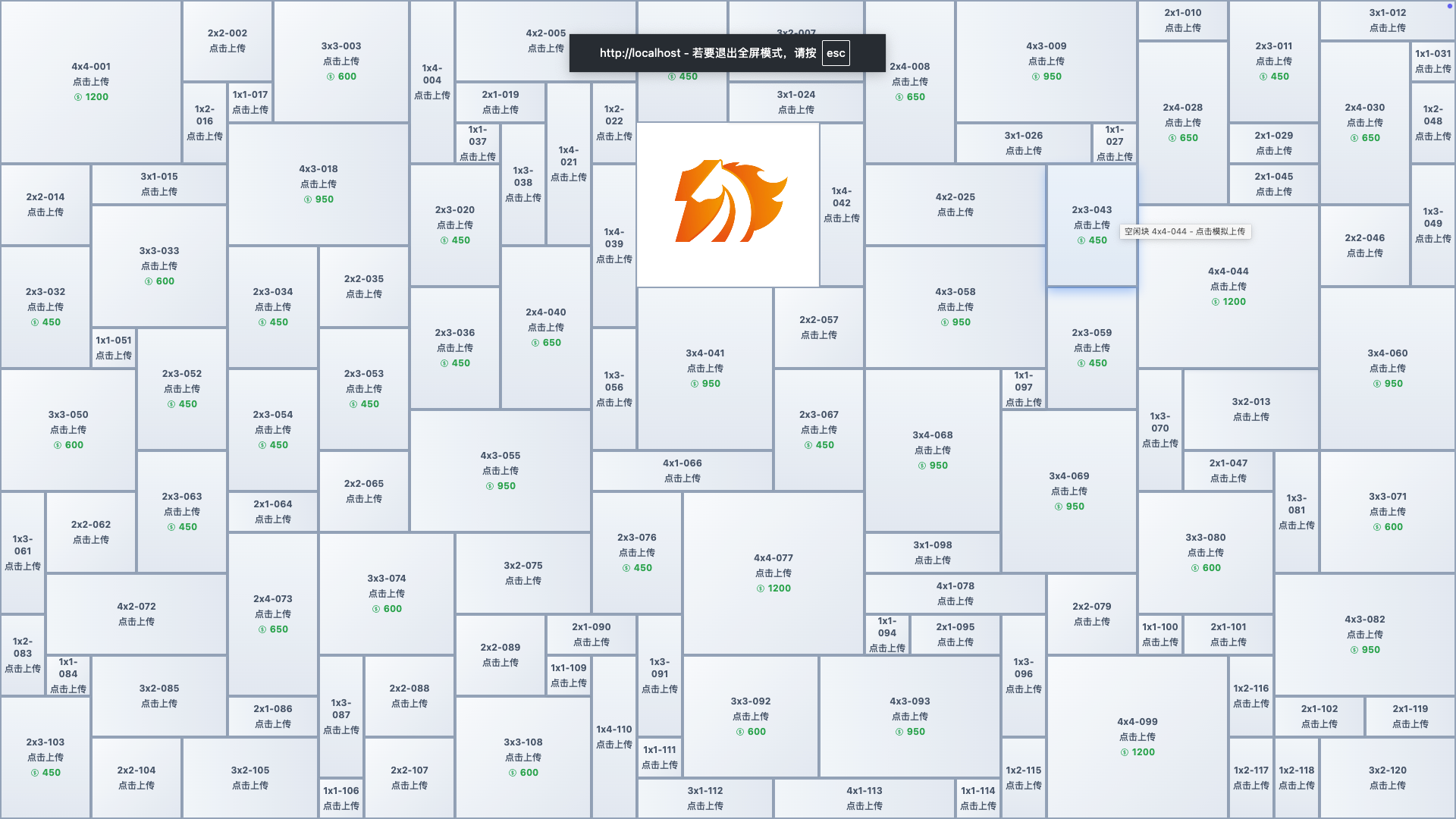
8.1 Enter Fullscreen
Method 1: Click Button
- Click green "Fullscreen" button at top of page
- Button icon: Expand icon (ArrowsPointingOutIcon)
Method 2: Shortcut Key
- Press
Ctrl+F(Windows/Linux) - Press
Cmd+F(macOS)
8.2 Fullscreen Interface
Changes:
- Control toolbar hidden
- Ad canvas completely fills screen
- Exit button displayed in top right corner (red circle)
- Operation guide and status legend still available (floating layer)
Preserved Features:
- Hover information panel
- Ad block clicking
- Filter highlight (need to exit fullscreen to operate)
- Operation guide and status legend
8.3 Exit Fullscreen
Method 1: Click Exit Button
- Click red circular button in top right corner
- Button icon: X icon (XMarkIcon)
Method 2: Shortcut Key
- Press
Esckey - Press
Ctrl+F/Cmd+Fagain
Method 3: Browser Fullscreen Exit
- Use browser's built-in fullscreen exit feature
9. Refresh Data
Manually refresh ad space data:
9.1 Refresh Method
Click Refresh Button:
- Position: Right side of top toolbar
- Icon: Blue rotating arrow (ArrowPathIcon)
- Text: "Refresh"
Refresh Operations:
- Re-fetch active ad list from server
- Re-fetch block configuration data
- Re-initialize ad block layout
- Clear temporarily uploaded data (if any)
- Display latest status
Auto Refresh Scenarios:
- Initial page load
- After mock upload success (only updates temporary data)
10. Operation Guide
Operation guide in bottom left corner of page (collapsible):
10.1 Guide Content
- Click vacant block to mock upload (image icon)
- Click ad block to visit link (link icon)
- Hover to view detailed info (eye icon)
- Ctrl+F for fullscreen mode (fullscreen icon)
10.2 Collapse Control
- Click "Operation Guide" title to collapse/expand
- Expanded: Shows four operation tips
- Collapsed: Only shows title and down arrow icon
- Semi-transparent background, doesn't affect viewing ads
11. Use Cases
11.1 Browse Ad Content
Through the Pixel Ad Space page, you can:
- View display effects of all ads
- Click interesting ads to visit links
- Understand ad layout of different positions and sizes
- Use fullscreen mode for better browsing experience
11.2 Simulate Ad Effect
If you want to place ads, you can use the mock upload feature:
- View available ad spaces
- Choose appropriate position and size
- Upload your ad image to preview effect
- Compare display effects of different positions
- Decide whether to place ad
Note: Mock upload data is only saved in browser, will disappear after page refresh, won't actually place ad.
11.3 Discover Interesting Content
Through filter and highlight features:
- Quickly locate specific ad blocks
- View detailed ad information
- Understand ad expiration time
- Discover new ad content
12. Ad Pricing
12.1 Price Description
Ad space prices are calculated based on block size (grid units), larger sizes have higher prices. Horizontal and vertical blocks of same area have same price. All prices below are annual fees (≈ 365 days).
12.2 Price Table
| Size | Grid Units | Annual Fee (¥) | Block Type |
|---|---|---|---|
| 1×1 | 1 | 100 | Square |
| 1×2 / 2×1 | 2 | 180 | Strip |
| 1×3 / 3×1 | 3 | 250 | Strip |
| 2×2 | 4 | 300 | Square |
| 1×4 / 4×1 | 4 | 350 | Strip |
| 2×3 / 3×2 | 6 | 450 | Strip |
| 3×3 | 9 | 600 | Square |
| 2×4 / 4×2 | 8 | 650 | Strip |
| 3×4 / 4×3 | 12 | 950 | Strip |
| 4×4 | 16 | 1200 | Square |
12.3 Place Ads
If you want to place ads on CueMate, please contact the developer. Ads are personally published by the developer, and after publishing will be built into subsequent open source versions, all users who download and use CueMate will see your ad.
Contact:
- Email: nuneatonhydroplane@gmail.com
Information Required for Creating Ads:
| Field | Required | Description |
|---|---|---|
| Ad Title | Yes | Title name of the ad |
| Ad Description | Yes | One-sentence detailed description of the ad (recommended under 100 characters) |
| Link URL | Yes | URL to redirect when ad is clicked |
| Ad Block | Yes | Select block number from available ad blocks (shows size and price) |
| Ad Image | Yes | Supports JPG, PNG, GIF, WebP format, max 5MB |
| Contact Info | No | Phone, WeChat, QQ, email, etc. |
| Duration | No | Ad expiration date (automatically set to one year later) |
| Remarks | No | Other information that needs explanation |
TIP
After ad placement, developer will build your ad into the next version, all users who newly download or update will see the ad display.
About Pricing: Price increases are possible in the future. CueMate team doesn't guarantee your purchase price is historically lowest, but always guarantees your purchase time point will be lowest in subsequent time. Just trying to make a living, hope you understand.
13. Usage Tips
13.1 Quickly Locate Interesting Ads
Use Filter Feature:
- Click filter dropdown at top of page
- Enter keyword to search specific ad block
- After selection, auto-highlights and locates to that ad
- Observe cool highlight animation effect
Use Hover to View Details:
- Move mouse to any ad block
- Detailed information panel appears in top left corner
- View ad title, description, expiration time and other info
- Understand ad block position, size, price
13.2 Get Best Browsing Experience
Use Fullscreen Mode:
- Press
Ctrl+F(Windows) orCmd+F(macOS) - Or click green "Fullscreen" button at top
- Ad canvas completely fills screen
- Immersive browsing of all ad content
- Press
Esckey to exit fullscreen
Adjust Browser Window:
- Maximize browser window to see larger canvas
- Keep browser zoom at 100% for best display effect
- Use high-resolution display to see clearer ad images
13.3 Explore Mock Upload Feature
If you're curious how ads are displayed, try mock upload:
Steps:
- Find vacant ad block (gray displayed block)
- Click that block to open upload dialog
- Select an image to upload
- View image display effect on canvas
- Refresh page to clear temporary data
Notes:
- Mock upload data is only saved in browser memory
- Auto-disappears after page refresh
- Won't actually place ad
- Only for previewing and experiencing feature
13.4 Understand Ad Block Status
Three Status Recognition:
- Gray Block: Vacant available, can mock upload
- Blue Block: Occupied, click to visit ad link
- Red Block: Expired, treated as available status
View Expiration Info:
- Hover on occupied ad block
- View expiration time prompt (e.g., "Expires in 3 days")
- Understand ad validity period
14. FAQ
14.1 Ad Block Not Visible
Issue: Why can't I see a certain ad block?
Possible Causes:
- Ad block blocked by other blocks (z-index layer issue)
- Ad image failed to load
- Block configuration data error
Solutions:
- Use filter feature to locate that block, highlight display
- Hover to view that block's detailed information
- Check browser console for image loading errors
- Refresh page to reload data
14.2 Mock Upload Image Disappeared
Issue: Mock uploaded image disappeared after refresh?
Possible Causes:
- Mock upload feature only stores in browser memory
- Not saved to backend database
- Page refresh clears temporary data
Solutions:
- This is expected behavior, mock upload is only for previewing effects
- Official upload needs to be done in "Ad Management" page
- Recommend taking screenshot before mock upload to save effect
14.3 Image Display Abnormal
Issue: Image displays incomplete or distorted?
Possible Causes:
- Image size doesn't match block size
- Image ratio differs too much from block ratio
- Browser zoom is not 100%
Solutions:
- Use
object-fit: coverto ensure image fills (default already set) - Prepare images matching block ratio (e.g., 4×4 block uses 1:1 ratio image)
- Reset browser zoom to 100% (Ctrl+0)
14.4 Clicking Ad Block No Response
Issue: No response when clicking ad block?
Possible Causes:
- Ad has no configured link URL
- Browser blocking popup windows
- Network connection issue
Solutions:
- Hover to check if there's "Click to visit link" prompt
- Check browser popup settings, allow popups from this site
- Check if network connection is normal
- Check browser console for errors
14.5 Cannot Filter in Fullscreen Mode
Issue: Cannot filter ad blocks in fullscreen mode?
Possible Causes:
- Toolbar is hidden in fullscreen mode
- Filter dropdown is in toolbar
Solutions:
- Exit fullscreen mode (press Esc or click exit button)
- Use filter feature in normal mode
- Enter fullscreen mode after filter highlight to view
14.6 Highlight Animation Stuttering
Issue: Highlight animation stutters or not smooth?
Possible Causes:
- Device performance is low
- Browser hardware acceleration not enabled
- Too many ad blocks on page
Solutions:
- Close other resource-consuming browser tabs
- Enable browser hardware acceleration (Chrome: Settings > System > Use hardware acceleration)
- Update browser to latest version
- Use device with better performance
Related Pages
- Ad Management: Create, edit, manage ads
- Block Configuration Management: Configure ad block position, size and price
- Data Statistics: View ad click and impression data