
Tray Window
The tray window is CueMate's quick access entry point. Through the system tray icon, you can quickly view data statistics, switch application states, and modify common settings without opening the main window for daily operations.
1. macOS
On macOS, the tray icon is located in the menu bar area at the top right corner of the screen.
1.1 CueMate Icon
Screen top menu bar:

Find the CueMate running icon:

Right-click
Right-clicking the tray icon brings up the native system menu with the following quick actions:
- ○ Show Mode
- ● Hide Mode
- ○ Interactive Mode
- ● Click-through Mode
- Exit
| Menu Item | Description |
|---|---|
| Show Mode | Show floating control bar and all windows |
| Hide Mode | Hide floating control bar and all windows (tray window not affected) |
| Interactive Mode | Windows can be clicked and dragged normally, mouse clicks don't pass through |
| Click-through Mode | Windows remain visible, but mouse clicks pass through to underlying applications |
| Exit | Completely exit CueMate application |
Click-through Mode Description
Click-through mode is used in interviews or other scenarios where you can see CueMate floating window content (such as AI answers) while not affecting operations on other applications.
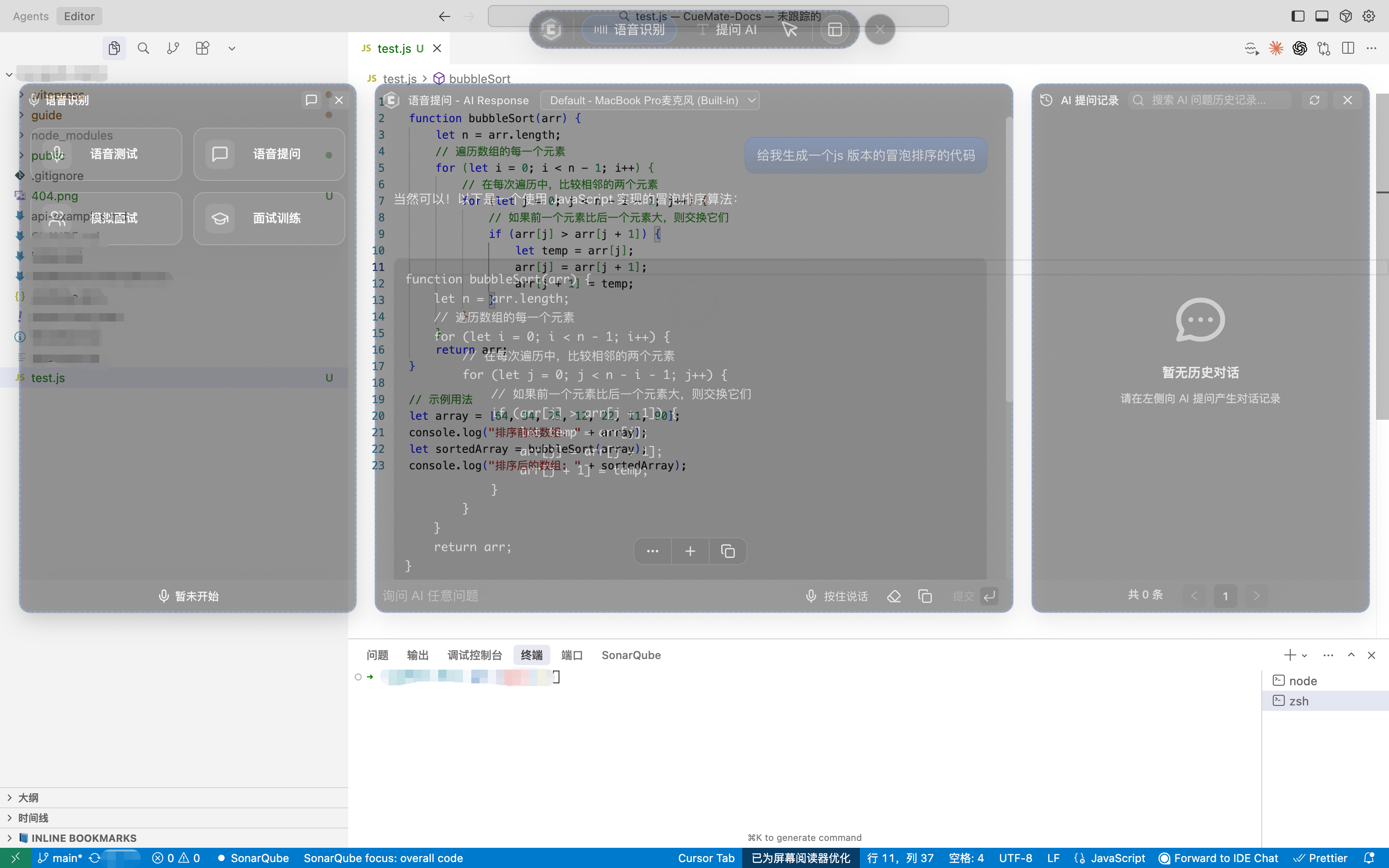
- Interactive Mode: Floating window can be clicked, dragged, and resized, suitable when you need to interact with the floating window
- Click-through Mode: Floating window content is visible but mouse clicks pass through, suitable for viewing answers during interviews while operating other software (such as online coding)
Use Cases:
- Need to view answers during interviews but don't want to block the screen, e.g., online coding
- View prompts in click-through mode while operating interview or other software
- Switch to interactive mode when you need to interact with the floating window
Keyboard Shortcut: ⌘⇧CM (Command + Shift + C + M) to quickly switch between the two modes
TIP
For more detailed click-through mode settings, refer to System Settings - Click-through Mode
Left-click
Click the CueMate icon in the menu bar to open the tray window.
1.2 Tray Window
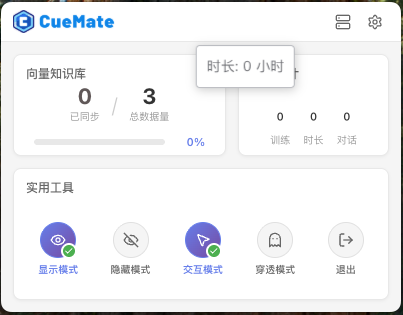
The tray window main interface is divided into three areas: top title bar, data statistics area, and utility tools area.
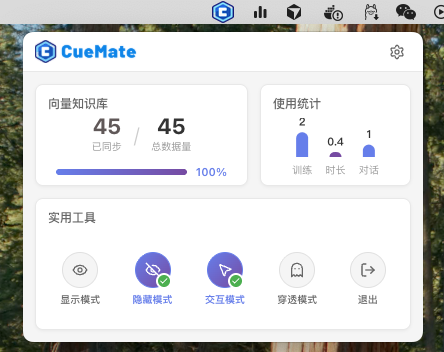
Top Title Bar
- CueMate Logo: Displays application brand identity
- Settings Button: Click to enter system preferences page
Data Statistics Area
The data statistics area displays two cards:
- Vector Knowledge Base Card: Shows synced count, total data volume, and sync progress bar
- Usage Statistics Card: Bar chart showing training count, duration (hours), and average conversations
Utility Tools Area
| Button | Description |
|---|---|
| Show Mode | Show floating control bar and all windows |
| Hide Mode | Hide floating control bar and all windows (tray window not affected) |
| Interactive Mode | Windows can be clicked and dragged normally, mouse clicks don't pass through |
| Click-through Mode | Windows remain visible, but mouse clicks pass through to underlying applications |
| Exit | Completely exit CueMate application |
TIP
The currently active mode is highlighted in purple with a green checkmark. Shortcut ⌘⇧CM quickly switches between interactive/click-through modes.
1.3 System Preferences
Click the settings button at the top to enter the system preferences page.
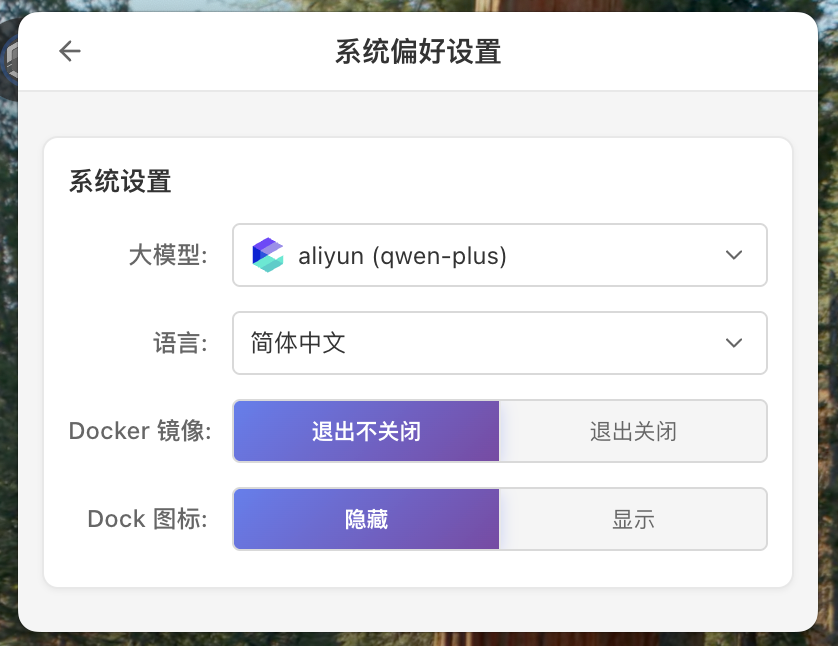
| Setting | Description |
|---|---|
| LLM Model | Select the currently used large language model, dropdown shows all configured models |
| Language | Select interface display language: Simplified Chinese, Traditional Chinese, English |
| Docker Image | Control Docker container behavior when exiting app: Don't Stop on Exit (default) or Stop on Exit |
| Dock Icon | Control application display status in Dock bar: Hide or Show |
Docker Image Settings
Docker image settings control the behavior of backend Docker containers when exiting the CueMate application.
- Don't Stop on Exit (default): Docker containers keep running when exiting the app, no need to wait for container startup next time, faster startup
- Stop on Exit: Stop all CueMate-related Docker containers when exiting the app, freeing system resources
TIP
If you deploy Docker services on a remote server, it's recommended to select "Don't Stop on Exit" to keep containers running on the server.
Dock Icon Settings
Dock icon settings control whether the CueMate application icon is displayed in the macOS Dock bar at the bottom.

- Hide: CueMate icon not shown in Dock bar, application only accessible through top menu bar tray icon, cleaner desktop
- Show: CueMate icon shown in Dock bar, convenient for quick app switching via Dock
TIP
If your MacBook has a notch screen and menu bar space is limited, it's recommended to set Dock icon to "Show", so even if the tray icon is hidden by the system, you can still access the app through the Dock bar.
WARNING
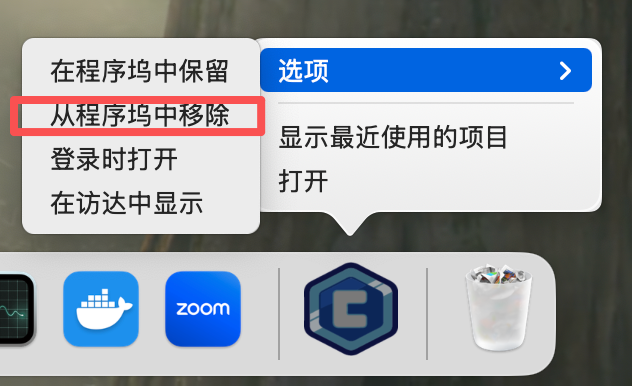
When switching Dock icon from "Show" to "Hide", it only closes the current runtime Dock icon display. If you previously pinned CueMate to the Dock ("Keep in Dock"), you need to manually remove the pinned icon, otherwise the icon will still appear in the Dock next time you open the app.
Manually Remove Icon from Dock
Right-click the CueMate icon in the Dock bar and select "Remove from Dock". After removal, the Dock will no longer show the icon when opening CueMate again.
1.4 Server Configuration
When CueMate is deployed in Server Mode, a "Server Configuration" button will appear at the top of the tray window page. Click to enter the server configuration page to modify remote server connection information.
Server Configuration Page
The server configuration page is used to configure remote server SSH connection information and service ports.
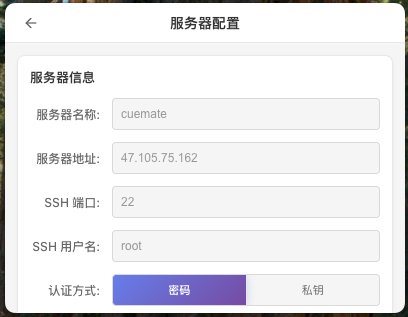
| Configuration Item | Description |
|---|---|
| Server Name | Custom server name for easy identification and management |
| Server Address | Remote server IP address or domain name |
| SSH Port | SSH connection port, default is 22 |
| Username | SSH login username |
| Authentication Method | Supports password authentication or private key authentication |
| Password/Private Key | Fill in the corresponding password or private key content based on authentication method |
| Deploy Path | CueMate service deployment directory on the remote server |
Port Configuration
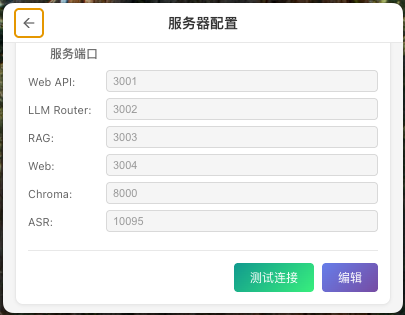
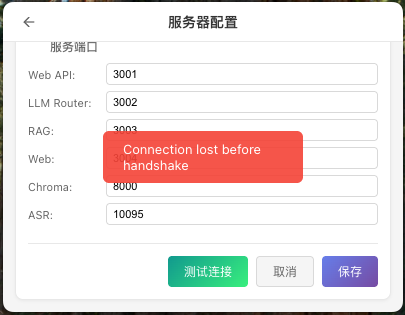
The server configuration page also allows configuring port numbers for each service:
| Port Configuration | Default | Description |
|---|---|---|
| Web API Port | 3001 | Web API service port |
| LLM Router Port | 3002 | LLM routing service port |
| RAG Service Port | 3003 | Vector retrieval service port |
| Web Port | 3004 | Web frontend service port |
| Chroma Port | 8000 | Chroma vector database port |
| ASR Port | 10095 | Speech recognition service port |
Test Connection
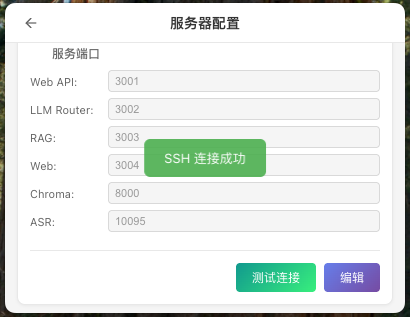
After configuration, click the "Test Connection" button to verify if the SSH connection is working properly. A green message indicates success, red indicates an error.
TIP
It's recommended to test the connection before saving the configuration to ensure server connection information is correct.
Save Configuration
Click the "Save" button to save the configuration locally. After saving successfully, CueMate will use the new server configuration to connect to remote services.
WARNING
After modifying server configuration, you need to restart the CueMate application for the new configuration to take effect.
Connection Error Handling
If the server configuration is filled incorrectly, or the service on the remote server is not started, the main window will display a connection error page:
The error page displays:
- Connection failed target address (e.g.,
http://127.0.0.11:3004) - Specific error message (e.g.,
ERR_CONNECTION_TIMED_OUT) - "Retry Connection" button
Common Error Causes:
- Server address filled incorrectly
- SSH port or service port configured incorrectly
- CueMate service not started on remote server
- Firewall blocking port access
- Network connection issues
TIP
When encountering connection errors, you can modify the configuration through the "Server Configuration" page in the tray window, because the tray window is rendered locally and is not affected by remote server connection status.
Manually Modify Configuration File
If the tray window cannot operate normally, or you need to batch modify configurations, you can directly edit the configuration file:
Configuration File Location:
# macOS
~/Library/Application Support/cuemate-desktop-client/config/server.json

# Open with VS Code
code ~/Library/Application\ Support/cuemate-desktop-client/config/server.json

# Open with vim
vim ~/Library/Application\ Support/cuemate-desktop-client/config/server.json

# View content with cat
cat ~/Library/Application\ Support/cuemate-desktop-client/config/server.json
Configuration File Format:
{
  "version": "v0.1.0",
  "mode": "server",
  "server": {
    "id": "server-001",
    "name": "My Server",
    "host": "192.168.1.100",
    "sshPort": 22,
    "username": "root",
    "authType": "password",
    "password": "your-password",
    "privateKey": null,
    "passphrase": null,
    "deployPath": "/opt/cuemate",
    "ports": {
      "webApi": 3001,
      "llmRouter": 3002,
      "ragService": 3003,
      "chroma": 8000,
      "asr": 10095,
      "web": 3004
    }
  }
}
WARNING
After manually modifying the configuration file, you need to restart the CueMate application for changes to take effect.
Tray Window vs Web System Settings
Server configuration can be modified in two locations:
| Location | Features |
|---|---|
| Tray Window (Recommended) | Rendered locally, does not depend on remote server, can operate normally even if server connection fails |
| Web System Settings | Requires connection to remote server to open, may not be accessible if configuration is wrong |
TIP
Recommended to use tray window to modify server configuration. The tray window runs locally and is the most reliable configuration entry. When the Web page cannot be opened due to server connection issues, the tray window can still be used normally.
For server configuration in Web system settings, refer to System Settings - Server Deployment Configuration.
1.5 Tray Icon Missing?
If the tray icon disappears, check: System Settings > Control Center > Menu Bar Items, confirm the CueMate icon is not hidden.
2. Windows
On Windows, the tray icon is located in the system tray area at the bottom right corner of the screen.
2.1 CueMate Icon
Click the up arrow in the system tray to find the CueMate running icon (if hidden):
Right-click
Right-clicking the tray icon brings up the menu with the following quick actions:
- Show Mode
- Hide Mode
- Interactive Mode
- Click-through Mode
- Exit
| Menu Item | Description |
|---|---|
| Show Mode | Show floating control bar and all windows |
| Hide Mode | Hide floating control bar and all windows (tray window not affected) |
| Interactive Mode | Windows can be clicked and dragged normally, mouse clicks don't pass through |
| Click-through Mode | Windows remain visible, but mouse clicks pass through to underlying applications |
| Exit | Completely exit CueMate application |
Left-click
Click the CueMate icon in the system tray to open the tray window.
2.2 Tray Window
The Windows tray window main interface is similar to macOS, divided into three areas: top title bar, data statistics area, and utility tools area.
Top Title Bar
- CueMate Logo: Displays application brand identity
- Settings Button: Click to enter system preferences page
Data Statistics Area
- Vector Knowledge Base Card: Shows synced count, total data volume, and sync progress bar
- Usage Statistics Card: Bar chart showing training count, duration (hours), and average conversations
Utility Tools Area
| Button | Description |
|---|---|
| Show Mode | Show floating control bar and all windows |
| Hide Mode | Hide floating control bar and all windows (tray window not affected) |
| Interactive Mode | Windows can be clicked and dragged normally, mouse clicks don't pass through |
| Click-through Mode | Windows remain visible, but mouse clicks pass through to underlying applications |
| Exit | Completely exit CueMate application |
TIP
The currently active mode is highlighted in purple with a green checkmark. Shortcut Ctrl+Shift+C+M quickly switches between interactive/click-through modes.
2.3 System Preferences
Click the settings button at the top to enter the system preferences page.
| Setting | Description |
|---|---|
| LLM Model | Select the currently used large language model, dropdown shows all configured models |
| Language | Select interface display language: Simplified Chinese, Traditional Chinese, English |
| Docker Image | Control Docker container behavior when exiting app: Don't Stop on Exit (default) or Stop on Exit |
| Theme | Select interface theme: Light, Dark, or Follow System |
NOTE
Difference from macOS: Windows does not have a Dock icon setting (because Windows does not have a Dock bar like macOS), but adds a Theme setting (macOS version does not have Theme setting).
Docker Image Settings
Docker image settings control the behavior of backend Docker containers when exiting the CueMate application.
- Don't Stop on Exit (default): Docker containers keep running when exiting the app, no need to wait for container startup next time, faster startup
- Stop on Exit: Stop all CueMate-related Docker containers when exiting the app, freeing system resources
TIP
If you deploy Docker services on a remote server, it's recommended to select "Don't Stop on Exit" to keep containers running on the server.
2.4 Server Configuration
When CueMate is deployed in Server Mode, a "Server Configuration" button will appear at the top of the tray window page. Configuration method is the same as macOS. Refer to the macOS Server Configuration section.
Manually Modify Configuration File (Windows)
Configuration file location:
%APPDATA%\cuemate-desktop-client\config\server.jsonOpen method:
- Press
Win + R, enternotepad %APPDATA%\cuemate-desktop-client\config\server.json
2.5 Tray Icon Missing?
If the tray icon disappears:
- Click the up arrow in the system tray to check if hidden
- Open Settings > Personalization > Taskbar > System Tray
- Find CueMate and set to "Show"
Related Pages
- System Settings - Configure more system parameters in the main content window
- Voice Settings - Configure microphone and speaker devices
- Container Monitor - View backend service running status