
Interview Review
Interview Review is one of CueMate's core features, helping you review historical interview records, analyze performance on each question, understand your strengths and weaknesses, and continuously improve interview skills.
1. Page Navigation
1.1 Prerequisites
Search for the CueMate application icon on the launcher and left-click to open the application.

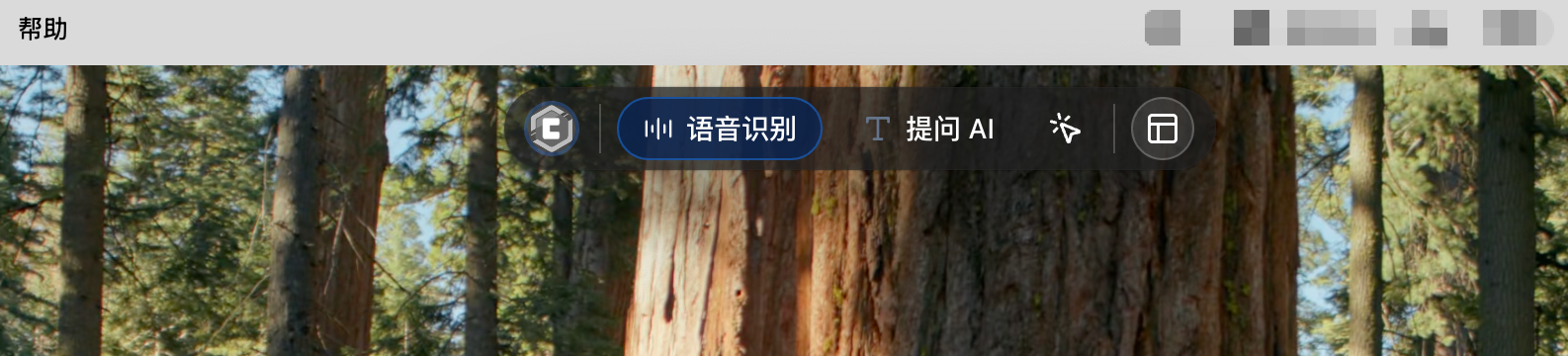
After launching the CueMate desktop application, you can see the control window floating directly above the screen. The button functions of the control window from left to right are:
- "Visit CueMate website" icon: click to open the CueMate official website
- "Voice Recognition" button: Click to start the voice recognition function and open the voice function window
- "Ask AI" button: Click to open the AI question window, quickly ask AI questions and get answers
- "Interactive mode" icon: Switch the click penetration mode of the window (interactive mode can operate the window normally, clicks in penetration mode will penetrate to the underlying application)
- "Main application window" icon: Click to open the main application window and enter the background management interface
- "Show/Hide" icon: Click to hide or show the control bar and all other windows
1.2 Enter Interview Review Page
Steps:
- Click the "Main Application Window" icon on the floating control bar to open the main application window.
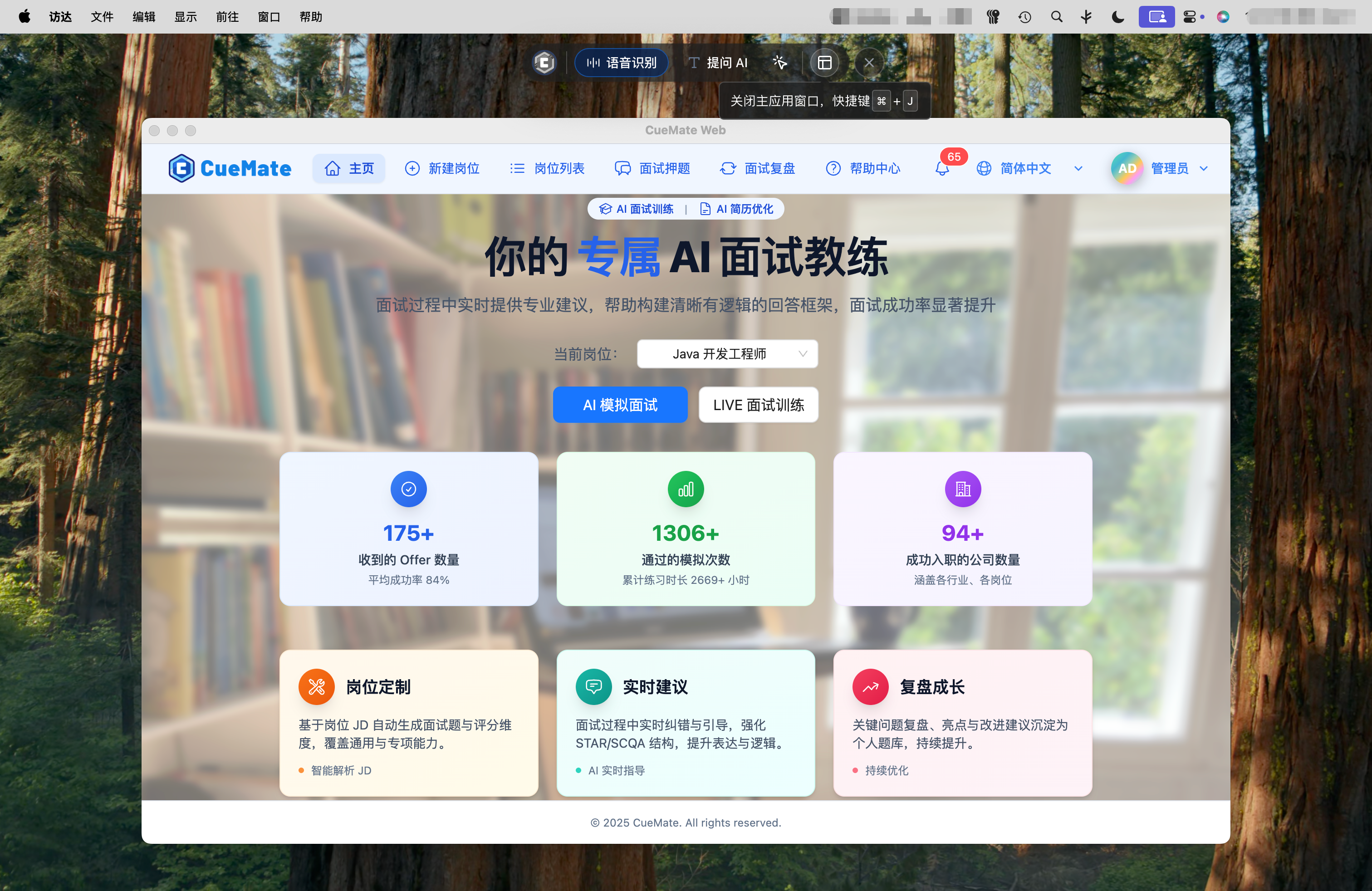
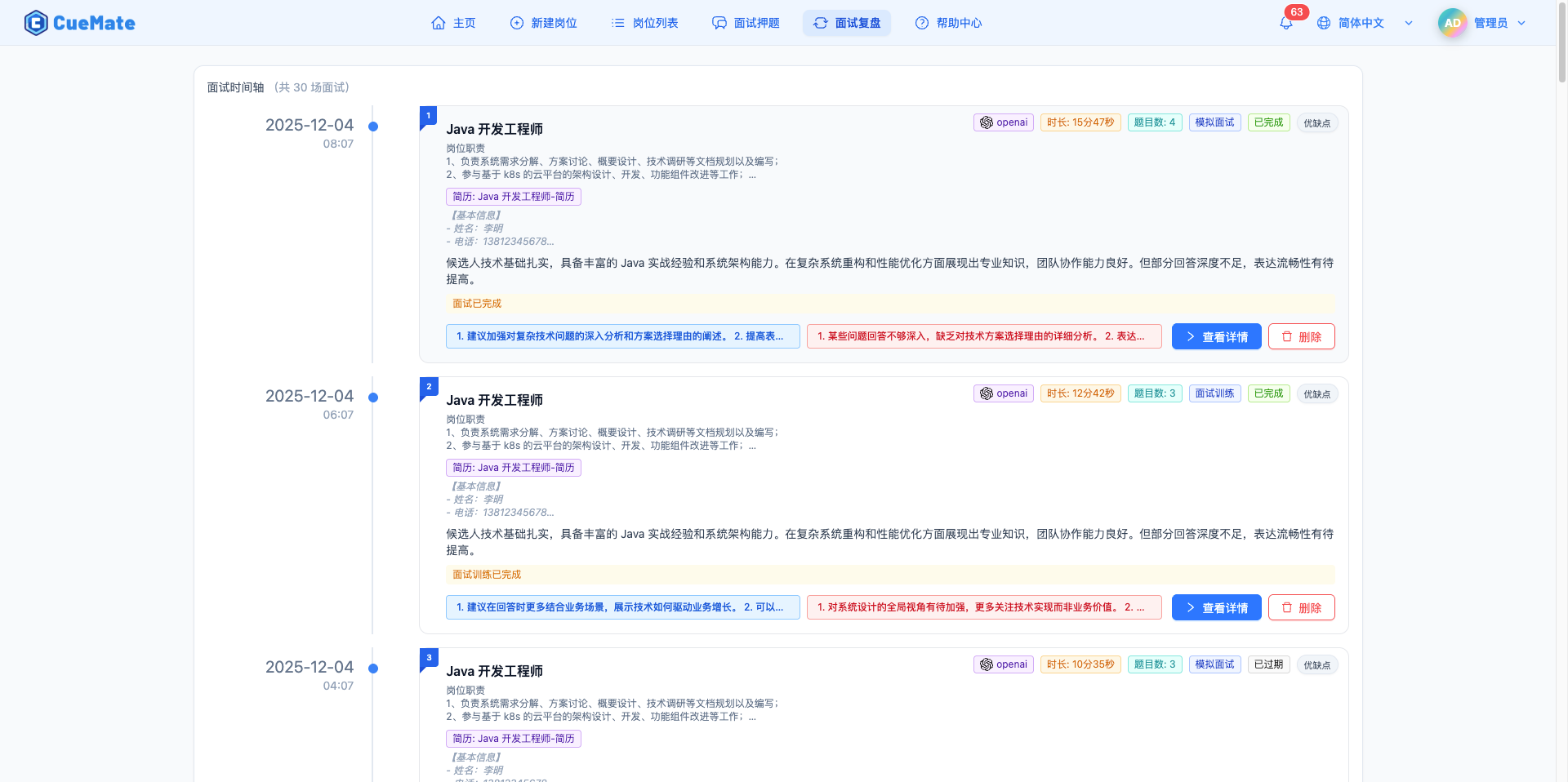
- Click "Interview Review" in the top menu to enter the interview review page.
2. Interview Timeline
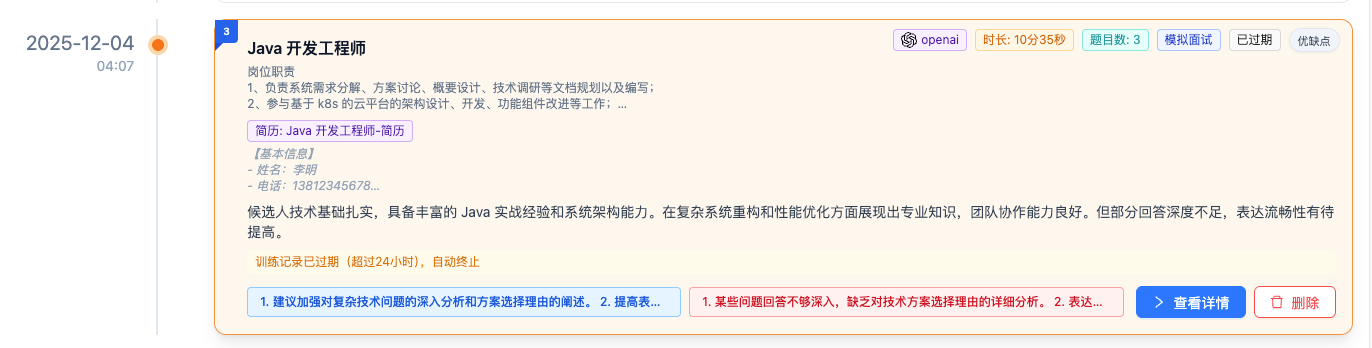
The Interview Review home page displays all historical interview records in timeline format, sorted by time in descending order with the most recent interview at the top.
2.1 Timeline Layout
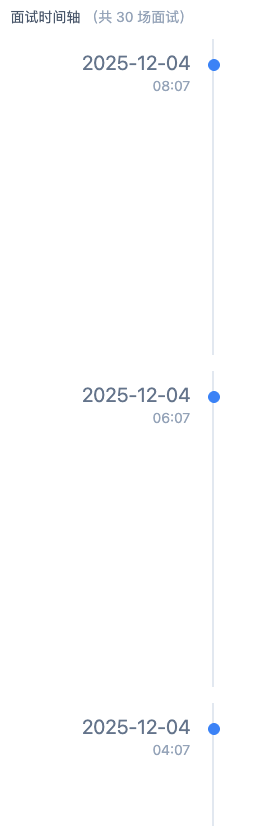
The page uses a left-right column layout:
Left Time Column:
- Displays interview date (YYYY-MM-DD format)
- Displays specific time (HH:mm format)
- Blue dot marks timeline nodes
- Vertical line connects all interview records
Right Content Column:
- Interview cards with complete interview information
- Each card has a number badge in the top left corner
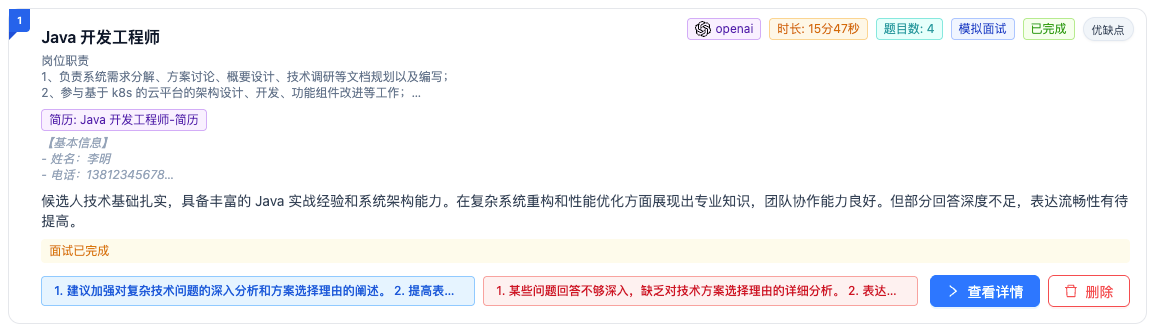
2.2 Interview Card Details
Each interview card contains rich information:
Top Left Number:
- Blue badge shows interview number
- Numbers increment in chronological order
Top Right Tag Area:
| Tag | Description | Example |
|---|---|---|
| AI Model | LLM used in this interview | GPT-5, Claude-4.5-Sonnet |
| Interview Duration | Duration of interview | 15 min 30 sec |
| Question Count | Number of questions in this interview | Questions: 8 |
| Interview Type | Mock Interview or Interview Training | Mock Interview |
| Response Mode | Auto mode (submit on silence) or Manual mode (click button to submit) | Auto, Manual |
| Status | Current interview status | Completed, In Progress, Paused |
| Pros/Cons Count | Badge showing number of pros/cons items | Pros/Cons 12 |
Card Main Content:
- Position Name: Bold display, e.g., "Senior Frontend Engineer"
- Position Description: Click to expand/collapse, max 3 lines displayed
- Resume Used: Purple tag shows resume name
- Resume Content: Click to expand/collapse, italic display
- Overall Summary: AI-generated interview evaluation, max 2 lines
Bottom Information Bar:
- Pros Preview: Blue tag, truncated display of main strengths
- Cons Preview: Red tag, truncated display of main weaknesses
2.3 Expand Position Information
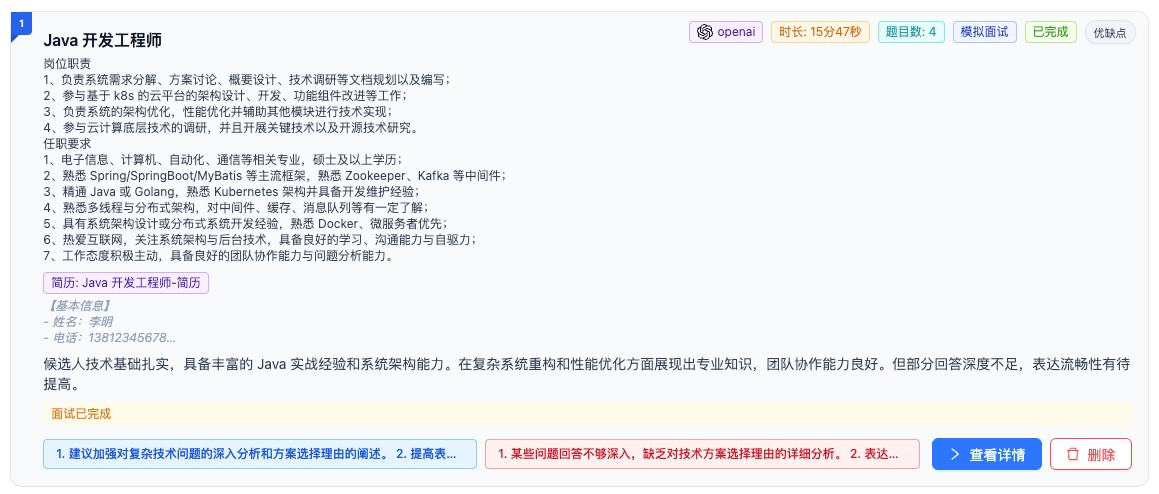
Click the position description area to expand and view the complete job description:
- Click to Expand: Click the position description text area
- View Full Content: Shows complete position requirements and responsibilities
- Click to Collapse: Click again to collapse content
TIP
Quick Review: By expanding position information, you can quickly review the position requirements at the time and compare with your performance.
2.4 Expand Resume Information
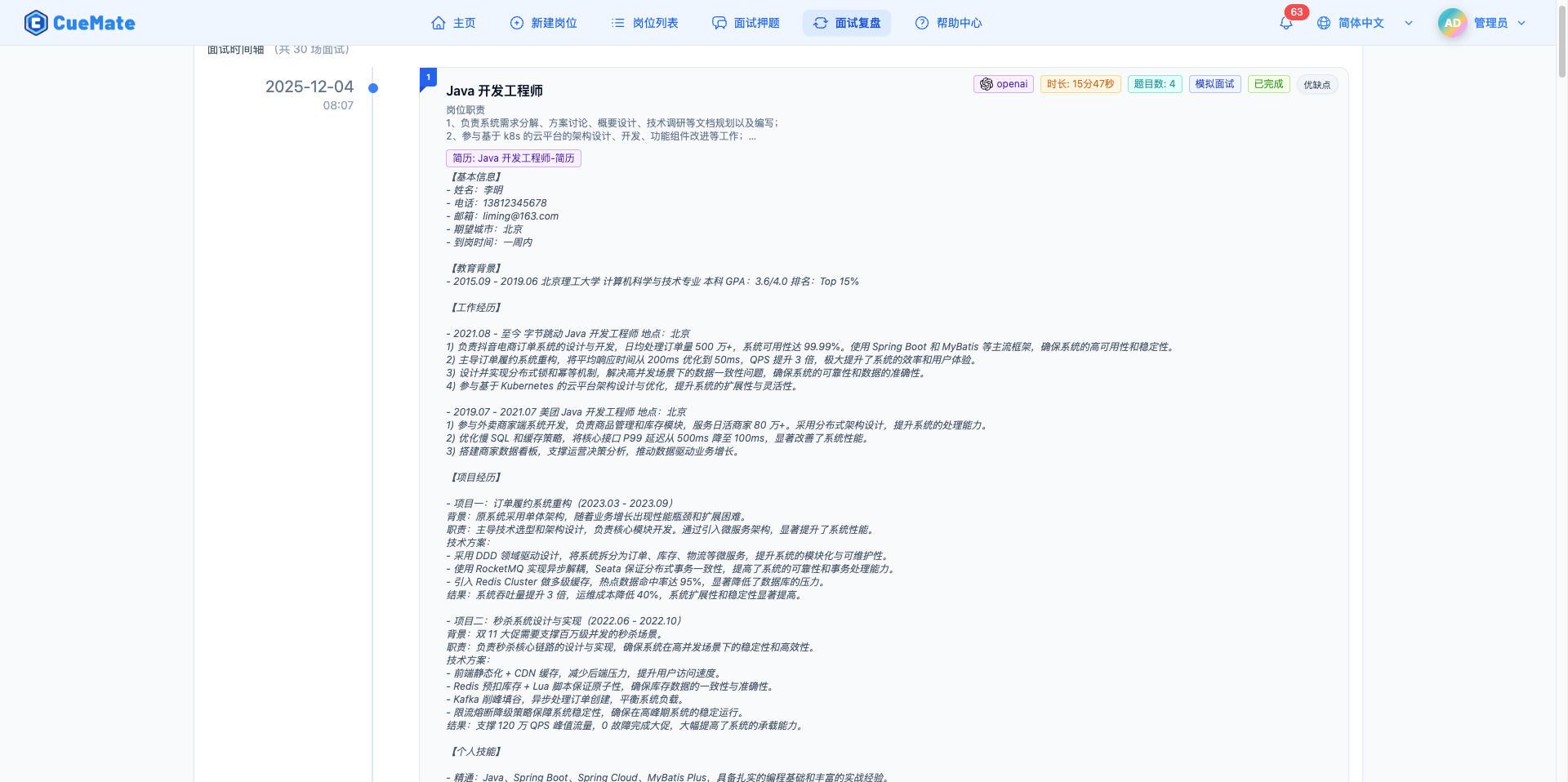
Click the resume tag to expand and view the complete resume content used at the time:
Steps:
- Find the purple resume tag in the interview card (e.g., "Resume: John Doe.docx")
- Click the tag to expand resume content
- Click again to collapse
Content Displayed After Expansion:
| Section | Example Content |
|---|---|
| Basic Info | Name, Phone, Email, Desired City, Availability |
| Education | School, Major, Degree, GPA, Ranking |
| Work Experience | Company, Position, Job Content, Achievements |
| Project Experience | Project Name, Responsibilities, Tech Stack, Results |
TIP
Review with Resume: Expanding the resume allows you to compare with your resume content at the time, checking if your answers are consistent with the resume to avoid inconsistencies during interviews.
2.5 Action Buttons
Each interview card has two action buttons at the bottom right:
View Details Button:
- Click to enter interview details page
- View complete review report
- Includes scoring, radar chart, question-by-question analysis, etc.
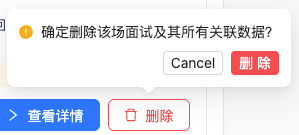
Delete Button:
- Click to open confirmation dialog
- Permanently deletes interview record after confirmation
WARNING
Deletion Impact:
- Permanently deletes interview record
- Deletes all Q&A records
- Deletes scoring and analysis data
- Deletes interviewer insights data
- Deletion is irreversible!
2.6 Navigate from Notification Center
When clicking "View Interview Report" button in the notification center, it automatically navigates to the interview review page and highlights the corresponding interview record:
- Selected interview card has orange border
- Page auto-scrolls to the record position
- Convenient for quickly locating just-completed interviews
3. Interview Details
Click the "View Details" button to enter the interview details page, which contains four tabs showing different dimensions of analysis.
3.1 Interview Summary
The first tab "Interview Summary" shows overall performance in this interview.
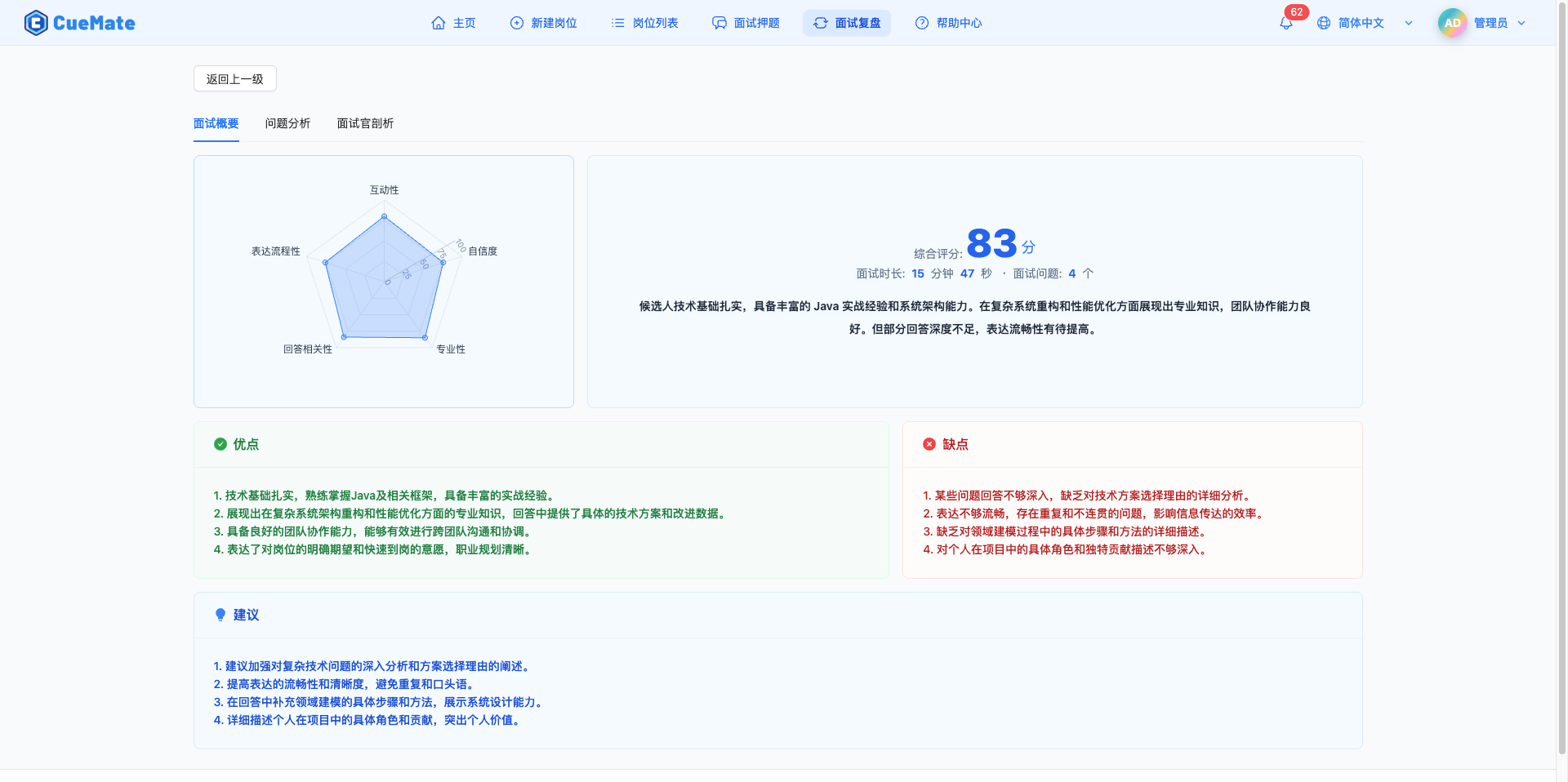
Radar Chart:
The left card displays a five-dimension capability radar chart, visually showing scores for each ability:
| Dimension | Description |
|---|---|
| Interactivity | Quality of interaction with interviewer, including follow-ups, feedback, etc. |
| Confidence | Level of confidence when answering, tone, attitude, etc. |
| Professionalism | Mastery of professional knowledge, technical depth, etc. |
| Relevance | How well answers match the questions, whether off-topic, etc. |
| Fluency | Fluency of expression, logical coherence, etc. |
Each dimension has a maximum score of 100. The radar chart clearly shows the relative level of each ability.
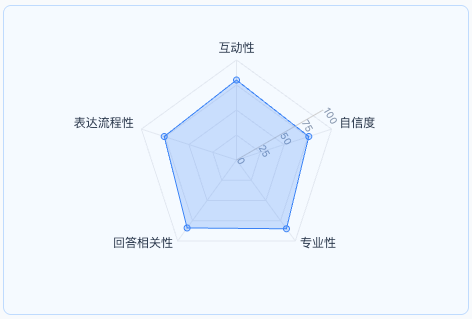
Core Data:
The right card displays core data:
- Overall Score: 0-100, prominently displayed in large font
- Interview Duration: X hours X minutes X seconds
- Question Count: Total number of questions in this interview
- Overall Summary: AI's comprehensive evaluation of this interview
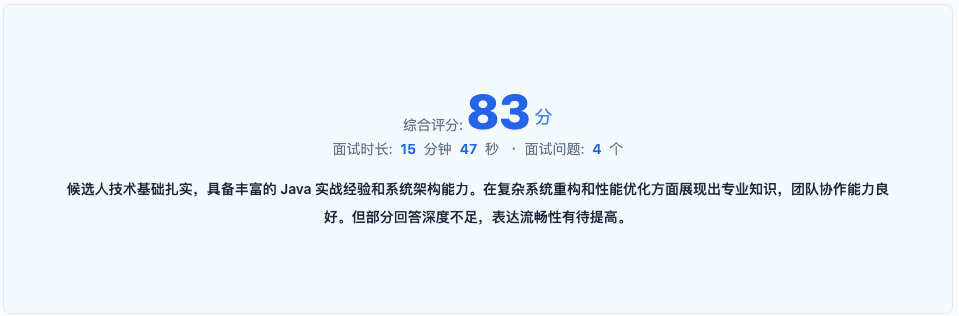
Pros and Cons Analysis:
Cards below show strengths and weaknesses:
Pros Card (Green):
- Green border and background
- Lists aspects where performance was good
- E.g., "Clear answer structure", "Accurate technical details", etc.
Cons Card (Red):
- Red border and background
- Lists areas needing improvement
- E.g., "Project experience not specific enough", "Lack of quantitative data", etc.

Improvement Suggestions:
Blue card at the bottom shows specific improvement suggestions from AI to help you improve targeted areas.

3.2 Question Analysis
The second tab "Question Analysis" shows detailed analysis for each interview question.
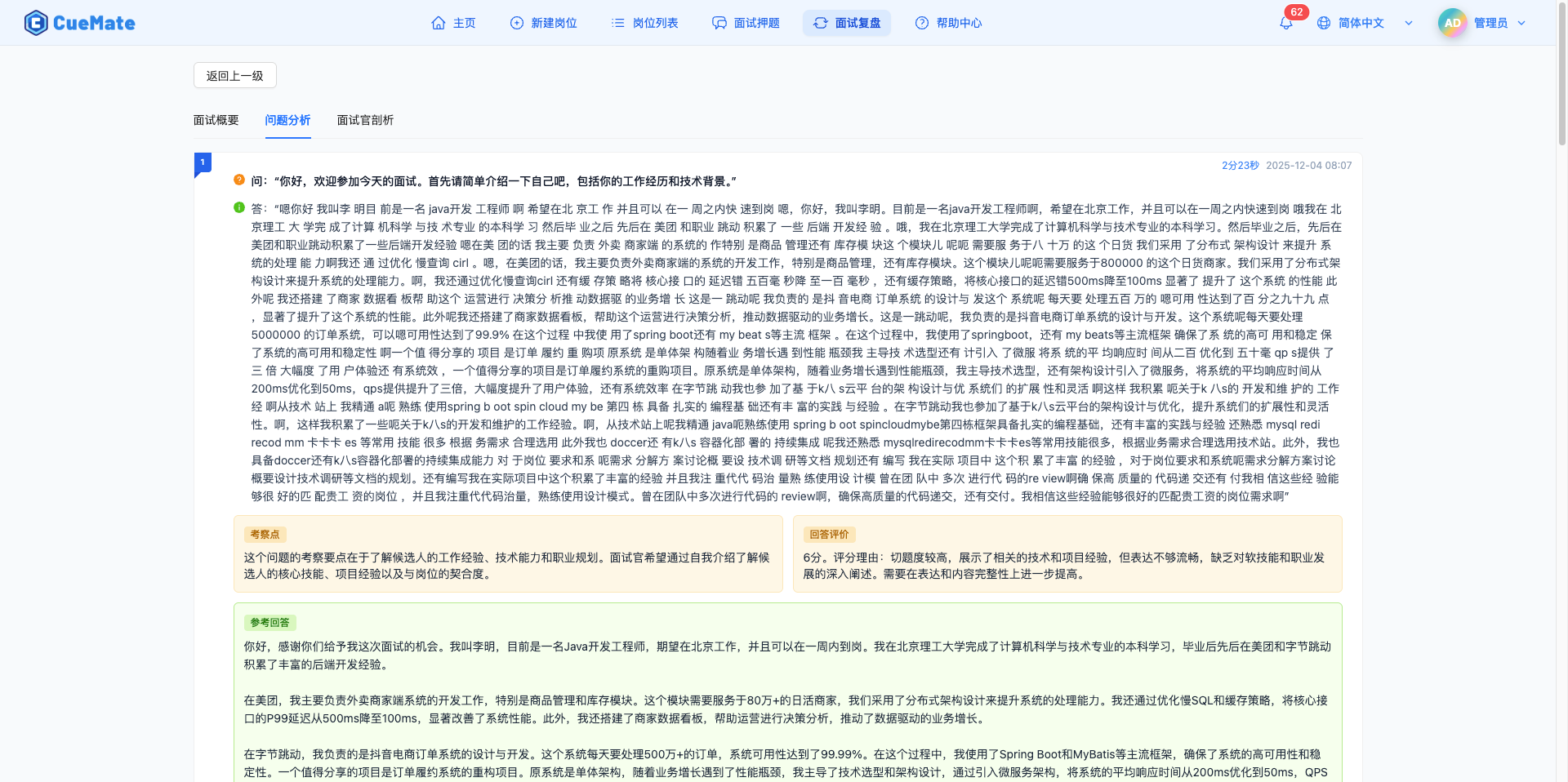
Each Question Contains:
Q&A Content:
- Q (Orange icon): Interviewer's original question
- A (Green icon): Your actual answer
Key Points and Evaluation (Yellow card):
- Key Points: Knowledge points and abilities this question mainly tests
- Answer Evaluation: AI's comprehensive evaluation of your answer
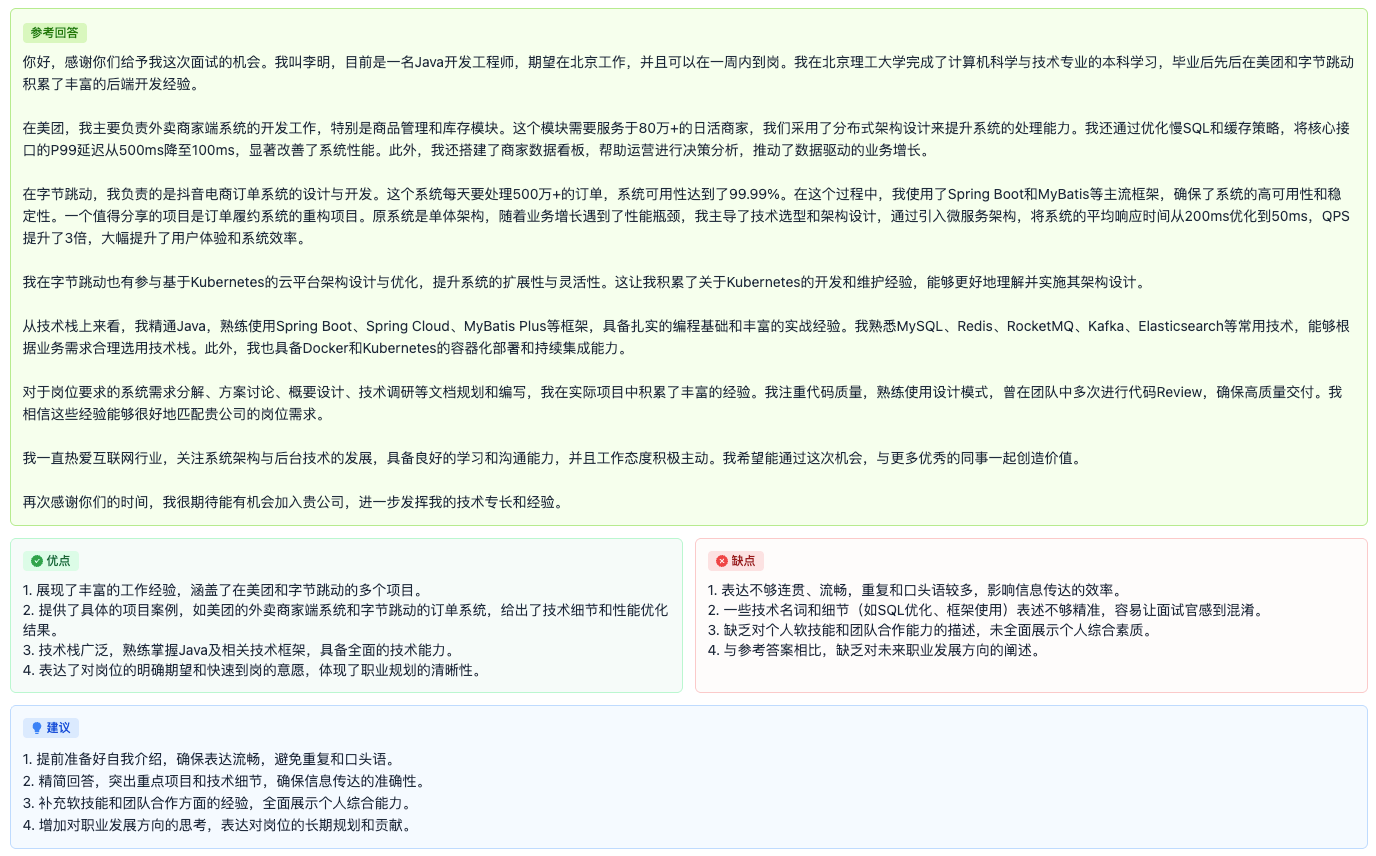
Reference Answer (Green card):
- AI-generated standard reference answer
- Contains key points and structure for answering
Pros and Cons Analysis:
- Pros (Green card): Highlights in the answer
- Cons (Red card): Weaknesses in the answer
Improvement Suggestions (Blue card):
- Specific improvement suggestions for this question
TIP
Review Tips:
- Compare your answers with reference answers to find gaps
- Focus on cons and suggestions, note areas for improvement
- Practice similar questions multiple times to verify improvement
3.3 Interviewer Insights
The third tab "Interviewer Insights" uses AI to analyze characteristics of both interviewer and candidate based on the interview conversation.
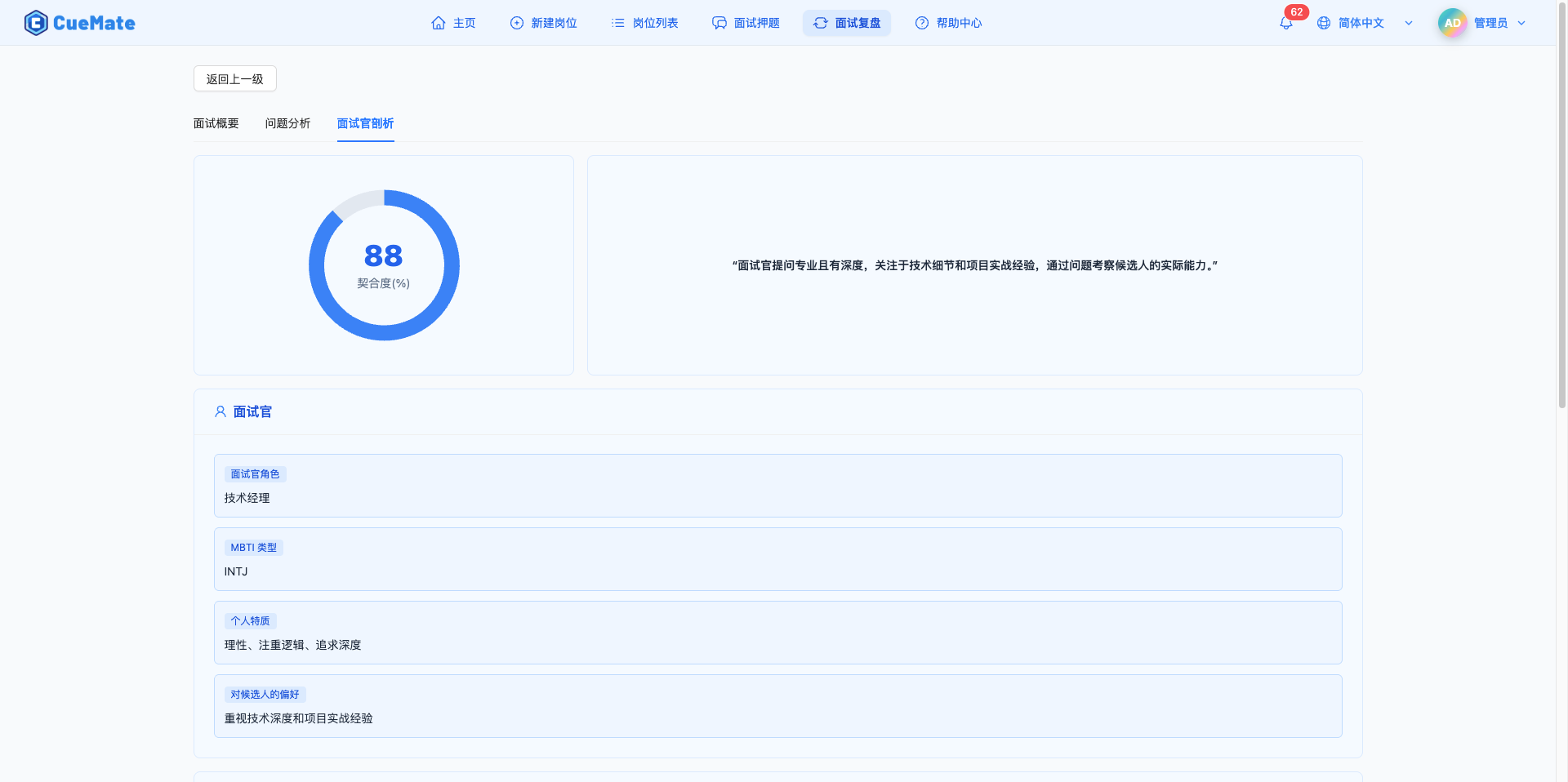
Compatibility Assessment:
Left ring chart shows your compatibility with this interviewer:
- Percentage display (0-100%)
- Large font prominently displayed in center
- Compatibility comment shown on the right

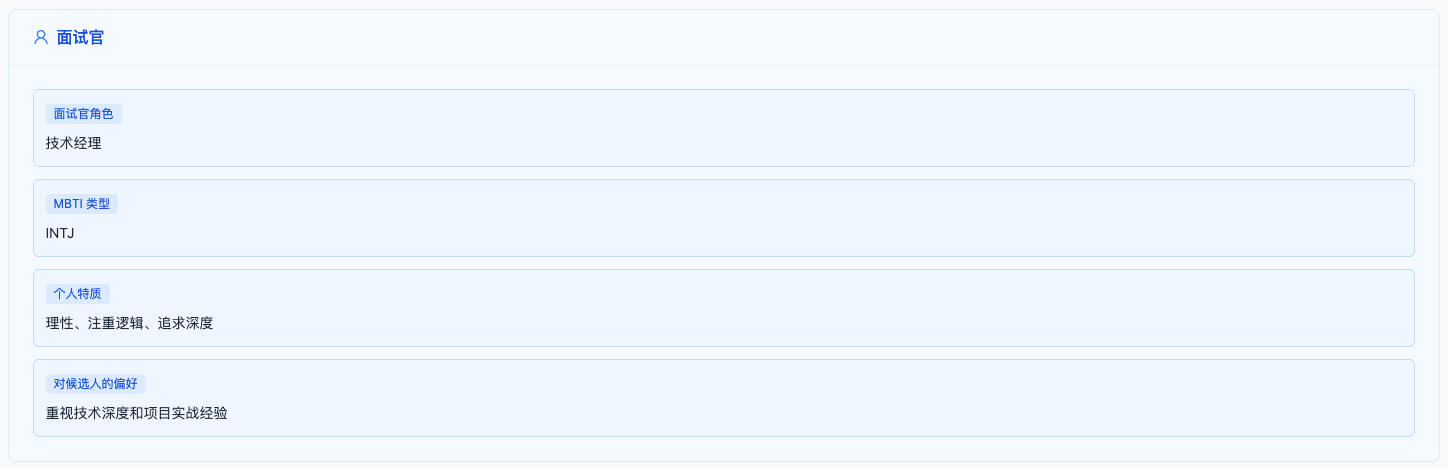
Interviewer Analysis (Blue card):
| Analysis Item | Description |
|---|---|
| Interviewer Role | Technical interviewer, HR, Department head, etc. |
| MBTI Type | Inferred personality type, e.g., INTJ, ENFP, etc. |
| Personal Traits | Interviewer characteristics, e.g., "Detail-oriented", "Values logic" |
| Candidate Preferences | Traits the interviewer values, e.g., "Solid technical skills", "Strong communication" |
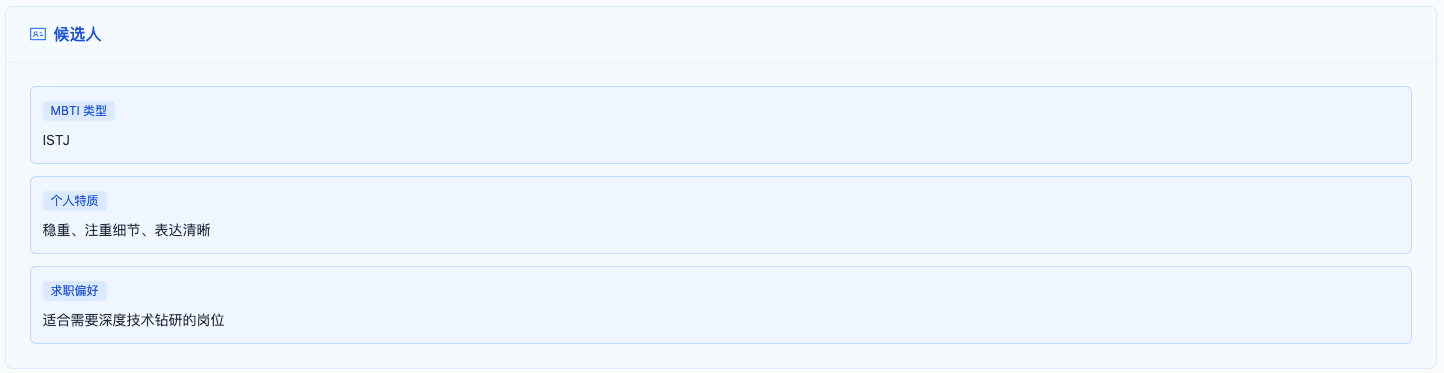
Candidate Analysis (Blue card):
| Analysis Item | Description |
|---|---|
| MBTI Type | Inferred personality type |
| Personal Traits | Characteristics you displayed during the interview |
| Job Preferences | Inferred job preferences, e.g., "Pursuing technical challenges", "Values team atmosphere" |
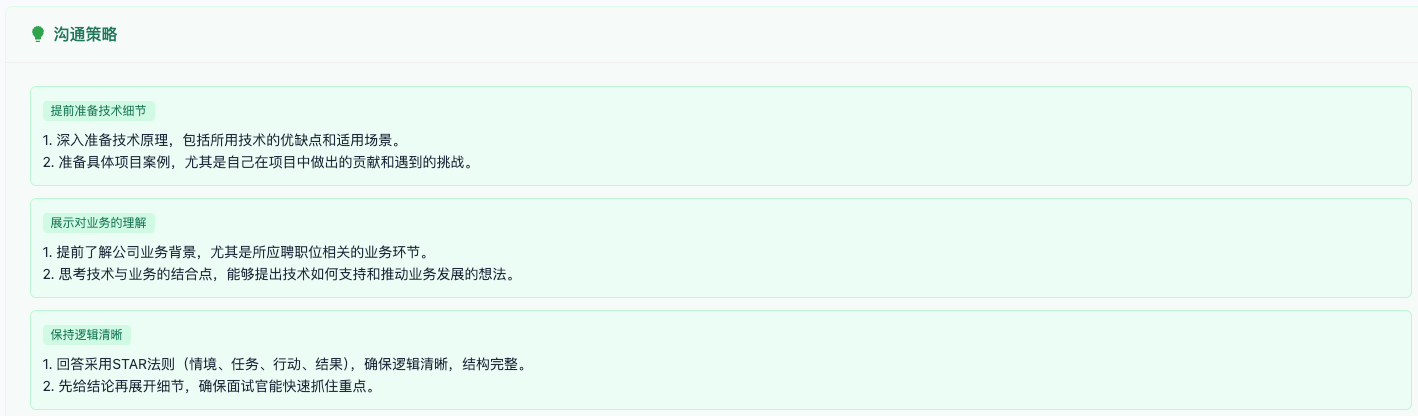
Communication Strategy (Green card):
AI-provided communication strategy suggestions for this type of interviewer:
- Prepare technical details: How to prepare for technical questions
- Show business understanding: How to demonstrate business understanding ability
- Maintain logical clarity: How to maintain clear expression
NOTE
Value of Interviewer Insights:
- Understand preferences of different interviewer types
- Adjust communication strategy to improve compatibility
- Accumulate interview experience, improve adaptability
- Prepare specifically for future interviews
3.4 Timing Analysis
The fourth tab "Timing Analysis" displays time consumption for each stage of the interview, helping you understand the interview rhythm and time allocation.
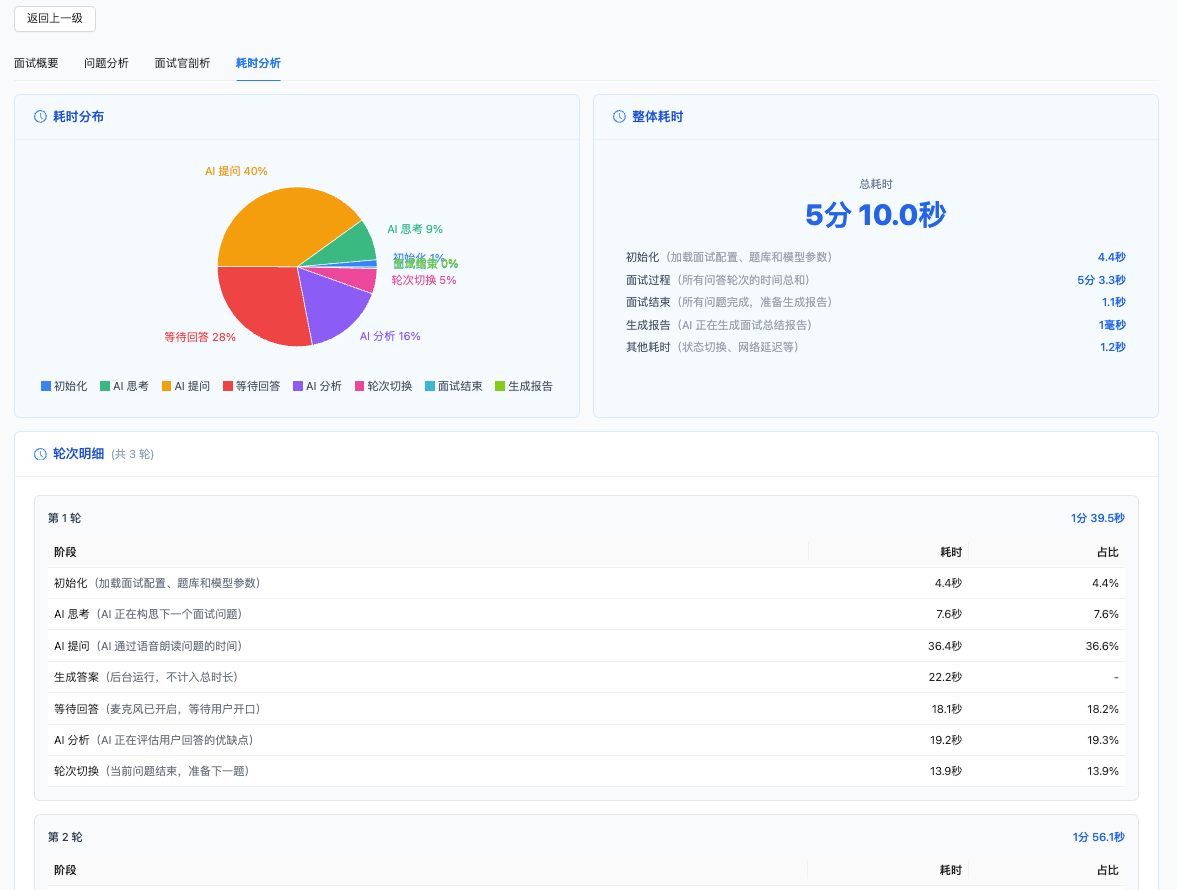
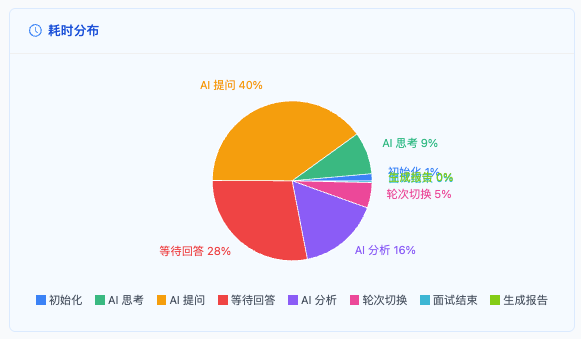
Time Distribution Pie Chart:
The left card shows a pie chart of time distribution by stage, visually displaying the proportion of time consumed. Mock Interview and Interview Training use the same stage definitions, but some stages may have no data depending on the mode.
| Stage | Mock Interview | Interview Training | Description |
|---|---|---|---|
| Initialization | ✓ | ✓ | System preparation phase at interview start |
| Listening to Interviewer | - | ✓ | Time for system to listen to real interviewer's question |
| AI Thinking | ✓ | - | Time for AI to generate interview questions |
| AI Asking | ✓ | - | Time for AI to voice the questions |
| Start Recording | ✓ | ✓ | Time waiting for user to begin answering |
| User Answering | ✓ | ✓ | Time for user's voice response |
| AI Analysis | ✓ | ✓ | Time for AI to analyze user's answer |
| Round Transition | ✓ | ✓ | Transition time to next Q&A round |
| Interview End | ✓ | ✓ | Wrap-up phase at interview end |
| Generate Report | ✓ | ✓ | Time for AI to generate interview report |
NOTE
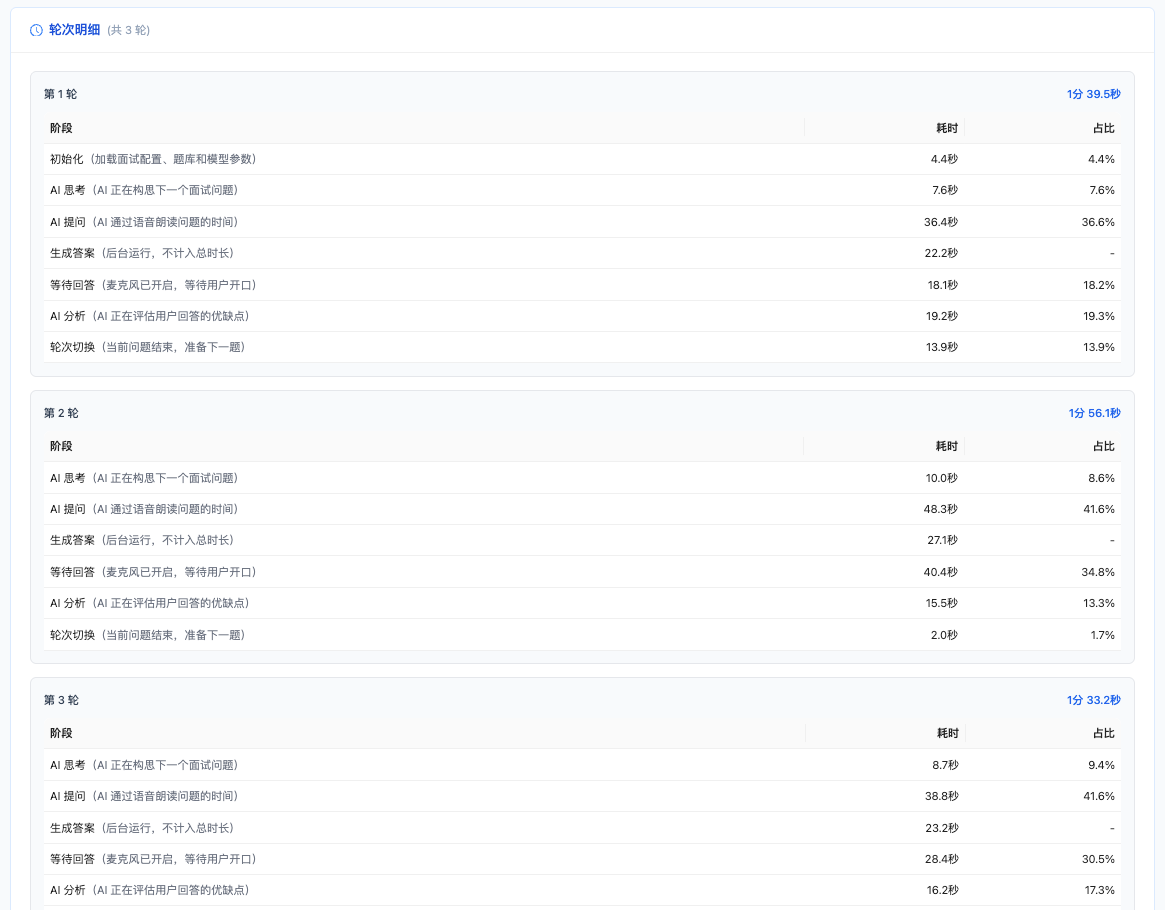
Background Task Note: The "Generate Answer" stage is a background task that runs in parallel with other stages and is not counted in the total duration. Therefore, it does not appear in the pie chart and is only shown separately in the round details table.
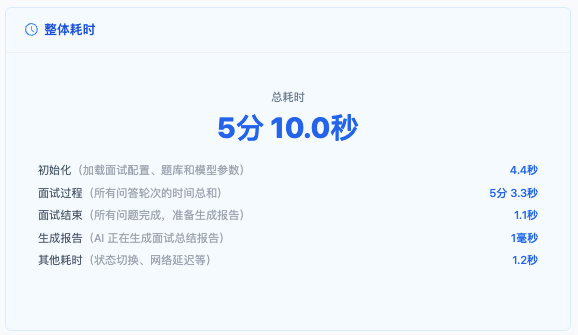
Overall Duration:
The right card displays overall timing statistics:
- Total Duration: Large font showing total interview duration
- Stage Details: Shows duration for overall stages including interview process, interview end, and report generation
Round Details:
The bottom card shows detailed timing for each Q&A round, with total rounds displayed next to the title (e.g., "3 rounds total"):
| Column | Description |
|---|---|
| Stage | Names of stages included in this round |
| Duration | Time consumed by this stage |
| Percentage | Percentage of this stage's duration relative to total round duration |
Each Q&A round displays:
- Round Title: e.g., "Round 1", "Round 2"
- Round Total Duration: Total time consumed for this round
- Stage Details: Table showing duration and percentage for each stage
Error Messages:
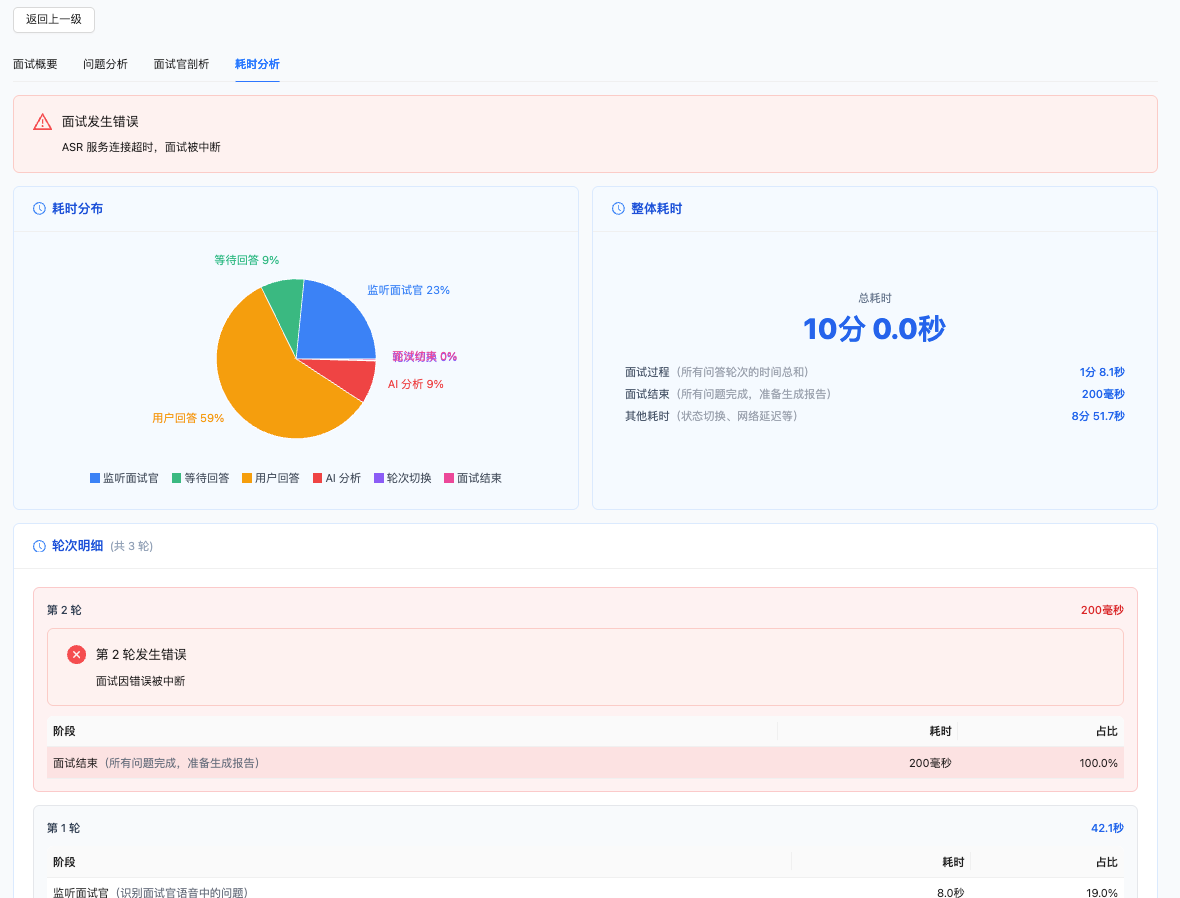
If an error occurs or the interview is interrupted:
- Overall Error: A red warning box appears at the top of the page, showing the reason for interview interruption
- Round Error: Rounds with errors are highlighted with red background, showing specific error messages within that round (e.g., "ASR service connection timeout")
- Error Row Highlight: Specific stages where errors occurred are marked with red background in the table
TIP
Value of Timing Analysis:
- Understand interview rhythm: Check if time allocation across stages is reasonable
- Identify bottlenecks: If a stage takes too long, optimization may be needed
- Compare improvements: After multiple interviews, compare timing changes to verify improvement effects
- System diagnostics: If "Round Transition" or "Interview End" exceeds 1 second, there may be system performance issues
- Error troubleshooting: Quickly locate causes of interview interruption through error messages
4. Notes
4.1 Data Source
IMPORTANT
Interview Review Data Source:
- Interview review data comes from Mock Interview and Interview Training
- Only completed or partially completed interviews appear on the review page
- Data during interview process is saved in real-time, viewable even if exited midway
4.2 Scoring Notes
NOTE
Scoring Dimension Notes:
- Overall Score: Weighted average based on five dimensions
- Radar Chart Dimensions: Each dimension 0-100, based on AI analysis of answers
- Scores are for reference only: AI scoring is an auxiliary tool, not representative of actual interview results
4.3 Deletion Notes
WARNING
Before Deleting Interview Records:
- Deletion is irreversible
- Recommend exporting important data first (if needed)
- Deletion also removes all associated Q&A records and analysis data
5. Best Practices
5.1 Regular Review
Review Timing:
- Review immediately after each interview: View report while memory is fresh
- Compare AI evaluation with self-perception: Find cognitive gaps
- Focus on cons and suggestions: These are key to improvement
Review Method:
- First look at overall score and radar chart to understand macro performance
- Review question analysis one by one, find poorly answered questions
- Compare with reference answers to understand where gaps exist
- Note improvement points, practice targeted questions in question bank
5.2 Continuous Improvement
Improvement Cycle:
Interview -> Review -> Identify Issues -> Targeted Practice -> Interview Again -> Verify ImprovementSpecific Steps:
- Find poorly answered question types in question analysis
- Add similar questions in Interview Questions
- Practice repeatedly until proficient
- Verify improvement in next interview
- Review again, continue optimizing
5.3 Analyze Interviewers
How to Use Interviewer Insights:
- Understand characteristics of different interviewer types
- Adjust communication strategy based on interviewer type
- Prepare to handle different interviewer styles
- Improve interview adaptability
5.4 Radar Chart Analysis
How to Interpret Radar Chart:
- Balanced Type: Small differences between dimensions, stable overall performance
- Unbalanced Type: Some dimensions outstanding, others weak, need to address shortcomings
- Improvement Trend: Compare radar charts across multiple interviews to observe ability improvement
Targeted Improvement:
| Weak Dimension | Improvement Method |
|---|---|
| Interactivity | Practice follow-up and counter-question techniques |
| Confidence | Practice more, familiarize with common questions |
| Professionalism | Deep study of technical knowledge |
| Relevance | Practice understanding questions, ensure answers are on-topic |
| Fluency | Use STAR method to organize answers |
6. FAQ
6.1 No Data on Review Page
Issue: Interview review page shows "No records"
Solutions:
- Confirm you've completed at least one Mock Interview or Interview Training
- Check if interview ended normally (not force quit)
- Refresh page to reload data
- Check if Web API service is running normally
6.2 Inaccurate Scoring
Issue: AI scoring differs significantly from self-perception
Solutions:
- AI scoring is for reference only, not an absolute standard
- Check if answer was fully recognized (voice recognition issues)
- Ensure answer content is complete, including key points
- Scoring is based on text analysis, may ignore tone, attitude, etc.
6.3 Missing Interviewer Insights
Issue: Interviewer Insights tab shows "No insights"
Solutions:
- Interviewer insights require sufficient conversation content to generate
- Ensure you answered multiple questions during the interview
- Check if interview ended normally
- Some brief interviews may not generate insights
6.4 Cannot Delete Interview Record
Issue: Clicking delete button has no response
Solutions:
- Check if network connection is normal
- Refresh page and retry
- Check if Web API service is running normally
- Check browser console for error messages
Related Pages
- Mock Interview - Conduct AI mock interviews
- Interview Training - Real-time assistance for live interviews
- Interview Questions - Prepare interview questions
- AI Conversation Records - View conversation history
- Create Position - Create interview positions