
Model Settings
Model Settings is used to configure and manage all Large Language Models (LLMs), supporting both public cloud models (OpenAI, Claude, DeepSeek) and privately deployed models (Ollama, vLLM, Xinference). Through the unified configuration interface, you can add multiple models, manage credentials, test connection status, and configure model parameters.
1. Page Layout
1.1 Enter Model Settings Page
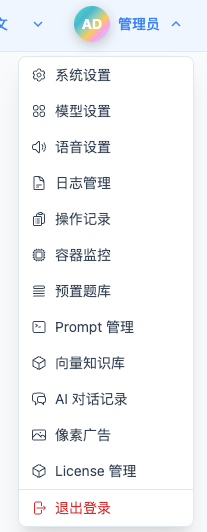
Click "Model Settings" in the top dropdown menu to enter the model management page.
1.2 Layout Structure
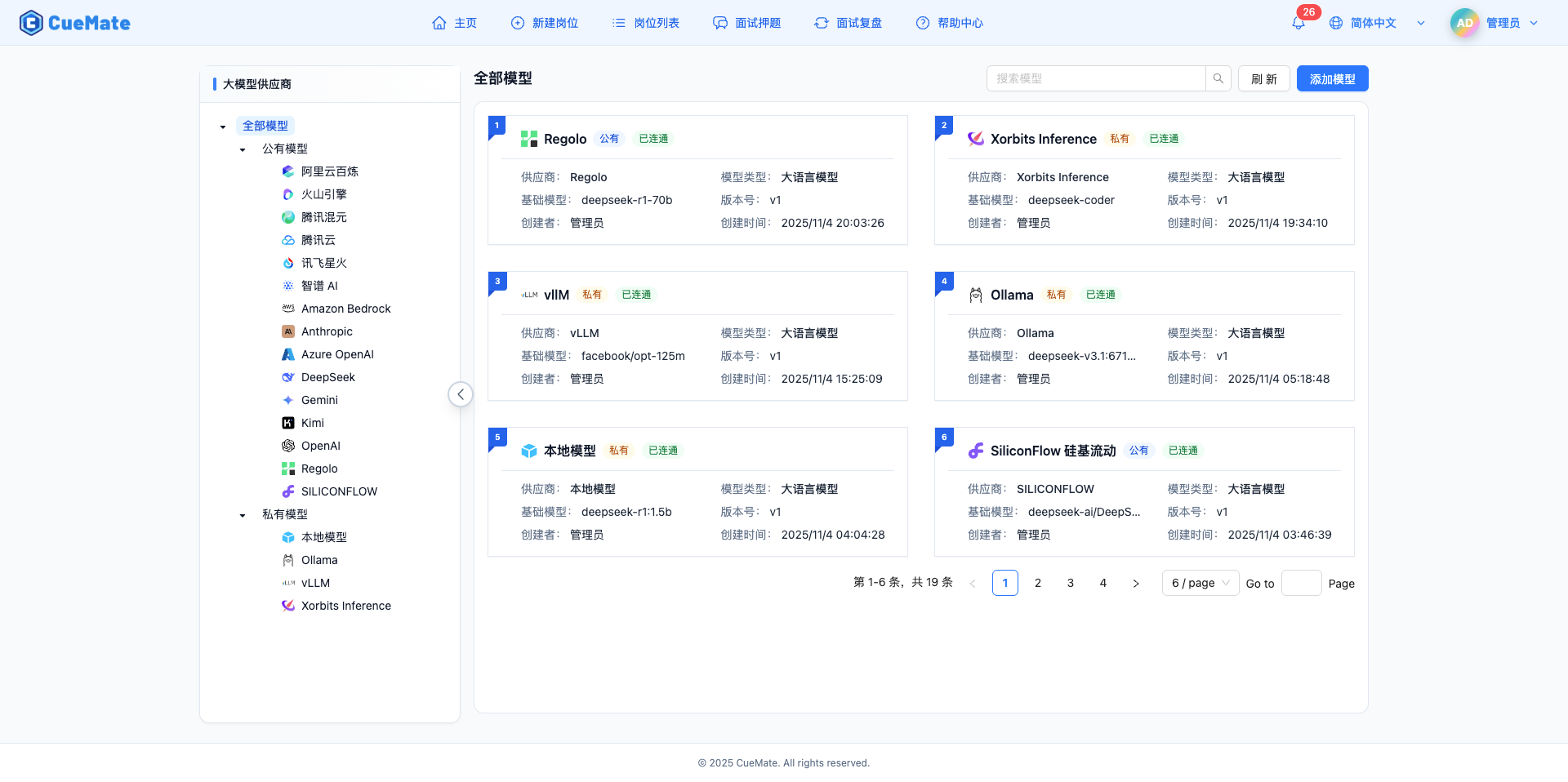
The page uses a left-right split design:
Left Navigation Area
- Tree structure displaying provider categories
- Three-level classification: All Models, Public Models, Private Models
- Each provider has a brand icon
- Supports collapsing/expanding sidebar
Right Content Area
- Top: Title, search box, refresh and add buttons
- Main: Card-style model list, 2-column layout on desktop
- Bottom: Pagination navigation
Model Card Information
- Top left: Number, provider icon, and model name
- Public/Private tag, connection status tag (Connected/Unavailable)
- Provider, model type, base model, version, creator, creation time
- Hover to show action buttons: Test Connection, Edit, Delete
2. Browse Models
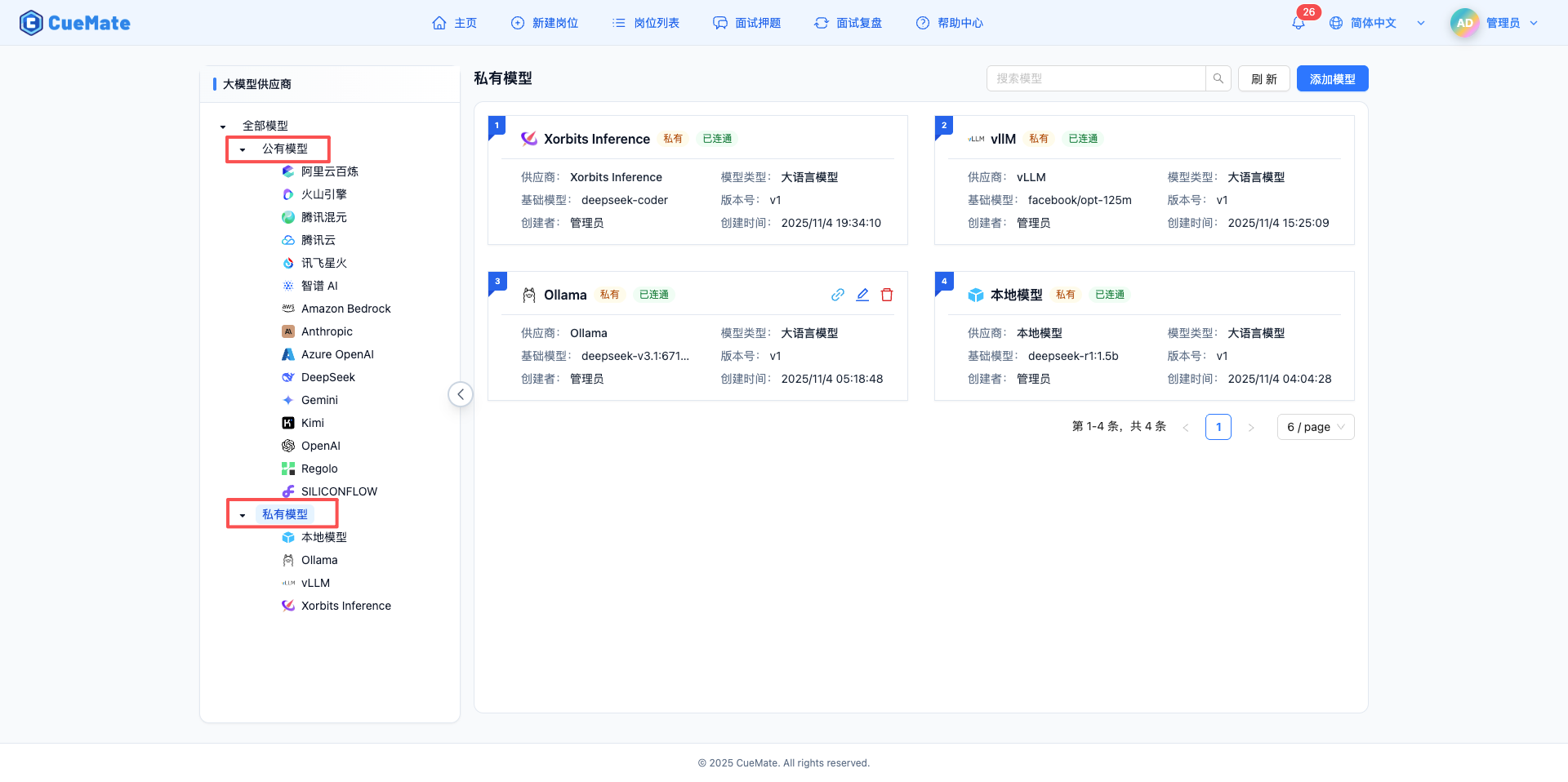
2.1 Filter Using Navigation Tree
The left navigation tree organizes models in a tree structure:
All Models
├── Public Models
│   ├── OpenAI
│   ├── Claude
│   ├── DeepSeek
│   └── ...
└── Private Models
    ├── Ollama
    ├── vLLM
    └── ...
Operation Methods
- Click "All Models" to show all models
- Click "Public Models" or "Private Models" to show models in that category
- Click a specific provider to show only that provider's models
- Selected node is highlighted
Public vs Private
- Public Models: Cloud services, data processed on provider's cloud (e.g., OpenAI, Claude)
- Private Models: Local deployment, data processed on your device (e.g., Ollama, vLLM)
2.2 View Model List
Models are displayed as cards on the right, each card contains:
- Number and provider icon
- Model name and type tag
- Connection status (green "Connected" / red "Unavailable")
- Detailed info (provider, base model, version, creator, time)
Responsive Layout
- Large screens: 2-column cards
- Small screens: 1-column cards
2.3 Search and Filter
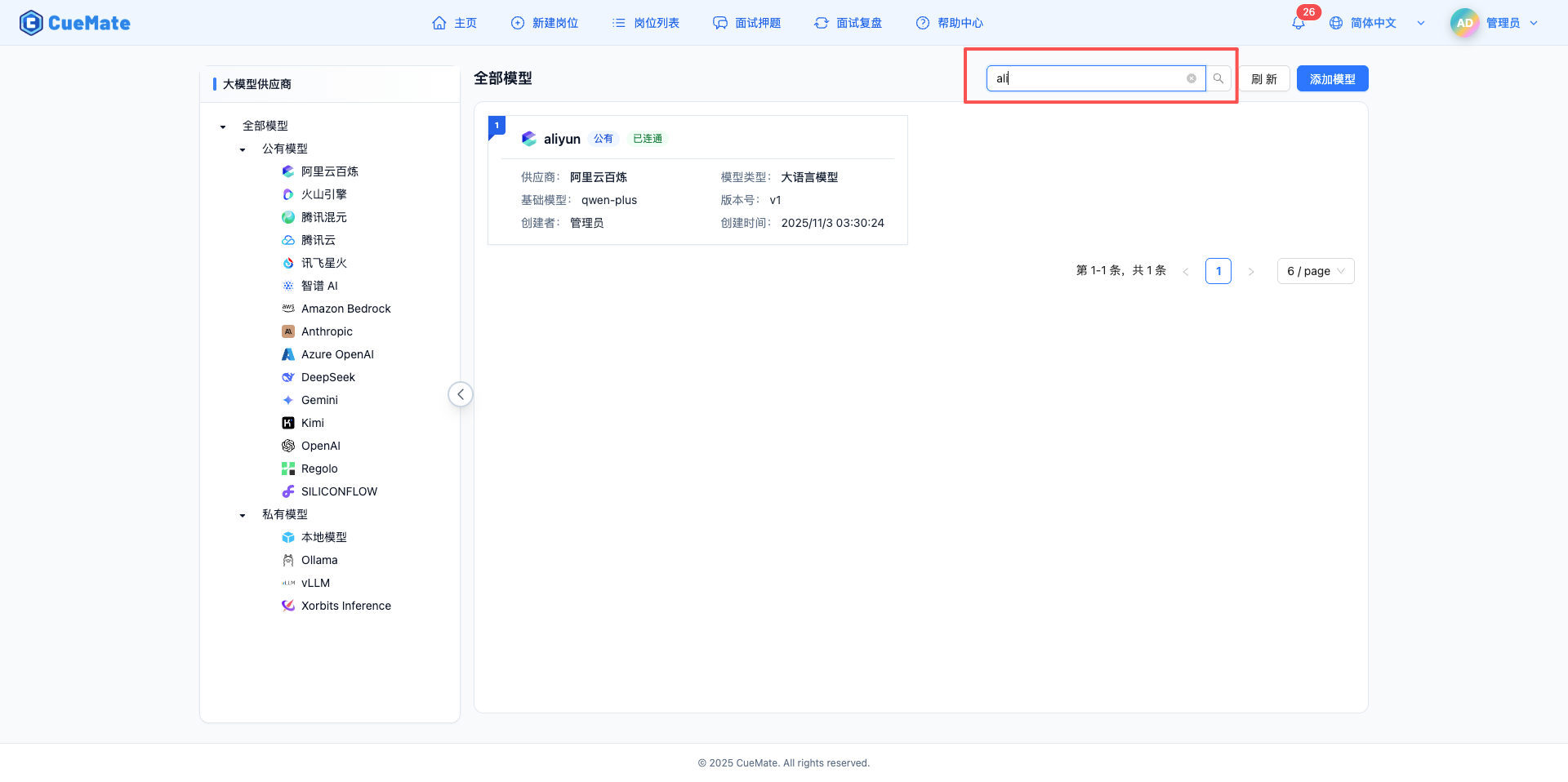
Search Function
- Location: Top right search box
- Search scope: Model name
- Supports real-time search and clear
Filter Combination
- Search and navigation filters can be used simultaneously
- Example: Select "Public Models" then search "GPT", only shows public models containing "GPT"
Refresh List
- Click "Refresh" button to get latest model status
- Auto refresh: Automatically refreshes after adding, editing, or deleting models
3. Add Model
3.1 Select Provider
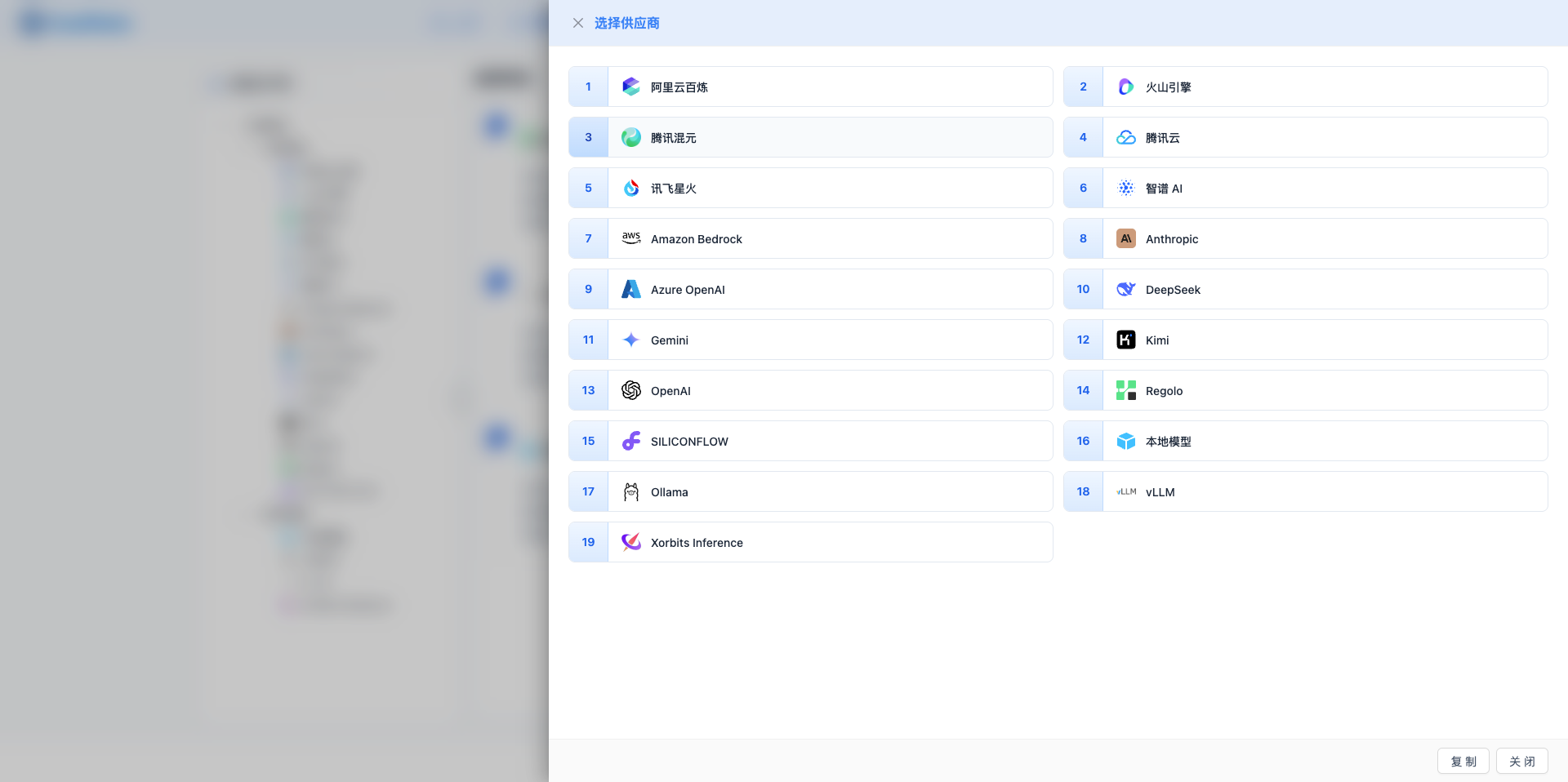
Click the "Add Model" button in the top right corner to open the provider selection drawer.
Provider Selection Drawer
- Width: 65% of page
- Card grid: 2-column layout
- Each card shows: Number, icon, provider name
- Filter logic:
- Select "Public Models" to show only public providers
- Select "Private Models" to show only private providers
- Select "All Models" to show all providers
Provider List Examples
Public Cloud Models (16):
- International mainstream: OpenAI, Anthropic (Claude), Google Gemini, DeepSeek
- Chinese major providers: Moonshot (Kimi), Zhipu AI, Tongyi Qianwen (Alibaba Cloud Bailian), Tencent Hunyuan, iFlytek Spark, Volcano Engine (Doubao), Baidu Qianfan, SenseTime SenseNova
- Emerging platforms: Baichuan AI, MiniMax, StepFun, SiliconFlow
Cloud Platform Model Services (3):
- Azure OpenAI, Amazon Bedrock, Tencent Cloud
Private Deployment Models (5):
- Ollama, vLLM, Xinference, Local Model, Regolo
3.2 Configure Basic Information
After selecting a provider, enter the configuration interface (second-level drawer).
Basic Information
- Model Name (Required)
- Maximum 64 characters
- Examples: GPT-4 Turbo, Claude 3 Sonnet, DeepSeek Chat
- Top right provides "View Configuration Guide" link, click to jump to the provider's configuration documentation
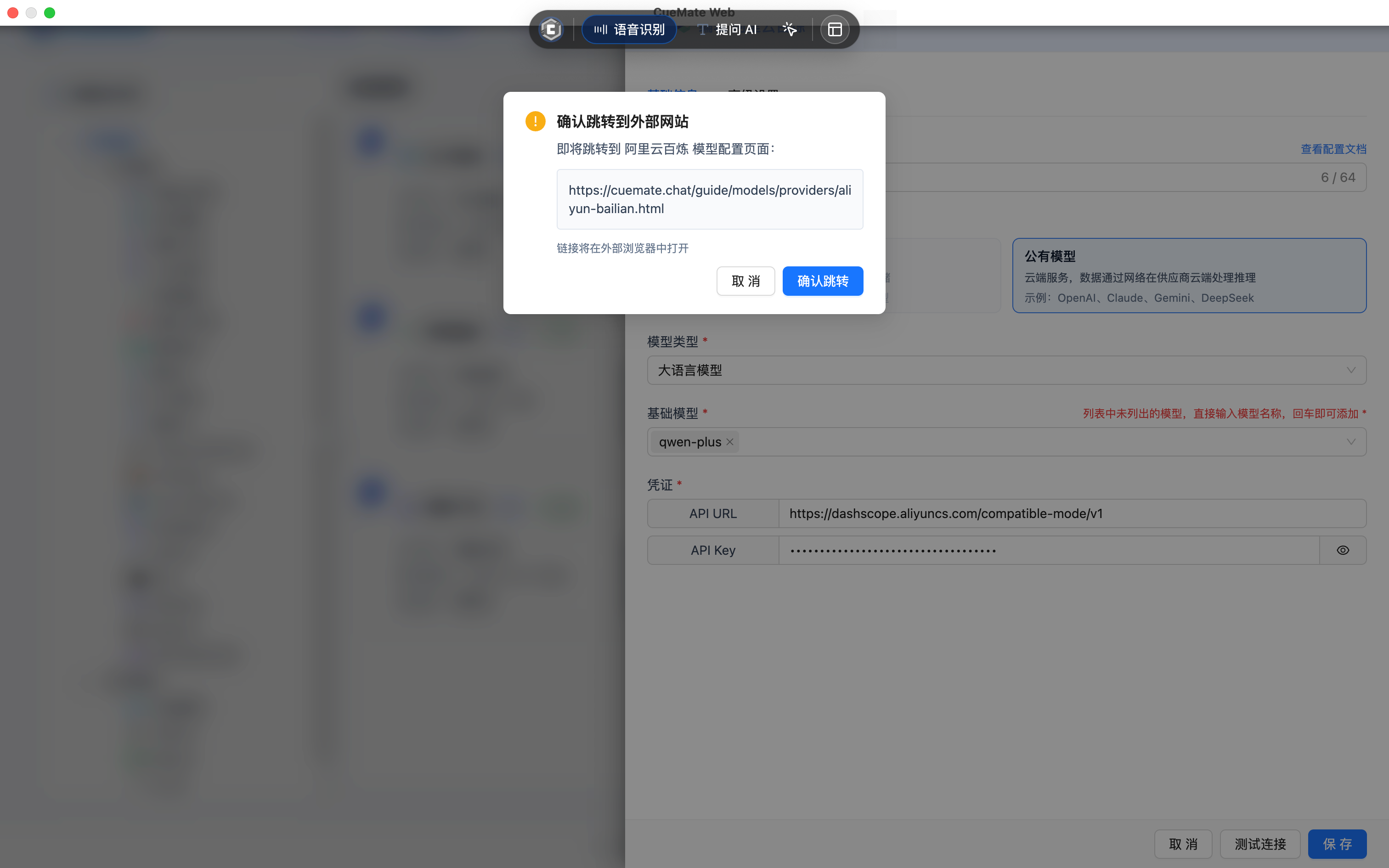
View Configuration Guide
At the top right of the model name input box, there's a "View Configuration Guide" link. Clicking will show a confirmation dialog, and after confirming, it will open the provider's configuration documentation in an external browser (client) or new tab (web).
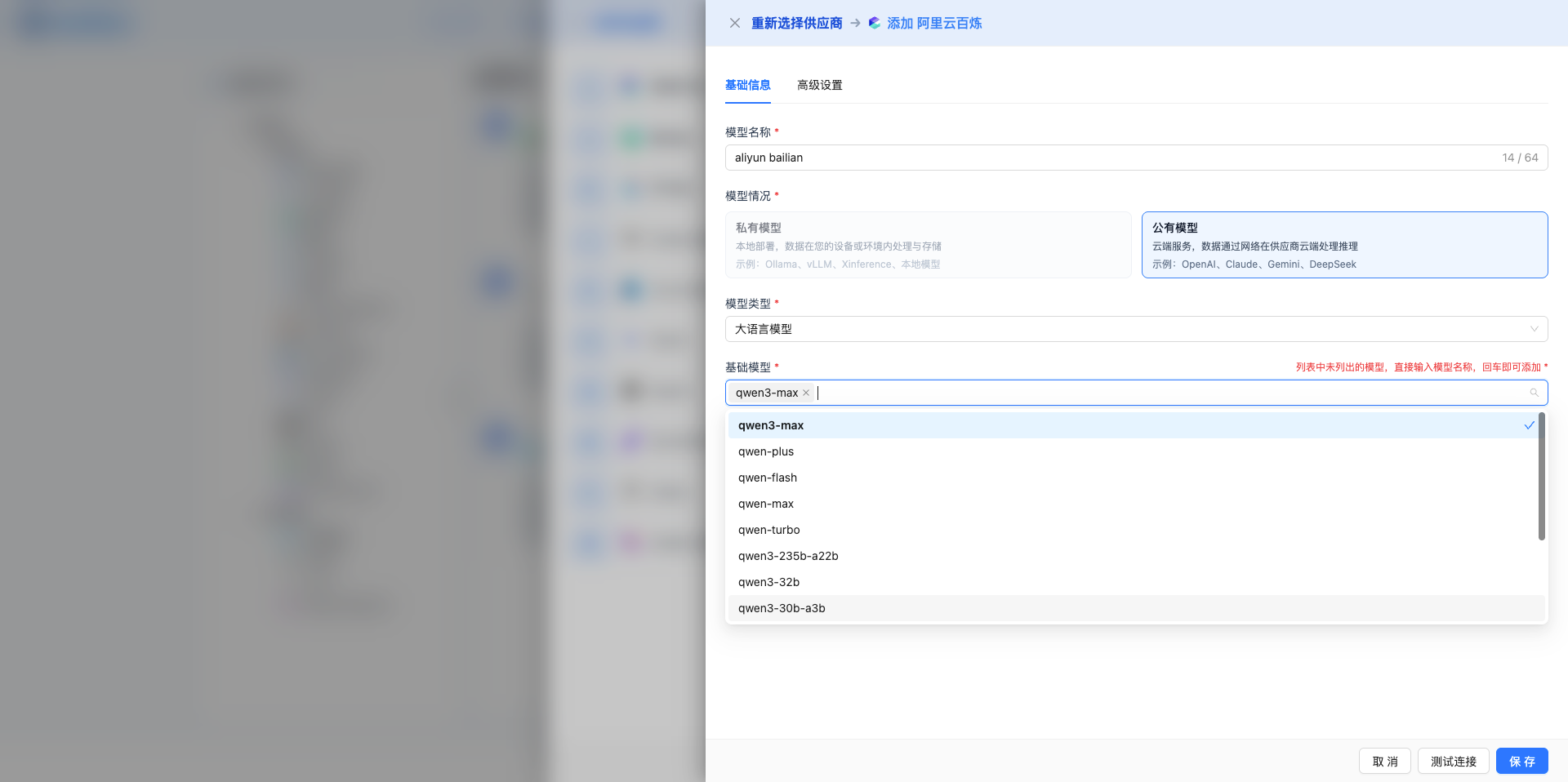
Model Situation (Auto-selected)
- Automatically selected based on provider type
- Private Model: Local deployment, data processed on your device or environment
- Public Model: Cloud service, data processed on provider's cloud
Model Type (Required)
- Current option: Large Language Model (llm)
Base Model (Required)
- Dropdown to select models supported by the provider
- Supports search and custom input
- Directly enter model name and press Enter to add
- Examples:
- OpenAI: gpt-5, gpt-5-mini, gpt-4.1, gpt-4o
- Claude: claude-sonnet-4-5, claude-haiku-4-5, claude-opus-4-1
- DeepSeek: deepseek-chat, deepseek-coder
3.3 Configure Credentials
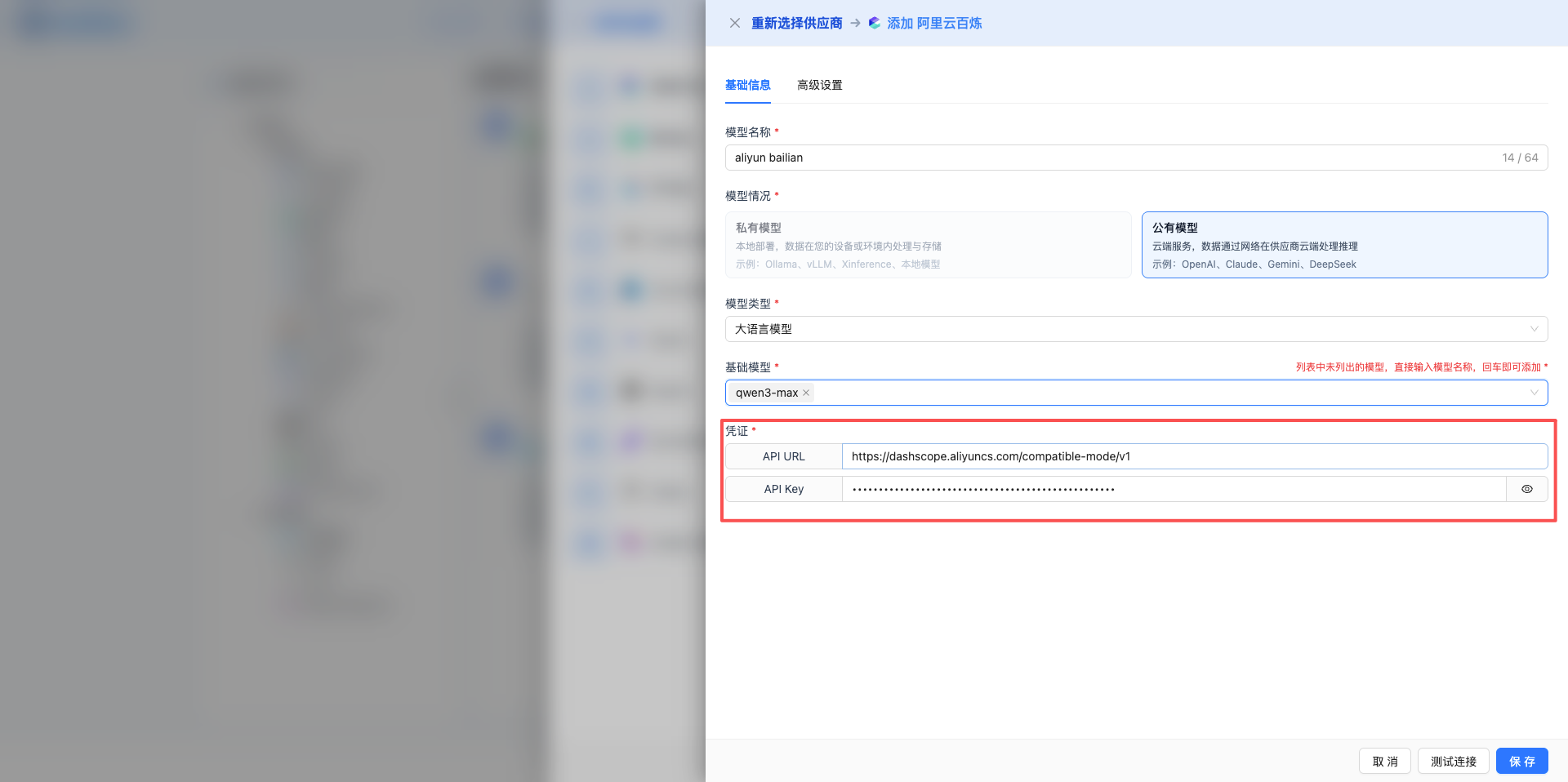
After selecting the base model, the credential configuration area is automatically displayed.
Common Credential Fields
API Key (Password type)
- Input box defaults to hidden display (• • • •)
- Click eye icon to toggle show/hide
- Placeholder: Shows format hint like "sk-xxx"
- Required field, shows red border if empty
Base URL (Text type, comes with default value, normally no modification needed)
- Used for private deployment or custom endpoints
- Examples:
- OpenAI: https://api.openai.com/v1
- Ollama: http://localhost:11434
- vLLM: http://localhost:8000
Other Fields
- Depending on provider, may include: Organization ID, Project ID, Access Token, Secret Key
- Each field has clear label and placeholder hints
3.4 Configure Advanced Parameters
Click the "Advanced Settings" tab to configure model runtime parameters (normally shows default values for the model, custom models have no defaults and need to be filled in).
Parameter Table
- Table columns: Display Name, Parameter, Component Type, Default Value, Required, Actions
- Top right "+ Add" button to add new parameters
- Each row has "Delete" button on the right to delete the parameter
Parameter Configuration Items
Display Name (label)
- Name shown in the interface
- Examples: Temperature, Max Tokens, Top P
Parameter (param_key)
- Actual parameter key passed to the model
- Examples: temperature, max_tokens, top_p, frequency_penalty
- Must match the model's API documentation
Component Type (ui_type)
- Options: Input box (input), Slider (slider), Switch (switch), Dropdown (select)
- Determines how the parameter is displayed in conversation settings
Default Value (value)
- Default value for the parameter
- Examples: temperature: 0.7, max_tokens: 2048
Required (required)
- Toggle control, on means required field
Common Parameter Examples
Display Name: Temperature
Parameter: temperature
Component Type: Slider
Default Value: 0.7
Required: Yes

Display Name: Max Tokens
Parameter: max_tokens
Component Type: Input
Default Value: 2048
Required: No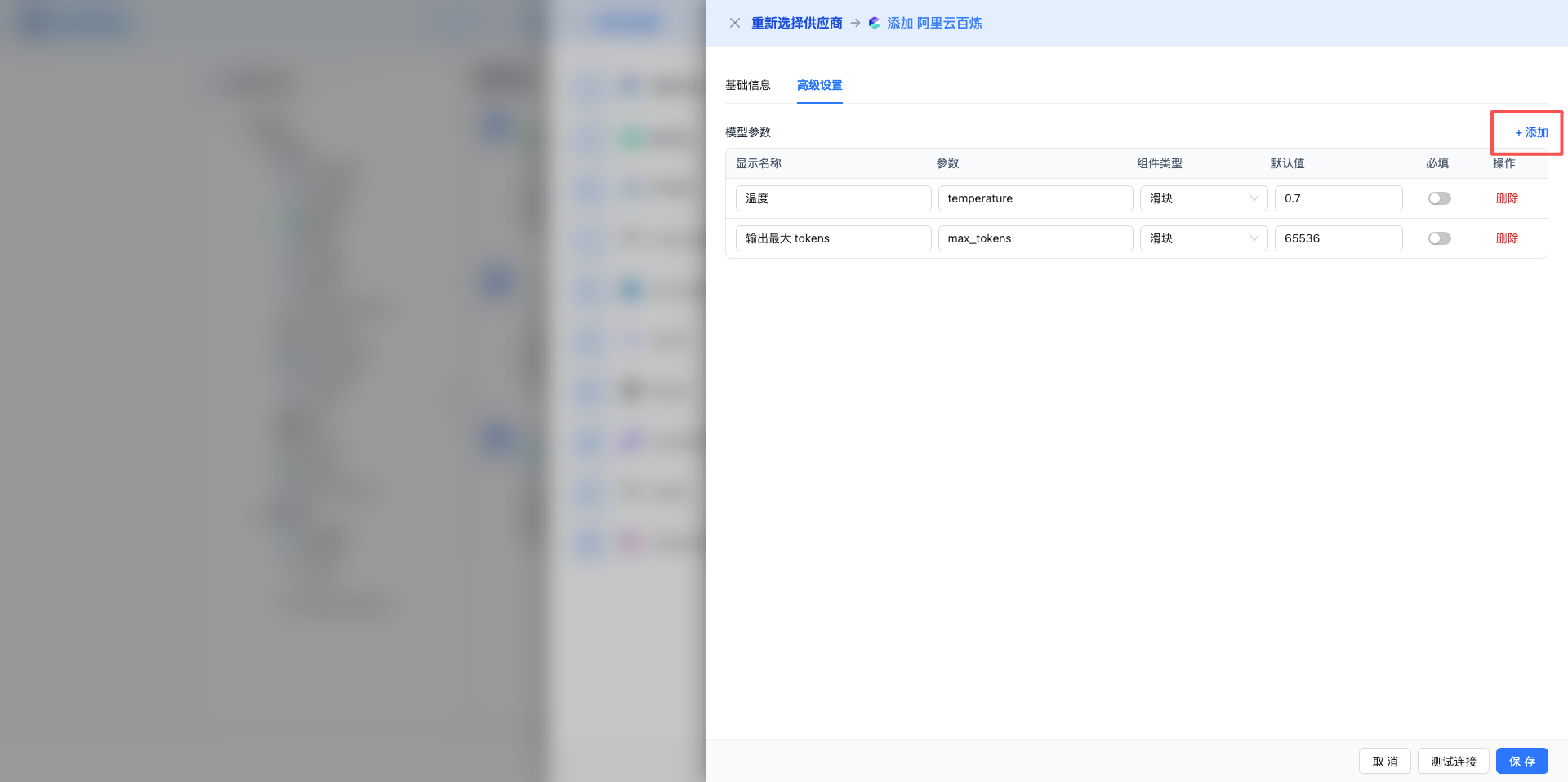
4. Test Connection
4.1 Test Unsaved Configuration
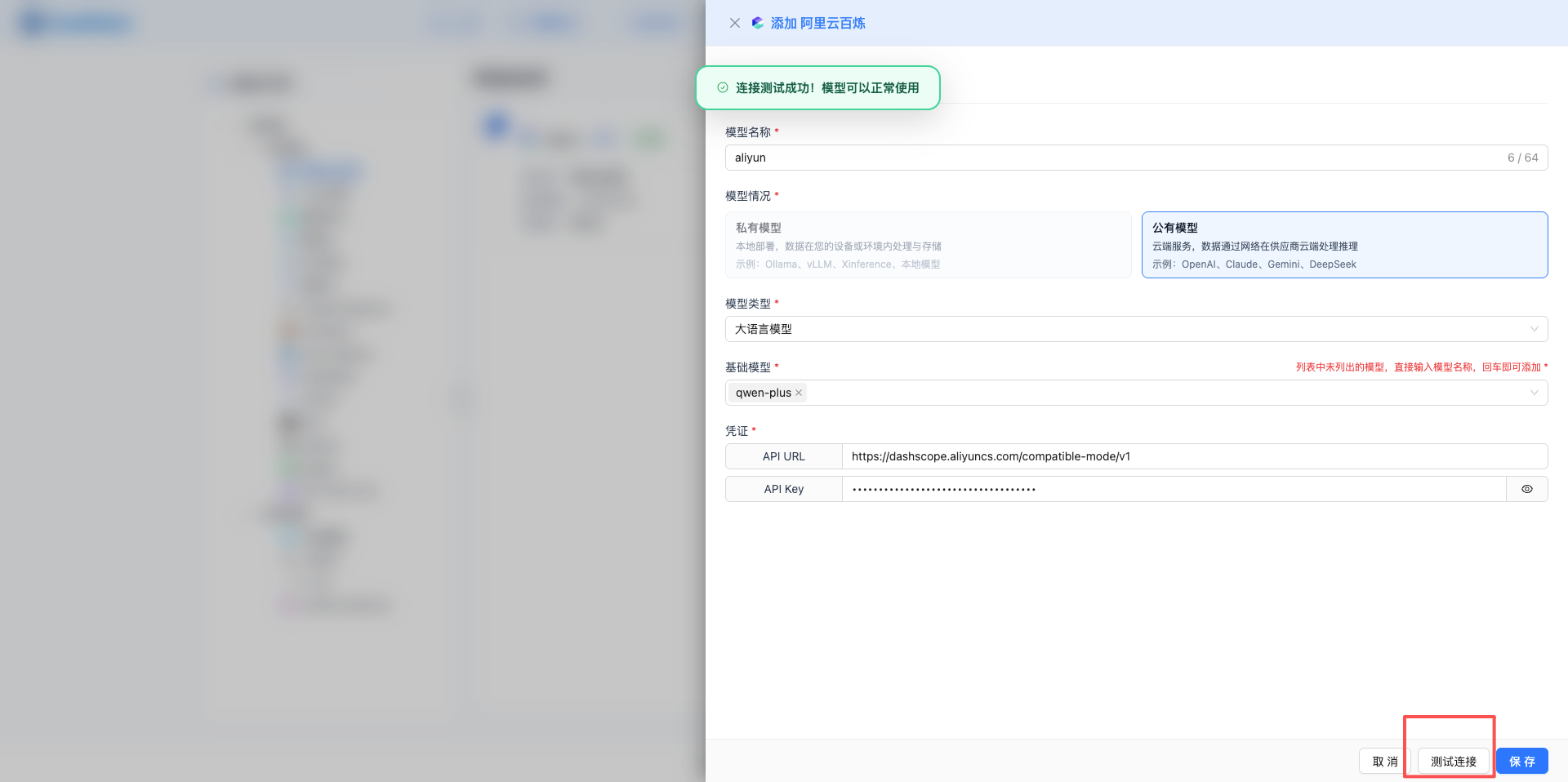
After configuring the model, it's recommended to test the connection before saving.
Test Button
- Located at drawer bottom, between "Cancel" and "Save" buttons
- Button text: "Test Connection" / "Testing..."
Pre-test Validation
- Check if provider and base model are selected
- Check if required credential fields are filled
- Shows warning if validation fails
Test Process
- Click "Test Connection" button
- Shows full-screen overlay: "Testing connectivity"
- Backend sends test request to verify configuration
- Test successful: Shows green success message
- Test failed: Shows red error message with specific reason
Test Significance
- Verify if API Key is valid
- Verify if Base URL is accessible
- Verify if model name is correct
- Avoid saving incorrect configuration
4.2 Test Saved Models
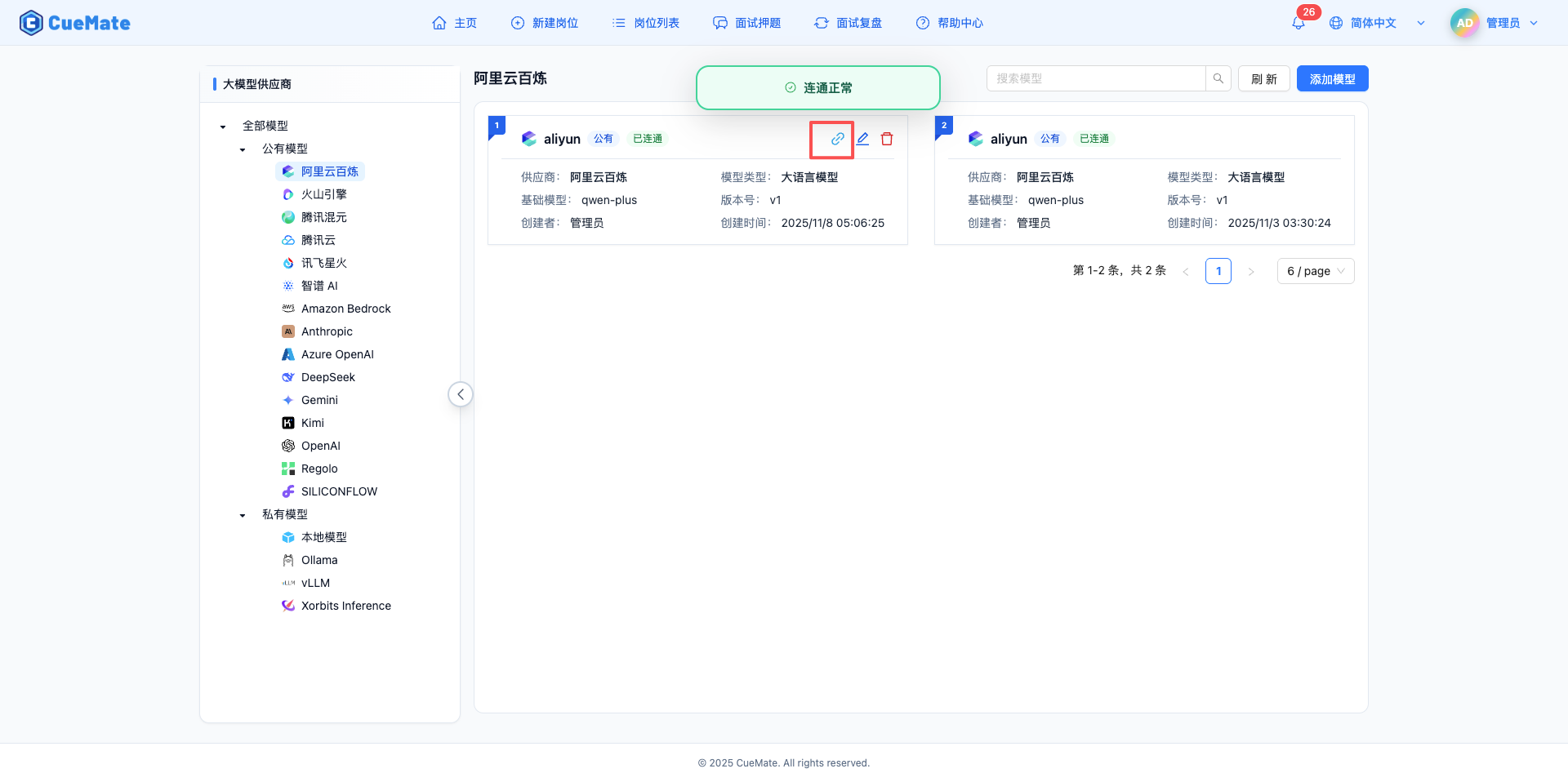
For saved models, you can quickly test connection status.
Trigger Method
- Hover over model card
- Click the cyan "link" icon
Test Result
- Success: Shows green message "Connection OK", status tag updates to "Connected"
- Failure: Shows red message "Connection Failed", status tag updates to "Unavailable"
- List automatically refreshes after test completion
Best Practices
- Regularly test model connectivity
- Check configuration when "Unavailable" status is found
- Re-test after changing API Key
5. Save Model Configuration
After successful connection test, click "Save" button to save configuration.
Pre-save Validation
- Model name: Required, cannot be empty
- Provider: Required, must select valid provider
- Base model: Required, must select or enter model name
- Credential fields: Check if all required fields are filled
Save Process
- Click "Save" button
- Button changes to "Saving..." with loading animation
- Shows full-screen overlay: "Processing, please wait..."
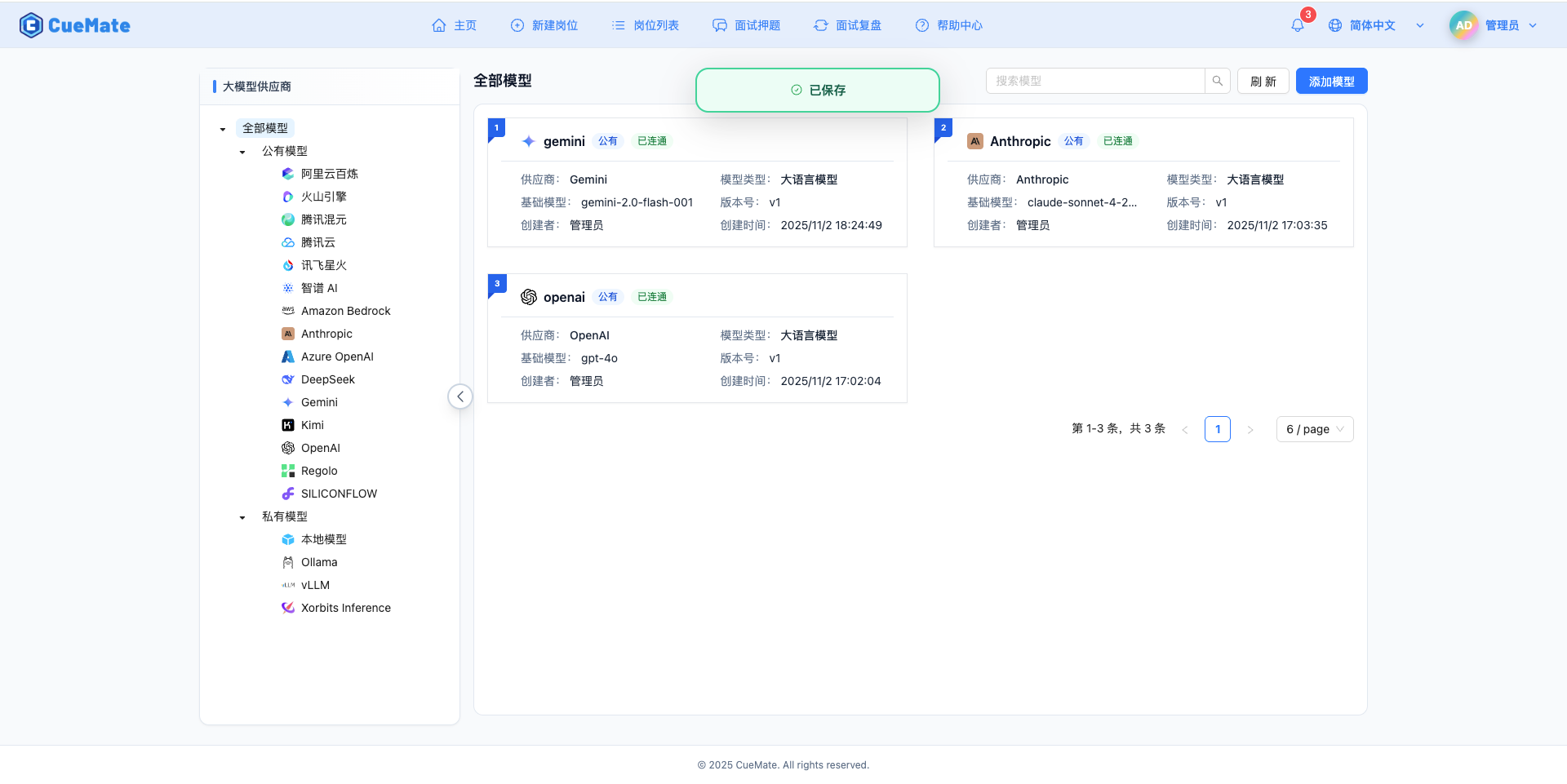
- Save successful: Shows green message "Saved"
- Close drawer, automatically refresh model list
Special Handling
- When adding first model, automatically sets as user's default model
- When editing the currently selected model, synchronously updates model info in memory
6. Edit Model
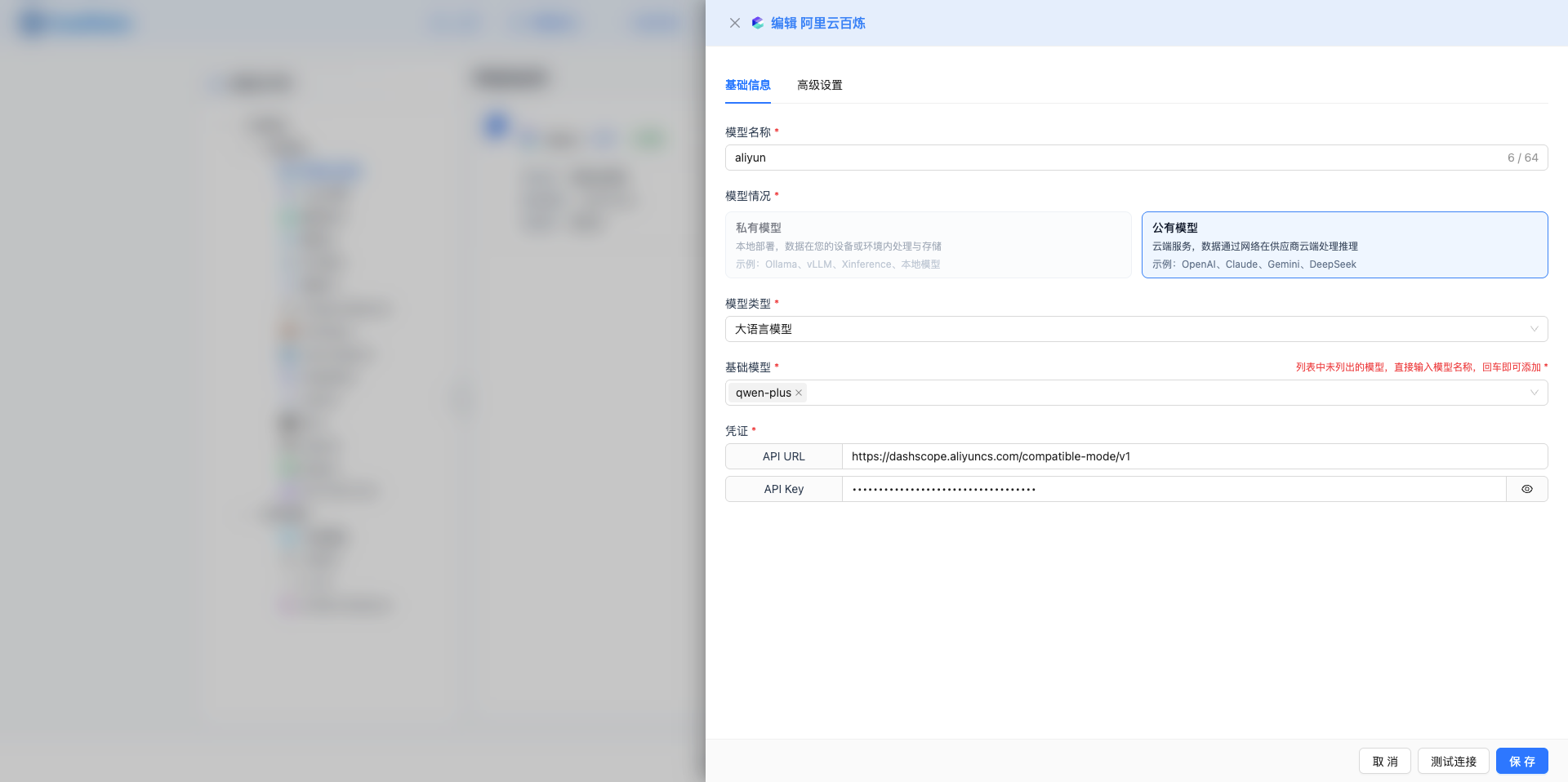
6.1 Open Edit Interface
Hover over model card, click the blue "Edit" icon (pencil icon).
6.2 Modify Configuration
Pre-fill Logic
- All fields pre-filled with current model's configuration values
- Credential fields expanded
- Advanced parameters loaded into table
Modifiable Items
- Model name: Can rename
- Base model: Can switch to other models from same provider
- Credential fields: Can update API Key, Base URL, etc.
- Advanced parameters: Can add, modify, delete parameters
Non-modifiable Items
- Provider: Cannot change, delete and re-add if needed
- Model situation (Public/Private): Automatically determined by provider
Edit Process
- Click edit icon
- Drawer slides out and loads model details
- Modify fields that need changes
- (Optional) Click "Test Connection" to verify changes
- Click "Save" button to save changes
- Close drawer, list auto-refreshes
7. Delete Model
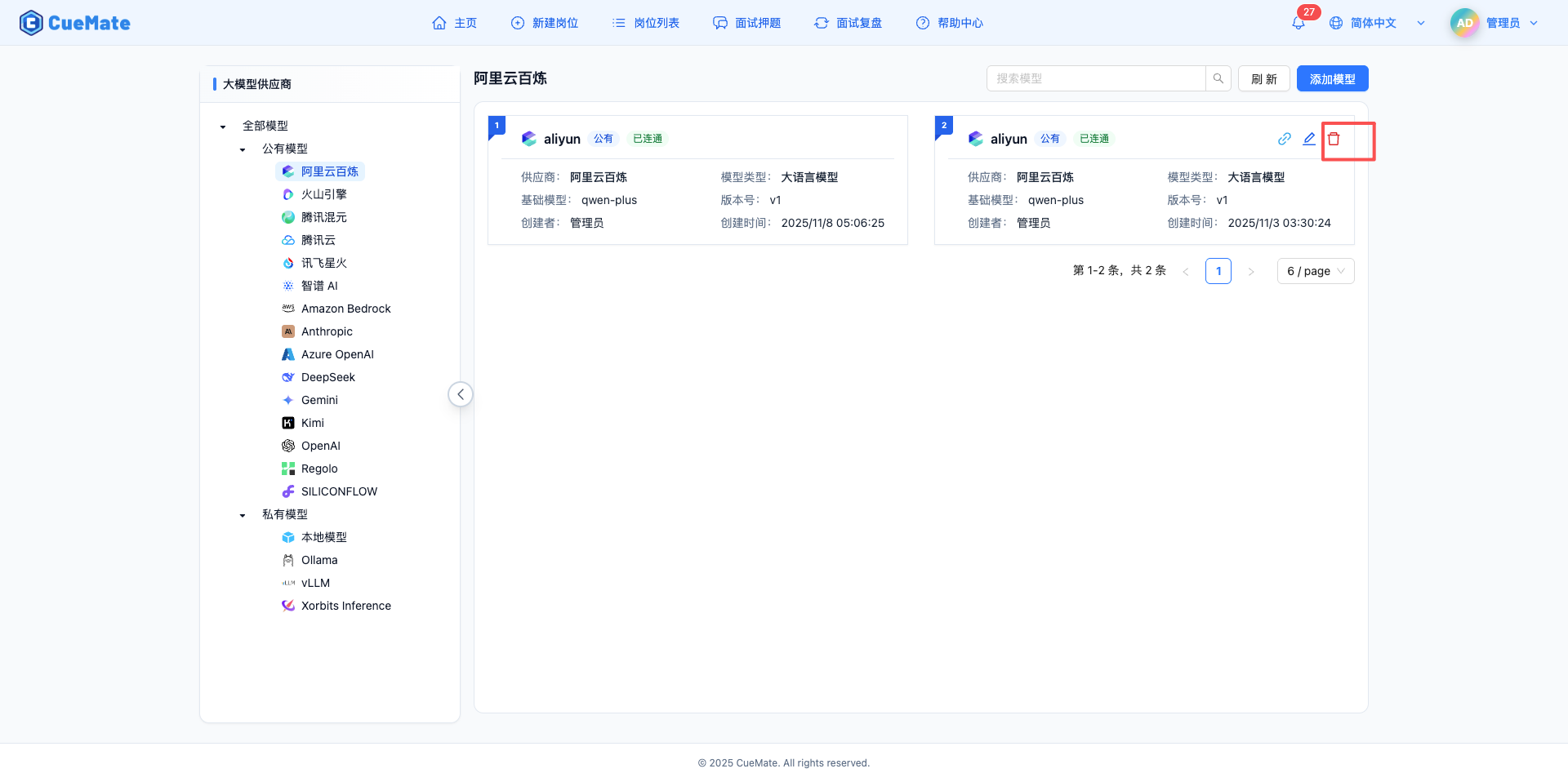
7.1 Trigger Delete
Hover over model card, click the red "Delete" icon (trash icon).
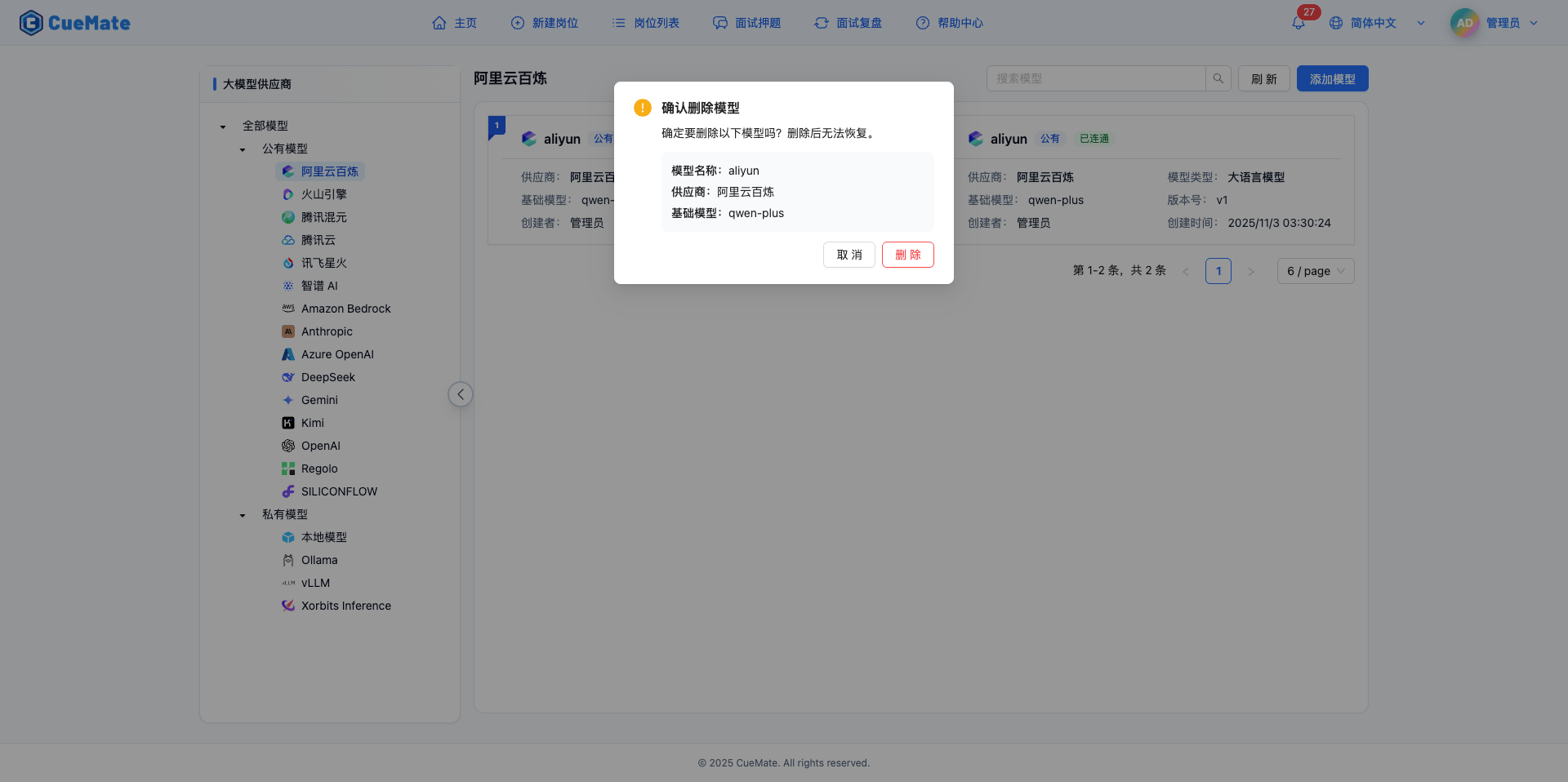
7.2 Confirm Delete
Confirmation Dialog
- Title: "Confirm Delete Model"
- Content: "Are you sure you want to delete this model? This action cannot be undone."
- Action buttons:
- "Cancel" button: Gray, closes dialog
- "Delete" button: Red danger button, executes delete
Delete Process
- Click "Delete" button in confirmation dialog
- Shows full-screen overlay: "Processing, please wait..."
- Delete successful shows green message: "Deleted"
- Auto-refresh model list
- If current page has no data after deletion, auto-jump to previous page
Notes
- Delete operation cannot be undone, please operate carefully
- Deleting model does not affect historical conversation records
- If deleted model is currently in use, need to select another model
8. Supported Model Providers
CueMate supports multiple mainstream large language model providers. You can choose the appropriate model based on your needs:
8.1 Public Cloud Models
- OpenAI - World-leading AI company, provides GPT-5, GPT-4.1, GPT-4o and other advanced models, supports complex reasoning and multimodal understanding
- Anthropic - Claude series models, the latest Claude Sonnet 4.5 is the world's strongest programming model, excels at long text understanding and safe conversation
- Google Gemini - Google's latest multimodal model, supports text, image, and video understanding
- DeepSeek - Excellent Chinese model, high cost-effectiveness, strong coding ability, supports mathematical reasoning
- Moonshot (Kimi) - Moonshot AI, supports 200K ultra-long context, suitable for document analysis
- Zhipu AI - Tsinghua-affiliated, GLM-4 series models, excellent Chinese understanding
- Tongyi Qianwen - Alibaba Cloud Bailian platform, Qwen series models, comprehensive ecosystem
- Tencent Hunyuan - Tencent's self-developed LLM, strong Chinese ability, easy integration
- iFlytek Spark - iFlytek, optimized for voice scenarios, fluent Chinese conversation
- Volcano Engine - ByteDance, Doubao series models, multi-scenario adaptation
- SiliconFlow - Open source model inference platform, supports Llama, Qwen and other open source models
- Baidu Qianfan - Baidu's LLM platform, supports ERNIE-4.0, ERNIE-3.5 and other models
- Baichuan AI - Baichuan AI's Baichuan series models, supports Baichuan4, Baichuan3-Turbo, Baichuan3-Turbo-128k
- MiniMax - MiniMax's ultra-long text LLM, supports abab6.5-chat, abab6.5s-chat, up to 245K tokens context
- StepFun - Long context Step series models, supports step-1-8k, step-1-32k, step-1-256k, up to 256K tokens context
- SenseTime SenseNova - SenseTime's SenseNova series models, supports SenseChat-5, SenseChat-Turbo and 22 other models
8.2 Cloud Platform Model Services
- Azure OpenAI - Microsoft Azure cloud platform, provides enterprise-grade OpenAI model services, supports private network
- Amazon Bedrock - AWS managed service, integrates Claude, Llama and other models, secure and compliant
- Tencent Cloud - Tencent Cloud AI platform, provides Hunyuan and other model services
8.3 Private Deployment Models
- Ollama - Run open source models locally, supports Llama, Qwen, Gemma, data completely local
- vLLM - High-performance inference engine, supports large-scale model deployment, high throughput
- Xinference - Xorbits open source inference framework, supports various model formats, easy to extend
- Local Model - Custom local model service, runs completely offline, highest data security
- Regolo - Enterprise-grade private deployment solution, high availability guarantee, professional technical support
Selection Suggestions:
- For Performance: OpenAI GPT-5, Claude Sonnet 4.5
- For Programming: Claude Sonnet 4.5 (World's strongest), OpenAI GPT-5
- High Cost-effectiveness: Claude Haiku 4.5, GPT-5 Mini, DeepSeek
- Cost-conscious: DeepSeek, SiliconFlow, Ollama
- Chinese Scenarios: Zhipu GLM-4, Tongyi Qianwen, Tencent Hunyuan
- Data Security: Ollama, vLLM, Local Model
- Enterprise Applications: Azure OpenAI, Amazon Bedrock, Private Deployment
9. Best Practices
Model Configuration Suggestions
Naming Convention
- Use clear descriptive names, like "GPT-4 Turbo (Production)"
- Distinguish same models for different purposes, like "Claude 3 Sonnet (Translation)", "Claude 3 Sonnet (Code)"
- Avoid overly long names, recommend no more than 30 characters
Credential Security
- API Key uses password mode after input
- Don't expose API Key in screenshots or recordings
- Regularly change API Key, re-test connection after change
- Use different API Keys for different environments (dev/prod)
Parameter Optimization
- Adjust temperature parameter based on use case:
- Creative writing: 0.7-0.9 (more random)
- Code generation: 0.2-0.4 (more deterministic)
- Translation tasks: 0.3-0.5 (balanced)
- Set max_tokens based on needs, avoid too large to prevent cost increase
- Enable stream parameter for typewriter effect
Connectivity Management
- Always test connection when adding new models
- Regularly test connectivity of existing models
- Investigate cause when "Unavailable" status is found
- Keep backup models for main model failures
Efficiency Tips
Quick Add Model
- Select specific provider node in left navigation tree
- Click "Add Model" to directly enter configuration interface, skipping provider selection step
Search Filter
- Use search function for quick location when you have many models
- Combine left navigation and search box for precise filtering
Page Layout Optimization
- Collapse left navigation when model count is small
- Adjust items per page, recommend 12 or 18 for large screens
Common Troubleshooting
Connection Test Failed
- Check if API Key is correct
- Check if Base URL is accessible (for private deployment models)
- Check if network connection is normal
- Check if model name is correct
Save Failed
- Confirm all required fields are filled
- Check if model name is duplicate
- Check if credential format is correct
Model Cannot Be Used
- Confirm model status is "Connected"
- Re-test connection
- Check if API Key is expired
- Check if balance is sufficient (public models)
Related Pages
- Model Overview - Model system architecture
- Provider Configuration - Detailed configuration guide for each provider