
Service Management
This document describes how to manage backend services through CueMate's main window, including viewing service status, restarting services, viewing logs, and other operations.
1. Service Overview
NOTE
CueMate uses a microservices architecture. All backend services run in Docker containers. Under normal circumstances, all 6 services should be in "Running" status.
CueMate includes 6 backend service containers, all running in Docker containers:
| No. | Service Name | Container Name | Port | Description |
|---|---|---|---|---|
| 1 | Backend API Service | cuemate-web-api | 3001 | Business logic, user authentication, data management |
| 2 | LLM Router Service | cuemate-llm-router | 3002 | LLM request routing, streaming response handling |
| 3 | Knowledge Base Retrieval Service | cuemate-rag-service | 3003 | Vector retrieval, semantic search |
| 4 | Main Window Service | cuemate-web | 3004 | Provides main window access |
| 5 | Vector Database | cuemate-chroma | 8000 | Vector data storage |
| 6 | Speech Recognition Service | cuemate-asr | 10095 | Real-time speech-to-text |
IMPORTANT
Service Dependencies:
- Main Window depends on API Service
- API Service depends on LLM Router Service and Knowledge Base Retrieval Service
- Knowledge Base Retrieval Service depends on Vector Database
- Desktop Client depends on Speech Recognition Service
When restarting services, pay attention to the dependency order. Dependent services should be started first.
2. View Service Status
2.1 Enter Docker Monitor Page
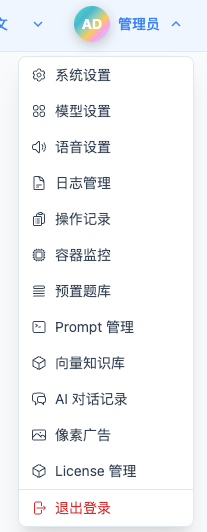
Click "Docker Monitor" in the top dropdown menu to enter the service status viewing page.
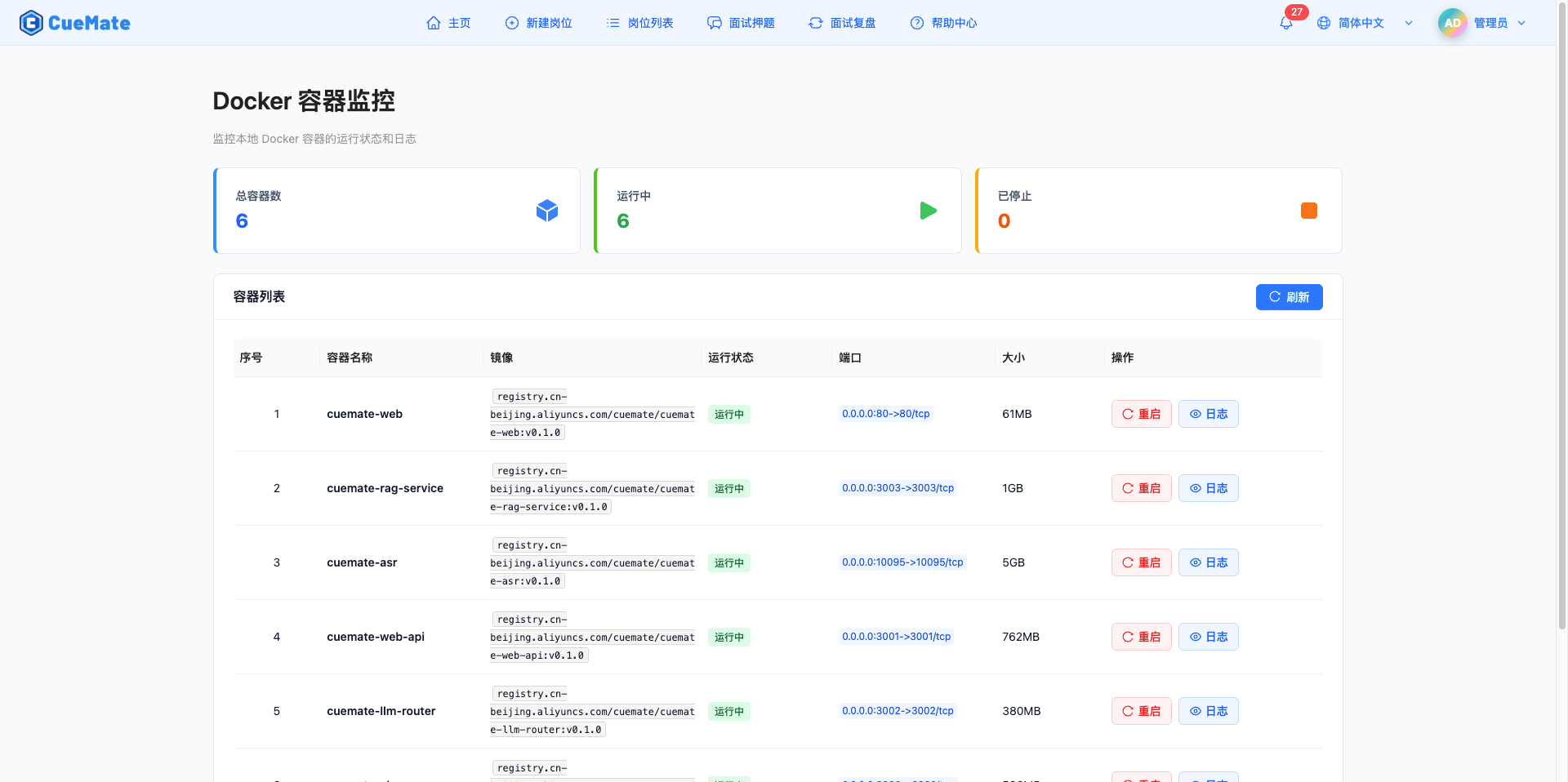
2.2 View Service Statistics
The top of the page displays service operation overview:

- Total Containers: Total number of all service containers in the system
- Running: Number of currently running services (green)
- Stopped: Number of stopped or abnormally exited services (orange)
Normal Status: All 6 services should display as "Running".
2.3 View Service List
The service list shows detailed information for each container:

| No. | Field | Description |
|---|---|---|
| 1 | Container Name | Name of the service container, e.g., cuemate-web-api |
| 2 | Image | Docker image version used |
| 3 | Status | Running (green) / Stopped (orange) / Exited (red) |
| 4 | Port | Service port mapping information |
| 5 | Size | Disk space occupied by container |
| 6 | Actions | Operation buttons like restart, view logs |
3. Restart Services
3.1 Restart Single Service
When a service is abnormal, you can restore it by restarting:
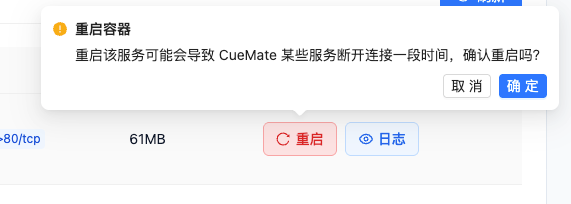
Restart Steps:
- Find the service to restart in the container list
- Click the "Restart" button in that service row
- Click "Confirm" in the confirmation dialog
- Wait for restart to complete (usually a few seconds to tens of seconds)
- Check if service status returns to "Running"
Notes:
- Restarting a service will cause brief interruption
- Configuration and data will not be lost after restart
- If service is still abnormal after restart, check service logs to troubleshoot
Common Restart Scenarios:
- Service status shows "Exited" or "Stopped"
- Service responds slowly or not at all
- Configuration updates require restart to take effect
- System prompts to restart service
4. View Service Logs
4.1 View Container Logs
Click the "Logs" button in the service list to open the log viewer:
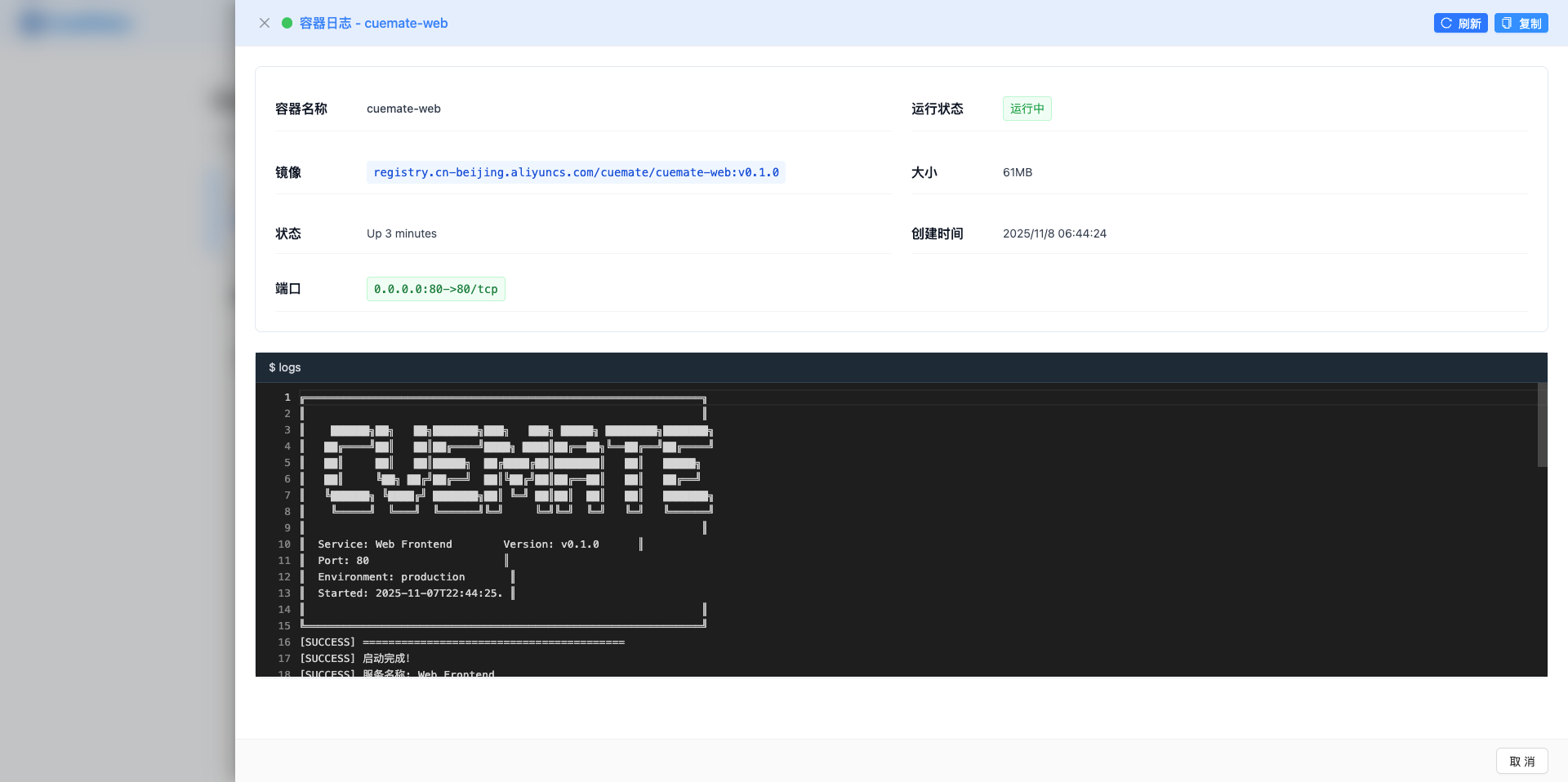
Log Viewer Features:
- Display real-time service operation logs
- View error and exception information
- Copy log content for analysis
- Refresh to get latest logs
Log Operations:
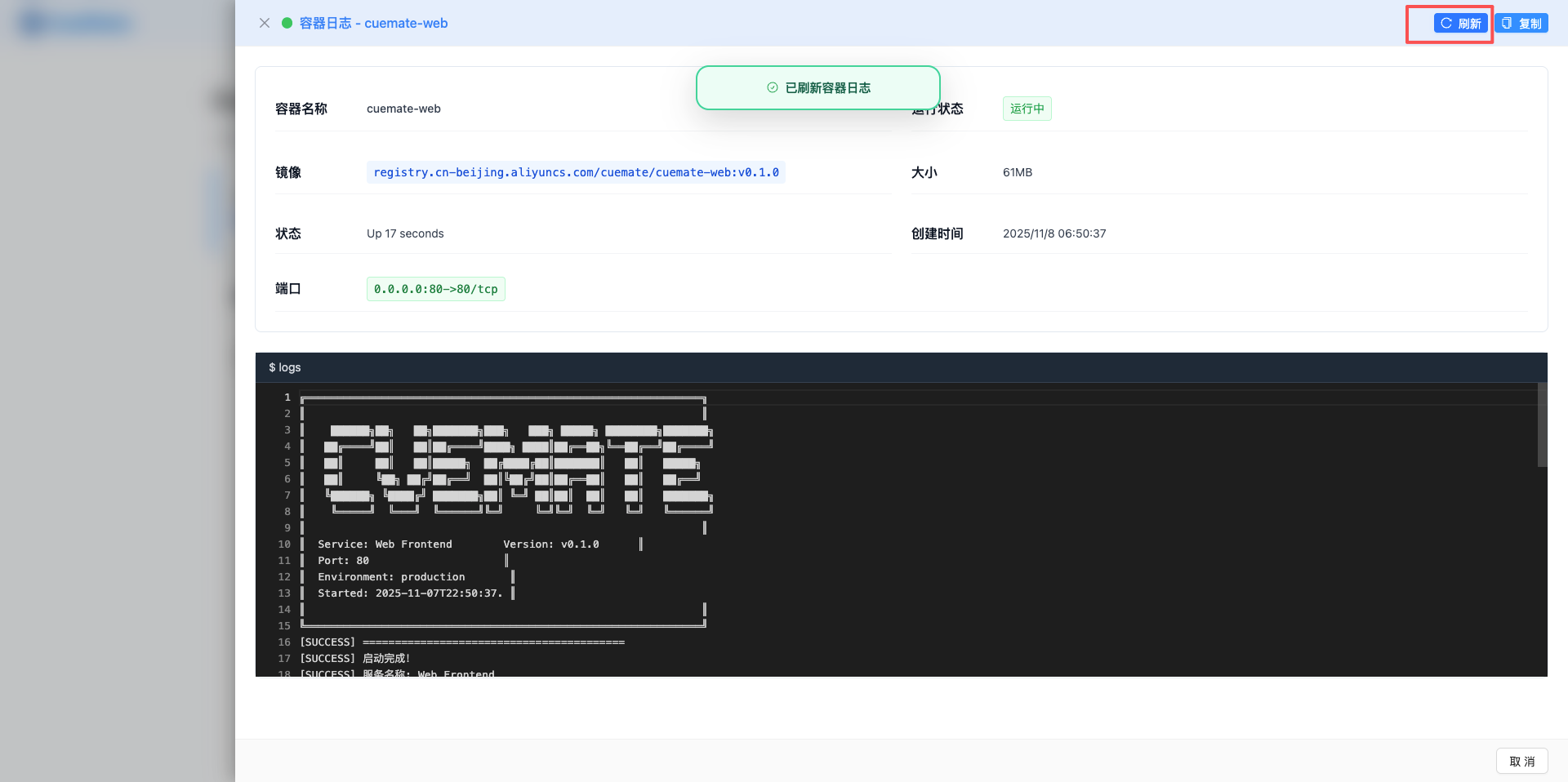
- Refresh: Get the latest log content
- Copy: Copy logs to clipboard
- View Details: View complete container information
4.2 View System Logs
Go to the Log Management page to view more detailed system logs:
Click "Log Management" in the top dropdown menu to view:
- Log files categorized by service
- Filter by level (DEBUG, INFO, WARN, ERROR)
- View historical logs by date
- Clean up and export log files
For detailed usage, please refer to the Log Management page.
5. Service Troubleshooting
5.1 Service Won't Start
Symptoms:
- Service status shows "Exited" or "Stopped"
- Stops immediately after restart
Troubleshooting Steps:
- Go to Docker Monitor page
- Click "Logs" button for the abnormal service
- View error messages in the logs
- Identify the problem cause based on error information
Common Causes:
- Port occupied: Log shows "Address already in use"
- Dependent service not started: Log shows connection failure
- Configuration error: Log shows configuration file error
- Insufficient resources: Log shows memory or disk space insufficient
5.2 Slow Service Response
Symptoms:
- Main window loads slowly
- API requests timeout
- Operation response delay
Troubleshooting Steps:
- Go to Docker Monitor page
- Check if all services are running
- Restart the slow service
- Check logs for any exception errors
Common Causes:
- Insufficient memory causing service lag
- Slow database queries
- Network connection issues
- Too many concurrent requests
5.3 Frequent Service Restarts
Symptoms:
- Service status changes repeatedly
- Stops immediately after starting
Troubleshooting Steps:
- View service logs to locate crash cause
- Check if system resources are sufficient
- Check if dependent services are normal
Common Causes:
- Memory leak causing service crash
- Improper health check configuration
- Dependent service connection failure
- Uncaught exceptions in code
6. System Configuration
6.1 Basic Settings
Go to the System Settings page to configure system parameters:
Click "System Settings" in the top dropdown menu to configure:
- System language and timezone
- Interface theme (light/dark)
- Default LLM selection
- Account information
For detailed configuration methods, please refer to the System Settings page.
6.2 Model Configuration
Go to the Model Settings page to configure AI models:
- Add and manage LLM models
- Configure API Keys
- Test model connections
- Set default model
6.3 Voice Settings
Go to the ASR Settings page to configure speech recognition:
- Select microphone device
- Select speaker device
- Test speech recognition effect
7. Data Backup and Recovery
7.1 Data Storage Location
CueMate's data is stored at the following location:
macOS System:
~/Library/Application Support/cuemate-desktop-client/data/
├── sqlite/          # SQLite database
├── chroma/          # Vector database
└── logs/            # Log files
Windows System:
%APPDATA%\cuemate-desktop-client\data\
├── sqlite\          # SQLite database
├── chroma\          # Vector database
└── logs\            # Log files
7.2 Backup Data
Important data includes:
- SQLite database: Position information, interview records, user data
- Vector database: Interview questions, knowledge base data
- Configuration files: Model configuration, system settings
Backup Recommendations:
- Regularly backup the
cuemate-desktop-client/datafolder - Always backup data before upgrading
- Use Time Machine or other backup tools for automatic backup
7.3 Restore Data
If data is lost or corrupted, you can restore from backup:
- Quit CueMate application
- Copy the backed-up
datafolder back to its original location - Restart CueMate application
- Data will be automatically restored after login
8. Version Updates
8.1 Online Updates
Use the version management feature on the License Management page to update:
- Go to License Management page
- Click "Version Management" button in the top right corner
- View available version list
- Select target version to view changelog
- Click "Update to This Version" to execute update
For detailed update process, please refer to the Version Upgrade documentation.
8.2 Update Notes
- Data is automatically backed up before update
- Do not close the application during update
- Update failures will automatically rollback
- Recommended to update during off-peak hours
9. FAQ
9.1 How to check current version?
Go to the System Settings page and view the current version number in the "Software Version" field.
9.2 How to handle service exceptions?
- Go to Docker Monitor page
- Check which services have abnormal status
- Click "Logs" button to view error messages
- Try restarting the abnormal service
- If issue persists, check Troubleshooting documentation
9.3 How to clean up log files?
Go to Log Management page:
- Select log files to clean up
- Click "Clean" button to clear log content
- Or use "Clean Today's Logs" for batch cleanup
9.4 Where is data stored?
All data is stored in the following directories:
- macOS:
~/Library/Application Support/cuemate-desktop-client/data/ - Windows:
%APPDATA%\cuemate-desktop-client\data\
Notes:
- You can choose whether to keep this folder when uninstalling
- Recommended to regularly backup this folder
- After reinstallation, data in this folder will be automatically recognized
10. Get Help
If you encounter issues that cannot be resolved:
- Check FAQ documentation
- Check Troubleshooting guide
- Visit GitHub Issues
- Email: nuneatonhydroplane@gmail.com
Related Pages
- Docker Monitor - View and manage service status
- Log Management - View system logs
- System Settings - Configure system parameters
- Version Upgrade - Upgrade to new version
- Troubleshooting - Solve common problems