
Prompt Management
The Prompt Management page is used to manage the system's AI prompt templates. Through this page you can view, add, edit and restore Prompts to optimize interview training effects. Prompts are the core of CueMate's interaction with large language models, defining AI's behavior and response methods.
1. Access Prompt Management
1.1 Open Prompt Management Page
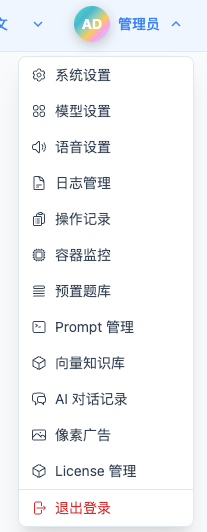
Click "Prompt Management" in the top dropdown menu to enter the Prompt Management page.
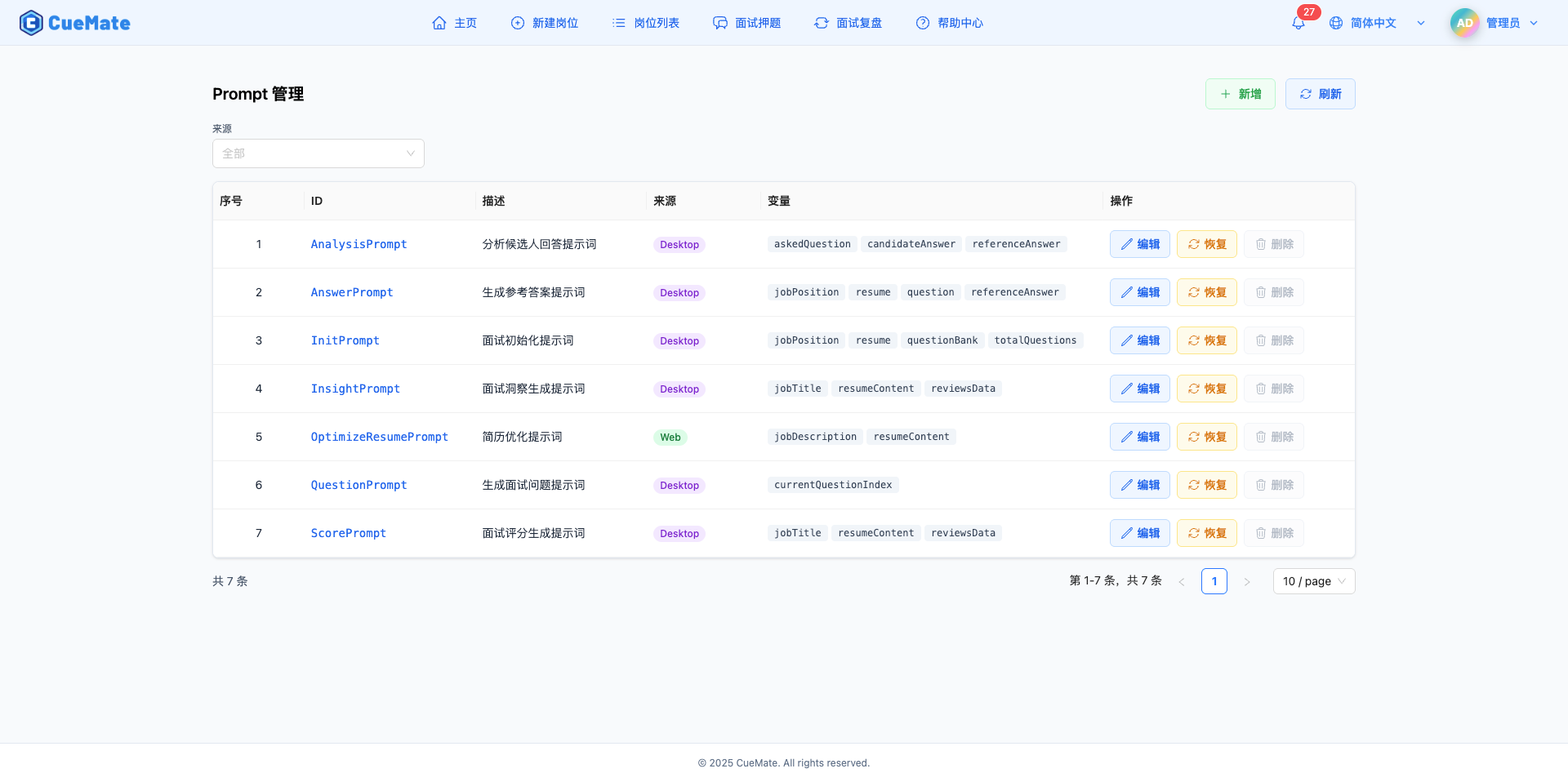
2. View Prompt List
2.1 List Field Descriptions
Prompt list displays in table format with the following fields:

Number:
- Sequence number on current page
- Auto-calculated, starting from 1
ID:
- Unique identifier of the Prompt
- Displayed in blue monospace font
- Usually uses camelCase naming
- Examples: InitPrompt, AnswerPrompt, ResumeOptimizationPrompt
Description:
- Brief description of the Prompt
- Describes the purpose and function of this Prompt
- Helps quickly understand Prompt's role
Source:
- Identifies Prompt's usage scenario
- Displayed with different color labels:
- Desktop: Purple label, indicates Prompt used by desktop client
- Web: Green label, indicates Prompt used by Web client
Variables:
- Shows template variables used in Prompt
- Displayed in gray background monospace font
- Examples: jobPosition.title, resume.content
- These variables are replaced with actual values at runtime
Actions:
- Edit: Open edit side panel to modify Prompt content
- Restore: View and restore historical versions of Prompt
- Delete: Delete this Prompt (currently disabled, system Prompts cannot be deleted)
2.2 Pagination
Pagination controls at bottom of list:
Features:
- Shows current page and total pages
- Shows total record count
- Items per page selectable: 10, 20, 50, 100
- Switch pages to view more Prompts
3. Filter Prompts
3.1 Source Filtering
Use "Source" dropdown to filter Prompts from different sources.
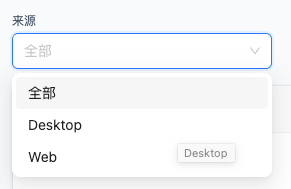
Filter Options:
- All: Show all Prompts
- Desktop: Only show Prompts used by desktop client
- Web: Only show Prompts used by Web client
Use Cases:
- View Prompts for specific platform
- Optimize prompts for specific scenarios
- Analyze Prompt configurations for different platforms
4. Add Prompt
4.1 Open Add Side Panel
Click "Add" button in top right corner to open Add Prompt side panel.
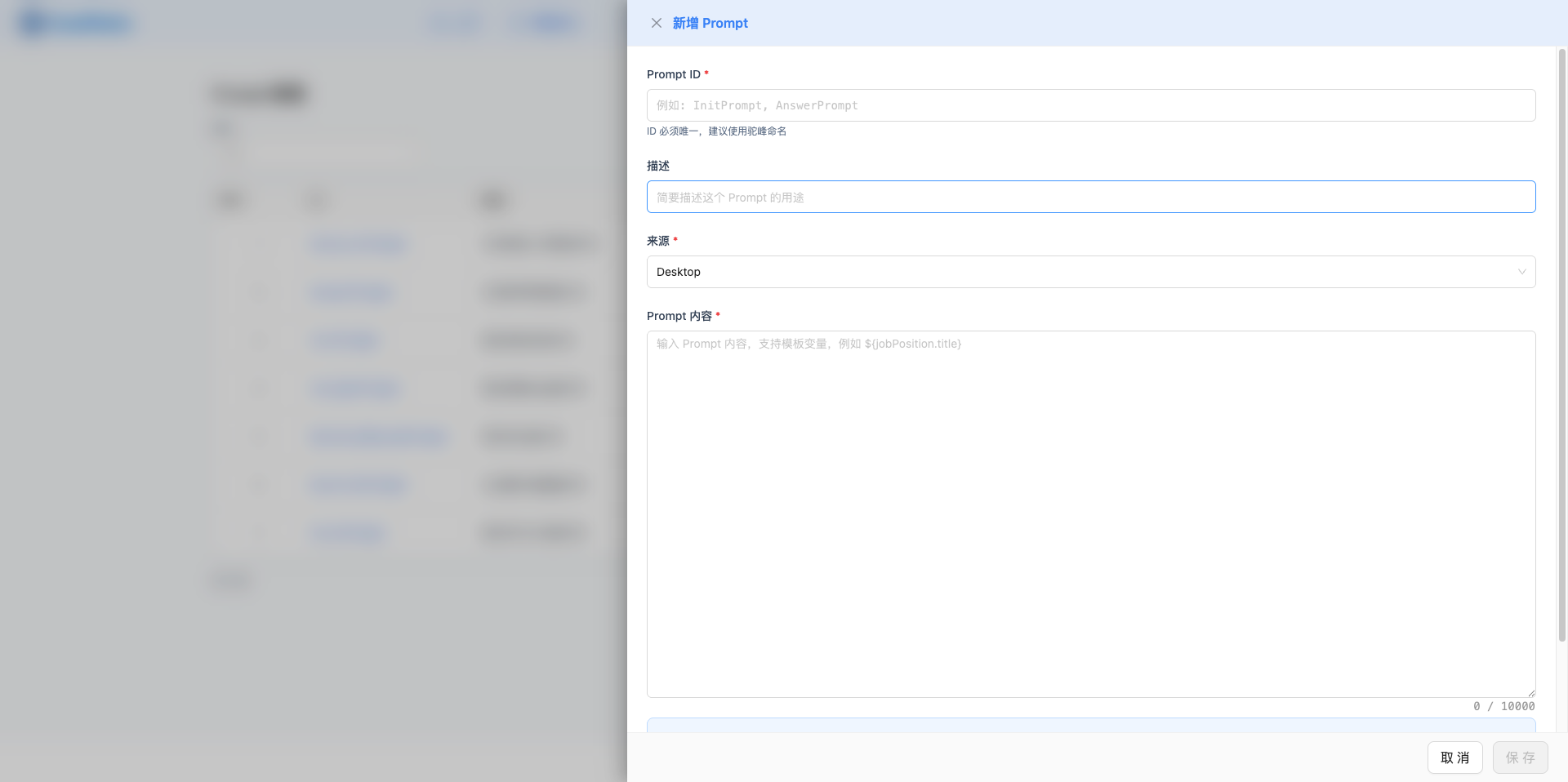
Panel Features:
- Right side panel
- Provides complete Prompt configuration form
- Supports template variable definition
4.2 Fill Prompt Info
Prompt ID (Required):
- Enter unique identifier for Prompt
- Must be unique, cannot duplicate existing Prompts
- Recommend using camelCase naming
- Examples: InitPrompt, AnswerPrompt, CustomPrompt
- Displayed in monospace font
Description (Optional):
- Brief description of this Prompt's purpose
- Helps other users understand Prompt's function
- Examples: "For initializing interview conversation", "Generate answer points"
Source (Required):
- Select Prompt's usage scenario
- Desktop: Used by desktop client
- Web: Used by Web client
Prompt Content (Required):
- Enter actual Prompt content
- Supports up to 10,000 characters
- Shows character count
- Displayed in monospace font for easy editing
- Supports multi-line text
- Can include template variables
4.3 Template Variable Usage
Variable Format:
- Use
${variableName}format to define variables - Examples:
${jobPosition.title},${resume.content} - Variables are replaced with actual values at runtime
Variable Usage Notes:
- Use
${variableName}format to define variables - For example:
${jobPosition.title},${resume.content} - Variables are automatically recognized and protected after saving
Common Variable Examples:
${jobPosition.title}- Position title${jobPosition.description}- Position description${resume.content}- Resume content${question.text}- Question text${context}- Context information
4.4 Save Prompt
Click "Save" button to create Prompt:
Save Process:
- Fill required fields (ID, Source, Content)
- Click "Save" button
- Shows fullscreen loading message: "Saving, please wait..."
- Shows "Prompt created successfully" message after successful save
- Closes side panel
- List auto-refreshes to show newly created Prompt
Notes:
- ID and Content are required, save button disabled without them
- ID must be unique, duplicates cause save failure
- List jumps to page 1 after saving
5. Edit Prompt
5.1 Open Edit Side Panel
Click "Edit" button in Prompt list to open Edit Prompt side panel.
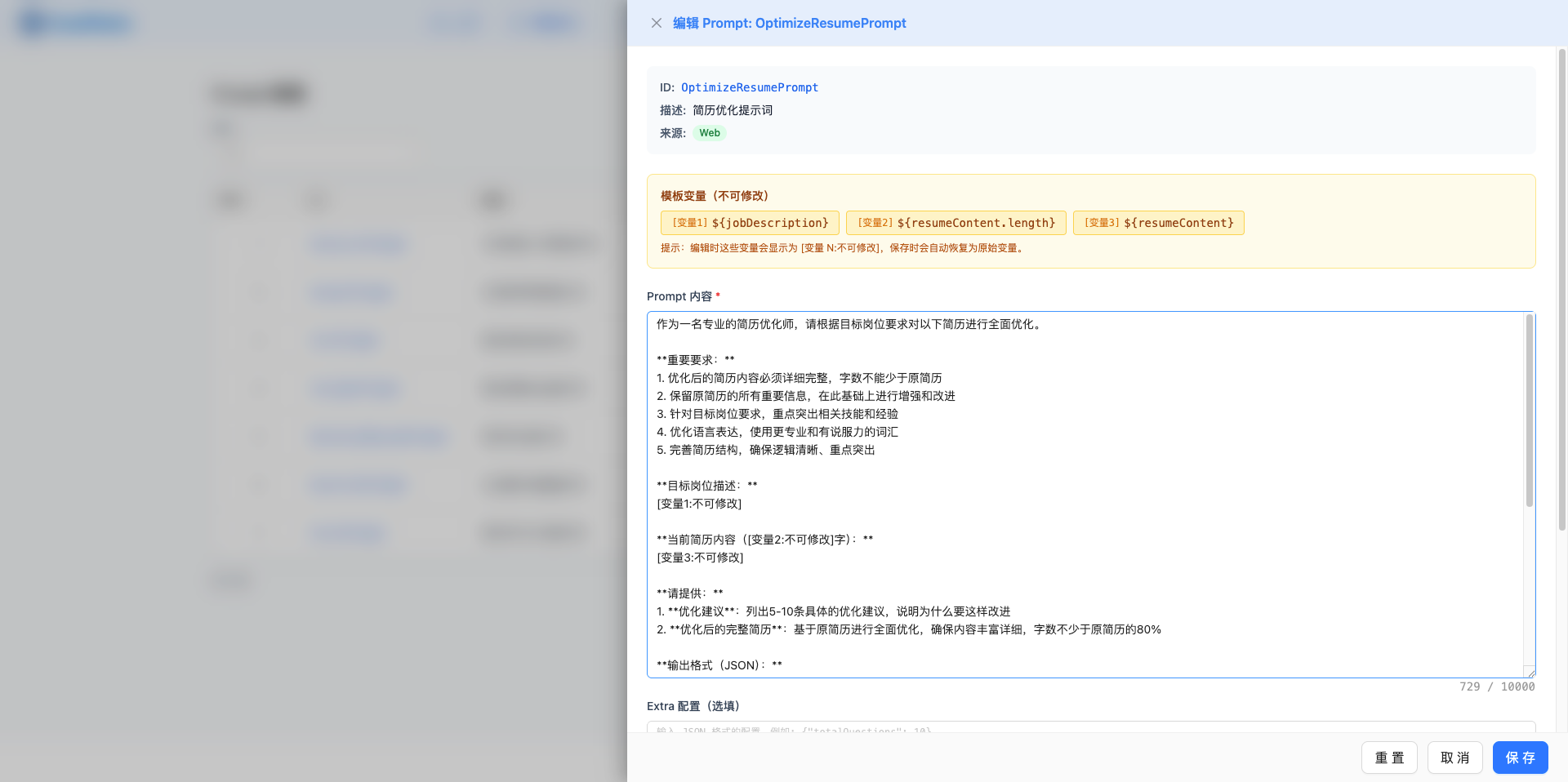
Panel Features:
- Right side panel
- Shows complete Prompt information
- Supports content editing and Extra configuration
5.2 View Basic Info
Panel top shows Prompt's basic information:
Read-only Info:
- ID: Prompt's unique identifier (blue monospace font)
- Description: Prompt's function description
- Source: Desktop or Web (with color label)
5.3 Template Variable Protection
If Prompt contains template variables, variable protection notice is shown:
Variable List:
- Shows all template variables with their numbers
- Each variable displayed as orange label
- Format: [Variable N] $
- Example: [Variable 1] $
Edit Protection Mechanism:
- Variables display as
[Variable N: Do Not Modify]during editing - Placeholders auto-replaced with original variables on save
- Prevents accidental modification or deletion of important variables
- Ensures Prompt functionality integrity
5.4 Edit Prompt Content
Content Edit Area:
- Large text input, supports 20 rows display
- Displayed in monospace font for easy editing
- Supports up to 10,000 characters
- Shows character count
- Variables shown as placeholders, auto-restored on save
Edit Tips:
- Variables display as
[Variable N: Do Not Modify] - Can modify all content except variables
- System auto-restores variables on save
5.5 Extra Configuration
Extra Configuration Description:
- Optional field for storing additional configuration parameters
- Must be JSON format
- Supports up to 1,000 characters
- Displayed in monospace font
- Parameters referenced in Prompt content as
${parameterName}
Common Configuration Examples:
| Prompt ID | Extra Configuration | Description |
|---|---|---|
| InitPrompt | {"totalQuestions": 10} | Total interview questions |
| AnswerPrompt | {"minWords": 1000, "maxWords": 2000} | Answer word count range |
| QuestionPrompt | {"projectStageStart": 2, "projectStageEnd": 3, "techStageStart": 4, "techStageEnd": 6, "scenarioStageStart": 7, "scenarioStageEnd": 8, "endStageStart": 9} | Interview stage round configuration |
| AnalysisPrompt | {"scoreMin": 1, "scoreMax": 10, "passScore": 7, "relevanceWeight": 30, "professionalWeight": 30, "completenessWeight": 20, "expressionWeight": 20} | Score range and weight configuration |
| ScorePrompt | {"scoreMin": 0, "scoreMax": 100, "summaryMaxWords": 200, "prosMin": 3, "prosMax": 5, "consMin": 3, "consMax": 5, "suggestionsMin": 3, "suggestionsMax": 5} | Score report configuration |
| InsightPrompt | {"scoreMin": 0, "scoreMax": 100, "summaryMaxWords": 100} | Insight analysis configuration |
| OptimizeResumePrompt | {"suggestionMin": 5, "suggestionMax": 10, "minContentRatio": 80} | Resume optimization configuration |
Usage Advantages:
- Adjust parameters without modifying Prompt content
- Supports A/B testing of different parameter effects
- Parameter changes don't affect Prompt structure
- Convenient for batch configuration adjustments
5.6 Old-New Version Comparison
If Prompt has been edited before, edit panel bottom shows old-new version comparison area:
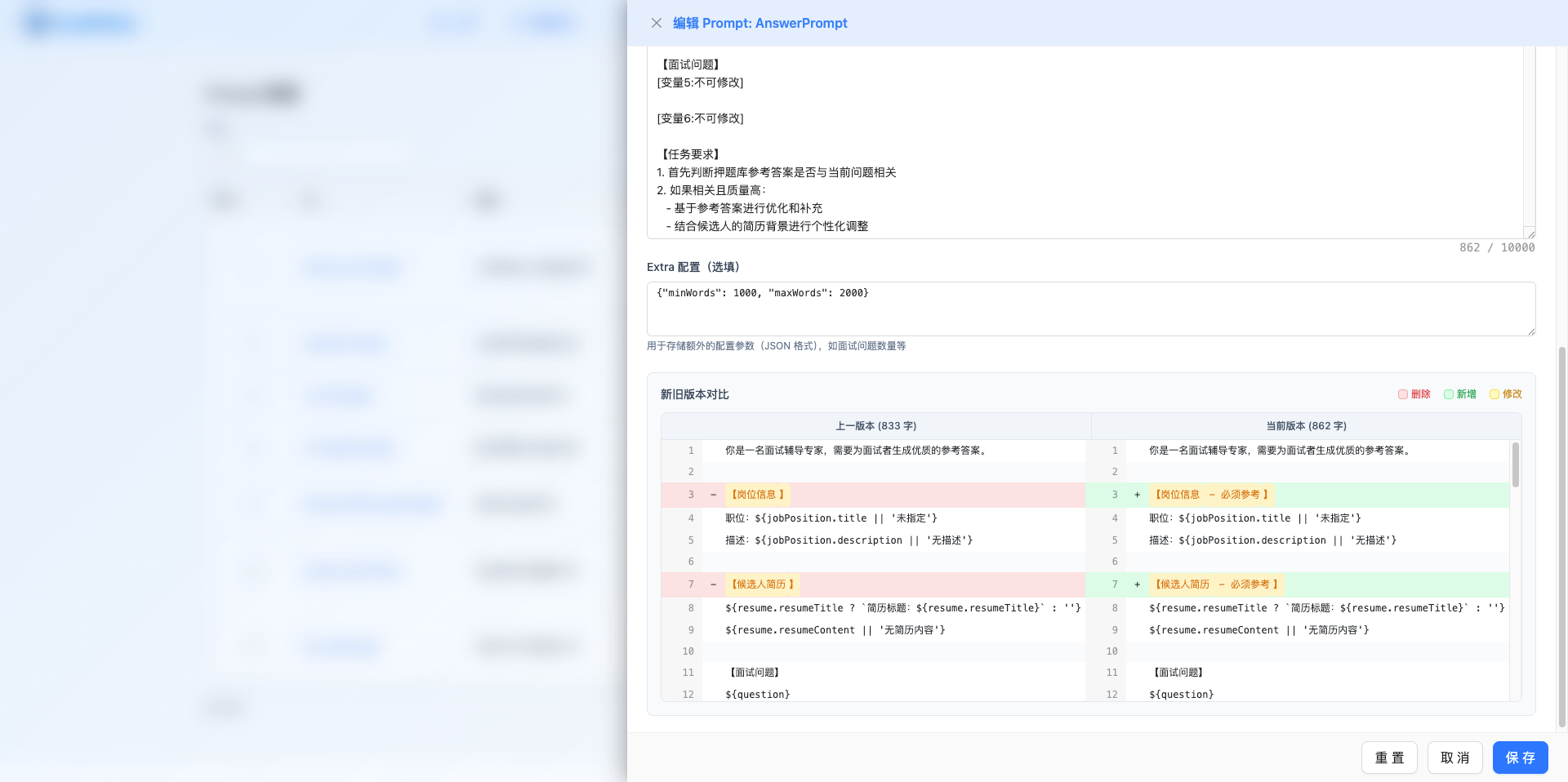
Comparison Features:
- Side-by-side comparison mode
- Left shows previous version content
- Right shows currently edited content
- Real-time comparison, right side auto-updates during editing
Difference Indicators:
- Red background: Deleted content
- Green background: Added content
- Yellow background: Modified content
Comparison Area Info:
- Top shows word count statistics for each version
- Supports scrolling to view complete content
- Maximum height 320px, scrollable when exceeded
Use Cases:
- Visually compare before/after differences
- Confirm modifications are correct
- Evaluate modification impact on Prompt effectiveness
- Avoid accidentally deleting important content
5.7 Reset and Save
Reset Button:
- Restores to initial content when panel was opened
- Includes Prompt content and Extra configuration
- Shows "Reset to initial content" message after clicking
Save Button:
- Saves modified Prompt
- Shows fullscreen loading message: "Saving, please wait..."
- Shows "Prompt updated successfully" message after successful save
- Closes side panel
- List auto-refreshes
6. Restore Prompt
6.1 Open Restore Side Panel
Click "Restore" button in Prompt list to open Restore Prompt side panel.
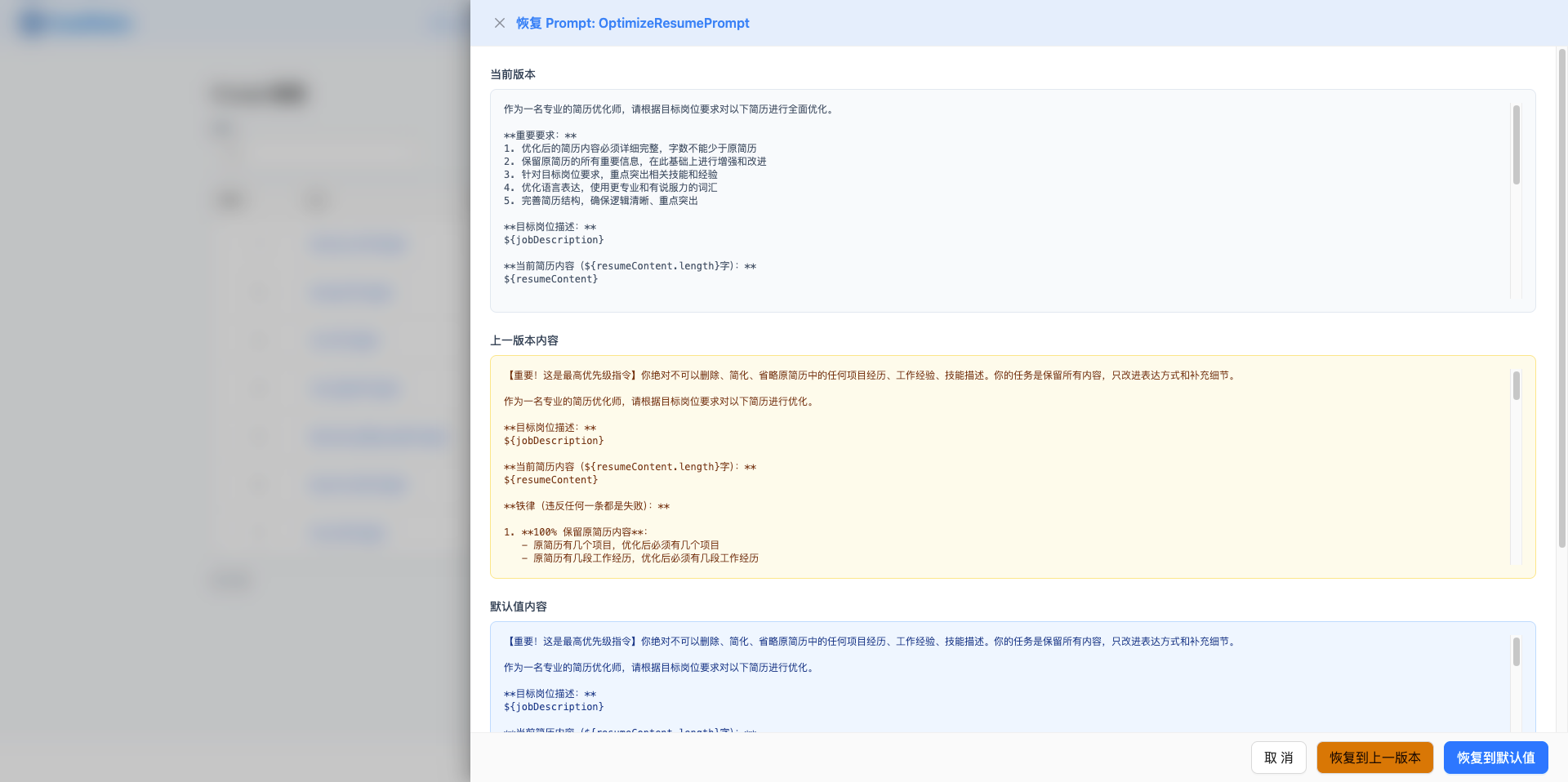
Restore Feature Description:
- View historical versions of Prompt
- Compare current and historical versions
- Restore to previous version
- Undo inappropriate modifications
Use Cases:
- After modification, discover effect is worse, need to restore
- Compare differences between versions
- Learn optimization approaches
7. Refresh List
7.1 Manual Refresh
Click "Refresh" button in top right corner to manually refresh Prompt list.
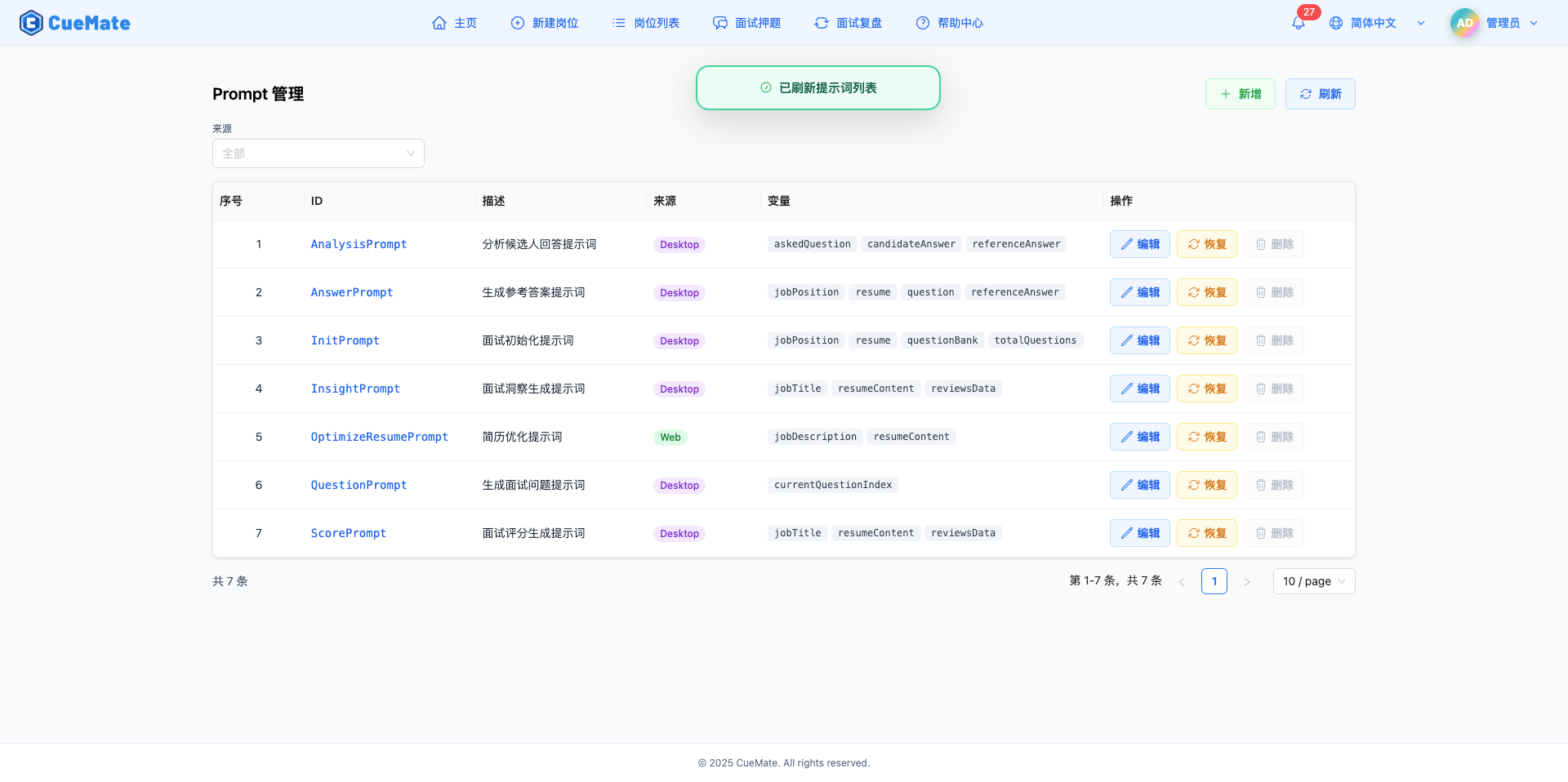
Refresh Features:
- Re-fetch latest Prompt list
- Button icon rotates during refresh
- List auto-updates after refresh completion
- Maintains current filter conditions
Use Cases:
- View other users' modifications
- Confirm newly added Prompts
- Verify if editing succeeded
8. Prompt Template Variables Explained
8.1 Variable Format
Standard Format:
${variableName}- Simple variable${object.property}- Object property${array[0]}- Array element (if supported)
Naming Convention:
- Use camelCase naming
- Avoid special characters
- Keep semantics clear
8.2 Common Variables List
Position Related:
${jobPosition.title}- Position title${jobPosition.description}- Position description${jobPosition.requirements}- Position requirements${jobPosition.company}- Company name
Resume Related:
${resume.content}- Complete resume content${resume.resumeTitle}- Resume title${resume.resumeContent}- Resume content${resumeContent}- Resume content (shorthand)
Interview Related:
${question}- Interview question${askedQuestion}- Already asked question${candidateAnswer}- Candidate answer${referenceAnswer}- Reference answer${reviewsData}- Q&A record summary${currentQuestionIndex}- Current question number (starting from 0)${questionBank}- Question bank list
Configuration Parameter Variables (from Extra configuration):
${totalQuestions}- Total interview questions${minWords}/${maxWords}- Answer word count range${scoreMin}/${scoreMax}- Score range${passScore}- Passing score threshold${summaryMaxWords}- Summary maximum words${prosMin}/${prosMax}- Pros count range${consMin}/${consMax}- Cons count range${suggestionsMin}/${suggestionsMax}- Suggestions count range${relevanceWeight}/${professionalWeight}etc. - Score weights
Interview Stage Parameters:
${projectStageStart}/${projectStageEnd}- Project experience stage rounds${techStageStart}/${techStageEnd}- Technical deep-dive stage rounds${scenarioStageStart}/${scenarioStageEnd}- Scenario design stage rounds${endStageStart}- Closing stage start round
8.3 Variable Usage Examples
Example 1: Init Prompt (using configuration parameters)
You are a professional interviewer, about to start a ${jobPosition.title} interview.

[Candidate Resume]
${resume.resumeContent}

[Interview Rules]
1. First question must be "Self-introduction"
2. Conduct a total of ${totalQuestions} questions
3. Question order: Self-intro → Project Experience → Technical Deep-dive → Scenario Design → Open-ended Questions
Example 2: Answer Generation Prompt (using word count parameters)
[Interview Question]
${question}

[Task Requirements]
1. Generate an excellent reference answer for the above interview question
2. Answer requirements:
   - Professional, specific, well-organized
   - Keep within ${minWords}-${maxWords} words
   - Remove AI tone, use conversational expression
Example 3: Answer Analysis Prompt (using scoring parameters)
[Candidate Answer]
${candidateAnswer}

[Reference Answer]
${referenceAnswer}

[Comprehensive Scoring Requirements]
- Score ${scoreMin}-${scoreMax} (${passScore} is passing threshold)
- Scoring criteria: Relevance ${relevanceWeight}% + Professionalism ${professionalWeight}% + Completeness ${completenessWeight}% + Expression ${expressionWeight}%
Example 4: Interview Stage Control Prompt (using stage parameters)
You are conducting round ${currentQuestionIndex + 1} of interview questions.

[Current Round Requirements]
${currentQuestionIndex <= projectStageEnd ? `
▸ This is Project Experience stage (rounds ${projectStageStart}-${projectStageEnd})
▸ Pick a specific project from candidate's resume for in-depth questioning
` : currentQuestionIndex <= techStageEnd ? `
▸ This is Technical Deep-dive stage (rounds ${techStageStart}-${techStageEnd})
▸ Ask technical questions based on position requirements
` : `
▸ This is Closing stage (round ${endStageStart} and after)
▸ Can ask open-ended questions
`}
9. Prompt Optimization Tips
9.1 Clear Role Definition
Recommended Practices:
- Clearly define AI's role
- Explain expected behavior
- Set output format and style
Example:
You are an experienced technical interviewer skilled at evaluating candidates' technical abilities and project experience.
Please analyze the candidate's answer in a professional, objective manner.
9.2 Specific Task Description
Recommended Practices:
- Clearly state the task to complete
- List specific requirements and constraints
- Provide necessary context
Example:
Task: Generate 5 interview questions based on candidate's resume
Requirements:
1. Questions should relate to candidate's project experience
2. Medium difficulty, testing both basics and depth
3. Cover different technical areas
9.3 Structured Output
Recommended Practices:
- Use numbered lists
- Use Markdown formatting
- Organize content in sections
Example:
Please output in the following format:

## Answer Points
1. Core viewpoint
2. Supporting arguments
3. Example explanation

## Notes
- Pitfalls to avoid
- Bonus points
9.4 Token Optimization
Optimization Suggestions:
- Streamline redundant descriptions
- Avoid duplicate information
- Control output length
- Use concise expressions
Comparison Example:
Not recommended (verbose):
Please act as a very professional, very experienced, deeply understanding technical interviewer...

Recommended (concise):
You are a senior technical interviewer, please evaluate the candidate's technical abilities.
10. Prompt Application Scenarios
10.1 Desktop Client Scenarios
InitPrompt - Interview Initialization:
- Initialize interview conversation, set AI interviewer role
- Load position info, candidate resume, question bank
- Configuration parameter:
totalQuestions(total interview questions)
QuestionPrompt - Generate Interview Questions:
- Generate appropriate questions based on current round
- Support multi-stage interview process control
- Configuration parameters:
projectStageStart/End,techStageStart/End,scenarioStageStart/End,endStageStart
AnswerPrompt - Generate Reference Answers:
- Generate high-quality reference answers for interview questions
- Personalized generation based on resume and position requirements
- Configuration parameters:
minWords,maxWords(answer word count range)
AnalysisPrompt - Answer Analysis:
- Analyze pros and cons of candidate answers
- Provide improvement suggestions and key points
- Configuration parameters:
scoreMin/Max,passScore,relevanceWeight,professionalWeight,completenessWeight,expressionWeight
ScorePrompt - Interview Scoring:
- Generate comprehensive score report
- Includes radar chart dimension scores and text evaluation
- Configuration parameters:
scoreMin/Max,summaryMaxWords,prosMin/Max,consMin/Max,suggestionsMin/Max
InsightPrompt - Interview Insights:
- Analyze interviewer and candidate profiles
- Provide response strategy suggestions
- Configuration parameters:
scoreMin/Max,summaryMaxWords
10.2 Web Client Scenarios
OptimizeResumePrompt - Resume Optimization:
- Optimize resume content based on target position
- Provide specific optimization suggestions
- Configuration parameters:
suggestionMin/Max(suggestion count),minContentRatio(minimum content ratio)
11. Best Practices
11.1 Parameterize with Extra Configuration
Recommended Practices:
- Extract adjustable numeric parameters to Extra configuration
- Reference in Prompt content using
${parameterName} - Only update Extra when modifying parameters, no need to change Prompt content
Parameterization Advantages:
- Quick parameter adjustment for A/B testing
- Reduce errors from modifying Prompt content
- Convenient batch management and unified adjustment
- Parameter modifications don't trigger version changes
Example:
# Not recommended: Hardcoded values
Keep within 1000-2000 words

# Recommended: Using parameters
Keep within ${minWords}-${maxWords} words

# Extra configuration
{"minWords": 1000, "maxWords": 2000}
11.2 Version Management
Recommended Practices:
- Test effects before major modifications
- Record modification reasons and expected effects
- Regularly check Prompt performance
- Keep backups of key versions
- Use old-new version comparison to confirm modifications
11.3 Collaboration Standards
Recommended Standards:
- Use clear descriptions to explain Prompt purpose
- View historical versions before modification to understand background
- Test modification effects before saving
- Communicate with team before major modifications
11.4 Performance Optimization
Optimization Suggestions:
- Regularly review Prompt effectiveness
- Delete unused Prompts
- Optimize token usage
- A/B test effects of different versions
11.5 Security Notes
Security Recommendations:
- Don't hardcode sensitive info in Prompts
- Use variables instead of specific values
- Regularly check if Prompts leak information
- Control Prompt access permissions
12. FAQ
12.1 Save Failed
Issue: Click "Save" button, shows save failed.
Solutions:
- Check if ID is unique (when adding)
- Check if required fields are filled completely
- Check if Extra configuration is valid JSON format
- Check if content length exceeds limit
- Check browser console for error messages
12.2 Variables Lost
Issue: After editing Prompt, template variables lost.
Solutions:
- Don't delete
[Variable N: Do Not Modify]placeholders - If accidentally deleted, click "Reset" button to restore
- Check all variables are complete before saving
- If already saved, use "Restore" feature to restore previous version
12.3 Filter Returns No Results
Issue: List is empty after selecting source filter.
Solutions:
- Confirm that source actually has Prompts
- Try selecting "All" to view all Prompts
- Click "Refresh" button to update list
- Check if network connection is normal
12.4 Restore Feature Ineffective
Issue: Click "Restore" button, no historical versions available to restore.
Solutions:
- This Prompt may have never been modified, only Prompts that have been edited and saved have historical versions
- Newly created Prompts need at least one edit and save to produce historical version
- Historical versions may have been cleaned up
Related Pages
- Model Settings - Configure LLM model parameters
- Interview Questions - Use Prompts to generate interview questions
- Position List - Manage interview position info