

Configure Azure OpenAI
Azure OpenAI Service is an enterprise-grade OpenAI model service provided by Microsoft, deploying models such as GPT-4 and GPT-4o through the Azure cloud platform. It offers higher security, compliance, and data privacy protection, with support for enterprise-grade SLA and regional deployments.
1. Obtain Azure OpenAI API Configuration
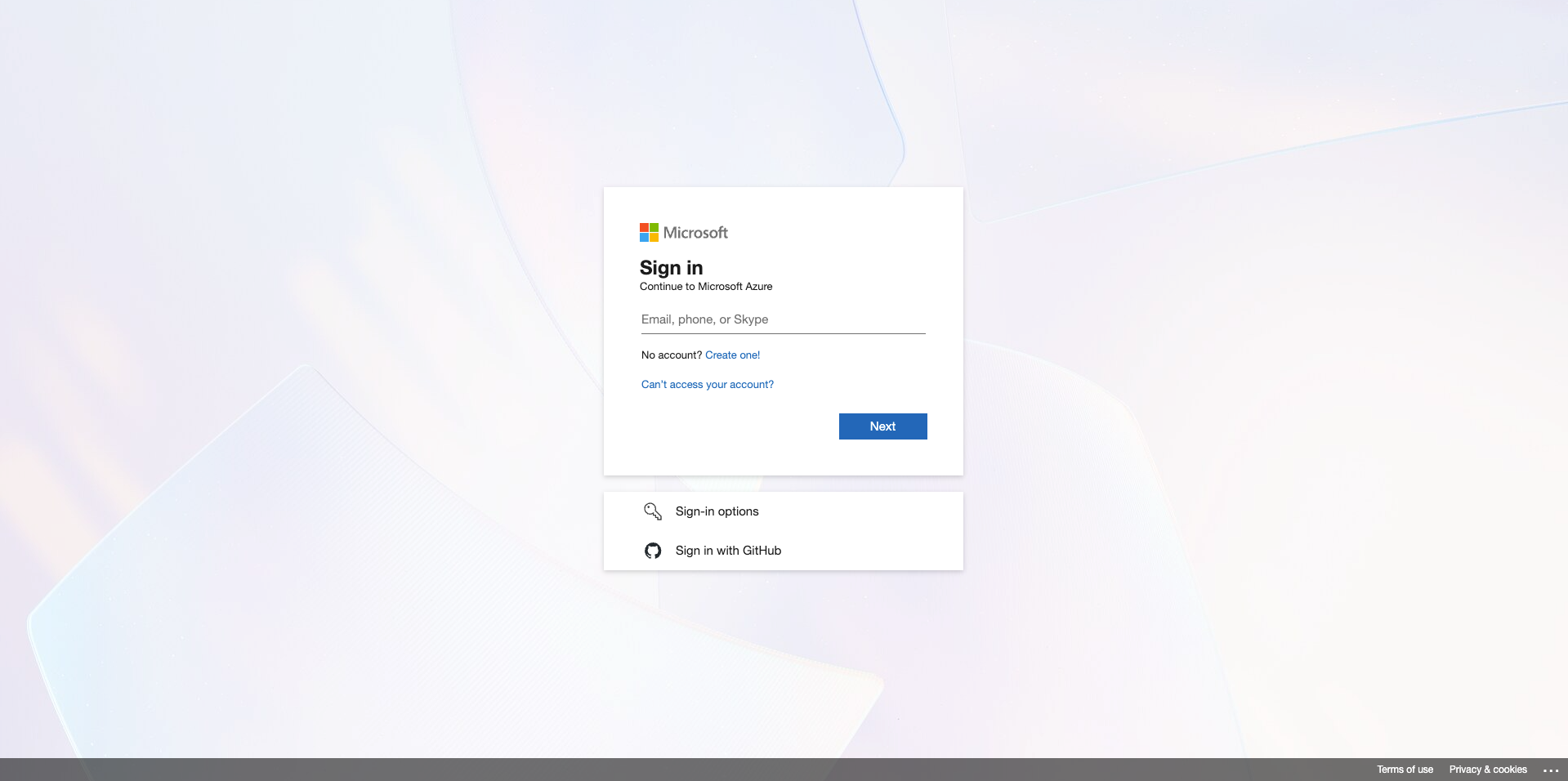
1.1 Access Azure Portal
Visit Azure Portal and log in with your Microsoft account.
1.2 Create Azure OpenAI Resource
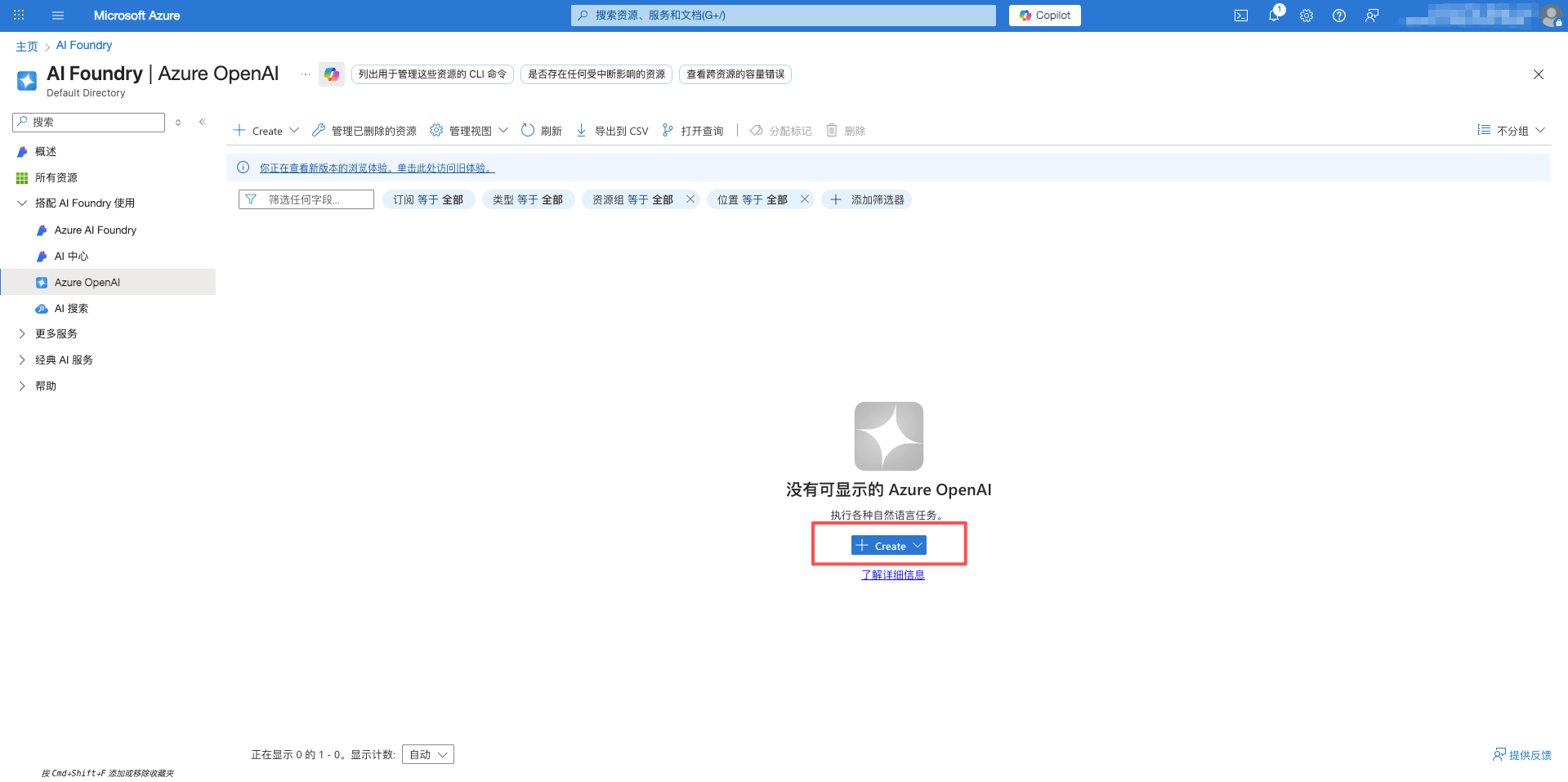
Create an OpenAI service resource in Azure Portal:
- Enter Azure OpenAI in the search box at the top
- Select Azure OpenAI service
- Click the Create button
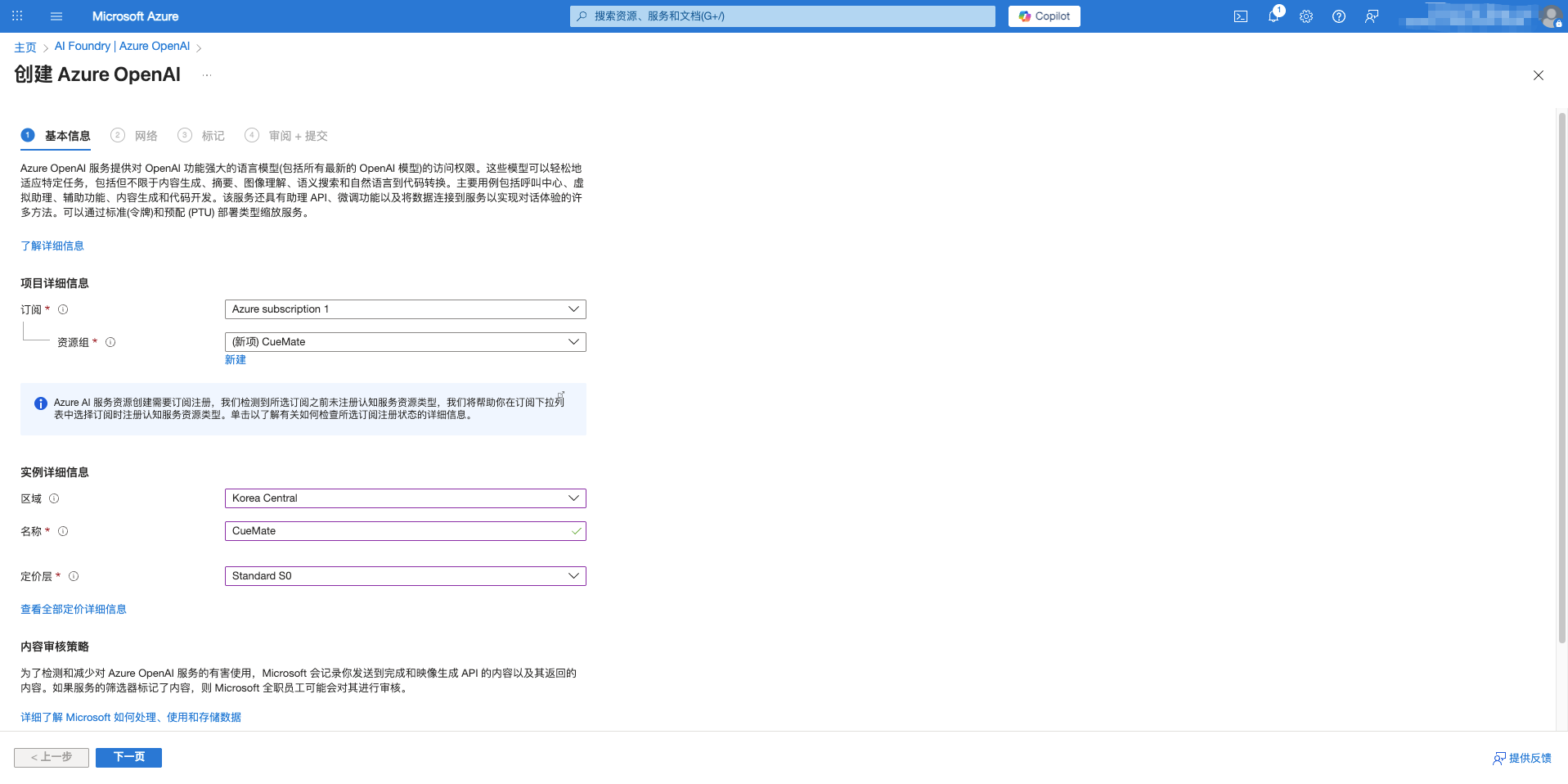
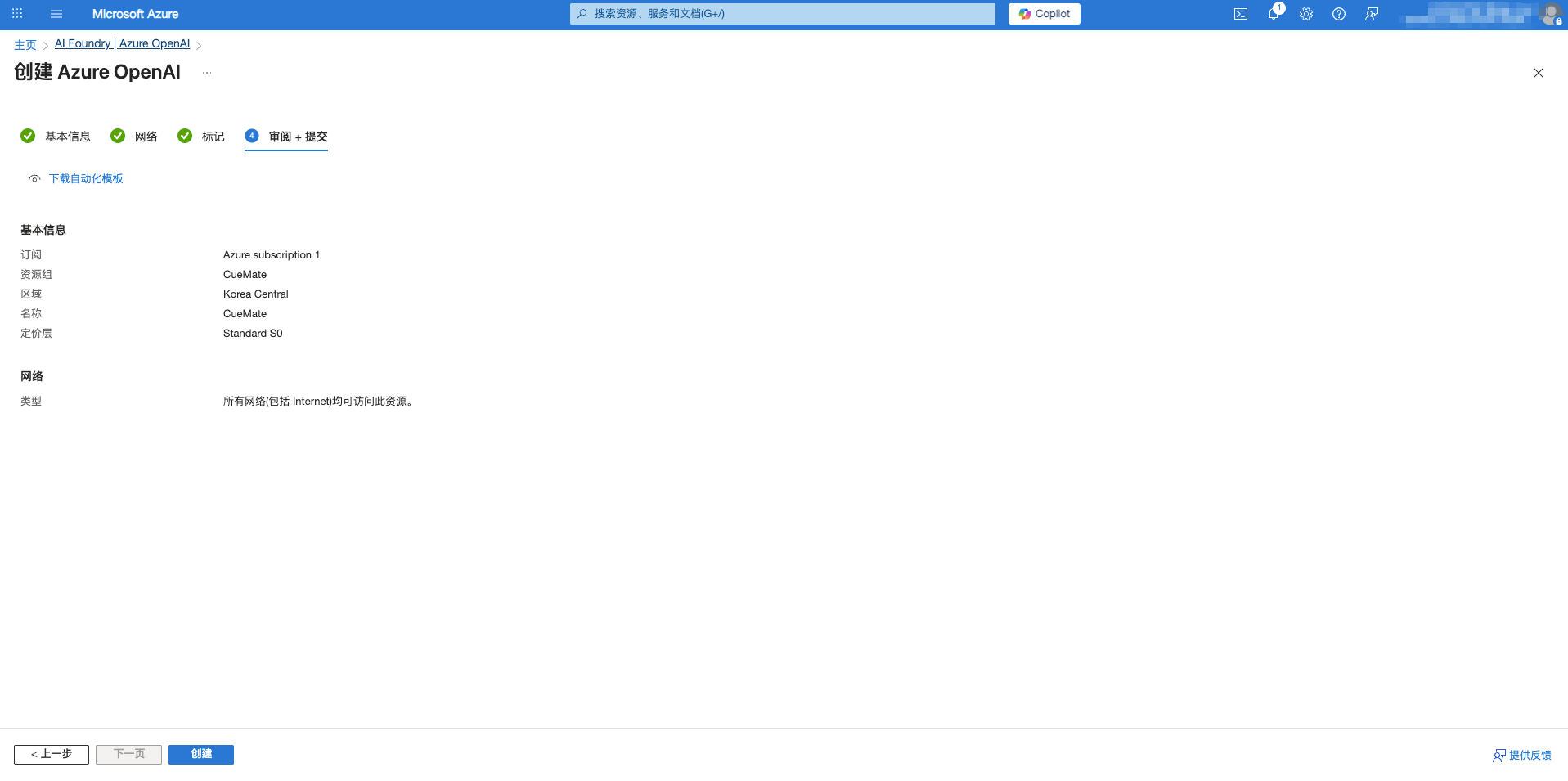
- Fill in basic information:
- Subscription: Select your Azure subscription
- Resource Group: Create a new one or select an existing resource group
- Region: It's recommended to select Korea Central or East US
- Name: Give the resource a unique name
- Pricing Tier: Select an appropriate pricing tier
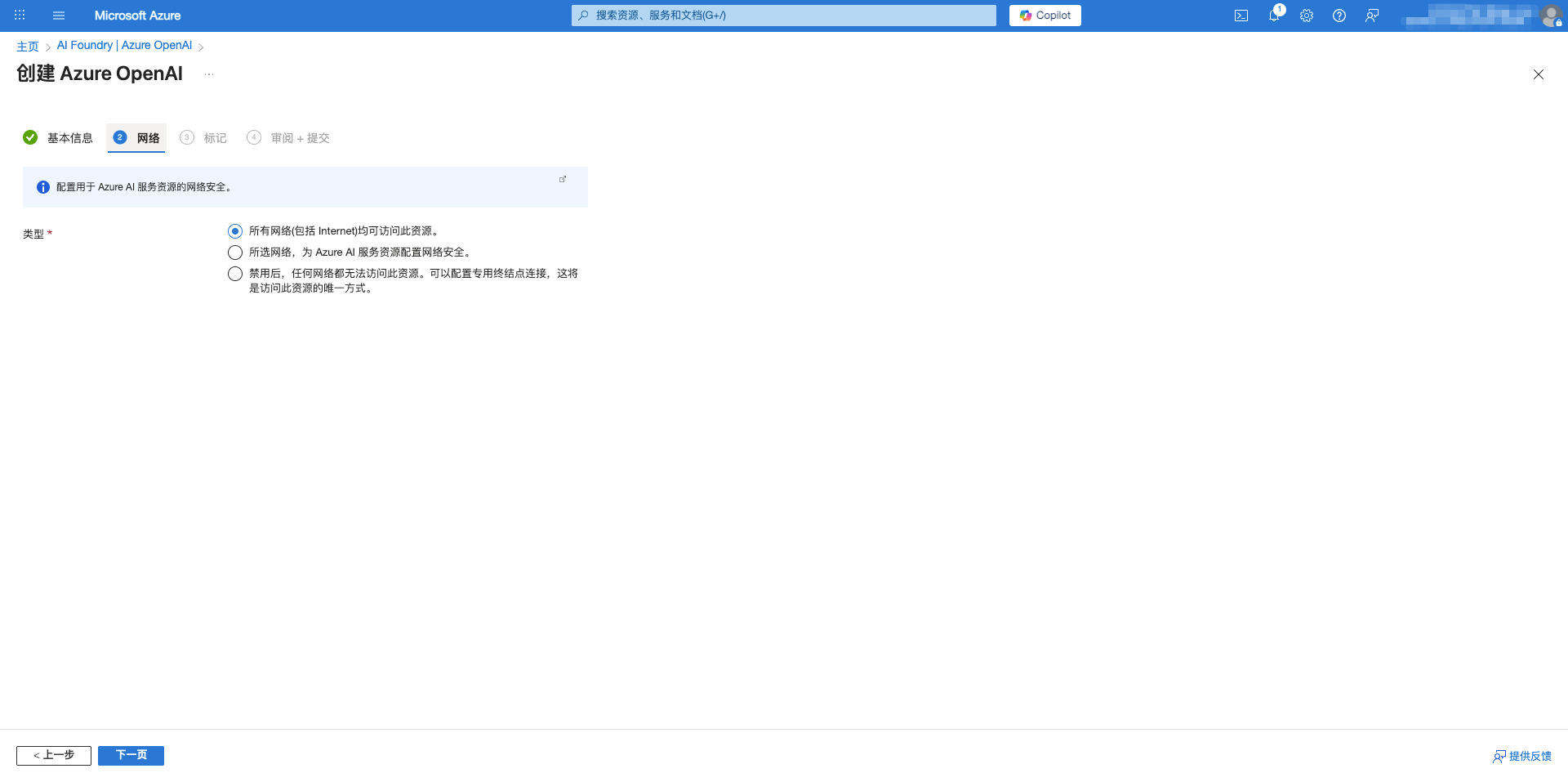
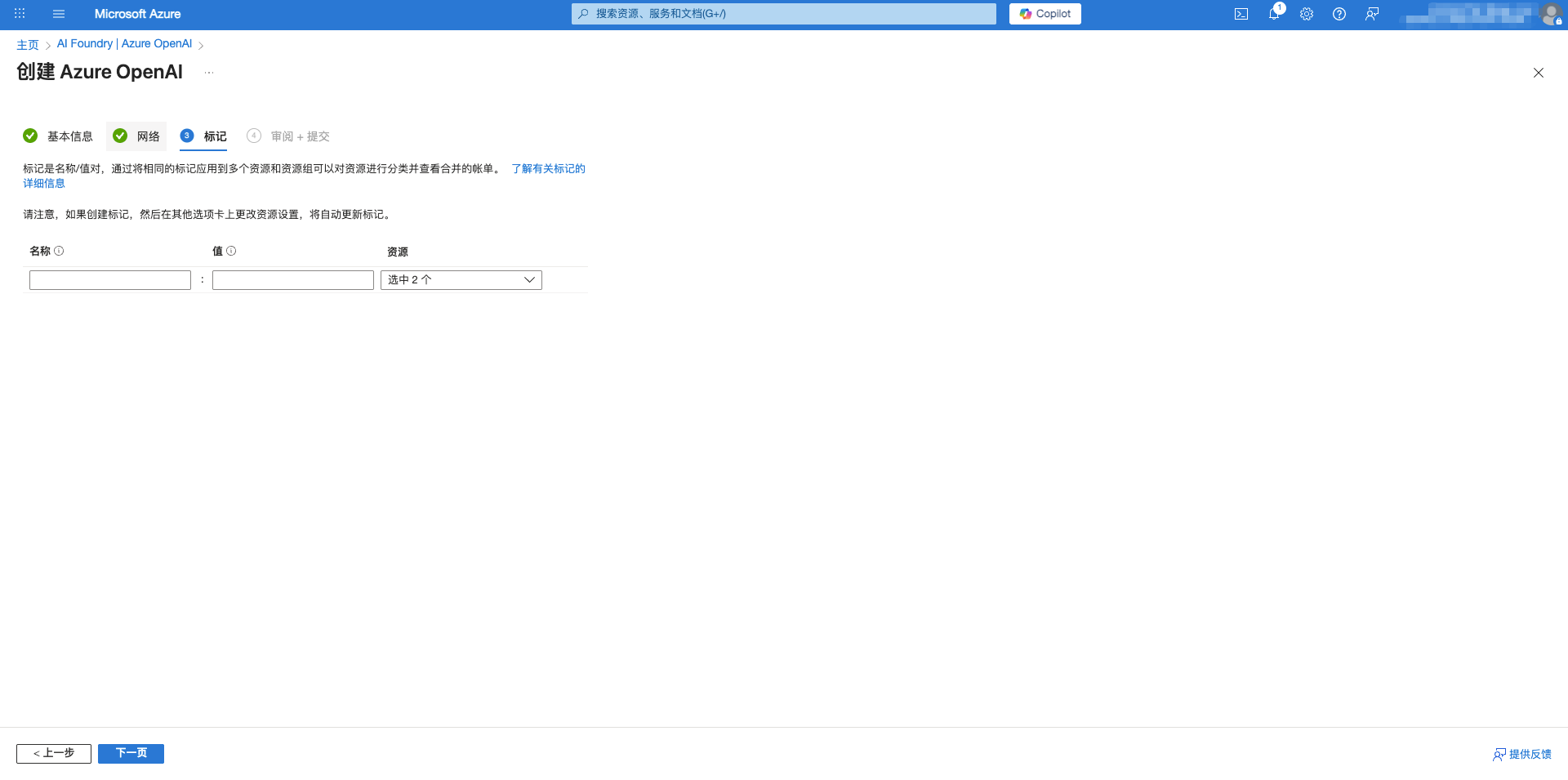
- Click Next to complete network and tag configuration
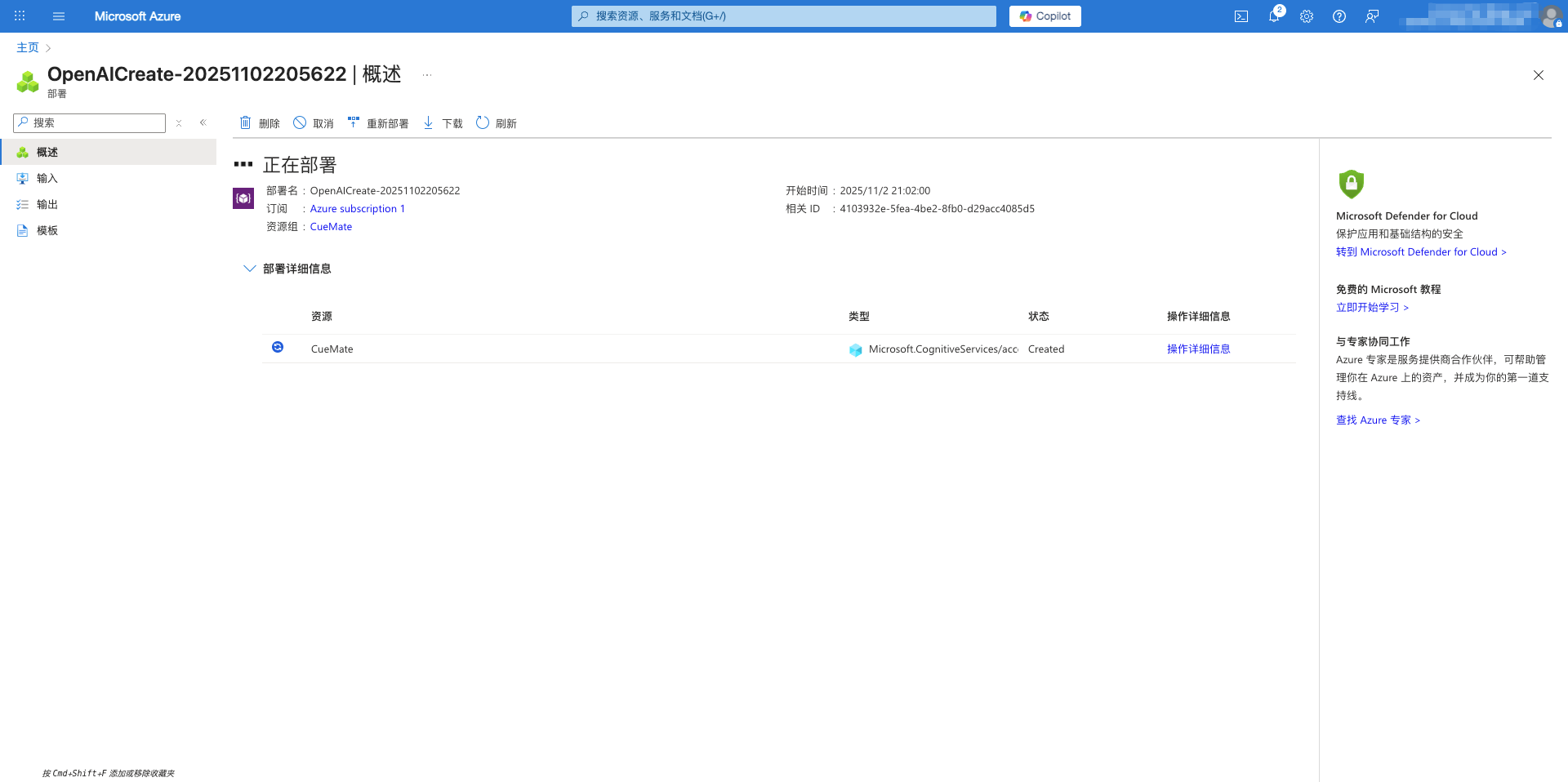
- Click Create to complete deployment
1.3 Deploy Model
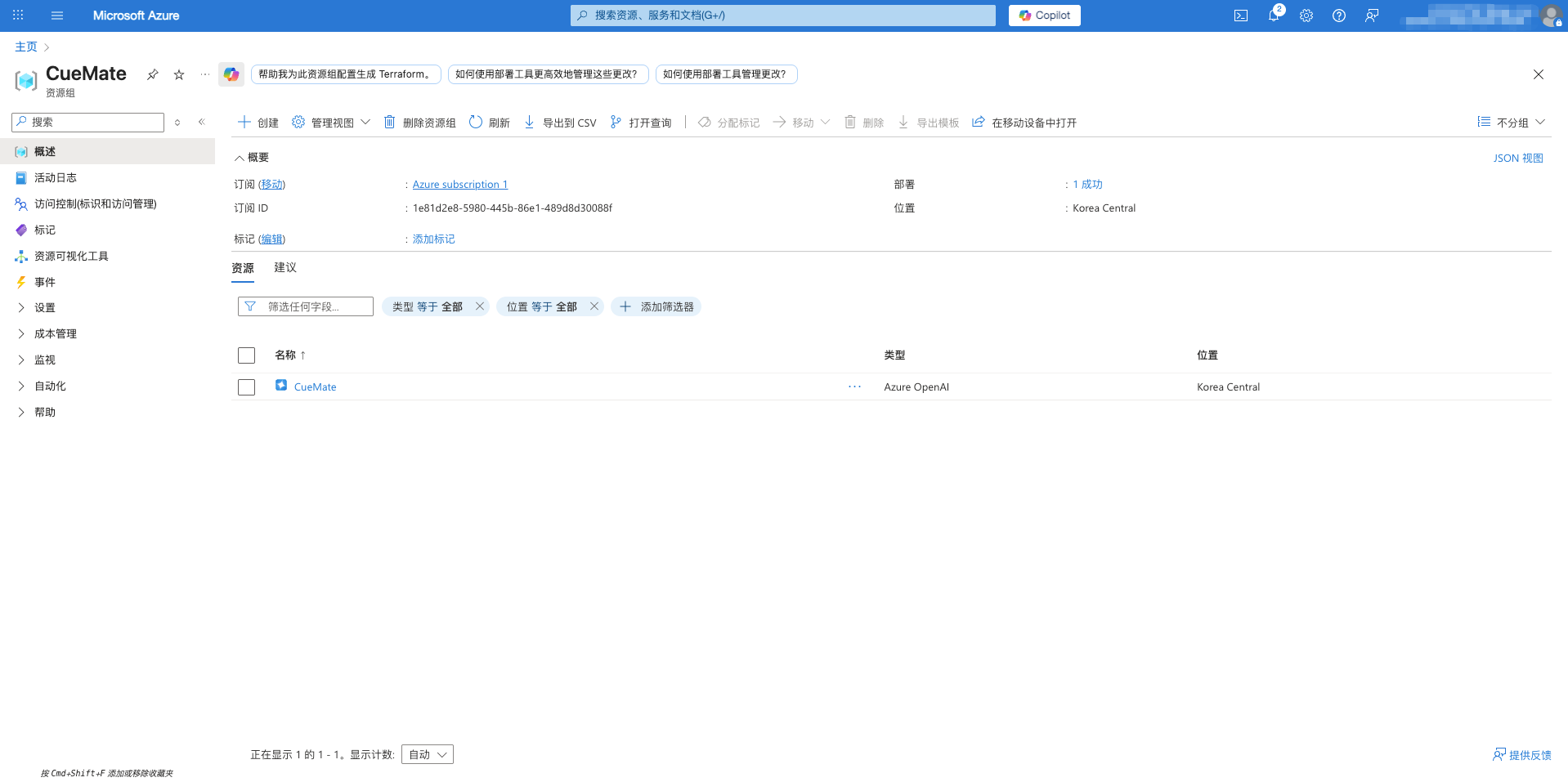
After creating the resource, you need to deploy a specific model to use it:
- Navigate to the Azure OpenAI resource you just created
- Find Model deployments (or Deployments) in the left sidebar menu
- Click the Create new deployment button
- Select the model to deploy (recommended: gpt-4o or gpt-4o-mini)
- Enter a deployment name (it's recommended to keep it consistent with the model name, e.g.,
gpt-4o-mini) - Configure version and capacity settings
- Click Create to complete deployment
1.4 Obtain Endpoint and API Key
After deployment is complete, obtain the authentication information required for connection:
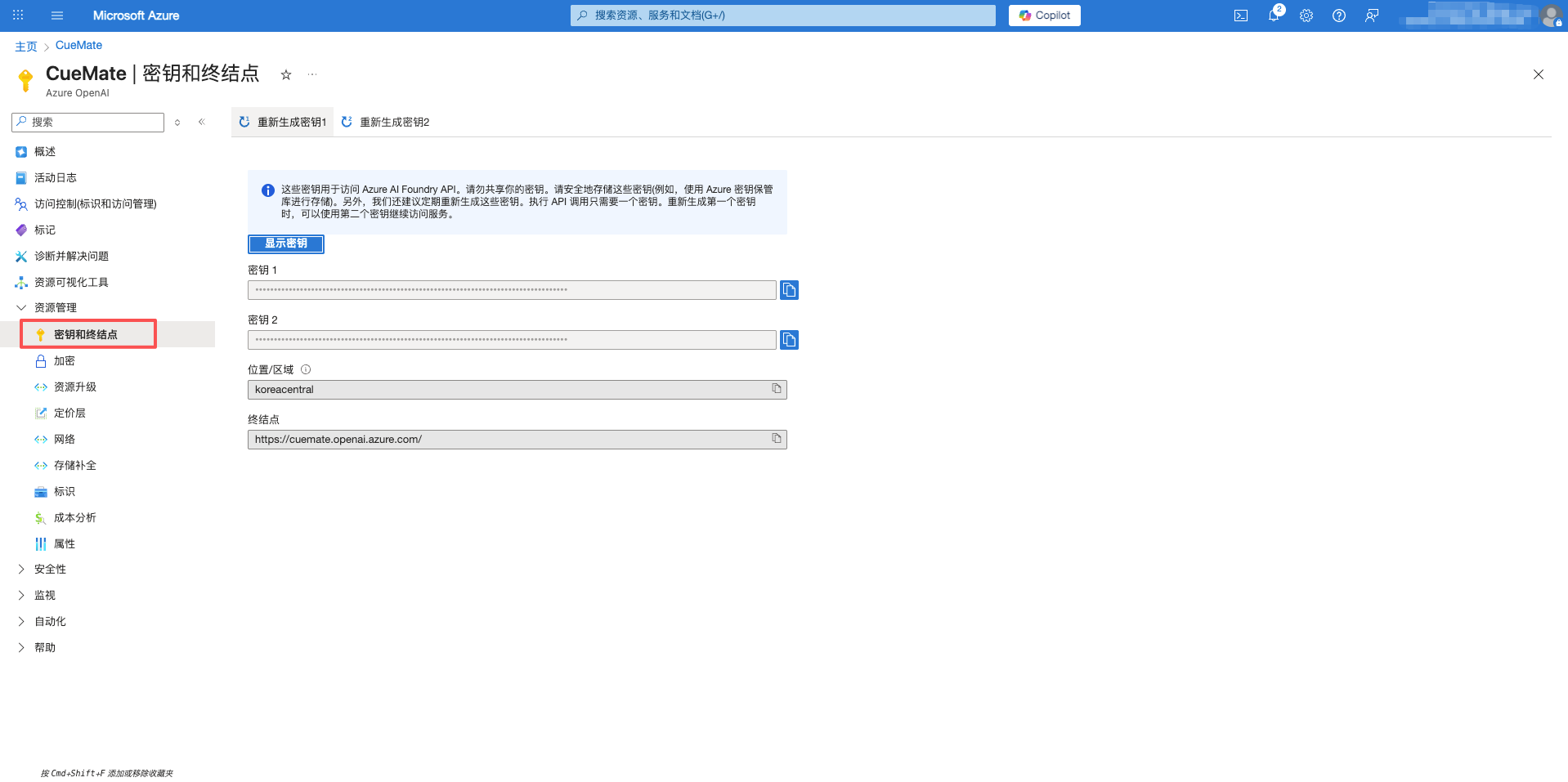
- In the resource page's left sidebar menu, click Keys and Endpoint
- Record the following information:
- Endpoint: Format is
https://{your-resource-name}.openai.azure.com - Key: Copy KEY 1 or KEY 2 (both have the same function)
- Location/Region: The Azure region where the resource is located
- Endpoint: Format is
2. Configure Azure OpenAI Model in CueMate
2.1 Navigate to Model Settings
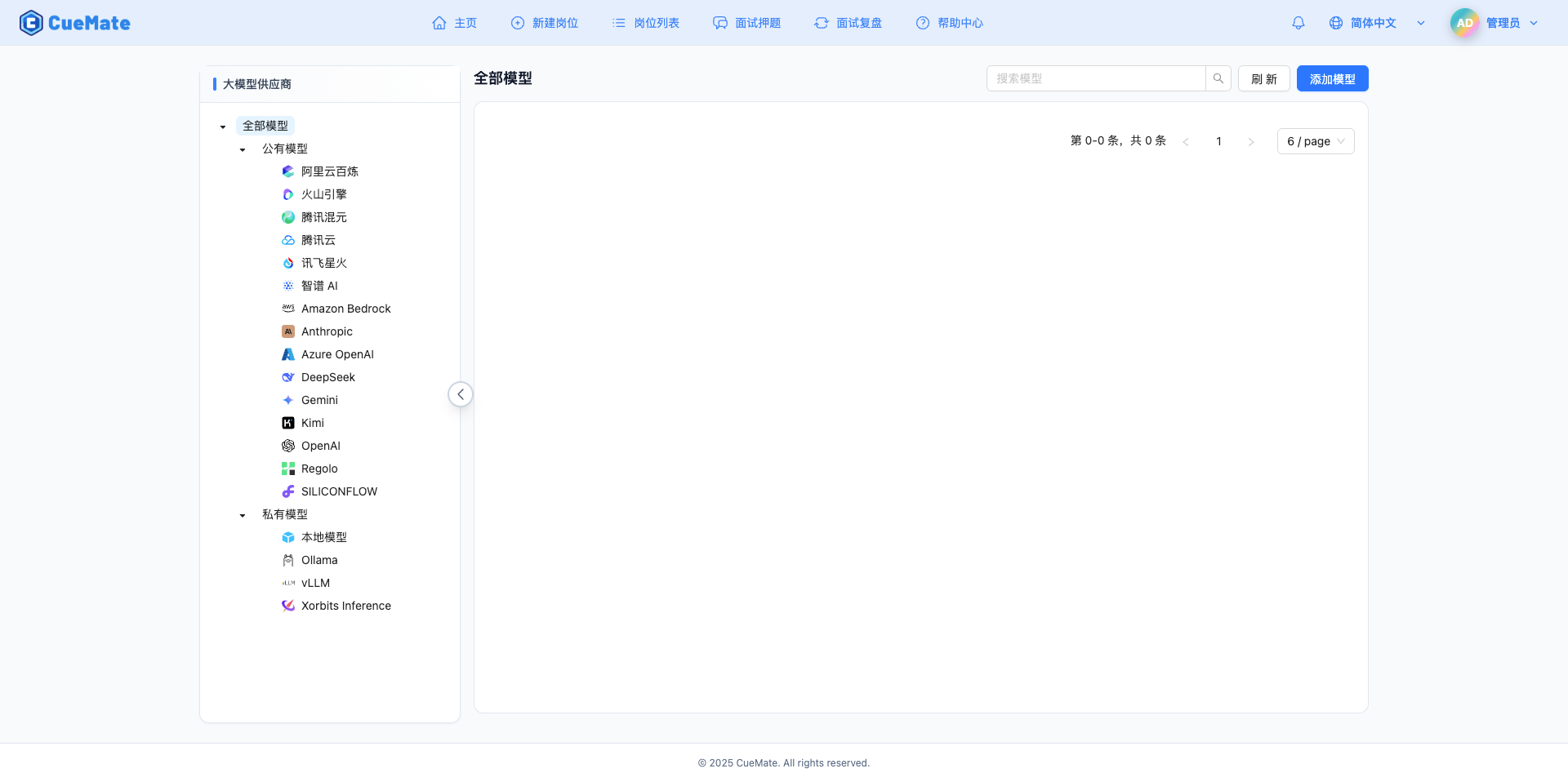
After logging into CueMate Web, click the dropdown menu next to your avatar in the top right corner and select Model Settings.
2.2 Add New Model
On the Model Settings page, click the Add Model button in the upper right corner.

2.3 Select Azure OpenAI Provider
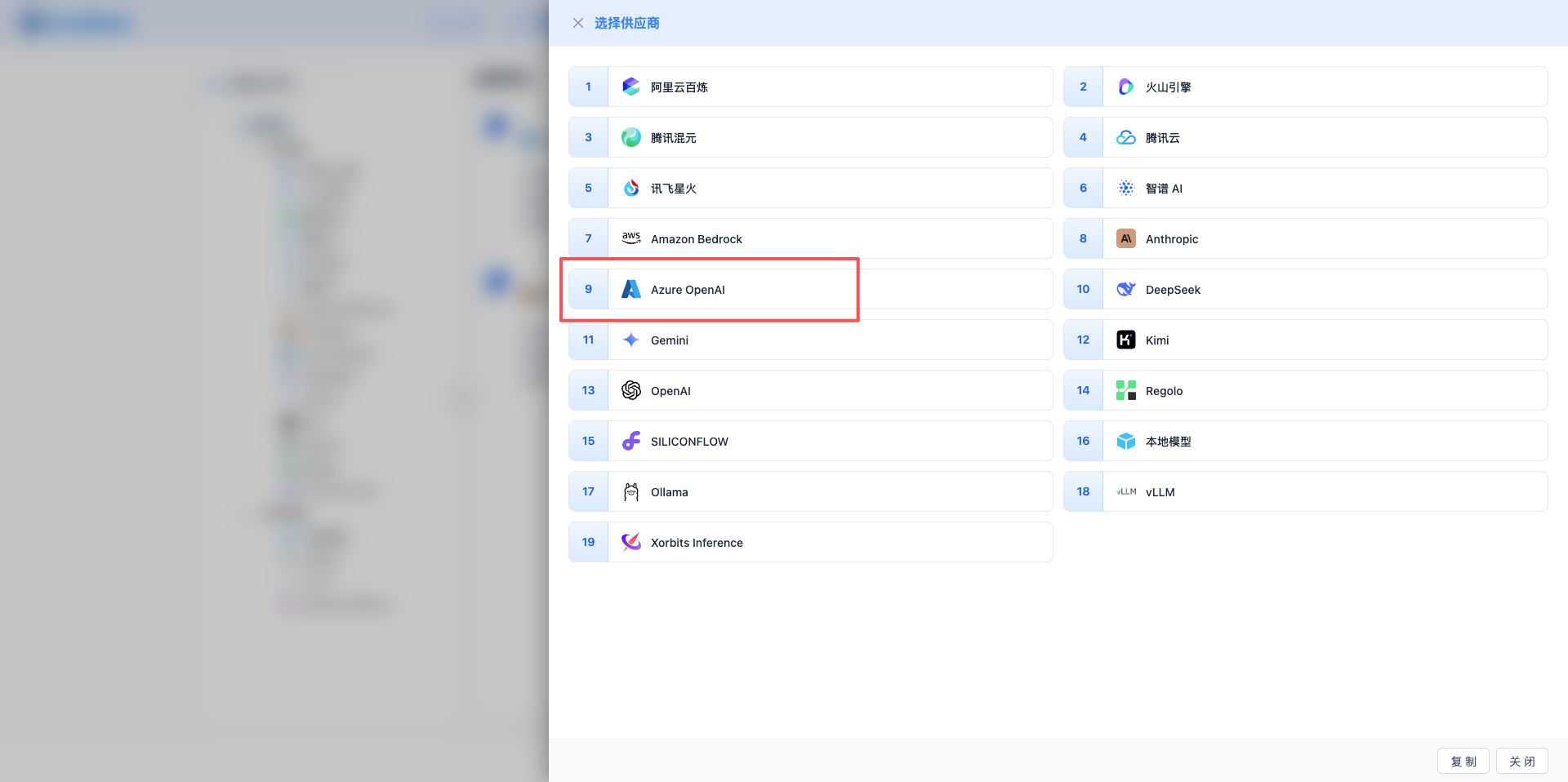
In the Add Model dialog that appears:
- Select Azure OpenAI from the Provider Type dropdown list
- After selection, it will automatically proceed to the configuration page
2.4 Fill in Configuration Information
Basic Configuration
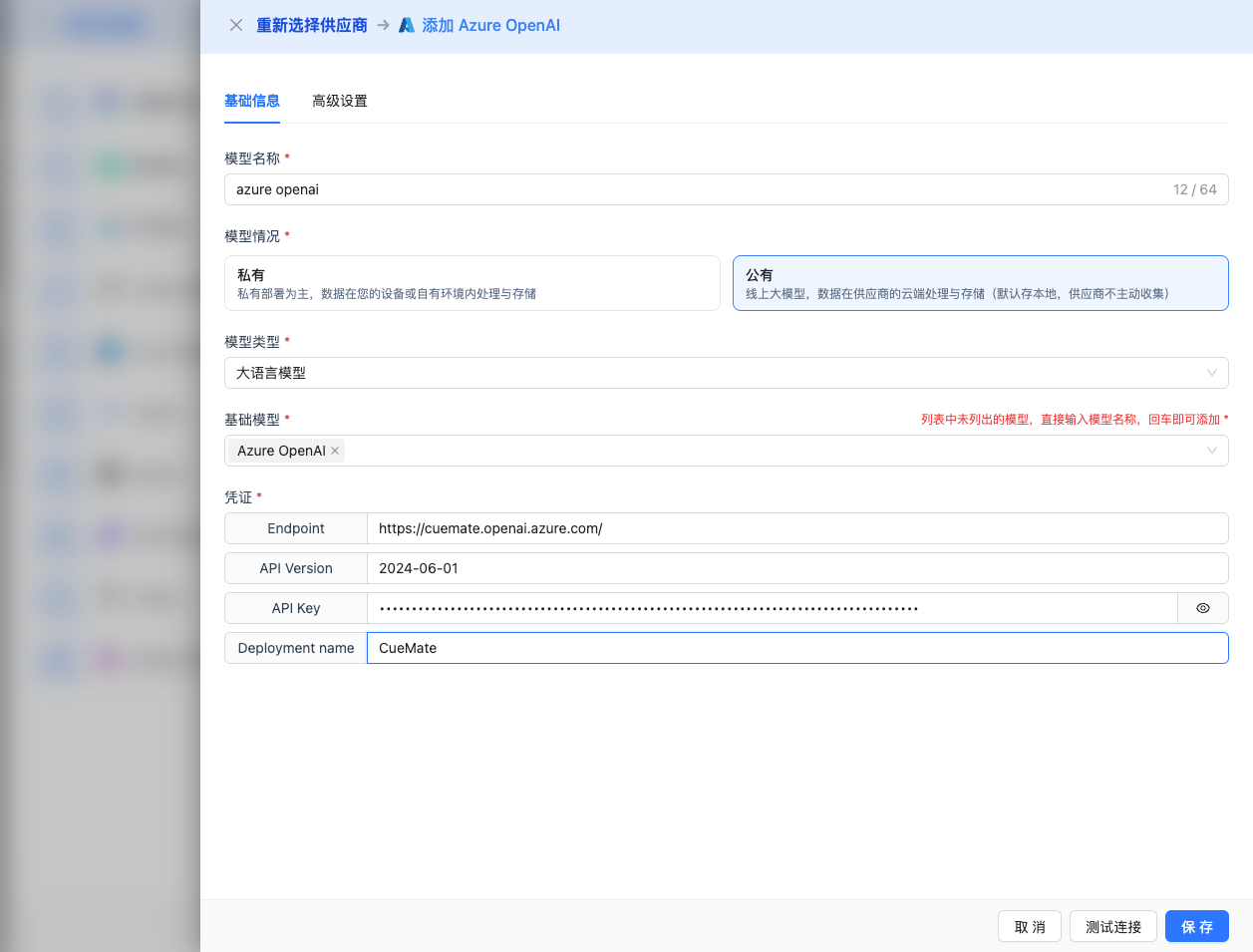
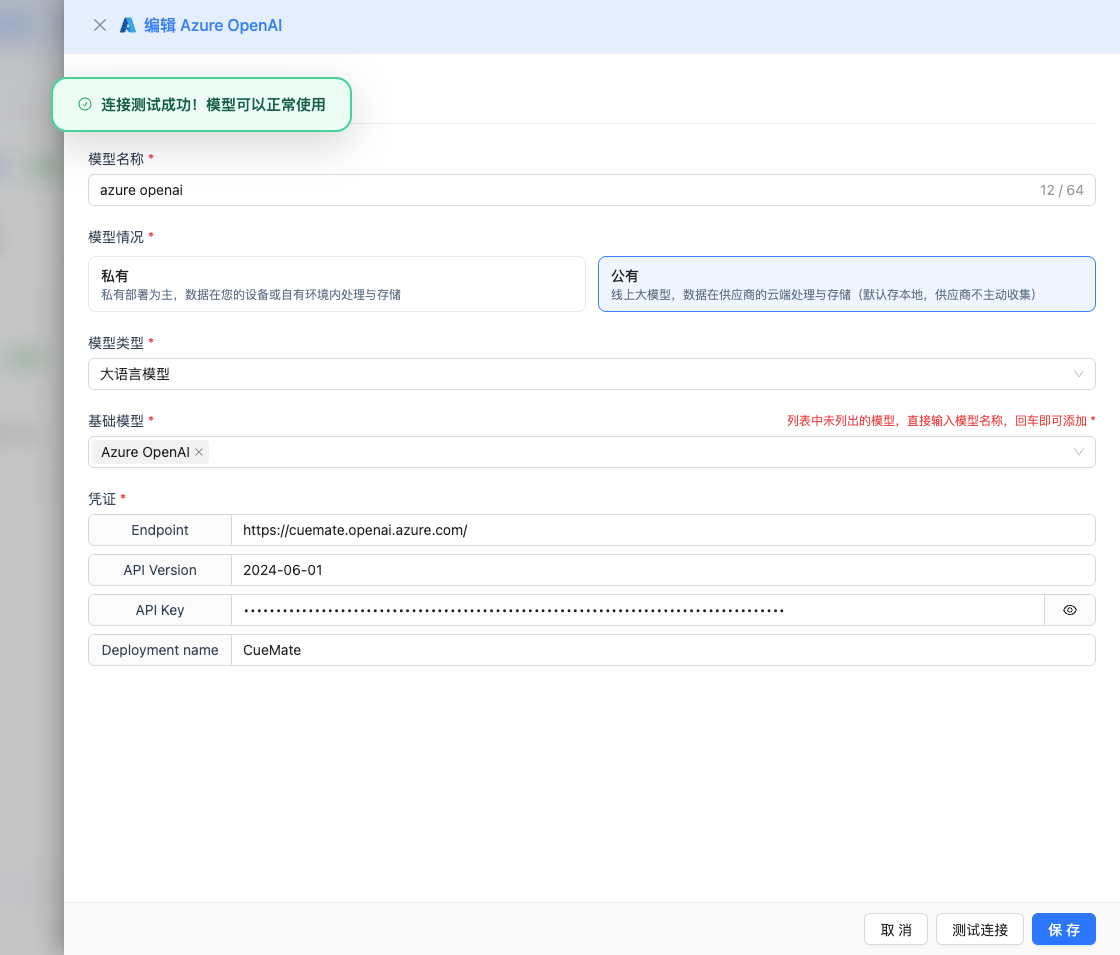
Fill in the information obtained from Azure Portal in the configuration form:
- Model Name: Give this model configuration an easily recognizable name (e.g.,
Azure GPT-4o Mini) - Endpoint: Paste the Azure OpenAI endpoint URL (e.g.,
https://cuemate.openai.azure.com) - API Version: Keep the default value
2024-06-01, or use the latest stable version recommended by Azure - API Key: Paste the key copied from Azure Portal (KEY 1 or KEY 2)
- Deployment name: Enter the deployment name created in Azure (e.g.,
gpt-4o-mini)
Advanced Configuration (Optional)
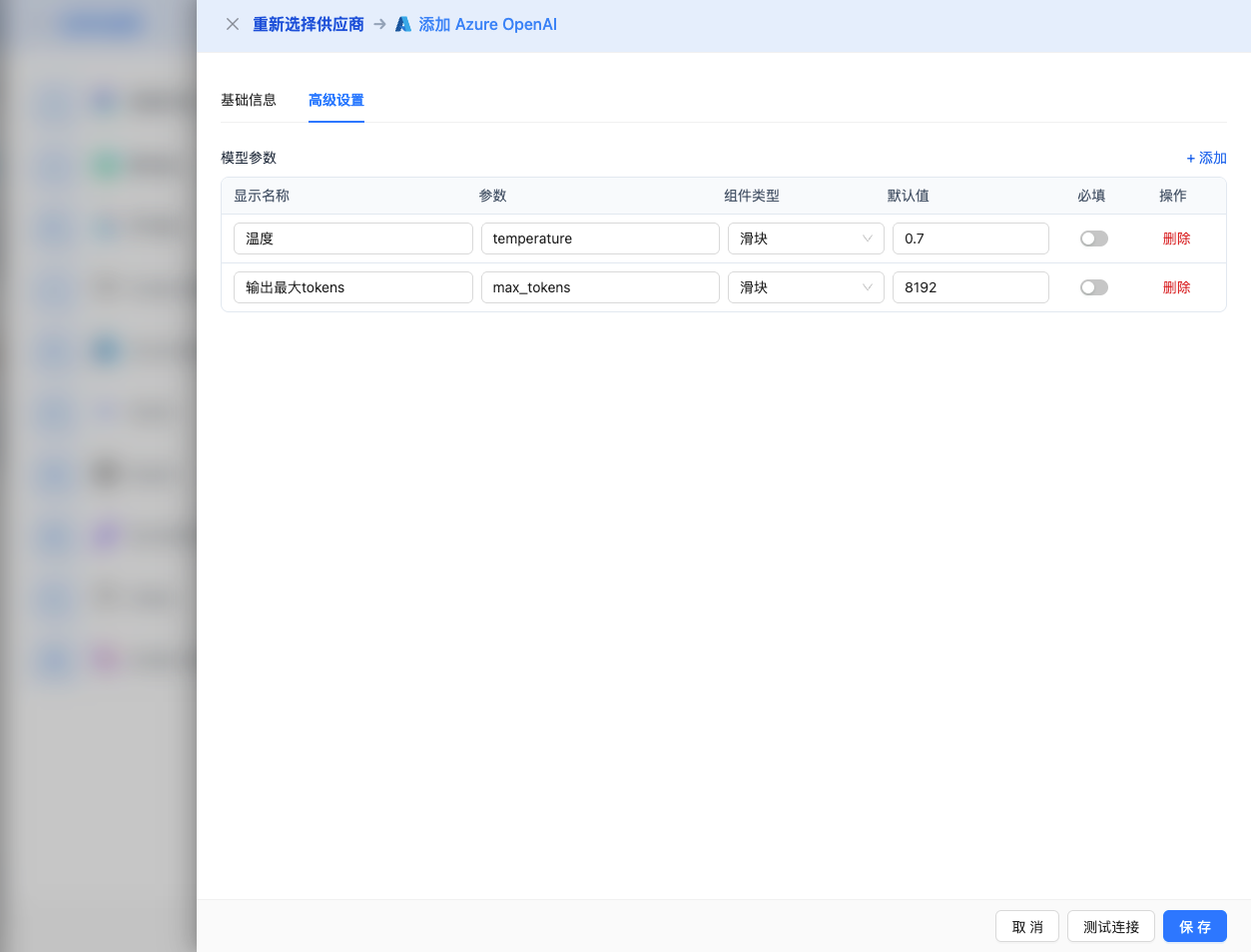
Expand the Advanced Configuration panel to adjust the following parameters:
Parameters Adjustable in CueMate Interface:
Temperature: Controls output randomness
- Range: 0-2
- Recommended Value: 0.7
- Effect: Higher values produce more random and creative outputs, lower values produce more stable and conservative outputs
- Usage Recommendations:
- Creative writing/brainstorming: 1.0-1.5
- Regular conversation/Q&A: 0.7-0.9
- Code generation/precise tasks: 0.3-0.5
Max Tokens: Limits single output length
- Range: 256 - 16384 (depending on the model)
- Recommended Value: 8192
- Effect: Controls the maximum number of tokens in a single model response
- Model Limits:
- GPT-4o series: Max 16K tokens
- GPT-4: Max 8K tokens
- Usage Recommendations:
- Short Q&A: 1024-2048
- Regular conversation: 4096-8192
- Long text generation: 16384 (supported models only)
Additional Advanced Parameters Supported by Azure OpenAI API:
Although the CueMate interface only provides temperature and max_tokens adjustments, if you call Azure OpenAI directly through the API, you can also use the following advanced parameters (fully compatible with OpenAI):
top_p (nucleus sampling)
- Range: 0-1
- Default Value: 1
- Effect: Samples from the smallest set of candidates whose cumulative probability reaches p
- Relationship with temperature: Usually only adjust one of them
frequency_penalty
- Range: -2.0 to 2.0
- Default Value: 0
- Effect: Reduces the probability of repeating the same words (based on word frequency)
presence_penalty
- Range: -2.0 to 2.0
- Default Value: 0
- Effect: Reduces the probability of words that have already appeared appearing again (based on presence)
stop (stop sequences)
- Type: String or array (up to 4 strings)
- Default Value: null
- Effect: Stops generation when the specified string is included in the generated content
stream
- Type: Boolean
- Default Value: false
- Effect: Enables SSE streaming return
- In CueMate: Handled automatically, no manual setting required
seed
- Type: Integer
- Default Value: null
- Effect: Fixes the random seed, producing the same output for the same input
| Scenario | temperature | max_tokens | top_p | frequency_penalty | presence_penalty |
|---|---|---|---|---|---|
| Creative Writing | 1.0-1.2 | 4096-8192 | 0.95 | 0.5 | 0.5 |
| Code Generation | 0.2-0.5 | 2048-4096 | 0.9 | 0.0 | 0.0 |
| Q&A System | 0.7 | 1024-2048 | 0.9 | 0.0 | 0.0 |
| Summary | 0.3-0.5 | 512-1024 | 0.9 | 0.0 | 0.0 |
| Brainstorming | 1.2-1.5 | 2048-4096 | 0.95 | 0.8 | 0.8 |
2.5 Test Connection
After completing the configuration, click the Test Connection button to verify the configuration is correct.
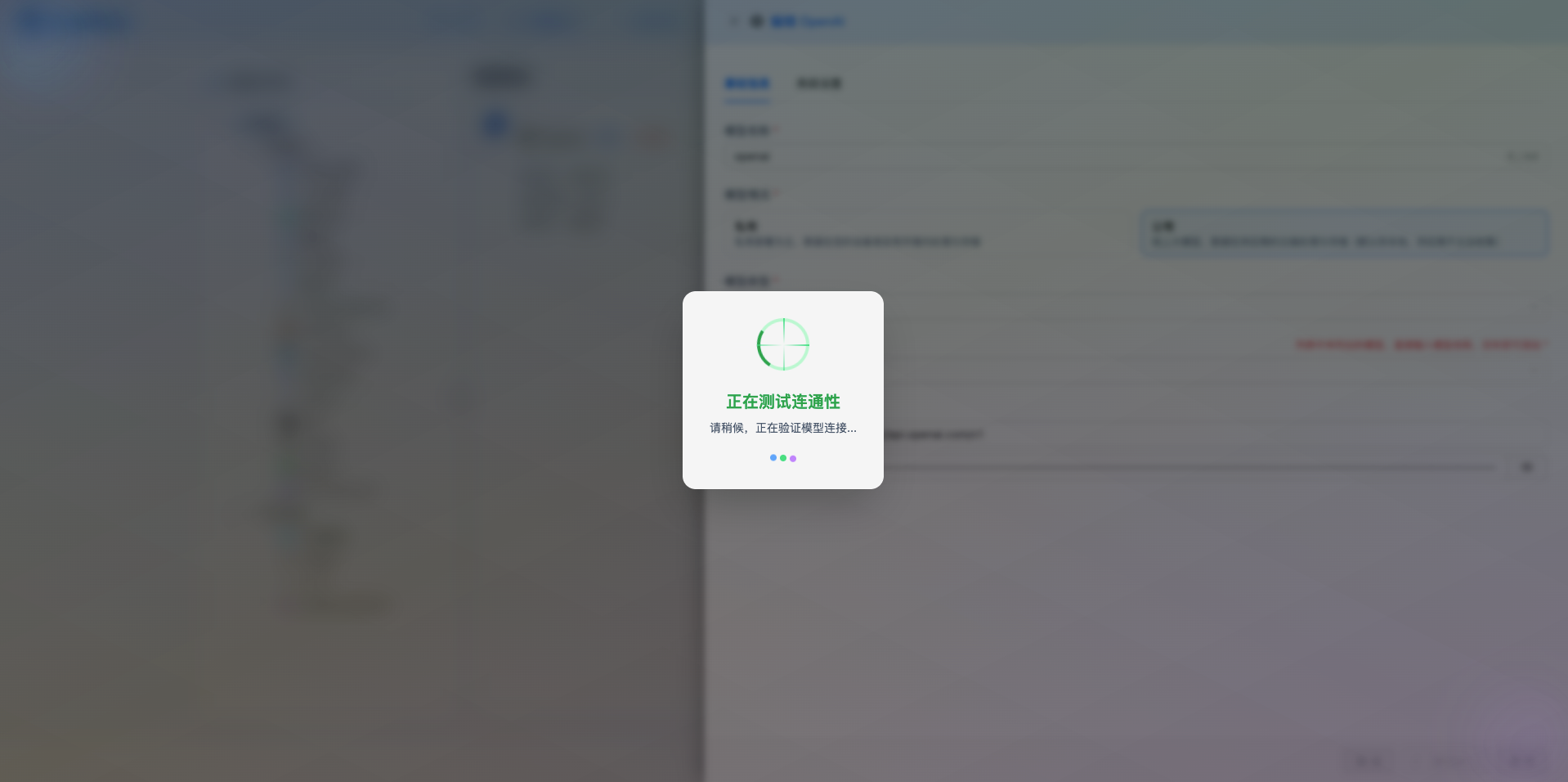
If the configuration is correct, the system will display a test success prompt and return a sample response from the model.
If the configuration is incorrect, error information and detailed log content will be displayed. Common errors include:
- Incorrect Endpoint address
- Invalid or expired API Key
- Deployment name doesn't exist
- API Version mismatch
2.6 Save Configuration
After successful testing, click the Save button to complete the model configuration.
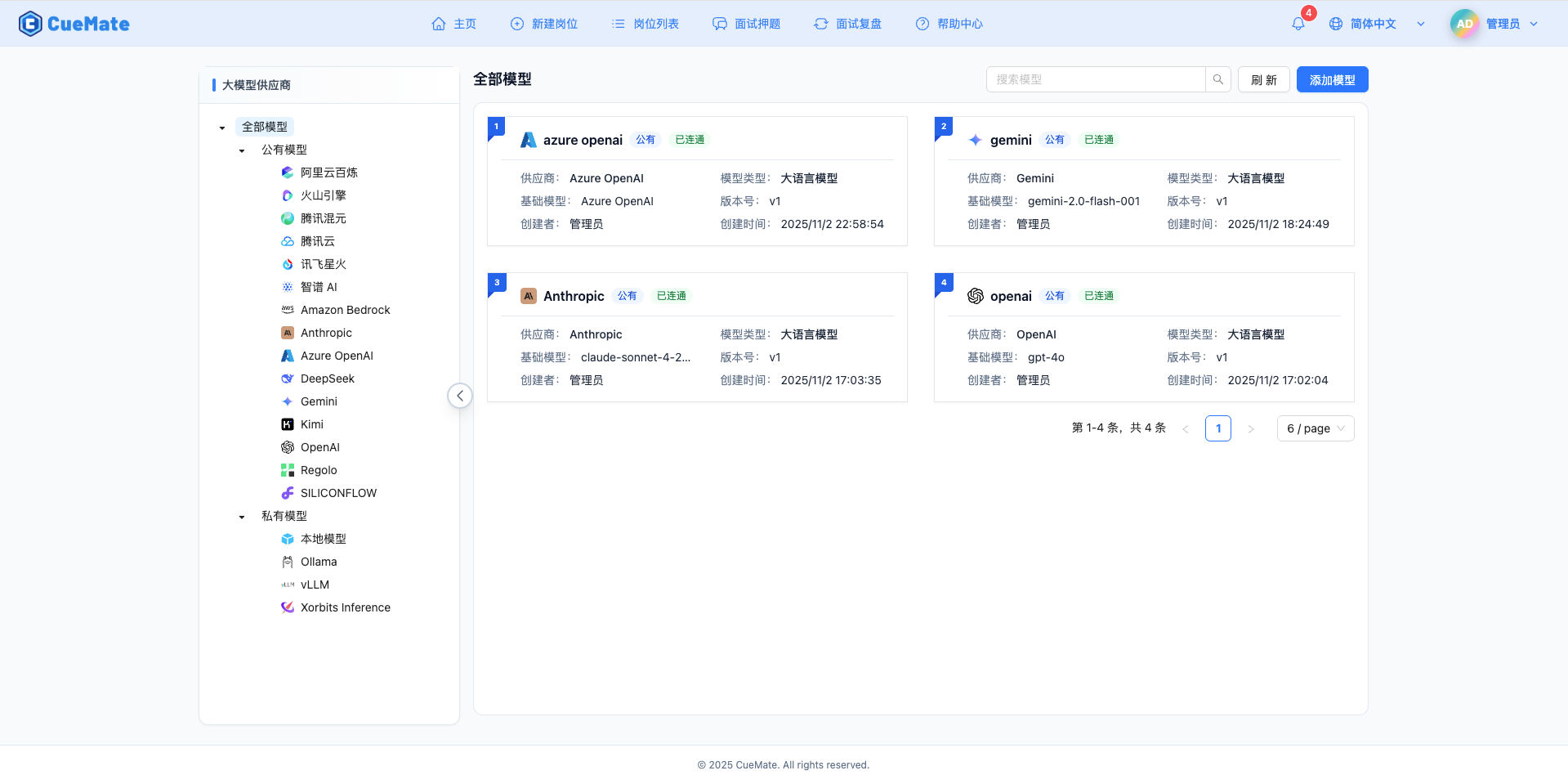
3. Use the Model
3.1 Set Default Model
After saving the configuration, you can set it as the default model to use through the following steps:
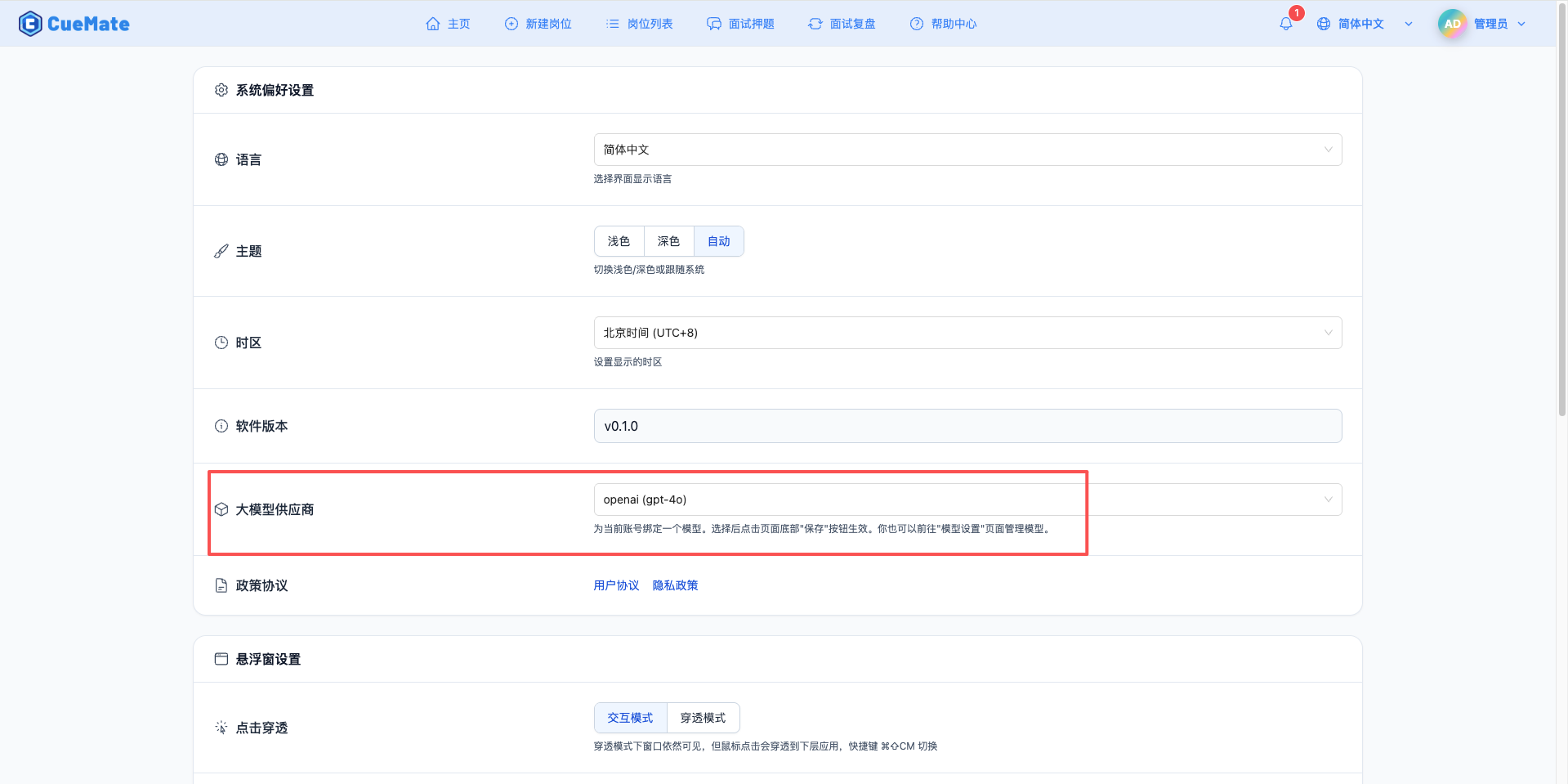
- Click the dropdown menu in the top right corner and select System Settings
- Select the Azure OpenAI model you just configured in the Large Model Provider section
- Save settings
3.2 Use in Features
After configuration, you can use this model in the following features:
- Interview training mode
- Intelligent question generation
- Real-time answer generation
You can also individually select a specific model configuration for an interview when creating it.
4. Supported Model List
CueMate currently supports the following Azure OpenAI models (must be deployed in Azure Portal first before use):
| No. | Model Name | Deployment Name | Max Output | Context Window | Use Cases |
|---|---|---|---|---|---|
| 1 | GPT-4o | gpt-4o | 16K tokens | 128K tokens | General scenarios, multimodal processing, high-performance reasoning, complex interview Q&A |
| 2 | GPT-4o Mini | gpt-4o-mini | 16K tokens | 128K tokens | Quick responses, daily conversations, cost-effective, lightweight interview training |
| 3 | GPT-4 | gpt-4 | 8K tokens | 8K tokens | High-quality output, precise reasoning, in-depth technical interviews |
Important Notes:
- Deployment Name: Can be customized in Azure Portal, but it's recommended to keep it consistent with the model name for easier management
- Regional Limitations: Different Azure regions may support different models. Please check available models on the model deployment page in Azure Portal
- Deployment Status: Ensure the deployment status is "Succeeded" before configuring in CueMate
- Output Limits: The actual maximum output depends on the Max Tokens parameter set in your CueMate configuration
Other Available Models: Azure OpenAI also supports models like GPT-4 Turbo and GPT-3.5 Turbo. If you need to use them, please deploy them in Azure Portal first, then manually enter the corresponding deployment name in CueMate.
5. Common Issues
5.1 Endpoint Configuration Error
Problem: Prompt "Unable to connect to service" or "404 Not Found" during connection test?
Possible Causes:
- Incorrect Endpoint format
- Resource name spelling error
- Network firewall restrictions
Solution:
- Check if the Endpoint format is correct (standard format:
https://{your-resource-name}.openai.azure.com) - Confirm the resource name spelling is correct (copy and paste to avoid manual input errors)
- Do not add a trailing slash
/at the end of the Endpoint - Verify network firewall settings allow access to Azure services
5.2 API Version Mismatch
Problem: Prompt "API version not supported" or version-related errors?
Possible Causes:
- Using an unsupported API version
- API version has been deprecated
Solution:
- Use the default value
2024-06-01(currently recommended stable version) - Visit Azure OpenAI API Version Documentation to view supported version list
- Ensure the corresponding API version is enabled in your Azure subscription
- Avoid using deprecated old versions
5.3 Deployment Name Error
Problem: Prompt "The API deployment for this resource does not exist"?
Possible Causes:
- Deployment name spelling error or case mismatch
- Deployment not yet complete
Solution:
- Log in to Azure Portal and navigate to your OpenAI resource
- Confirm the deployment name on the Model deployments page (completely copy, pay attention to case)
- Confirm the deployment status is "Succeeded"
- Wait for the deployment to be fully ready before testing (new deployments may take several minutes)
5.4 Invalid API Key
Problem: Prompt "Invalid API key" or "401 Unauthorized"?
Possible Causes:
- Key copied incompletely or contains extra characters
- Key has expired or been regenerated
Solution:
- Re-copy the key from the Keys and Endpoint page in Azure Portal
- Ensure there are no extra spaces or line breaks when copying
- Check if the key has expired or been regenerated
- Try using the alternate key (KEY 2)
5.5 Quota Limits
Problem: Prompt "Rate limit exceeded" or "Quota exceeded"?
Possible Causes:
- Request frequency exceeds limit
- Token consumption exceeds quota
Solution:
- Log in to Azure Portal to check quota usage (Quota menu)
- Request to increase TPM (Tokens Per Minute) limit
- Reduce request frequency or optimize prompt length
- Consider upgrading pricing tier to get higher quota
5.6 Region Unavailable
Problem: Some models cannot be deployed in the current region?
Possible Causes:
- Selected region doesn't support the model
- Region capacity is full
Solution:
- Check Azure OpenAI Model Availability documentation
- Create a new resource in a region that supports the target model (recommended: Korea Central or East US)
- Use a subscription plan that supports multiple regions
Related Links
- Azure Portal - Azure Management Console
- Azure OpenAI Official Documentation - Complete Technical Documentation
- Model Pricing Information - Price Calculator
- API Reference Documentation - REST API Detailed Description
- Model Availability Documentation - List of Models Supported by Each Region