
Notifications
The Notifications page is used to view system notifications and task reminders, supporting category filtering, status filtering, search, mark as read/starred, and more.
1. Access Notifications Page
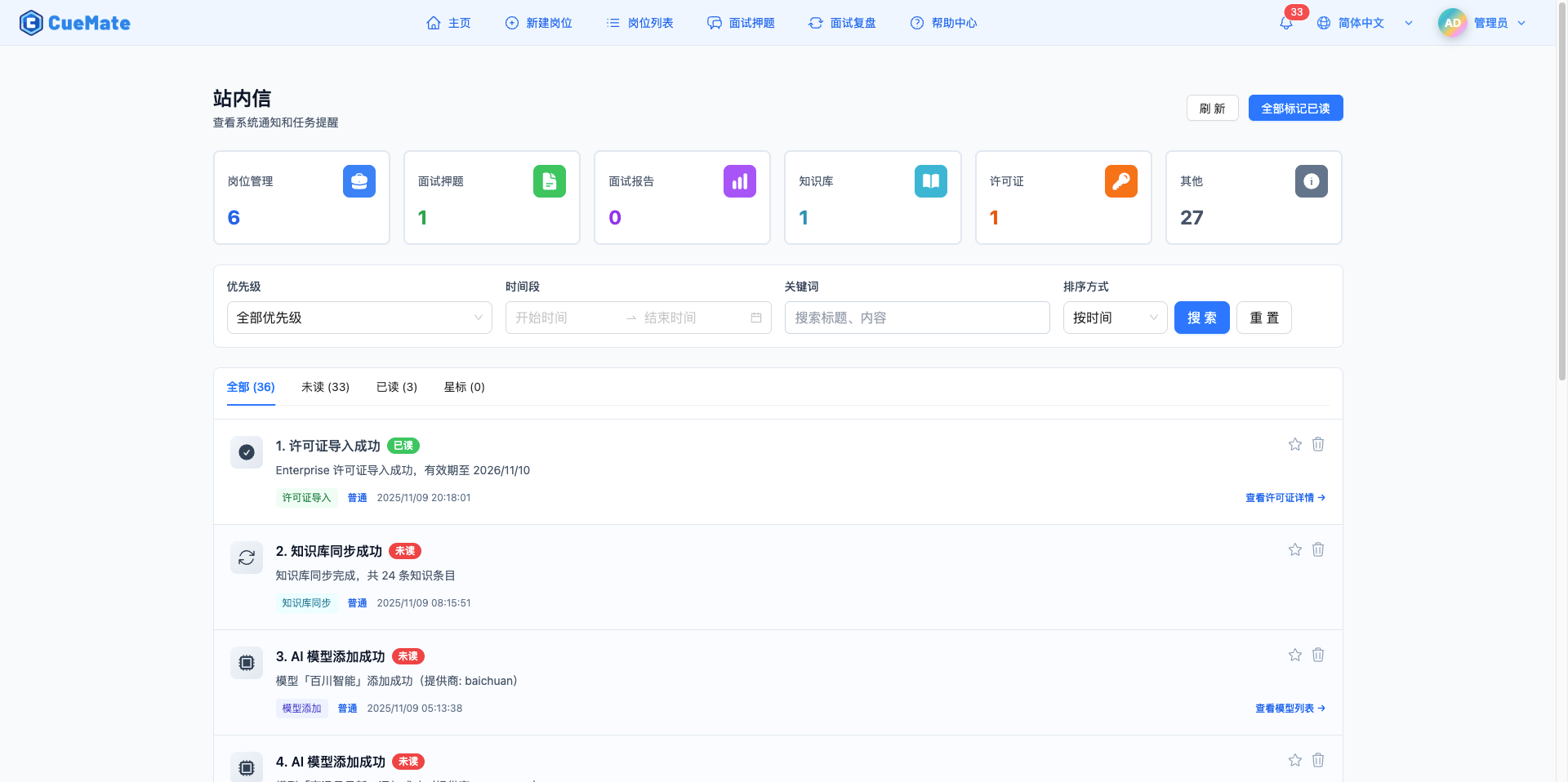
Click "Notifications" in the top menu to enter the notification management page. The unread notification count is displayed in the top right corner.
2. Category Statistics Cards
The top of the page displays 6 category statistics cards, showing the count of each notification type at a glance.
Category Description:
- Position Management: Position creation, update, deletion notifications
- Interview Questions: Question generation, analysis completion notifications
- Interview Reports: Interview end, report generation notifications
- Knowledge Base: Knowledge base sync, update notifications
- License: License expiration, activation notifications
- Other: Ad expiration, system notifications, and other categories
Card Features:
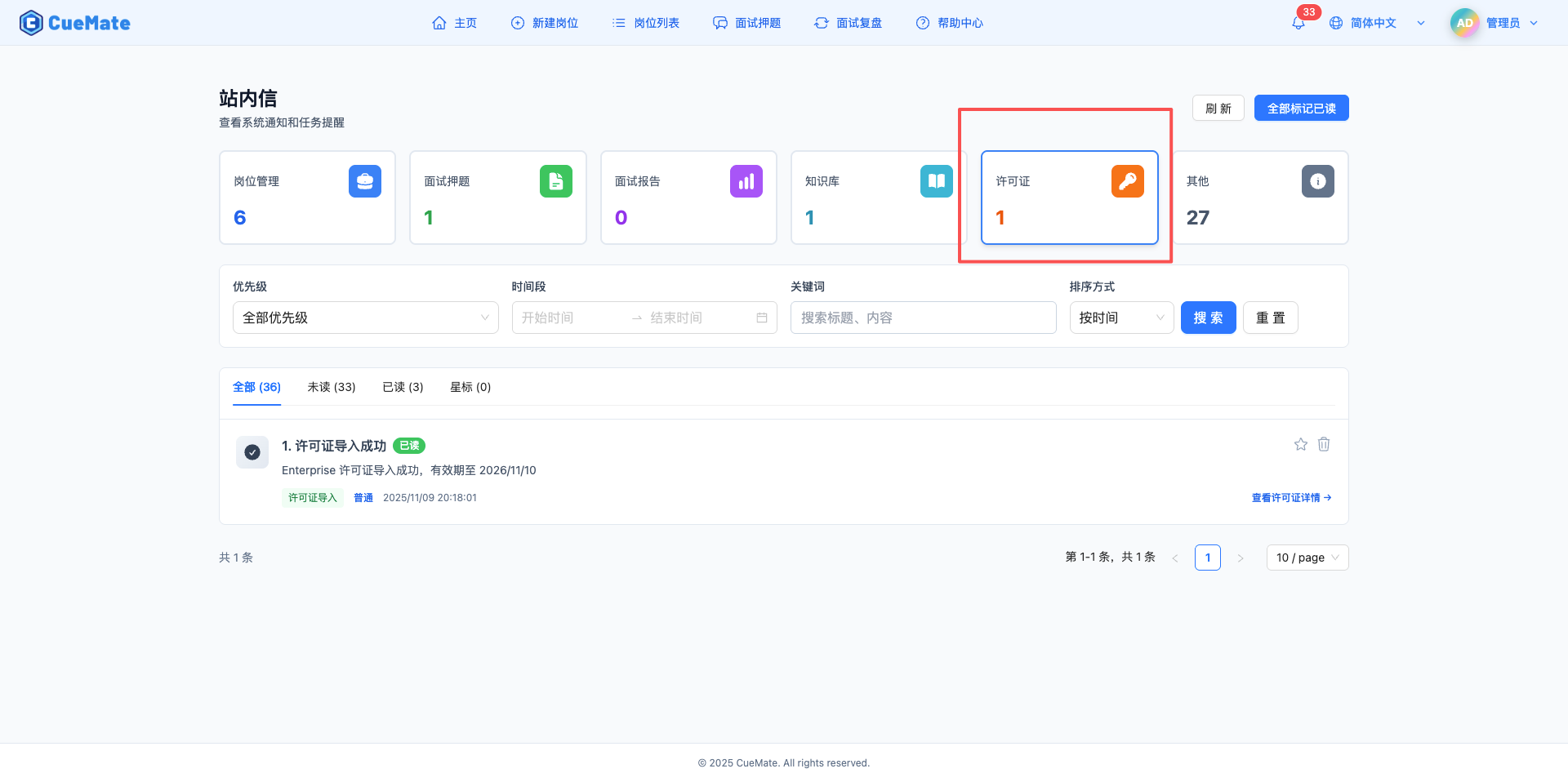
- Click a card to filter notifications of that category
- Selected card border turns blue
- Click again to cancel filter and show all notifications

3. Filter by Category
Click a category card to show only notifications of that category. The notification list and pagination automatically update to show filtered results.
4. Tab Status Switching
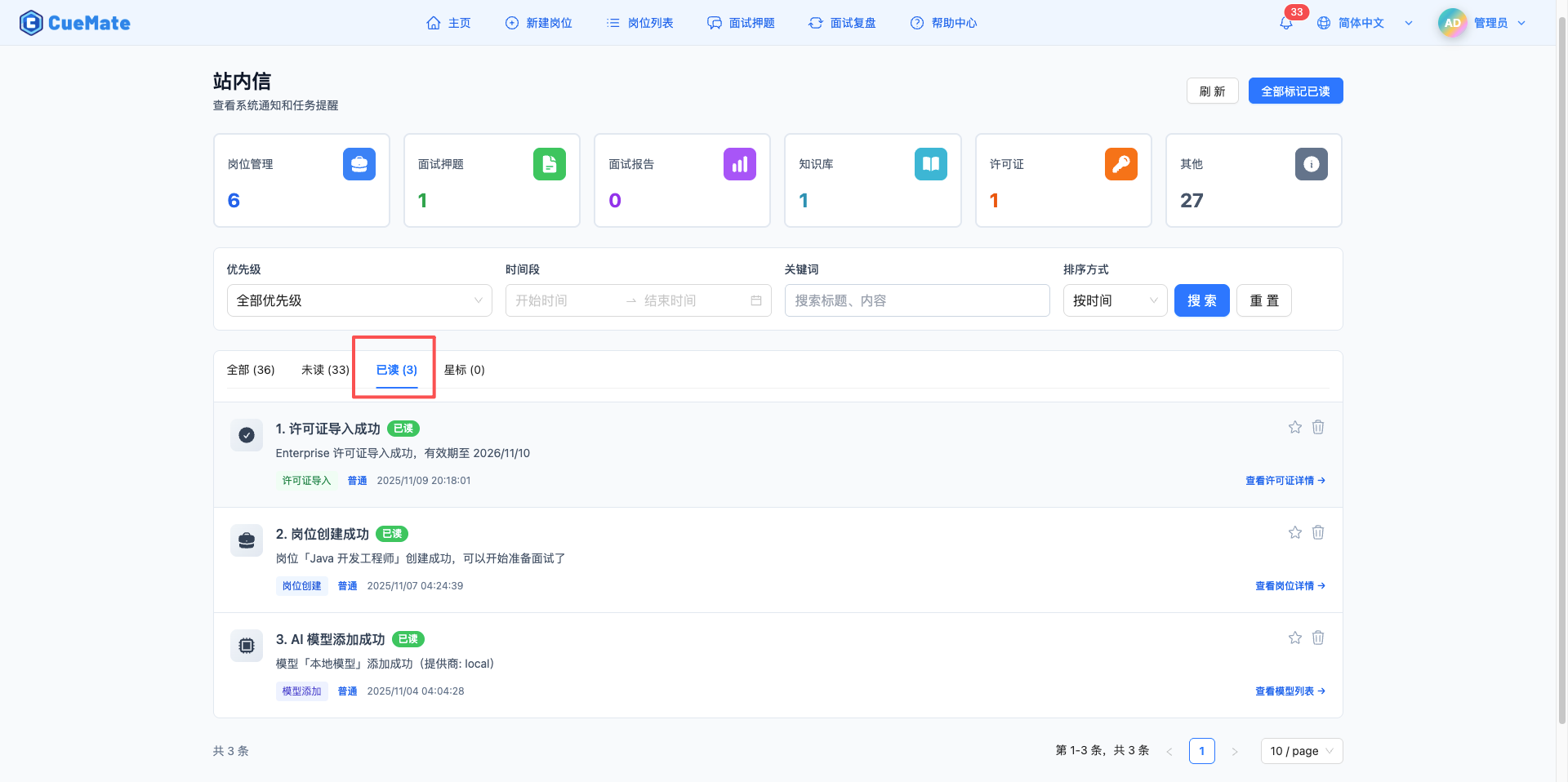
Above the notification list are 4 tabs for switching between different notification statuses.
Tab Description:
- All: Show all notifications
- Unread: Show only unread notifications
- Read: Show only read notifications
- Starred: Show only starred notifications
Each tab displays the count of notifications in that status, which changes dynamically based on filter conditions.
5. Unread Notifications
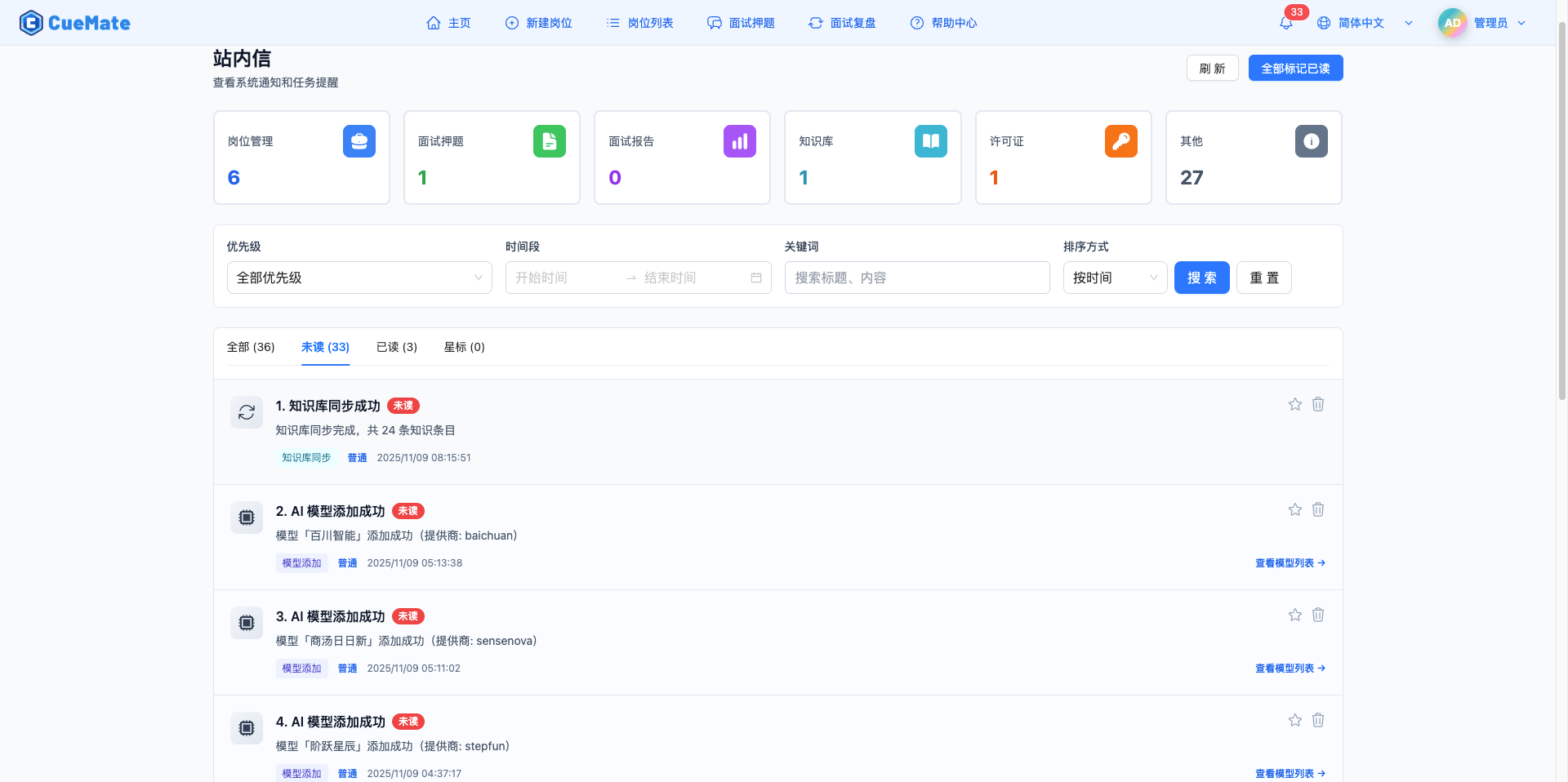
Switch to the "Unread" tab to view all unread notifications.
Unread Indicators:
- Notification background is light blue
- Red "Unread" badge is displayed
- Clicking notification automatically marks it as read
6. Filtering and Search
Use multiple filter conditions to locate notifications.
Filter Options:
- Priority: All/Low/Normal/High/Urgent
- Time Range: Select date range to filter notifications within that period
- Keyword: Search notifications with title or content containing the keyword, supports clear button
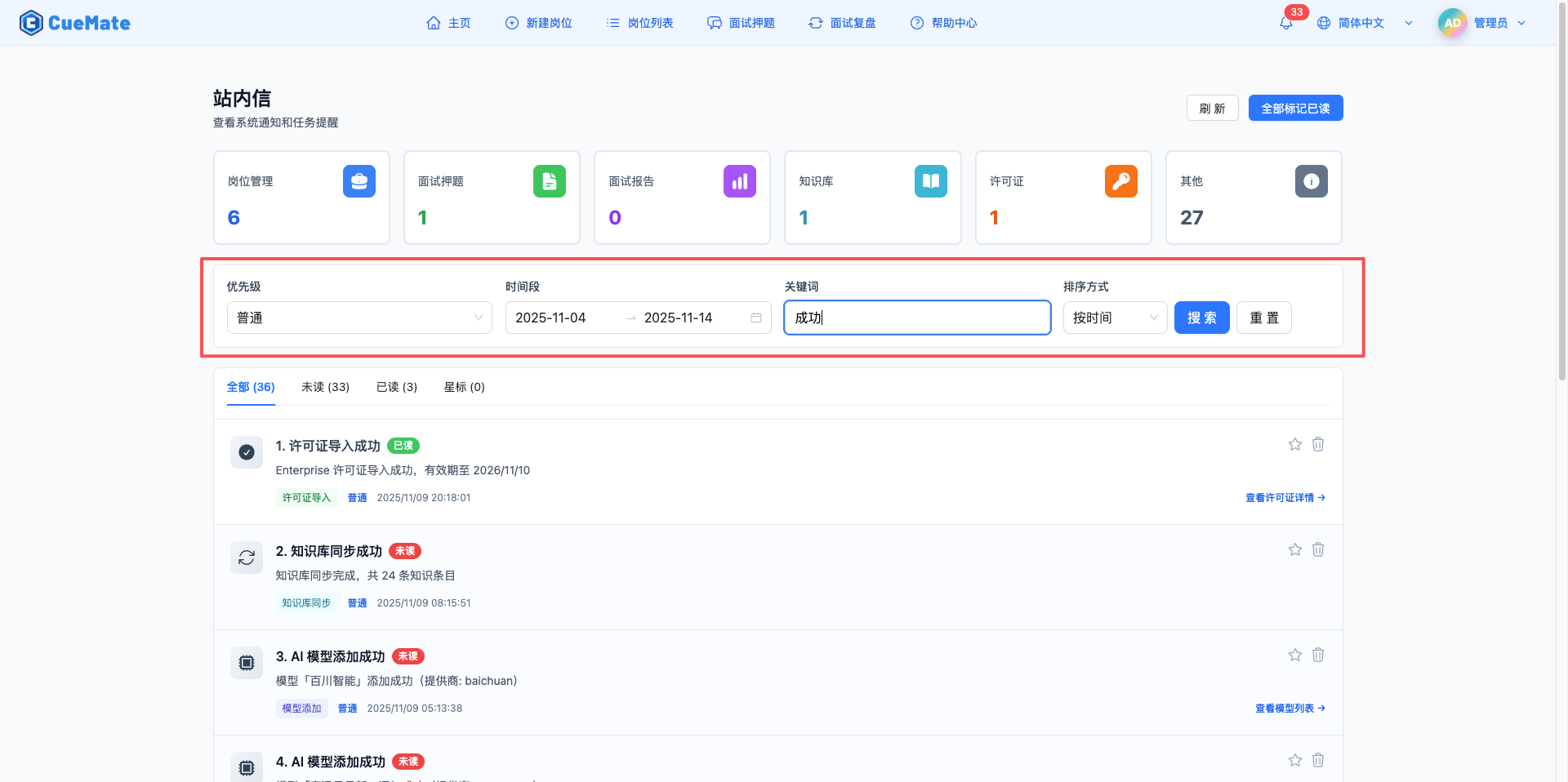
7. Notification Cards
Each notification in the list is displayed as a card.
Card Information:
- Number: Displayed before the title, e.g., "1. License Import Successful"
- Left Icon: Category icon with gradient background
- Title Row: Notification title + status badge (Unread/Read/Starred)
- Content: Detailed notification content
- Bottom Info: Category tag + Priority + Creation time
- Right Actions: Star button + Delete button
Clicking a notification card automatically marks it as read. If it contains a redirect link, it navigates to the related page.

8. Star Notifications
Click the star icon in the top right corner of a notification card to toggle the star status.
Star Features:
- Unstarred shows an outline star icon
- Starred shows a yellow filled star icon
- Starred notifications can be quickly viewed in the "Starred" tab
- Use to mark important notifications for later processing

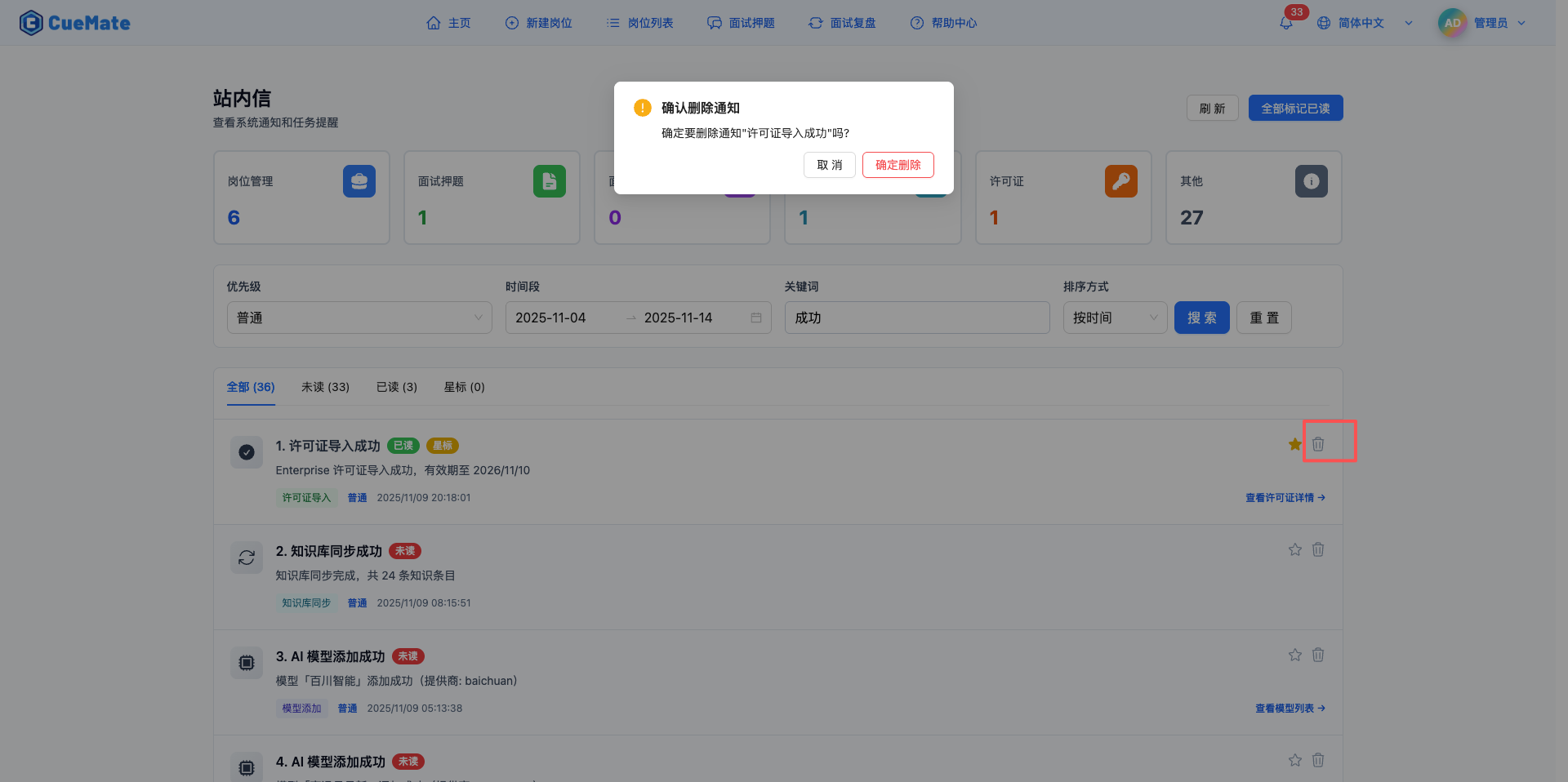
9. Delete Notifications
Click the delete icon in the top right corner of a notification card to delete that notification.
Delete Confirmation:
- Clicking delete button shows a confirmation dialog
- Displays "Are you sure you want to delete notification '[Notification Title]'?"
- After confirmation, notification is removed from the list
- If it's an unread notification, unread count automatically decreases by 1
- Notification is permanently deleted and cannot be recovered
10. Batch Operations
Mark All as Read:
- Click "Mark All as Read" button in the top right corner
- Marks all unread notifications under current filter conditions as read
- Displays "All marked as read" success message
Refresh List:
- Click "Refresh" button in the top right corner
- Reloads the notification list
- Displays "Refresh successful" message
Usage Tips
Handle Notifications Promptly:
- Check unread notifications at scheduled times daily
- Prioritize urgent and high-priority notifications
- Star important notifications to avoid forgetting
Use Filters Wisely:
- Use category cards to quickly locate specific notification types
- Combine priority and time range filters to improve efficiency
- Use keyword search to find historical notifications
Notification Management Strategy:
- Star important notifications for easy future reference
- Delete useless notifications promptly to reduce distractions
- Regularly check category statistics to understand system activity
Related Pages
- Position List - Manage interview positions
- Interview Questions - View question notifications
- Knowledge Base - Knowledge base sync notifications