
Interview Questions
The Interview Questions page is used to manage interview questions for each position, supporting creating, editing, and deleting questions, as well as syncing to the vector database. Users with a License can use the preset question bank feature to sync built-in high-quality interview questions for positions. The page uses a left-right layout, with the position list on the left and question cards on the right.
1. Browse Questions
1.1 Enter Interview Questions Page
Click "Interview Questions" in the top menu to enter the question management page.
1.2 Select Position
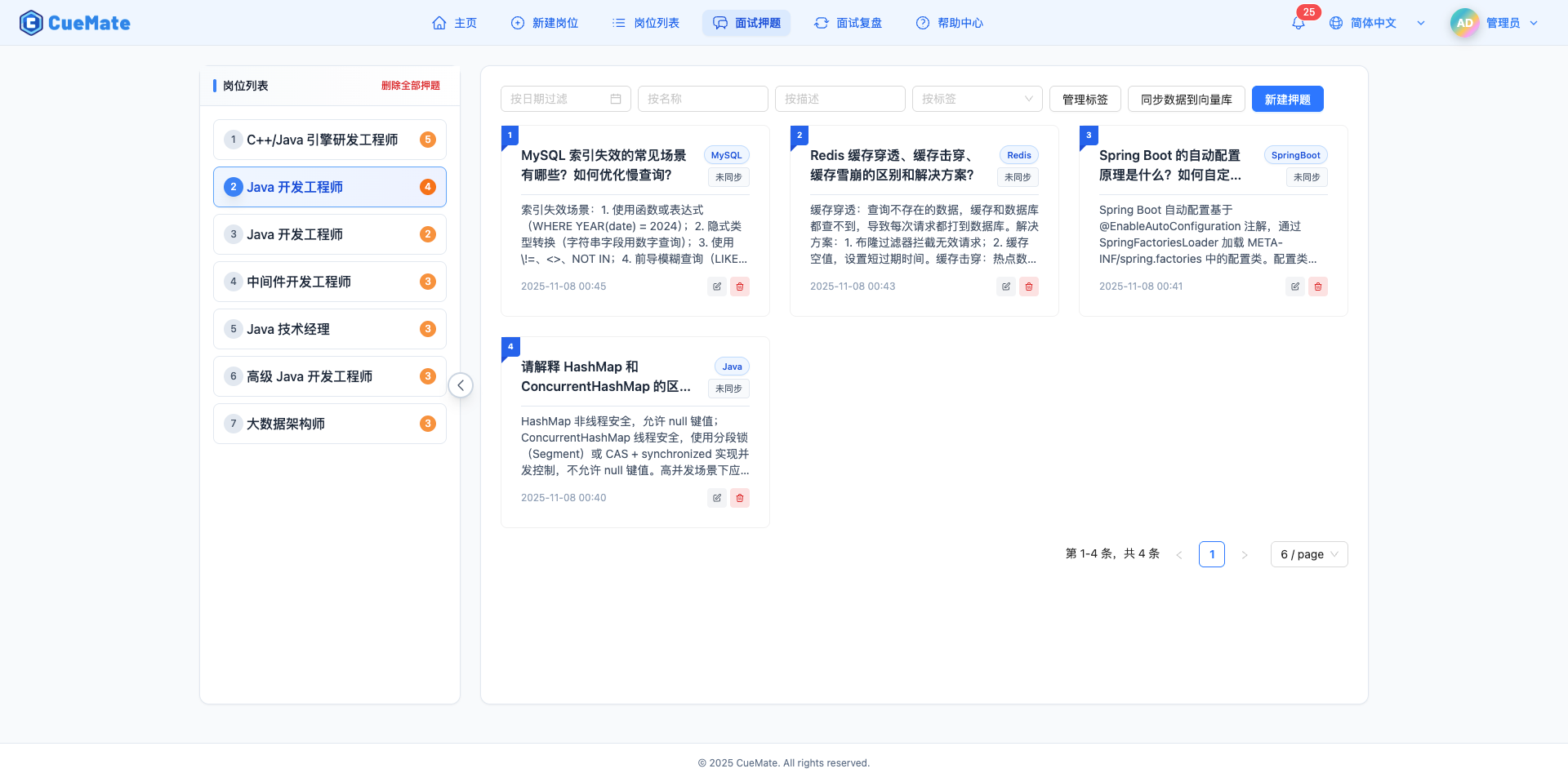
The left sidebar displays all positions with question counts. Click a position to view its questions.
Note: Each position shows a number in parentheses indicating the question count. The selected position is highlighted, and the right side displays all questions for that position.
1.3 Question List
Questions are displayed as a card grid on the right, with 3 cards per row on desktop.
Question Card Content:
- Top left number: Blue circle badge showing question number
- Title and tag: Question title with blue tag
- Description content: Shows up to 4 lines, truncated with ellipsis if longer
- Creation time: Question creation date
- Sync status: Green (synced) or amber (not synced)
- Action buttons: Edit (pencil icon) and Delete (trash icon)
2. Filter Questions
2.1 Filter by Tag
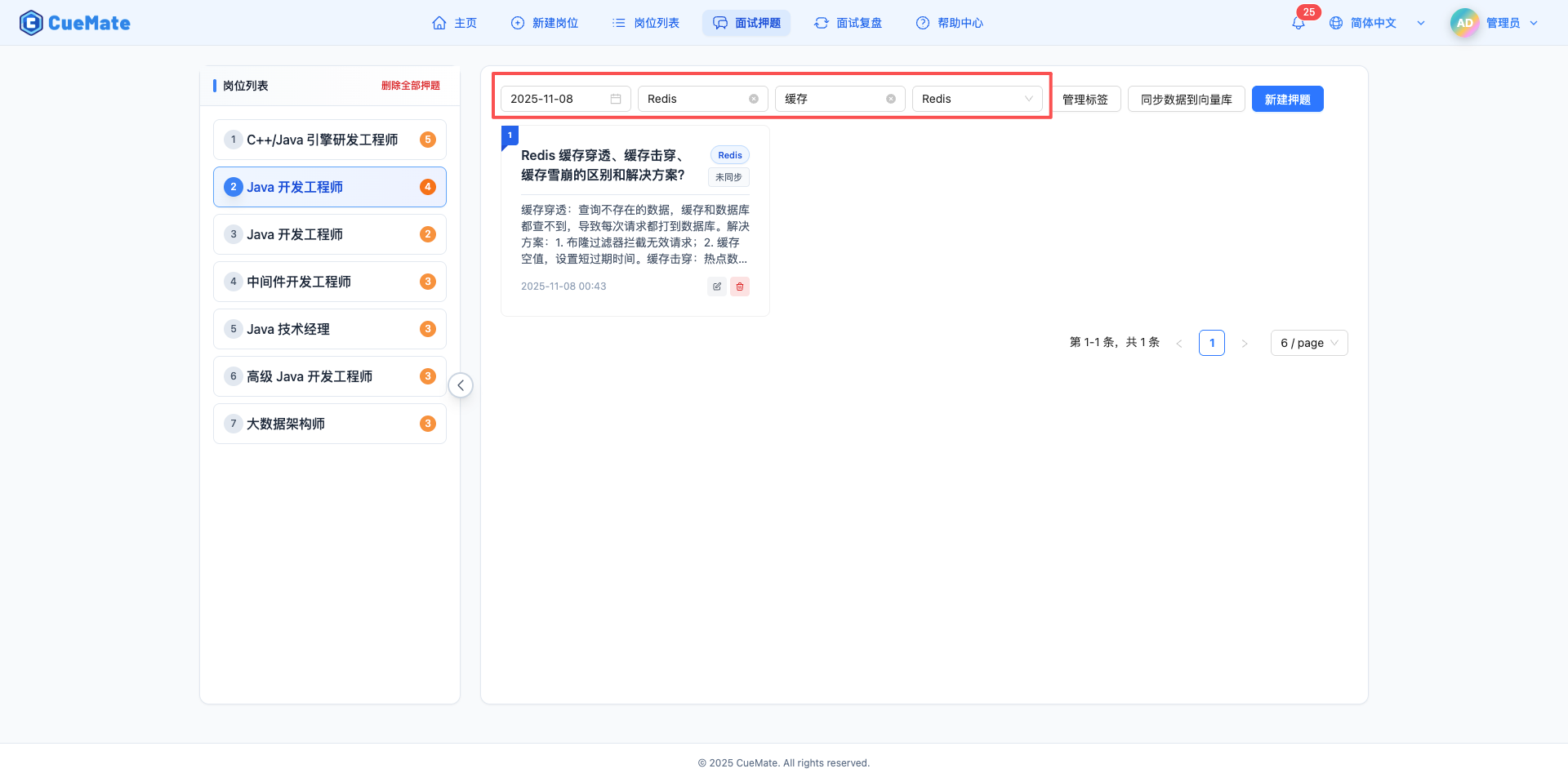
Select a tag from the tag dropdown to filter questions containing that tag.
TIP
Purpose of Tags:
- Classification management: Categorize questions by tech stack, difficulty, type, etc.
- Quick location: Quickly find questions in specific categories
- Batch operations: Process questions in batches based on tags
Tag examples: Java, SpringBoot, Redis, MySQL, Algorithm, System Design, etc.
3. Create Question
3.1 Open Creation Drawer
Click the "Create New Question" button to open the drawer on the right.
3.2 Fill Question Information
Fill in the question's title, tag, and description in the drawer.
Question Title:
- Concise and clear problem statement
- Example: "Explain React's useEffect hook"
Question Tag:
- Select existing tags from dropdown
- Or enter a new tag and create it
- Multiple tags can be selected
Question Description:
- Detailed question content and reference answer
- Suggested to include:
- Problem background and context
- Core answer points
- Extended knowledge and in-depth discussion
- Common follow-up questions and variations
Reference Answer Structure Example:
Tag: React

Question: Explain React's useEffect hook

Core Answer:
useEffect is React's side effect hook, used to handle side effect operations in components, such as data fetching, subscriptions, DOM manipulation, etc.

Detailed Explanation:
1. Basic usage: useEffect(callback, dependencies)
2. Dependency array purpose: Controls when the effect executes
3. Cleanup function: Return function is used to clean up side effects

Common Follow-ups:
- Difference between useEffect and useLayoutEffect
- How to avoid infinite loops
- Solutions to closure trap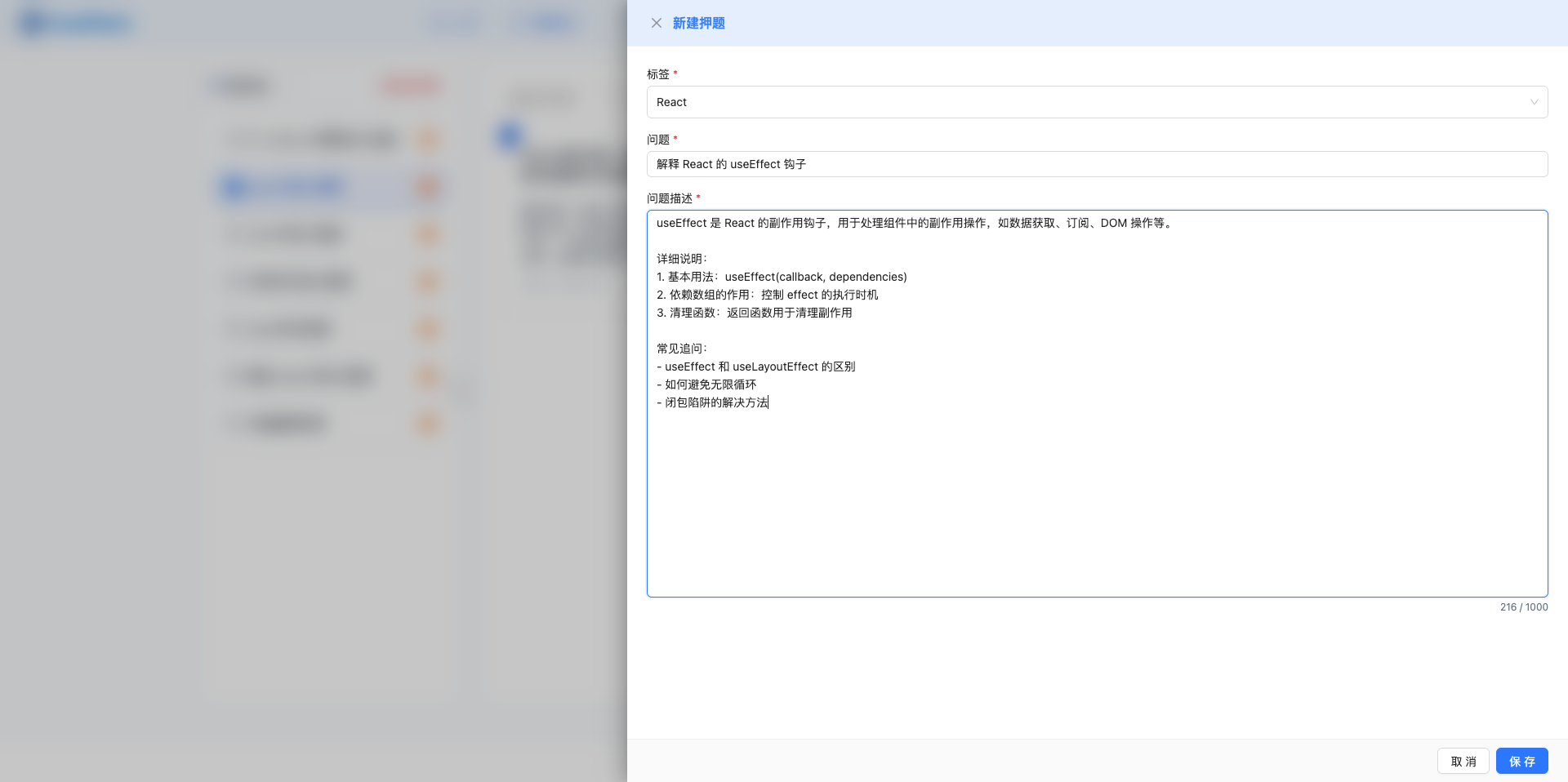
3.3 Save Question
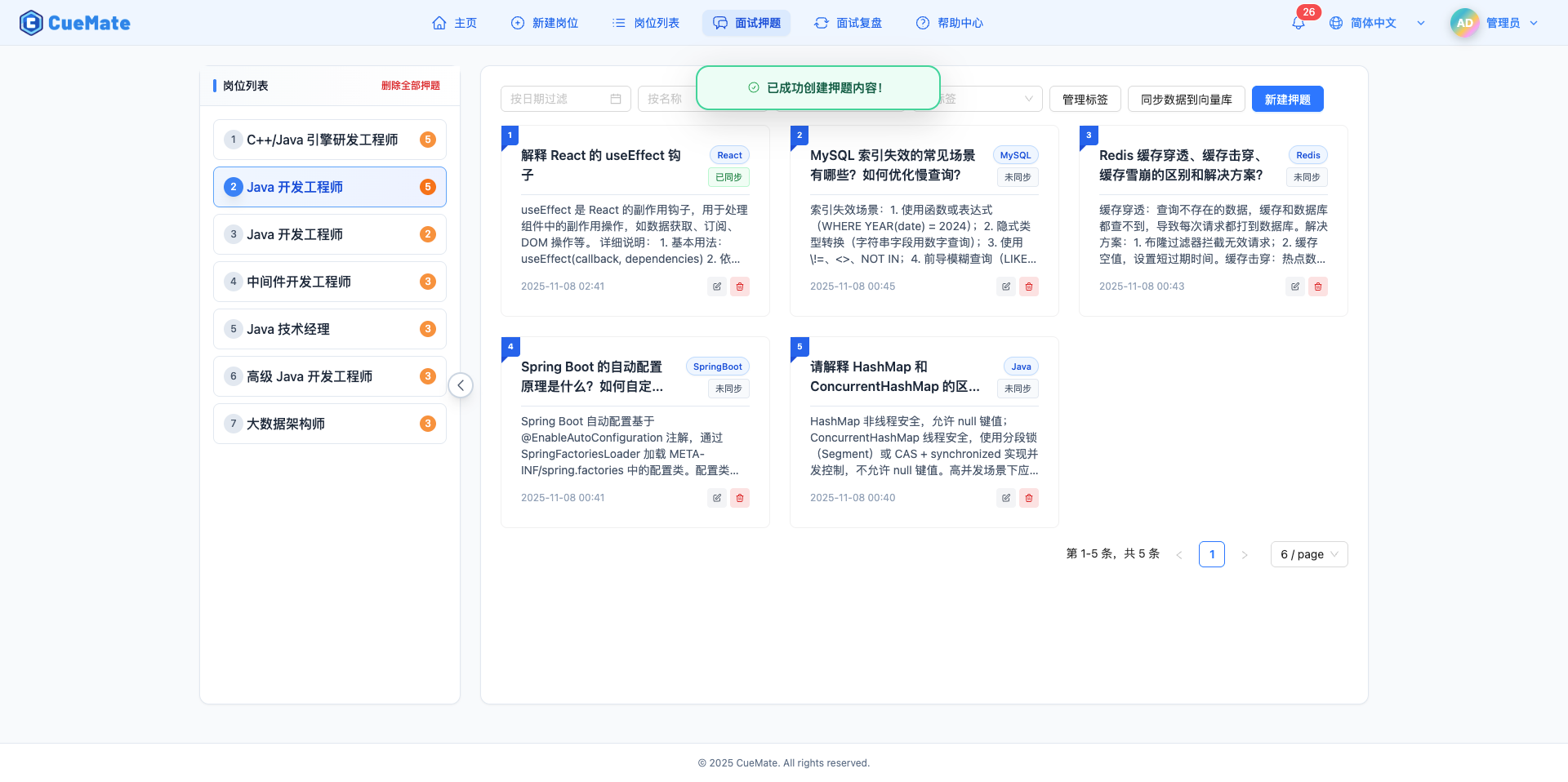
After filling in the information, click the "Create" button to save the question.
Creation Flow:
- Validate required fields (title and description)
- Save question to database
- Set
vector_statusto 1 (not synced) - Close drawer, refresh question list
WARNING
Important Note: Newly created questions need to be manually synced to the vector database, otherwise they cannot be retrieved during interview training.
4. Edit Question
4.1 Open Edit Drawer
Click the edit button at the bottom right of the question card to open the edit drawer.
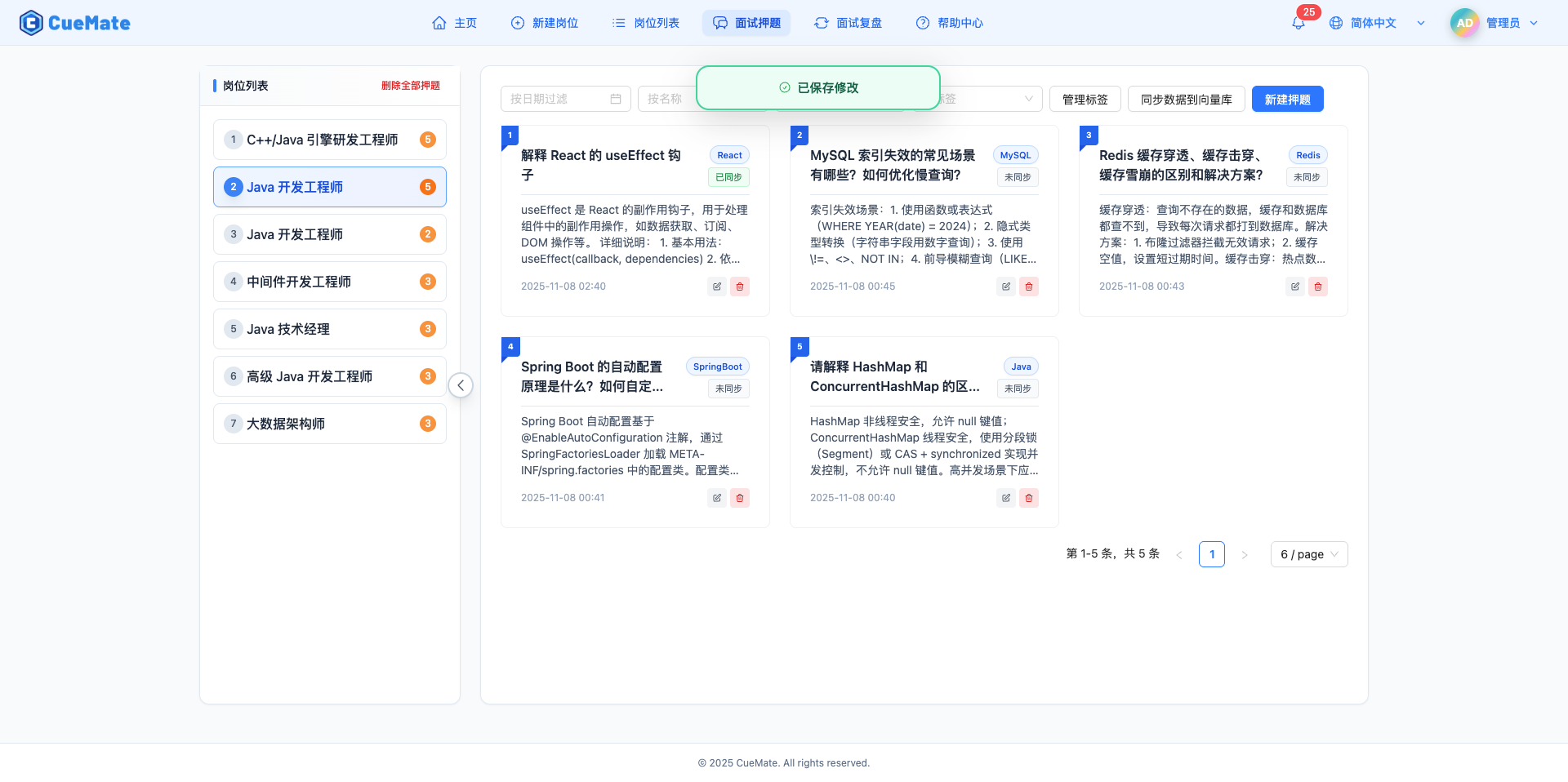
4.2 Modify Question Content
Modify the question's title, tag, or description in the drawer.
Modification Scenarios:
- Optimize question description, add missing points
- Update reference answer with latest technical practices
- Modify tags, reclassify question
- Add common follow-up questions and variations
Note: Changes take effect only after clicking the "Save" button. After modification, the question's vector_status will change to 1 (not synced).
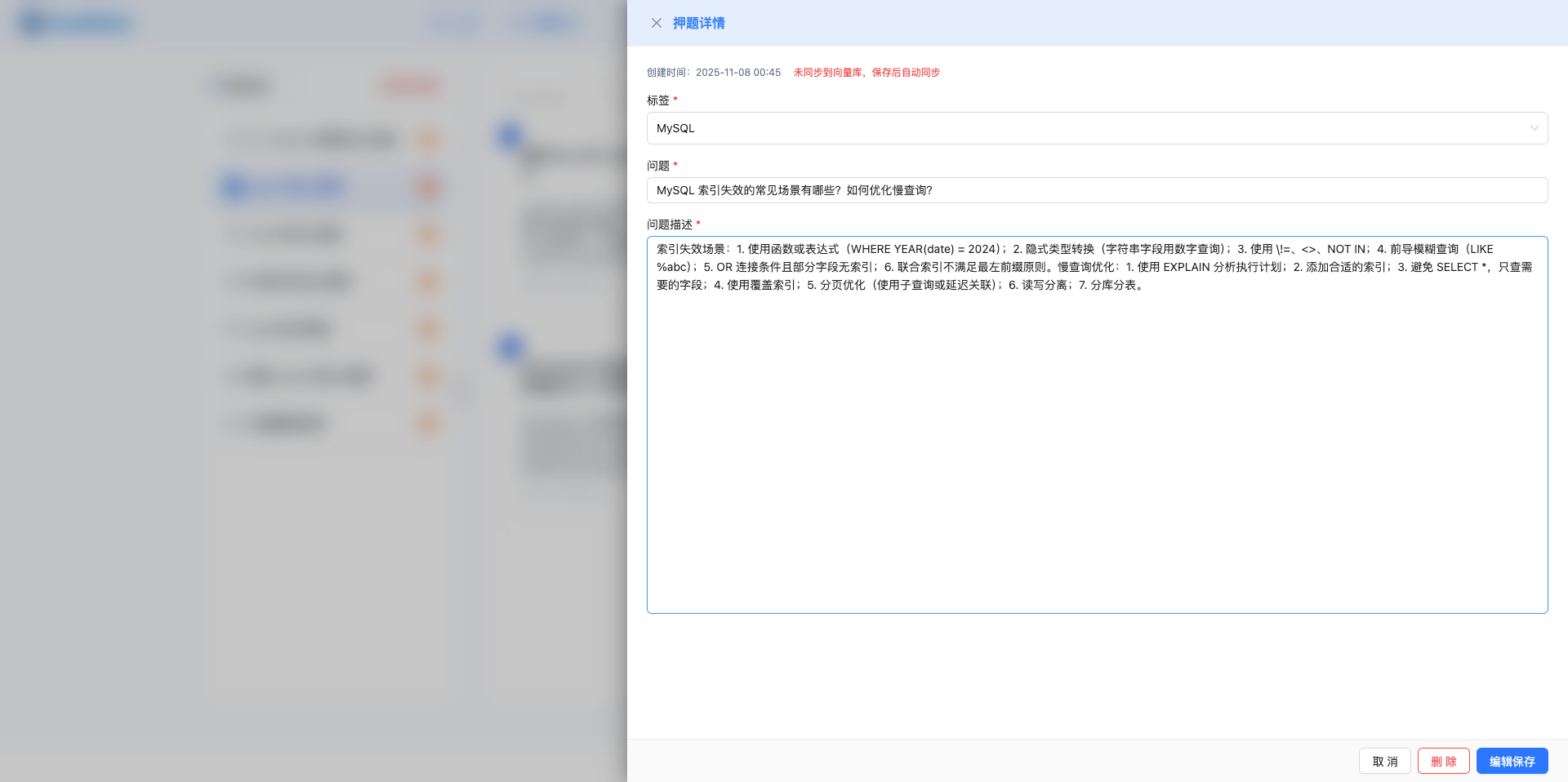
4.3 Save Modifications
Click the "Save" button to update question information.
After Saving:
- Question card's sync status indicator turns amber
- Need to re-sync to vector database to use the latest content in interview training
5. Delete Question
5.1 Delete Single Question
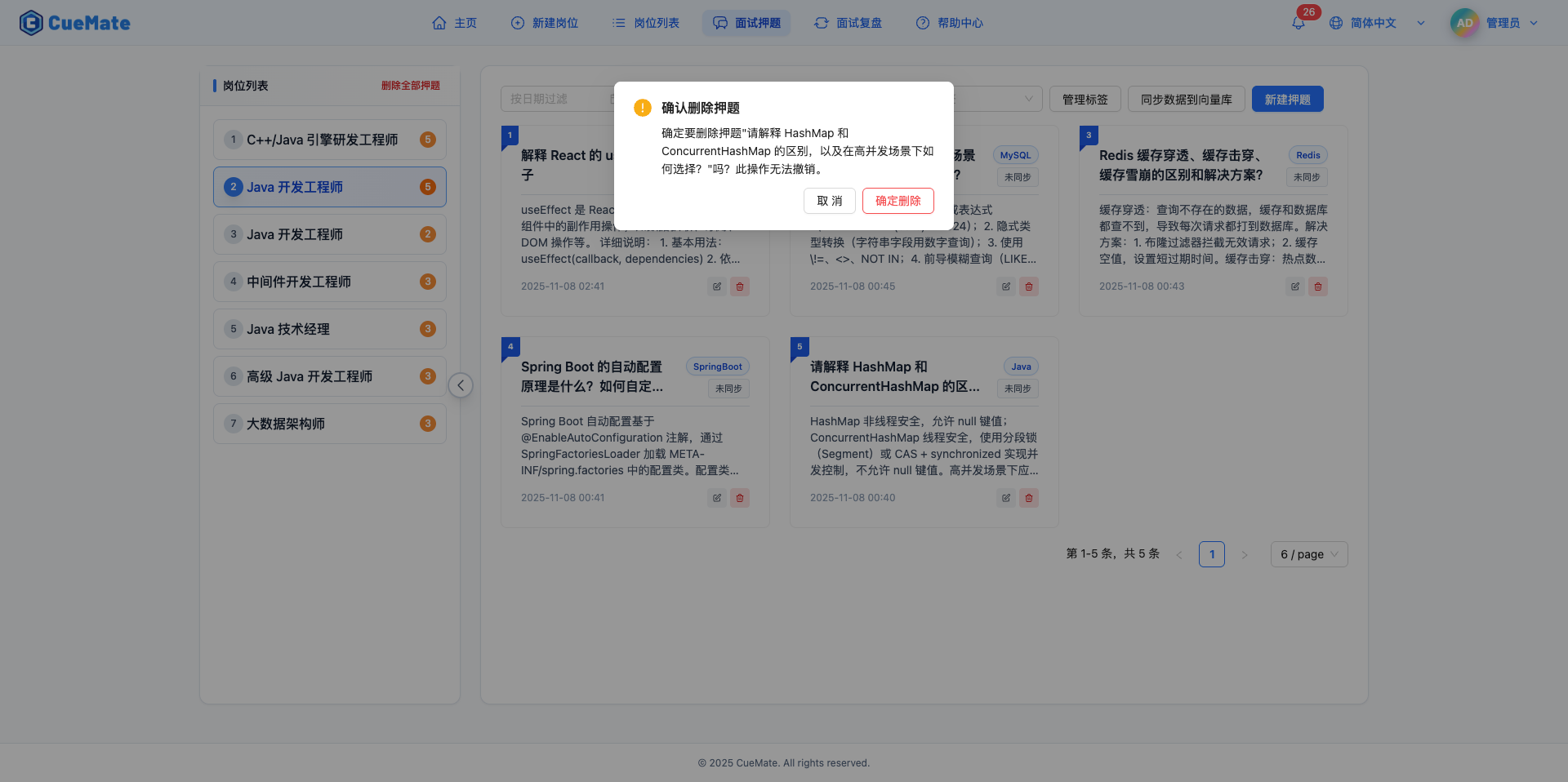
Click the delete button at the bottom right of the question card to open the confirmation dialog.
WARNING
Deletion Impact:
- Permanently deletes question title, description, tags
- Deletes corresponding data in vector database
- Deletion is irreversible
Delete Confirmation: A confirmation dialog appears after clicking the delete button. The deletion is executed only after confirmation.
5.2 Delete All Questions
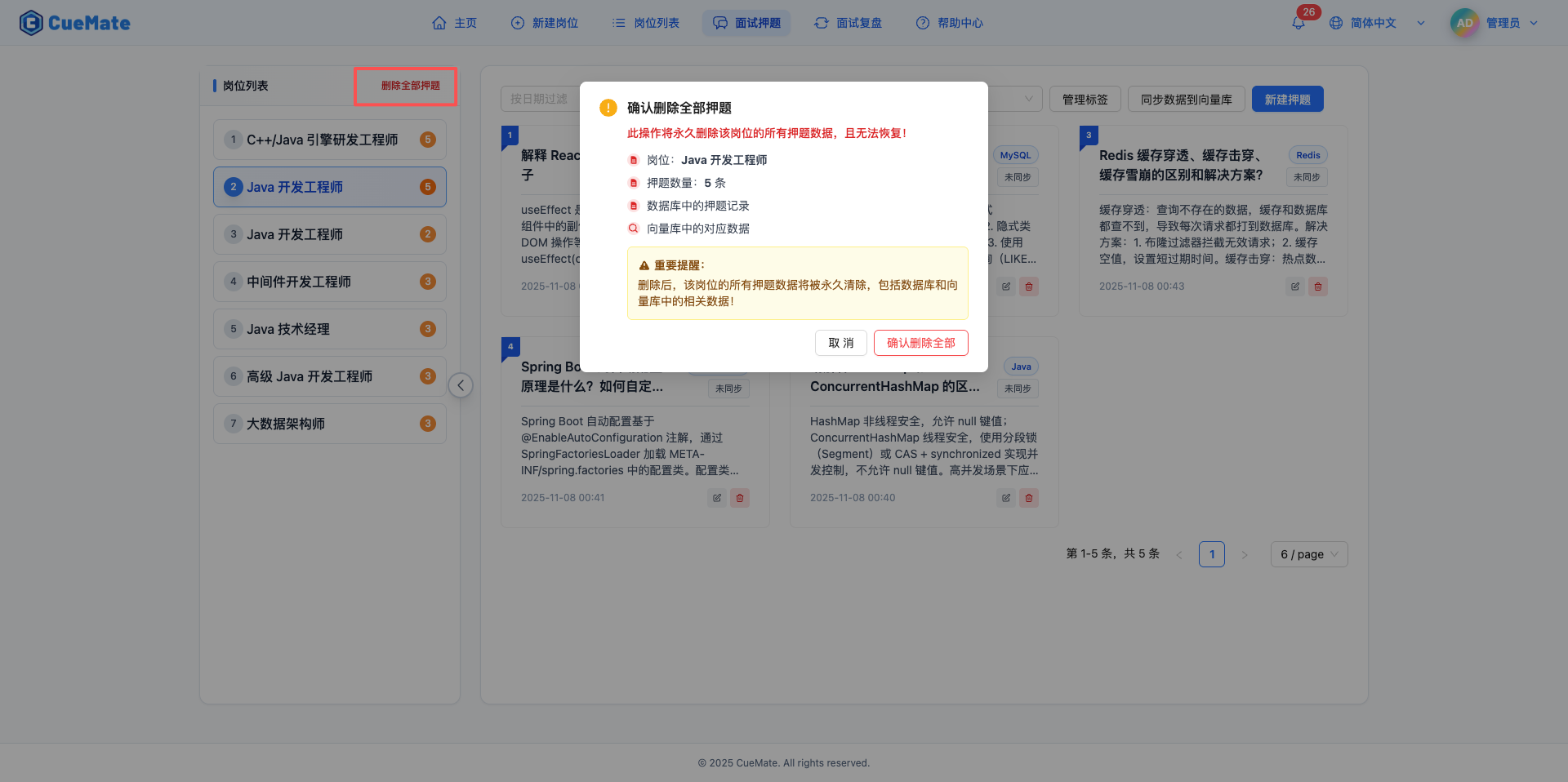
Click the "Delete All Questions" button to delete all questions for the current position.
WARNING
Delete All Impact:
- Deletes all question content for this position
- Deletes all related data in vector database
- Deletes question tag associations
Use Cases:
- Reorganize question bank, clear old questions
- Switch position direction, delete irrelevant questions
Safety Note: A detailed confirmation dialog appears before deletion, listing what will be deleted.
6. Tag Management
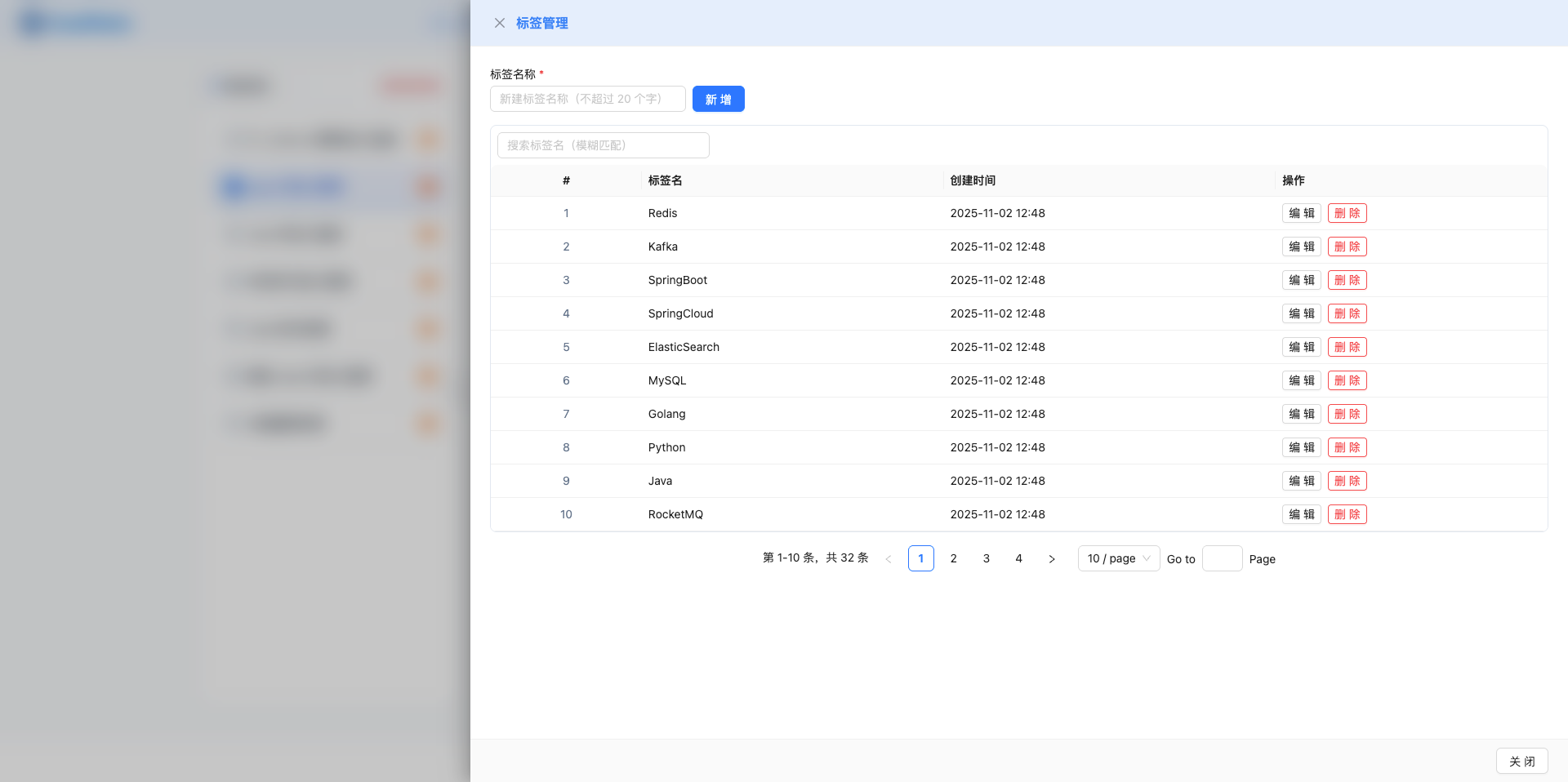
6.1 Open Tag Management Drawer
Click the "Manage Tags" button to open the tag management drawer on the right.
6.2 View and Delete Tags
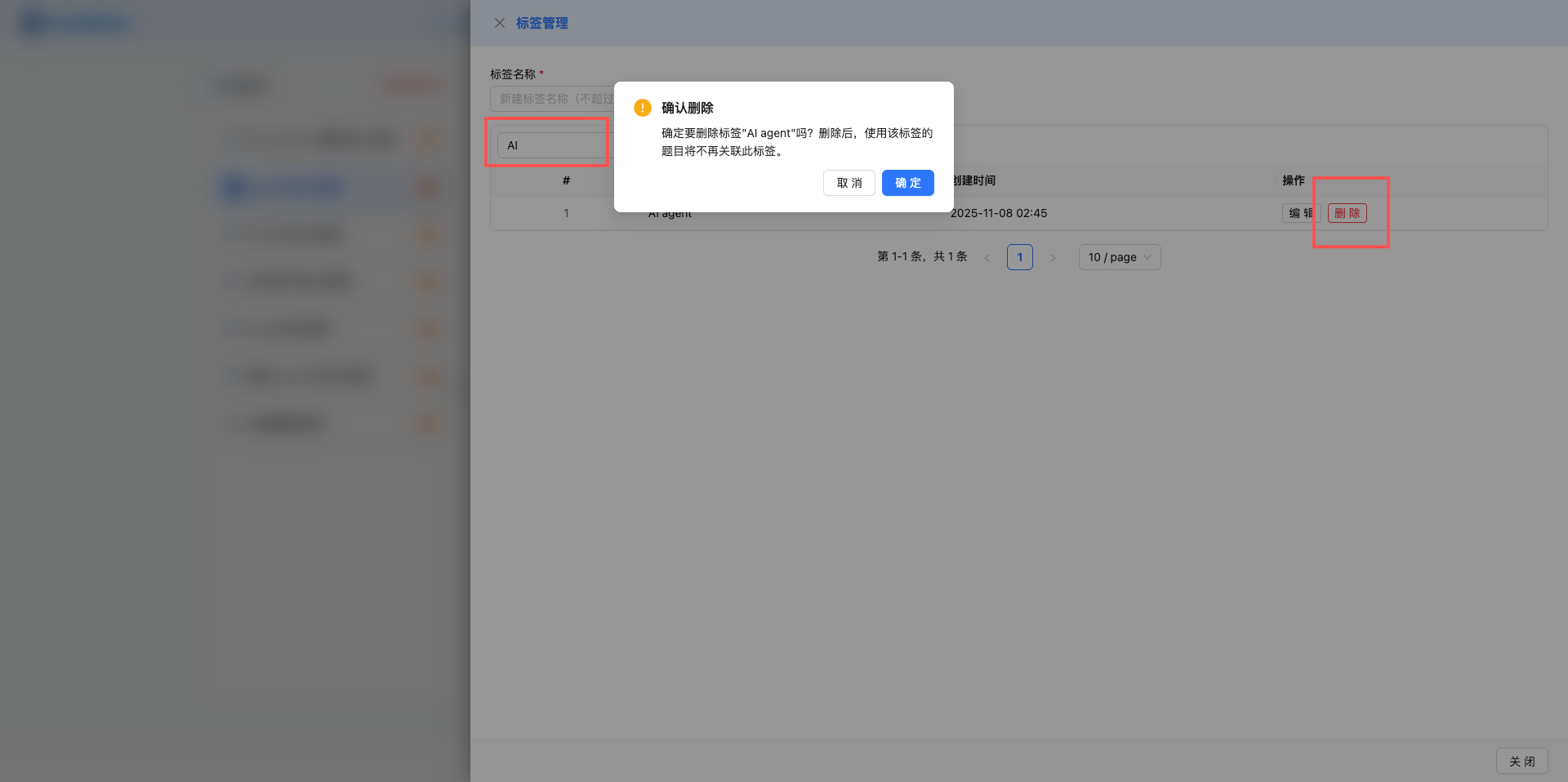
The drawer displays all created tags, each with a delete button.
NOTE
Tag Deletion Impact:
- Deletes the tag itself
- Removes tag references from questions
- Does not affect question content
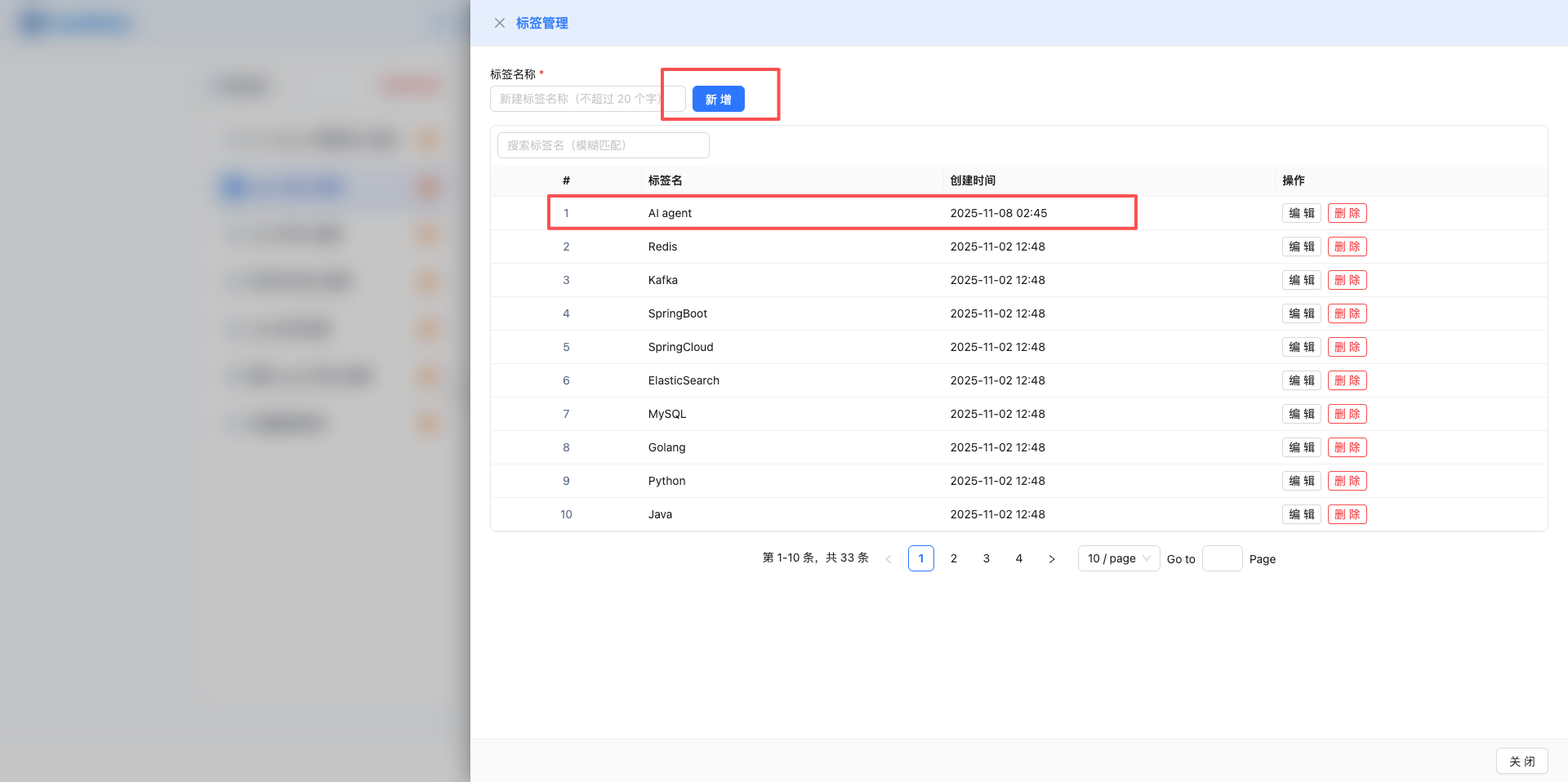
6.3 Add New Tag
Enter tag name in the "Add New Tag" input box and click the "Add" button.
Tag Naming Suggestions:
- Use tech stack names: Java, SpringBoot, Redis, MySQL
- Use question types: Algorithm, System Design, Project Experience
- Use difficulty tags: Easy, Medium, Hard
- Use frequency tags: High Frequency, Must Ask, Common
7. Sync to Vector Database
7.1 Open Sync Drawer
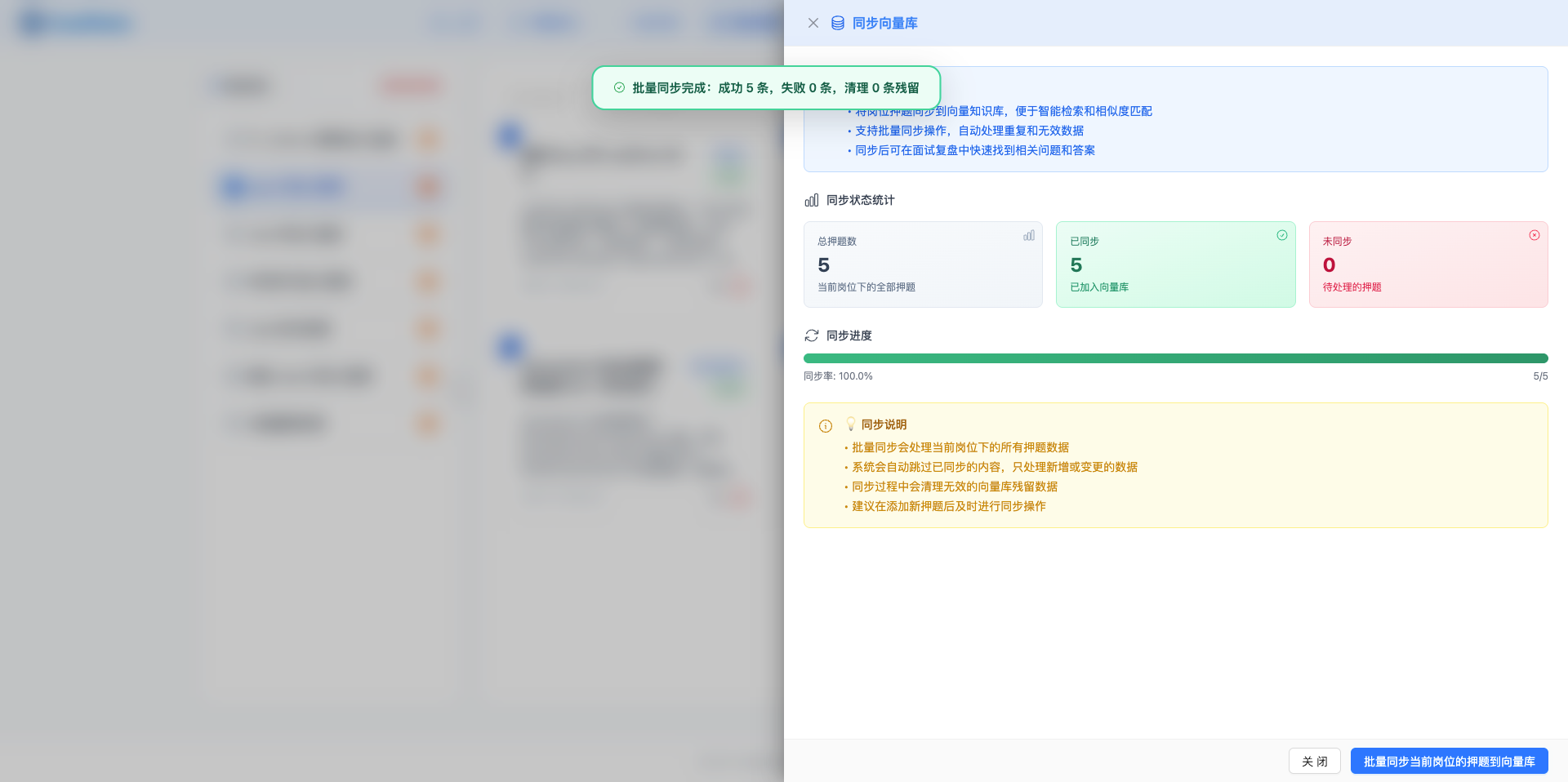
Click the "Sync to Vector DB" button to open the sync drawer on the right.
7.2 View Sync Statistics
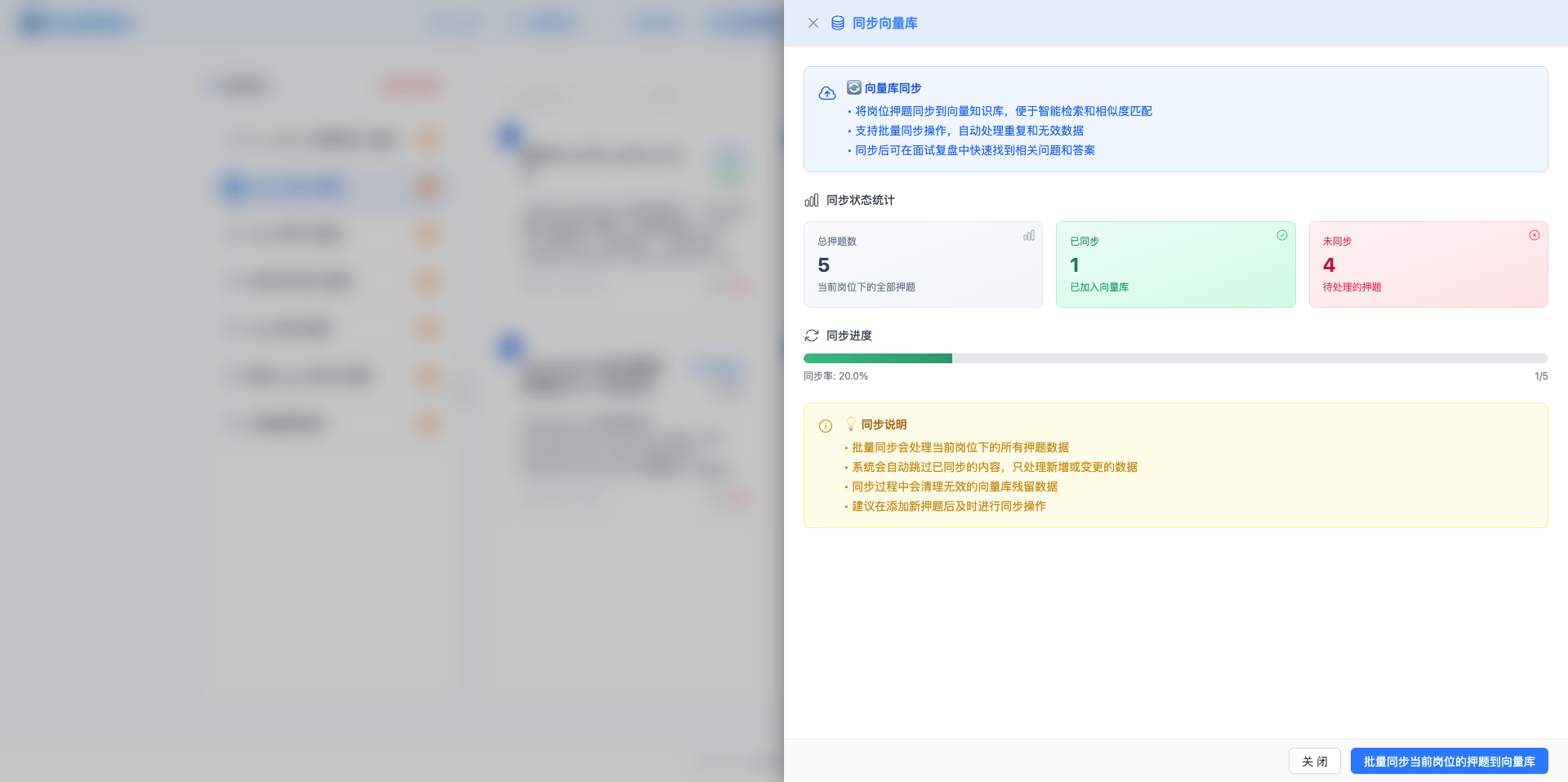
The drawer displays sync status statistics for questions.
Statistics Information:
- Total questions: Total number of questions for this position
- Synced questions: Number of questions stored in vector database
- Unsynced questions: Number of questions only stored in SQLite database
IMPORTANT
Sync Status Explanation:
- Synced: Question content is stored in ChromaDB vector database, can be retrieved during interview training
- Unsynced: Question content is only stored in SQLite database, cannot be retrieved during interview training
7.3 Start Sync
Click the "Batch Sync Current Position Questions to Vector DB" button to sync unsynced questions to the vector database.
Sync Flow:
- Query all questions for current position
- Call RAG Service API to vectorize question content
- Store in ChromaDB vector database
- Update question sync status
- Display sync progress and results
Sync Time: Depends on the number of unsynced questions, typically 0.1-0.5 seconds per question.
7.4 View Sync Results
After sync completes, the progress bar automatically updates to the latest status, showing synced and unsynced question counts.
Best Practices
Question Organization
Categorize by Tech Stack:
- Add tech stack tags to questions (React, Node.js, MySQL, etc.)
- Use tag filtering to quickly find questions for specific technologies
Categorize by Difficulty:
- Use "Easy", "Medium", "Hard" tags
- Focus on medium and hard questions before interviews
Categorize by Frequency:
- Mark "High Frequency", "Must Ask" questions
- Prioritize preparing high-frequency questions
Reference Answer Writing
Structured Answers:
- Core answer: 1-2 sentence summary
- Detailed explanation: Expand in bullet points
- Example code: Provide when necessary
- Common follow-ups: List possible follow-up questions
Practical Orientation:
- Combine with project experience, give specific examples
- Explain reasons and trade-offs for technology choices
- Mention pitfalls encountered and solutions
Continuous Updates:
- Regularly update reference answers with latest practices
- Supplement missing knowledge points
- Remove outdated content
Sync Timing
Sync Immediately After Creating Questions:
- Ensure retrieval during interview training
- Avoid forgetting to sync making questions unavailable
Sync Immediately After Modifying Questions:
- Update content in vector database
- Ensure search results are up to date
Confirm Sync Status Before Interviews:
- Check sync statistics, ensure all questions are synced
- Check question card status indicators
Related Pages
- Create Position - Create positions
- Position List - Manage positions
- Preset Questions - Use built-in high-quality interview questions
- Vector Knowledge Base - View vector database data