
AI conversation recording
The AI conversation record page is used to view and manage the history of all AI conversations conducted through CueMate. This page provides rich statistics, powerful filtering capabilities, and detailed conversation content viewing to help you fully understand AI usage, analyze conversation quality, and manage history.
1. Enter AI conversation record
1.1 Open the AI conversation record page
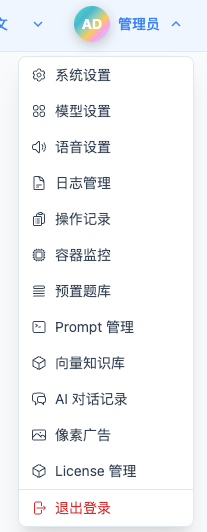
Click "AI Conversation Record" in the drop-down list menu at the top to enter the AI Conversation Record page.
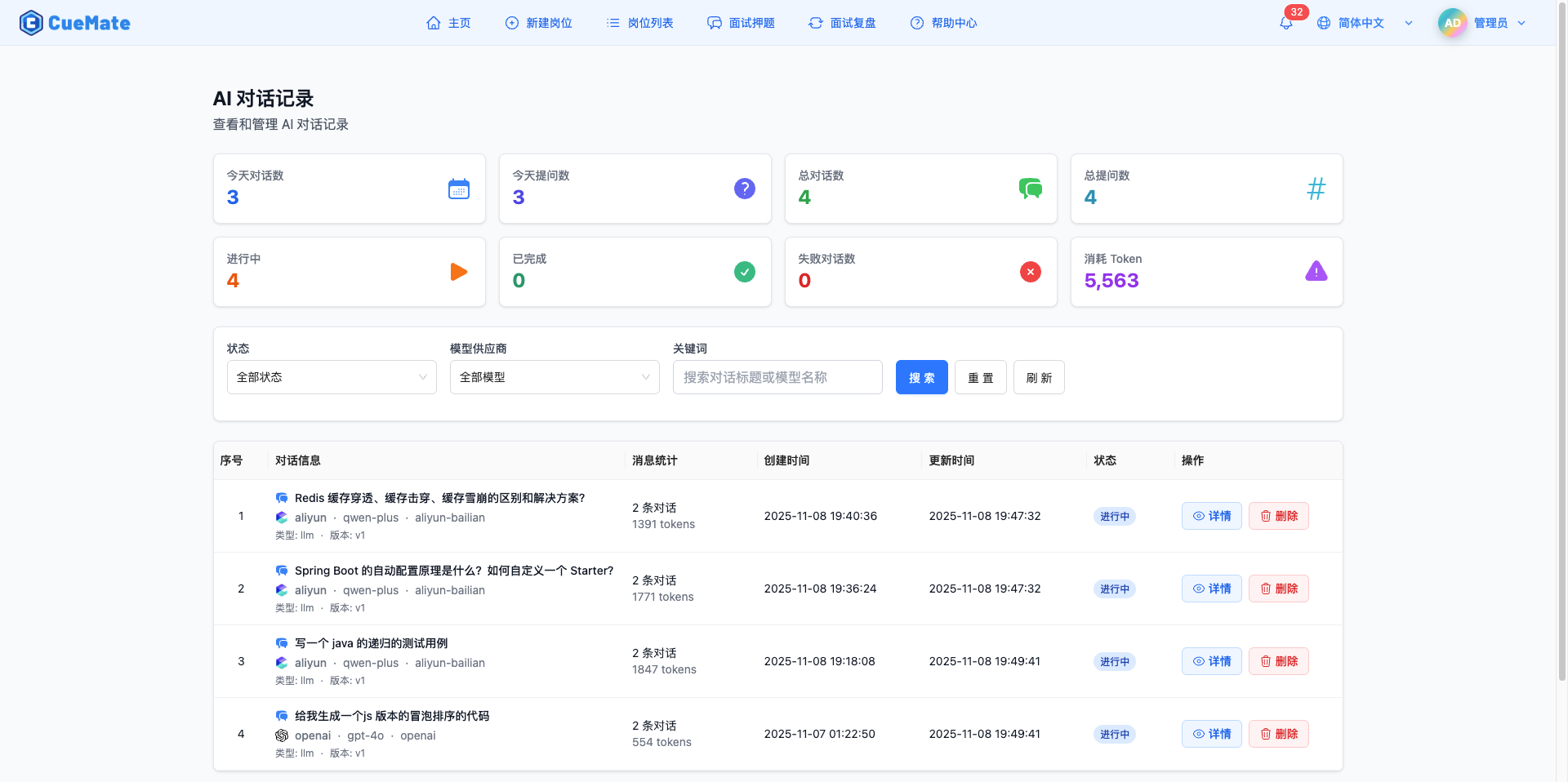
2. Function overview
AI conversation recording provides the following core features:
- Real-time statistics: Today’s conversations, total number of conversations, Token consumption, success/failure rate
- Multi-dimensional filtering: Quick search by status, model service provider, and keywords
- Conversation details view: complete user questions and AI answers
- Conversation Management: Delete unnecessary history
- Data Analysis: Understand AI usage patterns and effects
3. View statistics
3.1 Statistics Card
Eight statistical cards are displayed at the top of the page to help you quickly understand AI usage:

| Card Name | Description | Data Source |
|---|---|---|
| Today's Conversations | Number of conversations created today | Real-time stats |
| Today's Questions | Number of user messages sent today | Real-time stats |
| Total Conversations | Total accumulated conversations in history | Database stats |
| Total Questions | Total accumulated questions in history | Database stats |
| In Progress | Number of conversations with "active" status | Real-time stats |
| Completed | Number of conversations with "completed" status | Real-time stats |
| Failed | Number of conversations with "failed" status | Real-time stats |
| Total Tokens | Total tokens consumed by all conversations | Cumulative stats |
Data automatically refreshed:
- Statistics are automatically obtained when the page loads
- Automatically update after deleting a conversation or filtering
- Click the "Refresh" button to refresh manually
4. Filter conversations
4.1 Filter function
Use the filter function to quickly find specific conversation records:
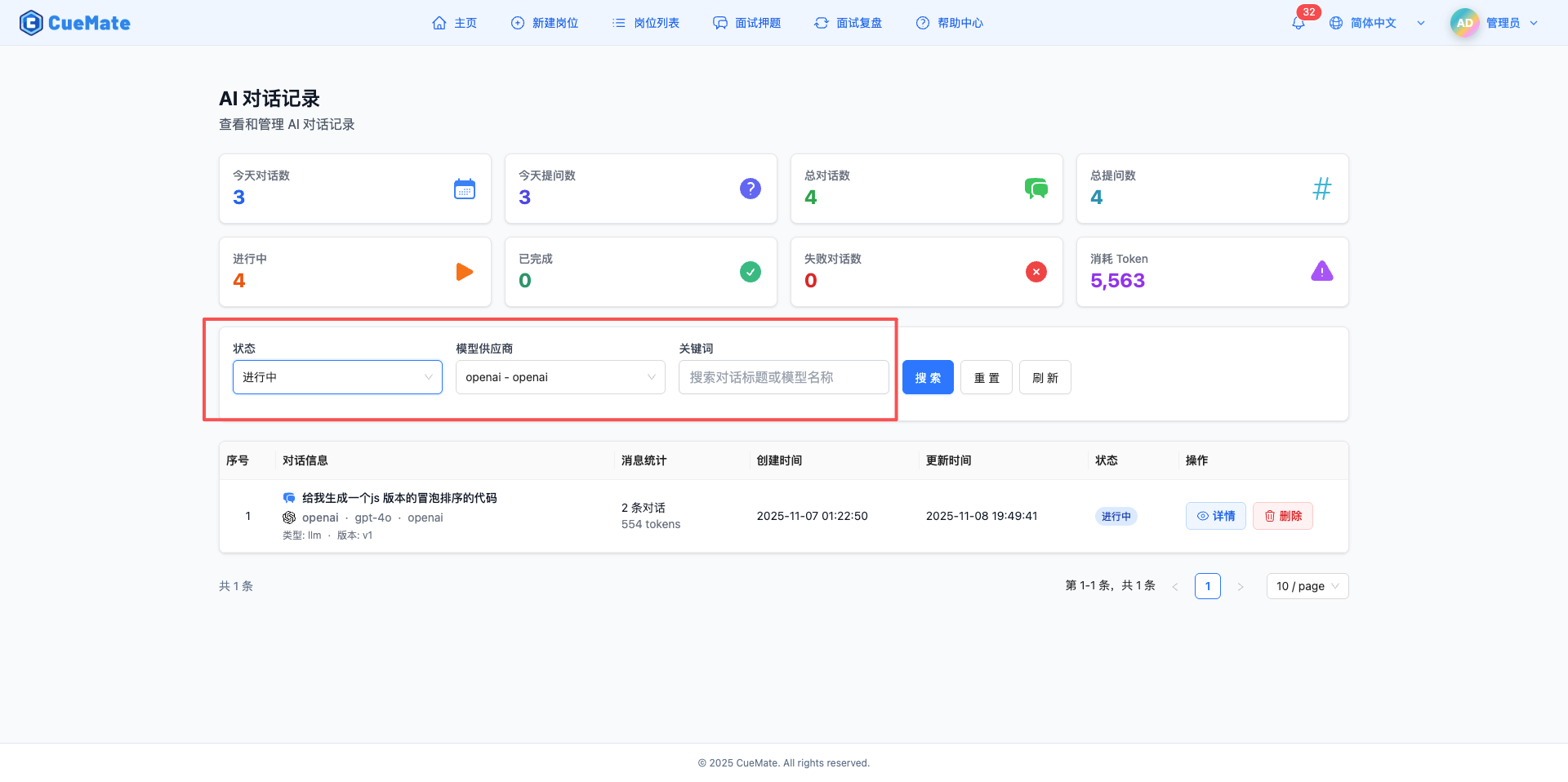
4.2 Filter by status
Select conversation status:
- All: Show all conversations
- In Progress (active): Conversation in progress
- Completed (completed): Conversation that has ended
- failed (failed): The error occurred in the dialogue
Operating steps:
- Click the "Status" drop-down box
- Select the desired status
- Automatic filtering of conversation list
4.3 Filter by model service provider
Choose an AI model service provider:
- All: Show conversations of all service providers
- OpenAI: GPT-4, GPT-3.5 and other models
- Claude: Claude 3.5 Sonnet and other models
- GLM: Intellectual Spectrum Clear Language Model
- Qwen: Tongyi Qianwen model
- Moonshot: Dark Side of the Moon model
- Other: Other model service providers
Operating steps:
- Click the "Model Service Provider" drop-down box
- Select the required service provider
- Automatic filtering of conversation list
4.4 Keyword search
Enter keywords in the search box to search for:
- User question content
- AI answer content
- Conversation title
- Related tags
Search Tips:
- Automatically trigger search after input
- Support partial matching
- Case sensitive
- Can be combined with other filters
4.5 Combination filtering
Multiple filters can be used at the same time:
Example 1: Find today’s failed OpenAI conversations
- Status: Failed
- Model service provider: OpenAI
- Time: View the "Today's Conversation" statistics card
Example 2: Search for completed conversations about "Interview"
- Status: Completed
- Keywords: interview
5. View conversation list
5.1 Dialog List
The conversation list displays all conversation records in a table format:
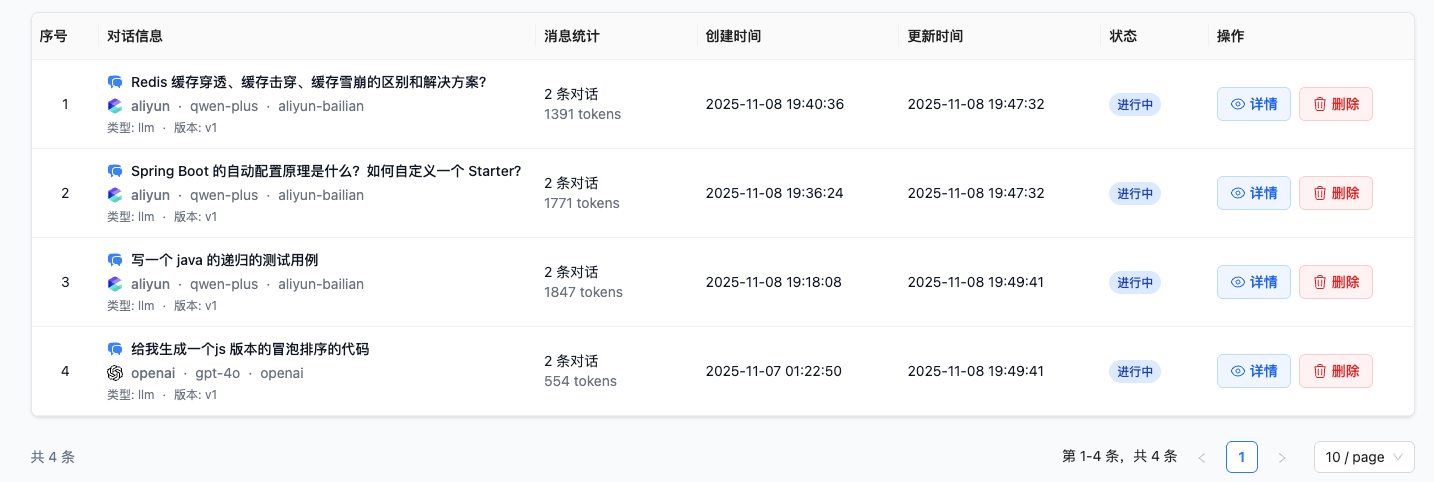
5.2 Table column description
| Column | Description | Example |
|---|---|---|
| Index | Row number in the current page | 1, 2, 3... |
| Conversation Info | Main information of the conversation | First 100 characters of the first user message |
| Message Stats | Number of messages in the conversation | User messages: 5 / AI answers: 5 |
| Created Time | Time when the conversation was created | 2025-12-10 14:30:25 |
| Updated Time | Time when the conversation was last updated | 2025-12-10 14:35:10 |
| Status | Current status of the conversation | Completed / In Progress / Failed |
| Actions | Available operations | View Details / Delete |
Status ID:
Conversation states are identified with different colored labels:
- In Progress (active): blue label
- Completed (completed): green label
- failed (failed): red label
5.3 Paging function
When there are many conversation records, use paginated browsing:
- Display per page: Default 20 items
- Paginator: at the bottom of the table
- Quick Jump: You can directly enter the page number to jump
6. View conversation details
6.1 Open the details drawer
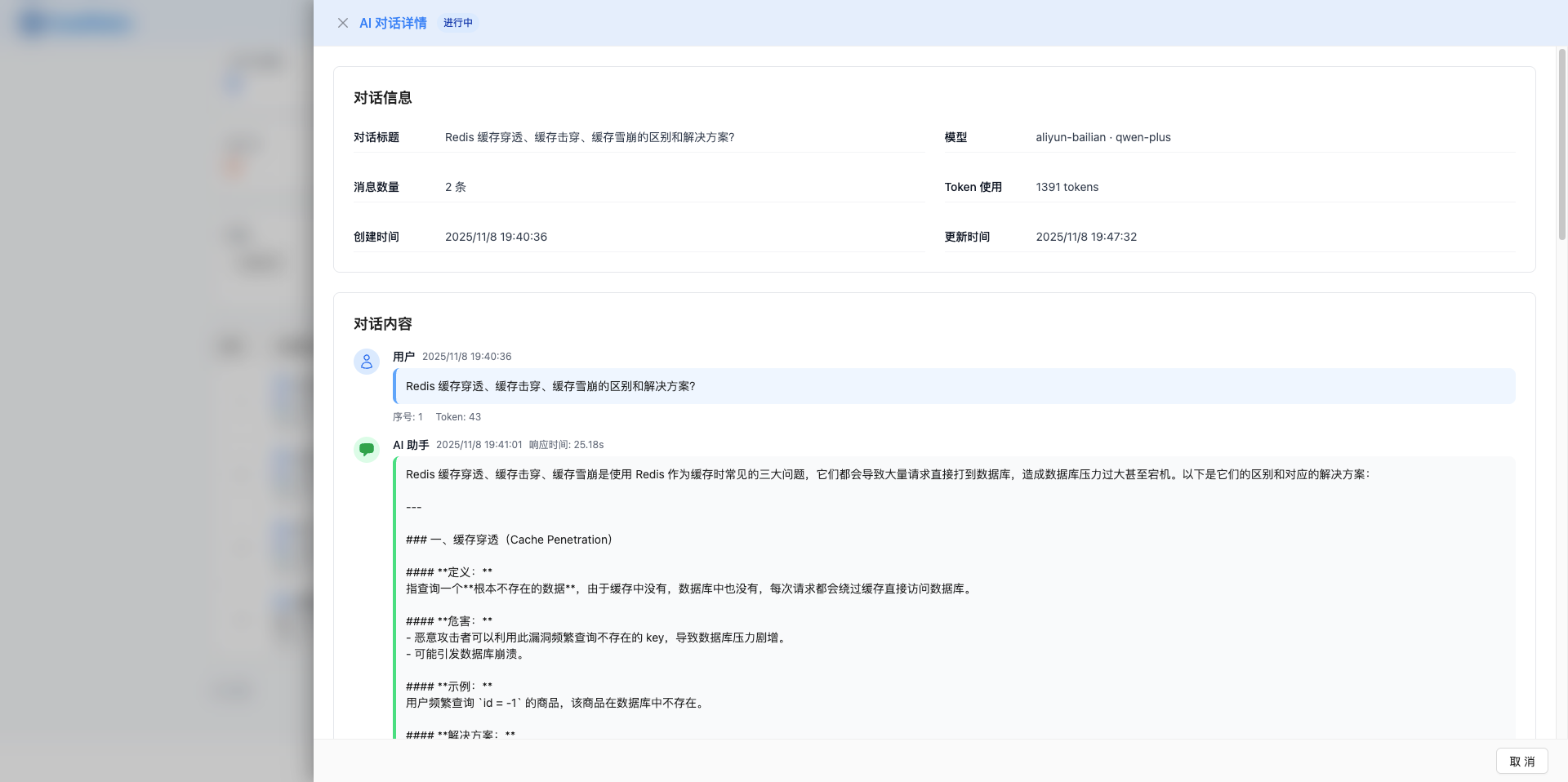
Click the "View Details" button in the conversation list to view the complete conversation content:
6.2 Basic information of dialogue
The top of the drawer shows:
- Conversation ID
- Creation time
- Update time
- Conversation status
- Model used
6.3 Message list
Display all messages in chronological order:
User message:
- Avatar: User icon
- Position: Display on the right
- Background: light blue
- Content: Questions entered by the user
AI Answer:
- Avatar: AI icon
- Position: Display on the left
- Background: white/light gray
- Content: AI-generated answers
- Format: Support Markdown rendering
Message details:
Each message contains:
- Message content (full text) -Sending time
- Token consumption (only AI messages)
- Message role (user/assistant)
6.4 Markdown Rendering
AI answers support Markdown format, including:
- Title (# ## ###)
- list(-*1.)
- code block (```)
- Bold (text)
- italic (text)
- link (text)
- Quote(>text)
6.5 Operation button
- Close: Close the details drawer
- Delete Conversation: Delete the entire conversation (confirmation required)
- Copy Content: Copy the conversation content (if any)
7. Delete conversation
7.1 Delete a single conversation

Operating steps:
- Find the conversation you want to delete in the conversation list
- Click the "Delete" button for the row
- Click "OK" in the confirmation dialog box that pops up.
- The conversation and all its messages are deleted
Note:
- The deletion operation is irreversible
- All messages in the conversation will be deleted
- Token statistics will be reduced accordingly
- List automatically refreshed after deletion
7.2 Delete in details drawer
You can also delete it while viewing conversation details:
Operating steps:
- Click "View Details" to open the drawer
- Click the "Delete Conversation" button in the drawer
- Confirm deletion
- The drawer automatically closes and the list refreshes
8. Refresh data
8.1 Manual refresh
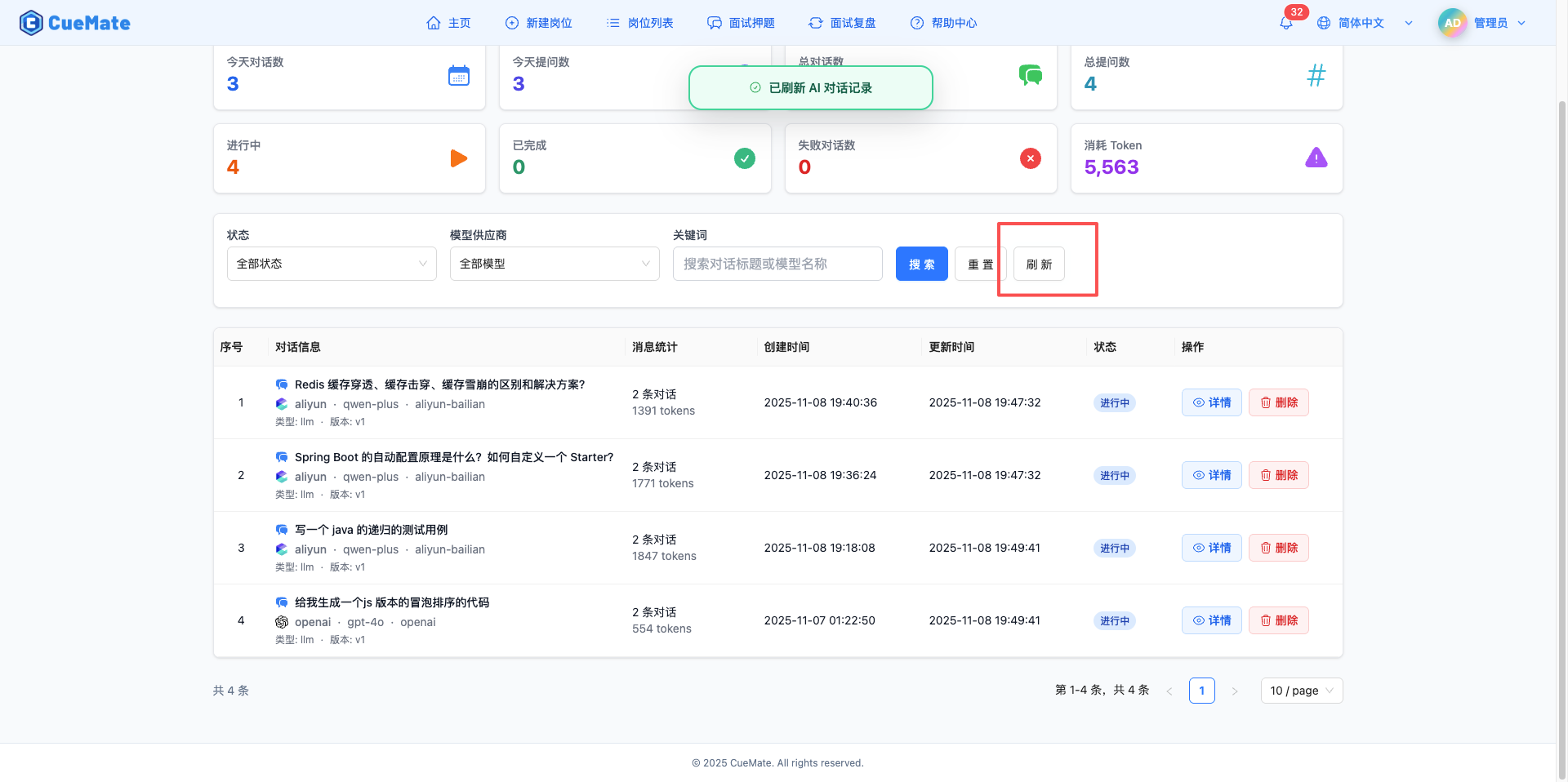
Manually refresh the conversation list and statistics:
Refresh method:
There is a "Refresh" button in the upper right corner of the page:
- Click the refresh button
- Retrieve statistics
- Reload the conversation list
- Display the latest data
8.2 Automatic refresh
The following operations automatically trigger data refresh:
- First page load
- Changes in filter conditions
- Delete conversation successfully
- Switch pagination
- Close the details drawer (if modified)
9. Application scenarios
9.1 Interview preparation analysis
How to use:
- Filter conversations with the keyword "interview"
- View historical questions and answers
- Analyze answer quality
- Summarize frequently asked questions
Value:
- Understand the effectiveness of interview preparation
- Optimize the way to ask questions
- Accumulate interview experience
9.2 Comparison of model effects
How to use:
- Filter by model service provider
- Compare answers from different models
- Analyze Token consumption
- Select the optimal model
Value:
- Find the most suitable model
- Optimize cost-effectiveness
- Improve answer quality
9.3 Use cost analysis
How to use:
- View total Token statistics
- Calculate actual costs
- Analyze usage trends
- Create a budget plan
Value:
- Control usage costs
- Reasonable allocation of resources
- Forecast future expenses
9.4 Problem diagnosis and debugging
How to use:
- Filter failed conversations
- View error details
- Analyze the reasons for failure
- Adjust configuration parameters
Value:
- Quickly locate problems
- Improve service stability
- Optimize user experience
10. Best Practices
10.1 Clean history regularly
Suggestion:
- Clean up expired conversations once a month
- Keep important conversations as reference
- Delete failed conversation records
Operation:
- Use status filtering to find "failed" conversations
- Check and delete one by one
- Use time range to filter old conversations
- Preserve valuable conversations
10.2 Proper use of filtering functions
Suggestions:
- Combine multiple filter conditions to search accurately
- Use keyword search to quickly locate
- Analyze usage by model service provider
Example:
- Find today's failed conversation from OpenAI
- Search conversations about specific positions
- Analyze the frequency of use of different models
10.3 Monitor Token Consumption
Suggestions:
- Check total Token statistics regularly
- Compare the Token consumption of different models
- Optimize prompt words to reduce Token usage
Analysis Method:
- View the "Total Token" statistics card
- Filter by model service providers and compare consumption
- Check the Token details of a single conversation
- Evaluate cost-effectiveness
10.4 Pay attention to failed conversations
Suggestions:
- Handle failed conversations promptly
- Analyze the reasons for failure
- Optimize model configuration or prompt words
Operating steps:
- Filter conversations with status "Failed"
- View details for error messages
- Document failure patterns
- Adjust usage strategies
11. FAQ
11.1 Can’t see conversation records
Question: Why can’t I see any conversation records?
Possible reasons:
- Haven’t had any AI conversations yet
- The filtering conditions are too strict and there are no matching records.
- The conversation data is not saved properly.
Solution:
- Check whether the filter conditions have been set and try clicking "Reset"
- Confirm whether there has been any AI dialogue (such as interview training, knowledge retrieval)
- Check the browser console for errors
- Try refreshing the page
11.2 Inaccurate statistics
Question: What should I do if the statistics are inaccurate?
Possible reasons:
- Data caching problem
- Statistical calculation errors
- Data synchronization delay
Solution:
- Click the refresh button to re-obtain the data
- Clear the browser cache and log in again
- Check whether the network connection is normal
- If the problem persists, contact technical support
11.3 Unable to delete conversation records
Question: Unable to delete conversation history?
Possible reasons:
- Network connection problem
- Insufficient permissions
- The conversation is in use
Solution:
- Check network connection
- Confirm that you have deletion permissions
- If the conversation status is "In Progress", end the conversation first
- Refresh the page and try again
11.4 Incomplete display of conversation details
Question: The conversation details are not displayed completely?
Possible reasons:
- The message content is too long and not fully loaded.
- Markdown rendering problem
- Data corruption
Solution:
- Scroll down to see full content
- Check whether there are rendering error prompts
- Try closing and reopening the details drawer
- If the problem persists, contact technical support
Related pages
- Model Settings - Configure AI models and service providers
- Vector Knowledge Base - View vectorized knowledge data
- System Settings - Configure system parameters