
Voice Q&A
The Voice Q&A feature allows you to ask AI questions via text or voice, and AI will analyze your question in real-time and provide professional answer suggestions. This feature is suitable for quickly querying technical questions, interview question answers, or having simple AI conversations.
1. Prerequisites
Search for the CueMate application icon on the launcher and left-click to open the application.

After launching the CueMate desktop application, you can see the control window floating directly above the screen. The button functions of the control window from left to right are:
- "Visit CueMate website" icon: click to open the CueMate official website
- "Voice Recognition" button: Click to start the voice recognition function and open the voice function window
- "Ask AI" button: Click to open the AI question window, quickly ask AI questions and get answers
- "Interactive mode" icon: Switch the click penetration mode of the window (interactive mode can operate the window normally, clicks in penetration mode will penetrate to the underlying application)
- "Main application window" icon: Click to open the main application window and enter the background management interface
- "Show/Hide" icon: Click to hide or show the control bar and all other windows

2. Open AI Q&A Window
2.1 Method 1: Open Directly via Control Bar
Click the "Ask AI" button on the floating control bar to directly open the AI Q&A window.
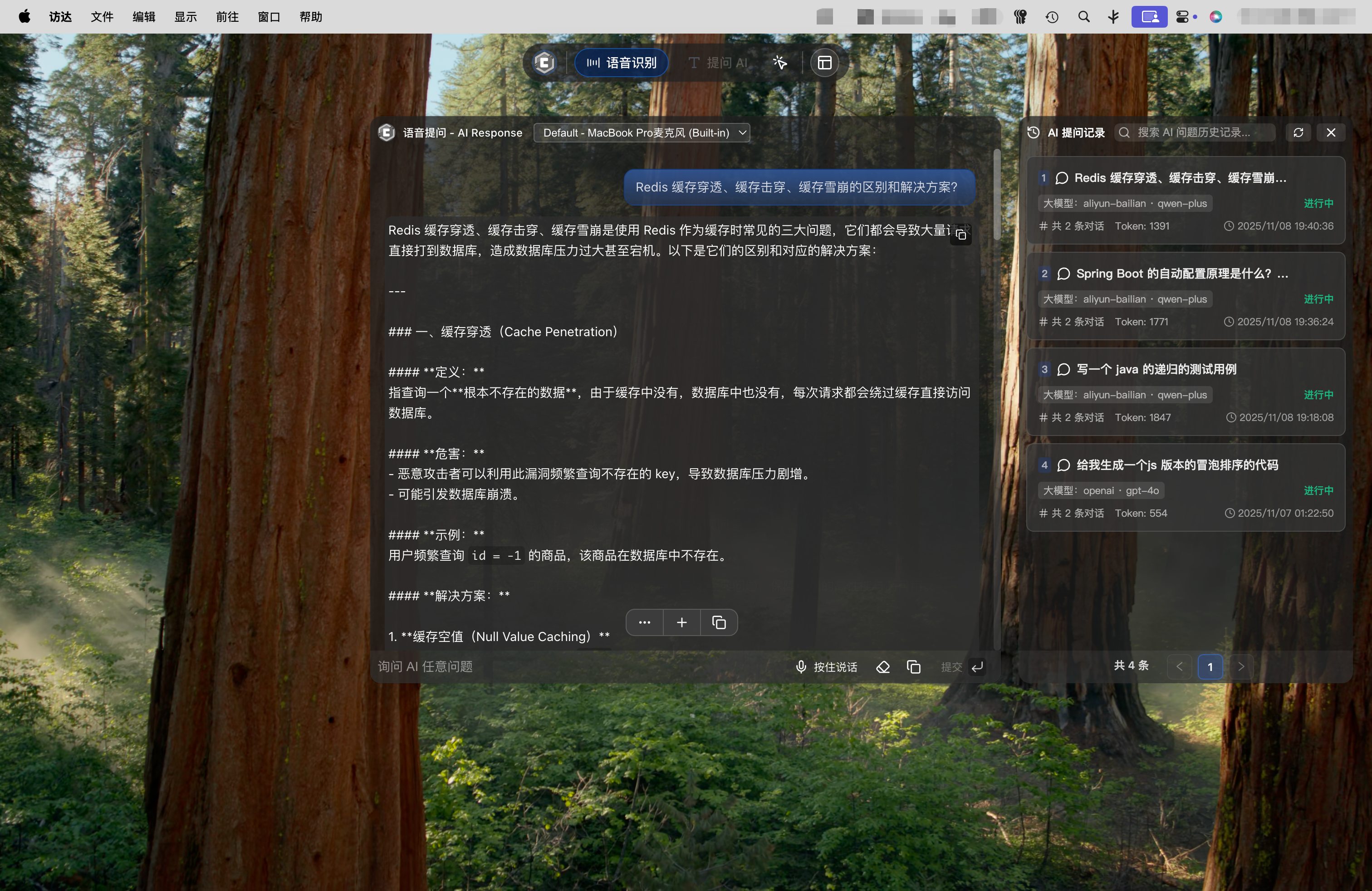
Effect:
- Opens the middle "AI Q&A" window
- Automatically opens the right "AI Q&A Records" window
- Default shows "Text Q&A" mode
2.2 Method 2: Open via Voice Recognition Window
If you want to use the voice recognition window features simultaneously, you can open it through these steps:
- Click the "Voice Recognition" button on the floating control bar
- In the popup voice recognition window, click the "Voice Q&A" card

Effect:
- Shows three windows simultaneously:
- Left: Voice Recognition window
- Middle: AI Q&A window
- Right: AI Q&A Records window
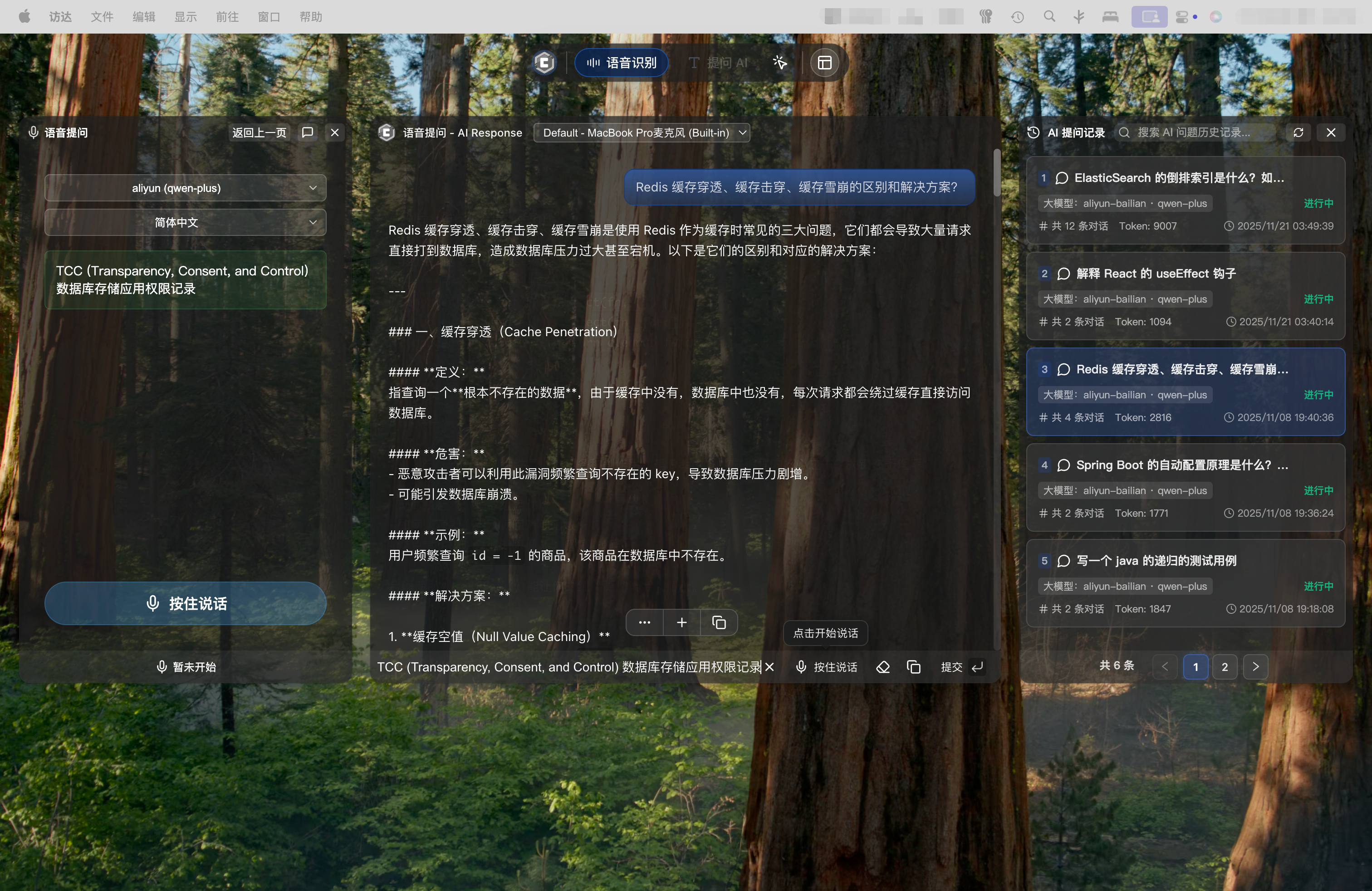
Note:
- Both the left voice recognition window and the middle AI Q&A window can accept voice input
- The "Press to Speak" buttons in both windows are synchronized, clicking either one can start voice input
3. Text Q&A Process
3.1 Enter Your Question
Enter your question in the input box at the bottom of the AI Q&A window.

Question Tips:
- Express questions clearly and completely
- Can include code snippets, technical terms
- Supports mixed Chinese and English input
Example Questions:
- "What are React Hooks? Please give examples"
- "How to optimize SQL query performance?"
- "Please explain the TCP three-way handshake process"
- "What are decorators in Python? What are their use cases?"
3.2 Send Question
After entering, press Enter or click the "Submit" button to submit your question.
Note:
- AI will immediately start analyzing your question
- The right window will show the Q&A record
- Answer will be returned in real-time streaming
3.3 View AI Response
AI will return the answer in real-time streaming in the middle "AI Conversation Records" window.
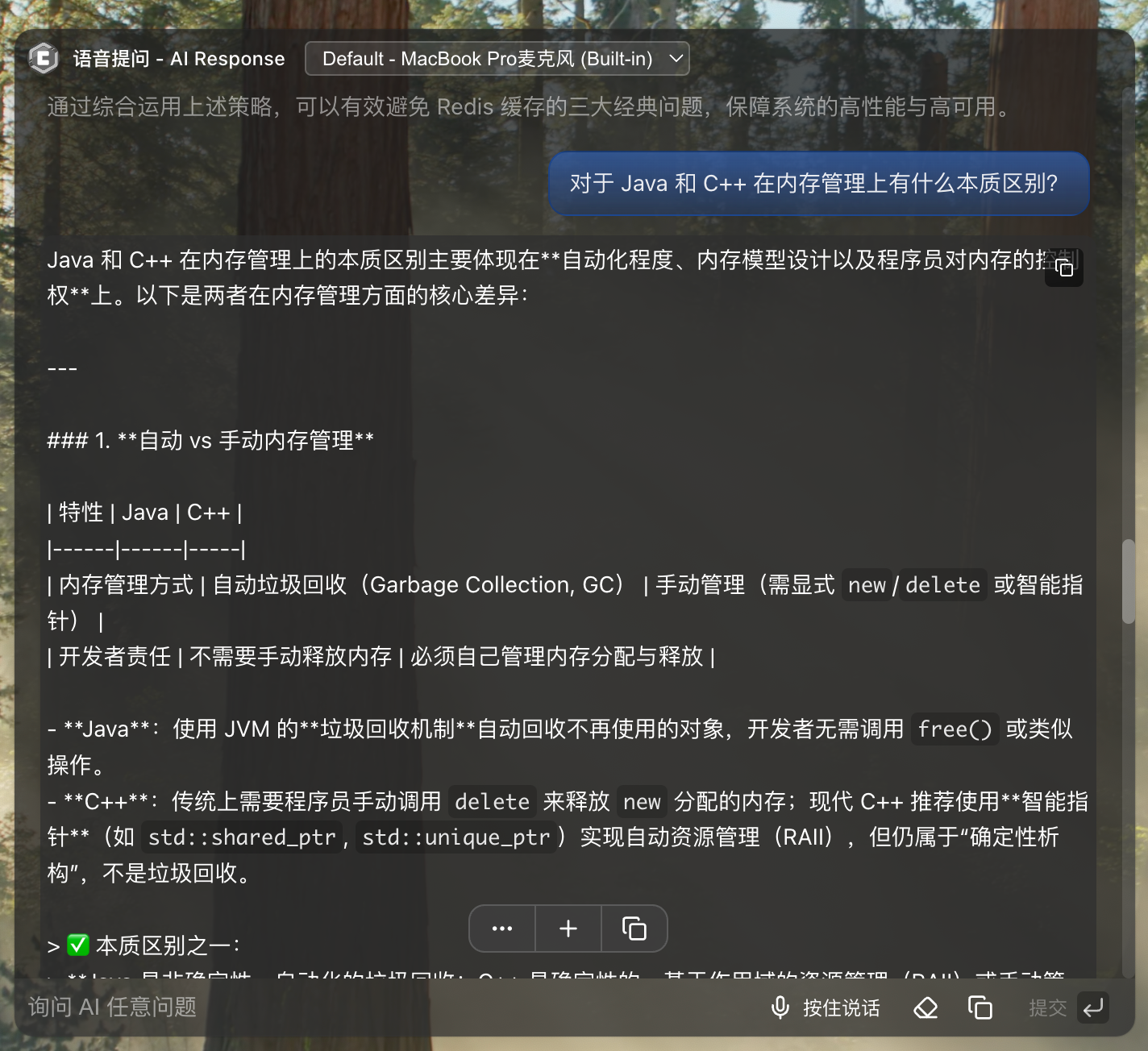
Answer Features:
- Real-time streaming output, displayed as generated
- Professional and accurate answers based on selected LLM
- Supports technical questions, interview topics, knowledge queries, etc.
- Supports Markdown format display
3.4 View History
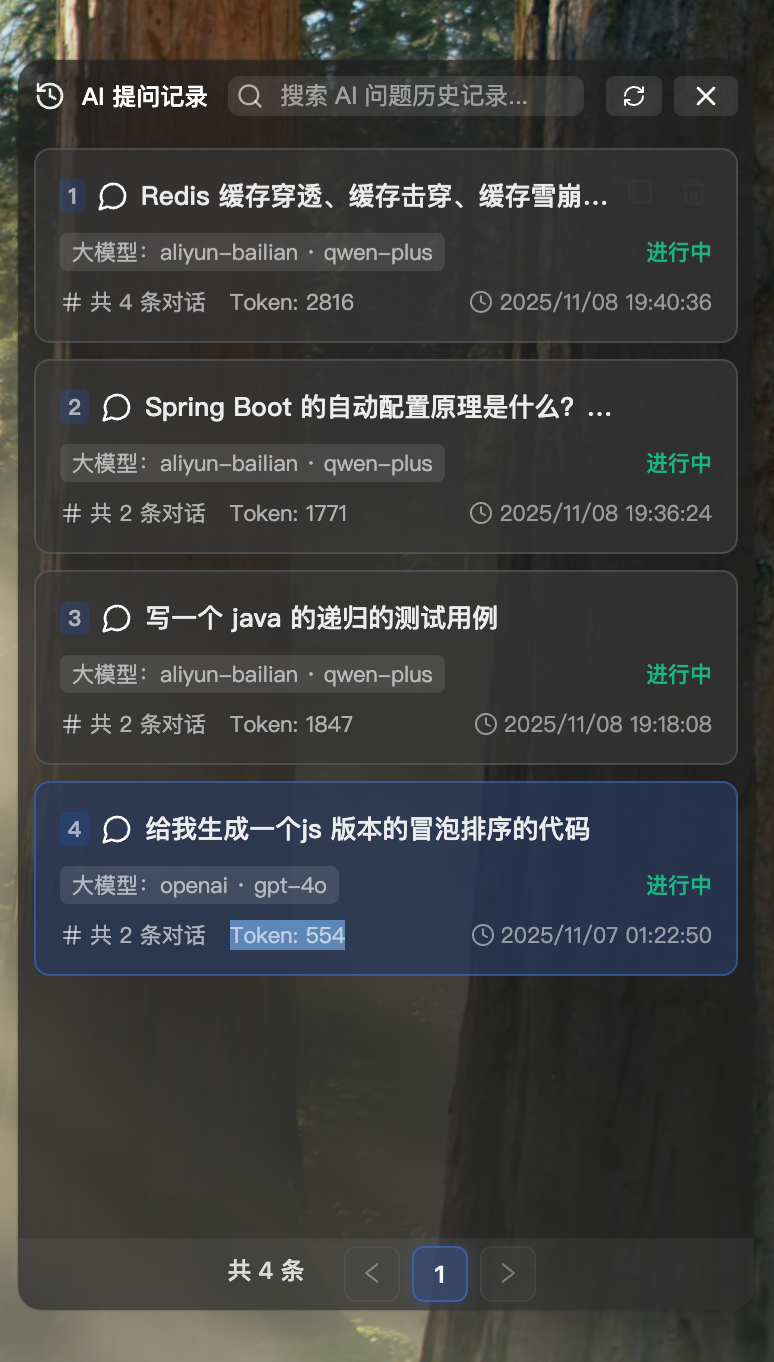
All Q&A records will be saved in the right "AI Conversation Records" window.
Features:
- View all historical conversations
- Support copying answer content
- Support deleting unwanted records
- Records are persisted
3.5 Other AI Q&A Operations
The conversation window provides the following quick action buttons:
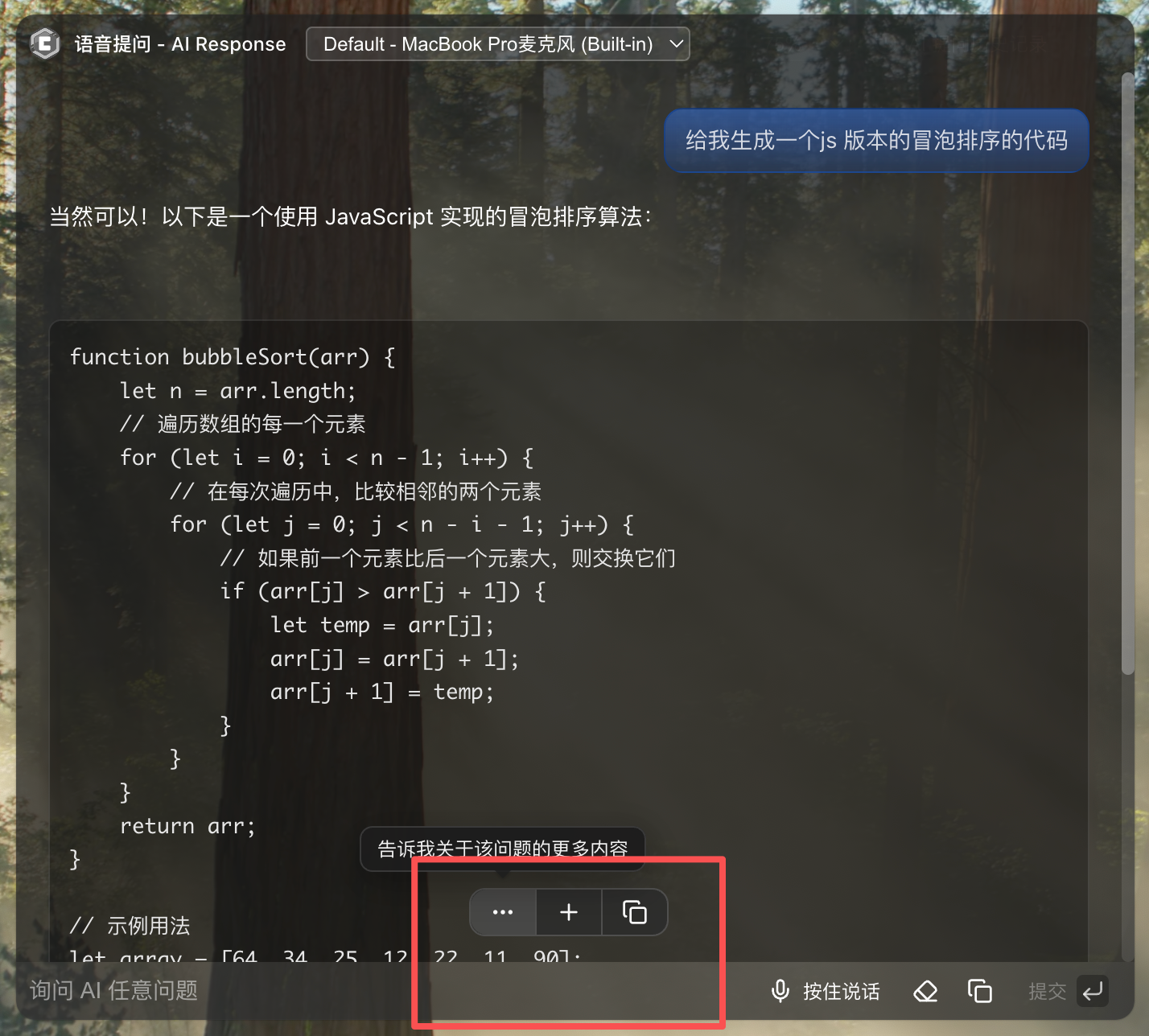
Conversation Area Floating Buttons (bottom center of window):
- Tell me more about this question: Auto-generates "Tell me more about [your last question]" and submits
- New Question: Stop current conversation, clear chat box, start new Q&A
- Copy All Conversation Content: Copy all user and AI conversation content in current chat box
Input Area Quick Buttons (bottom right of window):
- Clear Current Chat Box: Clear all conversation content, start new Q&A
- Copy Latest AI Response: Quickly copy the last AI response
- Submit: Submit current input question
4. Voice Q&A Process
4.1 Start Voice Input
Method 1: Use the middle window button
- Click the "Press to Speak" button at the bottom of the middle window
Method 2: Use the left window button
- Click the "Press to Speak" button in the left voice recognition window
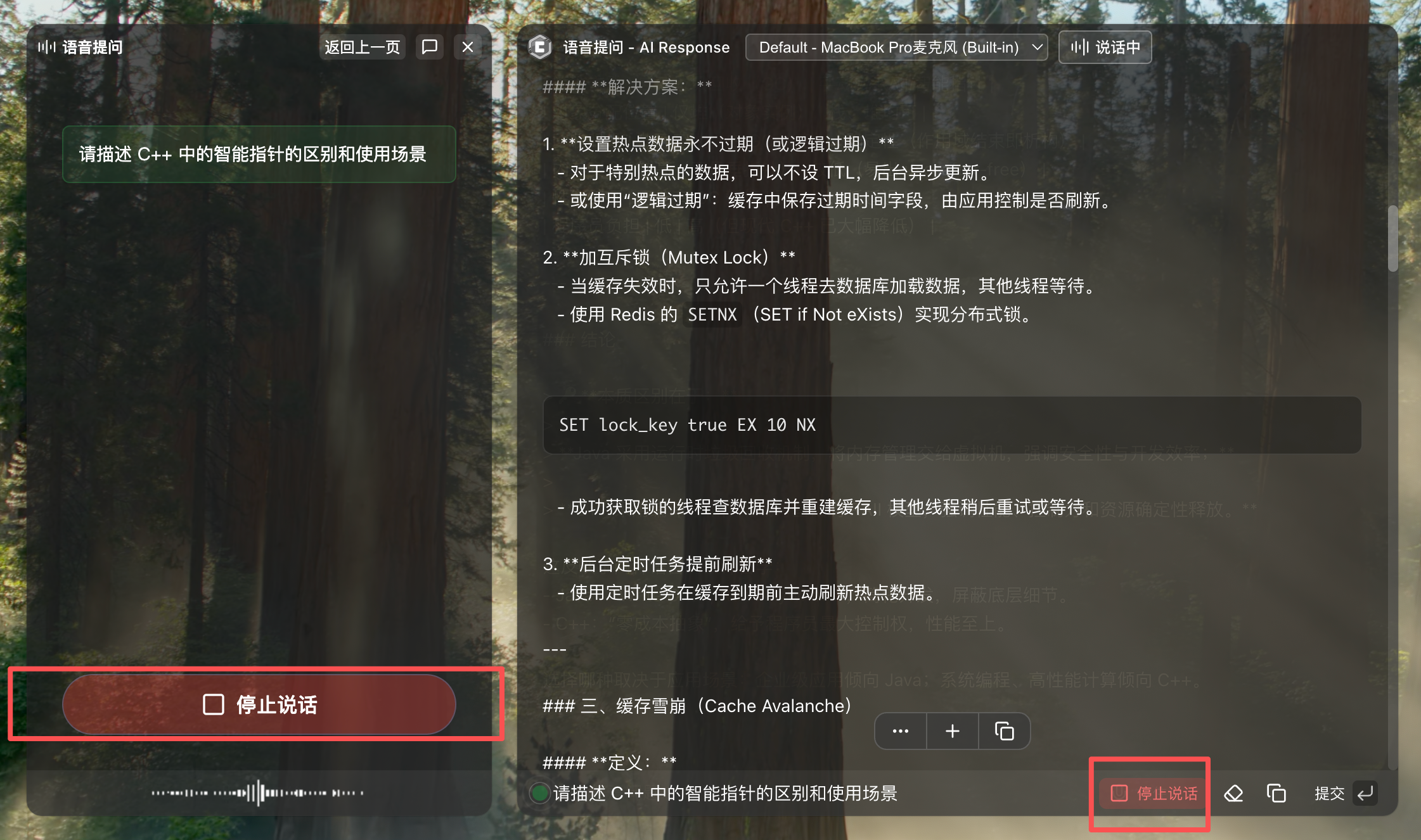
Button State Description:
- Button changes to "Stop Speaking" state after clicking
- System immediately starts recording and real-time recognition
- Recognized text is displayed in the input box in real-time
- Window title bar shows microphone device and "Speaking" status indicator
4.2 Speak Your Question
Speak your question clearly into the microphone.
Speaking Tips:
- Speak clearly, at moderate speed
- Avoid environmental noise interference
- Recommended to ask questions in Chinese (English also supported)
- Questions should be complete and specific
Example Questions:
- "What are React Hooks?"
- "How to optimize SQL query performance?"
- "Please explain the TCP three-way handshake process"
- "What are decorators in Python?"
4.3 Stop Voice Input
After speaking your question, click the "Stop Speaking" button again to end voice input.
Note:
- System will immediately stop recording
- Complete recognized text will be displayed in the input box
- You can continue editing the recognized text, or submit directly
- Use
Enterkey or "Submit" button to submit question
4.4 View AI Response
AI will return the answer in real-time streaming in the middle "AI Conversation Records" window.
Answer Features:
- Same response method as text Q&A
- Real-time streaming output
- Supports Markdown format
- Automatically saved to history
5. Feature Description
5.1 How It Works
Text Q&A Process:
- Enter Question: Type text in input box
- Question Analysis: AI LLM analyzes your question
- Generate Answer: AI generates professional answer and streams it back
- Display Answer: Window displays answer in real-time
- Save Record: Automatically saved to AI conversation records
Voice Q&A Process:
- Voice Capture: Microphone captures your voice
- Voice Recognition: cuemate-asr converts voice to text in real-time
- Text Editing: Can edit recognized text (optional)
- Question Analysis: AI LLM analyzes your question
- Generate Answer: AI generates professional answer and streams it back
- Display Answer: Window displays answer in real-time
- Save Record: Automatically saved to AI conversation records
5.2 Window Layout Description
Method 1 Layout (opened via "Ask AI" button):
- Middle Window: AI Q&A window (text input + voice input)
- Right Window: AI conversation records window
Method 2 Layout (opened via "Voice Recognition" window):
- Left Window: Voice recognition window (can do voice input)
- Middle Window: AI Q&A window (text input + voice input)
- Right Window: AI conversation records window
Button Sync Description:
- "Press to Speak" button in left window
- "Press to Speak" button in middle window
- Both buttons are fully synchronized, clicking either one works
5.3 Use Cases
Voice Q&A is suitable for the following scenarios:
- Quick Queries: Query technical concepts, API usage, best practices
- Interview Preparation: Ask for answers to common interview questions
- Knowledge Learning: Learn new technologies, new concepts
- Problem Solving: Solve problems encountered in programming
- Code Understanding: Ask about the meaning and principles of code snippets
5.4 Differences from Other Features
| Feature | Applicable Scenario | Characteristics |
|---|---|---|
| Voice Q&A | Quick queries, single questions | Simple, fast, instant Q&A |
| Mock Interview | Complete interview process training | AI actively asks questions, multi-round dialogue, with evaluation |
| Interview Training | Actual interview training | Recognizes interviewer questions, provides answer suggestions |
6. Important Notes
6.1 Prerequisites
Before using Voice Q&A, you need to complete the following configurations:
Required Configurations:
- Voice Settings - Configure microphone device, test voice recognition
- Model Settings - Configure LLM for generating answers
Optional Configurations: 3. System Settings - Set system language, default model
6.2 Service Dependencies
Voice Q&A feature depends on the following services:
- cuemate-asr service: Voice recognition (port 10095)
- cuemate-llm-router service: LLM routing (port 3002)
- cuemate-web-api service: Data management (port 3001)
6.3 Permission Requirements
- Microphone Permission: For voice capture (popup request on first use)
6.4 Performance Optimization
Voice Recognition:
- Recognition latency about 1-2 seconds
- Recommended to use in quiet environment
- Keep microphone distance 10-30cm
AI Answer Generation:
- Latency depends on selected model
- GPT-4: Slower but higher quality
- GPT-3.5-turbo: Fast with good quality (recommended)
- Domestic models: Fast speed, good Chinese performance
7. FAQ
7.1 Inaccurate Voice Recognition
Issue: Recognized text is inaccurate
Solutions:
- Check microphone distance (recommend 10-30cm)
- Speak clearly, at moderate speed
- Avoid environmental noise
- First do Voice Test to confirm device is working
7.2 Cannot Start Voice Input
Issue: No response when clicking "Press to Speak"
Solutions:
- Check if microphone permission is granted
- Check if cuemate-asr service is running normally
- View Container Monitor to confirm service status
- View error messages in Log Management
7.3 AI Response Delayed
Issue: AI response is very slow
Solutions:
- Switch to a faster responding model (such as GPT-5)
- Check network connection
- View model configuration in Model Settings
- Try using domestic models (such as Zhipu AI, Kimi)
7.4 History Lost
Issue: Previous conversation records cannot be found
Solutions:
- Check if records were accidentally deleted
- View AI Conversation Records page
- All records are saved in database, won't be automatically deleted
Related Pages
- Voice Test - Test microphone and speaker
- Model Settings - Configure LLM
- Voice Settings - Configure voice recognition service
- Mock Interview - AI mock interview training
- Interview Training - Real interview training
- AI Conversation Records - View all AI conversation history
- Container Monitor - View service running status