

Configure DeepSeek
DeepSeek is an emerging Chinese large model company, providing advanced open-source large language models including DeepSeek-V3 and DeepSeek-R1. Known for its excellent value and powerful performance, it particularly excels at code generation, mathematical reasoning, and long text processing.
1. Get DeepSeek API Key
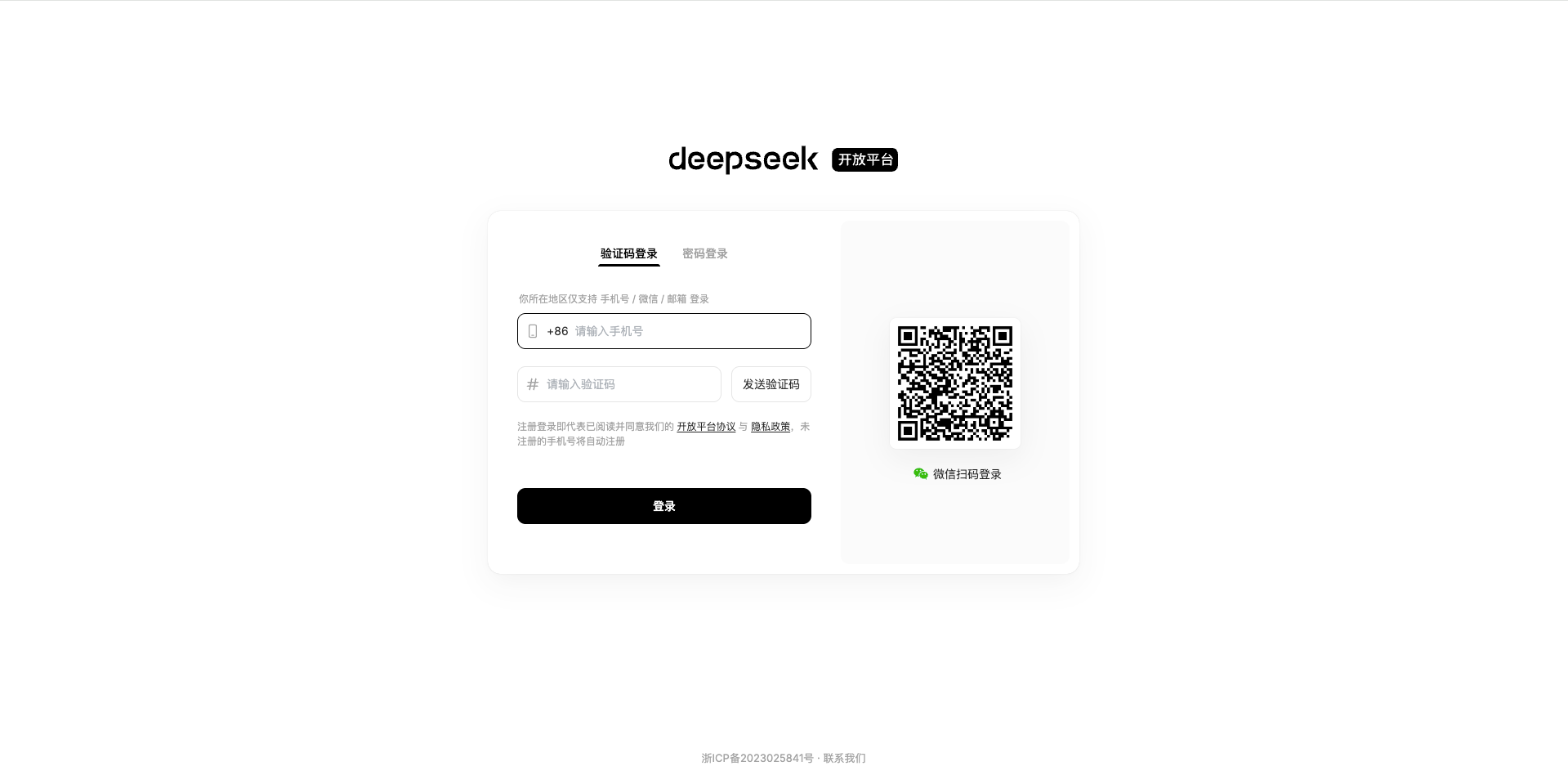
1.1 Access DeepSeek Open Platform
Visit DeepSeek Open Platform and log in: https://platform.deepseek.com/
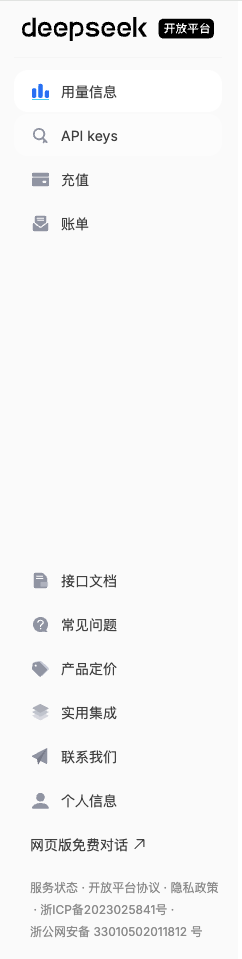
1.2 Go to API Keys Page
After logging in, click API Keys in the left menu to enter the key management page.
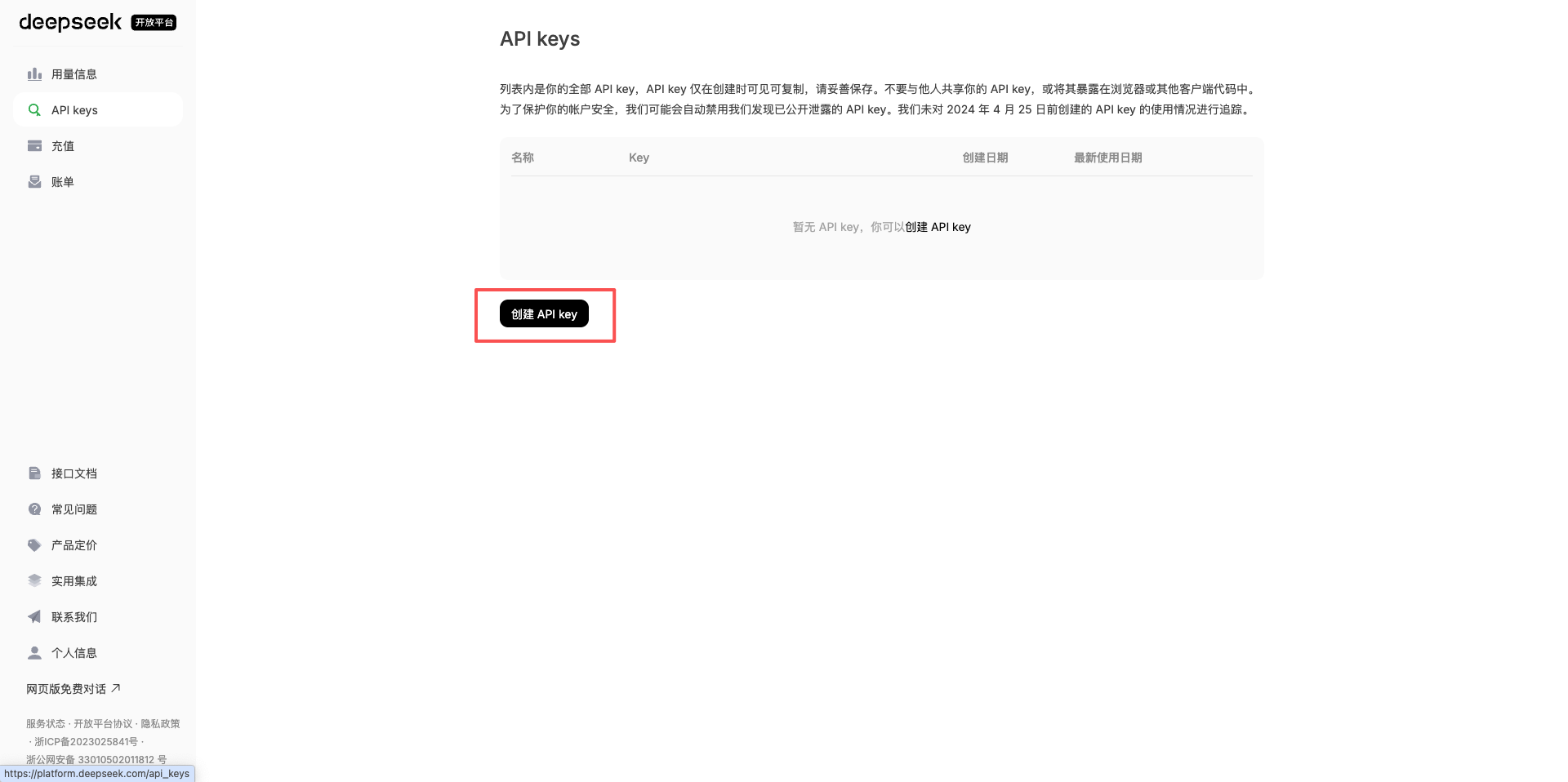
1.3 Create a New API Key
Click the Create API Key button in the upper right corner.
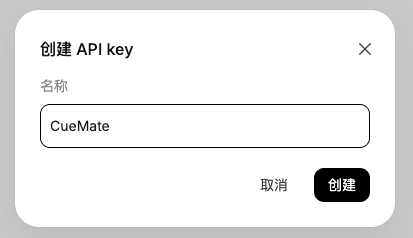
1.4 Set API Key Information
In the popup dialog:
- Enter a name for the API Key (e.g., CueMate)
- Click the Confirm button
1.5 Copy API Key
After successful creation, the system will display the API Key.
Important: This is the only time you can see the complete API Key, please copy and save it securely immediately.
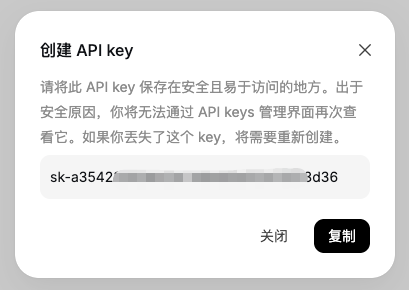
Click the copy button, and the API Key will be copied to your clipboard.
2. Configure DeepSeek Model in CueMate
2.1 Go to Model Settings Page
After logging into the CueMate system, click Model Settings in the dropdown menu in the upper right corner.
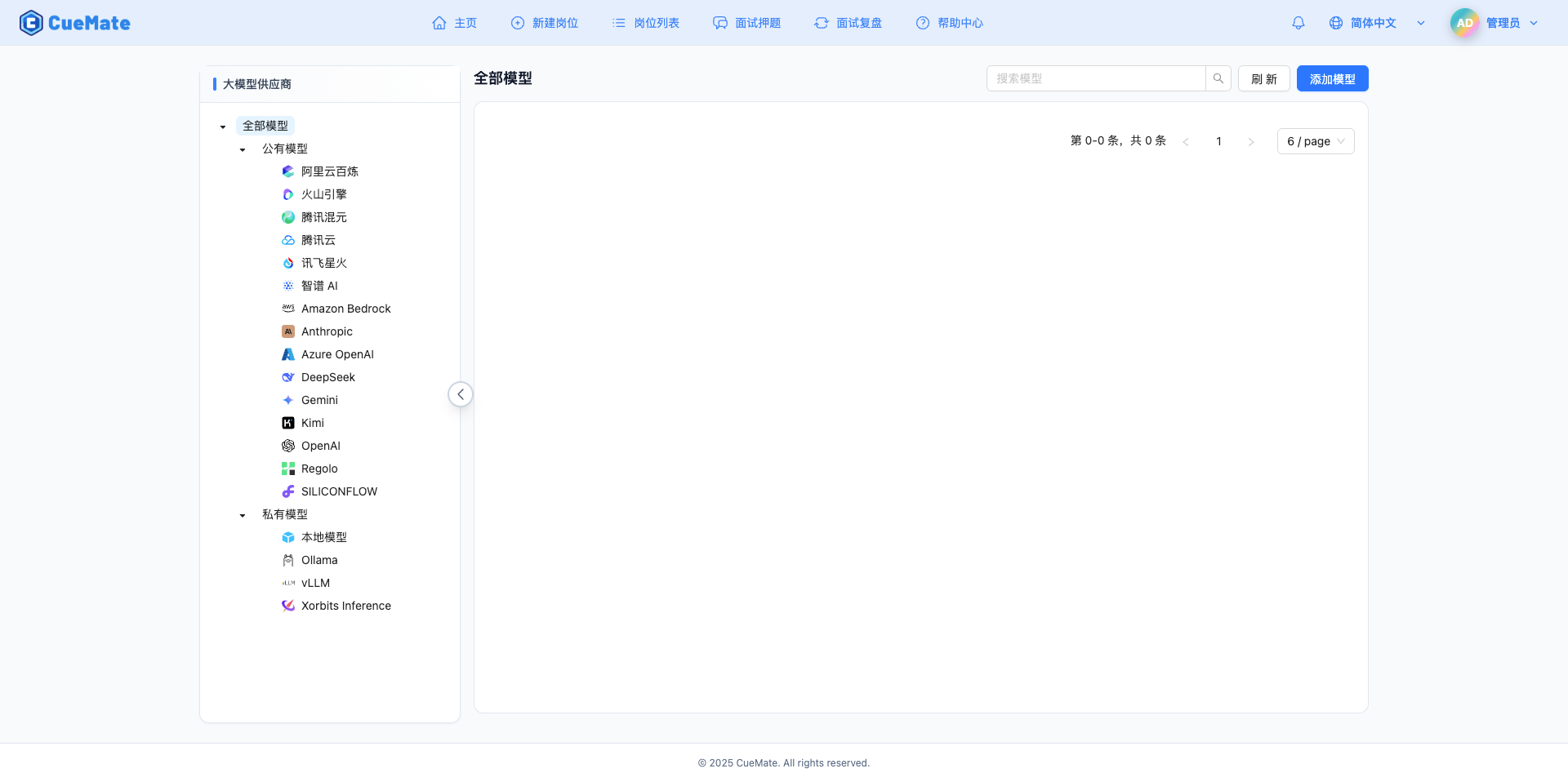
2.2 Add New Model
Click the Add Model button in the upper right corner.

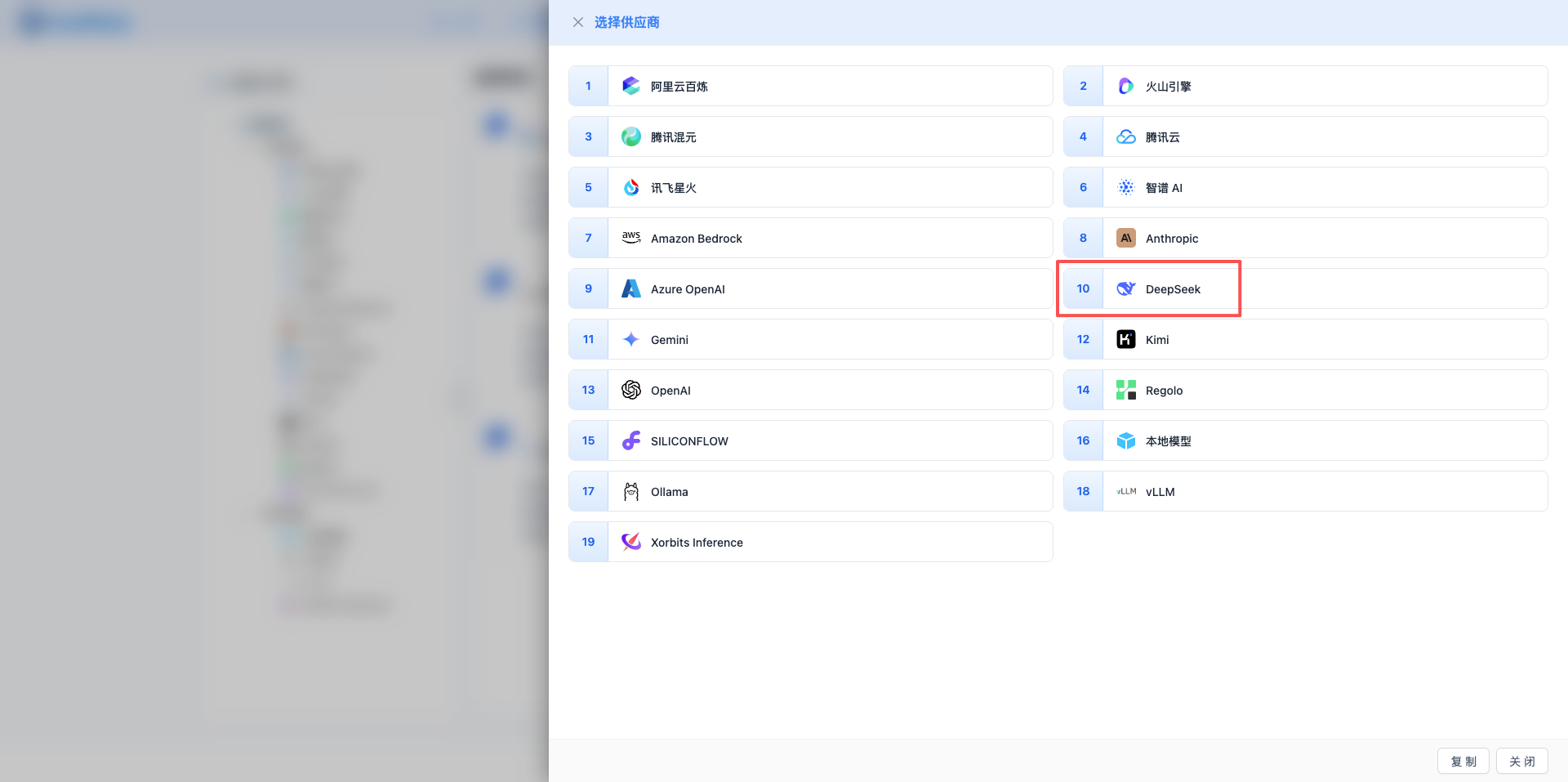
2.3 Select DeepSeek Provider
In the popup dialog:
- Provider Type: Select DeepSeek
- Click to automatically proceed to the next step
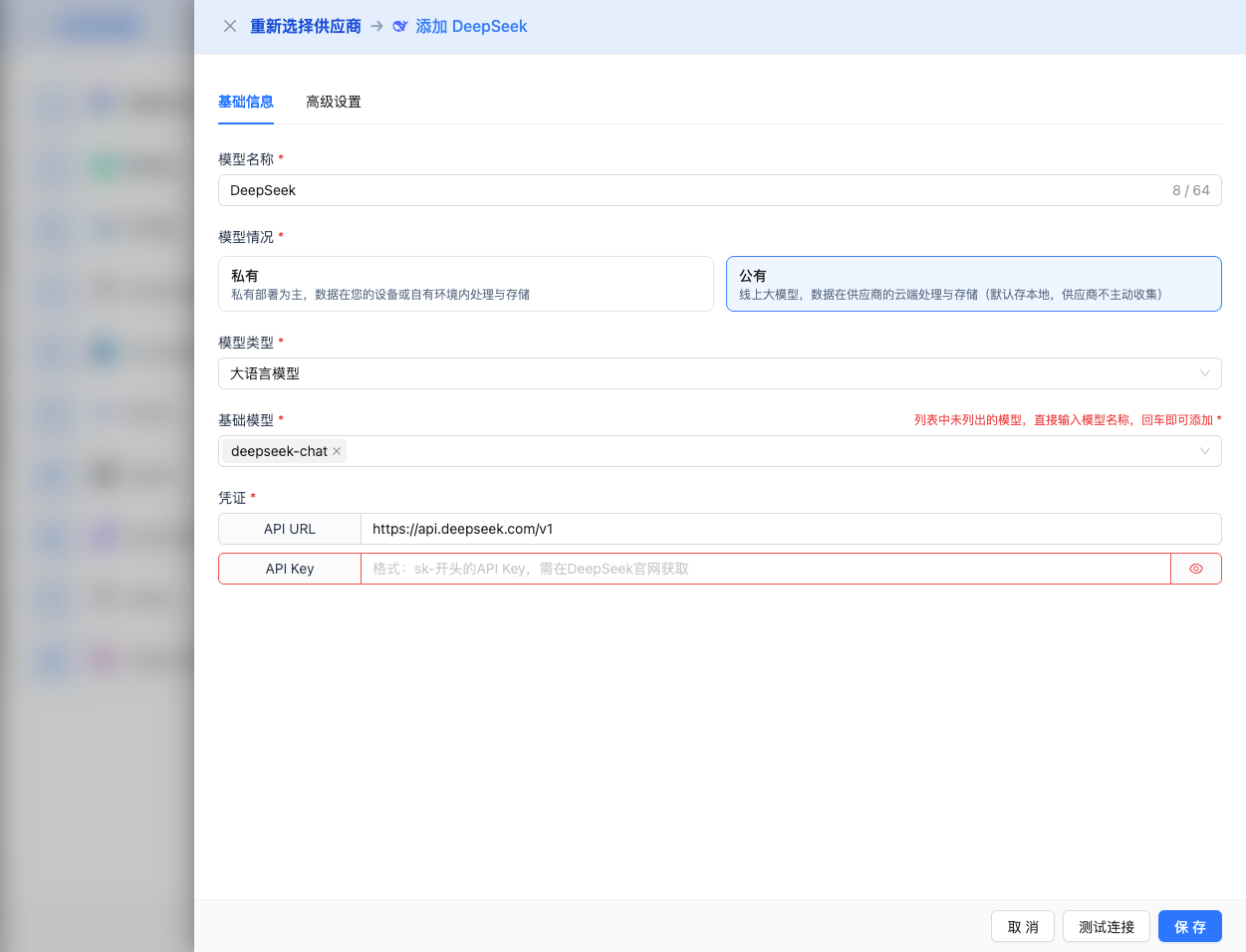
2.4 Fill in Configuration Information
Fill in the following information on the configuration page:
Basic Configuration
- Model Name: Give this model configuration a name (e.g., DeepSeek-V3.2-Reasoner)
- API URL: Keep the default
https://api.deepseek.com/v1(OpenAI compatible format) - API Key: Paste the DeepSeek API Key you just copied
- Model Version: Select the model ID to use, common models include:
deepseek-reasoner: DeepSeek-V3.2-Exp thinking mode, max output 64K, suitable for complex reasoning and technical interviewsdeepseek-chat: DeepSeek-V3.2-Exp non-thinking mode, max output 8K, suitable for regular dialogue and fast response
Advanced Configuration (Optional)
Expand the Advanced Configuration panel to adjust the following parameters:
Parameters adjustable in CueMate interface:
Temperature: Controls output randomness
- Range: 0-2
- Recommended Value: 0.7
- Function: Higher values produce more random and creative output, lower values produce more stable and conservative output
- Usage Suggestions:
- Creative writing/brainstorming: 1.0-1.5
- Regular conversation/Q&A: 0.7-0.9
- Code generation/precise tasks: 0.3-0.5
Max Tokens: Limits single output length
- Range: 256 - 64000 (depending on model)
- Recommended Value: 8192
- Function: Controls the maximum word count per model response
- Model Limits:
- deepseek-reasoner: Max 64K tokens
- deepseek-chat: Max 8K tokens
- Usage Suggestions:
- Brief Q&A: 1024-2048
- Regular conversation: 4096-8192
- Long text generation: 16384-32768
- Ultra-long reasoning: 65536 (reasoner mode only)
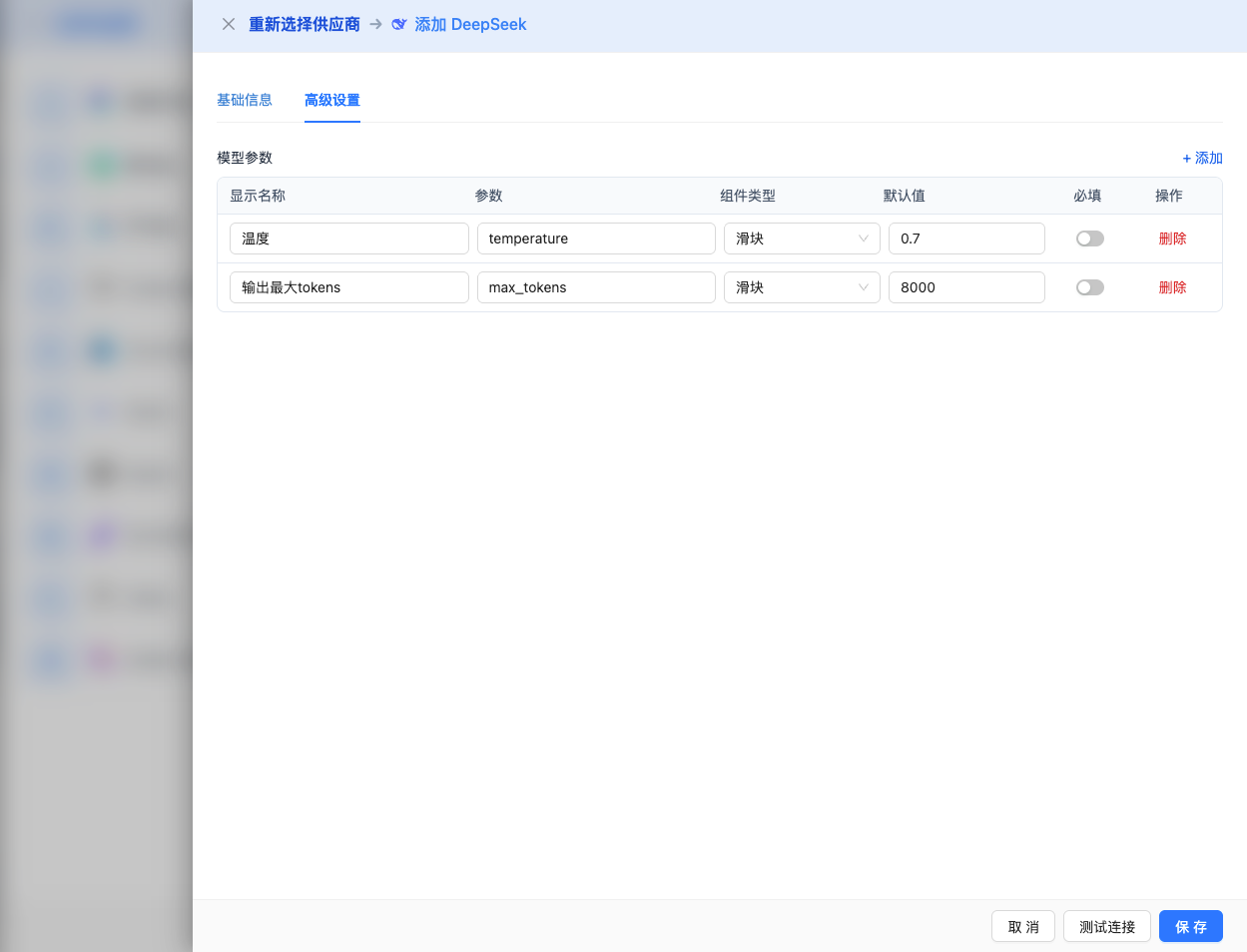
Other advanced parameters supported by DeepSeek API:
While the CueMate interface only provides temperature and max_tokens adjustments, if you call DeepSeek directly via API, you can also use the following advanced parameters (DeepSeek uses OpenAI compatible API format):
top_p (nucleus sampling)
- Range: 0-1
- Default: 1
- Function: Samples from the smallest candidate set whose cumulative probability reaches p
- Relationship with temperature: Usually adjust only one of them
- Usage Suggestions:
- Maintain diversity but avoid extremes: 0.9-0.95
- More conservative output: 0.7-0.8
frequency_penalty
- Range: -2.0 to 2.0
- Default: 0
- Function: Reduces probability of repeating the same words (based on word frequency)
- Usage Suggestions:
- Reduce repetition: 0.3-0.8
- Allow repetition: 0 (default)
- Force diversity: 1.0-2.0
presence_penalty
- Range: -2.0 to 2.0
- Default: 0
- Function: Reduces probability of words that have already appeared (based on whether they appeared)
- Usage Suggestions:
- Encourage new topics: 0.3-0.8
- Allow repeating topics: 0 (default)
stop (stop sequences)
- Type: String or array
- Default: null
- Function: Stops when generated content contains specified strings
- Example:
["###", "User:", "\n\n"] - Use Cases:
- Structured output: Use delimiters to control format
- Dialogue systems: Prevent model from speaking for user
stream (streaming output)
- Type: Boolean
- Default: false
- Function: Enables SSE streaming return, returns as it generates
- In CueMate: Automatically handled, no manual setting needed
| No. | Scenario | temperature | max_tokens | top_p | frequency_penalty | presence_penalty |
|---|---|---|---|---|---|---|
| 1 | Creative Writing | 1.0-1.2 | 4096-8192 | 0.95 | 0.5 | 0.5 |
| 2 | Code Generation | 0.2-0.5 | 2048-4096 | 0.9 | 0.0 | 0.0 |
| 3 | Q&A System | 0.7 | 1024-2048 | 0.9 | 0.0 | 0.0 |
| 4 | Summarization | 0.3-0.5 | 512-1024 | 0.9 | 0.0 | 0.0 |
| 5 | Complex Reasoning | 0.7 | 32768-65536 | 0.9 | 0.0 | 0.0 |
2.5 Test Connection
After filling in the configuration, click the Test Connection button to verify if the configuration is correct.
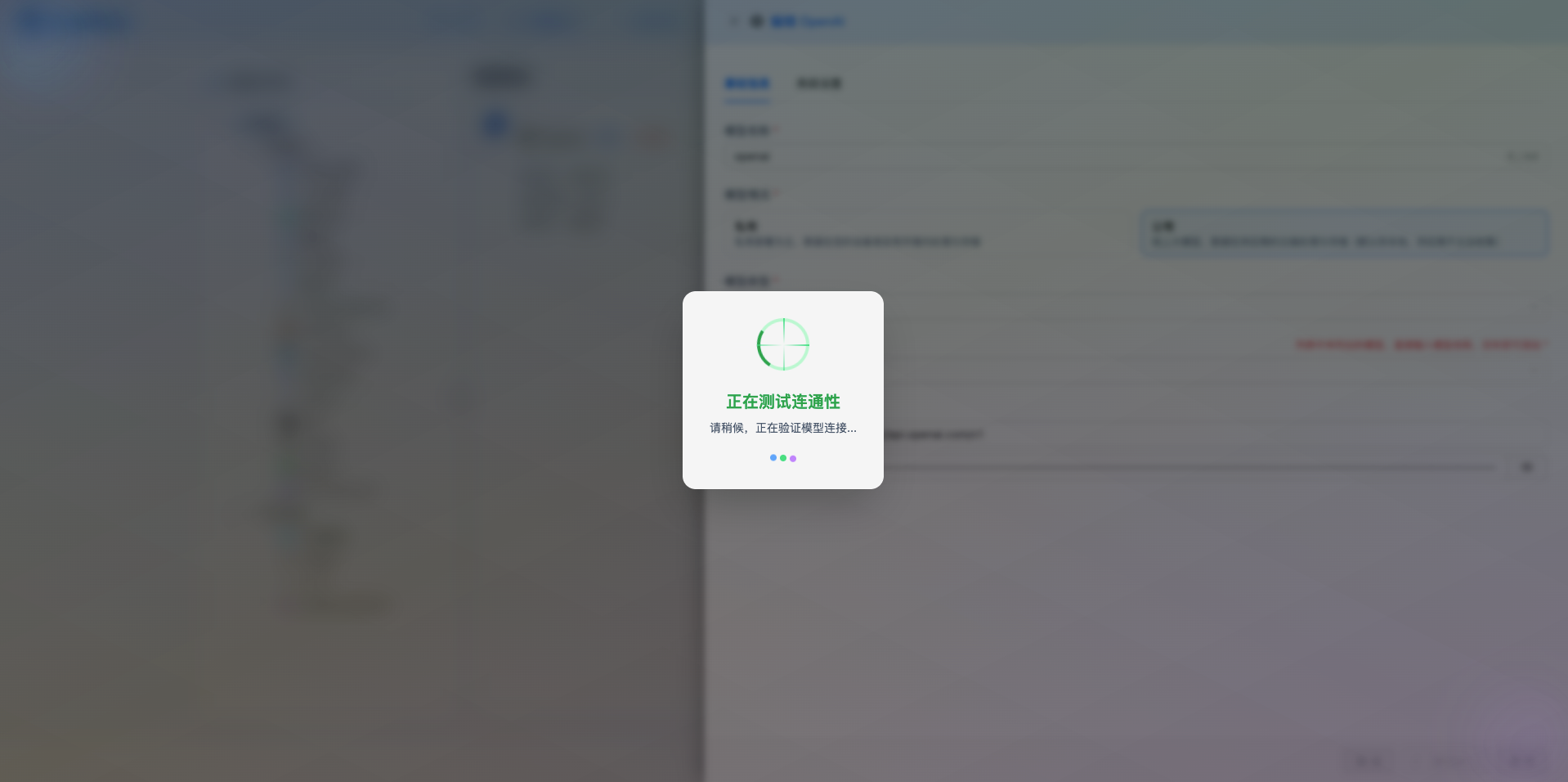
If the configuration is correct, a success message will be displayed along with a sample response from the model.
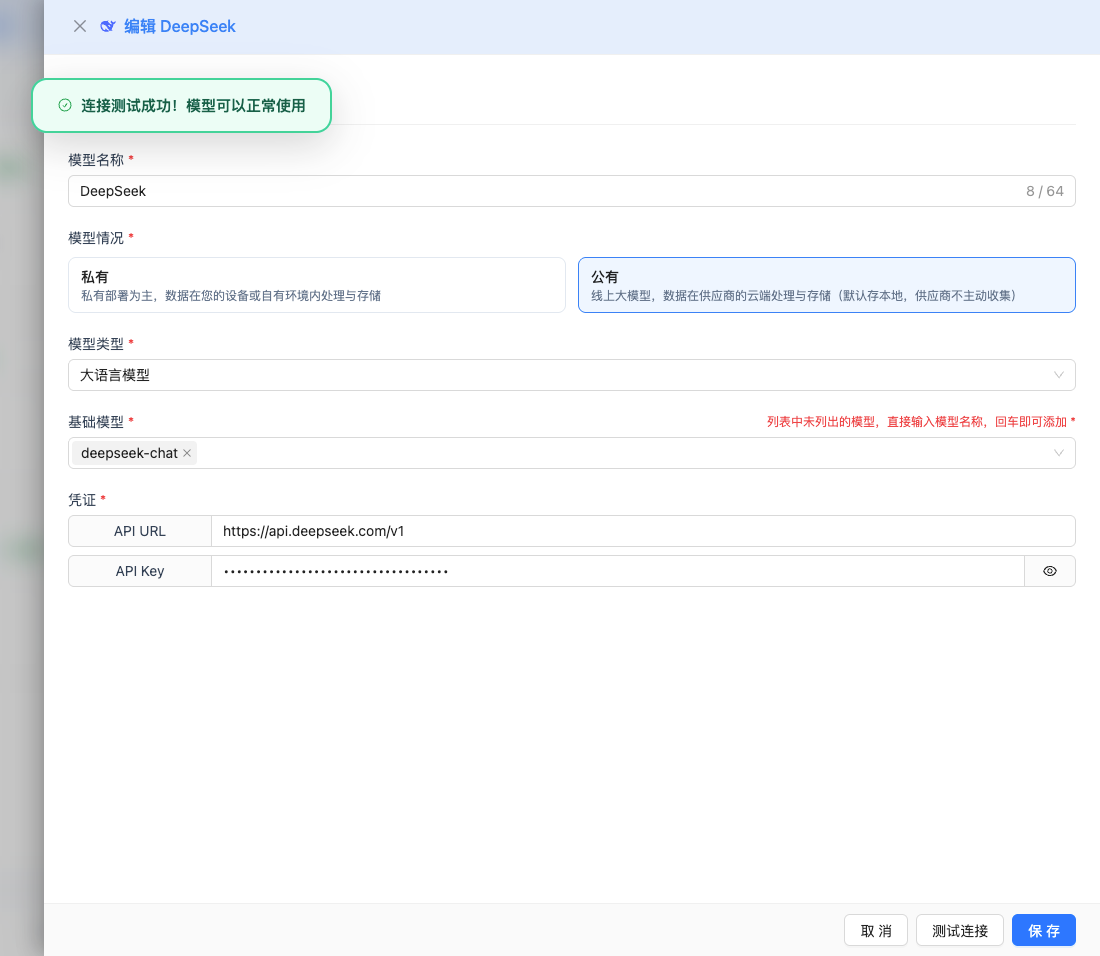
If the configuration is incorrect, an error log will be displayed, and you can view specific error information through log management.
2.6 Save Configuration
After successful testing, click the Save button to complete the model configuration.
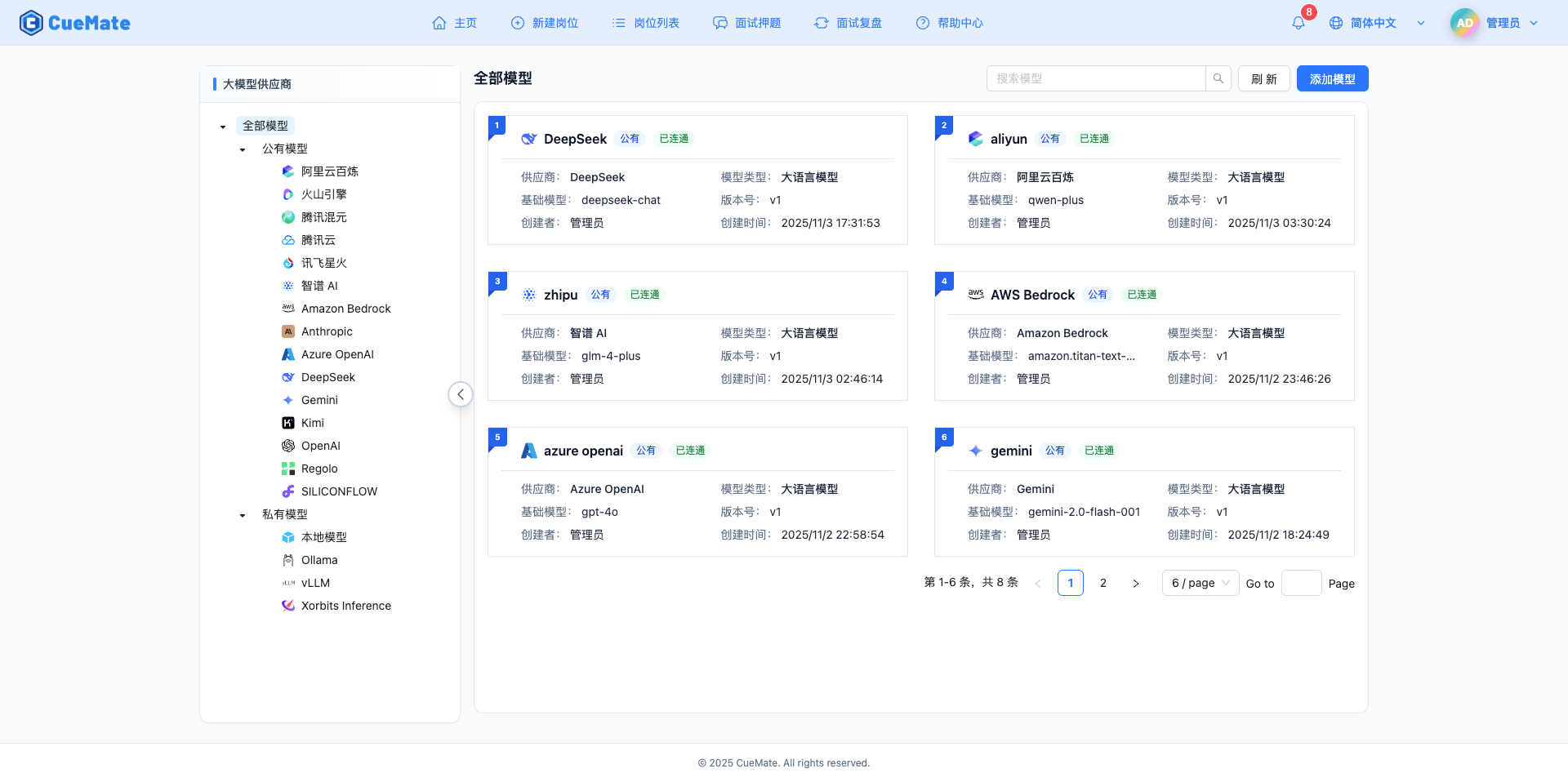
3. Use the Model
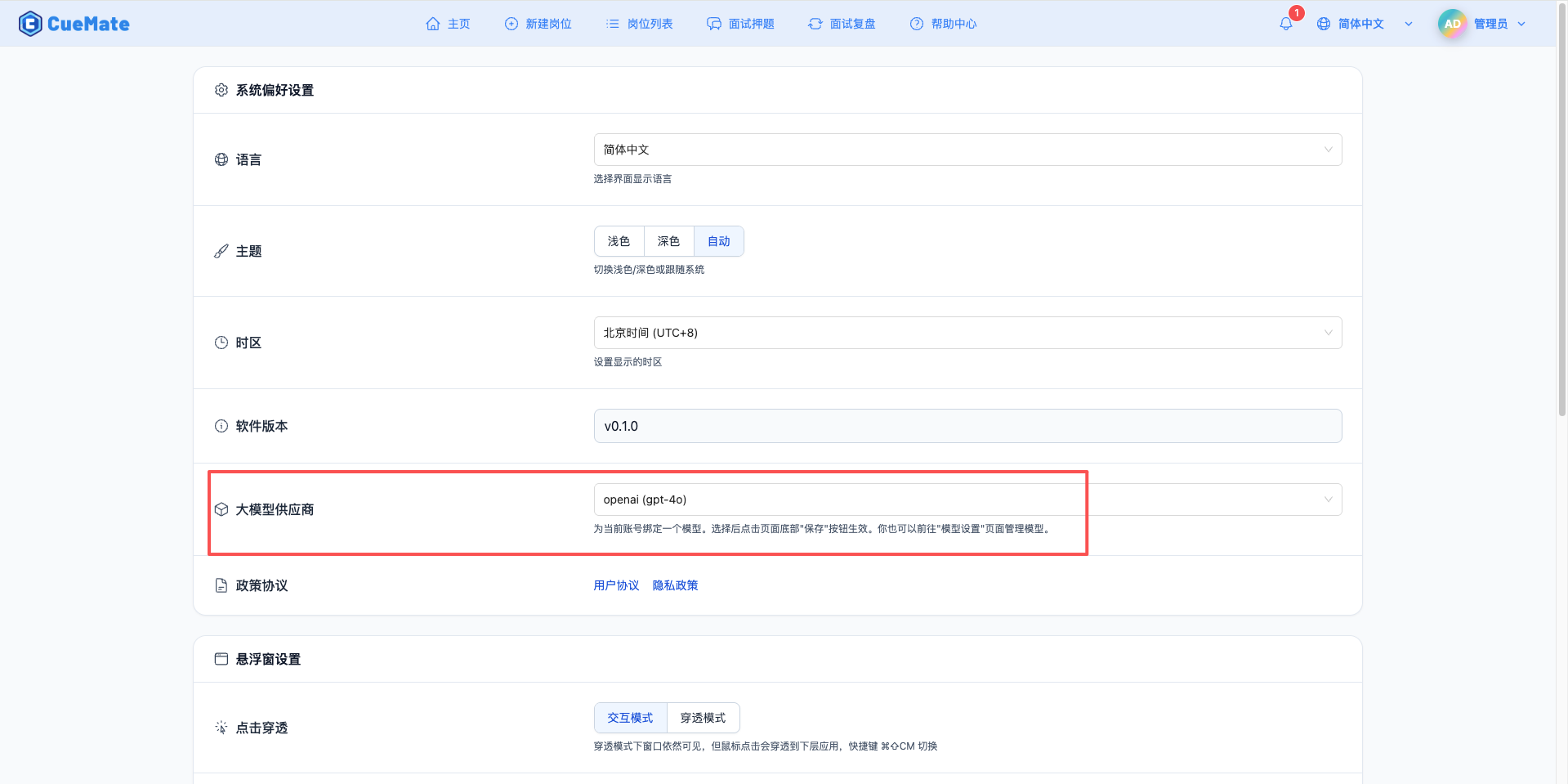
Go to the system settings page through the dropdown menu in the upper right corner, and select the model configuration you want to use in the LLM provider section.
After configuration, you can select this model in features like interview training and question generation. You can also select this model configuration for a specific interview in the interview options.
4. Supported Model List
4.1 DeepSeek-V3.2-Exp Series
| No. | Model Name | Model ID | Max Output | Use Case |
|---|---|---|---|---|
| 1 | DeepSeek Reasoner | deepseek-reasoner | 64K tokens | Thinking mode, complex reasoning, technical interviews |
| 2 | DeepSeek Chat | deepseek-chat | 8K tokens | Non-thinking mode, regular dialogue, fast response |
5. FAQ
5.1 Invalid API Key
Symptom: API Key error when testing connection
Solutions:
- Check if API Key starts with
sk- - Confirm API Key has not expired or been disabled
- Check if account has available credits
5.2 Request Timeout
Symptom: Long wait time with no response when testing connection or using the model
Solutions:
- Check if network connection is normal
- Confirm API URL address is correct
- Check firewall settings
5.3 Insufficient Quota
Symptom: Quota exhausted or insufficient balance message
Solutions:
- Log in to DeepSeek platform to check account balance
- Top up or request more quota
- Optimize usage frequency